mirror NISSAN ARMADA 2020 Owner´s Manual
[x] Cancel search | Manufacturer: NISSAN, Model Year: 2020, Model line: ARMADA, Model: NISSAN ARMADA 2020Pages: 528, PDF Size: 2.1 MB
Page 209 of 528
Defrosting outside mirrors
The outside mirrors will be heated when
the rear window defroster switch is
operated. (See “Rear window and outside
mirror defroster switch” (P.2-36).)
SPA2738
Power foldable outside mirrors
CAUTION
.Do not touch the mirrors while
they are moving. Your hand may
be pinched, and the mirror may
malfunction.
. Do not drive with the mirrors
stored. You will be unable to see
behind the vehicle.
. If the mirrors were folded or
unfolded by hand, there is a
chance that the mirror will move
forward or backward during driv- ing. If the mirrors were folded or
unfolded by hand, be sure to
adjust them again electrically be-
fore driving.
The outside mirror remote control oper-
ates when the ignition switch is in the
ACC or ON position.
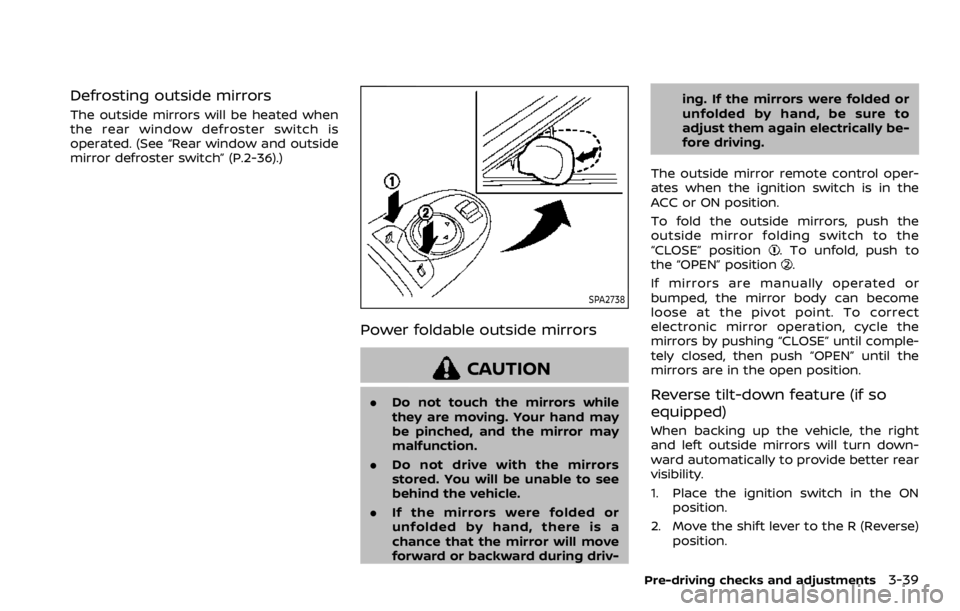
To fold the outside mirrors, push the
outside mirror folding switch to the
“CLOSE” position
. To unfold, push to
the “OPEN” position.
If mirrors are manually operated or
bumped, the mirror body can become
loose at the pivot point. To correct
electronic mirror operation, cycle the
mirrors by pushing “CLOSE” until comple-
tely closed, then push “OPEN” until the
mirrors are in the open position.
Reverse tilt-down feature (if so
equipped)
When backing up the vehicle, the right
and left outside mirrors will turn down-
ward automatically to provide better rear
visibility.
1. Place the ignition switch in the ON position.
2. Move the shift lever to the R (Reverse) position.
Pre-driving checks and adjustments3-39
Page 210 of 528

3-40Pre-driving checks and adjustments
3. Choose the right or left outside mirrorby operating the outside mirror con-
trol switch.
4. The outside mirror surfaces move downward.
When one of the following conditions has
occurred, the outside mirror surfaces will
return to their original positions.
. The shift lever is moved to any posi-
tion other than R (Reverse).
. The outside mirror control switch is
set to the center position.
. The ignition switch is placed in the
OFF position.
Automatic anti-glare (if so
equipped)
The outside rearview mirrors are de-
signed so that its automatically change
reflection according to the intensity of
the headlights of the vehicle following
you.
The anti-glare system will be automati-
cally turned on when the ignition switch is
placed in the ON position.
SIC4448
VANITY MIRROR
To use the front vanity mirror, pull down
the sun visor and pull up the cover.
JVP0247X
SET/memory switches
The automatic drive positioner system
has three features:
.Entry/exit function
. Memory storage
. Setting memory function
ENTRY/EXIT FUNCTION
This system is designed so that the
driver’s seat and steering column will
automatically move when the automatic
transmission shift lever is in the P (Park)
position. This allows the driver to get into
and out of the driver’s seat more easily.
The driver’s seat will slide backward and
the steering wheel will move up when the
driver’s door is opened with the ignition
AUTOMATIC DRIVE POSITIONER (if
so equipped)
Page 211 of 528

switch in the LOCK position.
The driver’s seat and steering wheel will
return to the previous positions when the
ignition switch is pushed to the ACC
position.
The driver’s seat will not return to the
previous positions if the seat or steering
adjusting switch is operated when the
seat is at the exit position.
Cancel or activate entry/exit func-
tion
The shift lever must be in the P (Park)
position with the ignition switch in the
OFF position.
The entry/exit function can be activated
or canceled by pressing and holding the
SET switch for more than 10 seconds.
The entry/exit function can also be acti-
vated or canceled if the “Lift Steering
Wheel on Exit” key or “Slide Driver Seat
Back on Exit” key is turned to ON or OFF in
the Vehicle settings on the center display.
(See NissanConnect® Owner’s Manual.)
Initialize entry/exit function
If the battery cable is disconnected, or if
the fuse opens, the entry/exit function
will not work though this function was set
on before. In such a case, after connect-
ing the battery or replacing with a new
fuse, open and close the driver’s door
more than two times after the ignition
switch is turned from the ON position to
the LOCK position. The entry/exit func-
tion will be activated.
MEMORY STORAGE
Two positions for the driver’s seat, steer-
ing column and outside mirrors can be
stored in the automatic drive positioner
memory. Follow these procedures to use
the memory system.
1. Move the shift lever to the P (Park)position.
2. Adjust the driver’s seat, steering col- umn and outside mirrors to the de-
sired positions by manually operating
each adjusting switch. For additional
information, see “Seats” (P.1-3) and
“Tilt/telescopic steering” (P.3-29) and
“Outside mirrors” (P.3-38).
3. Push the SET switch and, within 5 seconds, push the memory switch (1
or 2) fully for at least 1 second.
The indicator light for the pushed
memory switch will stay on for ap- proximately 5 seconds after pushing
the switch.
When the memory is stored in the
memory switch (1 or 2), a buzzer will
sound.
If memory is stored in the same
memory switch, the previous memory
will be deleted.
Linking Intelligent Key to a stored
memory position
The Intelligent Key can be linked to a
stored memory position with the follow-
ing procedure.
1. Follow the steps for storing a memory
position.
2. While the indicator light for the mem- ory switch being set is illuminated for
5 seconds, push the
button on the
Intelligent Key. If the indicator light
blinks, the Intelligent Key is linked to
that memory setting.
Push the ignition switch to the OFF
position, and then push the
button
on the Intelligent Key. The driver’s seat,
steering wheel and outside mirrors will
move to the memorized position.
Pre-driving checks and adjustments3-41
Page 212 of 528

3-42Pre-driving checks and adjustments
Confirming memory storage
.Push the ignition switch to the ON
position and push the SET switch. If
the main memory has not been
stored, the indicator light will come
on for approximately 0.5 second.
When the memory has stored in posi-
tion, the indicator light will stay on for
approximately 5 seconds.
. If the battery cable is disconnected, or
if the fuse opens, the memory will be
canceled. In this case, reset the de-
sired position using the previous pro-
cedure.
. If optional Intelligent Keys are added
to your vehicle, the memory storage
procedure to switch 1 or 2 and linking
Intelligent Key procedure to a stored
memory position should be per-
formed again for each Intelligent Key.
For additional Intelligent Key informa-
tion, see “Keys” (P.3-2).
Selecting the memorized position
1. Move the shift lever to the P (Park)
position.
2. Use one of the following methods to move the driver’s seat, the outside
mirrors and the steering wheel.
.Push the memory switch (1 or 2)fully for at least 1 second. The driver’s seat, steering column and
outside mirrors will move to the
memorized position or to the exit
position when the entry/exit function
is set to active with the indicator light
flashing, and then the light will stay on
for approximately 5 seconds.
SETTING MEMORY FUNCTION
The status of the following settings can
be linked to the Intelligent Key and the
memorized settings can be available for
each Intelligent Key.
.
Air conditioner system
. Navigation system (if so equipped)
. Audio system
To use the memory function, lock the
doors with the Intelligent Key that is
linked to the settings.
To enable the memorized settings:
1. Carry the Intelligent Key that is linked to the settings, and unlock the doors
by pushing the driver’s door handle
request switch or “UNLOCK”
but-
ton on the Intelligent Key.
2. Place the ignition switch in the ON position. “Connection with the key has
been done” will be displayed on the
screen and the memorized settings
are available (only when a new Intel-
ligent Key is used).
SYSTEM OPERATION
The automatic drive positioner system
will not work or will stop operating under
the following conditions:
.When the vehicle speed is above 0
MPH (0 km/h) or 4 MPH (7 km/h) for
some limited functions such linking an
Intelligent Key to the vehicle when the
power source is turned on from off or
during the Exit function.
. When any of the memory switches are
pushed while the automatic drive
positioner is operating.
. When the adjusting switch for the
driver’s seat and steering column is
turned on while the automatic drive
positioner is operating.
. When the seat has already been
moved to the memorized position.
. When no seat position is stored in the
memory switch.
. When the shift lever is moved from the
P (Park) position to any other position.
Page 215 of 528

JVH1688X
1. SETTING button
WARNING
Failure to follow the warnings and
instructions for proper use of the
RearView Monitor system could re-
sult in serious injury or death.
.The RearView Monitor is a conve-
nience but it is not a substitute
for proper backing. Always turn
and look out the windows, and
check mirrors to be sure that it is
safe to move before operating
the vehicle. Always back up
slowly.
. The system is designed as an aid
to the driver in showing large
stationary objects directly behind
the vehicle, to help avoid dama-
ging the vehicle.
. The distance guide line and the
vehicle width line should be used
as a reference only when the
vehicle is on a level paved sur-
face. The distance viewed on the
monitor is for reference only and
may be different than the actual
distance between the vehicle and
displayed objects.
Monitor, heater, air conditioner, audio, phone and voice recognition systems4-3
REARVIEW MONITOR (if so equipped)
Page 220 of 528

4-8Monitor, heater, air conditioner, audio, phone and voice recognition systems
JVH1690X
ADJUSTING THE SCREEN
The display settings such as Brightness,
Contrast, Black Level, Tint and Color of
the RearView Monitor can be adjusted.
1. Push the SETTING button while theRearView Monitor screen is displayed.
2. The Display settings menu is dis- played. Select an item you wish to
adjust.
3. Adjust the selected item by touching the “+” or “-” key.
Select “Reset Settings” key to return all
settings to default.
Display settings menu can also be ac-
cessed while the RearView Monitor screen is not displayed. Push the SETTING
button and select “Camera/Sonar” key,
and then select “Display” key.
NOTE:
Do not adjust any of the display settings
of the RearView Monitor while the
vehicle is moving. Make sure the park-
ing brake is firmly applied.
PREDICTIVE COURSE LINE SET-
TINGS
To toggle on and off the predictive course
lines:
1. Push the SETTING button while the
RearView Monitor screen is not dis-
played.
2. Select “Camera/Sonar” key.
3. Select “Camera” key.
4. Select “Predictive Course Lines” key to turn the feature on or off. When this
item is turned on, the predictive
course lines will be displayed on the
monitor.
REARVIEW MONITOR SYSTEM LIM-
ITATIONS
WARNING
Listed below are the system limita-
tions for RearView Monitor. Failure to
operate the vehicle in accordance
with these system limitations could
result in serious injury or death.
.The system cannot completely
eliminate blind spots and may
not show every object.
. Underneath the bumper and the
corner areas of the bumper can-
not be viewed on the RearView
Monitor because of its monitoring
range limitation. The system will
not show small objects below the
bumper, and may not show ob-
jects close to the bumper or on
the ground.
. Objects viewed in the RearView
Monitor differ from actual dis-
tance because a wide-angle lens
is used.
. Objects in the RearView Monitor
will appear visually opposite
compared to when viewed in the
rearview and outside mirrors.
Page 224 of 528
4-12Monitor, heater, air conditioner, audio, phone and voice recognition systems
JVH1397X
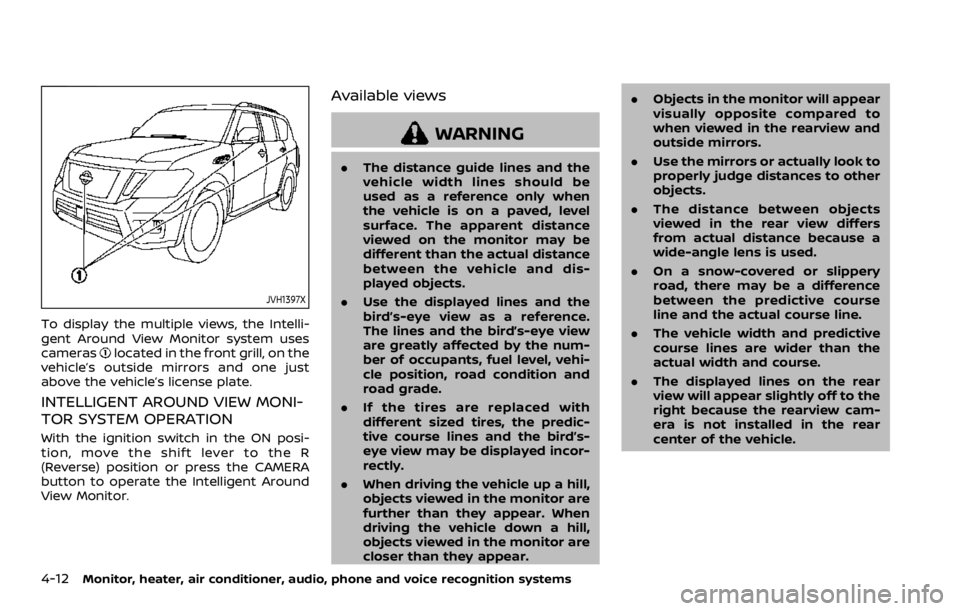
To display the multiple views, the Intelli-
gent Around View Monitor system uses
cameras
located in the front grill, on the
vehicle’s outside mirrors and one just
above the vehicle’s license plate.
INTELLIGENT AROUND VIEW MONI-
TOR SYSTEM OPERATION
With the ignition switch in the ON posi-
tion, move the shift lever to the R
(Reverse) position or press the CAMERA
button to operate the Intelligent Around
View Monitor.
Available views
WARNING
. The distance guide lines and the
vehicle width lines should be
used as a reference only when
the vehicle is on a paved, level
surface. The apparent distance
viewed on the monitor may be
different than the actual distance
between the vehicle and dis-
played objects.
. Use the displayed lines and the
bird’s-eye view as a reference.
The lines and the bird’s-eye view
are greatly affected by the num-
ber of occupants, fuel level, vehi-
cle position, road condition and
road grade.
. If the tires are replaced with
different sized tires, the predic-
tive course lines and the bird’s-
eye view may be displayed incor-
rectly.
. When driving the vehicle up a hill,
objects viewed in the monitor are
further than they appear. When
driving the vehicle down a hill,
objects viewed in the monitor are
closer than they appear. .
Objects in the monitor will appear
visually opposite compared to
when viewed in the rearview and
outside mirrors.
. Use the mirrors or actually look to
properly judge distances to other
objects.
. The distance between objects
viewed in the rear view differs
from actual distance because a
wide-angle lens is used.
. On a snow-covered or slippery
road, there may be a difference
between the predictive course
line and the actual course line.
. The vehicle width and predictive
course lines are wider than the
actual width and course.
. The displayed lines on the rear
view will appear slightly off to the
right because the rearview cam-
era is not installed in the rear
center of the vehicle.
Page 234 of 528
4-22Monitor, heater, air conditioner, audio, phone and voice recognition systems
INTELLIGENT AROUND VIEW MONI-
TOR SYSTEM LIMITATIONS
WARNING
Listed below are the system limita-
tions for Intelligent Around View
Monitor. Failure to operate the vehi-
cle in accordance with these system
limitations could result in serious
injury or death.
.Do not use the Intelligent Around
View Monitor with the outside
mirrors in the stored position,
and make sure that the liftgate
is securely closed when operating
the vehicle using the Intelligent
Around View Monitor.
. The apparent distance between
objects viewed on the Intelligent
Around View Monitor differs from
the actual distance.
. The cameras are installed on the
front grille, the outside mirrors
and above the rear license plate.
Do not put anything on the vehi-
cle that covers the cameras.
. When washing the vehicle with
high pressure water, be sure not
to spray it around the cameras. Otherwise, water may enter the
camera unit causing water con-
densation on the lens, a malfunc-
tion, fire or an electric shock.
. Do not strike the cameras. They
are precision instruments. Doing
so could cause a malfunction or
cause damage resulting in a fire
or an electric shock.
The following are operating limitations
and do not represent a system malfunc-
tion:
. The screen displayed on the Intelligent
Around View Monitor will automati-
cally return to the previous screen 3
minutes after the CAMERA button has
been pushed while the shift lever is in
a position other than the R (Reverse)
position.
. There may be a delay when switching
between views.
. When the temperature is extremely
high or low, the screen may not
display objects clearly.
. When strong light directly shines on
the camera, objects may not be dis-
played clearly.
. The screen may flicker under fluores-
cent light. .
The colors of objects on the Intelligent
Around View Monitor may differ
somewhat from the actual color of
objects.
. Objects on the monitor may not be
clear and the color of the object may
differ in a dark environment.
. There may be differences in sharpness
between each camera view of the
bird’s-eye view.
. When activating the Intelligent Around
View Monitor, the icons and the mes-
sages may not be displayed for a
while.
. If dirt, rain or snow accumulates on
the camera, the Intelligent Around
View Monitor may not display objects
clearly. Clean the camera.
. Do not use wax on the camera lens.
Wipe off any wax with a clean cloth
that has been dampened with a
diluted mild cleaning agent, then wipe
with a dry cloth.
Page 241 of 528

JVH1689X
1. CAMERA button
2. SETTING button
WARNING
Failure to follow the warnings and
instructions for proper use of the
Moving Object Detection system
could result in serious injury or
death.
.The MOD system is not a substi-
tute for proper vehicle operation
and is not designed to prevent
contact with the objects sur-
rounding the vehicle. When man-
euvering, always use the outside
mirror and rearview mirror and
turn and check the surrounding
to ensure it is safe to maneuver.
. The system is deactivated at
speeds above 6 MPH (10 km/h).
It is reactivated at lower speeds.
. The MOD system is not designed
to detect the surrounding sta-
tionary objects.
The Moving Object Detection (MOD) sys-
tem can inform the driver of the moving
objects surrounding the vehicle when
driving out of garages, maneuvering into
parking lots and in other such instances.
The MOD system detects moving objects
by using image processing technology on
Monitor, heater, air conditioner, audio, phone and voice recognition systems4-29
MOVING OBJECT DETECTION (MOD)
Page 245 of 528
— When camera orientation isnot in its usual position, such
as when mirror is folded.
— When there is dirt, water drops or snow on the camera lens.
— When the position of the mov- ing objects in the display is
not changed.
. The MOD system might detect
flowing water droplets on the
camera lens, white smoke from
the muffler, moving shadows, etc.
. The MOD system may not func-
tion properly depending on the
speed, direction, distance or
shape of the moving objects.
. If your vehicle sustains damage
to the parts where the camera is
installed, leaving it misaligned or
bent, the sensing zone may be
altered and the MOD system may
not detect objects properly.
. When the temperature is extre-
mely high or low, the screen may
not display objects clearly. This is
not a malfunction.
JVH1397X
SYSTEM MAINTENANCE
CAUTION
.Do not use alcohol, benzine or
thinner to clean the camera. This
will cause discoloration. To clean
the camera, wipe with a cloth
dampened with diluted mild
cleaning agent and then wipe
with a dry cloth.
. Do not damage the camera as the
monitor screen may be adversely
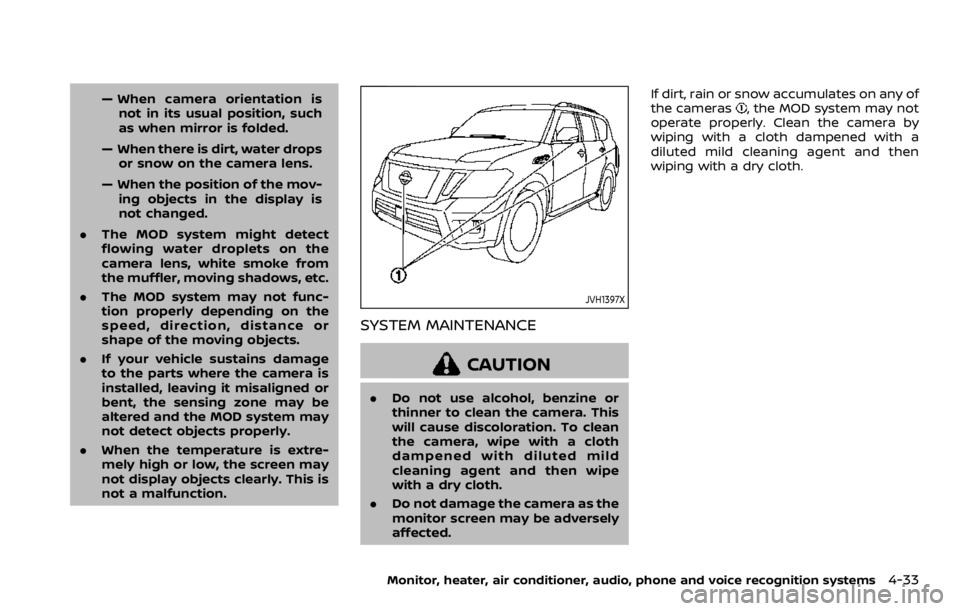
affected. If dirt, rain or snow accumulates on any of
the cameras
, the MOD system may not
operate properly. Clean the camera by
wiping with a cloth dampened with a
diluted mild cleaning agent and then
wiping with a dry cloth.
Monitor, heater, air conditioner, audio, phone and voice recognition systems4-33