reset NISSAN ARMADA 2021 Owner´s Manual
[x] Cancel search | Manufacturer: NISSAN, Model Year: 2021, Model line: ARMADA, Model: NISSAN ARMADA 2021Pages: 603, PDF Size: 3.16 MB
Page 381 of 603
WAF0641X
Example
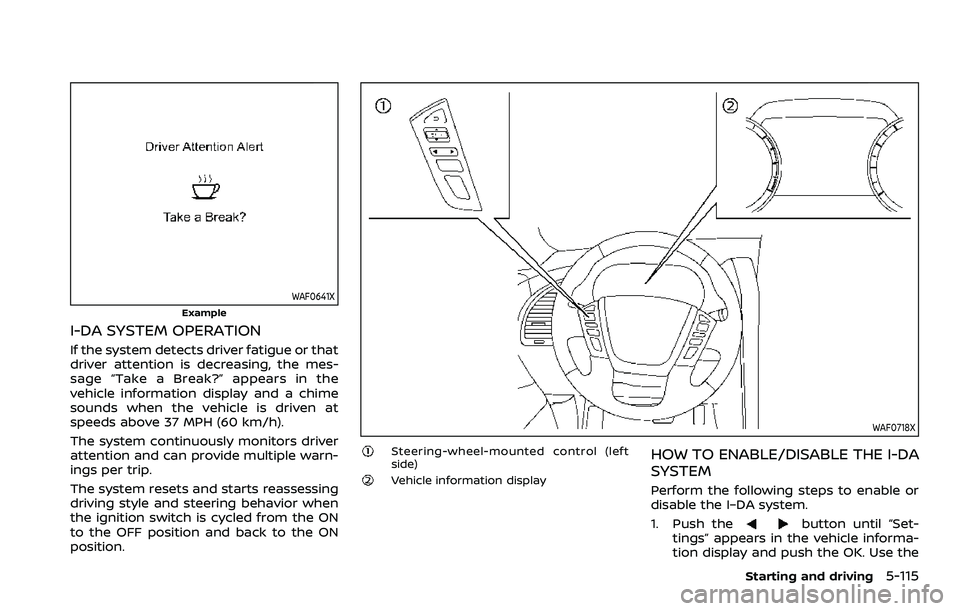
I-DA SYSTEM OPERATION
If the system detects driver fatigue or that
driver attention is decreasing, the mes-
sage “Take a Break?” appears in the
vehicle information display and a chime
sounds when the vehicle is driven at
speeds above 37 MPH (60 km/h).
The system continuously monitors driver
attention and can provide multiple warn-
ings per trip.
The system resets and starts reassessing
driving style and steering behavior when
the ignition switch is cycled from the ON
to the OFF position and back to the ON
position.
WAF0718X
Steering-wheel-mounted control (left
side)
Vehicle information display
HOW TO ENABLE/DISABLE THE I-DA
SYSTEM
Perform the following steps to enable or
disable the I–DA system.
1. Push the
button until “Set-
tings” appears in the vehicle informa-
tion display and push the OK. Use the
Starting and driving5-115
Page 410 of 603
5-144Starting and driving
illuminates the ABS warning light on the
instrument panel. The brake system then
operates normally, but without anti-lock
assistance.
If the ABS warning light illuminates during
the self-test or while driving, have the
vehicle checked. It is recommended you
visit a NISSAN dealer for this service.
Normal operation
The ABS operates at speeds above 3 to 6
MPH (5 to 10 km/h). The speed varies
according to road conditions.
When the ABS senses that one or more
wheels are close to locking up, the
actuator rapidly applies and releases
hydraulic pressure. This action is similar
to pumping the brakes very quickly. You
may feel a pulsation in the brake pedal
and hear a noise from under the hood or
feel a vibration from the actuator when it
is operating. This is normal and indicates
that the ABS is operating properly. How-
ever, the pulsation may indicate that road
conditions are hazardous and extra care
is required while driving.The Vehicle Dynamic Control (VDC) sys-
tem uses various sensors to monitor
driver inputs and vehicle motion. Under
certain driving conditions, the VDC sys-
tem helps to perform the following func-
tions.
.
Controls brake pressure to reduce
wheel slip on one slipping drive wheel
so power is transferred to a non
slipping drive wheel on the same axle.
. Controls brake pressure and engine
output to reduce drive wheel slip
based on vehicle speed (traction con-
trol function).
. Controls brake pressure at individual
wheels and engine output to help the
driver maintain control of the vehicle
in the following conditions:
— understeer (vehicle tends to not
follow the steered path despite
increased steering input)
— oversteer (vehicle tends to spin due to certain road or driving condi-
tions).
The VDC system can help the driver to
maintain control of the vehicle, but it
cannot prevent loss of vehicle control in
all driving situations.
When the VDC system operates, the VDC
warning light
in the instrument panel
flashes so note the following: .
The road may be slippery or the
system may determine some action
is required to help keep the vehicle on
the steered path.
. You may feel a pulsation in the brake
pedal and hear a noise or vibration
from under the hood. This is normal
and indicates that the VDC system is
working properly.
. Adjust your speed and driving to the
road conditions.
If a malfunction occurs in the system, the
VDC warning light
illuminates in the
instrument panel. The VDC system auto-
matically turns off.
The VDC OFF switch is used to turn off the
VDC system. The VDC off indicator
illuminates to indicate the VDC system is
off. When the VDC switch is used to turn
off the system, the VDC system still
operates to prevent one drive wheel from
slipping by transferring power to a non
slipping drive wheel. The VDC warning
light
flashes if this occurs. All other
VDC functions are off, and the VDC
warning light
will not flash. The VDC
system is automatically reset to on when
the ignition switch is placed in the OFF
position then back to the ON position.
When the 4L position is selected with the
4WD shift switch, the VDC system is
disabled and the VDC off indicator light
VEHICLE DYNAMIC CONTROL (VDC) SYSTEM
Page 417 of 603
To shut off the engine in an emergency
situation while driving, perform the fol-
lowing procedure:
.Rapidly push the push-button ignition
switch 3 consecutive times in less
than 1.5 seconds, or
. Push and hold the push-button igni-
tion switch for more than 2 seconds.TIRE PRESSURE MONITORING SYS-
TEM (TPMS)
This vehicle is equipped with the Tire
Pressure Monitoring System (TPMS). It
monitors tire pressure of all tires except
the spare. When the low tire pressure
warning light is lit and the “Tire Pressure
Low Add Air” warning appears in the
vehicle information display, one or more
of your tires is significantly under-inflated.
If the vehicle is being driven with low tire
pressure, the TPMS will activate and warn
you of it by the low tire pressure warning
light. This system will activate only when
the vehicle is driven at speeds above 16
MPH (25 km/h). For more details, see “Low
tire pressure warning light” (P.2-15) and
“Tire Pressure Monitoring System (TPMS)”
(P.5-5).
WARNING
.If the low tire pressure warning
light illuminates or Low Pressure
information is displayed on the
monitor screen while driving,
avoid sudden steering maneu-
vers or abrupt braking, reduce
vehicle speed, pull off the road
to a safe location and stop the
vehicle as soon as possible. Driv-
ing with under-inflated tires may permanently damage the tires
and increase the likelihood of tire
failure. Serious vehicle damage
could occur and may lead to an
accident and could result in ser-
ious personal injury. Check the
tire pressure for all four tires.
Adjust the tire pressure to the
recommended COLD tire pressure
shown on the Tire and Loading
Information label to turn the low
tire pressure warning light OFF. If
the light still illuminates while
driving after adjusting the tire
pressure, a tire may be flat. If
you have a flat tire, replace it with
a spare tire as soon as possible.
. Since the spare tire is not
equipped with the TPMS, when a
spare tire is mounted or a wheel
is replaced, the TPMS will not
function and the low tire pressure
warning light will flash for ap-
proximately 1 minute. The light
will remain on after 1 minute.
Have your tires replaced and/or
TPMS system reset as soon as
possible. It is recommended you
visit a NISSAN dealer for these
services.
. Replacing tires with those not
originally specified by NISSAN
In case of emergency6-3
EMERGENCY ENGINE SHUT OFF FLAT TIRE
Page 423 of 603
SCE0876
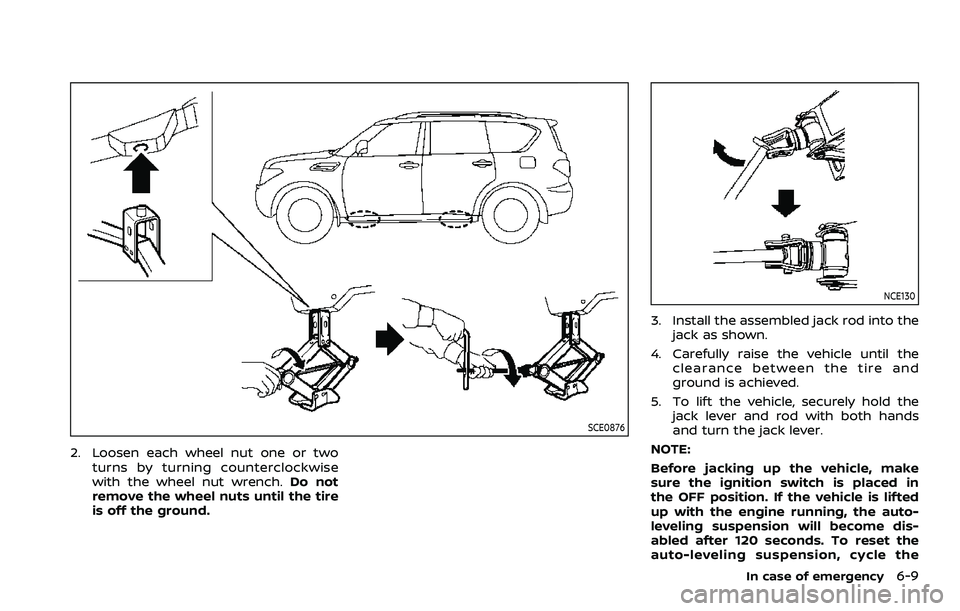
2. Loosen each wheel nut one or twoturns by turning counterclockwise
with the wheel nut wrench. Do not
remove the wheel nuts until the tire
is off the ground.
NCE130
3. Install the assembled jack rod into the
jack as shown.
4. Carefully raise the vehicle until the clearance between the tire and
ground is achieved.
5. To lift the vehicle, securely hold the jack lever and rod with both hands
and turn the jack lever.
NOTE:
Before jacking up the vehicle, make
sure the ignition switch is placed in
the OFF position. If the vehicle is lifted
up with the engine running, the auto-
leveling suspension will become dis-
abled after 120 seconds. To reset the
auto-leveling suspension, cycle the
In case of emergency6-9
Page 484 of 603
8-38Do-it-yourself
the same size and you are only
replacing 2 of the 4 tires, install
the new tires on the rear axle.
Placing new tires on the front
axle may cause loss of vehicle
control in some driving condi-
tions and cause an accident and
personal injury.
. If the wheels are changed for any
reason, always replace with
wheels which have the same off-
set dimension. Wheels of a differ-
ent off-set could cause prema-
ture tire wear, degrade vehicle
handling characteristics and/or
interference with the brake
discs/drums. Such interference
can lead to decreased braking
efficiency and/or early brake
pad/shoe wear. See “Wheels and
tires” (P.10-9) for wheel off-set
dimensions.
. Since the spare tire is not
equipped with the TPMS, when a
spare tire is mounted or a wheel
is replaced, the TPMS will not
function and the low tire pressure
warning light will flash for ap-
proximately 1 minute. The light
will remain on after 1 minute.
Have your tires replaced and/or
TPMS system reset as soon as possible. It is recommended you
visit a NISSAN dealer for these
services.
. Replacing tires with those not
originally specified by NISSAN
could affect the proper operation
of the TPMS.
. The TPMS sensor may be da-
maged if it is not handled cor-
rectly. Be careful when handling
the TPMS sensor.
. When replacing the TPMS sensor,
the ID registration may be re-
quired. It is recommended you
visit a NISSAN dealer for ID regis-
tration.
. Do not use a valve stem cap that
is not specified by NISSAN. The
valve stem cap may become
stuck.
. Be sure that the valve stem caps
are correctly fitted. Otherwise the
valve may be clogged up with dirt
and cause a malfunction or loss
of pressure.
. Do not install a damaged or
deformed wheel or tire even if it
has been repaired. Such wheels
or tires could have structural
damage and could fail without
warning. .
The use of retread tire is not
recommended.
. For additional information re-
garding tires, refer to “Important
Tire Safety Information” (US) or
“Tire Safety Information” (Cana-
da) in the Warranty Information
Booklet.
Four-Wheel Drive (4WD) models
CAUTION
.Always use tires of the same type,
size, brand, construction (bias,
bias-belted or radial), and tread
pattern on all four wheels. Failure
to do so may result in a circum-
ference difference between tires
on the front and rear axles which
will cause excessive tire wear and
may damage the transmission,
transfer case and differential
gears.
. ONLY use spare tires specified for
the 4WD model.
If excessive tire wear is found, it is
recommended that all four tires be re-
placed with tires of the same size, brand,
Page 547 of 603
the vehicle may be reset to a “not ready
condition”. Before taking the I/M test,
check the vehicle’s inspection/mainte-
nance test readiness condition. Place the
ignition switch in the ON position without
starting the engine. If the Malfunction
Indicator Light (MIL) comes on steady for
20 seconds and then blinks for 10 sec-
onds, the I/M test condition is “not ready”.
If the MIL does not blink after 20 seconds,
the I/M test condition is “ready”.
It is recommended you visit a NISSAN
dealer to set “ready condition” or to
prepare the vehicle for testing.This vehicle is equipped with an Event
Data Recorder (EDR). The main purpose of
an EDR is to record, in certain crash or
near crash-like situations, such as an air
bag deployment or hitting a road obsta-
cle, data that will assist in understanding
how a vehicle’s systems performed. The
EDR is designed to record data related to
vehicle dynamics and safety systems for a
short period of time, typically 30 seconds
or less. The EDR in this vehicle is designed
to record such data as:
.How various systems in your vehicle
were operating;
. Whether or not the driver and passen-
ger safety belts were buckled/fas-
tened;
. How far (if at all) the driver was
depressing the accelerator and/or
brake pedal; and,
. How fast the vehicle was traveling.
. Sounds are not recorded.
These data can help provide a better
understanding of the circumstances in
which crashes and injuries occur.
NOTE: EDR data are recorded by your
vehicle only if a nontrivial crash situation
occurs; no data are recorded by the EDR
under normal driving conditions and no
personal data (e.g. name, gender, age and
crash location) are recorded. However,
other parties, such as law enforcement, could combine the EDR data with the type
of personally identifying data routinely
acquired during a crash investigation.
To read data recorded by an EDR, special
equipment is required and access to the
vehicle or the EDR is needed. In addition
to the vehicle manufacturer and NISSAN
dealer, other parties, such as law enforce-
ment, that have the special equipment,
can read the information if they have
access to the vehicle or the EDR. EDR data
will only be accessed with the consent of
the vehicle owner or lessee or as other-
wise required or permitted by law.
Technical and consumer information10-39
EVENT DATA RECORDERS (EDR)
Page 570 of 603
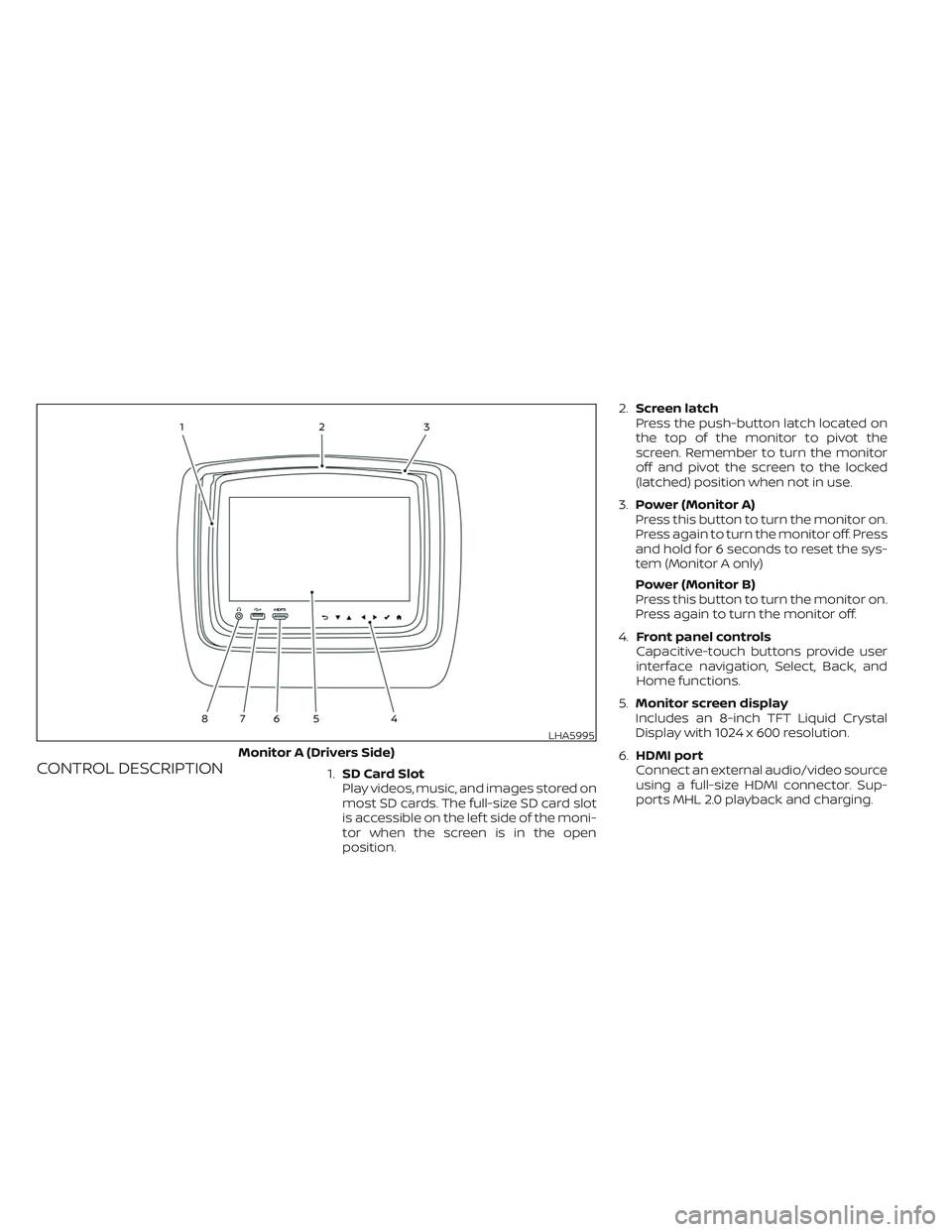
CONTROL DESCRIPTION1.SD Card Slot
Play videos, music, and images stored on
most SD cards. The full-size SD card slot
is accessible on the lef t side of the moni-
tor when the screen is in the open
position.2.Screen latch
Press the push-button latch located on
the top of the monitor to pivot the
screen. Remember to turn the monitor
off and pivot the screen to the locked
(latched) position when not in use.
3.Power (Monitor A)
Press this button to turn the monitor on.
Press again to turn the monitor off. Press
and hold for 6 seconds to reset the sys-
tem (Monitor A only)
Power (Monitor B)
Press this button to turn the monitor on.
Press again to turn the monitor off.
4.Front panel controls
Capacitive-touch buttons provide user
interface navigation, Select, Back, and
Home functions.
5.Monitor screen display
Includes an 8-inch TFT Liquid Crystal
Display with 1024 x 600 resolution.
6.HDMI port
Connect an external audio/video source
using a full-size HDMI connector. Sup-
ports MHL 2.0 playback and charging.
LHA5995
Monitor A (Drivers Side)
Page 590 of 603
Display
Adjust Brightness, Contrast, and Sharp-
ness settings.
Audio
Select the monitor to use for Bluetooth®
audio streaming and set the maximum
volume level when using wired head-
phones.
Advanced
Change the language of the GUI (Graphic
User Interface), reset the RSI system, and
update the sof tware.
Customize
Change the background image of the
home screen using content from an SD
card or USB storage device.
Parental
Set or change the password to limit video
content playback using parental control
based on the Motion Picture Association of
America (MPAA) ratings.
Bluetooth
Control Bluetooth® audio streaming (On/
Off ) and select from the available list of
paired devices.
Using Wi-Fi
Access Point
Access Point is used when connecting
other mobile devices to the RSI’s built-in
internal network. This mode allows the RSI
system to connect to devices "inside" the
vehicle, using an optional UPnP application
installed on a mobile device.
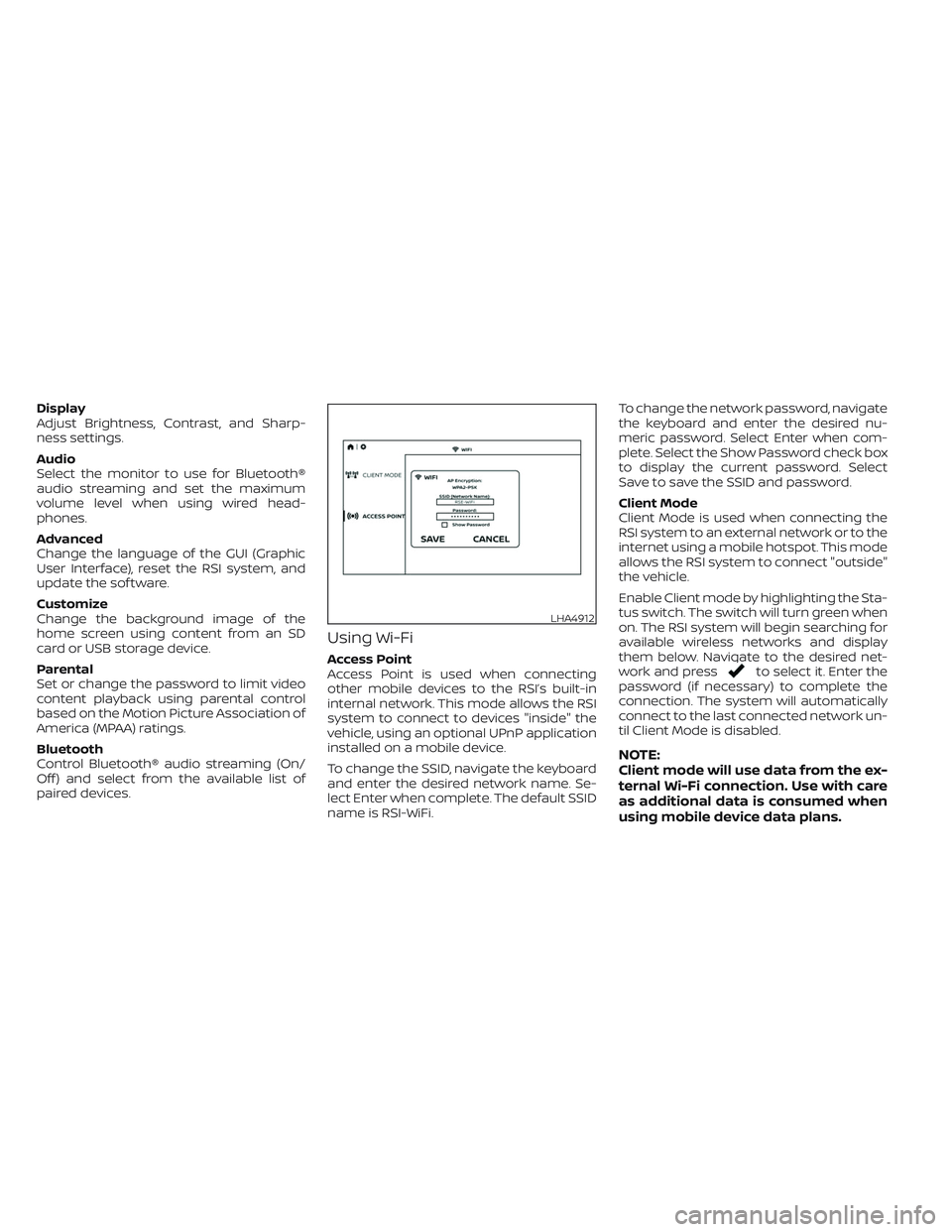
To change the SSID, navigate the keyboard
and enter the desired network name. Se-
lect Enter when complete. The default SSID
name is RSI-WiFi.To change the network password, navigate
the keyboard and enter the desired nu-
meric password. Select Enter when com-
plete. Select the Show Password check box
to display the current password. Select
Save to save the SSID and password.
Client Mode
Client Mode is used when connecting the
RSI system to an external network or to the
internet using a mobile hotspot. This mode
allows the RSI system to connect "outside"
the vehicle.
Enable Client mode by highlighting the Sta-
tus switch. The switch will turn green when
on. The RSI system will begin searching for
available wireless networks and display
them below. Navigate to the desired net-
work and pressto select it. Enter the
password (if necessary) to complete the
connection. The system will automatically
connect to the last connected network un-
til Client Mode is disabled.
NOTE:
Client mode will use data from the ex-
ternal Wi-Fi connection. Use with care
as additional data is consumed when
using mobile device data plans.
LHA4912
Page 593 of 603
NOTE:
• When monitor A is selected as the
source to stream from, the audio out-
put to the wireless and wired head-
phones will be disabled (only on moni-
tor A).
• To use the wireless or wired head-
phones with monitor A, you must turn
off the Bluetooth® streaming feature.
For additional information, see
“Bluetooth® streaming” in this section.
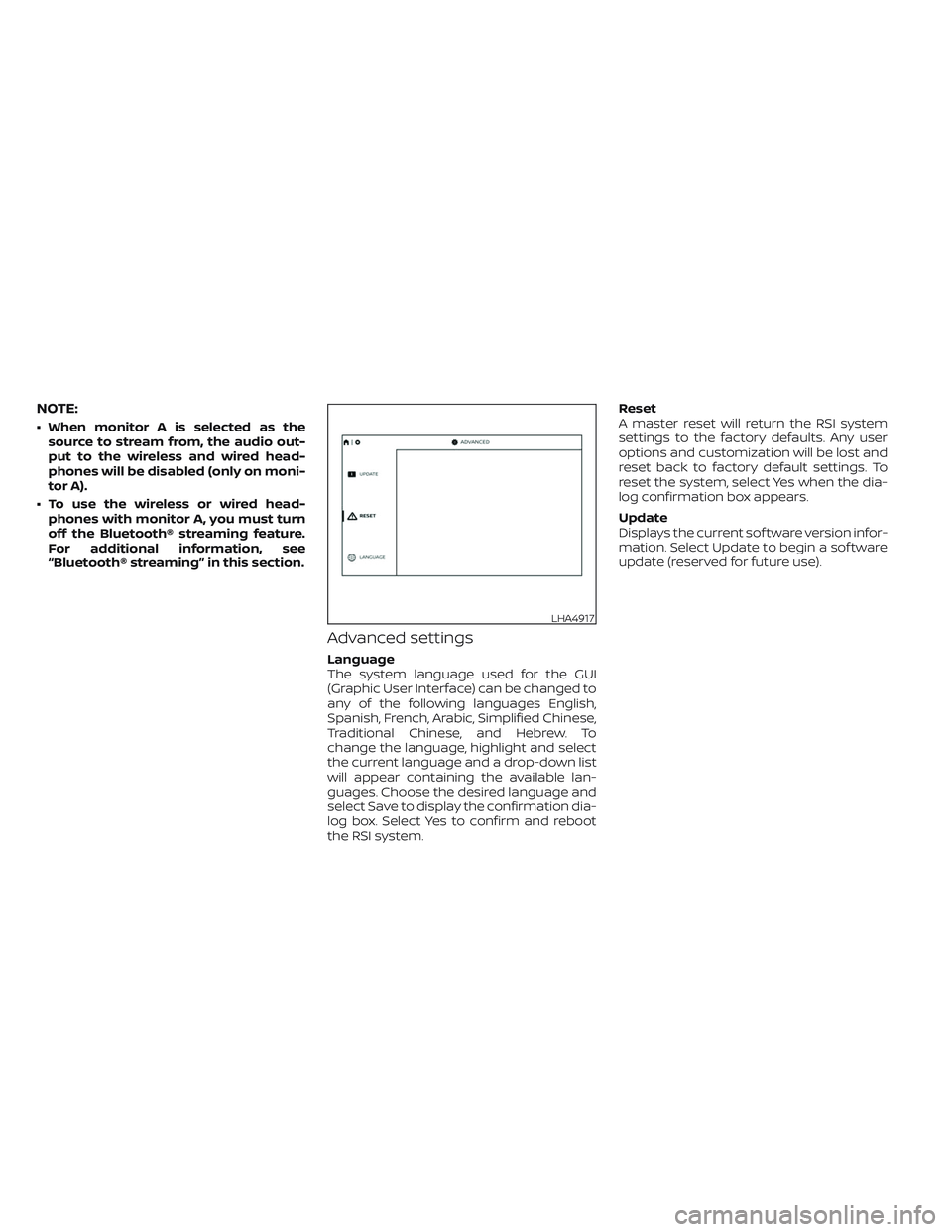
Advanced settings
Language
The system language used for the GUI
(Graphic User Interface) can be changed to
any of the following languages English,
Spanish, French, Arabic, Simplified Chinese,
Traditional Chinese, and Hebrew. To
change the language, highlight and select
the current language and a drop-down list
will appear containing the available lan-
guages. Choose the desired language and
select Save to display the confirmation dia-
log box. Select Yes to confirm and reboot
the RSI system.Reset
A master reset will return the RSI system
settings to the factory defaults. Any user
options and customization will be lost and
reset back to factory default settings. To
reset the system, select Yes when the dia-
log confirmation box appears.
Update
Displays the current sof tware version infor-
mation. Select Update to begin a sof tware
update (reserved for future use).
LHA4917
Page 594 of 603
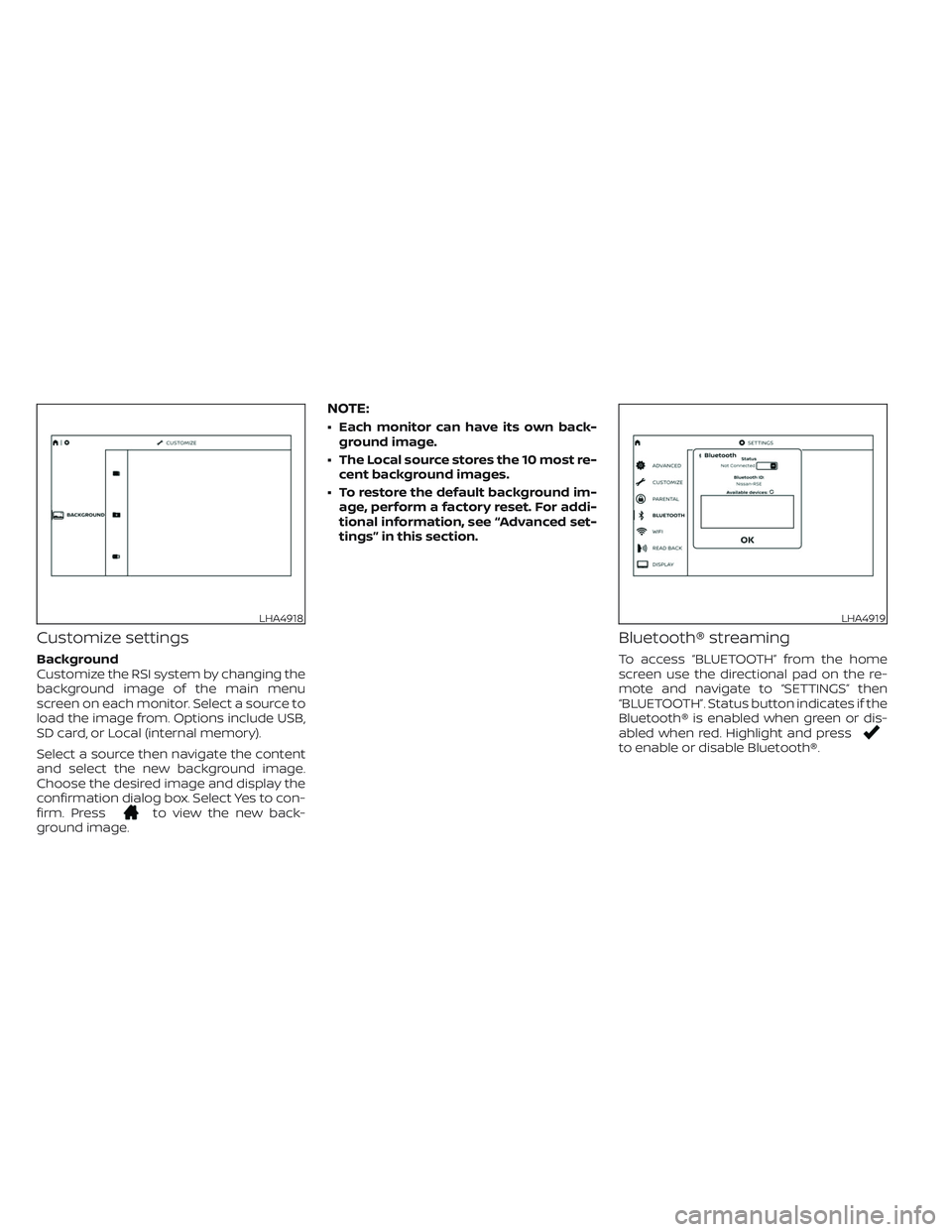
Customize settings
Background
Customize the RSI system by changing the
background image of the main menu
screen on each monitor. Select a source to
load the image from. Options include USB,
SD card, or Local (internal memory).
Select a source then navigate the content
and select the new background image.
Choose the desired image and display the
confirmation dialog box. Select Yes to con-
firm. Press
to view the new back-
ground image.
NOTE:
• Each monitor can have its own back-
ground image.
• The Local source stores the 10 most re-
cent background images.
• To restore the default background im-
age, perform a factory reset. For addi-
tional information, see “Advanced set-
tings” in this section.
Bluetooth® streaming
To access “BLUETOOTH” from the home
screen use the directional pad on the re-
mote and navigate to “SETTINGS” then
“BLUETOOTH”. Status button indicates if the
Bluetooth® is enabled when green or dis-
abled when red. Highlight and press
to enable or disable Bluetooth®.
LHA4918LHA4919