ignition NISSAN ARMADA 2021 Owner´s Manual
[x] Cancel search | Manufacturer: NISSAN, Model Year: 2021, Model line: ARMADA, Model: NISSAN ARMADA 2021Pages: 603, PDF Size: 3.16 MB
Page 223 of 603
switch in the LOCK position.
The driver’s seat and steering wheel will
return to the previous positions when the
ignition switch is pushed to the ACC
position.
The driver’s seat will not return to the
previous positions if the seat or steering
adjusting switch is operated when the
seat is at the exit position.
Cancel or activate entry/exit func-
tion
The shift lever must be in the P (Park)
position with the ignition switch in the
OFF position.
The entry/exit function can be activated
or canceled by pressing and holding the
SET switch for more than 10 seconds.
The entry/exit function can be canceled
through “Vehicle settings” in the vehicle
information display by performing the
following:
.Switch the “Exit Seat Slide” ON to OFF.
For additional information, refer to
“Vehicle settings” (P.2-23).
. Switch the “Exit Steering Up” ON to
OFF. For additional information, refer
to “Vehicle settings” (P.2-23).
Initialize entry/exit function
If the battery cable is disconnected, or if
the fuse opens, the entry/exit function
will not work though this function was set
on before. In such a case, after connect-
ing the battery or replacing with a new
fuse, open and close the driver’s door
more than two times after the ignition
switch is turned from the ON position to
the LOCK position. The entry/exit func-
tion will be activated.
MEMORY STORAGE
Two positions for the driver’s seat, steer-
ing column and outside mirrors can be
stored in the memory switch. Follow
these procedures to use the memory
system.
1. Move the shift lever to the P (Park)
position.
2. Adjust the driver’s seat, steering col- umn and outside mirrors to the de-
sired positions by manually operating
each adjusting switch. For additional
information, see “Seats” (P.1-3) and
“Tilt/telescopic steering” (P.3-29) and
“Outside mirrors” (P.3-38).
3. Push the SET switch and, within 5 seconds, push the memory switch (1
or 2) fully for at least 1 second.
The indicator light for the pushed
memory switch will stay on for ap- proximately 5 seconds after pushing
the switch.
When the memory is stored in the
memory switch (1 or 2), a buzzer will
sound.
If memory is stored in the same
memory switch, the previous memory
will be deleted.
Linking Intelligent Key to a stored
memory position
The Intelligent Key can be linked to a
stored memory position with the follow-
ing procedure.
1. Follow the steps for storing a memory
position.
2. While the indicator light for the mem- ory switch being set is illuminated for
5 seconds, push the
button on the
Intelligent Key. If the indicator light
blinks, the Intelligent Key is linked to
that memory setting.
Push the ignition switch to the OFF
position, and then push the
button
on the Intelligent Key. The driver’s seat,
steering wheel and outside mirrors will
move to the memorized position.
Pre-driving checks and adjustments3-41
Page 224 of 603
3-42Pre-driving checks and adjustments
Confirming memory storage
.Push the ignition switch to the ON
position and push the SET switch. If
the main memory has not been
stored, the indicator light will come
on for approximately 0.5 second.
When the memory has stored in posi-
tion, the indicator light will stay on for
approximately 5 seconds.
. If the battery cable is disconnected, or
if the fuse opens, the memory will be
canceled. In this case, reset the de-
sired position using the previous pro-
cedure.
. If optional Intelligent Keys are added
to your vehicle, the memory storage
procedure to switch 1 or 2 and linking
Intelligent Key procedure to a stored
memory position should be per-
formed again for each Intelligent Key.
For additional Intelligent Key informa-
tion, see “Keys” (P.3-2).
Selecting the memorized position
1. Move the shift lever to the P (Park)
position.
2. Use one of the following methods to move the driver’s seat, the outside
mirrors and the steering wheel.
.Push the memory switch (1 or 2)fully for at least 1 second. The driver’s seat, steering column and
outside mirrors will move to the
memorized position or to the exit
position when the entry/exit function
is set to active with the indicator light
flashing, and then the light will stay on
for approximately 5 seconds.
SETTING MEMORY FUNCTION
The status of the following settings can
be linked to the Intelligent Key and the
memorized settings can be available for
each Intelligent Key.
.
Air conditioner system
. Navigation system (if so equipped)
. Audio system
To use the memory function, lock the
doors with the Intelligent Key that is
linked to the settings.
To enable the memorized settings:
1. Carry the Intelligent Key that is linked to the settings, and unlock the doors
by pushing the driver’s door handle
request switch or “UNLOCK”
but-
ton on the Intelligent Key.
2. Place the ignition switch in the ON position. “Connection with the key has
been done” will be displayed on the
screen and the memorized settings
are available (only when a new Intel-
ligent Key is used).
SYSTEM OPERATION
The memory seat system will not work or
will stop operating under the following
conditions:
.When the vehicle speed is above 0
MPH (0 km/h) or 4 MPH (7 km/h) for
some limited functions such linking an
Intelligent Key to the vehicle when the
power source is turned on from off or
during the Exit function.
. When any of the memory switches are
pushed while the memory seat is
operating.
. When the adjusting switch for the
driver’s seat and steering column is
turned on while the memory seat is
operating.
. When the seat has already been
moved to the memorized position.
. When no seat position is stored in the
memory switch.
. When the shift lever is moved from the
P (Park) position to any other position.
Page 228 of 603
4-4Monitor, heater, air conditioner, audio, phone and voice recognition systems
cally shows a rear view of the vehicle
when the shift lever is placed in the R
(Reverse) position.
The radio can still be heard while the
RearView Monitor is active.
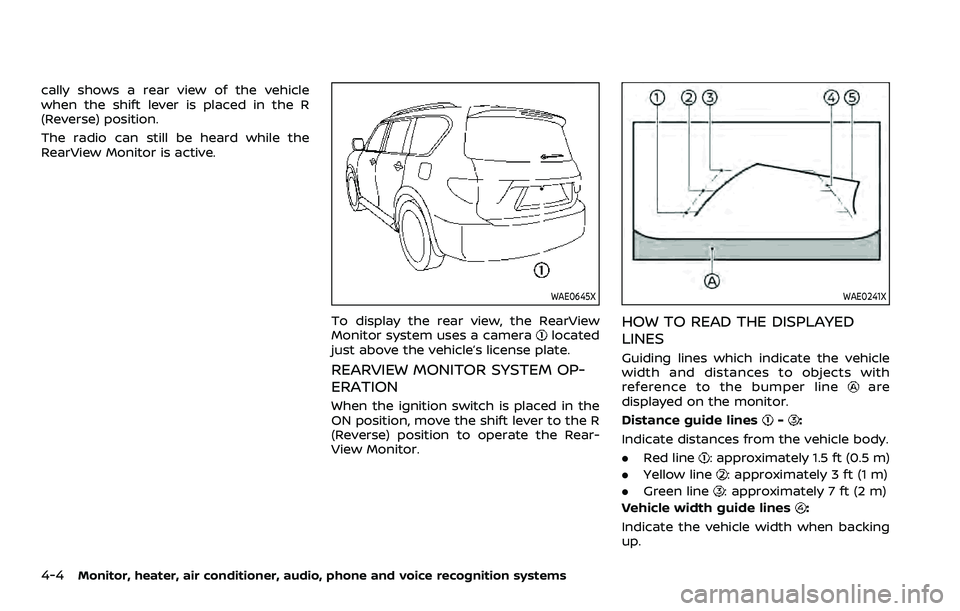
WAE0645X
To display the rear view, the RearView
Monitor system uses a cameralocated
just above the vehicle’s license plate.
REARVIEW MONITOR SYSTEM OP-
ERATION
When the ignition switch is placed in the
ON position, move the shift lever to the R
(Reverse) position to operate the Rear-
View Monitor.
WAE0241X
HOW TO READ THE DISPLAYED
LINES
Guiding lines which indicate the vehicle
width and distances to objects with
reference to the bumper line
are
displayed on the monitor.
Distance guide lines
-:
Indicate distances from the vehicle body.
. Red line
: approximately 1.5 ft (0.5 m)
. Yellow line
: approximately 3 ft (1 m)
. Green line
: approximately 7 ft (2 m)
Vehicle width guide lines
:
Indicate the vehicle width when backing
up.
Page 230 of 603
4-6Monitor, heater, air conditioner, audio, phone and voice recognition systems
WAE0288X
Backing up near a projecting object
The predictive course linesdo not
touch the object in the display. However,
the vehicle may hit the object if it projects
over the actual backing up course.
JVH1216X
Backing up behind a projecting
object
The positionis shown farther than the
positionin the display. However, the
positionis actually at the same dis-
tance as the position. The vehicle may
hit the object when backing up to the position
if the object projects over the
actual backing up course.
HOW TO PARK WITH PREDICTIVE
COURSE LINES
WARNING
. If the tires are replaced with
different sized tires, the predic-
tive course lines may be dis-
played incorrectly.
. On a snow-covered or slippery
road, there may be a difference
between the predictive course
line and the actual course line.
. If the battery is disconnected or
becomes discharged, the predic-
tive course lines may be dis-
played incorrectly. If this occurs,
please perform the following pro-
cedures:
— Turn the steering wheel from
lock to lock while the engine is
running.
— Drive the vehicle on a straight road for more than 5 minutes.
. When the steering wheel is
turned with the ignition switch in
the ON position, the predictive
course lines may be displayed
Page 235 of 603
or death.
.The Intelligent Around View®
Monitor is a convenience feature
and is not a substitute for proper
vehicle operation because it has
areas where objects cannot be
viewed. The four corners of the
vehicle in particular, are areas
where objects do not always ap-
pear in the bird’s-eye, front, or
rear views. Always check your
surroundings to be sure that it is
safe to move before operating
the vehicle. Always operate the
vehicle slowly. Always look out
the windows and check mirrors to
be sure that it is safe to move.
. The driver is always responsible
for safety during parking and
other maneuvers.
CAUTION
Do not scratch the lens when clean-
ing dirt or snow from the front of the
camera.
The Intelligent Around View® Monitor
system is designed as an aid to the driver
in situations such as slot parking or parallel parking.
The monitor displays various views of the
position of the vehicle in a split screen
format. All views are not available at all
times.
Available views:
.
Front view
An approximately 150-degree view of
the front of the vehicle.
. Rear view
An approximately 150-degree view of
the rear of the vehicle.
. Bird’s-eye view
The surrounding view of the vehicle
from above.
. Front-side view
The view around and ahead of the
front passenger’s side wheel.
. Front-wide view
An approximately 180-degree view of
the front of the vehicle.
. Rear-wide view
An approximately 180-degree view of
the rear of the vehicle.
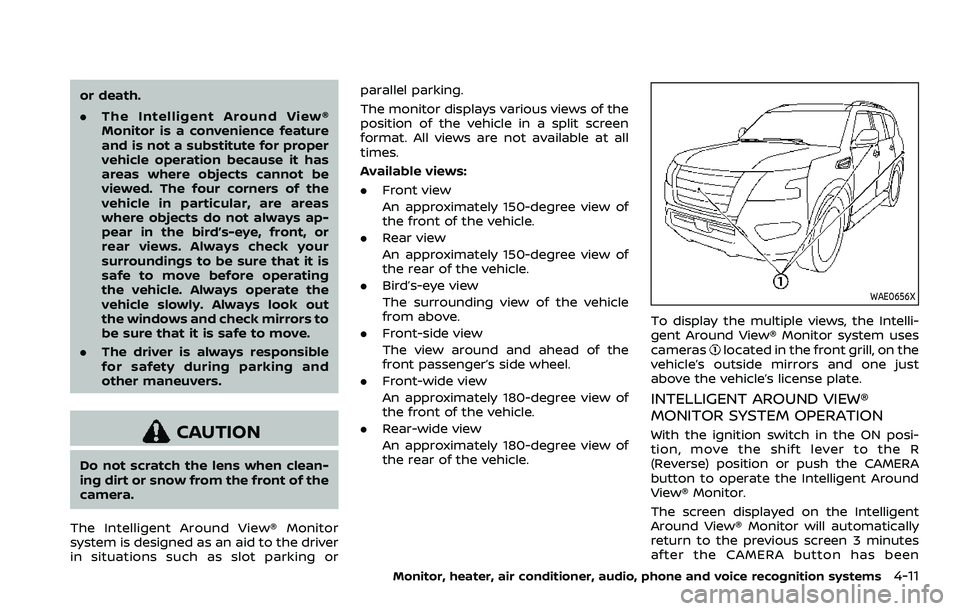
WAE0656X
To display the multiple views, the Intelli-
gent Around View® Monitor system uses
cameras
located in the front grill, on the
vehicle’s outside mirrors and one just
above the vehicle’s license plate.
INTELLIGENT AROUND VIEW®
MONITOR SYSTEM OPERATION
With the ignition switch in the ON posi-
tion, move the shift lever to the R
(Reverse) position or push the CAMERA
button to operate the Intelligent Around
View® Monitor.
The screen displayed on the Intelligent
Around View® Monitor will automatically
return to the previous screen 3 minutes
after the CAMERA button has been
Monitor, heater, air conditioner, audio, phone and voice recognition systems4-11
Page 237 of 603
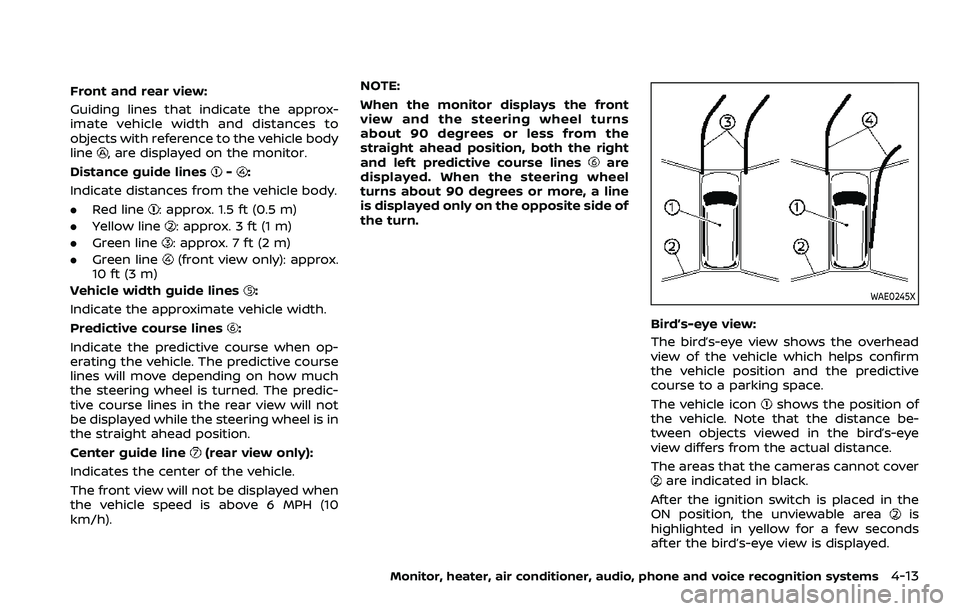
Front and rear view:
Guiding lines that indicate the approx-
imate vehicle width and distances to
objects with reference to the vehicle body
line
, are displayed on the monitor.
Distance guide lines
-:
Indicate distances from the vehicle body.
. Red line
: approx. 1.5 ft (0.5 m)
. Yellow line
: approx. 3 ft (1 m)
. Green line
: approx. 7 ft (2 m)
. Green line
(front view only): approx.
10 ft (3 m)
Vehicle width guide lines
:
Indicate the approximate vehicle width.
Predictive course lines
:
Indicate the predictive course when op-
erating the vehicle. The predictive course
lines will move depending on how much
the steering wheel is turned. The predic-
tive course lines in the rear view will not
be displayed while the steering wheel is in
the straight ahead position.
Center guide line
(rear view only):
Indicates the center of the vehicle.
The front view will not be displayed when
the vehicle speed is above 6 MPH (10
km/h). NOTE:
When the monitor displays the front
view and the steering wheel turns
about 90 degrees or less from the
straight ahead position, both the right
and left predictive course lines
are
displayed. When the steering wheel
turns about 90 degrees or more, a line
is displayed only on the opposite side of
the turn.
WAE0245X
Bird’s-eye view:
The bird’s-eye view shows the overhead
view of the vehicle which helps confirm
the vehicle position and the predictive
course to a parking space.
The vehicle icon
shows the position of
the vehicle. Note that the distance be-
tween objects viewed in the bird’s-eye
view differs from the actual distance.
The areas that the cameras cannot cover
are indicated in black.
After the ignition switch is placed in the
ON position, the unviewable area
is
highlighted in yellow for a few seconds
after the bird’s-eye view is displayed.
Monitor, heater, air conditioner, audio, phone and voice recognition systems4-13
Page 239 of 603
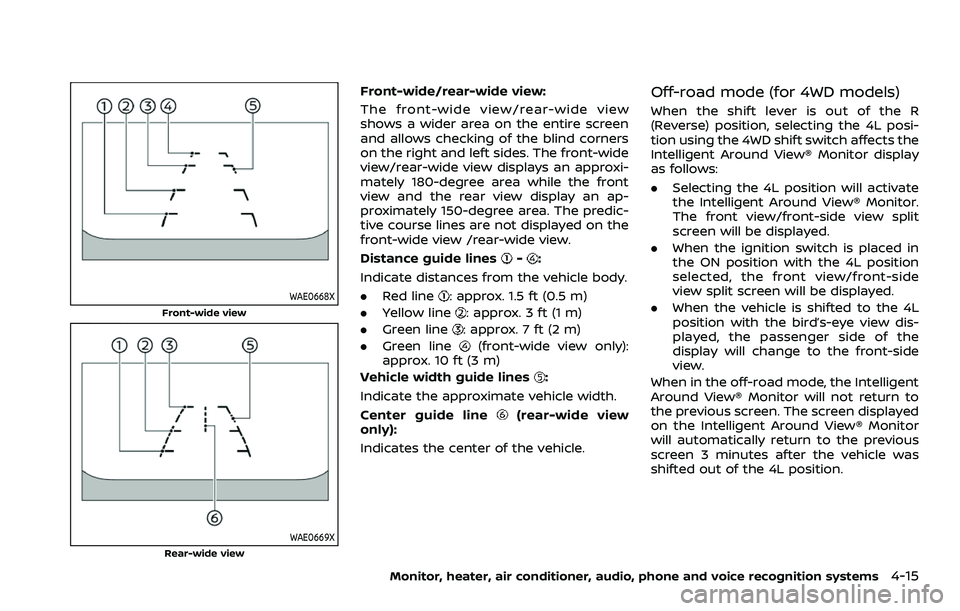
WAE0668X
Front-wide view
WAE0669X
Rear-wide view
Front-wide/rear-wide view:
The front-wide view/rear-wide view
shows a wider area on the entire screen
and allows checking of the blind corners
on the right and left sides. The front-wide
view/rear-wide view displays an approxi-
mately 180-degree area while the front
view and the rear view display an ap-
proximately 150-degree area. The predic-
tive course lines are not displayed on the
front-wide view /rear-wide view.
Distance guide lines
-:
Indicate distances from the vehicle body.
. Red line
: approx. 1.5 ft (0.5 m)
. Yellow line
: approx. 3 ft (1 m)
. Green line
: approx. 7 ft (2 m)
. Green line
(front-wide view only):
approx. 10 ft (3 m)
Vehicle width guide lines
:
Indicate the approximate vehicle width.
Center guide line
(rear-wide view
only):
Indicates the center of the vehicle.
Off-road mode (for 4WD models)
When the shift lever is out of the R
(Reverse) position, selecting the 4L posi-
tion using the 4WD shift switch affects the
Intelligent Around View® Monitor display
as follows:
. Selecting the 4L position will activate
the Intelligent Around View® Monitor.
The front view/front-side view split
screen will be displayed.
. When the ignition switch is placed in
the ON position with the 4L position
selected, the front view/front-side
view split screen will be displayed.
. When the vehicle is shifted to the 4L
position with the bird’s-eye view dis-
played, the passenger side of the
display will change to the front-side
view.
When in the off-road mode, the Intelligent
Around View® Monitor will not return to
the previous screen. The screen displayed
on the Intelligent Around View® Monitor
will automatically return to the previous
screen 3 minutes after the vehicle was
shifted out of the 4L position.
Monitor, heater, air conditioner, audio, phone and voice recognition systems4-15
Page 244 of 603
4-20Monitor, heater, air conditioner, audio, phone and voice recognition systems
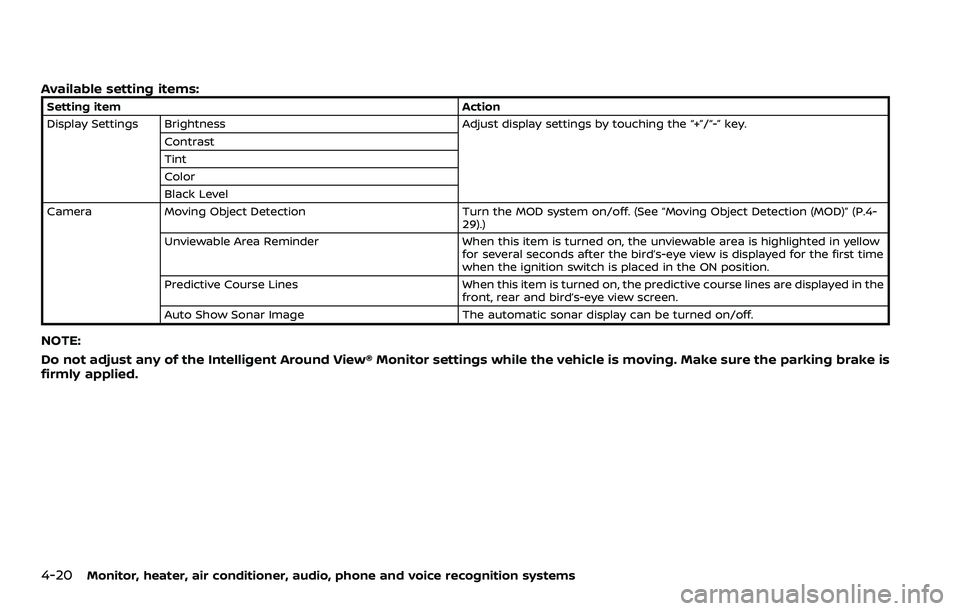
Available setting items:
Setting itemAction
Display Settings Brightness Adjust display settings by touching the “+”/“-” key.
Contrast
Tint
Color
Black Level
Camera Moving Object Detection Turn the MOD system on/off. (See “Moving Object Detection (MOD)” (P.4-
29).)
Unviewable Area Reminder When this item is turned on, the unviewable area is highlighted in yellow
for several seconds after the bird’s-eye view is displayed for the first time
when the ignition switch is placed in the ON position.
Predictive Course Lines When this item is turned on, the predictive course lines are displayed in the
front, rear and bird’s-eye view screen.
Auto Show Sonar Image The automatic sonar display can be turned on/off.
NOTE:
Do not adjust any of the Intelligent Around View® Monitor settings while the vehicle is moving. Make sure the parking brake is
firmly applied.
Page 249 of 603
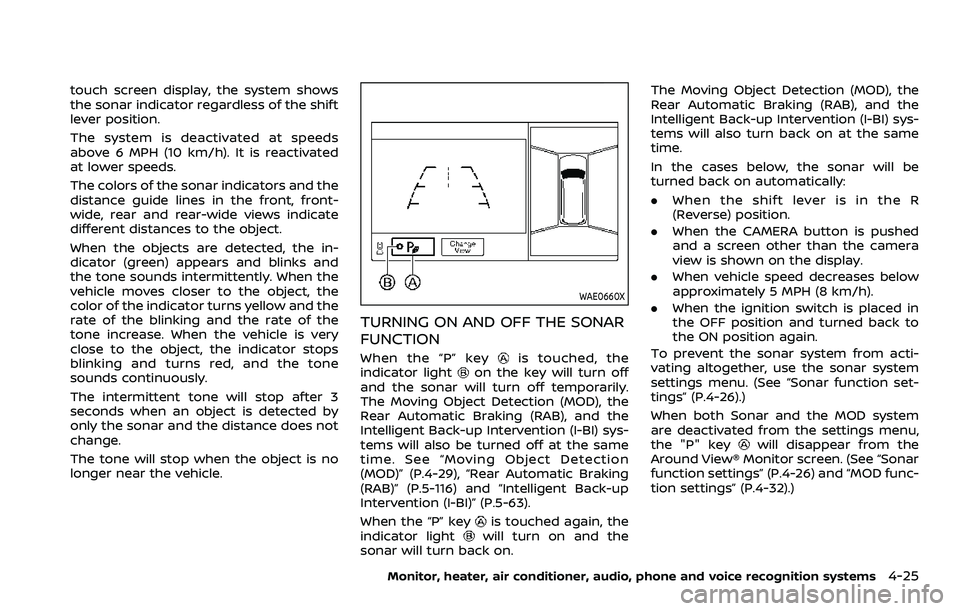
touch screen display, the system shows
the sonar indicator regardless of the shift
lever position.
The system is deactivated at speeds
above 6 MPH (10 km/h). It is reactivated
at lower speeds.
The colors of the sonar indicators and the
distance guide lines in the front, front-
wide, rear and rear-wide views indicate
different distances to the object.
When the objects are detected, the in-
dicator (green) appears and blinks and
the tone sounds intermittently. When the
vehicle moves closer to the object, the
color of the indicator turns yellow and the
rate of the blinking and the rate of the
tone increase. When the vehicle is very
close to the object, the indicator stops
blinking and turns red, and the tone
sounds continuously.
The intermittent tone will stop after 3
seconds when an object is detected by
only the sonar and the distance does not
change.
The tone will stop when the object is no
longer near the vehicle.
WAE0660X
TURNING ON AND OFF THE SONAR
FUNCTION
When the “P” keyis touched, the
indicator lighton the key will turn off
and the sonar will turn off temporarily.
The Moving Object Detection (MOD), the
Rear Automatic Braking (RAB), and the
Intelligent Back-up Intervention (I-BI) sys-
tems will also be turned off at the same
time. See “Moving Object Detection
(MOD)” (P.4-29), “Rear Automatic Braking
(RAB)” (P.5-116) and “Intelligent Back-up
Intervention (I-BI)” (P.5-63).
When the “P” key
is touched again, the
indicator lightwill turn on and the
sonar will turn back on. The Moving Object Detection (MOD), the
Rear Automatic Braking (RAB), and the
Intelligent Back-up Intervention (I-BI) sys-
tems will also turn back on at the same
time.
In the cases below, the sonar will be
turned back on automatically:
.
When the shift lever is in the R
(Reverse) position.
. When the CAMERA button is pushed
and a screen other than the camera
view is shown on the display.
. When vehicle speed decreases below
approximately 5 MPH (8 km/h).
. When the ignition switch is placed in
the OFF position and turned back to
the ON position again.
To prevent the sonar system from acti-
vating altogether, use the sonar system
settings menu. (See “Sonar function set-
tings” (P.4-26).)
When both Sonar and the MOD system
are deactivated from the settings menu,
the "P" key
will disappear from the
Around View® Monitor screen. (See “Sonar
function settings” (P.4-26) and “MOD func-
tion settings” (P.4-32).)
Monitor, heater, air conditioner, audio, phone and voice recognition systems4-25
Page 251 of 603
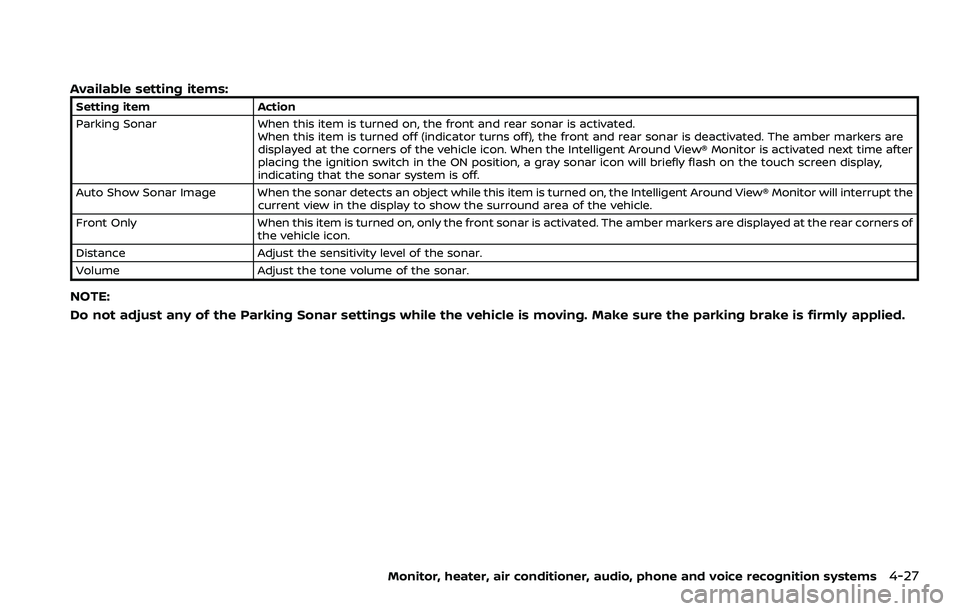
Available setting items:
Setting itemAction
Parking Sonar When this item is turned on, the front and rear sonar is activated.
When this item is turned off (indicator turns off), the front and rear sonar is deactivated. The amber markers are
displayed at the corners of the vehicle icon. When the Intelligent Around View® Monitor is activated next time after
placing the ignition switch in the ON position, a gray sonar icon will briefly flash on the touch screen display,
indicating that the sonar system is off.
Auto Show Sonar Image When the sonar detects an object while this item is turned on, the Intelligent Around View® Monitor will interrupt the current view in the display to show the surround area of the vehicle.
Front Only When this item is turned on, only the front sonar is activated. The amber markers are displayed at the rear corners of
the vehicle icon.
Distance Adjust the sensitivity level of the sonar.
Volume Adjust the tone volume of the sonar.
NOTE:
Do not adjust any of the Parking Sonar settings while the vehicle is moving. Make sure the parking brake is firmly applied.
Monitor, heater, air conditioner, audio, phone and voice recognition systems4-27