USB NISSAN ARMADA 2022 Owner´s Manual
[x] Cancel search | Manufacturer: NISSAN, Model Year: 2022, Model line: ARMADA, Model: NISSAN ARMADA 2022Pages: 604, PDF Size: 2.97 MB
Page 285 of 604
WAE0719X
GENERAL OPERATION
Navigating menus
When fully powered on, the Home screen
can be accessed at any time by pressing
the
button on the remote control, or
thebutton on the monitor.
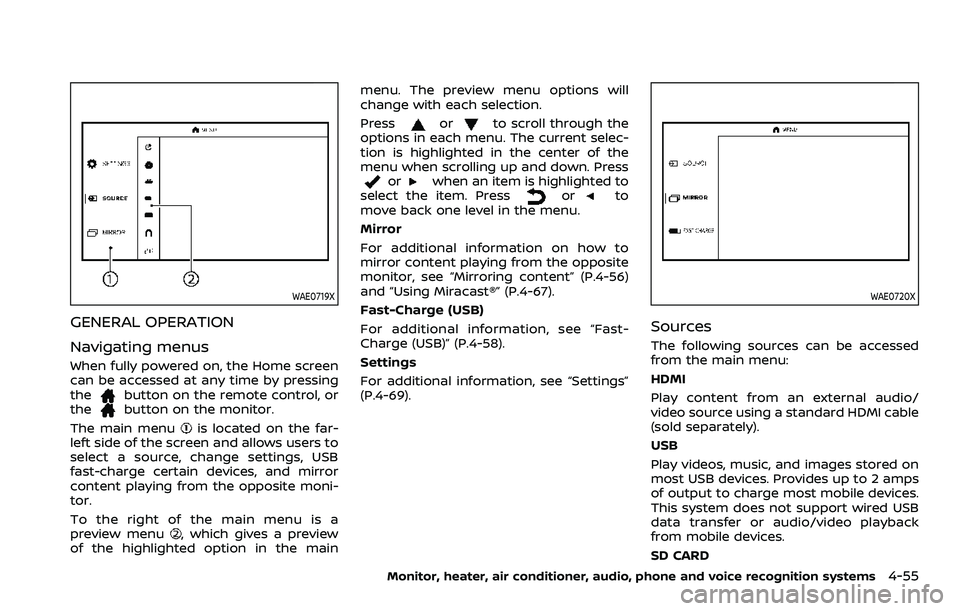
The main menu
is located on the far-
left side of the screen and allows users to
select a source, change settings, USB
fast-charge certain devices, and mirror
content playing from the opposite moni-
tor.
To the right of the main menu is a
preview menu
, which gives a preview
of the highlighted option in the main menu. The preview menu options will
change with each selection.
Press
orto scroll through the
options in each menu. The current selec-
tion is highlighted in the center of the
menu when scrolling up and down. Press
orwhen an item is highlighted to
select the item. Pressorto
move back one level in the menu.
Mirror
For additional information on how to
mirror content playing from the opposite
monitor, see “Mirroring content” (P.4-56)
and “Using Miracast®” (P.4-67).
Fast-Charge (USB)
For additional information, see “Fast-
Charge (USB)” (P.4-58).
Settings
For additional information, see “Settings”
(P.4-69).
WAE0720X
Sources
The following sources can be accessed
from the main menu:
HDMI
Play content from an external audio/
video source using a standard HDMI cable
(sold separately).
USB
Play videos, music, and images stored on
most USB devices. Provides up to 2 amps
of output to charge most mobile devices.
This system does not support wired USB
data transfer or audio/video playback
from mobile devices.
SD CARD
Monitor, heater, air conditioner, audio, phone and voice recognition systems4-55
Page 287 of 604
WAE0722X
HDMI/MHL CONNECTION
HDMI connection
Display content from an external source
connected to the system using the HDMI
port located on the front of monitor A. A
standard HDMI cable is required (sold
separately).
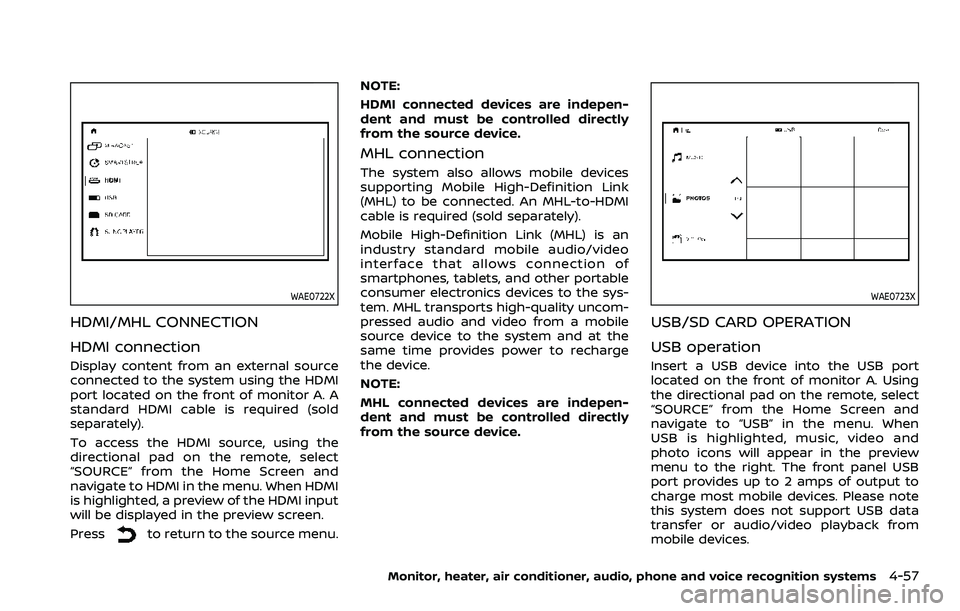
To access the HDMI source, using the
directional pad on the remote, select
“SOURCE” from the Home Screen and
navigate to HDMI in the menu. When HDMI
is highlighted, a preview of the HDMI input
will be displayed in the preview screen.
Press
to return to the source menu.NOTE:
HDMI connected devices are indepen-
dent and must be controlled directly
from the source device.
MHL connection
The system also allows mobile devices
supporting Mobile High-Definition Link
(MHL) to be connected. An MHL-to-HDMI
cable is required (sold separately).
Mobile High-Definition Link (MHL) is an
industry standard mobile audio/video
interface that allows connection of
smartphones, tablets, and other portable
consumer electronics devices to the sys-
tem. MHL transports high-quality uncom-
pressed audio and video from a mobile
source device to the system and at the
same time provides power to recharge
the device.
NOTE:
MHL connected devices are indepen-
dent and must be controlled directly
from the source device.
WAE0723X
USB/SD CARD OPERATION
USB operation
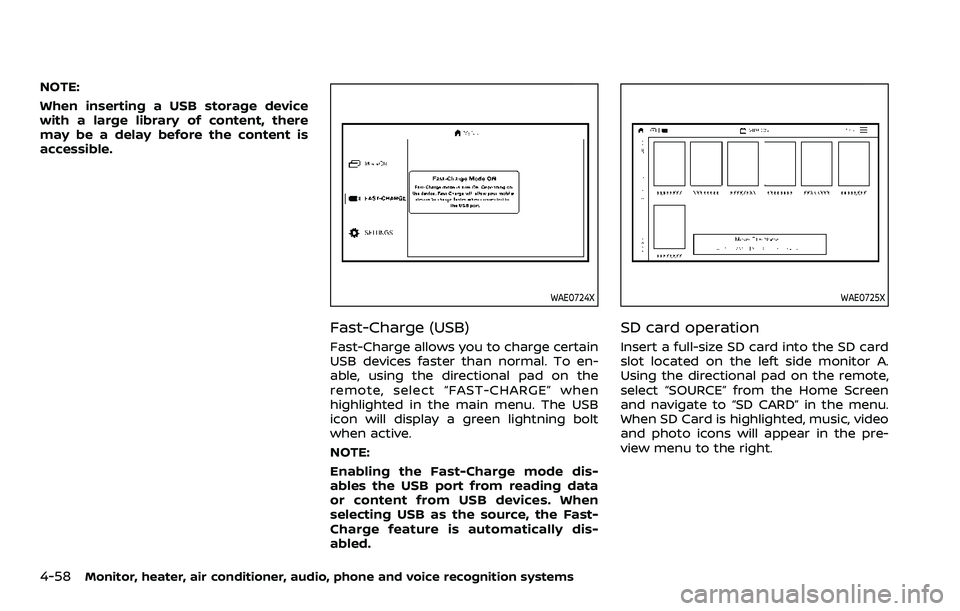
Insert a USB device into the USB port
located on the front of monitor A. Using
the directional pad on the remote, select
“SOURCE” from the Home Screen and
navigate to “USB” in the menu. When
USB is highlighted, music, video and
photo icons will appear in the preview
menu to the right. The front panel USB
port provides up to 2 amps of output to
charge most mobile devices. Please note
this system does not support USB data
transfer or audio/video playback from
mobile devices.
Monitor, heater, air conditioner, audio, phone and voice recognition systems4-57
Page 288 of 604
4-58Monitor, heater, air conditioner, audio, phone and voice recognition systems
NOTE:
When inserting a USB storage device
with a large library of content, there
may be a delay before the content is
accessible.
WAE0724X
Fast-Charge (USB)
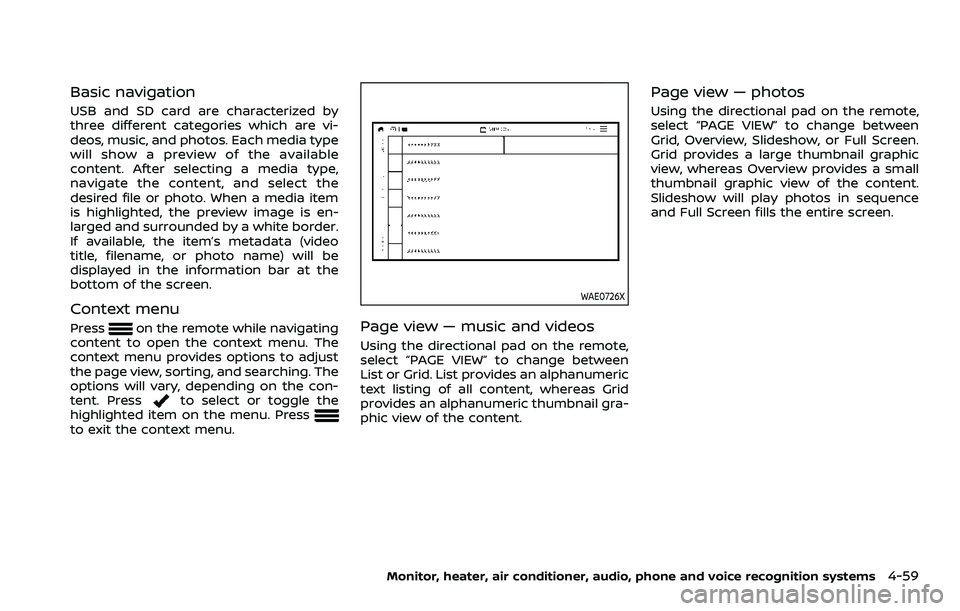
Fast-Charge allows you to charge certain
USB devices faster than normal. To en-
able, using the directional pad on the
remote, select “FAST-CHARGE” when
highlighted in the main menu. The USB
icon will display a green lightning bolt
when active.
NOTE:
Enabling the Fast-Charge mode dis-
ables the USB port from reading data
or content from USB devices. When
selecting USB as the source, the Fast-
Charge feature is automatically dis-
abled.
WAE0725X
SD card operation
Insert a full-size SD card into the SD card
slot located on the left side monitor A.
Using the directional pad on the remote,
select “SOURCE” from the Home Screen
and navigate to “SD CARD” in the menu.
When SD Card is highlighted, music, video
and photo icons will appear in the pre-
view menu to the right.
Page 289 of 604
Basic navigation
USB and SD card are characterized by
three different categories which are vi-
deos, music, and photos. Each media type
will show a preview of the available
content. After selecting a media type,
navigate the content, and select the
desired file or photo. When a media item
is highlighted, the preview image is en-
larged and surrounded by a white border.
If available, the item’s metadata (video
title, filename, or photo name) will be
displayed in the information bar at the
bottom of the screen.
Context menu
Presson the remote while navigating
content to open the context menu. The
context menu provides options to adjust
the page view, sorting, and searching. The
options will vary, depending on the con-
tent. Press
to select or toggle the
highlighted item on the menu. Press
to exit the context menu.
WAE0726X
Page view — music and videos
Using the directional pad on the remote,
select “PAGE VIEW” to change between
List or Grid. List provides an alphanumeric
text listing of all content, whereas Grid
provides an alphanumeric thumbnail gra-
phic view of the content.
Page view — photos
Using the directional pad on the remote,
select “PAGE VIEW” to change between
Grid, Overview, Slideshow, or Full Screen.
Grid provides a large thumbnail graphic
view, whereas Overview provides a small
thumbnail graphic view of the content.
Slideshow will play photos in sequence
and Full Screen fills the entire screen.
Monitor, heater, air conditioner, audio, phone and voice recognition systems4-59
Page 291 of 604
WAE0728X
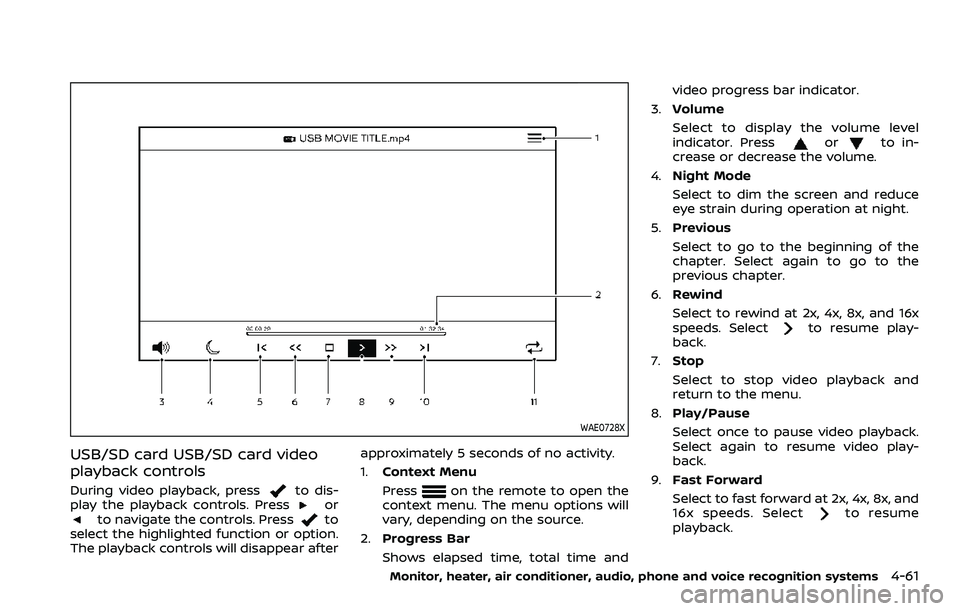
USB/SD card USB/SD card video
playback controls
During video playback, pressto dis-
play the playback controls. Pressorto navigate the controls. Pressto
select the highlighted function or option.
The playback controls will disappear after approximately 5 seconds of no activity.
1.
Context Menu
Press
on the remote to open the
context menu. The menu options will
vary, depending on the source.
2. Progress Bar
Shows elapsed time, total time and video progress bar indicator.
3. Volume
Select to display the volume level
indicator. Press
orto in-
crease or decrease the volume.
4. Night Mode
Select to dim the screen and reduce
eye strain during operation at night.
5. Previous
Select to go to the beginning of the
chapter. Select again to go to the
previous chapter.
6. Rewind
Select to rewind at 2x, 4x, 8x, and 16x
speeds. Select
to resume play-
back.
7. Stop
Select to stop video playback and
return to the menu.
8. Play/Pause
Select once to pause video playback.
Select again to resume video play-
back.
9. Fast Forward
Select to fast forward at 2x, 4x, 8x, and
16x speeds. Select
to resume
playback.
Monitor, heater, air conditioner, audio, phone and voice recognition systems4-61
Page 294 of 604
4-64Monitor, heater, air conditioner, audio, phone and voice recognition systems
WAE0731X
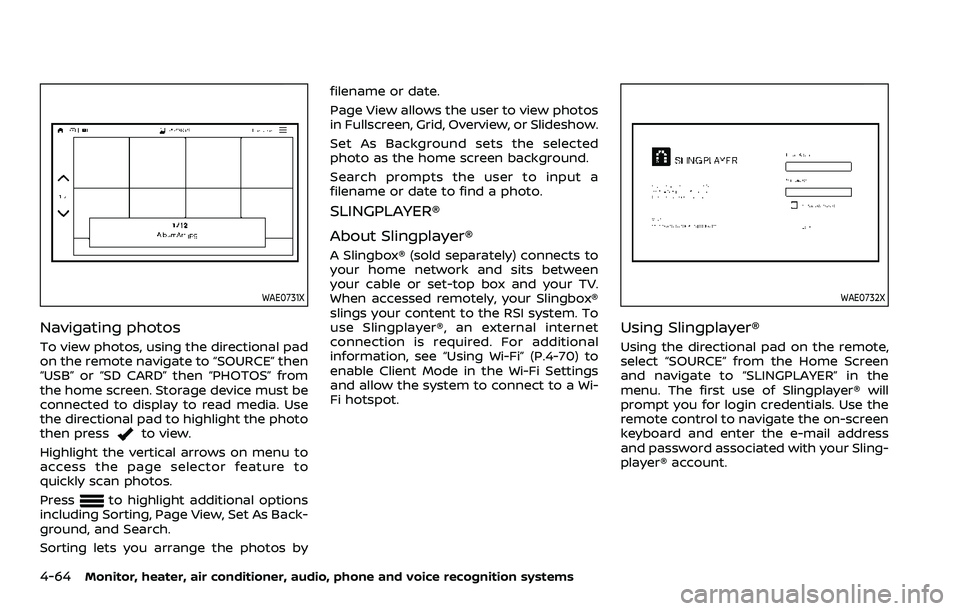
Navigating photos
To view photos, using the directional pad
on the remote navigate to “SOURCE” then
“USB” or “SD CARD” then “PHOTOS” from
the home screen. Storage device must be
connected to display to read media. Use
the directional pad to highlight the photo
then press
to view.
Highlight the vertical arrows on menu to
access the page selector feature to
quickly scan photos.
Press
to highlight additional options
including Sorting, Page View, Set As Back-
ground, and Search.
Sorting lets you arrange the photos by filename or date.
Page View allows the user to view photos
in Fullscreen, Grid, Overview, or Slideshow.
Set As Background sets the selected
photo as the home screen background.
Search prompts the user to input a
filename or date to find a photo.
SLINGPLAYER®
About Slingplayer®
A Slingbox® (sold separately) connects to
your home network and sits between
your cable or set-top box and your TV.
When accessed remotely, your Slingbox®
slings your content to the RSI system. To
use Slingplayer®, an external internet
connection is required. For additional
information, see “Using Wi-Fi” (P.4-70) to
enable Client Mode in the Wi-Fi Settings
and allow the system to connect to a Wi-
Fi hotspot.
WAE0732X
Using Slingplayer®
Using the directional pad on the remote,
select “SOURCE” from the Home Screen
and navigate to “SLINGPLAYER” in the
menu. The first use of Slingplayer® will
prompt you for login credentials. Use the
remote control to navigate the on-screen
keyboard and enter the e-mail address
and password associated with your Sling-
player® account.
Page 299 of 604
4. After selecting a content source, navi-gate through the folders, and select
the desired file to stream to the
monitor. Once the file is selected, it
will begin streaming to the monitor
that was selected in step 2 above.
5. Playback controls are available from the Now Playing screen in the UPnP
application and from the monitor.
Press
to display the playback
controls on the monitor.
NOTE:
. Content protected with DRM (Digital
Rights Management) cannot be
streamed using the SmartStream
feature.
. A wired connection (HDMI or MHL) is
required to stream protected con-
tent from a mobile device to the RSI
system. For additional information,
see “HDMI/MHL connection” (P.4-57).
WAE0740X
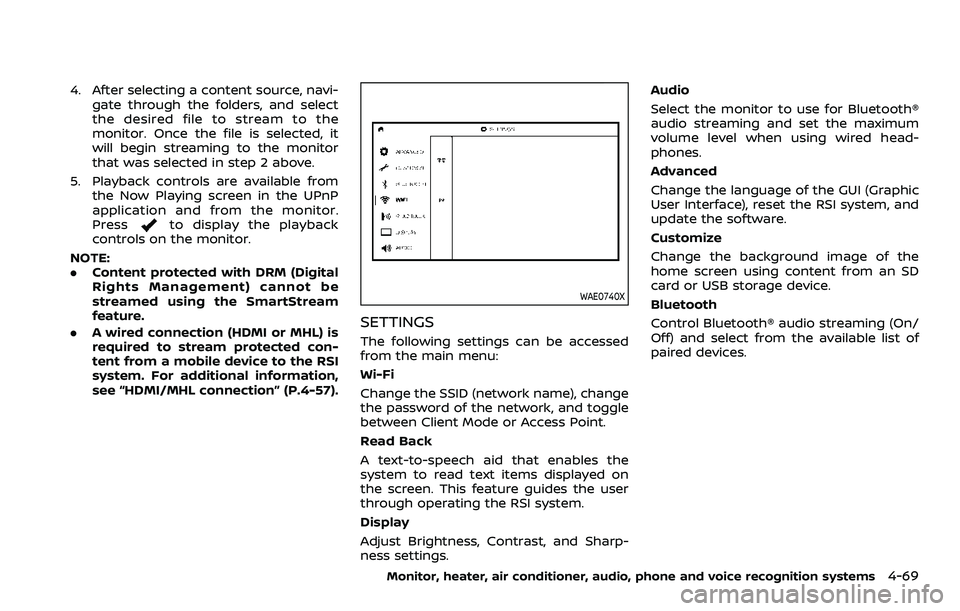
SETTINGS
The following settings can be accessed
from the main menu:
Wi-Fi
Change the SSID (network name), change
the password of the network, and toggle
between Client Mode or Access Point.
Read Back
A text-to-speech aid that enables the
system to read text items displayed on
the screen. This feature guides the user
through operating the RSI system.
Display
Adjust Brightness, Contrast, and Sharp-
ness settings. Audio
Select the monitor to use for Bluetooth®
audio streaming and set the maximum
volume level when using wired head-
phones.
Advanced
Change the language of the GUI (Graphic
User Interface), reset the RSI system, and
update the software.
Customize
Change the background image of the
home screen using content from an SD
card or USB storage device.
Bluetooth
Control Bluetooth® audio streaming (On/
Off) and select from the available list of
paired devices.
Monitor, heater, air conditioner, audio, phone and voice recognition systems4-69
Page 304 of 604
4-74Monitor, heater, air conditioner, audio, phone and voice recognition systems
WAE0747X
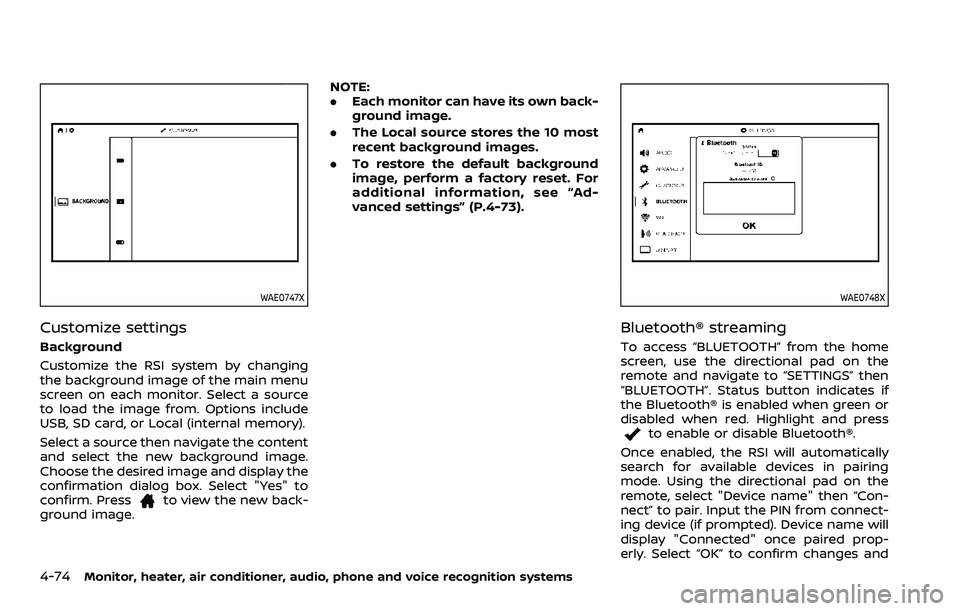
Customize settings
Background
Customize the RSI system by changing
the background image of the main menu
screen on each monitor. Select a source
to load the image from. Options include
USB, SD card, or Local (internal memory).
Select a source then navigate the content
and select the new background image.
Choose the desired image and display the
confirmation dialog box. Select "Yes" to
confirm. Press
to view the new back-
ground image. NOTE:
.
Each monitor can have its own back-
ground image.
. The Local source stores the 10 most
recent background images.
. To restore the default background
image, perform a factory reset. For
additional information, see “Ad-
vanced settings” (P.4-73).
WAE0748X
Bluetooth® streaming
To access “BLUETOOTH” from the home
screen, use the directional pad on the
remote and navigate to “SETTINGS” then
“BLUETOOTH”. Status button indicates if
the Bluetooth® is enabled when green or
disabled when red. Highlight and press
to enable or disable Bluetooth®.
Once enabled, the RSI will automatically
search for available devices in pairing
mode. Using the directional pad on the
remote, select "Device name" then “Con-
nect” to pair. Input the PIN from connect-
ing device (if prompted). Device name will
display "Connected" once paired prop-
erly. Select “OK” to confirm changes and
Page 307 of 604
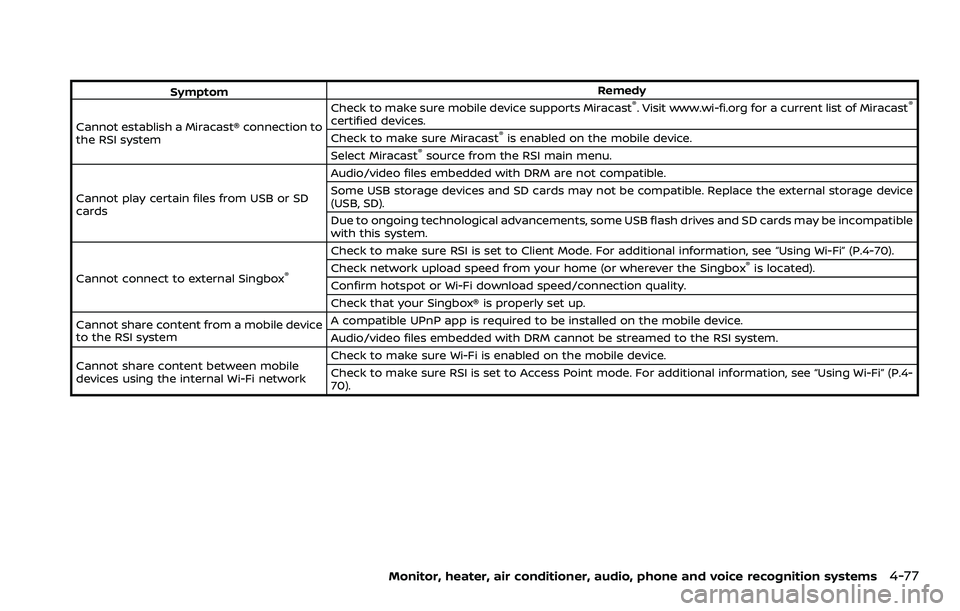
SymptomRemedy
Cannot establish a Miracast® connection to
the RSI system Check to make sure mobile device supports Miracast®. Visit www.wi-fi.org for a current list of Miracast®
certified devices.
Check to make sure Miracast®is enabled on the mobile device.
Select Miracast®source from the RSI main menu.
Cannot play certain files from USB or SD
cards Audio/video files embedded with DRM are not compatible.
Some USB storage devices and SD cards may not be compatible. Replace the external storage device
(USB, SD).
Due to ongoing technological advancements, some USB flash drives and SD cards may be incompatible
with this system.
Cannot connect to external Singbox
®
Check to make sure RSI is set to Client Mode. For additional information, see “Using Wi-Fi” (P.4-70).
Check network upload speed from your home (or wherever the Singbox®is located).
Confirm hotspot or Wi-Fi download speed/connection quality.
Check that your Singbox® is properly set up.
Cannot share content from a mobile device
to the RSI system A compatible UPnP app is required to be installed on the mobile device.
Audio/video files embedded with DRM cannot be streamed to the RSI system.
Cannot share content between mobile
devices using the internal Wi-Fi network Check to make sure Wi-Fi is enabled on the mobile device.
Check to make sure RSI is set to Access Point mode. For additional information, see “Using Wi-Fi” (P.4-
70).
Monitor, heater, air conditioner, audio, phone and voice recognition systems4-77
Page 308 of 604
4-78Monitor, heater, air conditioner, audio, phone and voice recognition systems
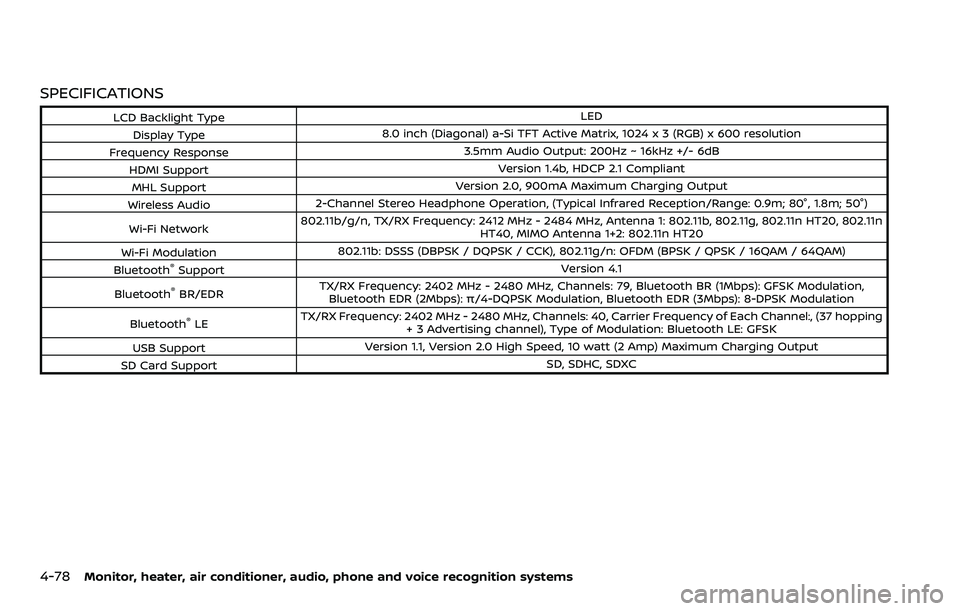
SPECIFICATIONS
LCD Backlight TypeLED
Display Type 8.0 inch (Diagonal) a-Si TFT Active Matrix, 1024 x 3 (RGB) x 600 resolution
Frequency Response 3.5mm Audio Output: 200Hz ~ 16kHz +/- 6dB
HDMI Support Version 1.4b, HDCP 2.1 Compliant
MHL Support Version 2.0, 900mA Maximum Charging Output
Wireless Audio 2-Channel Stereo Headphone Operation, (Typical Infrared Reception/Range: 0.9m; 80°, 1.8m; 50°)
Wi-Fi Network 802.11b/g/n, TX/RX Frequency: 2412 MHz - 2484 MHz, Antenna 1: 802.11b, 802.11g, 802.11n HT20, 802.11n
HT40, MIMO Antenna 1+2: 802.11n HT20
Wi-Fi Modulation 802.11b: DSSS (DBPSK / DQPSK / CCK), 802.11g/n: OFDM (BPSK / QPSK / 16QAM / 64QAM)
Bluetooth
®Support Version 4.1
Bluetooth
®BR/EDR TX/RX Frequency: 2402 MHz - 2480 MHz, Channels: 79, Bluetooth BR (1Mbps): GFSK Modulation,
Bluetooth EDR (2Mbps): π/4-DQPSK Modulation, Bluetooth EDR (3Mbps): 8-DPSK Modulation
Bluetooth
®LE TX/RX Frequency: 2402 MHz - 2480 MHz, Channels: 40, Carrier Frequency of Each Channel:, (37 hopping
+ 3 Advertising channel), Type of Modulation: Bluetooth LE: GFSK
USB Support Version 1.1, Version 2.0 High Speed, 10 watt (2 Amp) Maximum Charging Output
SD Card Support SD, SDHC, SDXC