reset NISSAN ARMADA 2022 Owner´s Manual
[x] Cancel search | Manufacturer: NISSAN, Model Year: 2022, Model line: ARMADA, Model: NISSAN ARMADA 2022Pages: 604, PDF Size: 2.97 MB
Page 132 of 604
2-38Instruments and controls
button for longer than 1 second.
The display is updated every 30 seconds.
At about the first 1/3 mile (500 m) after a
reset, the display shows “——”.
8. Intelligent Cruise Control (ICC)
system
This mode shows the operating condition
for the Intelligent Cruise Control (ICC)
system. (See “Intelligent Cruise Control
(ICC)” (P.5-74).)
NOTE:
If the ICC system is in a standby state,
this screen is automatically displayed.
9. Driving aids (if so equipped)
The driving aids mode shows the operat-
ing condition for the following systems, if
the vehicle is equipped with them.
. Automatic Emergency Braking (AEB)
with pedestrian detection system
. Intelligent Forward Collision Warning
(I-FCW)
. Lane Departure Warning (LDW)
. Intelligent Lane Intervention (I-LI)
. Blind Spot Warning (BSW)
. Intelligent Blind Spot Intervention (I-
BSI)
For more details, see “Automatic Emer-
gency Braking (AEB) with pedestrian de-
tection system” (P.5-96), “Intelligent Forward Collision Warning (I-FCW)” (P.5-
106), “Lane Departure Warning (LDW)” (P.5-
26), “Intelligent Lane Intervention (I-LI)”
(P.5-31), “Blind Spot Warning (BSW)” (P.5-
38) or “Intelligent Blind Spot Intervention
(I-BSI)” (P.5-46).
10. Tire pressures
The tire pressure mode shows the pres-
sure of all four tires while the vehicle is
driven.
When the “Tire Pressure Low Add Air”
warning appears, the display can be
switched to the tire pressure mode by
pushing the left or right side of the
button.
The tire pressure unit can be changed
using the “TPMS Setting” menu displayed
in the vehicle information display. (See
“TPMS Setting” (P.2-23).)
NOTE:
After the ignition switch is placed in the
ON position, it may take a period of time
for the tire pressure to be displayed
while the vehicle is driven. Depending
on the radio wave circumstance, tire
pressure may not correctly be dis-
played.WAC0225X
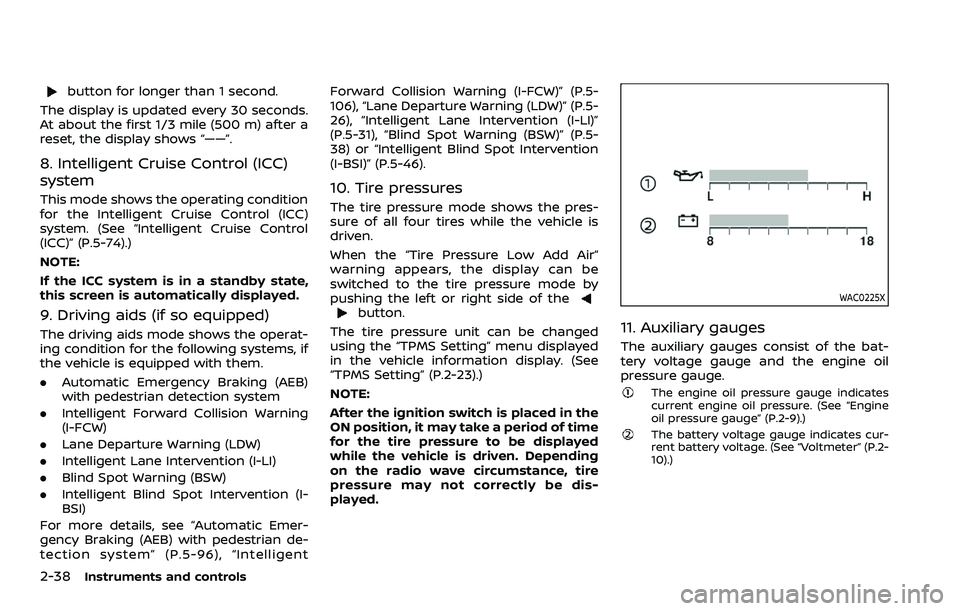
11. Auxiliary gauges
The auxiliary gauges consist of the bat-
tery voltage gauge and the engine oil
pressure gauge.
The engine oil pressure gauge indicates
current engine oil pressure. (See “Engine
oil pressure gauge” (P.2-9).)
The battery voltage gauge indicates cur-
rent battery voltage. (See “Voltmeter” (P.2-
10).)
Page 140 of 604
2-46Instruments and controls
WAC0617X
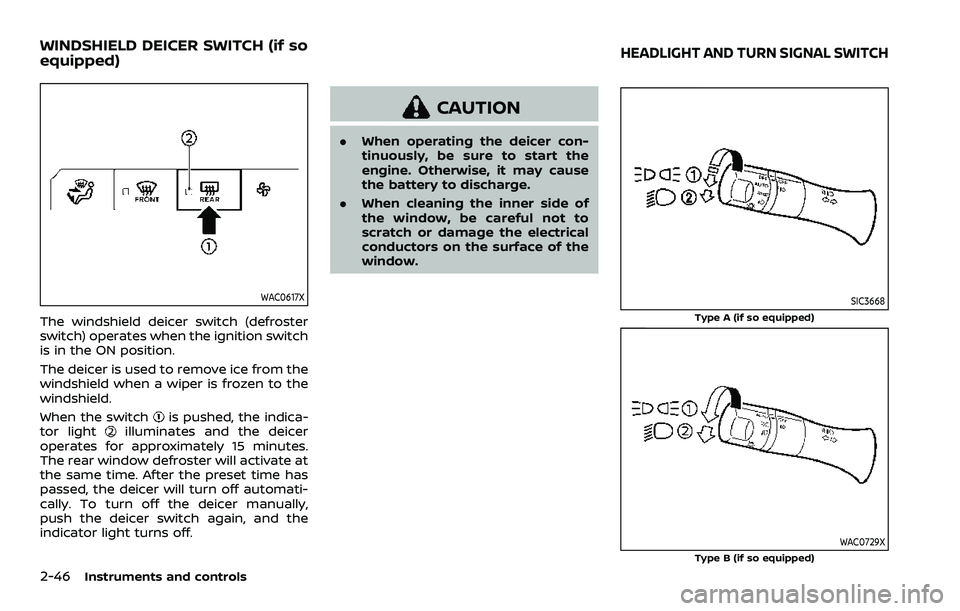
The windshield deicer switch (defroster
switch) operates when the ignition switch
is in the ON position.
The deicer is used to remove ice from the
windshield when a wiper is frozen to the
windshield.
When the switch
is pushed, the indica-
tor lightilluminates and the deicer
operates for approximately 15 minutes.
The rear window defroster will activate at
the same time. After the preset time has
passed, the deicer will turn off automati-
cally. To turn off the deicer manually,
push the deicer switch again, and the
indicator light turns off.
CAUTION
. When operating the deicer con-
tinuously, be sure to start the
engine. Otherwise, it may cause
the battery to discharge.
. When cleaning the inner side of
the window, be careful not to
scratch or damage the electrical
conductors on the surface of the
window.
SIC3668
Type A (if so equipped)
WAC0729XType B (if so equipped)
WINDSHIELD DEICER SWITCH (if so
equipped)HEADLIGHT AND TURN SIGNAL SWITCH
Page 229 of 604
Initialize entry/exit function
If the battery cable is disconnected, or if
the fuse opens, the entry/exit function
will not work though this function was set
on before. In such a case, after connect-
ing the battery or replacing with a new
fuse, open and close the driver’s door
more than two times after the ignition
switch is turned from the ON position to
the LOCK position. The entry/exit func-
tion will be activated.
MEMORY STORAGE
Two positions for the driver’s seat, steer-
ing column and outside mirrors can be
stored in the memory switch. Follow
these procedures to use the memory
system.
1. Move the shift lever to the P (Park)position.
2. Adjust the driver’s seat, steering col- umn and outside mirrors to the de-
sired positions by manually operating
each adjusting switch. For additional
information, see “Seats” (P.1-3) and
“Tilt/telescopic steering” (P.3-29) and
“Outside mirrors” (P.3-38).
3. Push the SET switch and, within 5 seconds, push the memory switch (1
or 2) fully for at least 1 second.
The indicator light for the pushed
memory switch will stay on for ap- proximately 5 seconds after pushing
the switch.
When the memory is stored in the
memory switch (1 or 2), a buzzer will
sound.
If memory is stored in the same
memory switch, the previous memory
will be deleted.
Linking Intelligent Key to a stored
memory position
The Intelligent Key can be linked to a
stored memory position with the follow-
ing procedure.
1. Follow the steps for storing a memory
position.
2. While the indicator light for the mem- ory switch being set is illuminated for
5 seconds, push the
button on the
Intelligent Key. If the indicator light
blinks, the Intelligent Key is linked to
that memory setting.
Push the ignition switch to the OFF
position, and then push the
button
on the Intelligent Key. The driver’s seat,
steering wheel and outside mirrors will
move to the memorized position.
Confirming memory storage
. Push the ignition switch to the ON
position and push the SET switch. If
the main memory has not been
stored, the indicator light will come
on for approximately 0.5 second.
When the memory has stored in posi-
tion, the indicator light will stay on for
approximately 5 seconds.
. If the battery cable is disconnected, or
if the fuse opens, the memory will be
canceled. In this case, reset the de-
sired position using the previous pro-
cedure.
. If optional Intelligent Keys are added
to your vehicle, the memory storage
procedure to switch 1 or 2 and linking
Intelligent Key procedure to a stored
memory position should be per-
formed again for each Intelligent Key.
For additional Intelligent Key informa-
tion, see “Keys” (P.3-2).
Selecting the memorized position
1. Move the shift lever to the P (Park)
position.
2. Use one of the following methods to move the driver’s seat, the outside
mirrors and the steering wheel.
.Push the memory switch (1 or 2)fully for at least 1 second.
Pre-driving checks and adjustments3-41
Page 280 of 604
4-50Monitor, heater, air conditioner, audio, phone and voice recognition systems
WAE0714X
Monitor B (Passenger’s Side)
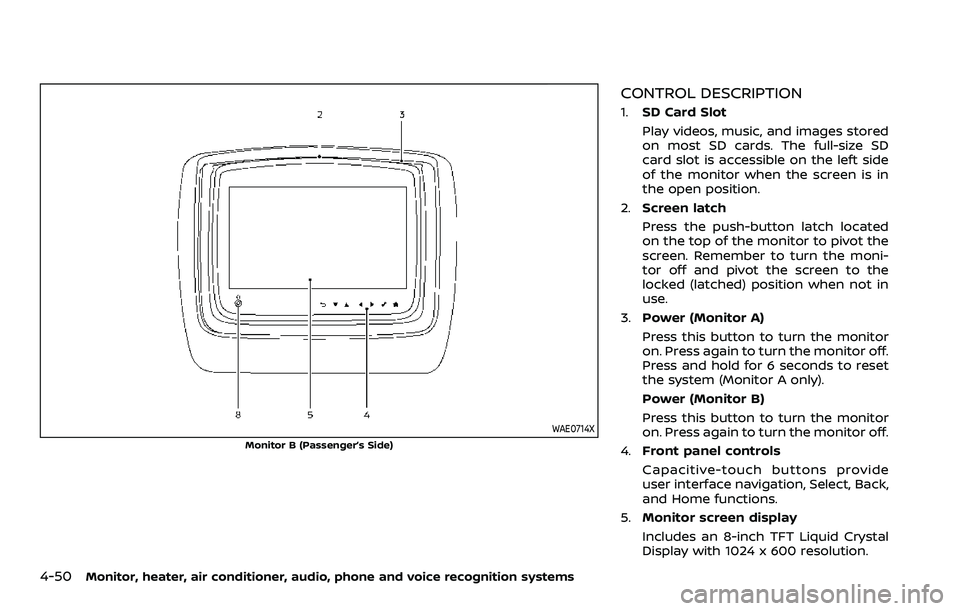
CONTROL DESCRIPTION
1.SD Card Slot
Play videos, music, and images stored
on most SD cards. The full-size SD
card slot is accessible on the left side
of the monitor when the screen is in
the open position.
2. Screen latch
Press the push-button latch located
on the top of the monitor to pivot the
screen. Remember to turn the moni-
tor off and pivot the screen to the
locked (latched) position when not in
use.
3. Power (Monitor A)
Press this button to turn the monitor
on. Press again to turn the monitor off.
Press and hold for 6 seconds to reset
the system (Monitor A only).
Power (Monitor B)
Press this button to turn the monitor
on. Press again to turn the monitor off.
4. Front panel controls
Capacitive-touch buttons provide
user interface navigation, Select, Back,
and Home functions.
5. Monitor screen display
Includes an 8-inch TFT Liquid Crystal
Display with 1024 x 600 resolution.
Page 299 of 604
4. After selecting a content source, navi-gate through the folders, and select
the desired file to stream to the
monitor. Once the file is selected, it
will begin streaming to the monitor
that was selected in step 2 above.
5. Playback controls are available from the Now Playing screen in the UPnP
application and from the monitor.
Press
to display the playback
controls on the monitor.
NOTE:
. Content protected with DRM (Digital
Rights Management) cannot be
streamed using the SmartStream
feature.
. A wired connection (HDMI or MHL) is
required to stream protected con-
tent from a mobile device to the RSI
system. For additional information,
see “HDMI/MHL connection” (P.4-57).
WAE0740X
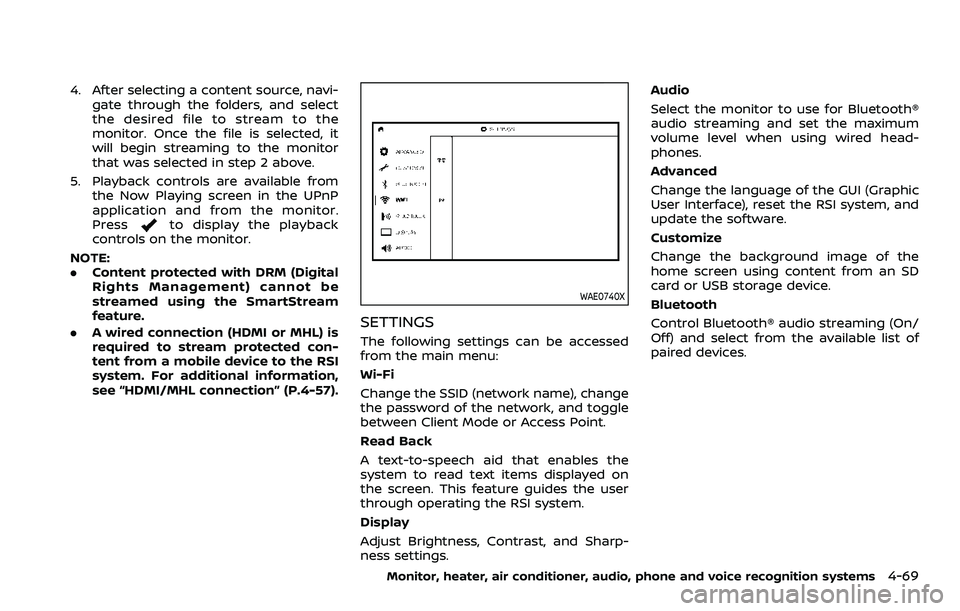
SETTINGS
The following settings can be accessed
from the main menu:
Wi-Fi
Change the SSID (network name), change
the password of the network, and toggle
between Client Mode or Access Point.
Read Back
A text-to-speech aid that enables the
system to read text items displayed on
the screen. This feature guides the user
through operating the RSI system.
Display
Adjust Brightness, Contrast, and Sharp-
ness settings. Audio
Select the monitor to use for Bluetooth®
audio streaming and set the maximum
volume level when using wired head-
phones.
Advanced
Change the language of the GUI (Graphic
User Interface), reset the RSI system, and
update the software.
Customize
Change the background image of the
home screen using content from an SD
card or USB storage device.
Bluetooth
Control Bluetooth® audio streaming (On/
Off) and select from the available list of
paired devices.
Monitor, heater, air conditioner, audio, phone and voice recognition systems4-69
Page 303 of 604
see “Bluetooth® streaming” (P.4-74).
WAE0746X
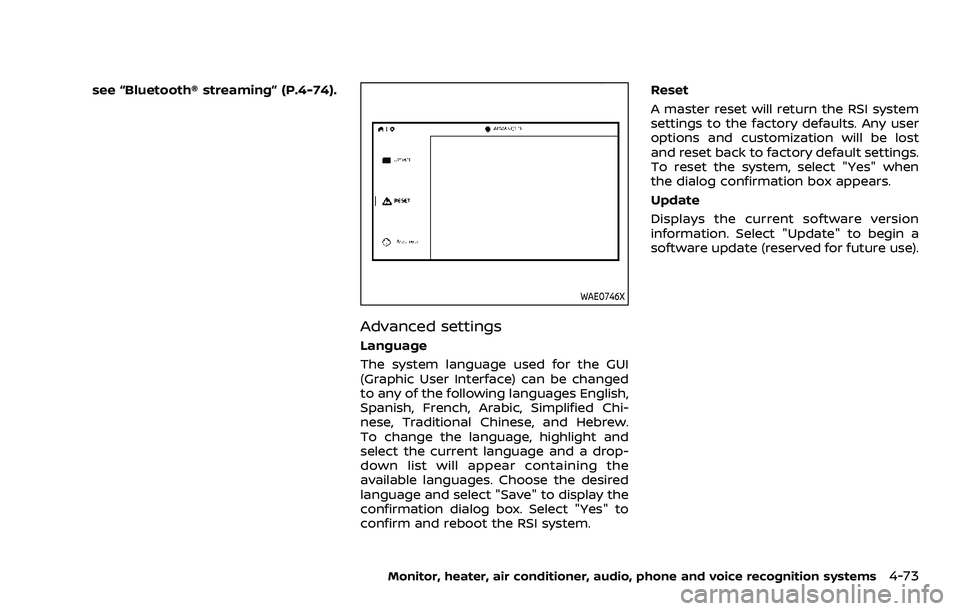
Advanced settings
Language
The system language used for the GUI
(Graphic User Interface) can be changed
to any of the following languages English,
Spanish, French, Arabic, Simplified Chi-
nese, Traditional Chinese, and Hebrew.
To change the language, highlight and
select the current language and a drop-
down list will appear containing the
available languages. Choose the desired
language and select "Save" to display the
confirmation dialog box. Select "Yes" to
confirm and reboot the RSI system.Reset
A master reset will return the RSI system
settings to the factory defaults. Any user
options and customization will be lost
and reset back to factory default settings.
To reset the system, select "Yes" when
the dialog confirmation box appears.
Update
Displays the current software version
information. Select "Update" to begin a
software update (reserved for future use).
Monitor, heater, air conditioner, audio, phone and voice recognition systems4-73
Page 304 of 604
4-74Monitor, heater, air conditioner, audio, phone and voice recognition systems
WAE0747X
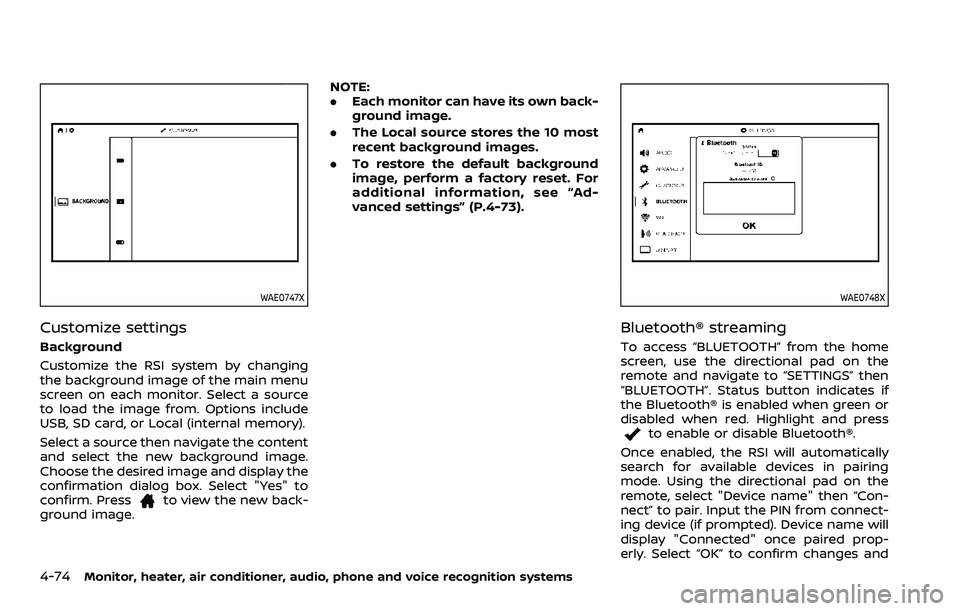
Customize settings
Background
Customize the RSI system by changing
the background image of the main menu
screen on each monitor. Select a source
to load the image from. Options include
USB, SD card, or Local (internal memory).
Select a source then navigate the content
and select the new background image.
Choose the desired image and display the
confirmation dialog box. Select "Yes" to
confirm. Press
to view the new back-
ground image. NOTE:
.
Each monitor can have its own back-
ground image.
. The Local source stores the 10 most
recent background images.
. To restore the default background
image, perform a factory reset. For
additional information, see “Ad-
vanced settings” (P.4-73).
WAE0748X
Bluetooth® streaming
To access “BLUETOOTH” from the home
screen, use the directional pad on the
remote and navigate to “SETTINGS” then
“BLUETOOTH”. Status button indicates if
the Bluetooth® is enabled when green or
disabled when red. Highlight and press
to enable or disable Bluetooth®.
Once enabled, the RSI will automatically
search for available devices in pairing
mode. Using the directional pad on the
remote, select "Device name" then “Con-
nect” to pair. Input the PIN from connect-
ing device (if prompted). Device name will
display "Connected" once paired prop-
erly. Select “OK” to confirm changes and
Page 306 of 604
4-76Monitor, heater, air conditioner, audio, phone and voice recognition systems
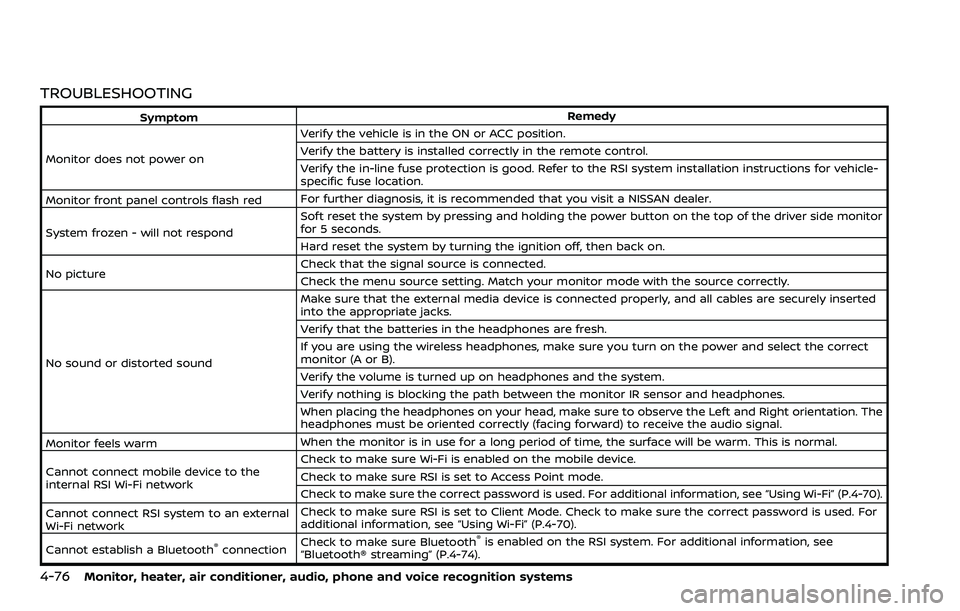
TROUBLESHOOTING
SymptomRemedy
Monitor does not power on Verify the vehicle is in the ON or ACC position.
Verify the battery is installed correctly in the remote control.
Verify the in-line fuse protection is good. Refer to the RSI system installation instructions for vehicle-
specific fuse location.
Monitor front panel controls flash red For further diagnosis, it is recommended that you visit a NISSAN dealer.
System frozen - will not respond Soft reset the system by pressing and holding the power button on the top of the driver side monitor
for 5 seconds.
Hard reset the system by turning the ignition off, then back on.
No picture Check that the signal source is connected.
Check the menu source setting. Match your monitor mode with the source correctly.
No sound or distorted sound Make sure that the external media device is connected properly, and all cables are securely inserted
into the appropriate jacks.
Verify that the batteries in the headphones are fresh.
If you are using the wireless headphones, make sure you turn on the power and select the correct
monitor (A or B).
Verify the volume is turned up on headphones and the system.
Verify nothing is blocking the path between the monitor IR sensor and headphones.
When placing the headphones on your head, make sure to observe the Left and Right orientation. The
headphones must be oriented correctly (facing forward) to receive the audio signal.
Monitor feels warm When the monitor is in use for a long period of time, the surface will be warm. This is normal.
Cannot connect mobile device to the
internal RSI Wi-Fi network Check to make sure Wi-Fi is enabled on the mobile device.
Check to make sure RSI is set to Access Point mode.
Check to make sure the correct password is used. For additional information, see “Using Wi-Fi” (P.4-70).
Cannot connect RSI system to an external
Wi-Fi network Check to make sure RSI is set to Client Mode. Check to make sure the correct password is used. For
additional information, see “Using Wi-Fi” (P.4-70).
Cannot establish a Bluetooth
®connection Check to make sure Bluetooth®is enabled on the RSI system. For additional information, see
“Bluetooth® streaming” (P.4-74).
Page 319 of 604
recommended you consult a
NISSAN dealer.
. Since the spare tire is not
equipped with the TPMS, when a
spare tire is mounted or a wheel
is replaced, the TPMS will not
function and the low tire pressure
warning light will flash for ap-
proximately 1 minute. The light
will remain on after 1 minute.
Have your tires replaced and/or
TPMS system reset as soon as
possible. It is recommended you
visit a NISSAN dealer for these
services.
. Replacing tires with those not
originally specified by NISSAN
could affect the proper operation
of the TPMS.
. Do not inject any tire liquid or
aerosol tire sealant into the tires,
as this may cause a malfunction
of the tire pressure sensors.
CAUTION
.The TPMS may not function prop-
erly when the wheels are
equipped with tire chains or the
wheels are buried in snow. .
Do not place metalized film or
any metal parts (antenna, etc.) on
the windows. This may cause
poor reception of the signals
from the tire pressure sensors,
and the TPMS will not function
properly.
Some devices and transmitters may tem-
porarily interfere with the operation of
the TPMS and cause the low tire pressure
warning light to illuminate. Some exam-
ples are:
. Facilities or electric devices using
similar radio frequencies are near the
vehicle.
. If a transmitter set to similar frequen-
cies is being used in or near the
vehicle.
. If a computer (or similar equipment) or
a DC/AC converter is being used in or
near the vehicle.
Low tire pressure warning light may
illuminate in the following cases.
. If the vehicle is equipped with a wheel
and tire without TPMS.
. If the TPMS has been replaced and the
ID has not been registered.
. If the wheel is not originally specified
by NISSAN. FCC Notice:
For USA:
This device complies with Part 15 of the
FCC Rules. Operation is subject to the
following two conditions: (1) This device
may not cause harmful interference,
and (2) this device must accept any
interference received, including inter-
ference that may cause undesired op-
eration.
Note: Changes or modifications not
expressly approved by the party re-
sponsible for compliance could void
the user’s authority to operate the
equipment.
For Canada:
This device complies with Industry Ca-
nada licence-exempt RSS standard(s).
Operation is subject to the following
two conditions: (1) this device may not
cause interference, and (2) this device
must accept any interference, including
interference that may cause undesired
operation of the device.
Starting and driving5-7
Page 386 of 604
5-74Starting and driving
WARNING
Failure to follow the warnings and
instructions for proper use of the ICC
system could result in serious injury
or death.
.ICC is not a collision avoidance or
warning device. For highway use
only and it is not intended for
congested areas or city driving.
Failure to apply the brakes could
result in an accident.
. Always observe posted speed
limits and do not set the speed
over them.
. Always drive carefully and atten-
tively when using either cruise
control mode. Read and under-
stand the Owner’s Manual thor-
oughly before using the cruise
control. To avoid serious injury
or death, do not rely on the
system to prevent accidents or
to control the vehicle’s speed in
emergency situations. Do not use
cruise control except in appropri-
ate road and traffic conditions.
. In the conventional (fixed speed)
cruise control mode, a warning
chime will not sound to warn you if you are too close to the vehicle
ahead. Pay special attention to
the distance between your vehi-
cle and the vehicle ahead of you
or a collision could occur.
The ICC system maintains a selected
distance from the vehicle in front of you
within the speed range of 0 to 90 MPH (0
to 144 km/h) up to the set speed. The set
speed can be selected by the driver
between 20 to 90 MPH (30 to 144 km/h).
The vehicle travels at a set speed when
the road ahead is clear.
The ICC system can be set to one of two
cruise control modes.
. Vehicle-to-vehicle distance control
mode:
For maintaining a selected distance
between your vehicle and the vehicle
in front of you up to the preset speed.
. Conventional (fixed speed) cruise con-
trol mode:
For cruising at a preset speed.
INTELLIGENT CRUISE CONTROL (ICC)