buttons NISSAN ARMADA 2022 Owner´s Manual
[x] Cancel search | Manufacturer: NISSAN, Model Year: 2022, Model line: ARMADA, Model: NISSAN ARMADA 2022Pages: 604, PDF Size: 2.97 MB
Page 220 of 604
3-32Pre-driving checks and adjustments
seat. Then adjust the mirror so as
to see the rear window properly.
Driving without adjusting the mir-
ror may cause difficulty in watch-
ing the display at Intelligent Rear
View Mirror mode (camera view
mode) due to the reflection from
the surface of the mirror.
. If the Intelligent Rear View Mirror
malfunctions, immediately switch
the system to the conventional
rearview mirror mode.
. When strong light (for example,
sunlight or high beams from fol-
lowing vehicles) enters the cam-
era, a light beam or a glaring light
may appear on the monitor
screen of the Intelligent Rear
View Mirror. In that case, switch
the system to the conventional
rearview mirror mode appropri-
ately.
. If dirt, rain or snow accumulates
on the exterior glass surface cov-
ering the camera, the Intelligent
Rear View Mirror may not display
objects clearly. Use of the rear
window wiper/washer may im-
prove visibility, but if not, switch
the Intelligent Rear View Mirror to
the conventional rearview mirror
mode until a time the glass cov- ering the camera can be cleaned.
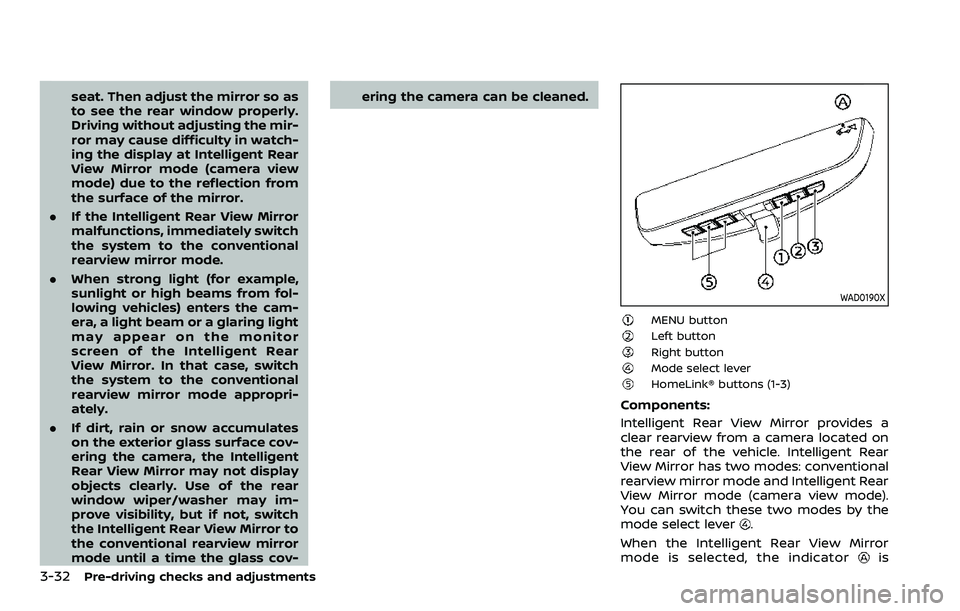
WAD0190X
MENU buttonLeft buttonRight buttonMode select leverHomeLink® buttons (1-3)
Components:
Intelligent Rear View Mirror provides a
clear rearview from a camera located on
the rear of the vehicle. Intelligent Rear
View Mirror has two modes: conventional
rearview mirror mode and Intelligent Rear
View Mirror mode (camera view mode).
You can switch these two modes by the
mode select lever
.
When the Intelligent Rear View Mirror
mode is selected, the indicator
is
Page 221 of 604
displayed.
For the operation of the HomeLink®
buttons
, see “HomeLink® Universal
Transceiver (Type B)” (P.2-87).
WAD0191X
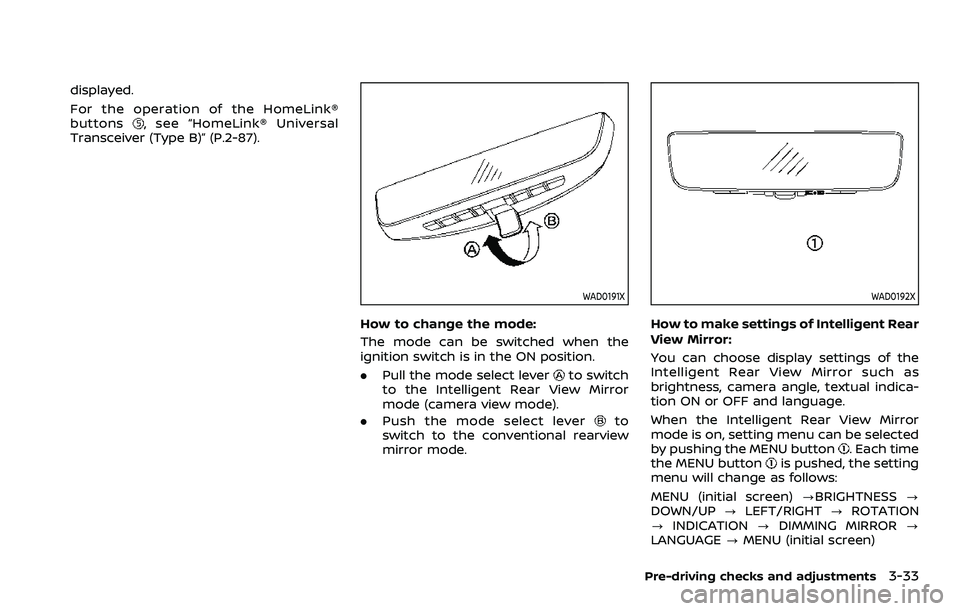
How to change the mode:
The mode can be switched when the
ignition switch is in the ON position.
. Pull the mode select lever
to switch
to the Intelligent Rear View Mirror
mode (camera view mode).
. Push the mode select lever
to
switch to the conventional rearview
mirror mode.
WAD0192X
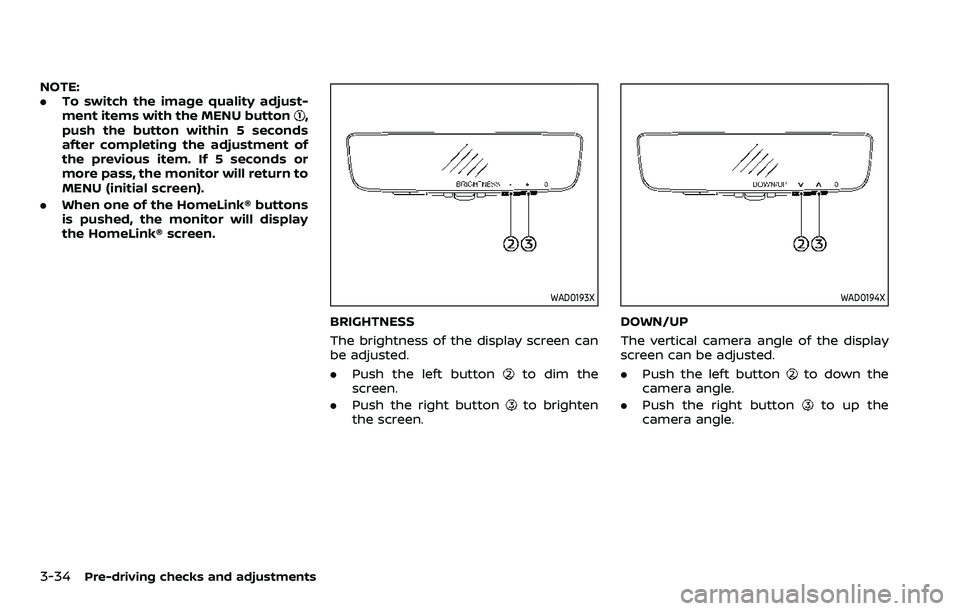
How to make settings of Intelligent Rear
View Mirror:
You can choose display settings of the
Intelligent Rear View Mirror such as
brightness, camera angle, textual indica-
tion ON or OFF and language.
When the Intelligent Rear View Mirror
mode is on, setting menu can be selected
by pushing the MENU button
. Each time
the MENU buttonis pushed, the setting
menu will change as follows:
MENU (initial screen) ?BRIGHTNESS ?
DOWN/UP ?LEFT/RIGHT ?ROTATION
? INDICATION ?DIMMING MIRROR ?
LANGUAGE ?MENU (initial screen)
Pre-driving checks and adjustments3-33
Page 222 of 604
3-34Pre-driving checks and adjustments
NOTE:
.To switch the image quality adjust-
ment items with the MENU button
,
push the button within 5 seconds
after completing the adjustment of
the previous item. If 5 seconds or
more pass, the monitor will return to
MENU (initial screen).
. When one of the HomeLink® buttons
is pushed, the monitor will display
the HomeLink® screen.
WAD0193X
BRIGHTNESS
The brightness of the display screen can
be adjusted.
.Push the left button
to dim the
screen.
. Push the right button
to brighten
the screen.
WAD0194X
DOWN/UP
The vertical camera angle of the display
screen can be adjusted.
. Push the left button
to down the
camera angle.
. Push the right button
to up the
camera angle.
Page 224 of 604
3-36Pre-driving checks and adjustments
WAD0197X
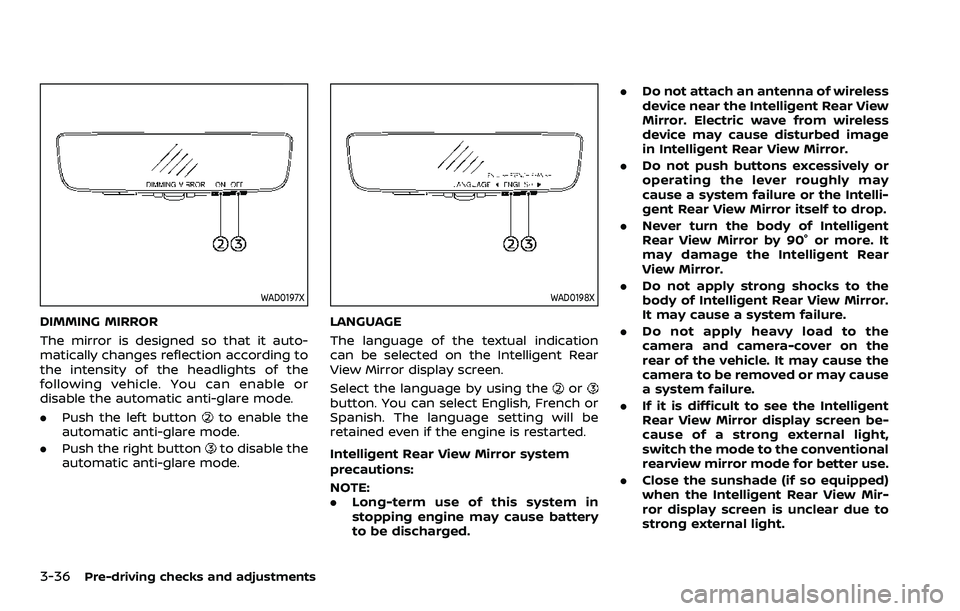
DIMMING MIRROR
The mirror is designed so that it auto-
matically changes reflection according to
the intensity of the headlights of the
following vehicle. You can enable or
disable the automatic anti-glare mode.
.Push the left button
to enable the
automatic anti-glare mode.
. Push the right button
to disable the
automatic anti-glare mode.
WAD0198X
LANGUAGE
The language of the textual indication
can be selected on the Intelligent Rear
View Mirror display screen.
Select the language by using the
orbutton. You can select English, French or
Spanish. The language setting will be
retained even if the engine is restarted.
Intelligent Rear View Mirror system
precautions:
NOTE:
. Long-term use of this system in
stopping engine may cause battery
to be discharged. .
Do not attach an antenna of wireless
device near the Intelligent Rear View
Mirror. Electric wave from wireless
device may cause disturbed image
in Intelligent Rear View Mirror.
. Do not push buttons excessively or
operating the lever roughly may
cause a system failure or the Intelli-
gent Rear View Mirror itself to drop.
. Never turn the body of Intelligent
Rear View Mirror by 90° or more. It
may damage the Intelligent Rear
View Mirror.
. Do not apply strong shocks to the
body of Intelligent Rear View Mirror.
It may cause a system failure.
. Do not apply heavy load to the
camera and camera-cover on the
rear of the vehicle. It may cause the
camera to be removed or may cause
a system failure.
. If it is difficult to see the Intelligent
Rear View Mirror display screen be-
cause of a strong external light,
switch the mode to the conventional
rearview mirror mode for better use.
. Close the sunshade (if so equipped)
when the Intelligent Rear View Mir-
ror display screen is unclear due to
strong external light.
Page 232 of 604
Remote control operation ........................................... 4-52
Remote control buttons ................................................ 4-52
Wireless headphone operation ................................ 4-54
General operation ............................................................... 4-55
Video operation .................................................................... 4-56
HDMI/MHL connection .................................................... 4-57
USB/SD card operation .................................................. 4-57
Slingplayer® ........................................................................\
..... 4-64Miracast® ........................................................................\
......... 4-66
Using the mobile application on your
mobile device ....................................................................... 4-67
SmartStream ........................................................................\
4-67
Settings ........................................................................\
............ 4-69
Troubleshooting ................................................................ 4-76
Specifications ....................................................................... 4-78
Compliance information ............................................. 4-79
Page 256 of 604
4-26Monitor, heater, air conditioner, audio, phone and voice recognition systems
WARNING
Failure to follow the warnings and
instructions for proper use of the
sonar function as outlined in this
section could result in serious injury
or death.
.The sonar is a convenience fea-
ture. It is not a substitute for
proper parking.
. This function is designed as an
aid to the driver in detecting large
stationary objects to help avoid
damaging the vehicle.
. The driver is always responsible
for safety during parking and
other maneuvers.
. Always look around and check
that it is safe to move before
parking.
. Read and understand the limita-
tions of the sonar as contained in
this section.
The sonar function helps to inform the
driver of large stationary objects around
the vehicle when parking by issuing an
audible and visual alert.
WAE0659X
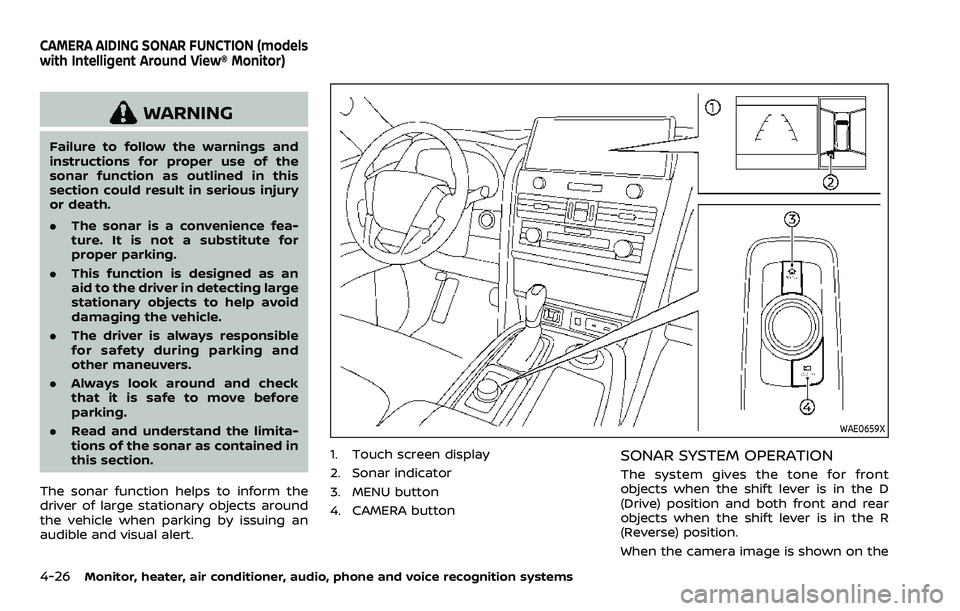
1. Touch screen display
2. Sonar indicator
3. MENU button
4. CAMERA buttonSONAR SYSTEM OPERATION
The system gives the tone for front
objects when the shift lever is in the D
(Drive) position and both front and rear
objects when the shift lever is in the R
(Reverse) position.
When the camera image is shown on the
CAMERA AIDING SONAR FUNCTION (models
with Intelligent Around View® Monitor)
Page 268 of 604
4-38Monitor, heater, air conditioner, audio, phone and voice recognition systems
WAE0650X
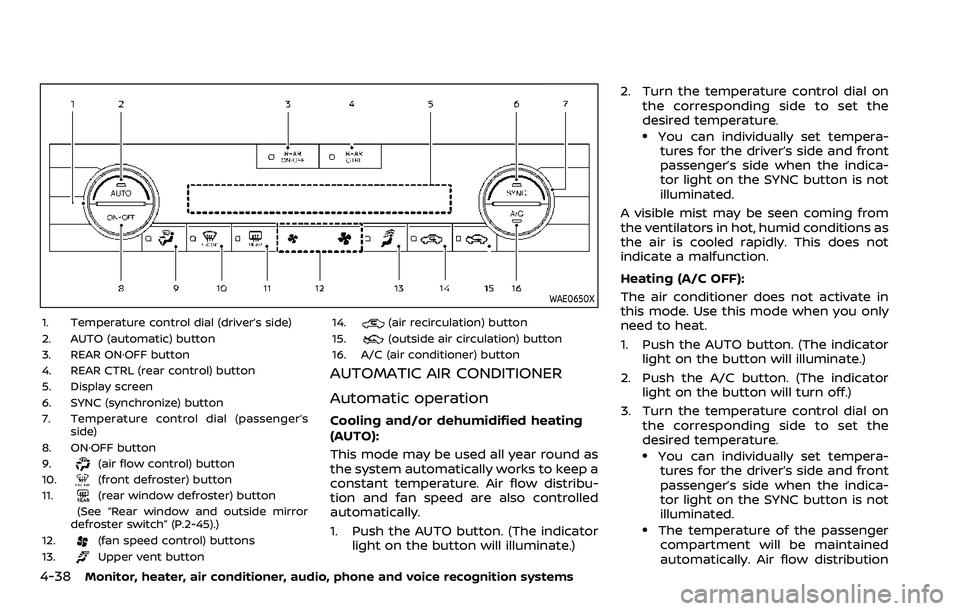
1. Temperature control dial (driver’s side)
2. AUTO (automatic) button
3. REAR ON·OFF button
4. REAR CTRL (rear control) button
5. Display screen
6. SYNC (synchronize) button
7. Temperature control dial (passenger’sside)
8. ON·OFF button
9.
(air flow control) button
10.(front defroster) button
11.(rear window defroster) button
(See “Rear window and outside mirror
defroster switch” (P.2-45).)
12.
(fan speed control) buttons
13.Upper vent button 14.
(air recirculation) button
15.(outside air circulation) button
16. A/C (air conditioner) button
AUTOMATIC AIR CONDITIONER
Automatic operation
Cooling and/or dehumidified heating
(AUTO):
This mode may be used all year round as
the system automatically works to keep a
constant temperature. Air flow distribu-
tion and fan speed are also controlled
automatically.
1. Push the AUTO button. (The indicator light on the button will illuminate.) 2. Turn the temperature control dial on
the corresponding side to set the
desired temperature.
.You can individually set tempera-tures for the driver’s side and front
passenger’s side when the indica-
tor light on the SYNC button is not
illuminated.
A visible mist may be seen coming from
the ventilators in hot, humid conditions as
the air is cooled rapidly. This does not
indicate a malfunction.
Heating (A/C OFF):
The air conditioner does not activate in
this mode. Use this mode when you only
need to heat.
1. Push the AUTO button. (The indicator light on the button will illuminate.)
2. Push the A/C button. (The indicator light on the button will turn off.)
3. Turn the temperature control dial on the corresponding side to set the
desired temperature.
.You can individually set tempera-tures for the driver’s side and front
passenger’s side when the indica-
tor light on the SYNC button is not
illuminated.
.The temperature of the passengercompartment will be maintained
automatically. Air flow distribution
Page 269 of 604
and fan speed are also controlled
automatically.
NOTE:
. Do not set the temperature lower
than the outside air temperature or
the system may not work properly.
. Not recommended if windows fog
up.
Dehumidified defrosting or defogging:
1. Push the
button. (The indicator
light on the button will illuminate.)
2. Turn the temperature control dial on the corresponding side to set the
desired temperature.
.To quickly remove ice from theoutside of the windows, use the
button to set the fan speed to
maximum.
.As soon as possible after the wind- shield is cleared, push the AUTO
button to return to the automatic
mode.
Manual operation
Fan speed control:
Push the
buttons to manually control
the fan speed.
Air intake control:
. Push the
button to recirculate
interior air inside the vehicle. (The
indicator light on the button will
illuminate.)
. Push the
button to draw outside
air into the passenger compartment.
(The indicator light on the button will
illuminate.)
. To control the air intake automatically,
push and hold either the
button
or thebutton. The indicator light
will blink, and then the air intake will
switch to automatic control. When the
automatic control is set, the system
automatically alternates between the
outside air circulation and the air
recirculation modes. (The indicator
light of the active mode will illumi-
nate.) Air flow control:
Pushing the
button manually con-
trols air flow and selects the air outlet:
— Air flows mainly from center and side
ventilators.
— Air flows mainly from center and sideventilators and foot outlets.
— Air flows mainly from the foot outletand partly from the defroster.
— Air flows mainly from the defrosterand foot outlets.
Synchronize temperature settings:
Push the SYNC button to turn on the
SYNC mode. (The indicator light on the
button will illuminate.)
When the SYNC mode is active, the
driver’s side temperature control dial will
control the driver’s side, front passenger’s
side and rear temperatures.
When the passenger’s side temperature
setting or the rear temperature setting is
changed, it will cancel the SYNC mode of
the operated individual zone. (The indica-
tor light on the SYNC button will turn off.)
Changing both the passenger’s side tem-
perature setting and the rear tempera-
ture setting will completely turn off the
SYNC mode.
Monitor, heater, air conditioner, audio, phone and voice recognition systems4-39
Page 272 of 604
4-42Monitor, heater, air conditioner, audio, phone and voice recognition systems
Rear air conditioner control panel
operation
Rear control buttons:
When the indicator light on the REAR
CTRL button on the front air conditioner
control panel is turned off, the rear seat
passengers can adjust the rear automatic
air conditioning system using the control
switches on the rear of the center con-
sole.
.
button:
Rear automatic air conditioning sys-
tem on/off.
.
button:
Rear fan speed control up/down
. AUTO button:
Rear automatic air conditioning sys-
tem on, AUTO mode on
. MODE button:
Rear air flow control change
. TEMP button:
Rear temperature control up/down
Turning the system on/off
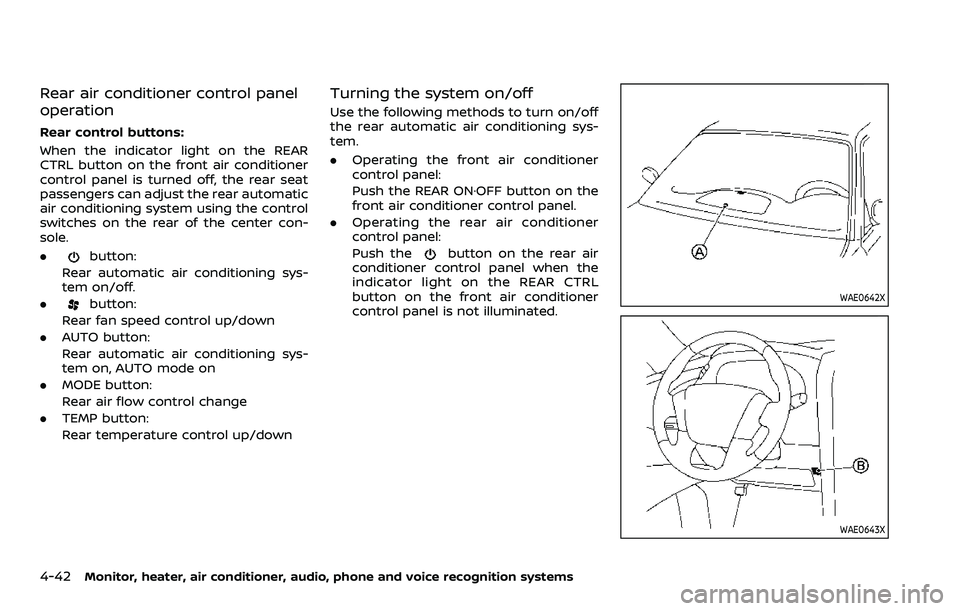
Use the following methods to turn on/off
the rear automatic air conditioning sys-
tem.
.Operating the front air conditioner
control panel:
Push the REAR ON·OFF button on the
front air conditioner control panel.
. Operating the rear air conditioner
control panel:
Push the
button on the rear air
conditioner control panel when the
indicator light on the REAR CTRL
button on the front air conditioner
control panel is not illuminated.
WAE0642X
WAE0643X
Page 280 of 604
4-50Monitor, heater, air conditioner, audio, phone and voice recognition systems
WAE0714X
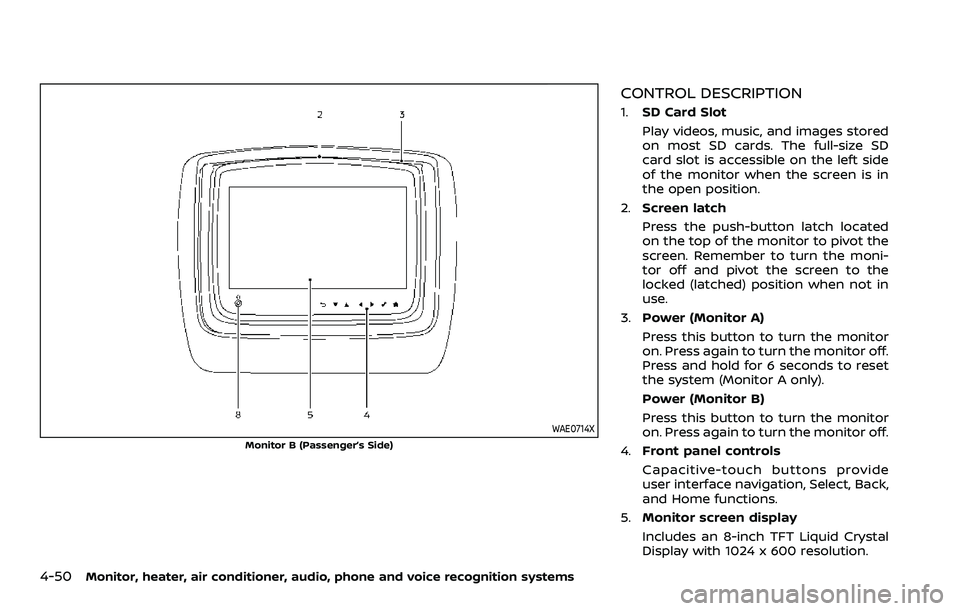
Monitor B (Passenger’s Side)
CONTROL DESCRIPTION
1.SD Card Slot
Play videos, music, and images stored
on most SD cards. The full-size SD
card slot is accessible on the left side
of the monitor when the screen is in
the open position.
2. Screen latch
Press the push-button latch located
on the top of the monitor to pivot the
screen. Remember to turn the moni-
tor off and pivot the screen to the
locked (latched) position when not in
use.
3. Power (Monitor A)
Press this button to turn the monitor
on. Press again to turn the monitor off.
Press and hold for 6 seconds to reset
the system (Monitor A only).
Power (Monitor B)
Press this button to turn the monitor
on. Press again to turn the monitor off.
4. Front panel controls
Capacitive-touch buttons provide
user interface navigation, Select, Back,
and Home functions.
5. Monitor screen display
Includes an 8-inch TFT Liquid Crystal
Display with 1024 x 600 resolution.