display NISSAN ARMADA 2022 Owner´s Manual
[x] Cancel search | Manufacturer: NISSAN, Model Year: 2022, Model line: ARMADA, Model: NISSAN ARMADA 2022Pages: 604, PDF Size: 2.97 MB
Page 116 of 604
2-22Instruments and controls
menus offer instruction prompts of the
steering switch buttons to indicate how
to control the vehicle information display.
The OK
button changes the audio
source and thebuttonsalso
control voice recognition manual mode.
The OK
button can be used to change
the audio source when the audio screen
is displayed. The
buttonscan be
used when controlling voice recognition
prompts manually. (See NissanConnect®
Owner’s Manual.)
STARTUP DISPLAY
When the ignition switch is placed in the
ON position, the vehicle information dis-
play may display the following screens if
the vehicle is equipped with them:
. Home
. Speed
. Drive Computer
. Fuel Economy
. Navigation
. Audio
. CRUISE
. Driving Aids
. TPMS
. Speed Limit Sign
Warnings will only display if there are any
present. (See “Operational indicators” (P.2-
30).) To control what items display in the
vehicle information display, see “Settings”
(P.2-22).
SETTINGS
The setting mode allows user to change
the information displayed in the vehicle
information display and some settings:
.
Driver Assistance
. TPMS Setting
. Clock
. Vehicle settings
. Maintenance
. Customize Display
. Unit/Language
. Factory Reset
Driver Assistance
To change the status, warnings or turn on
or off any of the systems/warnings dis-
played in the “Driver Assistance” menu,
use the
buttonsto select and
change a menu item:
. Emergency Brake
. Lane
. Blind Spot
. Speed Limit Sign
. Cross Traffic Alert
. Driver Attention Alert .
Timer Alert
. Low Temp. Alert
Emergency Brake:
. Front
Allows user to turn the Automatic
Emergency Braking (AEB) with pedes-
trian detection system and Intelligent
Forward Collision Warning (I-FCW) sys-
tem ON/OFF.
. Rear
Allows user to turn the Rear Auto-
matic Braking (RAB) system ON/OFF.
(See “Automatic Emergency Braking (AEB)
with pedestrian detection system” (P.5-
96), “Intelligent Forward Collision Warning
(I-FCW)” (P.5-106) and “Rear Automatic
Braking (RAB)” (P.5-116).)
Lane:
. Warning(LDW)
Allows user to turn the Lane Depar-
ture Warning (LDW) system ON/OFF.
. Prevention(LDP)
Allows user to turn the Intelligent Lane
Intervention (I-LI) system ON/OFF.
(See “Lane Departure Warning (LDW)” (P.5-
26) and “Intelligent Lane Intervention (I-
LI)” (P.5-31).)
Page 118 of 604
2-24Instruments and controls
Tire Pressure Unit:
The unit for tire pressure that is shown in
the vehicle information display can be
changed to:
.kPa
. psi
. bar
. kgf/cm2
Use the
buttonsand the OKbutton to select and change the unit.
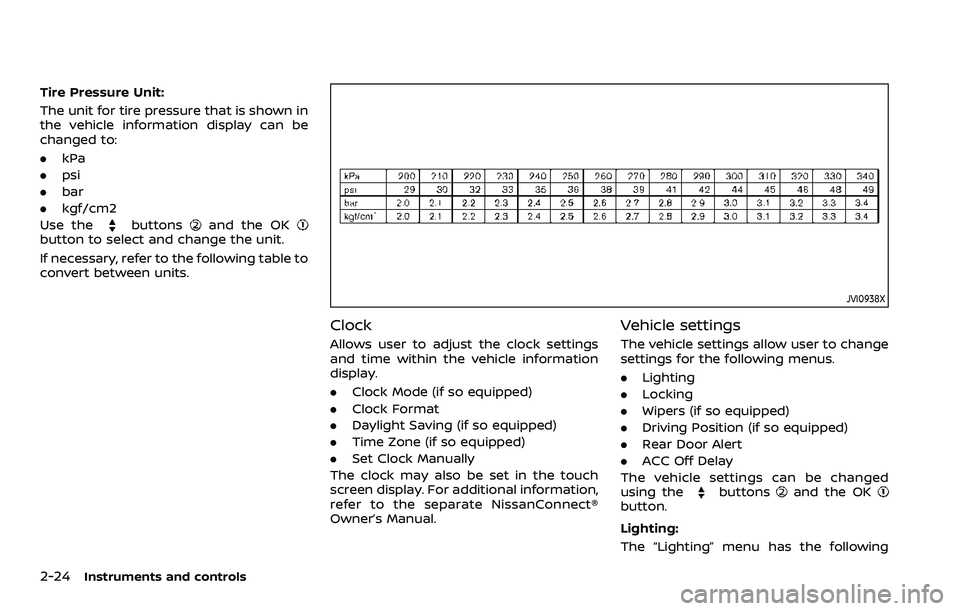
If necessary, refer to the following table to
convert between units.
JVI0938X
Clock
Allows user to adjust the clock settings
and time within the vehicle information
display.
. Clock Mode (if so equipped)
. Clock Format
. Daylight Saving (if so equipped)
. Time Zone (if so equipped)
. Set Clock Manually
The clock may also be set in the touch
screen display. For additional information,
refer to the separate NissanConnect®
Owner’s Manual.
Vehicle settings
The vehicle settings allow user to change
settings for the following menus.
. Lighting
. Locking
. Wipers (if so equipped)
. Driving Position (if so equipped)
. Rear Door Alert
. ACC Off Delay
The vehicle settings can be changed
using the
buttonsand the OKbutton.
Lighting:
The “Lighting” menu has the following
Page 119 of 604
options:
.Auto Room Lamp
The interior light can be set to be ON
or OFF. Use the OK
button to turn
this feature ON or OFF.
. Auto Headlight
The sensitivity of the Intelligent Auto
Headlight (if so equipped) or autolight
(if so equipped) can be adjusted. From
the “Lighting” menu, select “Auto
Headlight”. Use the
buttonsand the OKbutton to select the
required sensitivity. The following op-
tions are available:
— Turn on earliest
— Turn on earlier
— Turn on standard
— Turn on later
. Light Off Delay
The duration of the automatic head-
lights can be changed from 0 to 180
seconds. Use the OK
button to
change the duration.
Locking:
The “Locking” menu has the following
options:
. Ext. Door Switch (if so equipped)
When this item is turned on, the
request switch on the door is acti-
vated. Use the OK
button to activate or deactivate this function.
. Selective Unlock (if so equipped)
When this item is turned on, and the
door handle request switch is pushed,
only the corresponding door is un-
locked. All the doors can be unlocked
if the door handle request switch is
pushed again within 1 minute. When
this item is turned to off, all the doors
will be unlocked when the door han-
dle request switch is pushed once. Use
the OK
button to activate or deac-
tivate this function.
. Auto Door Unlock
The “Auto Door Unlock” feature allows
user to customize the auto door
unlock options. Use the OK
button
to change the mode.
— Shift to P
— IGN OFF
— OFF
Wipers (if so equipped):
The “Wipers” menu has the following
options:
. Speed Dependent
The “Speed Dependent” feature can be
activated or deactivated. Use the OK
button to turn this feature ON or OFF. Driving Position (if so equipped):
.
Exit Seat Slide
This allows user to turn the entry/exit
function ON or OFF. Use the OK
button to turn this function ON or OFF.
(See “Memory seat” (P.3-40).)
. Exit Steering Up (if so equipped)
This allows user to turn the entry/exit
function ON or OFF. Use the OK
button to turn this function ON or OFF.
(See “Memory seat” (P.3-40).)
Rear Door Alert:
The “Rear Door Alert” feature allows user
to customize the Rear Door Alert options.
Use the OK
button to change the mode.
. Horn & Alert
When selected, the alert is displayed
and the horn sounds.
. Alert Only
When selected, only the alert is dis-
played.
. OFF
When selected, no alert or horn will be
active.
(See “Rear door alert” (P.2-61).)
ACC Off Delay (if so equipped):
This allows user to turn the ACC delay
timer function ON or OFF. (See “ACC
(Accessories) delay timer function” (P.5-
Instruments and controls2-25
Page 120 of 604
2-26Instruments and controls
15).)
Maintenance
The maintenance mode allows user to set
alerts for the reminding of maintenance
intervals. To change an item:
Select “Maintenance” using the
but-
tonsand press the OKbutton.
. Oil and Filter
. Tire
. Other
Oil and Filter:
This indicator appears when user set
distance comes for changing the engine
oil and filter. You can set or reset the
distance for checking or replacing these
items. For scheduled maintenance items
and intervals, refer to the “9. Maintenance
and schedules” section.
Tire:
This indicator appears when the user set
distance comes for replacing tires. You
can set or reset the distance for replacing
tires.
WARNING
The tire replacement indicator is not
a substitute for regular tire checks,
including tire pressure checks. (See “Changing wheels and tires” (P.8-
36).) Many factors including tire in-
flation, alignment, driving habits and
road conditions affect tire wear and
when tires should be replaced.
Setting the tire replacement indica-
tor for a certain driving distance
does not mean your tires will last
that long. Use the tire replacement
indicator as a guide only and always
perform regular tire checks. Failure
to perform regular tire checks, in-
cluding tire pressure checks could
result in tire failure. Serious vehicle
damage could occur and may lead to
a collision, which could result in
serious personal injury or death.
Other:
This indicator appears when the user set
distance comes for checking or replacing
maintenance items other than the engine
oil, oil filter and tires. Other maintenance
items can include such things as air filter
or tire rotation. You can set or reset the
distance for checking or replacing the
items.
Customize Display
The display settings allows user to
choose from the various meter selections.
The display settings can be changed
using the
buttons.
Main Menu Selection:
Displays available screens that can be
shown in the vehicle information display.
Route Guidance (if so equipped):
To change the setting, use the
buttonsand press the OKbutton.
. Alerts
The “Alerts” allows user to turn the Route
Guidance alerts on or off.
Welcome Effect:
The “Welcome Effect” displays the avail-
able welcome effect settings.
. gauges (if so equipped)
. Animation
Page 121 of 604
Unit/Language
The units that are shown in the vehicle
information display can be changed:
.Mileage/Fuel
. Temperature
. Language
Use the
buttonsand the OKbutton to select and change the units of
the vehicle information display.
Mileage/Fuel:
The unit for the mileage that is shown in
the vehicle information display can be
changed.
. km, l/100km
. km, km/l
. miles, MPG(US)
Use the
buttonsand the OKbutton to select and change the unit.
Temperature:
The temperature that is shown in the
vehicle information display can be chan-
ged from:
. °C
. °F
Use the OK
button to toggle choices.
Language:
The language of the vehicle information
display can be changed. Use the
buttonsand the OKbutton to select and change the lan-
guage of the vehicle information display.
Factory Reset
The settings in the vehicle information
display can be reset back to the factory
default. To reset the vehicle information
display:
1. Select “Factory Reset” using the
buttonsand press the OKbutton.
2. Select “Yes” to return all settings back to default by pushing the OK
button.
Instruments and controls2-27
Page 124 of 604
2-30Instruments and controls
OPERATIONAL INDICATORS
The displayed images may differ depend-
ing on the model.
1. No Key Detected
This warning appears when the Intelli-
gent Key is left outside the vehicle with
the ignition switch in the ON position.
Make sure the Intelligent Key is inside the
vehicle.
See “Intelligent Key system” (P.3-7) for
more details.
2. Key ID Incorrect
This warning appears when the ignition
switch is pushed from the OFF position
and the Intelligent Key is not recognized
by the system. You cannot start the
engine with an unregistered key.
See “Intelligent Key system” (P.3-7).
3. Key Battery Low
This indicator appears when the Intelli-
gent Key battery is running out of power.
If this indicator appears, replace the
battery with a new one. (See “Intelligent
Key battery replacement” (P.8-21).)
4. Key System Error: See Owner’s
Manual
This warning appears if there is a mal-
function in the Intelligent Key system. If
this warning appears while the engine is
stopped, it may be impossible to start the
engine.
If this warning appears while the engine is
running, you can drive the vehicle. How-
ever in these cases, have the system
checked. It is recommended you visit a
NISSAN dealer for this service.
5. Key Registration Complete
This indicator appears when a new In-
telligent Key is registered to the vehicle.
6. Push brake and start switch to
drive
This indicator appears when the shift
lever is in the P (Park) position.
This indicator also appears when the
vehicle has been started using the Re-
mote Engine Start function (if so
equipped).
This indicator means that the engine will
start by pushing the ignition switch with
the brake pedal depressed. You can start
the engine from any position of the
ignition switch.
7. Push Ignition to OFF
After the Shift to Park warning illumi-
nates, the warning will illuminate if the
ignition switch is placed in the ACC
position when the shift lever moves into
the P (Park) position.
To turn off the warning, place the ignition
switch in the ON position and then in the
LOCK position.
8. Shift to Park
This warning appears when the ignition
switch is pushed to stop the engine with
the shift lever in any position except the P
(Park) position.
If this warning appears, move the shift
lever to the P (Park) position or push the
ignition switch to the ON position.
An inside warning chime will also sound.
(See “Intelligent Key system” (P.3-7).)
9. Engine start operation for Intelli-
gent Key system indicator (if I-Key
battery level is low)
This indicator appears when the Intelli-
gent Key battery is running out of power
and when the Intelligent Key system and
vehicle are not communicating normally.
If this indicator appears, touch the igni-
tion switch with the Intelligent Key while
depressing the brake pedal. (See “Intelli-
Page 125 of 604
gent Key battery discharge” (P.5-15).)
10. Release Parking Brake
This warning appears when the vehicle
speed is above 4 MPH (7 km/h) and the
parking brake is applied. Stop the vehicle
and release the parking brake.
11. Low Fuel
This warning appears when the fuel level
in the tank is getting low. Refuel as soon
as it is convenient, preferably before the
fuel gauge reaches the 0 (Empty) position.
There is a small reserve of fuel remain-
ing in the tank when the fuel gauge
reaches the 0 (Empty) position.
12. Low Washer Fluid
This warning appears when the washer
tank fluid is at a low level. Add washer
fluid as necessary. (See “Window washer
fluid” (P.8-10).)
13. Loose Fuel Cap
This warning appears when the fuel-filler
cap is not tightened correctly after the
vehicle has been refueled. (See “Fuel-filler
cap” (P.3-26).)
14. Tire Pressure Low Add Air
This warning appears when the low tire
pressure warning light in the meter
illuminates and low tire pressure is de-
tected. The warning appears each time
the ignition switch is placed in the ON
position as long as the low tire pressure
warning light remains illuminated. If this
warning appears, stop the vehicle and
adjust the tire pressure to the recom-
mended COLD tire pressure shown on the
Tire and Loading Information label. (See
“Low tire pressure warning light” (P.2-16)
and “Tire Pressure Monitoring System
(TPMS)” (P.5-5).)
15. SNOW mode indicator
This indicator appears when SNOW mode
is selected by the SNOW mode switch.
(See “SNOW mode” (P.5-135).)
16. Four-Wheel Drive (4WD) shift
indicator (4WD models)
This indicator shows the Four-Wheel
Drive (4WD) driving mode (AUTO, 4HI or
4LO) that is selected by the 4WD shift
switch. (See “NISSAN all-mode 4WD®” (P.5-
124).)
17. Door/liftgate open warning
(ignition switch is in the ON posi-
tion)
This warning appears if any of the doors
and/or the liftgate are open or not closed
securely. The vehicle icon indicates which
door or the liftgate is open on the display.
18. Power will turn off to save the
battery
This warning appears after a period of
time if the ignition switch is in ACC or ON
position.
19. Power turned off to save the
battery
This warning appears after the ignition
switch is automatically turned OFF to
save the battery.
20. Light reminder warning
This warning appears when the driver
side door is opened with the headlight
switch is left ON and the ignition switch is
placed in the OFF or LOCK position. Place
the headlight switch in the OFF (if so
equipped) or AUTO position. For addi-
tional information, see “Headlight and
turn signal switch” (P.2-46).
Instruments and controls2-31
Page 126 of 604
2-32Instruments and controls
21. Vehicle ahead detection indica-
tor
This indicator shows the status of the
following systems, if the vehicle is
equipped with them.
.Automatic Emergency Braking (AEB)
with pedestrian detection system
. Intelligent Forward Collision Warning
(I-FCW)
For more details, see “Automatic Emer-
gency Braking (AEB) with pedestrian de-
tection system” (P.5-96) or “Intelligent
Forward Collision Warning (I-FCW)” (P.5-
106).
The figure and color of these indicators
will change depending on the conditions
of the above systems.
22. LDW indicator
This indicator shows the status of the
following systems, if the vehicle is
equipped with them.
. Lane Departure Warning (LDW)
. Intelligent Lane Intervention (I-LI)
For more details, see “Lane Departure
Warning (LDW)” (P.5-26) or “Intelligent
Lane Intervention (I-LI)” (P.5-31).
The figure and color of these indicators
will change depending on the conditions
of the above systems.
23. BSW indicator
This indicator shows the status of the
following systems, if the vehicle is
equipped with them.
. Blind Spot Warning (BSW)
. Intelligent Blind Spot Intervention (I-
BSI)
For more details, see “Blind Spot Warning
(BSW)” (P.5-38) or “Intelligent Blind Spot
Intervention (I-BSI)” (P.5-46).
The figure and color of these indicators
will change depending on the conditions
of the above systems.
24. Malfunction
This warning appears when one or more
of the following systems (if so equipped)
is not functioning properly:
. Automatic Emergency Braking (AEB)
with pedestrian detection system
. Intelligent Forward Collision Warning
(I-FCW)
. Lane Departure Warning (LDW)
. Intelligent Lane Intervention (I-LI)
. Blind Spot Warning (BSW)
. Intelligent Blind Spot Intervention (I-
BSI)
. Intelligent Back-up Intervention (I-BI)
. Rear Cross Traffic Alert (RCTA)
If one or more of these warning appears, have the system checked. It is recom-
mended you visit a NISSAN dealer for this
service.
25. Wiper Mode Guidance
This indicator shows the wiper and
washer switch position.
The selected position is illuminated in
orange when the wiper switch position
is changed.
26. Lights Mode Guidance
This indicator shows the headlight switch
position.
The selected position is illuminated in
orange when the headlight switch posi-
tion is changed. (The display of the light
position varies depending on the models.)
27. Intelligent Cruise Control (ICC)
indicators
These indicators show the Intelligent
Cruise Control (ICC) system status. For
additional information, refer to “Intelligent
Cruise Control (ICC)” (P.5-74).
Page 127 of 604
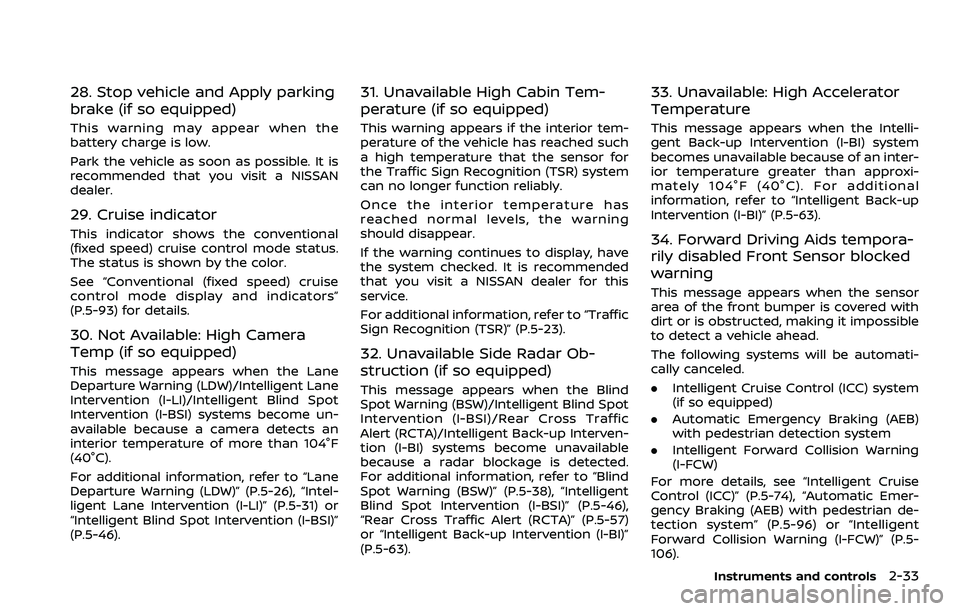
28. Stop vehicle and Apply parking
brake (if so equipped)
This warning may appear when the
battery charge is low.
Park the vehicle as soon as possible. It is
recommended that you visit a NISSAN
dealer.
29. Cruise indicator
This indicator shows the conventional
(fixed speed) cruise control mode status.
The status is shown by the color.
See “Conventional (fixed speed) cruise
control mode display and indicators”
(P.5-93) for details.
30. Not Available: High Camera
Temp (if so equipped)
This message appears when the Lane
Departure Warning (LDW)/Intelligent Lane
Intervention (I-LI)/Intelligent Blind Spot
Intervention (I-BSI) systems become un-
available because a camera detects an
interior temperature of more than 104°F
(40°C).
For additional information, refer to “Lane
Departure Warning (LDW)” (P.5-26), “Intel-
ligent Lane Intervention (I-LI)” (P.5-31) or
“Intelligent Blind Spot Intervention (I-BSI)”
(P.5-46).
31. Unavailable High Cabin Tem-
perature (if so equipped)
This warning appears if the interior tem-
perature of the vehicle has reached such
a high temperature that the sensor for
the Traffic Sign Recognition (TSR) system
can no longer function reliably.
Once the interior temperature has
reached normal levels, the warning
should disappear.
If the warning continues to display, have
the system checked. It is recommended
that you visit a NISSAN dealer for this
service.
For additional information, refer to “Traffic
Sign Recognition (TSR)” (P.5-23).
32. Unavailable Side Radar Ob-
struction (if so equipped)
This message appears when the Blind
Spot Warning (BSW)/Intelligent Blind Spot
Intervention (I-BSI)/Rear Cross Traffic
Alert (RCTA)/Intelligent Back-up Interven-
tion (I-BI) systems become unavailable
because a radar blockage is detected.
For additional information, refer to “Blind
Spot Warning (BSW)” (P.5-38), “Intelligent
Blind Spot Intervention (I-BSI)” (P.5-46),
“Rear Cross Traffic Alert (RCTA)” (P.5-57)
or “Intelligent Back-up Intervention (I-BI)”
(P.5-63).
33. Unavailable: High Accelerator
Temperature
This message appears when the Intelli-
gent Back-up Intervention (I-BI) system
becomes unavailable because of an inter-
ior temperature greater than approxi-
mately 104°F (40°C). For additional
information, refer to “Intelligent Back-up
Intervention (I-BI)” (P.5-63).
34. Forward Driving Aids tempora-
rily disabled Front Sensor blocked
warning
This message appears when the sensor
area of the front bumper is covered with
dirt or is obstructed, making it impossible
to detect a vehicle ahead.
The following systems will be automati-
cally canceled.
.Intelligent Cruise Control (ICC) system
(if so equipped)
. Automatic Emergency Braking (AEB)
with pedestrian detection system
. Intelligent Forward Collision Warning
(I-FCW)
For more details, see “Intelligent Cruise
Control (ICC)” (P.5-74), “Automatic Emer-
gency Braking (AEB) with pedestrian de-
tection system” (P.5-96) or “Intelligent
Forward Collision Warning (I-FCW)” (P.5-
106).
Instruments and controls2-33
Page 128 of 604
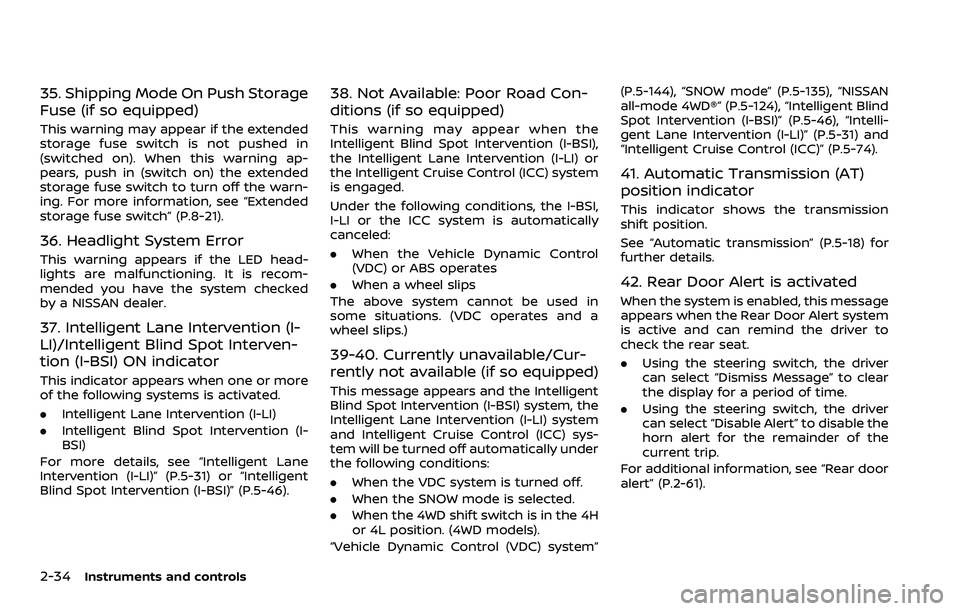
2-34Instruments and controls
35. Shipping Mode On Push Storage
Fuse (if so equipped)
This warning may appear if the extended
storage fuse switch is not pushed in
(switched on). When this warning ap-
pears, push in (switch on) the extended
storage fuse switch to turn off the warn-
ing. For more information, see “Extended
storage fuse switch” (P.8-21).
36. Headlight System Error
This warning appears if the LED head-
lights are malfunctioning. It is recom-
mended you have the system checked
by a NISSAN dealer.
37. Intelligent Lane Intervention (I-
LI)/Intelligent Blind Spot Interven-
tion (I-BSI) ON indicator
This indicator appears when one or more
of the following systems is activated.
.Intelligent Lane Intervention (I-LI)
. Intelligent Blind Spot Intervention (I-
BSI)
For more details, see “Intelligent Lane
Intervention (I-LI)” (P.5-31) or “Intelligent
Blind Spot Intervention (I-BSI)” (P.5-46).
38. Not Available: Poor Road Con-
ditions (if so equipped)
This warning may appear when the
Intelligent Blind Spot Intervention (I-BSI),
the Intelligent Lane Intervention (I-LI) or
the Intelligent Cruise Control (ICC) system
is engaged.
Under the following conditions, the I-BSI,
I-LI or the ICC system is automatically
canceled:
. When the Vehicle Dynamic Control
(VDC) or ABS operates
. When a wheel slips
The above system cannot be used in
some situations. (VDC operates and a
wheel slips.)
39-40. Currently unavailable/Cur-
rently not available (if so equipped)
This message appears and the Intelligent
Blind Spot Intervention (I-BSI) system, the
Intelligent Lane Intervention (I-LI) system
and Intelligent Cruise Control (ICC) sys-
tem will be turned off automatically under
the following conditions:
. When the VDC system is turned off.
. When the SNOW mode is selected.
. When the 4WD shift switch is in the 4H
or 4L position. (4WD models).
“Vehicle Dynamic Control (VDC) system” (P.5-144), “SNOW mode” (P.5-135), “NISSAN
all-mode 4WD®” (P.5-124), “Intelligent Blind
Spot Intervention (I-BSI)” (P.5-46), “Intelli-
gent Lane Intervention (I-LI)” (P.5-31) and
“Intelligent Cruise Control (ICC)” (P.5-74).
41. Automatic Transmission (AT)
position indicator
This indicator shows the transmission
shift position.
See “Automatic transmission” (P.5-18) for
further details.
42. Rear Door Alert is activated
When the system is enabled, this message
appears when the Rear Door Alert system
is active and can remind the driver to
check the rear seat.
.
Using the steering switch, the driver
can select “Dismiss Message” to clear
the display for a period of time.
. Using the steering switch, the driver
can select “Disable Alert” to disable the
horn alert for the remainder of the
current trip.
For additional information, see “Rear door
alert” (P.2-61).