heater NISSAN ARMADA 2023 Workshop Manual
[x] Cancel search | Manufacturer: NISSAN, Model Year: 2023, Model line: ARMADA, Model: NISSAN ARMADA 2023Pages: 604, PDF Size: 2.97 MB
Page 276 of 604
4-46Monitor, heater, air conditioner, audio, phone and voice recognition systems
.3.5mm Stereo Headphone Output
. Front Panel Capacitive Touch Controls
. Infrared Wireless Headphones
. Full-Function Slimline Remote Control
. Monitor Screen Sharing
WAE0712X
GETTING STARTED
Turning the monitor on or off
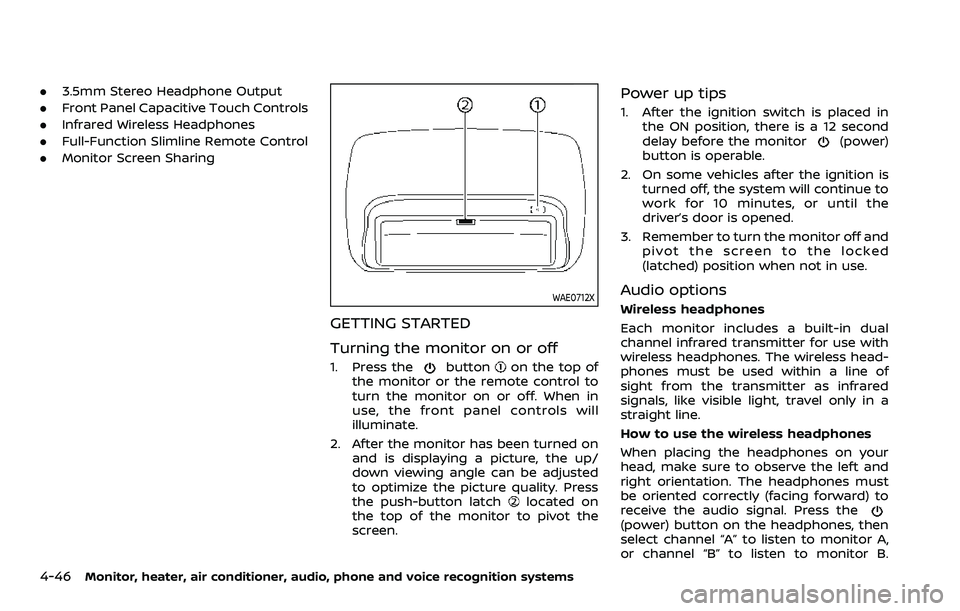
1. Press thebuttonon the top of
the monitor or the remote control to
turn the monitor on or off. When in
use, the front panel controls will
illuminate.
2. After the monitor has been turned on and is displaying a picture, the up/
down viewing angle can be adjusted
to optimize the picture quality. Press
the push-button latch
located on
the top of the monitor to pivot the
screen.
Power up tips
1. After the ignition switch is placed in the ON position, there is a 12 second
delay before the monitor
(power)
button is operable.
2. On some vehicles after the ignition is turned off, the system will continue to
work for 10 minutes, or until the
driver’s door is opened.
3. Remember to turn the monitor off and pivot the screen to the locked
(latched) position when not in use.
Audio options
Wireless headphones
Each monitor includes a built-in dual
channel infrared transmitter for use with
wireless headphones. The wireless head-
phones must be used within a line of
sight from the transmitter as infrared
signals, like visible light, travel only in a
straight line.
How to use the wireless headphones
When placing the headphones on your
head, make sure to observe the left and
right orientation. The headphones must
be oriented correctly (facing forward) to
receive the audio signal. Press the
(power) button on the headphones, then
select channel “A” to listen to monitor A,
or channel “B” to listen to monitor B.
Page 277 of 604
Adjust the audio level using the volume
control on each headphone.
Wired headphones
There is a 3.5mm stereo headphone out-
put on each monitor which can be used
with most standard stereo headphones
(wired headphones sold separately).
Bluetooth® streaming audio
To listen to audio throughout the entire
vehicle, the system includes the ability to
stream audio over a Bluetooth® connec-
tion to the vehicle’s stereo system.
When monitor A is selected as the source
to stream from, the audio output to the
wireless and wired headphones will be
disabled (only on monitor A). To use the
wireless or wired headphones with moni-
tor A, you must turn off the Bluetooth®
streaming feature. To enable/disable
Bluetooth® streaming, navigate to the
“SETTINGS” menu, or press
on the
remote control during content playback.
For additional information, see “Settings”
(P.4-69).
Media compatibility
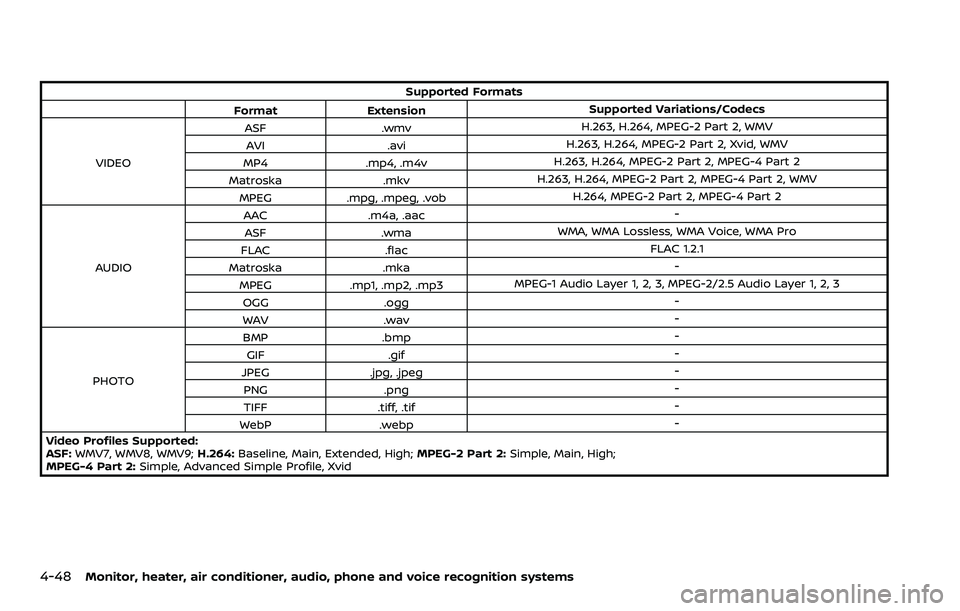
For a list of compatible media formats for
this system, see “Storage device format-
ting” (P.4-47).
. The metadata or file information of
some audio and video files may not be
correctly displayed.
. It is not possible to play content that is
protected by DRM (Digital Rights Man-
agement).
. There may be a delay before playback
begins when using USB flash drives or
SD cards with complex folder hierar-
chies or many files.
. Some audio, video, and image files
may be incompatible with this system
due to file characteristics, file format,
recording software used, directory
structure, and/or the type of audio/
video encoding used.
Storage device formatting
This system is compatible with several
types of formatting for USB flash drives
and SD cards. Refer to the documentation
that comes with your storage device for
more details on how to format.
FAT32 - USB and SDHC
Good for smaller capacity storage de-
vices, but individual files on the drive must
be less than 4GB. This format is good for music and images.
EX-FAT - USB and SDXC
Better choice for larger capacity storage
devices with files that are more than 4GB.
This format is better for larger files such
as full-length movies.
NTFS - USB and SDXC
Best choice for very large capacity sto-
rage devices - with no limitations on file
size. This format can be used for all file
sizes.
Monitor, heater, air conditioner, audio, phone and voice recognition systems4-47
Page 278 of 604
4-48Monitor, heater, air conditioner, audio, phone and voice recognition systems
Supported Formats
Format Extension Supported Variations/Codecs
VIDEO ASF
.wmv H.263, H.264, MPEG-2 Part 2, WMV
AVI .avi H.263, H.264, MPEG-2 Part 2, Xvid, WMV
MP4 .mp4, .m4v H.263, H.264, MPEG-2 Part 2, MPEG-4 Part 2
Matroska .mkvH.263, H.264, MPEG-2 Part 2, MPEG-4 Part 2, WMV
MPEG .mpg, .mpeg, .vob H.264, MPEG-2 Part 2, MPEG-4 Part 2
AUDIO AAC
.m4a, .aac -
ASF .wma WMA, WMA Lossless, WMA Voice, WMA Pro
FLAC .flac FLAC 1.2.1
Matroska .mka -
MPEG .mp1, .mp2, .mp3 MPEG-1 Audio Layer 1, 2, 3, MPEG-2/2.5 Audio Layer 1, 2, 3
OGG .ogg -
WAV .wav -
PHOTO BMP
.bmp -
GIF .gif -
JPEG .jpg, .jpeg -
PNG .png -
TIFF .tiff, .tif -
WebP .webp -
Video Profiles Supported:
ASF: WMV7, WMV8, WMV9; H.264:Baseline, Main, Extended, High; MPEG-2 Part 2:Simple, Main, High;
MPEG-4 Part 2: Simple, Advanced Simple Profile, Xvid
Page 279 of 604
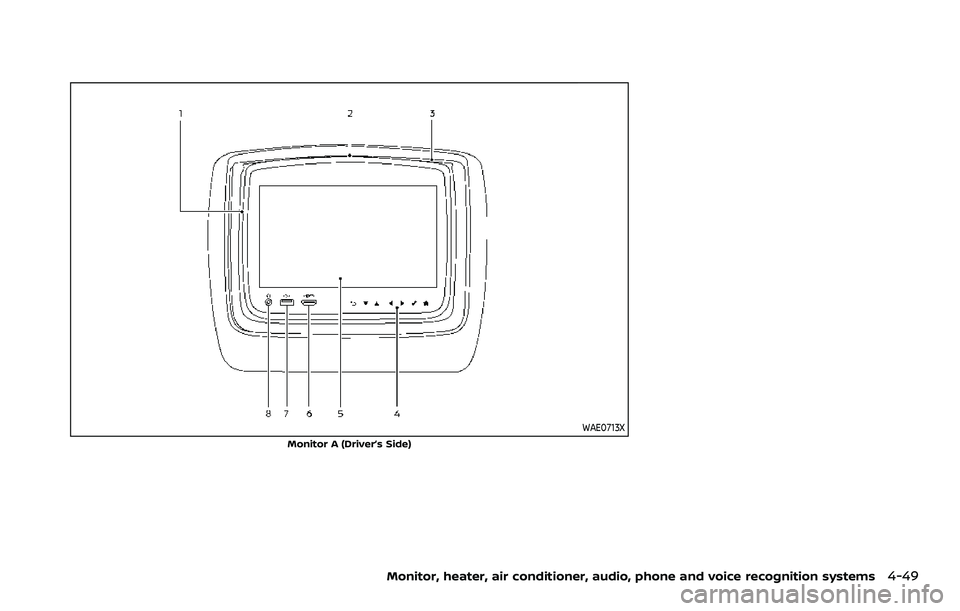
WAE0713X
Monitor A (Driver’s Side)
Monitor, heater, air conditioner, audio, phone and voice recognition systems4-49
Page 280 of 604
4-50Monitor, heater, air conditioner, audio, phone and voice recognition systems
WAE0714X
Monitor B (Passenger’s Side)
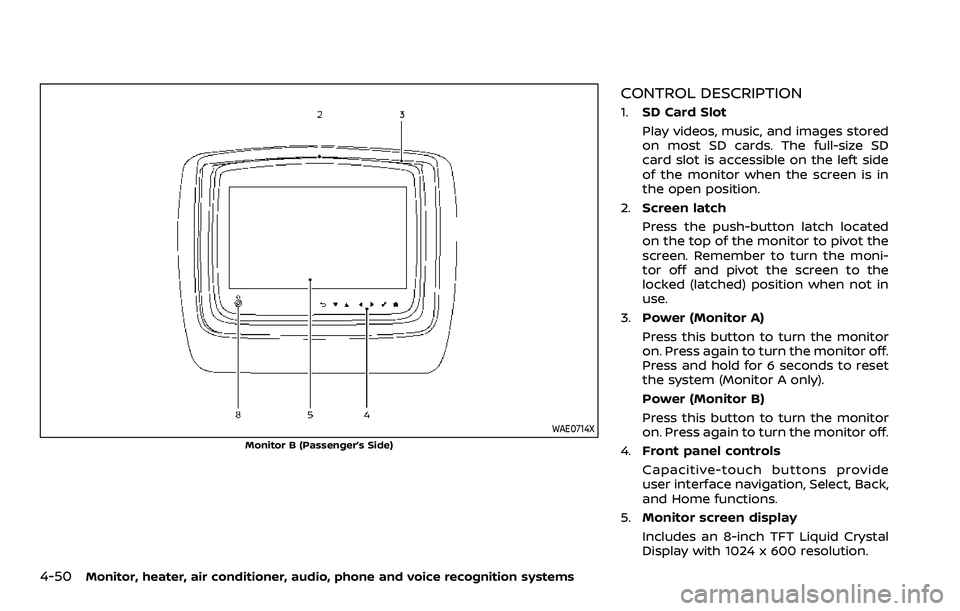
CONTROL DESCRIPTION
1.SD Card Slot
Play videos, music, and images stored
on most SD cards. The full-size SD
card slot is accessible on the left side
of the monitor when the screen is in
the open position.
2. Screen latch
Press the push-button latch located
on the top of the monitor to pivot the
screen. Remember to turn the moni-
tor off and pivot the screen to the
locked (latched) position when not in
use.
3. Power (Monitor A)
Press this button to turn the monitor
on. Press again to turn the monitor off.
Press and hold for 6 seconds to reset
the system (Monitor A only).
Power (Monitor B)
Press this button to turn the monitor
on. Press again to turn the monitor off.
4. Front panel controls
Capacitive-touch buttons provide
user interface navigation, Select, Back,
and Home functions.
5. Monitor screen display
Includes an 8-inch TFT Liquid Crystal
Display with 1024 x 600 resolution.
Page 281 of 604
6.HDMI port
Connect an external audio/video
source using a full-size HDMI connec-
tor. Supports MHL 2.0 playback and
charging.
7. USB 2.0 port
Play videos, music, and images stored
on most USB devices. Provides up to 2
amps of output to charge most mo-
bile devices.
8. Headphone output jack
Connect wired headphones using a
1/8 in (3.5 mm) stereo connector.
CAUTION
.Do not use any harsh solvents or
chemicals when cleaning the
monitor.
. Do not use any abrasive cleaners
that may scratch the screen. Use
only a lightly dampened lint free
cloth to wipe the screen if it is
dirty.
. The LCD display screen is not
touchscreen. Do not put pressure
or add suction cups on the
screen. .
Caution children to avoid touch-
ing or scratching the screen, as it
may become dirty or damaged.
. Place the monitor in the fully
closed position when not in use.
WAE0715X
Battery door in locked position
WAE0716X
Battery door in unlocked position
Monitor, heater, air conditioner, audio, phone and voice recognition systems4-51
Page 282 of 604
4-52Monitor, heater, air conditioner, audio, phone and voice recognition systems
REMOTE CONTROL OPERATION
Before use
Before attempting to operate your re-
mote control, turn the remote control
face down and remove the battery in-
sulator by pulling the clear plastic tab
away from the remote control.
Replacing the battery
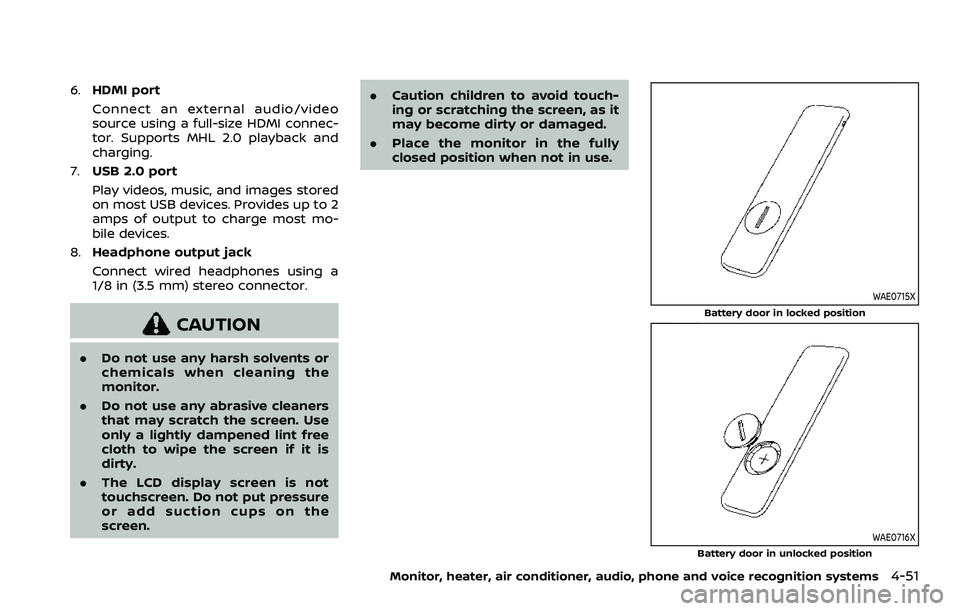
1. Turn the remote control face down.Use a coin to turn the battery cover
counter-clockwise and remove it.
2. Replace the battery with a CR2032 or equivalent. Make sure that proper
polarity is observed. The positive (+)
side of the battery should face up-
wards.
3. Place the cover back into position and turn it clockwise until it locks into
place.
The remote control will only operate this
device. It is not a universal remote control
and will not control other equipment.
WARNING
Keep the battery out of the reach of
children. In case the battery is acci-
dentally swallowed, immediately
consult a doctor. Also, when dispos-
ing of used batteries, please comply with governmental regulations or
environmental public institution
rules that apply in your country/
area.
CAUTION
.
Always ensure that the battery is
inserted in the correct direction
as shown in the battery compart-
ment.
. When the battery fails to function,
replace it immediately.
. Remove the battery if the remote
control is not used for a month or
longer.
. Storage in extreme cold can
weaken the battery. Keep the
remote control stored in a cool,
dry place.
WAE0717X
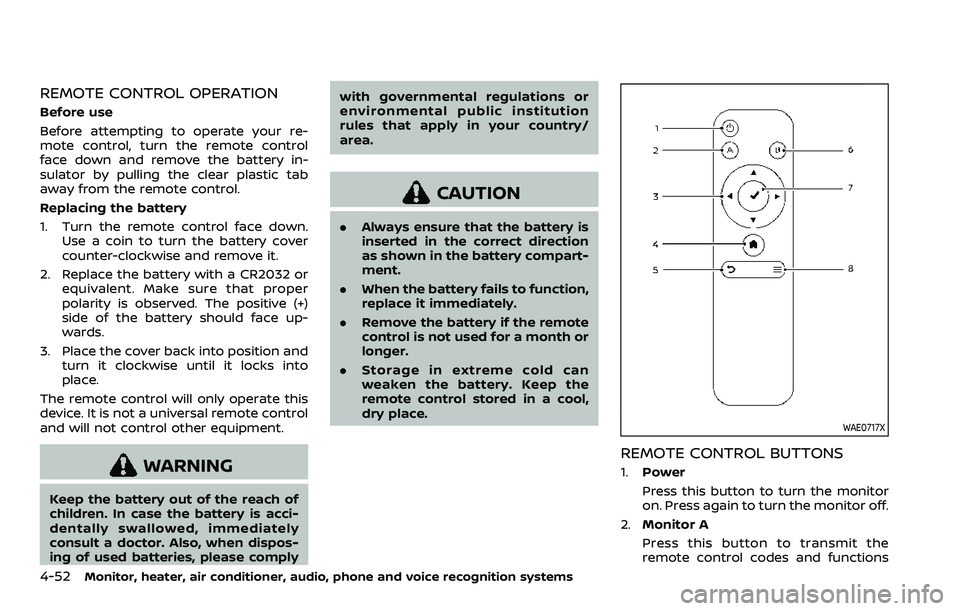
REMOTE CONTROL BUTTONS
1.Power
Press this button to turn the monitor
on. Press again to turn the monitor off.
2. Monitor A
Press this button to transmit the
remote control codes and functions
Page 283 of 604
to operate monitor A (Driver side).
3. Directional pad
Press these buttons to increase/de-
crease the volume or navigate up/
down when displaying a menu or file
list.
4. Home
Press this button to return to the
home screen.
5. Back
Press this button to go back to the
previous screen.
6. Monitor B
Press this button to transmit the
remote control codes and functions
to operate monitor B (Passenger side).
7. Select
Press this button to make a selection
when displaying a menu or file list.
8. Menu
Press this button to open the context
menu (when available).
NOTE:
You must first select the desired moni-
tor (press A or B) to control it. Example -
Press A, then press Power to turn
monitor A on/off.
WAE0718X
Monitor, heater, air conditioner, audio, phone and voice recognition systems4-53
Page 284 of 604
4-54Monitor, heater, air conditioner, audio, phone and voice recognition systems
WIRELESS HEADPHONE OPERATION
Installing the batteries
Before attempting to operate the head-
phones, install the batteries as described
below:
1. Remove the headphone battery coverby using a screwdriver.
2. Install two “AAA” batteries into the headphones. Make sure that proper
polarity (+ or -) is observed.
3. Reinstall headphone battery cover.
Headphone operation
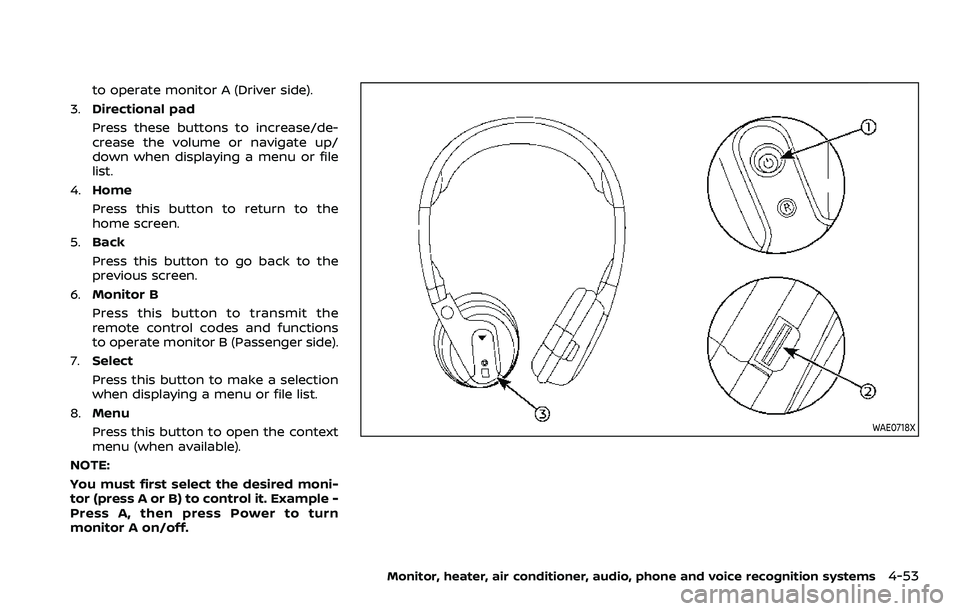
Press the power buttonon the head-
phones to turn on and off the head-
phones. The amber (Monitor A) or green
(Monitor B) LED will illuminate when the
headphone is turned on. Set the select
switch to “A” or “B” for use with the “A”
monitor or “B” monitor respectively. Use
the volume thumb wheel
to adjust the
volume level for the headphone audio.
NOTE:
If the headphones are accidentally left
on and system is powered off, a battery
saver feature will automatically turn off
the headphones after approximately 3
minutes.
WARNING
Keep the batteries out of the reach of
children. In case the batteries are
accidentally swallowed, immediately
consult a doctor. Also, when dispos-
ing of used batteries, please comply
with governmental regulations or
environmental public institution
rules that apply in your country/
area.
CAUTION
. Always ensure that the batteries
are inserted with the positive and
negative terminals in the correct
direction as shown in the battery
compartment
.
. Different types of batteries have
different characteristics. Do not
mix different types.
. Do not mix old and new batteries.
Mixing old and new batteries will
shorten battery life and/or cause
chemical leaks from the old bat-
teries. .
When batteries fail to function,
replace them immediately.
. Remove the batteries if the head-
phones are not used for a month
or longer.
Page 285 of 604
WAE0719X
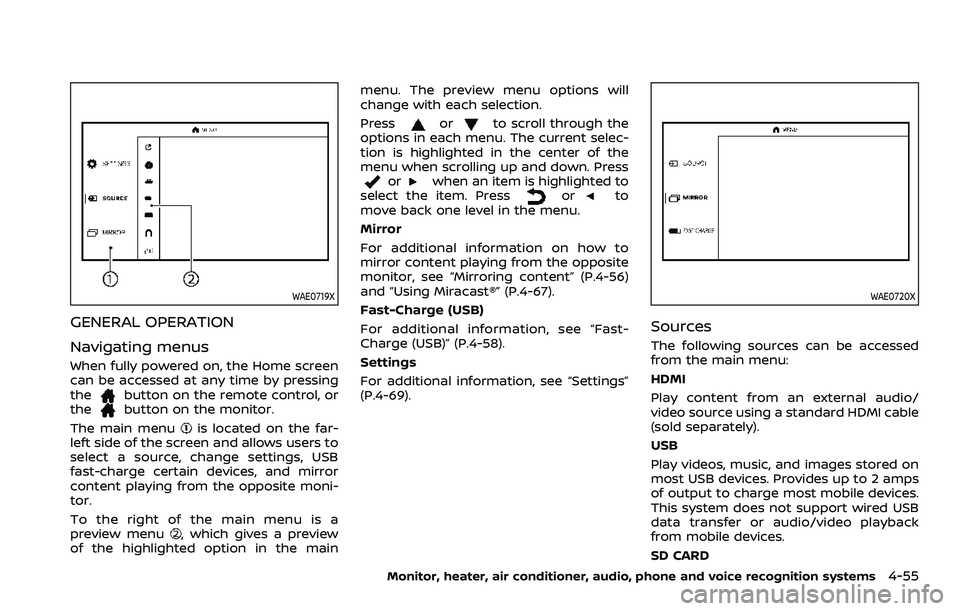
GENERAL OPERATION
Navigating menus
When fully powered on, the Home screen
can be accessed at any time by pressing
the
button on the remote control, or
thebutton on the monitor.
The main menu
is located on the far-
left side of the screen and allows users to
select a source, change settings, USB
fast-charge certain devices, and mirror
content playing from the opposite moni-
tor.
To the right of the main menu is a
preview menu
, which gives a preview
of the highlighted option in the main menu. The preview menu options will
change with each selection.
Press
orto scroll through the
options in each menu. The current selec-
tion is highlighted in the center of the
menu when scrolling up and down. Press
orwhen an item is highlighted to
select the item. Pressorto
move back one level in the menu.
Mirror
For additional information on how to
mirror content playing from the opposite
monitor, see “Mirroring content” (P.4-56)
and “Using Miracast®” (P.4-67).
Fast-Charge (USB)
For additional information, see “Fast-
Charge (USB)” (P.4-58).
Settings
For additional information, see “Settings”
(P.4-69).
WAE0720X
Sources
The following sources can be accessed
from the main menu:
HDMI
Play content from an external audio/
video source using a standard HDMI cable
(sold separately).
USB
Play videos, music, and images stored on
most USB devices. Provides up to 2 amps
of output to charge most mobile devices.
This system does not support wired USB
data transfer or audio/video playback
from mobile devices.
SD CARD
Monitor, heater, air conditioner, audio, phone and voice recognition systems4-55