audio NISSAN FRONTIER 2010 Owner´s Manual
[x] Cancel search | Manufacturer: NISSAN, Model Year: 2010, Model line: FRONTIER, Model: NISSAN FRONTIER 2010Pages: 373, PDF Size: 6.21 MB
Page 203 of 373
CAUTION
cKeep the antenna as far away as pos-
sible from the electronic control
modules.
cKeep the antenna wire more than 8 in
(20 cm) away from the electronic con-
trol system harnesses. Do not route the
antenna wire next to any harness.
cAdjust the antenna standing-wave ratio
as recommended by the manufacturer.
cConnect the ground wire from the CB
radio chassis to the body.
cFor details, consult a NISSAN dealer.
cDo not ground electrical accessories
directly to the battery terminal. Doing
so will bypass the variable voltage con-
trol system and the vehicle battery may
not charge completely. Refer to “Vari-
able voltage control system” in the
“Maintenance and do-it-yourself” sec-
tion later in this manual.
cUse electrical accessories with the en-
gine running to avoid discharging the
vehicle battery.
WARNING
cUse a phone after stopping your vehicle
in a safe location. If you have to use a
phone while driving, exercise extreme
caution at all times so full attention may
be given to vehicle operation.
cIf you are unable to devote full attention
to vehicle operation while talking on
the phone, pull off the road to a safe
location and stop your vehicle.
CAUTION
To avoid discharging the vehicle battery,
use a phone after starting the engine.
BLUETOOTHTHANDS-FREE PHONE
SYSTEM (if so equipped)
Heater, air conditioner, audio and phone systems4-37
Page 204 of 373
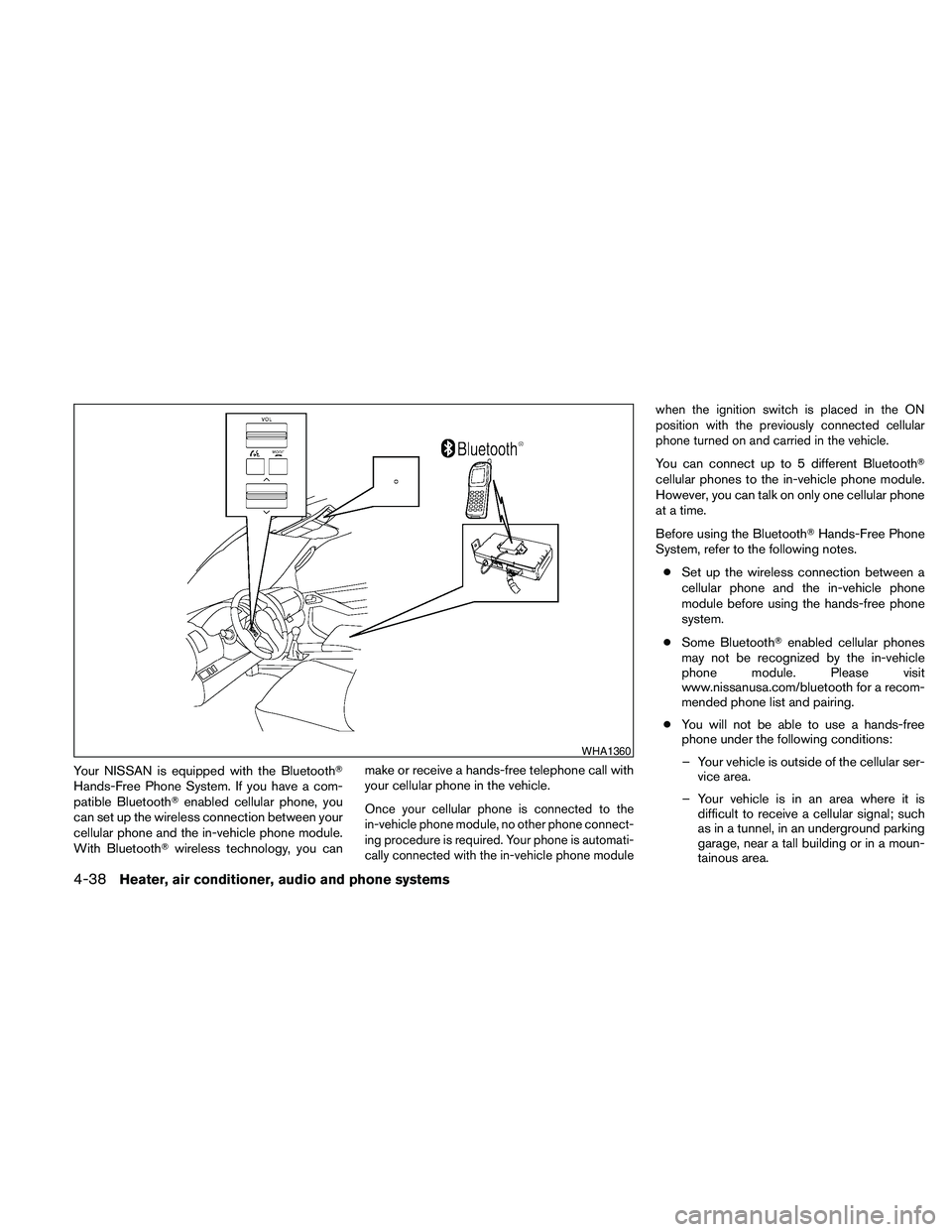
Your NISSAN is equipped with the BluetoothT
Hands-Free Phone System. If you have a com-
patible BluetoothTenabled cellular phone, you
can set up the wireless connection between your
cellular phone and the in-vehicle phone module.
With BluetoothTwireless technology, you canmake or receive a hands-free telephone call with
your cellular phone in the vehicle.
Once your cellular phone is connected to the
in-vehicle phone module, no other phone connect-
ing procedure is required. Your phone is automati-
cally connected with the in-vehicle phone modulewhen the ignition switch is placed in the ON
position with the previously connected cellular
phone turned on and carried in the vehicle.
You can connect up to 5 different BluetoothT
cellular phones to the in-vehicle phone module.
However, you can talk on only one cellular phone
at a time.
Before using the BluetoothTHands-Free Phone
System, refer to the following notes.
cSet up the wireless connection between a
cellular phone and the in-vehicle phone
module before using the hands-free phone
system.
cSome BluetoothTenabled cellular phones
may not be recognized by the in-vehicle
phone module. Please visit
www.nissanusa.com/bluetooth for a recom-
mended phone list and pairing.
cYou will not be able to use a hands-free
phone under the following conditions:
– Your vehicle is outside of the cellular ser-
vice area.
– Your vehicle is in an area where it is
difficult to receive a cellular signal; such
as in a tunnel, in an underground parking
garage, near a tall building or in a moun-
tainous area.
WHA1360
4-38Heater, air conditioner, audio and phone systems
Page 205 of 373
– Your cellular phone is locked to prevent it
from being dialed.
cWhen the radio wave condition is not ideal
or ambient sound is too loud, it may be
difficult to hear the other person’s voice dur-
ing a call.
cDo not place the cellular phone in an area
surrounded by metal or far away from the
in-vehicle phone module to prevent tone
quality degradation and wireless connection
disruption.
cWhile a cellular phone is connected through
the BluetoothTwireless connection, the bat-
tery power of the cellular phone may dis-
charge quicker than usual. The BluetoothT
Hands-Free Phone System cannot charge
cellular phones.
cIf the hands-free phone system seems to be
malfunctioning, see “Troubleshooting guide”
later in this section. You can also visit
www.nissanusa.com/bluetooth for trouble-
shooting help.
cSome cellular phones or other devices may
cause interference or a buzzing noise to
come from the audio system speakers. Stor-
ing the device in a different location may
reduce or eliminate the noise.cRefer to the cellular phone Owner’s Manual
regarding the telephone charges, cellular
phone antenna and body, etc.
REGULATORY INFORMATION
FCC Regulatory information
– CAUTION: To maintain compliance with
FCC’s RF exposure guidelines, use only the
supplied antenna. Unauthorized antenna,
modification, or attachments could damage
the transmitter and may violate FCC regula-
tions.
– Operation is subject to the following two con-
ditions:
1. This device may not cause interference and
2. this device must accept any interference,
including interference that may cause un-
desired operation of the device.
IC Regulatory information
– Operation is subject to the following two con-
ditions: (1) this device may not cause interfer-
ence, and (2) this device must accept any
interference, including interference that may
cause undesired operation of the device.
– This Class B digital apparatus meets all re-
quirements of the Canadian Interference-
Causing Equipment Regulations.
BLUETOOTHtis a
trademark owned by
Bluetooth SIG, Inc.,
U.S.A. and licensed to
Visteon.
USING THE SYSTEM
The NISSAN Voice Recognition system allows
hands-free operation of the BluetoothTPhone
System.
If the vehicle is in motion, some commands may
not be available so full attention may be given to
vehicle operation.
Initialization
When the ignition switch is placed in the ON
position, NISSAN Voice Recognition is initialized,
which takes a few seconds. If the
button is
pressed before the initialization completes, the
system will announce “Hands-free phone system
not ready” and will not react to voice commands.
Heater, air conditioner, audio and phone systems4-39
Page 206 of 373
Operating tips
To get the best performance out of the NISSAN
Voice Recognition system, observe the following:
cKeep the interior of the vehicle as quiet as
possible. Close the windows to eliminate
surrounding noises (traffic noises, vibration
sounds, etc.) , which may prevent the system
from recognizing voice commands correctly.
cWait until the tone sounds before speaking a
command. Otherwise, the command will not
be received properly.
cStart speaking a command within 5 seconds
after the tone sounds.
cSpeak in a natural voice without pausing
between words.
Giving voice commands
To operate NISSAN Voice Recognition, press
and release the
button located on the
steering wheel. After the tone sounds, speak a
command.
The command given is picked up by the micro-
phone, and voice feedback is given when the
command is accepted.
cIf you need to hear the available commands
for the current menu again, say “Help” and
the system will repeat them.cIf a command is not recognized, the system
announces, “Command not recognized.
Please try again.” Repeat the command in a
clear voice.
cIf you want to go back to the previous com-
mand, you can say “Go back” or “Correc-
tion” any time the system is waiting for a
response.
cYou can cancel a command when the sys-
tem is waiting for a response by saying,
“Cancel” or “Quit.” The system announces
“Cancel” and ends the VR session. You can
also press and hold the
button on the
steering wheel for 5 seconds at any time to
end the VR session. Whenever the VR ses-
sion is cancelled, a double beep is played to
indicate you have exited the system.
cIf you want to adjust the volume of the voice
feedback, press the volume control switches
(+ or -) on the steering wheel while being
provided with feedback. You can also use
the radio volume control knob.
cIn most cases you can interrupt the voice
feedback to speak the next command by
pressing the
button on the steering
wheel.cTo use the system faster, you may speak the
second level commands with the main menu
command on the main menu. For example,
press the
button and after the tone
say, “Call Redial.”
NOTE:
The combined command of Call and (a
Name) cannot be used.
How to say numbers
NISSAN Voice Recognition requires a certain
way to speak numbers in voice commands. Refer
to the following rules and examples.
cEither “zero” or “oh” can be used for “0”.
Example: 1-800-662-6200
– “One eight oh oh six six two six two oh
oh”, or
– “One eight zero zero six six two six two oh
oh”
cWords can be used for the first 4 digits
places only.
Example: 1-800-662-6200
– “One eight hundred six six two six two oh
oh”,
4-40Heater, air conditioner, audio and phone systems
Page 207 of 373
– NOT “One eight hundred six six two sixty
two hundred,” and
– NOT “One eight oh oh six six two sixty two
hundred”
cNumbers can be spoken in small groups.
The system will prompt you to continue en-
tering digits, if desired.
Example: 1-800-662-6200
– “One eight zero zero”
The system repeats the numbers and
prompts you to enter more.
– “six six two”
The system repeats the numbers and
prompts you to enter more.
– “six two zero zero”
cSay “pound” for “#”. Say “star” for “*” (avail-
able when using the “Special Dialing” com-
mand and the “Send” command during a
call) .
cSay “plus” for “+” (available only when using
the “Special Dialing” command) .
cSay “pause” for a 2-second pause (available
only when storing a phone book number) .cYou can say “star” for “*” and “pound” for “#”
at any time in any position of the phone
number (available only when using “Special
Dialing” command) .
See “List of voice commands” and “Special
Dialing” in this section for more information.
Example: 1-555-1212 *123
– “One five five five one two one two star
one two three”
NOTE:
For best results, say phone numbers as
single digits.
The voice command “Help” is available at any
time. Please use the “Help” command to get
information on how to use the system.
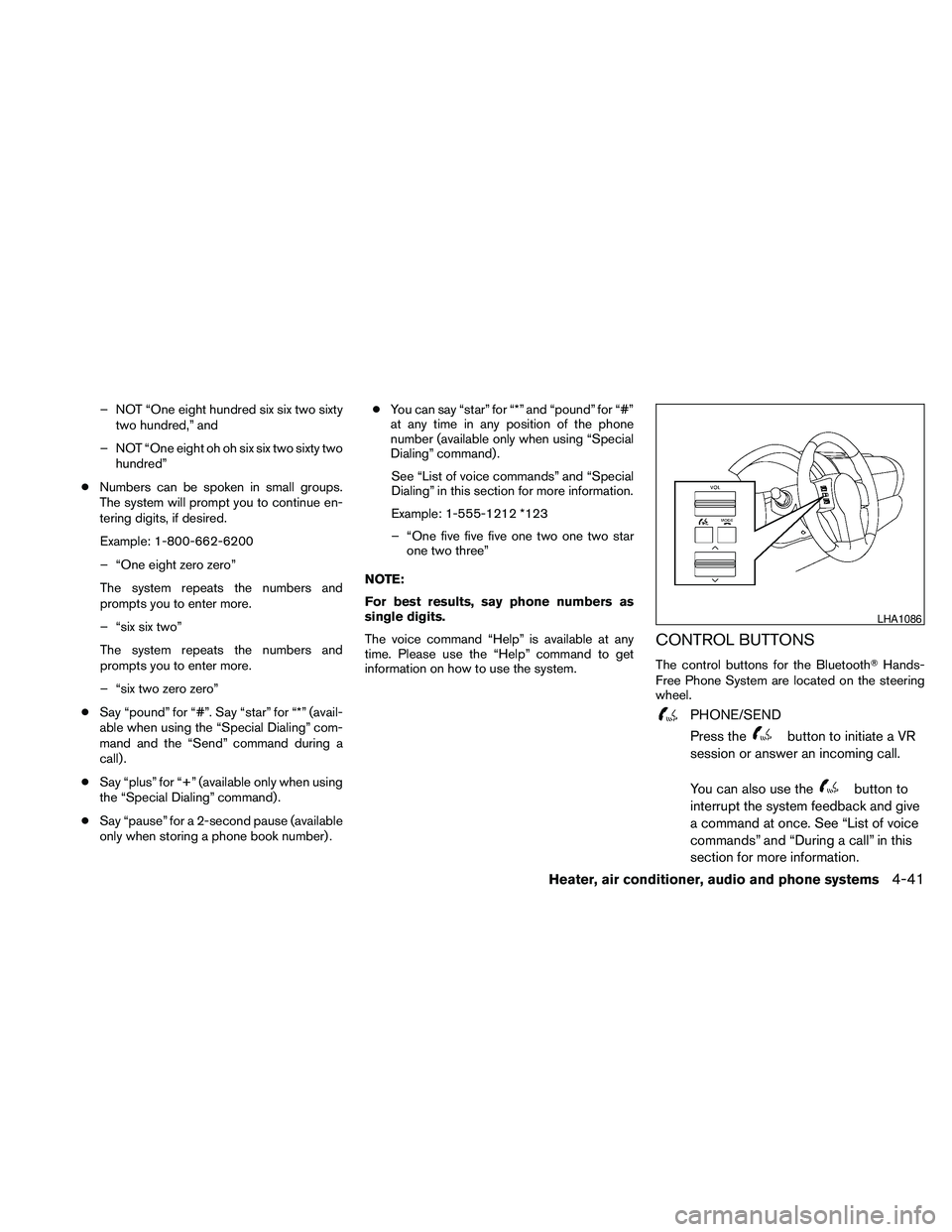
CONTROL BUTTONS
The control buttons for the BluetoothTHands-
Free Phone System are located on the steering
wheel.
PHONE/SEND
Press the
button to initiate a VR
session or answer an incoming call.
You can also use the
button to
interrupt the system feedback and give
a command at once. See “List of voice
commands” and “During a call” in this
section for more information.
LHA1086
Heater, air conditioner, audio and phone systems4-41
Page 208 of 373
PHONE/END
While the voice recognition system is
active, press and hold the
button
for 5 seconds to quit the voice recogni-
tion system at any time.
TUNING SWITCH
While using the voice recognition
system, tilt the tuning switch up or
down to manually control the phone
system.
GETTING STARTED
The following procedures will help you get
started using the BluetoothTHands-Free Phone
System with NISSAN Voice Recognition. For ad-
ditional command options, refer to “List of voice
commands” in this section.
Choosing a language
You can interact with the BluetoothTHands-Free
Phone System using English, Spanish or French.
To change the language, perform the following.
1. Press and hold the
button for more
than 5 seconds.2. The system announces: “Press the
PHONE/SEND (
) button for the
hands-free phone system to enter the
speaker adaptation mode or press the
PHONE/END (
) button to select a dif-
ferent language.”
3. Press the
button.
For information on speaker adaptation, see
“Speaker adaptation (SA) mode” in this sec-
tion.
4. The system announces the current language
and gives you the option to change the lan-
guage to Spanish (in Spanish) or French (in
French) . To select the current language,
press the PHONE/SEND (
) button. To
select a different language, tilt the tuning
switch (
or) up or down.
NOTE:
You must press the
button within 5
seconds to change the language.
5. If you decide not to change the language, do
not press either button. After 5 seconds, the
VR session will end, and the language will
not be changed.
Pairing procedure
NOTE:
The pairing procedure must be performed
when the vehicle is stationary. If the vehicle
starts moving during the procedure, the
procedure will be cancelled.
Main Menu
“Connect phone”
sA
“Add phone”sB
Initiate from handsetsC
Name phonesD
1. Press thebutton on the steering
wheel. The system announces the available
commands.
2. Say: “Connect phone”
sA. The system ac-
knowledges the command and announces
the next set of available commands.
3. Say: “Add phone”
sB. The system acknowl-
edges the command and asks you to initiate
pairing from the phone handset
sC.
4-42Heater, air conditioner, audio and phone systems
Page 209 of 373
The pairing procedure of the cellular phone
varies according to each cellular phone
model. See the cellular phone Owner’s
Manual for details. You can also visit
www.nissanusa.com/bluetooth for instruc-
tions on pairing NISSAN recommended cel-
lular phones.
When prompted for a Passkey code, enter
“1234” from the handset. The Passkey code
“1234” has been assigned by NISSAN and
cannot be changed.
4. The system asks you to say a name for the
phone
sD.
If the name is too long or too short, the
system tells you, then prompts you for a
name again.
Also, if more than one phone is paired and
the name sounds too much like a name
already used, the system tells you, then
prompts you for a name again.
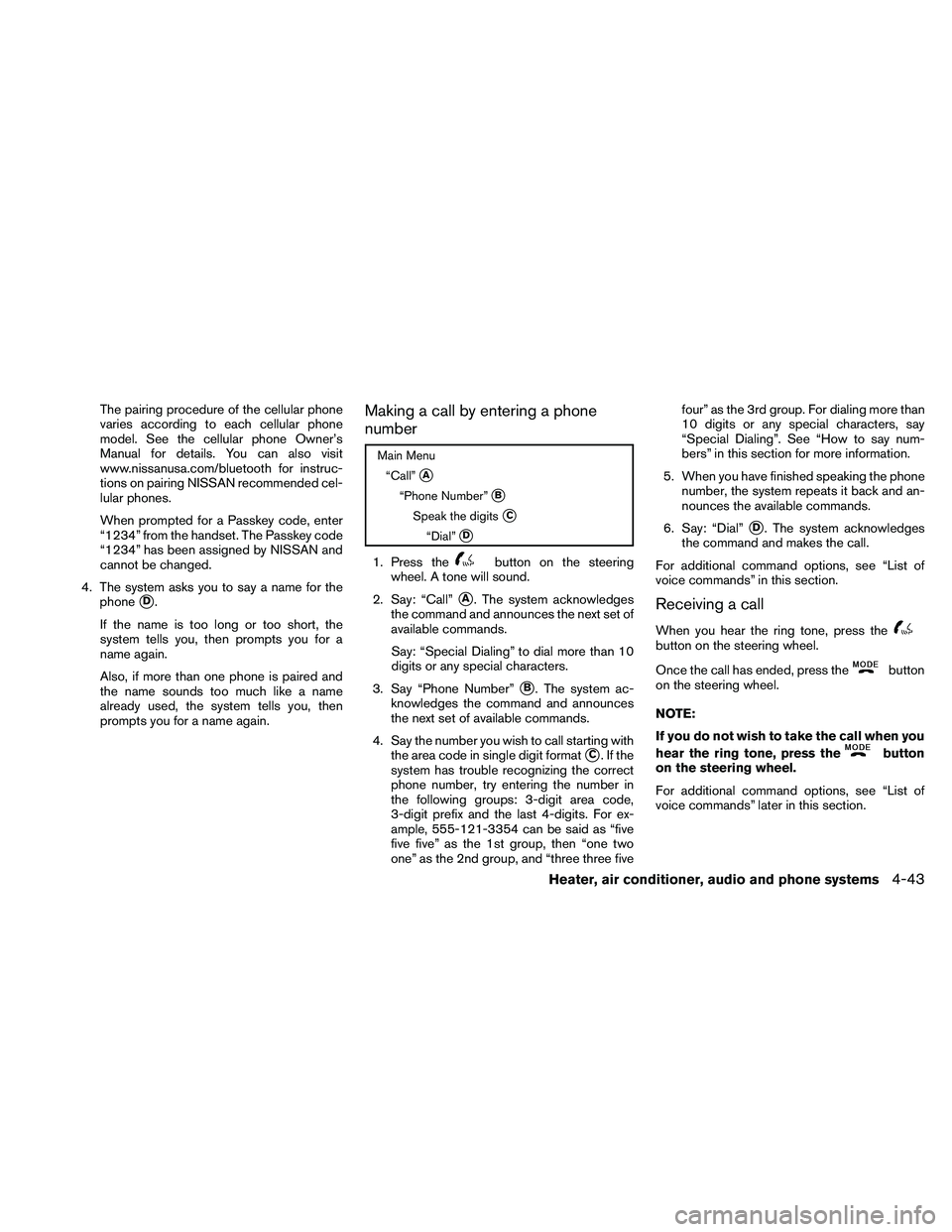
Making a call by entering a phone
number
Main Menu
“Call”
sA
“Phone Number”sB
Speak the digitssC
“Dial”sD
1. Press thebutton on the steering
wheel. A tone will sound.
2. Say: “Call”
sA. The system acknowledges
the command and announces the next set of
available commands.
Say: “Special Dialing” to dial more than 10
digits or any special characters.
3. Say “Phone Number”
sB. The system ac-
knowledges the command and announces
the next set of available commands.
4. Say the number you wish to call starting with
the area code in single digit format
sC.Ifthe
system has trouble recognizing the correct
phone number, try entering the number in
the following groups: 3-digit area code,
3-digit prefix and the last 4-digits. For ex-
ample, 555-121-3354 can be said as “five
five five” as the 1st group, then “one two
one” as the 2nd group, and “three three fivefour” as the 3rd group. For dialing more than
10 digits or any special characters, say
“Special Dialing”. See “How to say num-
bers” in this section for more information.
5. When you have finished speaking the phone
number, the system repeats it back and an-
nounces the available commands.
6. Say: “Dial”
sD. The system acknowledges
the command and makes the call.
For additional command options, see “List of
voice commands” in this section.
Receiving a call
When you hear the ring tone, press thebutton on the steering wheel.
Once the call has ended, press the
button
on the steering wheel.
NOTE:
If you do not wish to take the call when you
hear the ring tone, press the
button
on the steering wheel.
For additional command options, see “List of
voice commands” later in this section.
Heater, air conditioner, audio and phone systems4-43
Page 210 of 373
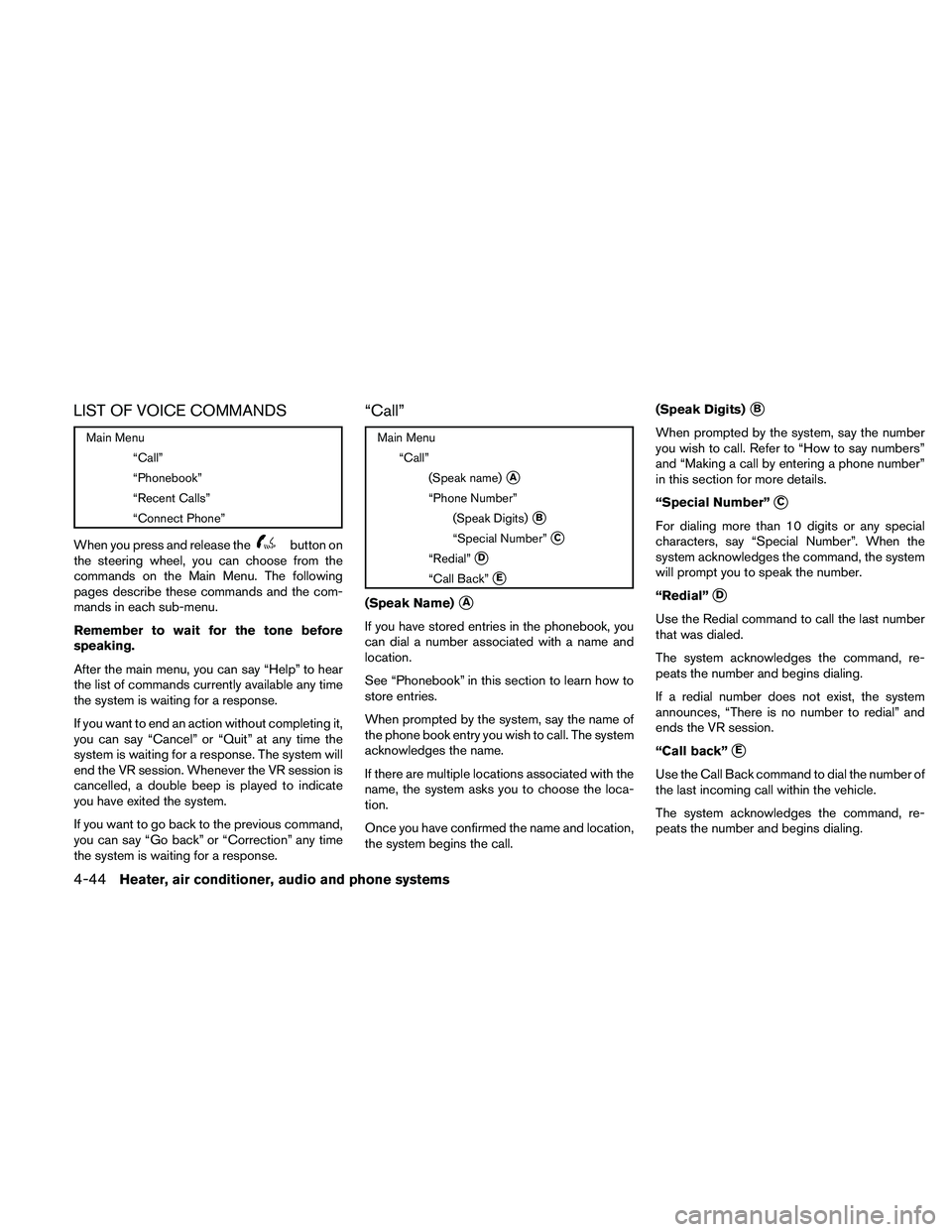
LIST OF VOICE COMMANDS
Main Menu
“Call”
“Phonebook”
“Recent Calls”
“Connect Phone”
When you press and release thebutton on
the steering wheel, you can choose from the
commands on the Main Menu. The following
pages describe these commands and the com-
mands in each sub-menu.
Remember to wait for the tone before
speaking.
After the main menu, you can say “Help” to hear
the list of commands currently available any time
the system is waiting for a response.
If you want to end an action without completing it,
you can say “Cancel” or “Quit” at any time the
system is waiting for a response. The system will
end the VR session. Whenever the VR session is
cancelled, a double beep is played to indicate
you have exited the system.
If you want to go back to the previous command,
you can say “Go back” or “Correction” any time
the system is waiting for a response.
“Call”
Main Menu
“Call”
(Speak name)
sA
“Phone Number”
(Speak Digits)
sB
“Special Number”sC
“Redial”sD
“Call Back”sE
(Speak Name)sA
If you have stored entries in the phonebook, you
can dial a number associated with a name and
location.
See “Phonebook” in this section to learn how to
store entries.
When prompted by the system, say the name of
the phone book entry you wish to call. The system
acknowledges the name.
If there are multiple locations associated with the
name, the system asks you to choose the loca-
tion.
Once you have confirmed the name and location,
the system begins the call.(Speak Digits)
sB
When prompted by the system, say the number
you wish to call. Refer to “How to say numbers”
and “Making a call by entering a phone number”
in this section for more details.
“Special Number”
sC
For dialing more than 10 digits or any special
characters, say “Special Number”. When the
system acknowledges the command, the system
will prompt you to speak the number.
“Redial”
sD
Use the Redial command to call the last number
that was dialed.
The system acknowledges the command, re-
peats the number and begins dialing.
If a redial number does not exist, the system
announces, “There is no number to redial” and
ends the VR session.
“Call back”
sE
Use the Call Back command to dial the number of
the last incoming call within the vehicle.
The system acknowledges the command, re-
peats the number and begins dialing.
4-44Heater, air conditioner, audio and phone systems
Page 211 of 373
If a call back number does not exist, the system
announces, “There is no number to call back” and
ends the VR session.
During a call
During a call there are several command options
available. Press the
button on the steering
wheel to mute the receiving voice and enter com-
mands.
c“Help” — The system announces the avail-
able commands.
c“Go back/Correction” — The system an-
nounces “Go back,” ends the VR session
and returns to the call.
c“Cancel/Quit” — The system announces
“Cancel,” ends the VR session and returns
to the call.
c“Send/Enter/Call/Dial” — Use the Send
command to enter numbers, “*” or “#” during
a call. For example, if you were directed to
dial an extension by an automated system:
Say: “Send one two three four.”
The system acknowledges the command
and sends the tones associated with the
numbers. The system then ends the VR ses-
sion and returns to the call. Say “star” for “*”,
Say “pound” for “#”.c“Transfer call” — Use the Transfer Call com-
mand to transfer the call from the BluetoothT
Hands-Free Phone System to the cellular
phone when privacy is desired.
The system announces, “Transfer call. Call
transferred to privacy mode.” The system
then ends the VR session.
To reconnect the call from the cellular phone
to the Bluetooth Hands-Free System, press
the
button.
c“Mute” — Use the Mute command to mute
your voice so the other party cannot hear it.
Use the mute command again to unmute
your voice.
NOTE:
If a call is ended or the cellular phone
network connection is lost while the Mute
feature is on, the Mute feature will be reset
to “off” for the next call so the other party
can hear your voice.
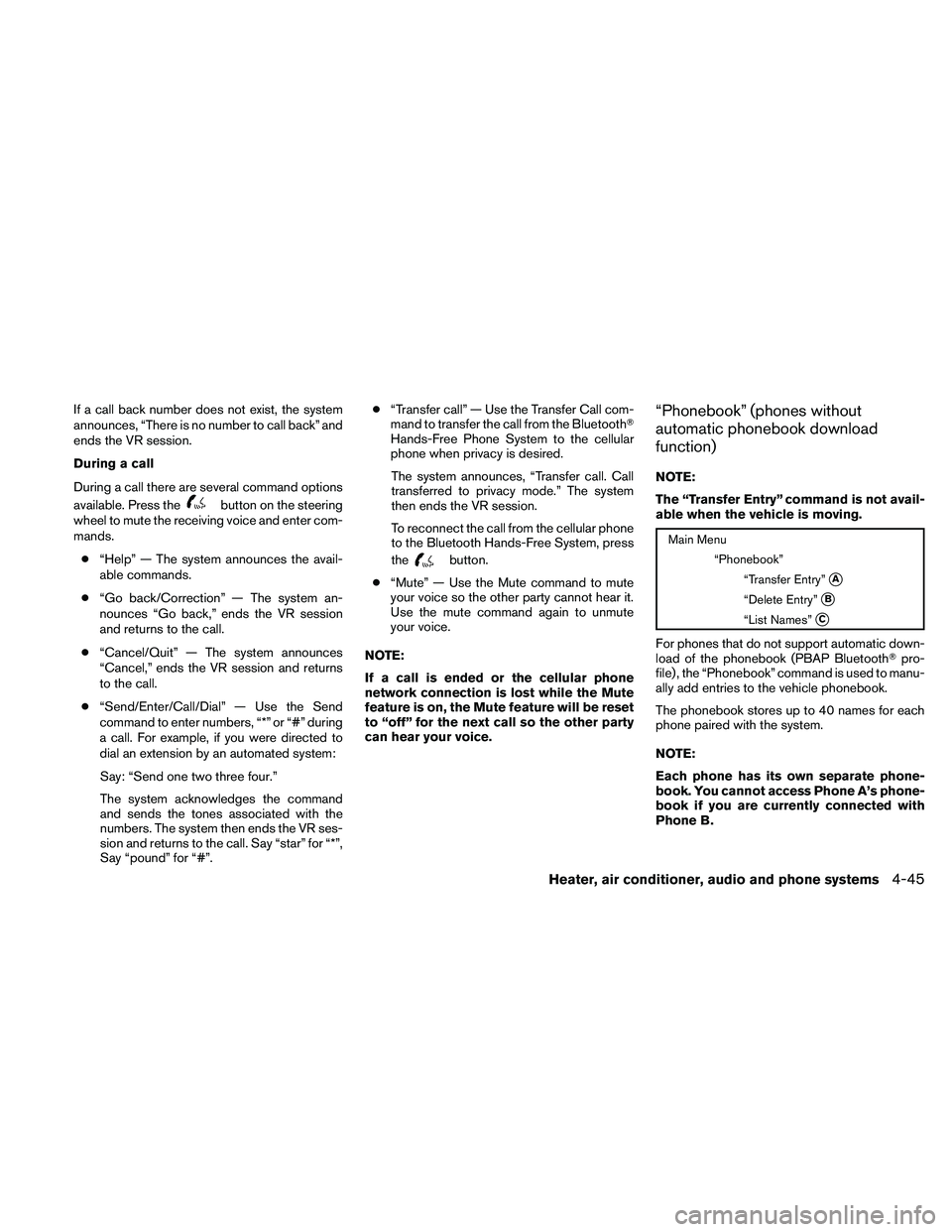
“Phonebook” (phones without
automatic phonebook download
function)
NOTE:
The “Transfer Entry” command is not avail-
able when the vehicle is moving.
Main Menu
“Phonebook”
“Transfer Entry”
sA
“Delete Entry”sB
“List Names”sC
For phones that do not support automatic down-
load of the phonebook (PBAP BluetoothTpro-
file) , the “Phonebook” command is used to manu-
ally add entries to the vehicle phonebook.
The phonebook stores up to 40 names for each
phone paired with the system.
NOTE:
Each phone has its own separate phone-
book. You cannot access Phone A’s phone-
book if you are currently connected with
Phone B.
Heater, air conditioner, audio and phone systems4-45
Page 212 of 373
“Transfer entry”sA
Use the Transfer Entry command to store a new
name in the system.
When prompted by the system, say the name you
would like to give the new entry.
For example, say: “Mary.”
If the name is too long or too short, the system
tells you, then prompts you for a name again.
Also, if the name sounds too much like a name
already stored, the system tells you, then prompts
you for a name again.
The system will ask you to transfer a phone
number stored in the cellular phone’s memory.
Enter a phone number by voice command:
For example, say: “five five five one two one two.”
See “How to say numbers” in this section for
more information.
To transfer a phone number stored in the cellular
phone’s memory:
Say “Transfer entry.” The system acknowledges
the command and asks you to initiate the transfer
from the phone handset. The new contact phone
number will be transferred from the cellular
phone via the BluetoothTcommunication link.
The transfer procedure varies according to each
cellular phone. See the cellular phone Owner’sManual for details. You can also visit
www.nissanusa.com/bluetooth for instructions
on transferring phone numbers from NISSAN
recommended cellular phones.
The system repeats the number and prompts you
for the next command. When you have finished
entering numbers or transferring an entry, choose
“Store.”
The system confirms the name, location and
number.
“Delete Entry”
sB
Use the Delete Entry command to erase one
entry from the phonebook. After the system rec-
ognizes the command, speak the name to delete
or say “List Names” to choose an entry.
“List names”
sC
Use the List Names command to hear all the
names in the phonebook.
The system recites the phonebook entries but
does not include the actual phone numbers.
When the playback of the list is complete, the
system goes back to the main menu.
You can stop the playback of the list at any time
by pressing the
button on the steering
wheel. The system ends the VR session.
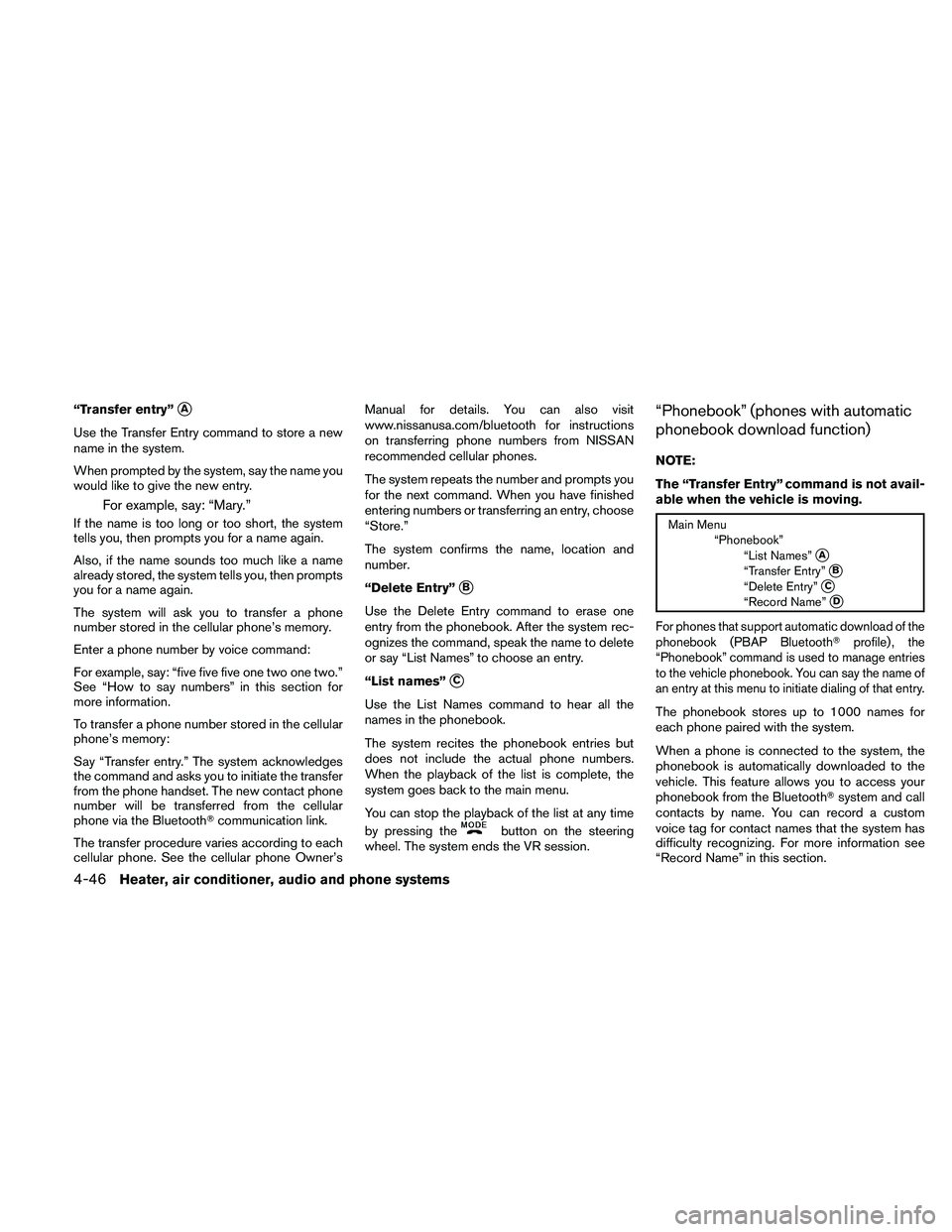
“Phonebook” (phones with automatic
phonebook download function)
NOTE:
The “Transfer Entry” command is not avail-
able when the vehicle is moving.
Main Menu
“Phonebook”
“List Names”
sA
“Transfer Entry”sB
“Delete Entry”sC
“Record Name”sD
For phones that support automatic download of the
phonebook (PBAP BluetoothTprofile) , the
“Phonebook” command is used to manage entries
to the vehicle phonebook. You can say the name of
an entry at this menu to initiate dialing of that entry.
The phonebook stores up to 1000 names for
each phone paired with the system.
When a phone is connected to the system, the
phonebook is automatically downloaded to the
vehicle. This feature allows you to access your
phonebook from the BluetoothTsystem and call
contacts by name. You can record a custom
voice tag for contact names that the system has
difficulty recognizing. For more information see
“Record Name” in this section.
4-46Heater, air conditioner, audio and phone systems