reset NISSAN FRONTIER 2013 D40 / 2.G User Guide
[x] Cancel search | Manufacturer: NISSAN, Model Year: 2013, Model line: FRONTIER, Model: NISSAN FRONTIER 2013 D40 / 2.GPages: 444, PDF Size: 4.13 MB
Page 190 of 444
System Beeps:
Select the “System Beeps” key to toggle the
system beep tones feature on or off. When acti-
vated, a beep sound will be heard when a pop-up
message appears on the screen or a button on
the unit (such as the
button) is pressed
and held for two seconds.
Reset all settings/memory:
Select the “Reset All Settings/Memory” key to
return all settings to default and to clear the
memory.
Info
For information about the “Info” key, see the
separate Navigation System Owner’s Manual.
XM
For XM setup, refer to “Audio system” in this
section.
BUTTON
To change the display brightness, press
the
button. Pressing the button again will
change the display to the day or the night display.
If no operation is performed within 5 seconds, the
display will return to the previous display. Press and hold the
button for more than
two seconds to turn the display off. Press the
button again to turn the display on. When the shift selector is shifted into the R
(Reverse) position, the monitor display shows a
rearward view from the vehicle.
WARNING
●
The system is designed as an aid to the
driver in detecting large stationary ob-
jects to help avoid damaging the ve-
hicle. The system will not detect small
objects below the bumper, and may not
detect objects close to the bumper or
on the ground.
● The RearView Monitor is a convenience
but it is not a substitute for proper back-
ing. Always turn and check that it is safe
to do so before backing up. Always
back up slowly.
● Objects viewed in the RearView Moni-
tor differ from actual distance because
a wide-angle lens is used.
● Do not put anything on the rearview
camera. The rearview camera is in-
stalled beside the license plate light.
REARVIEW MONITOR (if so
equipped)
Monitor, climate, audio, phone and voice recognition systems4-11
Page 222 of 444
●During cold weather or rainy days, the
player may malfunction due to humid-
ity. If this occurs, remove the USB de-
vice and dehumidify or ventilate the
USB player completely.
● Do not connect a USB device if a con-
nector, cable or USB port is wet. Allow
the connector, cable, and USB port to
dry completely before connecting the
USB device. (Wait for 24 hours or more
until it is dry.) If the connector and USB
port are exposed to fluids other than
water, evaporative residue may cause a
short circuit between the connector
pins and USB port. In this case, replace
the cable and USB port. Otherwise
damage to the USB device and a loss of
function may occur.
● If the cable is damaged (insulation cut,
connectors cracked, contamination
such as liquids, dust, dirt, etc. in the
connectors) , do not use the cable. Re-
place the cable with a new one.
● Do not put a USB device in a location
where static electricity occurs, electri-
cal noise is generated or hot air from
the air conditioner blows directly on it.
Doing so may cause the data stored on
the USB device to be corrupted. Notes for iPod® use:
iPod® is a trademark of Apple Inc., regis-
tered in the U.S. and other countries.
●
Improperly plugging in the iPod may
cause a checkmark to be displayed on
and off (flickering) . Always make sure
that the iPod is connected properly.
● An iPod® nano (1st Generation) may
remain in fast forward or rewind mode if
it is connected during a seek operation.
In this case, please manually reset the
iPod.
● An iPod® nano (2nd Generation) will
continue to fast-forward or rewind if it
is disconnected during a seek
operation.
● An incorrect song title may appear
when the Play Mode is changed while
using an iPod® nano (2nd Generation) .
● Audiobooks may not play in the same
order as they appear on an iPod®.
● Large video files cause slow responses
in an iPod®. The vehicle center display
may momentarily black out, but will
soon recover. ●
If an iPod® automatically selects large
video files while in the shuffle mode,
the vehicle center display may momen-
tarily black out, but will soon recover.
Bluetooth® streaming audio (if so
equipped)
● Some Bluetooth® audio devices may not be
recognized by the in-vehicle audio system.
● It is necessary to set up the wireless con-
nection between a compatible Bluetooth®
audio device and the in-vehicle Bluetooth®
module before using the Bluetooth® audio.
● Operating procedure of the Bluetooth® au-
dio will vary depending on the devices. Make
sure how to operate your audio device be-
fore using it with this system.
● The Bluetooth® audio may be stopped un-
der the following conditions:
● Receiving a call on the Hands-Free
Phone System.
● Checking the connection to the hands-
free phone.
Monitor, climate, audio, phone and voice recognition systems4-43
Page 223 of 444
●Do not place the Bluetooth® audio device in
an area surrounded by metal or far away from
the in-vehicle Bluetooth® module to prevent
tone quality degradation and wireless con-
nection disruption.
● While an audio device is connected through
the Bluetooth® wireless connection, the
battery power of the device may discharge
quicker than usual.
● This system supports the Bluetooth® Audio
Distribution Profile (A2DP, AVRCP) .
BLUETOOTH® is a
trademark owned by
Bluetooth SIG, Inc.
and licensed to
Visteon and Bosch.
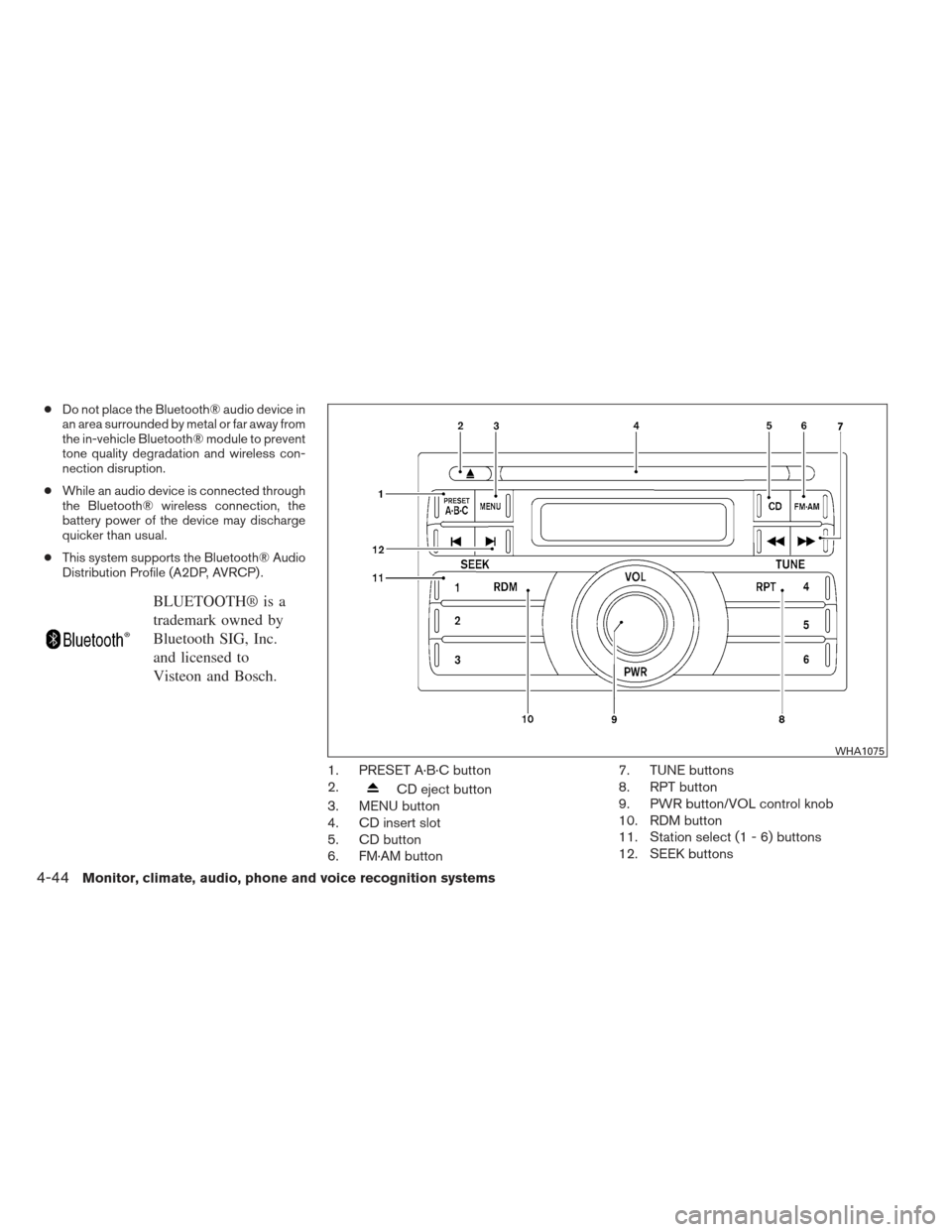
1. PRESET A·B·C button
2.
CD eject button
3. MENU button
4. CD insert slot
5. CD button
6. FM·AM button 7. TUNE buttons
8. RPT button
9. PWR button/VOL control knob
10. RDM button
11. Station select (1 - 6) buttons
12. SEEK buttons
WHA1075
4-44Monitor, climate, audio, phone and voice recognition systems
Page 225 of 444
Resetting the time
Hold the MENU button down and then press the
TUNE or SEEK button; the time will reset as
follows:● If the displayed minutes before the reset are
in the range of :00 - :29, the hour displayed
before the reset will stay the same and the
minutes will be reset to :00.
● If the displayed minutes before the reset are
in the range of :30 - :59, the hour displayed
before the reset will advance by one hour
and the minutes will be reset to :00.
For example, if the MENU button and the TUNE or
SEEK button are pressed while the time dis-
played is between 8:00 and 8:29, the display will
be reset to 8:00. If the buttons were pressed
while the time was between 8:30 and 8:59, the
display will be reset to 9:00. At the same time the
display will return to the audio.
FM/AM radio operation
FM·AM button:
Press the FM·AM button to change from AM ←→
FM reception.
The FM stereo indicator, ST, illuminates during
FM stereo reception. When the stereo broadcast
signal is weak, the radio automatically changes
from stereo to monaural reception.
TUNE buttons:
Manual tuning
Press the TUNE
orbutton for less
than 0.5 seconds for manual tuning.
To move quickly through the channels, press and
hold either TUNE
orbutton down
for more than 1.5 seconds.
SEEK buttons:
SEEK tuning
Press the SEEK
orbutton to seek
through the frequencies. Seek tuning begins
from low to high frequencies, or high to low
frequencies, depending on which button is
pressed, and stops at the next broadcasting sta-
tion. Once the highest broadcasting station is
reached, the radio continues in the seek mode at
the lowest broadcasting station.
Station memory operations:
18 stations can be set for the FM and AM radio to
the A, B and C preset button in any combination
of AM or FM stations. 1. Press the PRESET A·B·C button to change
between storage banks. The radio displays
the icon A, B or C to indicate which set of
presets are active.
2. Tune to the desired station using manual TUNE or SEEK tuning. Press and hold any of
the desired station memory buttons (1 – 6)
until a beep sound is heard. (The radio mutes
when the select button is pressed.)
3. The channel indicator will then come on and the sound will resume. Programming is now
complete.
4. Other buttons can be set in the same man- ner.
If the battery cable is disconnected, or if the fuse
opens, the radio memory will be canceled. In that
case, reset the desired stations.
Compact disc (CD) player operation
If the radio is already operating, it automatically
turns off and the compact disc begins to play.
CD button:
When the CD button is pressed with a compact
disc loaded and the radio playing, the radio turns
off and the last used compact disc starts to play.
4-46Monitor, climate, audio, phone and voice recognition systems
Page 230 of 444
XM band select:
Press the XM button to change the band as
follows:
XM1*→XM2* →XM3* →XM1 (satellite, if so
equipped)
When the XM button is pressed while the ignition
switch is in the ACC or ON position, the radio will
come on at the station last played.
The last station played will also come on when
the VOL/ON·OFF control knob is pressed ON.
*When the XM button is pressed, the satellite
radio reception will not be available unless an
optional satellite receiver and antenna are in-
stalled and a SiriusXM Satellite Radio service
subscription is active. Satellite radio is not avail-
able in Alaska, Hawaii and Guam.
If a compact disc is playing when the XM button
is pressed, the compact disc will automatically be
turned off and the last radio station played will
come on.
TUNE/SCROLL knob (Tuning):
Turn the TUNE/SCROLL knob to the left or right
for manual tuning.SEEK tuning:
Press the SEEK button
orto
tune from low to high or high to low frequencies
and to stop at the next broadcasting station.
SCAN tuning:
Press the SCAN button to stop at each broad-
casting station for 5 seconds. SCAN will appear
on the screen while the radio is scan tuning.
Pressing the button again during this 5 second
period will stop SCAN tuning and the radio will
remain tuned to that station. If the SCAN button is
not pressed within 5 seconds, SCAN tuning
moves to the next station.
1 to 6 Station memory operations:
Six stations can be set for the AM band. Twelve
stations can be set for the FM band (6 for FM1, 6
for FM2) . Eighteen channels can be set for the
satellite radio (6 for XM1, 6 for XM2, 6 for XM3) .
1. Choose the radio band AM, FM1 or FM2 using the FM·AM select button, or choose
the satellite band XM1, XM2 or XM3 using
the XM button.
2. Tune to the desired station using manual, SEEK or SCAN tuning. Press and hold any
of the desired station memory buttons (1 – 6) until the preset number is updated on the
display and the sound is briefly muted.
3. The channel indicator will then come on and the sound will resume. Programming is now
complete.
4. Other buttons can be set in the same man- ner.
If the battery cable is disconnected, or if the fuse
opens, the radio memory will be canceled. In that
case, reset the desired stations.
Compact disc (CD) player operation
If the radio is already operating, it automatically
turns off and the compact disc begins to play.
CD·AUX button:
With a CD loaded, press the CD·AUX button until
the CD mode is displayed on the screen.
CD/MP3 display mode:
While listening to an MP3/WMA CD, certain text
may be displayed on the screen if the CD has
been encoded with text information. Depending
on how the MP3/WMA CD is encoded, informa-
tion such as Artist, Song and Folder will be dis-
played.
The track number and the total number of tracks
in the current folder or on the current disc are
displayed on the screen as well.
Monitor, climate, audio, phone and voice recognition systems4-51
Page 237 of 444
1 to 6 Station memory operations:
Twelve stations can be set for the FM band (6 for
FM1, 6 for FM2) and six stations can be set for
the AM band. Eighteen stations can be set for the
XM band (6 for XM1, 6 for XM2, 6 for XM3) .1. Choose the radio band AM, FM1 or FM2 using the FM·AM select button or choose
the radio band XM1, XM2 or XM3 using the
XM button.
2. Tune to the desired station using manual or seek tuning. Press and hold any of the de-
sired station memory buttons (1 – 6) until a
beep sound is heard. 3. The channel indicator will then come on and
the sound will resume. Programming is now
complete.
4. Other buttons can be set in the same man- ner.
If the battery cable is disconnected or if the fuse
opens, the radio memory will be canceled. In that
case, reset the desired stations.
Presets can also be selected by touching the
desired preset number on the screen.
Compact disc (CD) player operation
If the radio is already operating, it automatically
turns off and the compact disc begins to play.
CD button:
When the CD button is pressed with the system
off and the compact disc loaded, the system will
turn on and the compact disc will start to play.
When the CD button is pressed with a compact
disc loaded and the radio playing, the radio will
automatically be turned off and the compact disc
will start to play. CD/MP3 display mode
While listening to a CD or an MP3/WMA CD,
certain text may be displayed (when a CD en-
coded with text is being used) . Depending on
how the CD or MP3/WMA CD is encoded, the
text is displayed listing the artist, album and song
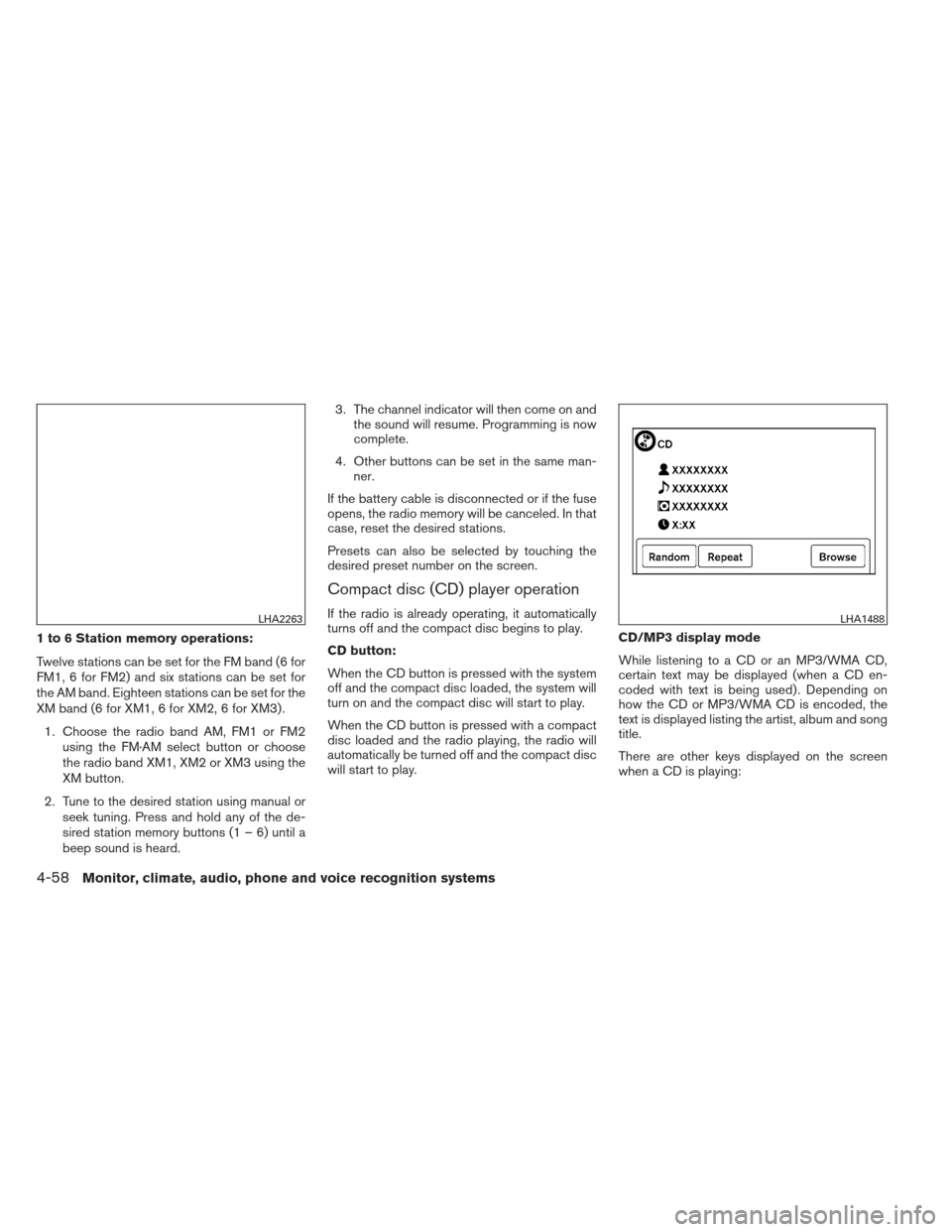
title.
There are other keys displayed on the screen
when a CD is playing:LHA2263LHA1488
4-58Monitor, climate, audio, phone and voice recognition systems
Page 250 of 444
Audio main operation
To switch to the Bluetooth® audio mode, press
the CD button repeatedly until the
Bluetooth® audio mode is displayed on the
screen.
The controls for the Bluetooth® audio are dis-
played on the screen. Use the Preset 3 button for
play and the Preset 4 button for pause.
BLUETOOTH® STREAMING AUDIO
WITH NAVIGATION SYSTEM (if so
equipped)
If you have a compatible Bluetooth® audio de-
vice that is capable of playing audio files, the
device can be connected to the vehicle’s audio
system so that the audio files on the device play
through the vehicle’s speakers.
Connecting Bluetooth® audio
To connect your Bluetooth® audio device to the
vehicle, follow the procedure below:1. Press the MENU button.
2. Select the “Settings” key.
LHA2292LHA2253
Monitor, climate, audio, phone and voice recognition systems4-71
Page 252 of 444
Compatibility
The following iPhone® models are compatible
with the system:● iPhone® 3GS
● iPhone® 4
● iPhone® 4S
The latest Pandora® application should be in-
stalled on the phone.
Audio main operation
Models without Navigation System:
To switch to the Pandora® audio mode, press
the CD-AUX button repeatedly until the Pan-
dora® audio mode is displayed on the screen.
The controls for the Pandora® audio are dis-
played on the screen. Press the audio preset 3
button to pause or play the music.
Press the audio preset 5 button to select “
”
(thumbs up) . Press the audio preset 4 button to
select “
” (thumbs down) . NOTE:
There is a limit of six skips per station per
hour. If a “
” (thumbs down) is given
after the skip limit has been reached, the
current track will continue to play but the
feedback will be saved.
Models with Navigation System:
To switch to the Pandora® audio mode, press
the AUX button repeatedly until the Pandora®
audio mode is displayed on the screen.
Models without Navigation System
LHA2283
Models with Navigation System:
LHA2269
Monitor, climate, audio, phone and voice recognition systems4-73
Page 254 of 444
●A new disc may be rough on the inner and
outer edges. Remove the rough edges by
rubbing the inner and outer edges with the
side of a pen or pencil as illustrated.
1. Volume control switch
2. MODE select switch
3. Tuning switch
STEERING WHEEL SWITCH FOR
AUDIO CONTROL (if so equipped)
The audio system can be operated using the
controls on the steering wheel.
MODE select switch
Push the mode select switch to change the mode
in the following sequence:
AM →FM1 →FM2 →XM1 (satellite radio, if so
equipped) →XM2 (satellite radio, if so equipped) →
XM3 (satellite radio, if so equipped) →CD* →
USB/iPod®* (if so equipped) →Bluetooth® Au-
dio* →AUX* →AM.
* These modes are only available when compat-
ible media storage is inserted into the device or
connected to the system.
Volume control switch
Push the volume control switch to increase or
decrease the volume.
Tuning switch
While the display is showing a map or audio
screen, tilt the Menu Control switch upward or
downward to select a station, track, CD or folder.
For most audio sources, tilting the switch
up/down for more than 1.5 seconds provides a
different function than a tilting up/down for less
than 1.5 seconds.
AM and FM: ● Tilt up/down for less than 1.5 seconds to
increase or decrease the preset station.
● Tilt up/down for more than 1.5 seconds to
seek up or down to the next station.
● Press the ENTER button to show the list of
preset stations.LHA2559
Monitor, climate, audio, phone and voice recognition systems4-75
Page 255 of 444
XM (if so equipped):● Tilt up/down for less than 1.5 seconds to
increase or decrease the preset station.
● Tilt up/down for more than 1.5 seconds to
go to the next or previous category.
● Press the ENTER button to show the XM
Menu.
iPod® (if so equipped): ● Tilt up/down for less than 1.5 seconds to
increase or decrease the track number.
● Press the ENTER button to show the iPod
Menu.
CD: ● Tilt up/down for less than 1.5 seconds to
increase or decrease the track number.
● Tilt up/down for more than 1.5 seconds to
increase or decrease the folder number (if
playing compressed audio files) .
● Press the ENTER button to show the CD
Menu. USB (if so equipped):
● Tilt up/down for less than 1.5 seconds to
increase or decrease the track number.
● Tilt up/down for more than 1.5 seconds to
increase or decrease the folder number.
● Press the ENTER button to show the USB
Menu.
Bluetooth® Audio: ● Tilt up/down for less than 1.5 seconds to
skip ahead or back to the next song.
● Tilt up/down for more than 1.5 seconds to
reverse or fast forward the current song.
Pandora® Audio (if so equipped): ● Tilt up for less than 1.5 seconds to input
“thumbs up” for the current song.
● Tilt down for less than 1.5 seconds to input
“thumbs down” for the current song.
● Tilt up for more than 1.5 seconds to skip to
the next song (if the maximum of six skips per
station per hour has not been exceeded) .ANTENNA
The antenna cannot be shortened, but can be
removed. When you need to remove the antenna,
turn the antenna rod counterclockwise.
To install the antenna rod, turn the antenna clock-
wise. Tighten the antenna rod to specification
using a suitable tool such as an open-end
wrench. The antenna rod tightening specification
is 3.4 – 3.6 N·m (30 – 32 in-lb) . Do not use pliers
to tighten the antenna as they can leave marks on
the antenna surface. The antenna rod cannot be
hand tightened to the proper specification.
CAUTION
Always properly tighten the antenna rod
during installation or the antenna rod may
break during vehicle operation.
4-76Monitor, climate, audio, phone and voice recognition systems