AUX NISSAN FRONTIER 2016 D23 / 3.G User Guide
[x] Cancel search | Manufacturer: NISSAN, Model Year: 2016, Model line: FRONTIER, Model: NISSAN FRONTIER 2016 D23 / 3.GPages: 469, PDF Size: 4.46 MB
Page 253 of 469
●iPod® nano - 5th generation (8GB) (firm-
ware version 1.0.2PC or later)
● iPod® nano - 5th generation (16GB) (firm-
ware version 1.0.1PC or later)
● iPod® nano - 6th generation (8GB) (firm-
ware version 1.2PC or later)
● iPod® nano - 6th generation (8GB) (firm-
ware version 1.1PC or later)
● iPod® Touch - 1st generation (firmware ver-
sion 2.2.1 or later)
● iPod® Touch - 2nd generation (firmware
version 2.2.1 or later)
● iPod® Touch - 3rd generation (firmware ver-
sion 3.1.3 or later)
● iPod® Touch - 4th generation (firmware ver-
sion 4.3.5 or later)
● iPhone® 3G (firmware version 4.1 or later)
● iPhone® 3GS (firmware version 4.3 or later)
● iPhone® 4 (firmware version 5.0 or later)
● iPhone® 4S (firmware version 5.1 or later)
● iPad® (firmware version 4.3.2 or later)
● iPad® 2 (firmware version 4.3.3 or later)
Make sure that your iPod® firmware is updated to
the version indicated above.Audio main operation
Place the ignition switch to the ACC or ON
position. Then, press the CD·AUX or MEDIA but-
ton repeatedly to switch to the iPod® mode.
If the audio system is turned off while the iPod® is
playing, the iPod® plays when the audio system
is turned back on.
If the audio system is off, pressing the CD·AUX or
MEDIA button turns the audio system on and
plays the iPod®.
If the audio system is on, the audio system auto-
matically begins playing tracks from the iPod®
when it is plugged into the port.
MEDIA button
Press the MEDIA button while the iPod® is con-
nected to show the iPod® operation menu on the
audio display. Scroll through the menu list using
the TUNE/SCROLL knob. Press
ENTER/SETTING button to select a menu item.
Items in the iPod® menu appear on the display in
the following order: ● Now playing
● Playlists
● Artists
● Albums ●
Songs
● Podcasts
● Genres
● Composers
● Audiobooks
● Shuffle songs
For additional information, refer to the iPod®
Owner’s Manual regarding each item.
SEEK/CAT and TRACK buttons
When the
SEEK/CAT button orTRACK button is pressed for less than 1.5 sec-
onds while the iPod® is playing, the next track or
the beginning of the current track on the iPod®
will be played.
When the
SEEK/CAT button orTRACK button is pressed for more than 1.5 sec-
onds while the iPod® is playing, the iPod® will
play while fast forwarding or rewinding. When the
button is released, the iPod® will return to the
normal play speed.
4-62Monitor, climate, audio, phone and voice recognition systems
Page 255 of 469
While connected to the vehicle, the iPod® can
only be operated by the vehicle audio controls.
To disconnect the iPod® from the vehicle, re-
move the USB end of the cable from the USB
port on the vehicle, then remove the cable from
the iPod®.
* iPod® is a trademark of Apple Inc., registered in
the U.S. and other countries.
Compatibility
The following models are compatible:● iPod® Classic 5th generation (firmware ver-
sion 1.3.0 or later)
● iPod® Classic 6th generation (firmware ver-
sion 2.0.1 or later)
● iPod® Classic 7th generation (firmware ver-
sion 2.0.4 or later)
● iPod® Touch 2nd generation (firmware ver-
sion 4.2.1 or later)*
● iPod® Touch 3rd generation (firmware ver-
sion 5.1 or later)
● iPod® Touch 4th generation (firmware ver-
sion 5.1 or later)
● iPod® nano - 1st generation (firmware ver-
sion 1.3.1 or later) ●
iPod® nano - 2nd generation (firmware ver-
sion 1.1.3 or later)
● iPod® nano - 3rd generation (firmware ver-
sion 1.1.3 or later)
● iPod® nano - 4th generation (firmware ver-
sion 1.0.4 or later)
● iPod® nano - 5th generation (firmware ver-
sion 1.0.2 or later)
● iPod® nano - 6th generation (firmware ver-
sion 1.1 or later)
● iPhone® 3G (firmware version 4.2.1 or later)
● iPhone® 3GS (firmware version 5.1 or later)
● iPhone® 4 (firmware version 5.1 or later)
● iPhone® 4S (firmware version 5.1 or later)
* Some features of this iPod® may not be fully
functional.
Make sure that your iPod® firmware is updated to
the version indicated above.
Audio main operation
Place the ignition switch in the ACC or ON
position. Press the AUX button repeatedly to
switch to the iPod® mode.
If the system has been turned off while the iPod®
was playing, pressing the VOL/ON·OFF control
knob will start the iPod®.
AUX button
When the AUX button is pressed with the system
off and the iPod® connected, the system will turn
on. If another audio source is playing and the
iPod® is connected, press the AUX button re-
peatedly until the center display changes to the
iPod® mode.
LHA2911
4-64Monitor, climate, audio, phone and voice recognition systems
Page 259 of 469
NOTE:
The connecting procedure of the cellular
phone varies according to each cellular
phone model. For additional information,
refer to the cellular phone Owner’s Manual.
You can also visit
www.nissanusa.com/bluetooth or
www.nissan.ca/bluetooth for instructions
on connecting NISSAN recommended cel-
lular phones.
Audio main operation
To switch to the Bluetooth® audio mode, press
the AUX button repeatedly until the Bluetooth®
audio mode is displayed on the screen.
The controls for the Bluetooth® audio are dis-
played on the screen.
CD CARE AND CLEANING
●Handle a CD by its edges. Do not bend the
disc. Never touch the surface of the disc.
● Always place the discs in the storage case
when they are not being used.
● To clean a disc, wipe the surface from the
center to the outer edge using a clean, soft
cloth. Do not wipe the disc using a circular
motion.
● Do not use a conventional record cleaner or
alcohol intended for industrial use. ●
A new disc may be rough on the inner and
outer edges. Remove the rough edges by
rubbing the inner and outer edges with the
side of a pen or pencil as illustrated.
LHA0049
4-68Monitor, climate, audio, phone and voice recognition systems
Page 260 of 469
STEERING WHEEL SWITCH FOR
AUDIO CONTROL (if so equipped)
The audio system can be operated using the
controls on the steering wheel.1. Volume control switch
2. MODE select switch
3. Tuning switch/ENTER button
MODE select switch
Push the mode select switch to change the mode
in the following sequence:
AM →FM1 →FM2 →XM1 (satellite radio, if so
equipped) →XM2 (satellite radio, if so equipped)
→ XM3 (satellite radio, if so equipped) →CD* →
USB/iPod®* (if so equipped) →Bluetooth® Au-
dio* →AUX* →AM.
* These modes are only available when compat-
ible media storage is inserted into the device or
connected to the system.
Volume control switch
Push the volume control switch to increase or
decrease the volume.
Tuning switch/ENTER button
While the display is showing a map or audio
screen, tilt the Tuning switch upward or down-
ward to select a station, track, CD or folder. For
most audio sources, tilting the switch up/down
for more than 1.5 seconds provides a different
function than a tilting up/down for less than
1.5 seconds. AM and FM
● Tilt up/down for less than 1.5 seconds to
increase or decrease the preset station.
● Tilt up/down for more than 1.5 seconds to
seek up or down to the next station.
● Press the ENTER button to show the list of
preset stations.
SXM (if so equipped) ● Tilt up/down for less than 1.5 seconds to
increase or decrease the preset station.
● Tilt up/down for more than 1.5 seconds to
go to the next or previous channel.
● Press the ENTER button to show the SXM
Menu.
iPod® ● Tilt up/down for less than 1.5 seconds to
increase or decrease the track number.
● Press the ENTER button to show the iPod
Menu.
LHA2559
Monitor, climate, audio, phone and voice recognition systems4-69
Page 261 of 469
CD● Tilt up/down for less than 1.5 seconds to
increase or decrease the track number.
● Tilt up/down for more than 1.5 seconds to
increase or decrease the folder number (if
playing compressed audio files) .
● Press the ENTER button to show the CD
Menu.
USB ● Tilt up/down for less than 1.5 seconds to
increase or decrease the track number.
● Tilt up/down for more than 1.5 seconds to
increase or decrease the folder number.
● Press the ENTER button to show the USB
Menu.
Bluetooth® Audio ● Tilt up/down for less than 1.5 seconds to
skip ahead or back to the next song.
● Tilt up/down for more than 1.5 seconds to
reverse or fast forward the current song.
AUX ● Press the ENTER button to show the AUX
Menu.ANTENNA
The antenna cannot be shortened, but can be
removed. When you need to remove the antenna,
turn the antenna rod counterclockwise.
To install the antenna rod, turn the antenna rod
clockwise and hand tighten.
CAUTION
●Always properly tighten the antenna
rod during installation or the antenna
rod may break during vehicle operation.
● Be sure that the antenna is removed
before the vehicle enters an automatic
car wash.
● Be sure to fold down the antenna be-
fore the vehicle enters a garage with a
low ceiling. This vehicle is equipped with Smartphone Inte-
gration technology. This allows many compatible
Smartphone applications to be displayed and
easily controlled through the vehicle’s touch-
screen.
NOTE:
A compatible smartphone and registration
is required to use mobile applications or to
access connected features of certain ve-
hicle applications.
REGISTERING WITH
NISSANCONNECTSMMOBILE APPS
To use the Smartphone Integration feature, it is
necessary for the user to register. In order to
register, visit the NissanConnect
SMMobile App
website, www.nissanusa.com/connect/ or
www.canada.nissanconnect.com (For Canada)
and sign up or create an account through the
prompts on the NissanConnect Mobile App.
Once registered, download the NissanConnect
App from your compatible phone’s application
download source and then log into the applica-
tion. If you already have an account created
through the App, please log in.
NISSANCONNECTSMMOBILE APPS
(if so equipped)
4-70Monitor, climate, audio, phone and voice recognition systems
Page 265 of 469
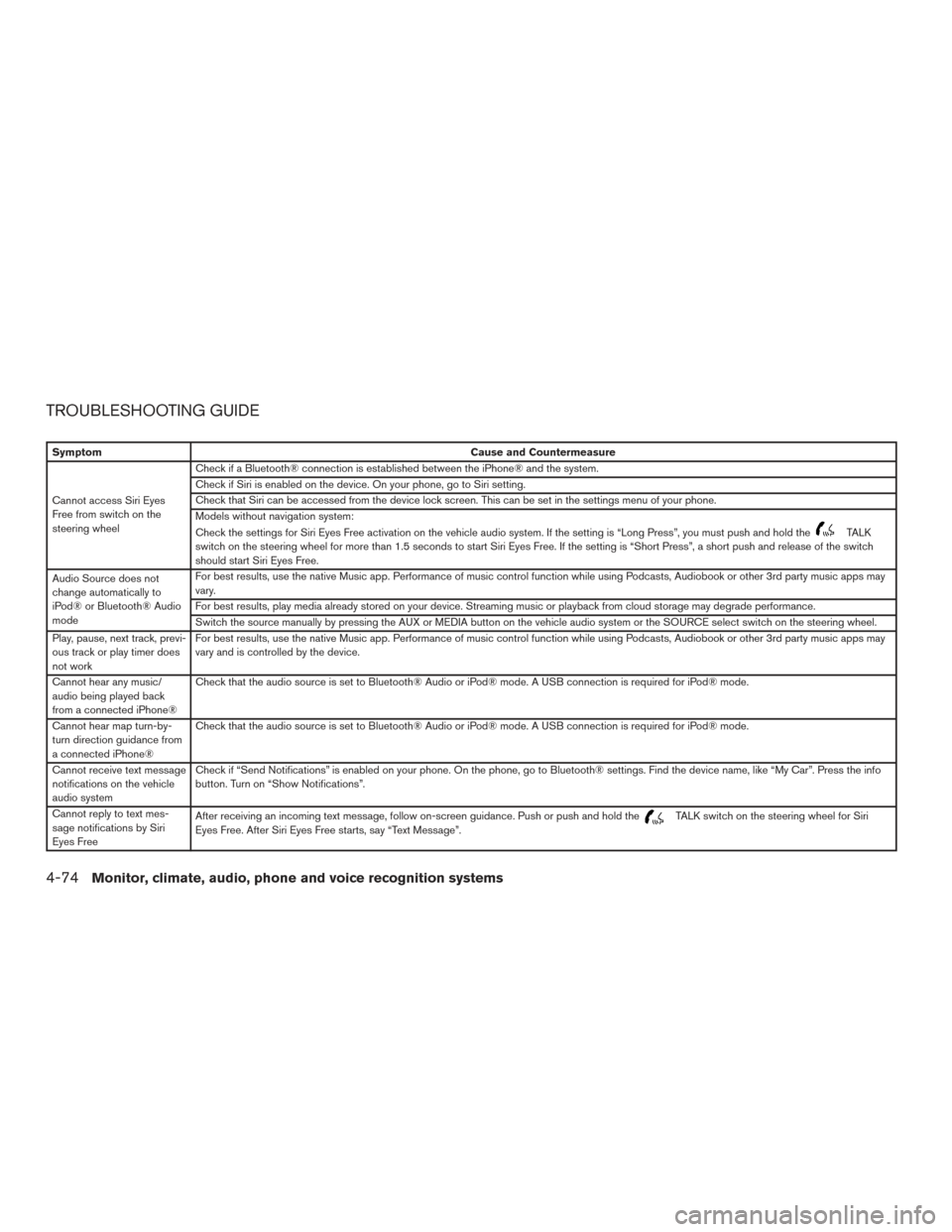
TROUBLESHOOTING GUIDE
SymptomCause and Countermeasure
Cannot access Siri Eyes
Free from switch on the
steering wheel Check if a Bluetooth® connection is established between the iPhone® and the system.
Check if Siri is enabled on the device. On your phone, go to Siri setting.
Check that Siri can be accessed from the device lock screen. This can be set in the settings menu of your phone.
Models without navigation system:
Check the settings for Siri Eyes Free activation on the vehicle audio system. If the setting is “Long Press”, you must push and hold the
TALK
switch on the steering wheel for more than 1.5 seconds to start Siri Eyes Free. If the setting is “Short Press”, a short push and release of the switch
should start Siri Eyes Free.
Audio Source does not
change automatically to
iPod® or Bluetooth® Audio
mode For best results, use the native Music app. Performance of music control function while using Podcasts, Audiobook or other 3rd party music apps may
vary.
For best results, play media already stored on your device. Streaming music or playback from cloud storage may degrade performance.
Switch the source manually by pressing the AUX or MEDIA button on the vehicle audio system or the SOURCE select switch on the steering wheel.
Play, pause, next track, previ-
ous track or play timer does
not work For best results, use the native Music app. Performance of music control function while using Podcasts, Audiobook or other 3rd party music apps may
vary and is controlled by the device.
Cannot hear any music/
audio being played back
from a connected iPhone® Check that the audio source is set to Bluetooth® Audio or iPod® mode. A USB connection is required for iPod® mode.
Cannot hear map turn-by-
turn direction guidance from
a connected iPhone® Check that the audio source is set to Bluetooth® Audio or iPod® mode. A USB connection is required for iPod® mode.
Cannot receive text message
notifications on the vehicle
audio system Check if “Send Notifications” is enabled on your phone. On the phone, go to Bluetooth® settings. Find the device name, like “My Car”. Press the info
button. Turn on “Show Notifications”.
Cannot reply to text mes-
sage notifications by Siri
Eyes Free After receiving an incoming text message, follow on-screen guidance. Push or push and hold the
TALK switch on the steering wheel for Siri
Eyes Free. After Siri Eyes Free starts, say “Text Message”.
4-74Monitor, climate, audio, phone and voice recognition systems
Page 460 of 469
10 Index
4WDwarninglight...............2-15A
Active brake limited slip (ABLS) system . . .5-36
Air bag (See supplemental restraint
system) .....................1-70
Air bag system Front (See supplemental front impact
air bag system) ...............1-77
Airbagwarninglabels.............1-85
Airbagwarninglight...........1-85,2-20
Air bag warning light, supplemental . .1-85, 2-20
Air cleaner housing filter ............8-21
Air conditioner Air conditioner operation ..........4-25
Air conditioner service ...........4-35
Air conditioner specification label .....9-14
Air conditioner system refrigerant and
oil recommendations .............9-8
Air conditioner system refrigerant
recommendations ..............9-8
Heater and air conditioner
controls............4-16,4-22,4-33
Servicing air conditioner ..........4-35
Airflowcharts..............4-19,4-26
Alarm system
(See vehicle security system) .........2-24
Anchor point locations .............1-32
Antenna .....................4-70
Antifreeze ....................5-42 Anti-lock brake warning light
..........2-15
Anti-lock Braking System (ABS) ........5-35
Apps .......................4-70
Audible reminders ...............2-24
Audio system ..................4-35
AMradioreception.............4-36
Bluetooth®audio..........4-66,4-67
Compact disc (CD) player . .4-45, 4-50, 4-56
FM-AM radio with compact disc (CD)
player ....................4-43
FM/AM/SAT radio with compact disc (CD)
player.................4-47,4-51
FMradioreception.............4-35
iPod® Player .............4-61,4-63
iPod® player operation .......4-61,4-63
Radio ....................4-35
Steering wheel audio control switch . . .4-69
USB interface ............4-57,4-59
USB (Universal Serial Bus) Connection
Port..................4-57,4-59
Autolight switch .................2-30
Automatic Automatic power window switch .....2-50
Automatic transmission position indicator
light .....................2-20
Driving with automatic transmission ....5-14
Automatic anti-glare inside mirror .......3-15
Automatic door locks ..............3-5
AUXjack.................4-46,4-57 B
Back button ....................4-7
Battery ..................5-42, 8-17
Charge warning light ............2-17
Battery replacement ..............8-28
Keyfob................8-28,8-29
Before starting the engine ...........5-12
Belt (See drive belt) ..............8-19
Block heater Engine ....................5-43
Bluetooth® audio ............4-66,4-67
Bluetooth® hands-free phone
system..............4-75,4-90,4-101
Boosterseats..................1-65
Brake Anti-lock Braking System (ABS) ......5-35
Brake fluid ..................8-15
Brakelight(Seestoplight).........8-32
Brake system ................5-34
Brakewarninglight.............2-16
Brakewearindicators........2-24,8-24
Parking brake operation ..........5-20
Self-adjusting brakes ............8-24
Brake fluid ....................8-15
Brakes ......................8-24
Brake system ..................5-34
Break-inschedule ...............5-23
Brightness/contrast button ...........4-9
Brightness control Instrument panel ..............2-32