key NISSAN FRONTIER 2016 D23 / 3.G Owner's Guide
[x] Cancel search | Manufacturer: NISSAN, Model Year: 2016, Model line: FRONTIER, Model: NISSAN FRONTIER 2016 D23 / 3.GPages: 469, PDF Size: 4.46 MB
Page 256 of 469
Interface
The interface for iPod® operation shown on the
vehicle’s audio system display screen is similar to
the iPod® interface. Use the touch-screen,
BACK button or the scrolling knob to navigate
the menus on the screen.
When the iPod® is playing, touch the “Menu” key
to bring up the iPod® interface.Depending on the iPod® model, the following
items may be available on the menu list screen.
For additional information, refer to the iPod®
Owner’s Manual regarding each menu item.
● Playlists
● Artists
● Albums
● Genres
● Songs
● Composers
● Audiobooks
● Podcasts
Shuffle and repeat play mode
While the iPod® is playing, the play pattern can
be altered so that songs are repeated or played
randomly.
Shuffle
Touch the “Shuffle” key to apply a random play
pattern to the iPod®. When the Shuffle mode is
active, the text is illuminated. Touching the
“Shuffle” key once more will display the “Shuffle
songs” key. To cancel Shuffle mode, touch the
“Shuffle” key again until the text is no longer
illuminated. Repeat
Touch the “Repeat” key to apply a repeat play
pattern to the iPod®. When the repeat mode is
active, the text is illuminated. Touching the “Re-
peat” key once more will display the “Repeat
song” key. To cancel Repeat mode, touch the
“Repeat” key again until the text is no longer
illuminated.
SEEK/CAT and TRACK buttons
When the
SEEK/CAT button orTRACK button is pressed for less than 1.5 sec-
onds while the iPod® is playing, the next track or
the beginning of the current track on the iPod®
will be played.
When the
SEEK/CAT button orTRACK button is pressed for more than 1.5 sec-
onds while the iPod® is playing, the iPod® will
play while fast forwarding or rewinding. When the
button is released, the iPod® will return to the
normal play speed.
LHA2907
Monitor, climate, audio, phone and voice recognition systems4-65
Page 257 of 469
Scrolling menus
While navigating long lists of artists, albums or
songs in the music menu, it is possible to scroll
the list by the first character in the name. To
activate character indexing, touch and hold the
“A-Z” key in the upper right corner of the screen.
Turn the TUNE/SCROLL knob to choose the
number or letter to jump to in the list and then
press the ENTER/AUDIO button.
If no character is selected after a few seconds,
the display returns to normal.
BLUETOOTH® STREAMING AUDIO
WITHOUT NAVIGATION SYSTEM (if
so equipped)
If you have a compatible Bluetooth® audio de-
vice that is capable of playing audio files, the
device can be connected to the vehicle’s audio
system so that the audio files on the device play
through the vehicle’s speakers.
Connecting Bluetooth® audio
To connect your Bluetooth® audio device to the
vehicle, follow the procedure below:1. Press the ENTER/SETTING button.
2. Select the “Bluetooth” key.
3. Select the “Add Phone or Device” key. This same screen can be accessed to remove,
replace or select a different Bluetooth® de-
vice.
LHA2279LHA2775
4-66Monitor, climate, audio, phone and voice recognition systems
Page 258 of 469
4. The system acknowledges the commandand asks you to initiate connecting from the
phone handset. The connecting procedure
of the cellular phone varies according to
each cellular phone model. For additional
information, refer to the cellular phone Own-
er’s Manual. You can also visit
www.nissanusa.com/bluetooth or
www.nissan.ca/bluetooth for instructions on
connecting NISSAN recommended cellular
phones.
Audio main operation
To switch to the Bluetooth® audio mode, press
the MEDIA button repeatedly until the
Bluetooth® audio mode is displayed on the
screen.
The controls for the Bluetooth® audio are dis-
played on the screen. Use the Preset 3 button for
play and the Preset 4 button for pause.
BLUETOOTH® STREAMING AUDIO
WITH NAVIGATION SYSTEM (if so
equipped)
If you have a compatible Bluetooth® audio de-
vice that is capable of playing audio files, the
device can be connected to the vehicle’s audio
system so that the audio files on the device play
through the vehicle’s speakers.
Connecting Bluetooth® audio
To connect your Bluetooth® audio device to the
vehicle, follow the procedure below:
1. Press the [
] button.
2. Touch the “Settings” key.
3. Touch the “Phone & Bluetooth” key. 4. Touch the “Connect New Device” key.
5. The system acknowledges the command
and asks you to initiate connecting from the
phone handset.
LHA3622LHA2844
Monitor, climate, audio, phone and voice recognition systems4-67
Page 294 of 469
REGULATORY INFORMATION
FCC Regulatory information
– CAUTION: To maintain compliance withFCC’s RF exposure guidelines, use only the
supplied antenna. Unauthorized antenna,
modification, or attachments could damage
the transmitter and may violate FCC regula-
tions.
– Operation is subject to the following two con- ditions:
1. This device may not cause interference and
2. this device must accept any interference, including interference that may cause unde-
sired operation of the device.
IC Regulatory information
– Operation is subject to the following two con- ditions: (1) this device may not cause interfer-
ence, and (2) this device must accept any
interference, including interference that may
cause undesired operation of the device.
– This Class B digital apparatus meets all re- quirements of the Canadian Interference-
Causing Equipment Regulations.
BLUETOOTH® is a
trademark owned by
Bluetooth SIG, Inc.
and licensed to
Bosch.
VOICE COMMANDS
You can use voice commands to operate various
Bluetooth® Hands-Free Phone System features
using the NISSAN Voice Recognition system. For
additional information, refer to “NISSAN Voice
Recognition System” in this section.
Voice Prompt Interrupt
While using the Voice Recognition system, the
system voice can be interrupted to allow the user
to speak commands. While the system is speak-
ing, press the
button on the steering
wheel. The system voice will stop and a tone will
be heard. After the tone, speak desired command
(displayed on the touch-screen) .
One Shot Call
To use the system faster, you may speak the
second level commands with the main menu
command on the main menu. For example, press
the
button and after the tone say, “Call
Redial”.
CONNECTING PROCEDURE
NOTE:
The connecting procedure must be per-
formed when the vehicle is stationary. If the
vehicle starts moving during the procedure,
the procedure will be cancelled.
1. Press the [
] button on the control
panel.
2. Touch the “Settings” key.
3. Touch the “Phone & Bluetooth” key.
4. Touch the “Connect New Device” key.
LHA3622
Monitor, climate, audio, phone and voice recognition systems4-103
Page 295 of 469
5. Initiate the connecting process from thehandset. The system will display the mes-
sage: “Is PIN XXXXXX displayed on your
Bluetooth device?”. If the PIN is displayed
on your Bluetooth® device, select “Yes” to
complete the pairing process.
For additional information, refer to the
Bluetooth® device’s Owner’s Manual.
VEHICLE PHONEBOOK
To access the vehicle phonebook:
1. Press the
button on the control panel.
2. Touch the “Phonebook” key.
3. Choose the desired entry from the displayed list.
4. The number of the entry will be displayed on the screen. Touch the number to initiate di-
aling.
NOTE:
To scroll quickly through the list, touch the
“A-Z” key in the upper right corner of the
screen. Turn the TUNE knob to choose a
letter or number and then press the
ENTER/AUDIO button. The list will move to
the first entry that begins with that number
or letter.
MAKING A CALL
To make a call, follow the procedure below: 1. Press the
button on the control panel.
The “Phone” screen will appear on the dis-
play.
2. Select one of the following options to make a call:
● “Phonebook”: Select the name from an entry
stored in the vehicle phonebook.
● “Call Lists”: Select the name from the in-
coming, outgoing or missed.
● “Redial”: Dial the last outgoing call from the
vehicle.
● “
”: Input the phone number manually
using a keypad displayed on the screen. For
additional information, refer to “How to use
the touch-screen” in this section.
RECEIVING A CALL
When a call is placed to the connected phone,
the display will change to phone mode.
To accept the incoming call, either:
● Press the
button on the steering
wheel, or
● Touch the
icon on the screen. To reject the incoming call, either:
● Press the
button on the steering
wheel, or
● Touch the phone icon on the screen.
DURING A CALL
While a call is active, the following options are
available on the screen:
● “Handset”
Select this option to switch control of the
phone call over to the handset.
● “Mute Mic.”
Select this option to mute the microphone.
Select again to unmute the microphone.
● Phone (
) icon
Select to end the phone call.
ENDING A CALL
To end a phone call, select the red phone ()
icon on the screen or press the
button on
the steering wheel.
4-104Monitor, climate, audio, phone and voice recognition systems
Page 298 of 469
![NISSAN FRONTIER 2016 D23 / 3.G Owners Guide BLUETOOTH® SETTINGS
To access the phone settings:1. Press the [
] button.
2. Touch the “Settings” key.
3. Touch the “Phone & Bluetooth” key.
Menu Item Result
Phone Settings For additional inf](/img/5/469/w960_469-297.png "NISSAN FRONTIER 2016 D23 / 3.G Owners Guide BLUETOOTH® SETTINGS
To access the phone settings:1. Press the [
] button.
2. Touch the “Settings” key.
3. Touch the “Phone & Bluetooth” key.
Menu Item Result
Phone Settings For additional inf")
BLUETOOTH® SETTINGS
To access the phone settings:1. Press the [
] button.
2. Touch the “Settings” key.
3. Touch the “Phone & Bluetooth” key.
Menu Item Result
Phone Settings For additional information, refer to “Phone settings” in this section.
Connect New Device Select to connect a new Bluetooth® device to the Bluetooth® Hands-Free Phone System.
Select Connected Device Select to choose a Bluetooth® device from a list of those devices connected to the Bluetooth® Hands-Free Phone System.
Replace Connected Device Select to replace a Bluetooth® device from a list of those devices connected to the Bluetooth® Hands-Free Phone System.
Delete Connected Device Select to delete a Bluetooth® device from a list of those devices connected to the Bluetooth® Hands-Free Phone System.
Bluetooth Select to toggle Bluetooth® on and off.
LHA2844
Monitor, climate, audio, phone and voice recognition systems4-107
Page 299 of 469
![NISSAN FRONTIER 2016 D23 / 3.G Owners Guide PHONE SETTINGS
To access the phone settings:1. Press the [
] button.
2. Touch the “Settings” key.
3. Touch the “Phone & Bluetooth” key.
4. Touch the “Phone Settings” key and adjust the fol](/img/5/469/w960_469-298.png "NISSAN FRONTIER 2016 D23 / 3.G Owners Guide PHONE SETTINGS
To access the phone settings:1. Press the [
] button.
2. Touch the “Settings” key.
3. Touch the “Phone & Bluetooth” key.
4. Touch the “Phone Settings” key and adjust the fol")
PHONE SETTINGS
To access the phone settings:1. Press the [
] button.
2. Touch the “Settings” key.
3. Touch the “Phone & Bluetooth” key.
4. Touch the “Phone Settings” key and adjust the following settings as desired:
● Start Siri by:
Touch “Short Press” or “Long Press” to set
how Siri® is operated on the steering wheel.
● Sort Phonebook By:
Touch “First Name” or “Last Name” to
choose how phonebook entries are alpha-
betically displayed on the screen.
● Use Phonebook From:
Touch “Handset” to use the phone’s phone-
book. Touch “SIM” to use the phonebook on
the SIM card. Select “Both” to use both
sources.
● Download Phonebook Now:
Touch to download the phonebook to the
vehicle from the chosen source. ●
Record Name for Phonebook Entry:
Touch to record a name for a phonebook
entry for use with the NISSAN Voice Recog-
nition System.
● Phone Notifications for:
Touch “Driver” to have phone notifications
shown in the vehicle information display. Se-
lect “Both” to have phone notifications
shown in both the vehicle information display
and the center display screen.
● Text Messaging:
Touch to toggle the text message function-
ality on or off.
● Show Incoming Text for:
Touch “Driver” to have incoming text notifi-
cations shown in the vehicle information dis-
play. Touch “Both” to have text notifications
shown in both the vehicle information display
and the center display screen. Touch “Off” to
turn off all text notifications.
● Auto Reply:
Touch to toggle the auto reply functionality
on or off. ●
Auto Reply Message:
Touch to indicate preferred message to be
sent when “Auto Reply” function is activated.
● Use Vehicle’s Signature:
Touch to toggle on or off the addition of the
vehicle signature to outgoing messages.
● Custom Text Messages:
Touch this option to select a custom mes-
sage to edit. There are 4 customer message
slots available.
4-108Monitor, climate, audio, phone and voice recognition systems
Page 300 of 469
The NISSAN Voice Recognition system allows
hands-free operation of the systems equipped on
this vehicle, such as the phone and navigation
systems.
To operate NISSAN Voice Recognition, press
the
button located on the steering wheel.
When prompted, speak the command for the
system you wish to activate. The command given
is picked up by the microphone and performed
when it is properly recognized. NISSAN Voice
Recognition will provide a voice response as well
as a message in the center display to inform you
of the command results.
USING THE SYSTEM
Initialization
When the ignition switch is in the ON position,
NISSAN Voice Recognition is initialized, which
takes a few seconds. When completed, the sys-
tem is ready to accept voice commands. If
the
button is pressed before the initializa-
tion completes, the system will announce: “Voice
Recognition System not ready. Please wait.”
Giving voice commands
1. Press thebutton.
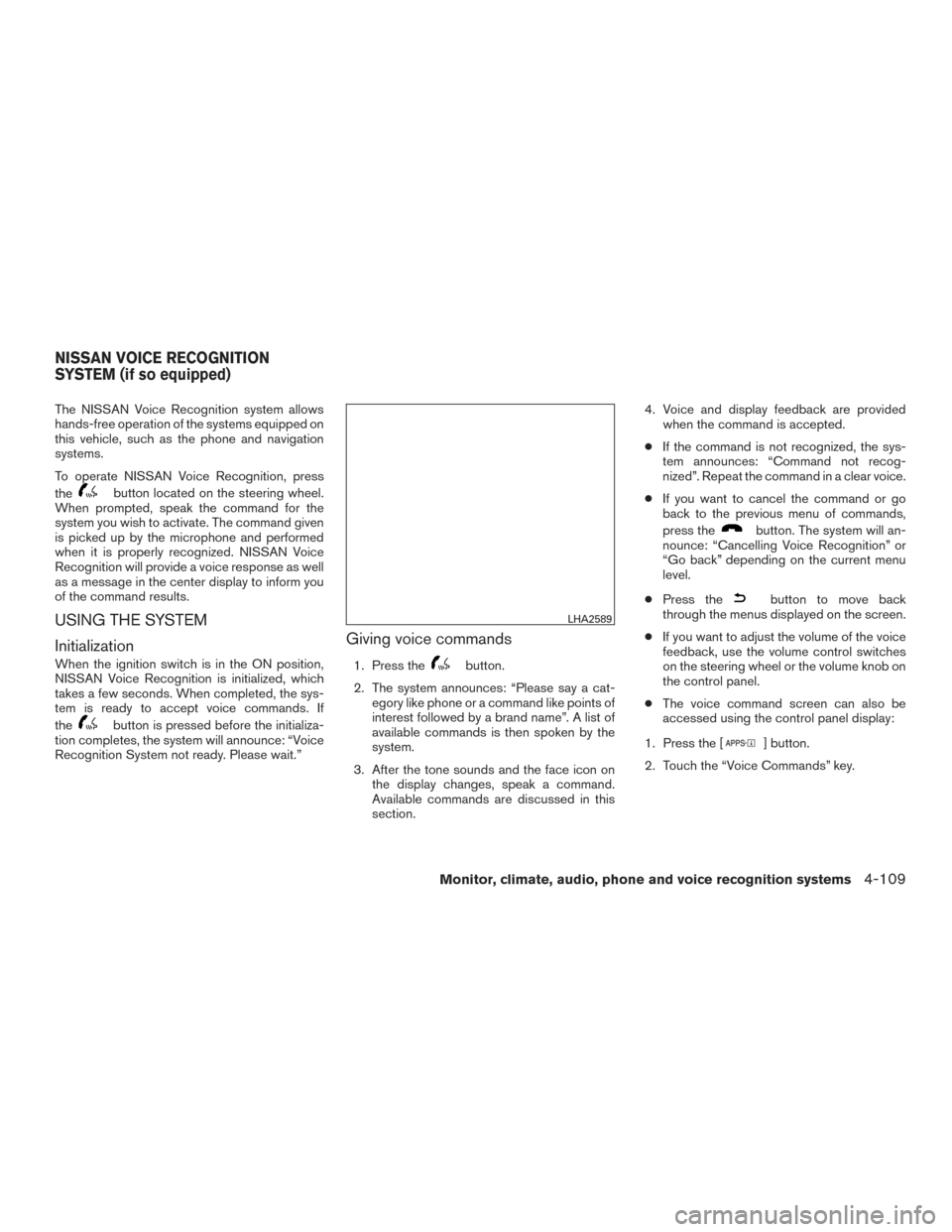
2. The system announces: “Please say a cat- egory like phone or a command like points of
interest followed by a brand name”. A list of
available commands is then spoken by the
system.
3. After the tone sounds and the face icon on the display changes, speak a command.
Available commands are discussed in this
section. 4. Voice and display feedback are provided
when the command is accepted.
● If the command is not recognized, the sys-
tem announces: “Command not recog-
nized”. Repeat the command in a clear voice.
● If you want to cancel the command or go
back to the previous menu of commands,
press the
button. The system will an-
nounce: “Cancelling Voice Recognition” or
“Go back” depending on the current menu
level.
● Press the
button to move back
through the menus displayed on the screen.
● If you want to adjust the volume of the voice
feedback, use the volume control switches
on the steering wheel or the volume knob on
the control panel.
● The voice command screen can also be
accessed using the control panel display:
1. Press the [
] button.
2. Touch the “Voice Commands” key.
LHA2589
NISSAN VOICE RECOGNITION
SYSTEM (if so equipped)
Monitor, climate, audio, phone and voice recognition systems4-109
Page 305 of 469
5 Starting and driving
Precautions when starting and driving................5-2
Exhaust gas (carbon monoxide) ..................5-2
Three-way catalyst ..............................5-3
Tire Pressure Monitoring System (TPMS) ..........5-3
On-pavement and off-road driving
precautions ....................................5-6
Avoiding collision and rollover . . ..................5-6
Off-road recovery ...............................5-7
Rapid air pressure loss ..........................5-7
Drinking alcohol/drugs and driving ................5-8
Driving safety precautions .......................5-8
Ignition switch .................................... 5-10
Automatic transmission (if so equipped) ..........5-10
Manual transmission (if so equipped) ............5-11
Key positions ................................. 5-12
NISSAN Vehicle Immobilizer System
(if so equipped) ............................... 5-12
Before starting the engine ......................... 5-12
Starting the engine ............................... 5-13
Driving the vehicle ................................ 5-14
Automatic transmission (if so equipped) ..........5-14
Manual transmission (if so equipped) ............5-18
Parking brake .................................... 5-20Cruise control (if so equipped) . .
...................5-21
Precautions on cruise control ...................5-21
Cruise control operations .......................5-22
Break-in schedule ................................ 5-23
Fuel efficient driving tips ........................... 5-23
Increasing fuel economy ........................... 5-24
Using four wheel drive (4WD)
(if so equipped) .................................. 5-25
Transfer case shifting procedures . . .............5-25
Electronic locking rear differential (E-Lock) system
(if so equipped) .................................. 5-31
Parking/parking on hills ............................ 5-33
Power steering ................................... 5-34
Brake system .................................... 5-34
Brake precautions ............................. 5-34
Anti-lock Braking System (ABS) .................5-35
Active brake limited slip (ABLS) system .............5-36
Vehicle Dynamic Control (VDC) system .............5-37
Brake force distribution ........................ 5-39
Hill descent control system (if so equipped) .........5-40
Hill start assist system (if so equipped) ..............5-40
Rear sonar system (RSS) (if so equipped) ...........5-41
Cold weather driving .............................. 5-42
Page 315 of 469
●Always use tires of the same type, size,
brand, construction (bias, bias-belted,
or radial) , and tread pattern on all four
wheels. Install tire chains on the rear
wheels when driving on slippery roads
and drive carefully.
● Be sure to check the brakes immedi-
ately after driving in mud or water. For
additional information, refer to “Wet
brakes” in this section.
● Avoid parking your vehicle on steep
hills. If you get out of the vehicle and it
rolls forward, backward or sideways,
you could be injured.
● Whenever you drive off-road through
sand, mud or water as deep as the
wheel hub, more frequent maintenance
may be required. For additional infor-
mation, refer to “Periodic maintenance”
in the “NISSAN Service and Mainte-
nance Guide.WARNING
●Never remove the ignition key or place
the ignition switch in the LOCK position
while driving. The steering wheel will
lock (for models with a steering lock
mechanism) . This may cause the driver
to lose control of the vehicle and could
result in serious vehicle damage or per-
sonal injury.
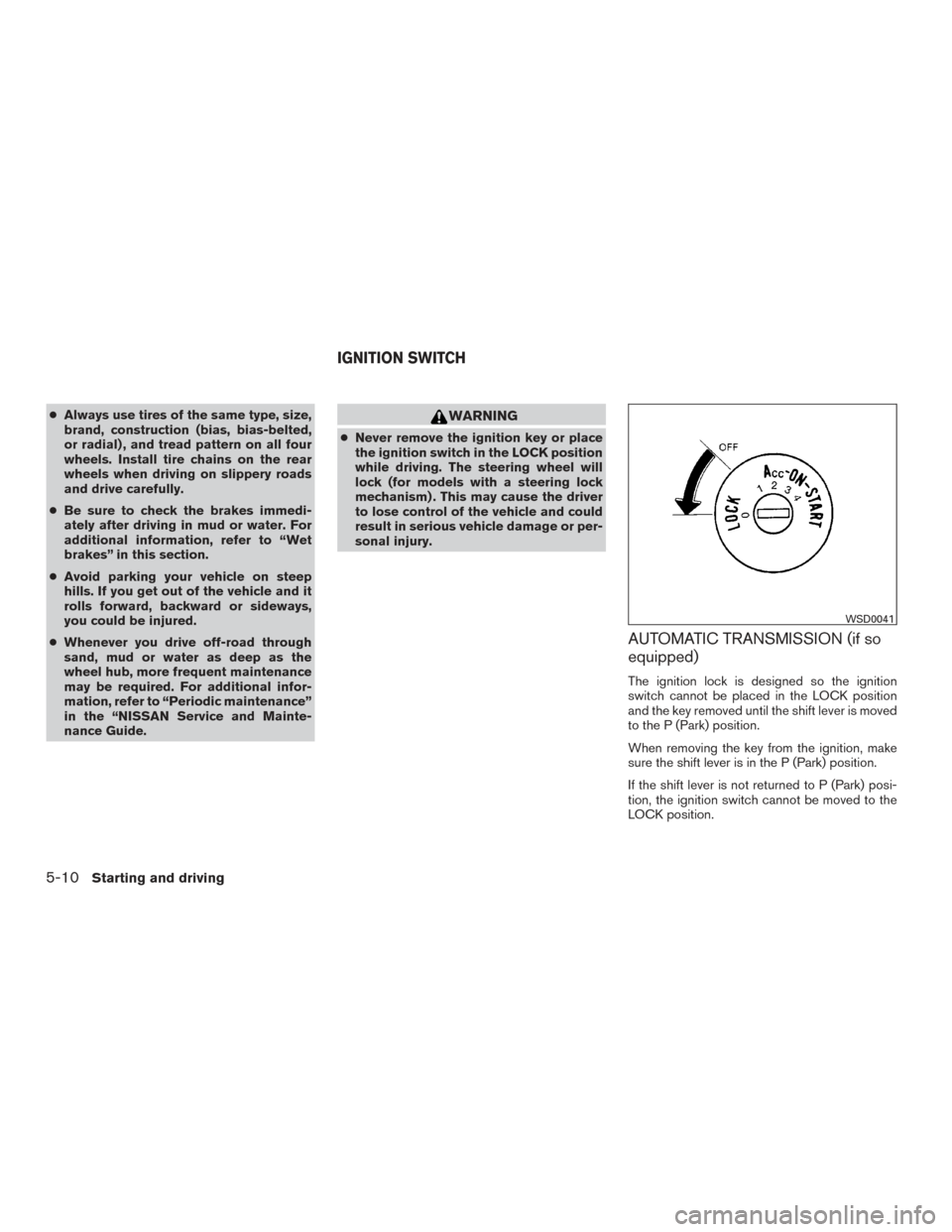
AUTOMATIC TRANSMISSION (if so
equipped)
The ignition lock is designed so the ignition
switch cannot be placed in the LOCK position
and the key removed until the shift lever is moved
to the P (Park) position.
When removing the key from the ignition, make
sure the shift lever is in the P (Park) position.
If the shift lever is not returned to P (Park) posi-
tion, the ignition switch cannot be moved to the
LOCK position.
WSD0041
IGNITION SWITCH
5-10Starting and driving