climate settings NISSAN FRONTIER 2018 Owner´s Manual
[x] Cancel search | Manufacturer: NISSAN, Model Year: 2018, Model line: FRONTIER, Model: NISSAN FRONTIER 2018Pages: 502, PDF Size: 4.85 MB
Page 299 of 502
The text message, sender and delivery
time are shown on the screen. Use
the
buttons to scroll through all
text messages if more than one are avail-
able. Press the
button to exit the text
message screen. Press the
button to
access the following options for replying to
the text message:
∙ Call Back Speak this command to call the sender
of the text message using the
Bluetooth® Hands-Free Phone System.
∙ Send Text Speak this command to send a text
message response to the sender of the
text message.
∙ Read Text Speak this command to read the text
message again.
∙ Previous Text Speak this command to move to the
previous text message (if available).
∙ Next Text Speak this command to move to the
next text message (if available). Siri® Eyes Free (if so equipped)
If a connected phone is equipped with Siri®,
it can also be used to create custom mes-
sages that are sent through the phone. For
additional information, refer to “Siri® Eyes
Free” in this section.
NOTE:
Text messages are only displayed if the
vehicle speed is less than 5 mph
(8 km/h).
NOTE:
For Apple iPhones®, text messages can
only be sent through Siri.
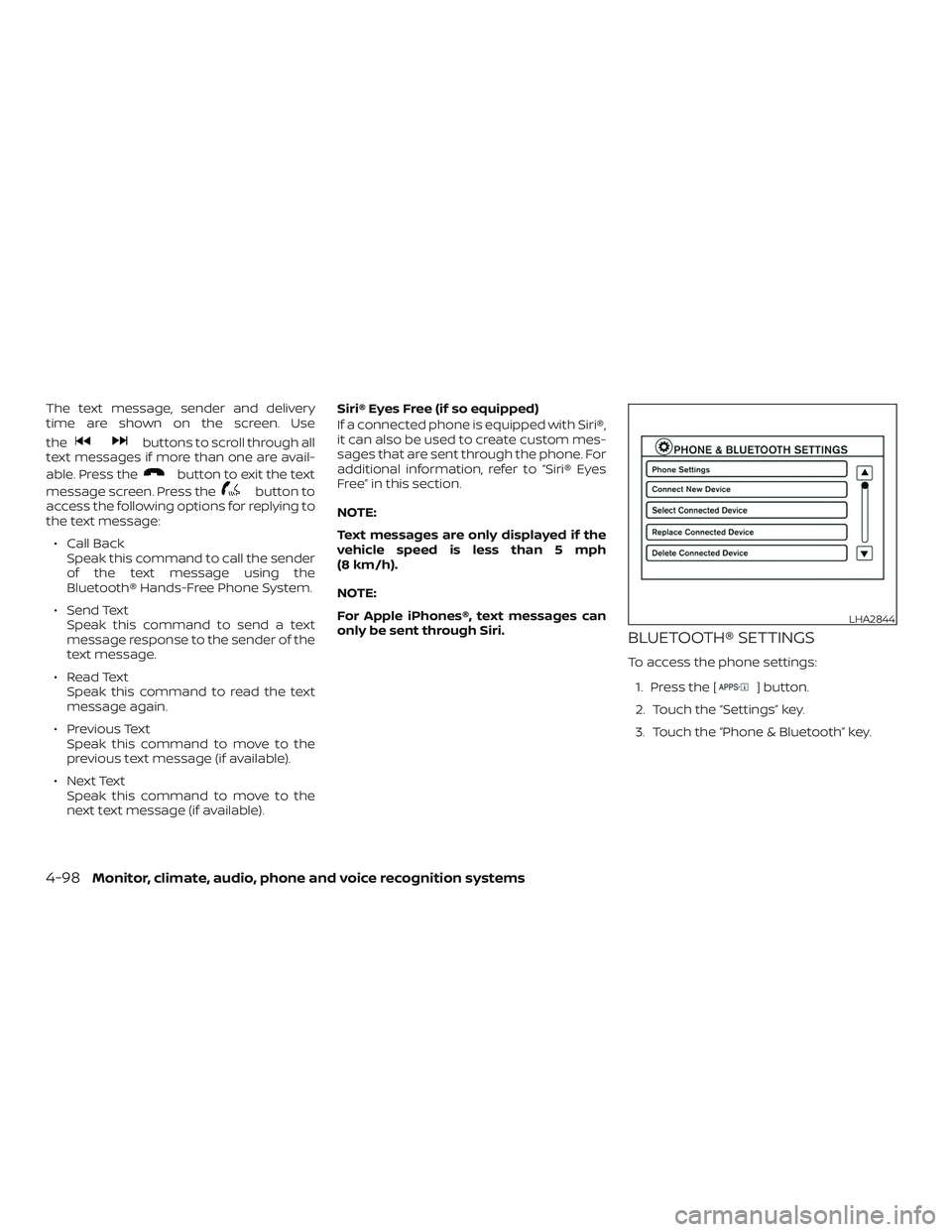
BLUETOOTH® SETTINGS
To access the phone settings:
1. Press the [
] button.
2. Touch the “Settings” key.
3. Touch the “Phone & Bluetooth” key.
LHA2844
4-98Monitor, climate, audio, phone and voice recognition systems
Page 300 of 502
Menu ItemResult
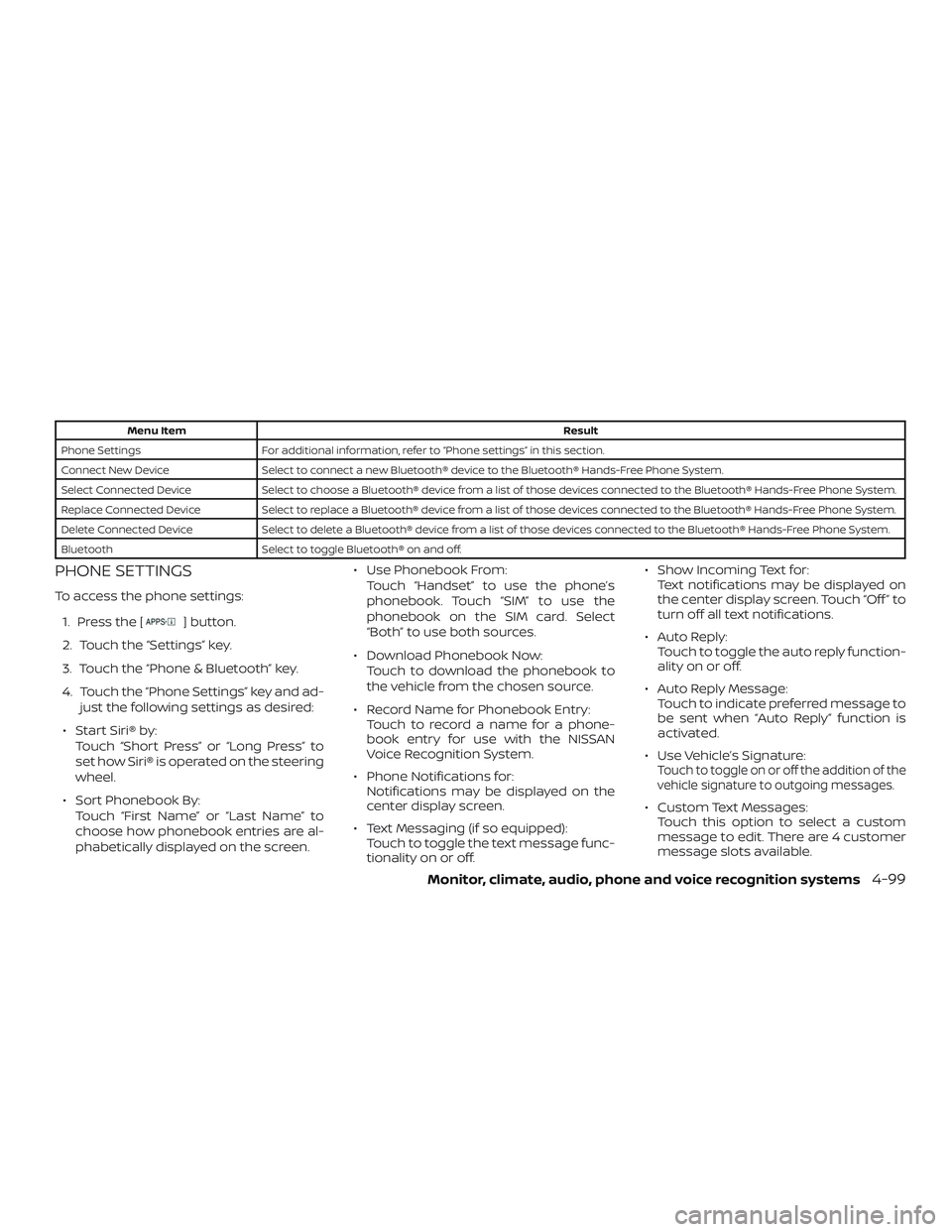
Phone Settings For additional information, refer to “Phone settings” in this section.
Connect New Device Select to connect a new Bluetooth® device to the Bluetooth® Hands-Free Phone System.
Select Connected Device Select to choose a Bluetooth® device from a list of those devices connected to the Bluetooth® Hands-Free Phone System.
Replace Connected Device Select to replace a Bluetooth® device from a list of those devices connected to the Bluetooth® Hands-Free Phone System.
Delete Connected Device Select to delete a Bluetooth® device from a list of those devices connected to the Bluetooth® Hands-Free Phone System.
Bluetooth Select to toggle Bluetooth® on and off.
PHONE SETTINGS
To access the phone settings:
1. Press the [
] button.
2. Touch the “Settings” key.
3. Touch the “Phone & Bluetooth” key.
4. Touch the “Phone Settings” key and ad- just the following settings as desired:
∙ Start Siri® by: Touch “Short Press” or “Long Press” to
set how Siri® is operated on the steering
wheel.
∙ Sort Phonebook By: Touch “First Name” or “Last Name” to
choose how phonebook entries are al-
phabetically displayed on the screen. ∙ Use Phonebook From:
Touch “Handset” to use the phone’s
phonebook. Touch “SIM” to use the
phonebook on the SIM card. Select
“Both” to use both sources.
∙ Download Phonebook Now: Touch to download the phonebook to
the vehicle from the chosen source.
∙ Record Name for Phonebook Entry: Touch to record a name for a phone-
book entry for use with the NISSAN
Voice Recognition System.
∙ Phone Notifications for: Notifications may be displayed on the
center display screen.
∙ Text Messaging (if so equipped): Touch to toggle the text message func-
tionality on or off. ∙ Show Incoming Text for:
Text notifications may be displayed on
the center display screen. Touch “Off ” to
turn off all text notifications.
∙ Auto Reply: Touch to toggle the auto reply function-
ality on or off.
∙ Auto Reply Message: Touch to indicate preferred message to
be sent when “Auto Reply” function is
activated.
∙ Use Vehicle’s Signature:
Touch to toggle on or off the addition of the
vehicle signature to outgoing messages.
∙ Custom Text Messages: Touch this option to select a custom
message to edit. There are 4 customer
message slots available.
Monitor, climate, audio, phone and voice recognition systems4-99