radio NISSAN FRONTIER 2018 Owner´s Manual
[x] Cancel search | Manufacturer: NISSAN, Model Year: 2018, Model line: FRONTIER, Model: NISSAN FRONTIER 2018Pages: 502, PDF Size: 4.85 MB
Page 253 of 502
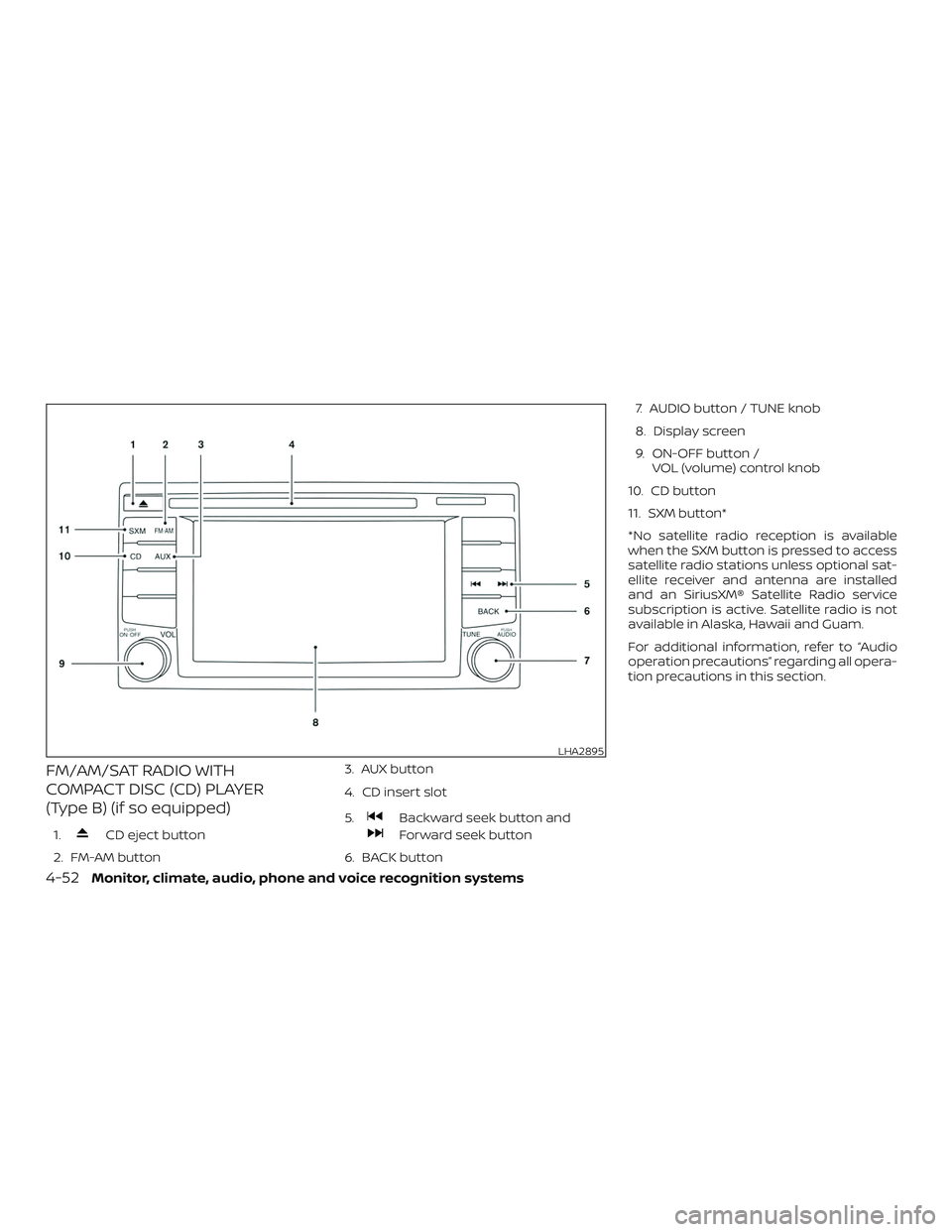
FM/AM/SAT RADIO WITH
COMPACT DISC (CD) PLAYER
(Type B) (if so equipped)
1.CD eject button
2. FM-AM button 3. AUX button
4. CD insert slot
5.
Backward seek button and
Forward seek button
6. BACK button 7. AUDIO button / TUNE knob
8. Display screen
9. ON-OFF button /
VOL (volume) control knob
10. CD button
11. SXM button*
*No satellite radio reception is available
when the SXM button is pressed to access
satellite radio stations unless optional sat-
ellite receiver and antenna are installed
and an SiriusXM® Satellite Radio service
subscription is active. Satellite radio is not
available in Alaska, Hawaii and Guam.
For additional information, refer to “Audio
operation precautions” regarding all opera-
tion precautions in this section.
LHA2895
4-52Monitor, climate, audio, phone and voice recognition systems
Page 254 of 502
Audio main operation
ON-OFF button / VOL (volume) control
knob
Place the ignition switch in the ACC or ON
position and press the ON-OFF button
while the system is off to call up the mode
(radio, CD, AUX, Bluetooth® audio, USB or
iPod®) that was playing immediately before
the system was turned off.To turn the system off, press the ON-OFF
button.
Turn the VOL (volume) control knob to ad-
just the volume.
This vehicle may be equipped with Speed
Sensitive Volume. When this feature is ac-
tive, the audio volume changes as the driv-
ing speed changes.
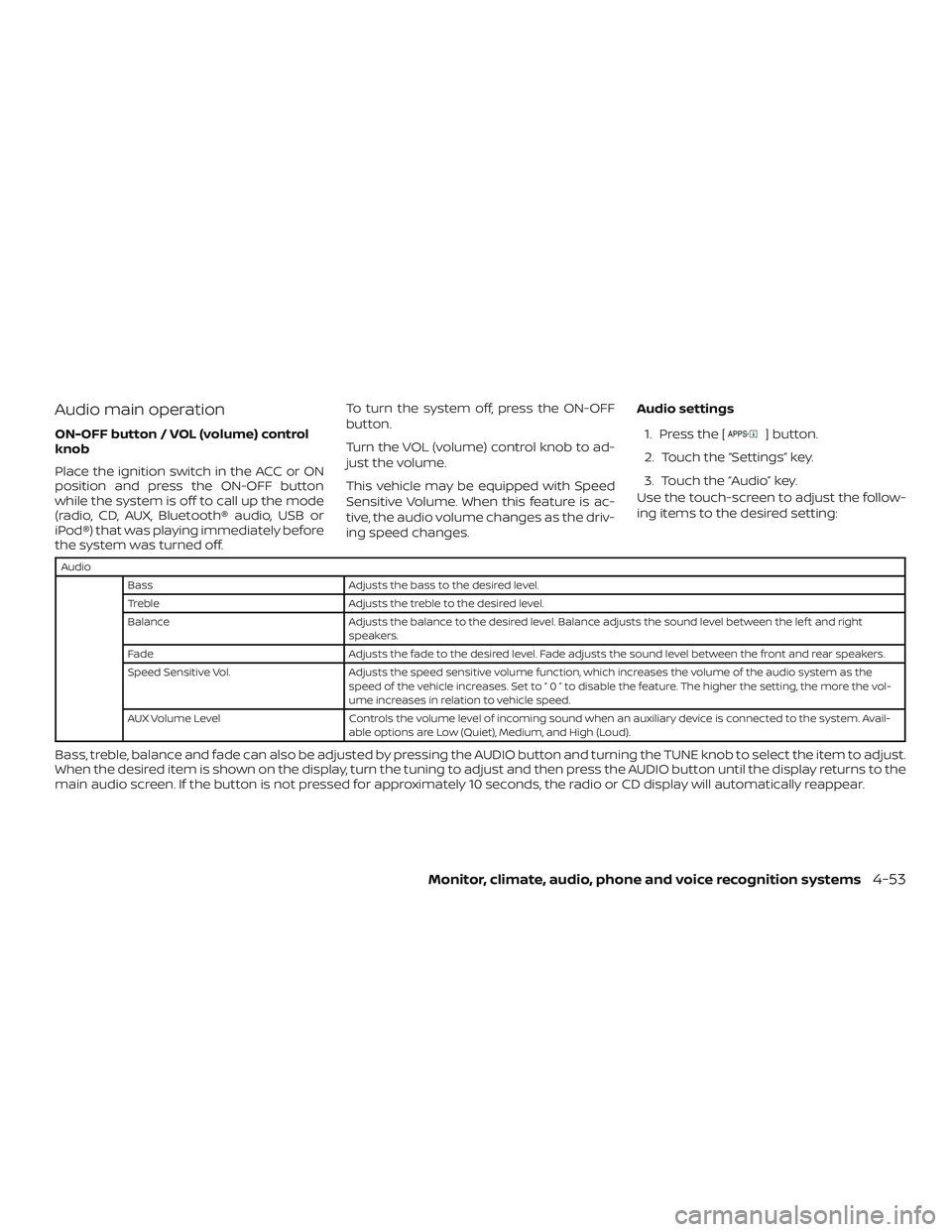
Audio settings
1. Press the [] button.
2. Touch the “Settings” key.
3. Touch the “Audio” key.
Use the touch-screen to adjust the follow-
ing items to the desired setting:
Audio
Bass Adjusts the bass to the desired level.
Treble Adjusts the treble to the desired level.
Balance Adjusts the balance to the desired level. Balance adjusts the sound level between the lef t and right
speakers.
Fade Adjusts the fade to the desired level. Fade adjusts the sound level between the front and rear speakers.
Speed Sensitive Vol. Adjusts the speed sensitive volume function, which increases the volume of the audio system as the
speed of the vehicle increases. Set to “ 0 ” to disable the feature. The higher the setting, the more the vol-
ume increases in relation to vehicle speed.
AUX Volume Level Controls the volume level of incoming sound when an auxiliary device is connected to the system. Avail-
able options are Low (Quiet), Medium, and High (Loud).
Bass, treble, balance and fade can also be adjusted by pressing the AUDIO button and turning the TUNE knob to select the item to adjust.
When the desired item is shown on the display, turn the tuning to adjust and then press the AUDIO button until the display returns to the
main audio screen. If the button is not pressed for approximately 10 seconds, the radio or CD display will automatically reappear.
Monitor, climate, audio, phone and voice recognition systems4-53
Page 255 of 502
![NISSAN FRONTIER 2018 Owner´s Manual SXM settings
To view the SXM settings:1. Press the [
] button.
2. Touch the “Settings” key.
3. Touch the “SXM” key.
The signal strength, activation status and
other information are displayed o](/img/5/40338/w960_40338-254.png "NISSAN FRONTIER 2018 Owner´s Manual SXM settings
To view the SXM settings:1. Press the [
] button.
2. Touch the “Settings” key.
3. Touch the “SXM” key.
The signal strength, activation status and
other information are displayed o")
SXM settings
To view the SXM settings:1. Press the [
] button.
2. Touch the “Settings” key.
3. Touch the “SXM” key.
The signal strength, activation status and
other information are displayed on the
screen.
FM/AM/SAT radio operation
FM·AM button
Press the FM·AM button to change the
band as follows:
AM →P1→ FM1→FM→P2
If another audio source is playing when the
FM·AM button is pressed, the audio source
playing will automatically be turned off and
the last radio station played will begin play-
ing.
The FM stereo indicator (STEREO) is shown
on the screen during FM stereo reception.
When the stereo broadcast signal is weak,
the radio automatically changes from ste-
reo to monaural reception. SXM band select
Pressing the SXM button will change the
band as follows:
SXM1*
→SXM2* →SXM3* →SXM1* (satellite,
if so equipped)
When the SXM button is pressed while the
ignition switch is in the ACC or ON position,
the radio will come on at the last station
played.
The last station played will also come on
when the ON-OFF button is pressed to turn
the radio on.
*When the SXM button is pressed, the sat-
ellite radio mode will be skipped unless an
optional satellite receiver and antenna are
installed and a SiriusXM® Satellite Radio
service subscription is active. Satellite radio
is not available in Alaska, Hawaii and Guam.
If a compact disc is playing when the SXM
button is pressed, the compact disc will
automatically be turned off and the last
radio station played will come on. While the radio is in SXM mode, the opera-
tion can be controlled through the touch-
screen. Touch the “Categories” key to dis-
play a list of categories. Touch a category
displayed on the list to display options
within that category.
Tuning with the touch-screen
When in AM or FM mode, the radio can be
tuned using the touch-screen. To bring up
the visual tuner, touch the “Tune” key on the
lower right corner of the screen. A screen
appears with a bar running from low fre-
quencies on the lef t to high frequencies on
the right. Touch the screen at the location
of the frequency you wish to tune and the
station will change to that frequency. To
return to the regular radio display screen,
touch the “OK” key.
Tuning with the TUNE knob
The radio can also be manually tuned us-
ing the TUNE knob. When in FM or AM mode,
turn the TUNE knob to the lef t for lower
frequencies or to the right for higher fre-
quencies. When in SXM mode, turn the
TUNE knob to change the channel.
4-54Monitor, climate, audio, phone and voice recognition systems
Page 256 of 502
SEEK tuning
When in FM or AM mode, press the
orseek buttons to tune from low to
high or high to low frequencies and to stop
at the next broadcasting station.
When in SXM mode, press the
orseek buttons to change the cat-
egory.
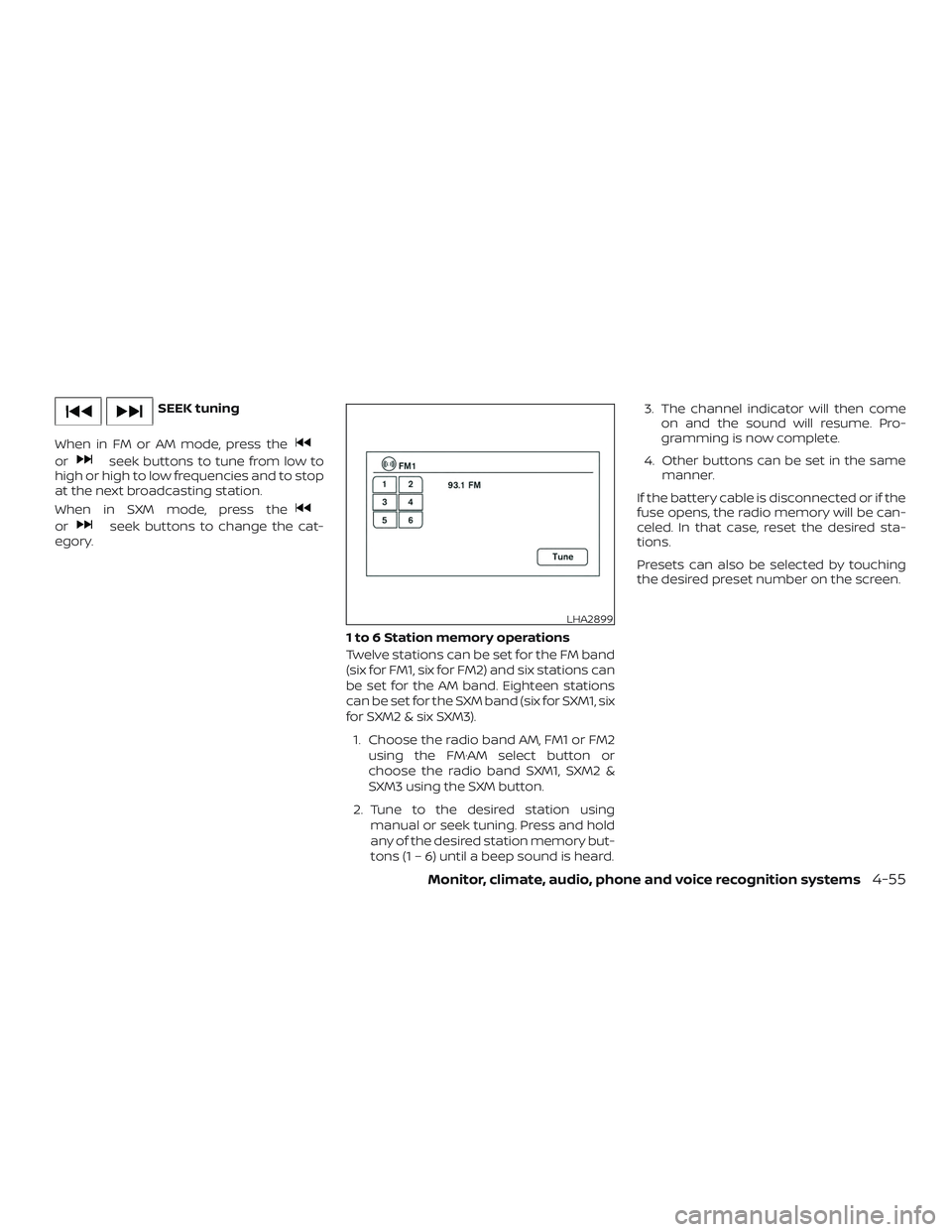
1 to 6 Station memory operations
Twelve stations can be set for the FM band
(six for FM1, six for FM2) and six stations can
be set for the AM band. Eighteen stations
can be set for the SXM band (six for SXM1, six
for SXM2 & six SXM3).1. Choose the radio band AM, FM1 or FM2 using the FM·AM select button or
choose the radio band SXM1, SXM2 &
SXM3 using the SXM button.
2. Tune to the desired station using manual or seek tuning. Press and hold
any of the desired station memory but-
tons (1 – 6) until a beep sound is heard. 3. The channel indicator will then come
on and the sound will resume. Pro-
gramming is now complete.
4. Other buttons can be set in the same manner.
If the battery cable is disconnected or if the
fuse opens, the radio memory will be can-
celed. In that case, reset the desired sta-
tions.
Presets can also be selected by touching
the desired preset number on the screen.
LHA2899
Monitor, climate, audio, phone and voice recognition systems4-55
Page 258 of 502
REPLAYTo replay a track from
the beginning, press
the
key. The user
can continue to press
the
key to replay
previous songs, but can
only go back as far as
the system permits. The
system will warn the
user when they cannot
skip any further back by
displaying “At the End” in
the bottom lef t corner
of the screen.
SKIP To skip a track, press
the
key. “Live” will
appear in the bottom
lef t corner of the screen
indicating the difference
from play time to live
audio. PAUSE
To pause a track, press
the
key.
REWIND/
FA ST
FORWARD To rewind/ fast forward
a track, hold the
orkey.
Compact disc (CD) player
operation
If the radio is already operating, it automati-
cally turns off and the compact disc begins
to play. CD button
When the CD button is pressed with the
system off and the compact disc loaded,
the system will turn on and the compact
disc will start to play.
When the CD button is pressed with a com-
pact disc loaded and the radio playing, the
radio will automatically be turned off and
the compact disc will start to play.
Monitor, climate, audio, phone and voice recognition systems4-57
Page 273 of 502
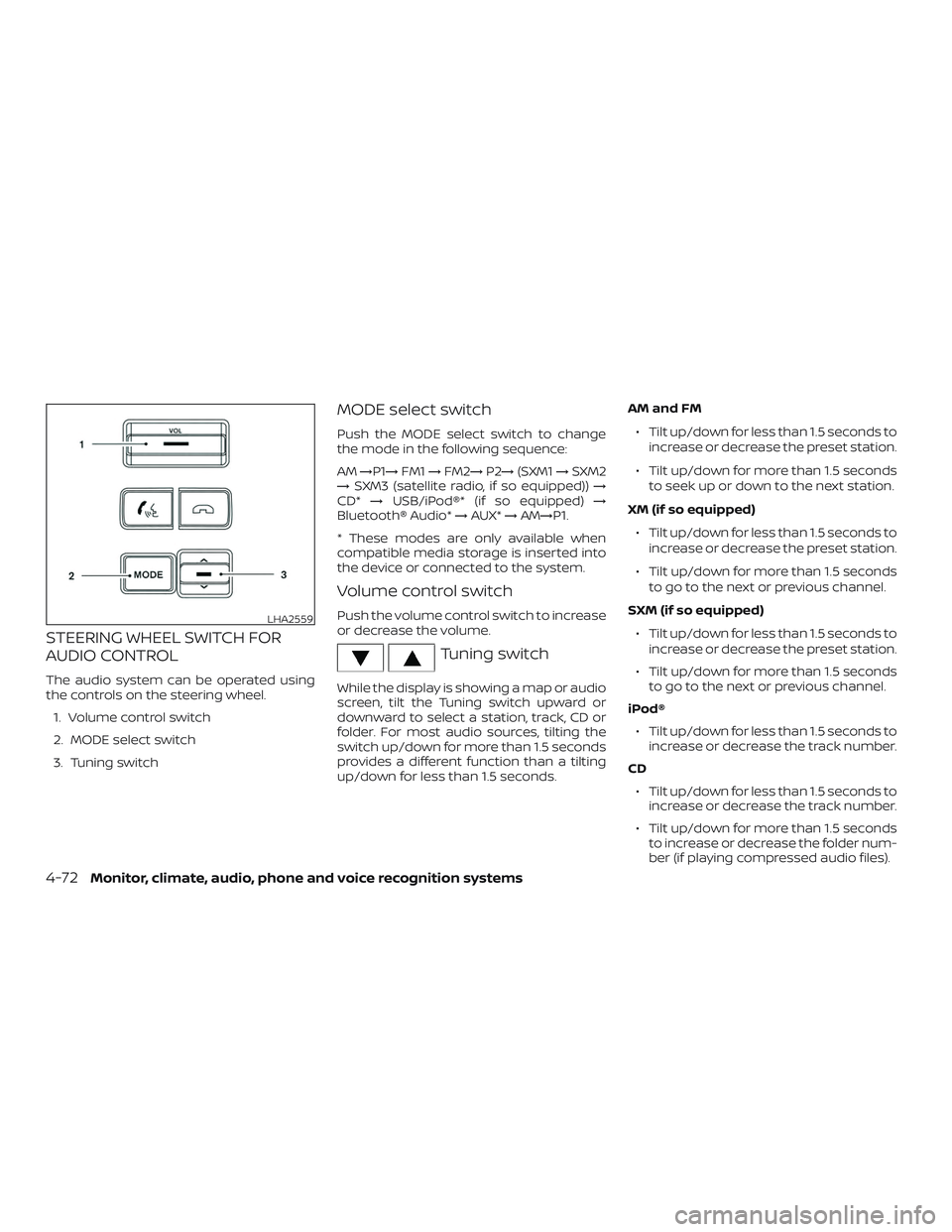
STEERING WHEEL SWITCH FOR
AUDIO CONTROL
The audio system can be operated using
the controls on the steering wheel.1. Volume control switch
2. MODE select switch
3. Tuning switch
MODE select switch
Push the MODE select switch to change
the mode in the following sequence:
AM →P1→ FM1→FM2→ P2→(SXM1 →SXM2
→ SXM3 (satellite radio, if so equipped)) →
CD* →USB/iPod®* (if so equipped) →
Bluetooth® Audio* →AUX* →AM→P1.
* These modes are only available when
compatible media storage is inserted into
the device or connected to the system.
Volume control switch
Push the volume control switch to increase
or decrease the volume.
Tuning switch
While the display is showing a map or audio
screen, tilt the Tuning switch upward or
downward to select a station, track, CD or
folder. For most audio sources, tilting the
switch up/down for more than 1.5 seconds
provides a different function than a tilting
up/down for less than 1.5 seconds. AM and FM
∙ Tilt up/down for less than 1.5 seconds to increase or decrease the preset station.
∙ Tilt up/down for more than 1.5 seconds to seek up or down to the next station.
XM (if so equipped) ∙ Tilt up/down for less than 1.5 seconds to increase or decrease the preset station.
∙ Tilt up/down for more than 1.5 seconds to go to the next or previous channel.
SXM (if so equipped) ∙ Tilt up/down for less than 1.5 seconds to increase or decrease the preset station.
∙ Tilt up/down for more than 1.5 seconds to go to the next or previous channel.
iPod® ∙ Tilt up/down for less than 1.5 seconds to increase or decrease the track number.
CD ∙ Tilt up/down for less than 1.5 seconds to increase or decrease the track number.
∙ Tilt up/down for more than 1.5 seconds to increase or decrease the folder num-
ber (if playing compressed audio files).
LHA2559
4-72Monitor, climate, audio, phone and voice recognition systems
Page 280 of 502
When installing a CB, ham radio or car
phone in your vehicle, be sure to observe
the following precautions; otherwise, the
new equipment may adversely affect the
engine control system and other electronic
parts.
WARNING
∙ A cellular phone should not be usedfor any purpose while driving so full
attention may be given to vehicle op-
eration. Some jurisdictions prohibit
the use of cellular phones while
driving.
∙ If you must make a call while your ve- hicle is in motion, the hands free cellu-
lar phone operational mode (if so
equipped) is highly recommended.
Exercise extreme caution at all times
so full attention may be given to ve-
hicle operation.
∙ If you are unable to devote full atten- tion to vehicle operation while talking
on the phone, pull off the road to a
safe location and stop your vehicle.
CAUTION
∙ Keep the antenna as far away as pos-sible from the electronic control
modules.
∙ Keep the antenna wire more than 8 in (20 cm) away from the electronic con-
trol system harnesses. Do not route
the antenna wire next to any harness.
∙ Adjust the antenna standing-wave ratio as recommended by the
manufacturer.
∙ Connect the ground wire from the CB radio chassis to the body.
∙ For additional information, it is rec- ommended that you visit a NISSAN
dealer.
∙ Do not ground electrical accessories directly to the battery terminal. Doing
so will bypass the variable voltage
control system and the vehicle bat-
tery may not charge completely. For
additional information, refer to “Vari-
able voltage control system” in the
“Do-it-yourself ” section of this
manual. ∙ Use electrical accessories with the en-
gine running to avoid discharging the
vehicle battery.
CAR PHONE OR CB RADIO
Monitor, climate, audio, phone and voice recognition systems4-79
Page 282 of 502
with the in-vehicle phone module when
the ignition switch is placed in the ON po-
sition with the previously connected cellu-
lar phone turned on and carried in the ve-
hicle.
NOTE:
Some devices require the user to accept
connections to other Bluetooth® de-
vices. If your phone does not connect au-
tomatic ally to the system, consult the
phone’s Owner’s Manual for details on
device operation.
You can connect up to five different
Bluetooth® cellular phones to the in-
vehicle phone module. However, you can
talk on only one cellular phone at a time.
Before using the Bluetooth® Hands-Free
Phone System, refer to the following notes.∙ Set up the wireless connection be- tween a compatible cellular phone and
the in-vehicle phone module before us-
ing the hands-free phone system. ∙ Some Bluetooth® enabled cellular
phones may not be recognized or work
properly. Please visit
www.nissanusa.com/bluetooth or
www.nissan.ca/bluetooth for a recom-
mended phone list and connecting in-
structions.
∙ You will not be able to use a hands-free phone under the following conditions:
– Your vehicle is outside of the cellular service area.
– Your vehicle is in an area where it is difficult to receive a cellular signal;
such as in a tunnel, in an under-
ground parking garage, near a tall
building or in a mountainous area.
– Your cellular phone is locked to pre- vent it from being dialed.
∙ When the radio wave condition is not ideal or ambient sound is too loud, it
may be difficult to hear the other per-
son’s voice during a call.
∙ Do not place the cellular phone in an area surrounded by metal or far away
from the in-vehicle phone module to
prevent tone quality degradation and
wireless connection disruption. ∙ While a cellular phone is connected
through the Bluetooth® wireless con-
nection, the battery power of the cellu-
lar phone may discharge quicker than
usual. The Bluetooth® Hands-Free
Phone System cannot charge cellular
phones.
∙ For additional information, you can visit www.nissanusa.com/bluetooth or
www.nissan.ca/bluetooth for trouble-
shooting help.
∙ Some cellular phones or other devices may cause interference or a buzzing
noise to come from the audio system
speakers. Storing the device in a differ-
ent location may reduce or eliminate
the noise.
∙ For additional information, refer to the cellular phone Owner’s Manual regard-
ing the telephone charges, cellular
phone antenna and body, etc.
Monitor, climate, audio, phone and voice recognition systems4-81
Page 284 of 502
∙ If you need to hear the available com-mands for the current menu again, say
“Help” and the system will repeat them.
∙ If a command is not recognized, the system announces, “Command not
recognized. Please try again.” Make sure
the command is said exactly as
prompted by the system and repeat
the command in a clear voice.
∙ If you want to go back to the previous command, you can say “Go back” or
“Correction” any time the system is
waiting for a response.
∙ You can cancel a command when the system is waiting for a response by say-
ing, “Cancel” or “Quit.” The system an-
nounces “Cancel” and ends the NISSAN
Voice Recognition session. You can also
press and hold the
button on the
steering wheel for 5 seconds at any
time to end the NISSAN Voice Recogni-
tion session. Whenever the NISSAN
Voice Recognition session is cancelled,
a double beep is played to indicate you
have exited the system. ∙ If you want to adjust the volume of the
voice feedback, press the Volume con-
trol switches (+ or -) on the steering
wheel while being provided with feed-
back. You can also use the radio volume
control knob.
∙ In most cases you can interrupt the voice feedback to speak the next com-
mand by pressing the
button on
the steering wheel.
∙ To use the system faster, you may speak the second level commands with
the main menu command on the main
menu. For example, press the
but-
ton and af ter the tone say, “Call Redial.”
Voice Prompt Interrupt
In most cases you can interrupt the voice
feedback to speak the next command by
pressing the
button on the steering
wheel. Af ter interrupting the system, wait
for a beep before speaking your command.
One Shot Call
To use the system faster, you may speak
the second level commands with the main
menu command on the main menu. For
example, press the
button and af ter
the tone say, “Call Redial”.
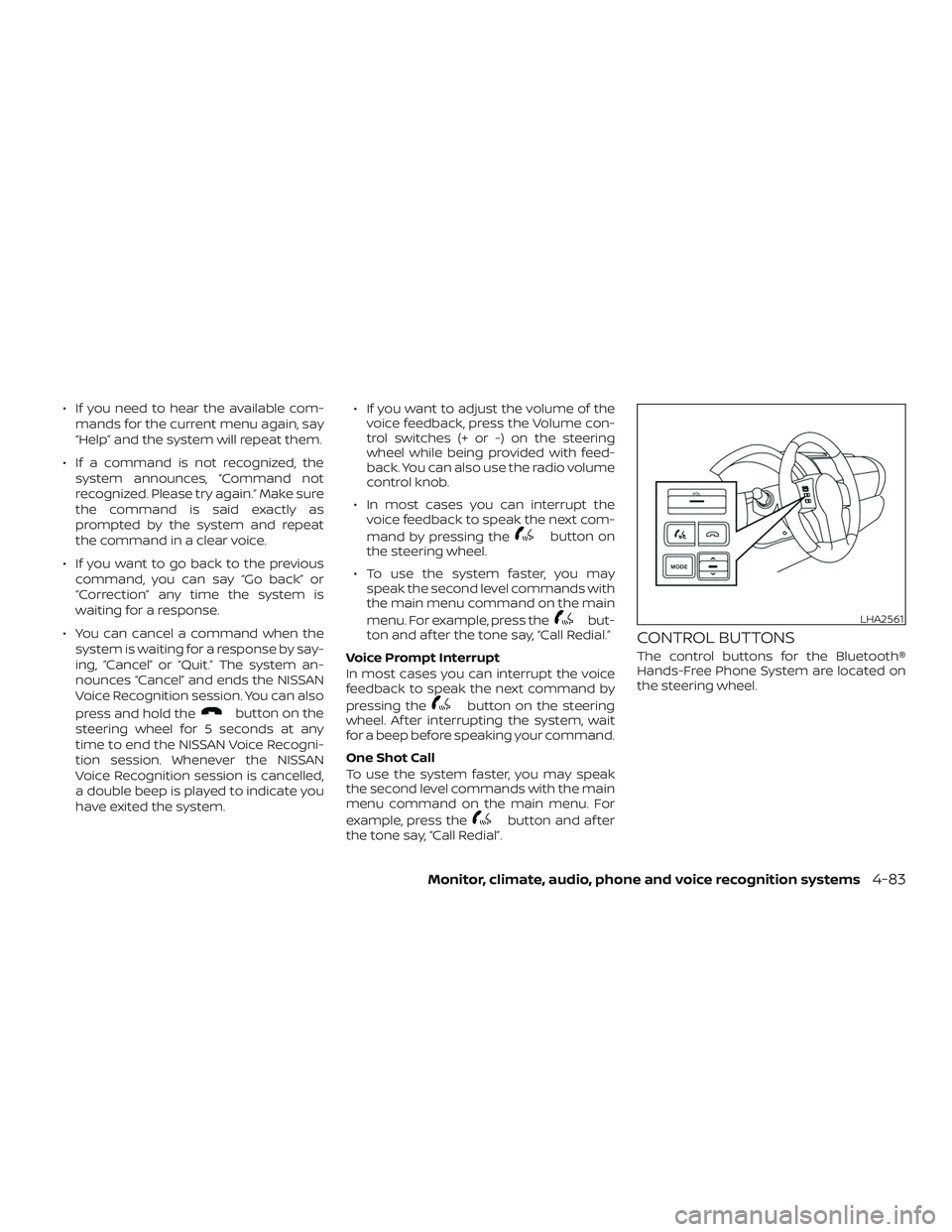
CONTROL BUTTONS
The control buttons for the Bluetooth®
Hands-Free Phone System are located on
the steering wheel.
LHA2561
Monitor, climate, audio, phone and voice recognition systems4-83
Page 294 of 502
with the in-vehicle phone module when
the ignition switch is placed in the ON po-
sition with the connected cellular phone
turned on and carried in the vehicle.
You can register up to five different
Bluetooth® cellular phones to the in-
vehicle phone module. However, you can
talk on only one cellular phone at a time.
NISSAN Voice Recognition system sup-
ports the phone commands, so dialing a
phone number using your voice is possible.
For additional information, refer to “NISSAN
Voice Recognition System” in this section.
Before using the Bluetooth® Hands-Free
Phone System, refer to the following notes.∙ Set up the wireless connection be- tween a cellular phone and the in-
vehicle phone module before using the
hands-free phone system.
∙ Some Bluetooth® enabled cellular phones may not be recognized by the
in-vehicle phone module. Please visit
www.nissanusa.com/bluetooth or
www.nissan.ca/bluetooth for a recom-
mended phone list and connecting in-
structions. ∙ You will not be able to use a hands-free
phone under the following conditions:
– Your vehicle is outside of the cellular service area.
– Your vehicle is in an area where it is difficult to receive cellular signal;
such as in a tunnel, in an under-
ground parking garage, near a tall
building or in a mountainous area.
– Your cellular phone is locked to pre- vent it from being dialed.
∙ When the radio wave condition is not ideal or ambient sound is too loud, it
may be difficult to hear the other per-
son’s voice during a call.
∙ Immediately af ter the ignition switch is placed in the ON position, it may be im-
possible to receive a call for a short pe-
riod of time.
∙ Do not place the cellular phone in an area surrounded by metal or far away
from the in-vehicle phone module to
prevent tone quality degradation and
wireless connection disruption. ∙ While a cellular phone is connected
through the Bluetooth® wireless con-
nection, the battery power of the cellu-
lar phone may discharge quicker than
usual. The Bluetooth® Hands-Free
Phone System cannot charge cellular
phones.
∙ If the hands-free phone system seems to be malfunctioning, refer to “Trouble-
shooting guide” in this section. You can
also visit www.nissanusa.com/
bluetooth or www.nissan.ca/bluetooth
for troubleshooting help.
∙ Some cellular phones or other devices may cause interference or a buzzing
noise to come from the audio system
speakers. Storing the device in a differ-
ent location may reduce or eliminate
the noise.
∙ Refer to the cellular phone owner’s manual regarding the telephone
charges, cellular phone antenna and
body, etc.
∙ The signal strength display on the monitor will not coincide with the signal
strength display of some cellular
phones.
Monitor, climate, audio, phone and voice recognition systems4-93