climate control NISSAN FRONTIER 2018 Owner´s Manual
[x] Cancel search | Manufacturer: NISSAN, Model Year: 2018, Model line: FRONTIER, Model: NISSAN FRONTIER 2018Pages: 502, PDF Size: 4.85 MB
Page 275 of 502
CONNECT PHONE
To use this feature, a compatible smart-
phone must be connected via Bluetooth®
or USB to the vehicle. For additional infor-
mation, refer to “Bluetooth® Hands-Free
Phone System with Navigation System” in
this section.
NOTE:
Apple iPhones® REQUIRE the phone to be
plugged in via USB for NissanConnect®
Mobile Apps to function.
For Android phones, NissanConnect®
Mobile Apps REQUIRES the phone to be
paired via Bluetooth®.
APPLICATION DOWNLOAD
Once connected, the NissanConnect® App
will search your phone to determine which
compatible applications are currently in-
stalled. The user will then choose which
apps they want to bring into their vehicle
from the list of apps within the “Manage My
Apps” section of the NissanConnect® App
on their smartphone. The vehicle will then
download the in-vehicle interface for each
of these compatible applications. Once
downloaded, the user can access their se-
lected smartphone applications through
the vehicle touch-screen.For additional information, refer to
www.nissanusa.com/connect or
www.nissan.ca/en/connect or
www.nissan.ca/fr/connect regarding
application availability.
Apple Siri® Eyes Free personal assistant
can be accessed from the vehicle. Siri Eyes
Free can be accessed in Siri Eyes Free
mode to reduce user distraction. In this
mode, Siri Eyes Free is available for interac-
tion by voice control. Af ter connecting a
compatible Apple device by using
Bluetooth®, Siri Eyes Free can be activated
from the
TALK switch on the steering
wheel.
Siri® is a trademark of Apple Inc., registered
in the U.S. and other countries.
∙ Some Siri Eyes Free functions, such as displaying pictures or opening apps,
may not be available while driving.
∙ For getting best results, always update your device to the latest sof tware ver-
sion.
∙ Keep the interior of the vehicle as quiet as possible. Close the windows to elimi-
nate the surrounding noises (traffic
noises, vibration sounds, etc.), which
may prevent the system from recogniz-
ing the voice commands correctly.
∙ For functions that can be used in Siri Eyes Free, please refer to the Apple
website.
SIRI® EYES FREE
4-74Monitor, climate, audio, phone and voice recognition systems
Page 277 of 502
Example 1 – Playing music1. Push or push and hold the
TALK
switch.
2. Say “Play (artist name, song name, etc.)”.
3. Your vehicle will automatically change to Bluetooth® Audio or iPod® mode*
when the music starts playing. Mode
selection is determined by the phone.
* If the iPhone® is also connected with the
USB cable.
If the audio track does not start playing
automatically af ter Siri Eyes Free ends, try
changing the track or audio source to re-
sume playback.
NOTE:
For best results, use the native music
app. Performance of music control func-
tion while using Podcasts, Audiobook or
other 3rd party music apps may vary and
is controlled by the iPhone®. Example2–Repl
ying to text messages
1. If a compatible iPhone® is connected and “Show Notifications” of the iPhone®
settings is enabled, the vehicle will dis-
play a notification for new incoming
text messages.
2. Af ter reading the message, push or push and hold the
TALK switch to
reply using Siri Eyes Free.
3. Af ter a beep sounds, say “Text mes- sage” or a similar command to reply
using Siri Eyes Free.
CHANGING SIRI® EYES FREE
SETTINGS (models without
navigation system)
Settings for Siri® Eyes Free can be found in
the Bluetooth settings menu. For addi-
tional information, refer to “Bluetooth® set-
tings” in this section.
1. Press the ENTER/SETTING button.
2.
Use the TUNE/FOLDER or TUNE/SCROLL
knob to select “Bluetooth” and then press
the ENTER/SETTING button.
3.Use the TUNE/FOLDER or TUNE/SCROLL
knob to select “Siri” and then press the
ENTER/SETTING button.
4. Select “Short Press” or “Long Press” us- ing the TUNE/SCROLL knob and then
press the ENTER/SETTING button.
CHANGING SIRI® EYES FREE
SETTINGS (models with
navigation system)
Settings for Siri® Eyes Free can be found in
the Bluetooth® settings menu. For addi-
tional information, refer to “Bluetooth® set-
tings” in this section.
1. Press the [
] button.
2. Touch the “Settings” key.
3. Touch the “Phone & Bluetooth” key.
4. Touch the “Phone settings” key.
5. Select “Short Press” or “Long Press” to set the activation.
4-76Monitor, climate, audio, phone and voice recognition systems
Page 278 of 502
TROUBLESHOOTING GUIDE
SymptomCause and Countermeasure
Cannot access Siri Eyes Free
from switch on the steering
wheel Check if a Bluetooth® connection is established between the iPhone® and the system.
Check if Siri is enabled on the device. On your phone, go to Siri setting.
Check that Siri can be accessed from the device lock screen. This can be set in the settings menu of your phone.
Models without navigation system:
Check the settings for Siri Eyes Free activation on the vehicle audio system. If the setting is “Long Press”, you must push and
hold the
TALK switch on the steering wheel for more than 1.5 seconds to start Siri Eyes Free. If the setting is “Short Press”,
a short push and release of the switch should start Siri Eyes Free.
Audio Source does not change
automatically to iPod® or
Bluetooth®
Audio mode For best results, use the native Music app. Performance of music control function while using Podcasts, Audiobook or other 3rd
party music apps may vary.
For best results, play media already stored on your device. Streaming music or playback from cloud storage may degrade
performance.
Switch the source manually by pressing the AUX or MEDIA button on the vehicle audio system or the MODE select switch on
the steering wheel.
Play, pause, next track, previous
track or play timer does not
work For best results, use the native Music app. Performance of music control function while using Podcasts, Audiobook or other 3rd
party music apps may vary and is controlled by the device.
Cannot hear any music/audio
being played back from a con-
nected iPhone® Check that the audio source is set to Bluetooth® Audio or iPod® mode. A USB connection is required for iPod® mode.
Cannot hear map
turn-by-turn direction guidance
from a
connected iPhone® Check that the audio source is set to Bluetooth® Audio or iPod® mode. A USB connection is required for iPod® mode.
Monitor, climate, audio, phone and voice recognition systems4-77
Page 280 of 502
When installing a CB, ham radio or car
phone in your vehicle, be sure to observe
the following precautions; otherwise, the
new equipment may adversely affect the
engine control system and other electronic
parts.
WARNING
∙ A cellular phone should not be usedfor any purpose while driving so full
attention may be given to vehicle op-
eration. Some jurisdictions prohibit
the use of cellular phones while
driving.
∙ If you must make a call while your ve- hicle is in motion, the hands free cellu-
lar phone operational mode (if so
equipped) is highly recommended.
Exercise extreme caution at all times
so full attention may be given to ve-
hicle operation.
∙ If you are unable to devote full atten- tion to vehicle operation while talking
on the phone, pull off the road to a
safe location and stop your vehicle.
CAUTION
∙ Keep the antenna as far away as pos-sible from the electronic control
modules.
∙ Keep the antenna wire more than 8 in (20 cm) away from the electronic con-
trol system harnesses. Do not route
the antenna wire next to any harness.
∙ Adjust the antenna standing-wave ratio as recommended by the
manufacturer.
∙ Connect the ground wire from the CB radio chassis to the body.
∙ For additional information, it is rec- ommended that you visit a NISSAN
dealer.
∙ Do not ground electrical accessories directly to the battery terminal. Doing
so will bypass the variable voltage
control system and the vehicle bat-
tery may not charge completely. For
additional information, refer to “Vari-
able voltage control system” in the
“Do-it-yourself ” section of this
manual. ∙ Use electrical accessories with the en-
gine running to avoid discharging the
vehicle battery.
CAR PHONE OR CB RADIO
Monitor, climate, audio, phone and voice recognition systems4-79
Page 284 of 502
∙ If you need to hear the available com-mands for the current menu again, say
“Help” and the system will repeat them.
∙ If a command is not recognized, the system announces, “Command not
recognized. Please try again.” Make sure
the command is said exactly as
prompted by the system and repeat
the command in a clear voice.
∙ If you want to go back to the previous command, you can say “Go back” or
“Correction” any time the system is
waiting for a response.
∙ You can cancel a command when the system is waiting for a response by say-
ing, “Cancel” or “Quit.” The system an-
nounces “Cancel” and ends the NISSAN
Voice Recognition session. You can also
press and hold the
button on the
steering wheel for 5 seconds at any
time to end the NISSAN Voice Recogni-
tion session. Whenever the NISSAN
Voice Recognition session is cancelled,
a double beep is played to indicate you
have exited the system. ∙ If you want to adjust the volume of the
voice feedback, press the Volume con-
trol switches (+ or -) on the steering
wheel while being provided with feed-
back. You can also use the radio volume
control knob.
∙ In most cases you can interrupt the voice feedback to speak the next com-
mand by pressing the
button on
the steering wheel.
∙ To use the system faster, you may speak the second level commands with
the main menu command on the main
menu. For example, press the
but-
ton and af ter the tone say, “Call Redial.”
Voice Prompt Interrupt
In most cases you can interrupt the voice
feedback to speak the next command by
pressing the
button on the steering
wheel. Af ter interrupting the system, wait
for a beep before speaking your command.
One Shot Call
To use the system faster, you may speak
the second level commands with the main
menu command on the main menu. For
example, press the
button and af ter
the tone say, “Call Redial”.
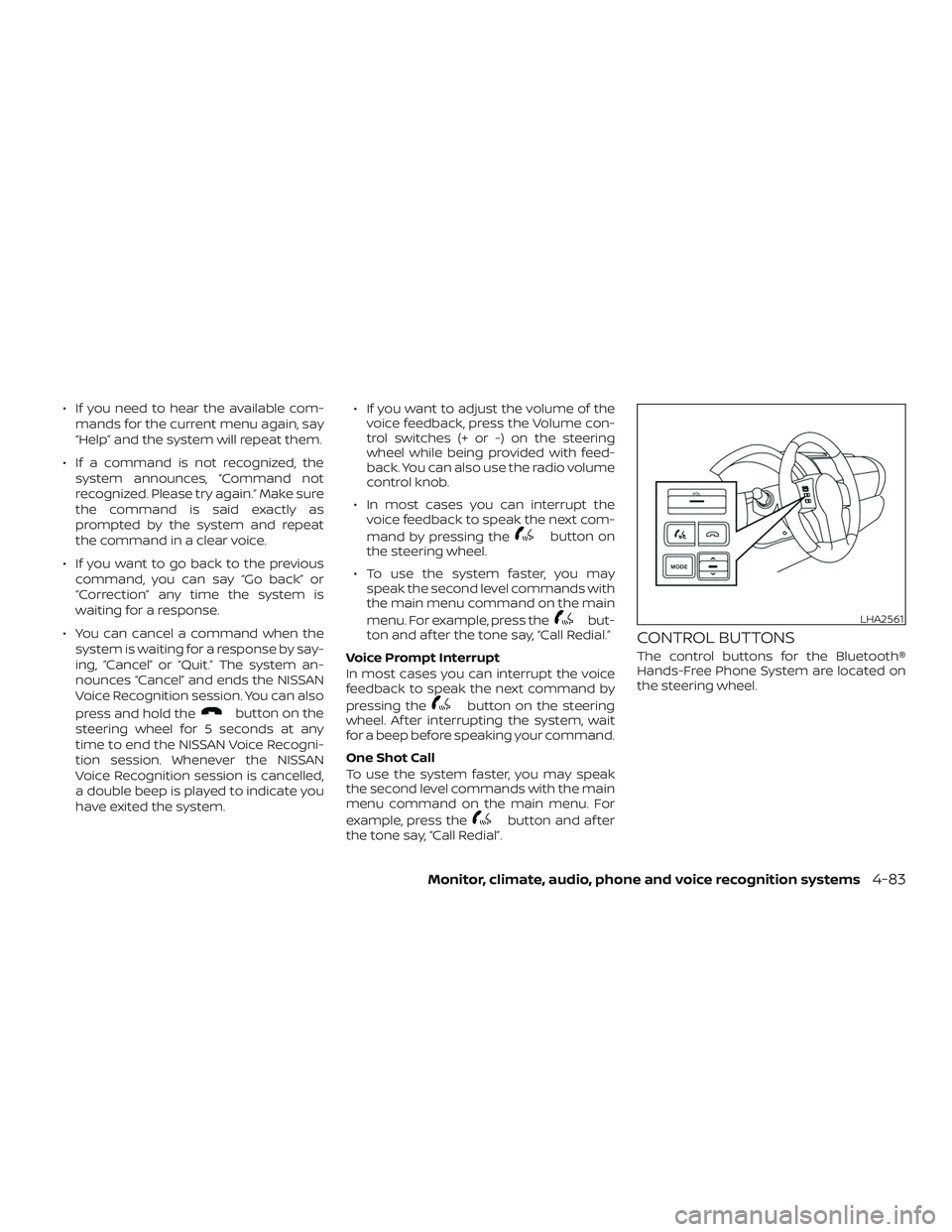
CONTROL BUTTONS
The control buttons for the Bluetooth®
Hands-Free Phone System are located on
the steering wheel.
LHA2561
Monitor, climate, audio, phone and voice recognition systems4-83
Page 285 of 502
PHONE/SEND
Press the
button to
initiate a Voice Recognition
session or answer an
incoming call.
If the operation of “Siri” is
set to “Short Press” on the
Bluetooth® setting menu,
pressing and holding
the
button initiates a
Voice Recognition session
for the Hands-Free Phone
operation. For additional
information, refer to
“Bluetooth® settings”
in this section.
You can also use the
button to interrupt the
system feedback and give a
command at once. For
additional information, refer
to “Voice Commands” and
“During a call” in this section.
PHONE/END
While the voice recognition
system is active, press and
hold the
button for
5 seconds to quit the voice
recognition system at any
time.
Tuning switch
While using the voice
recognition system, tilt the
tuning switch up or down
to manually control the
phone system.
CONNECTING PROCEDURE
NOTE:
The connecting procedure must be per-
formed when the vehicle is stationary. If
the vehicle starts moving during the pro-
cedure, the procedure will be canceled.
To connect a phone to the Bluetooth®
Hands-Free Phone System:
1. Press the ENTER/SETTING button.
2.
Use the TUNE/FOLDER or TUNE/SCROLL
knob to select “Bluetooth” and then press
the ENTER/SETTING button.
4-84Monitor, climate, audio, phone and voice recognition systems
Page 288 of 502
MAKING A CALL
To make a call from a phone connected to
the vehicle’s Bluetooth® Hands-Free Phone
System:1. Press the
button on the steering
wheel.
2. The system will prompt you for a com- mand. Say “Call”.
3. Select one of the available voice com- mands to continue:
∙ “(A Name)” — Speak the name of a phonebook entry to place a call to that
entry. The system will respond with the
name it interpreted from your com-
mand and will prompt you to confirm
that the name is correct. Say “Dial” to
initiate the call or “Correction” to hear
another name from the phonebook. ∙ “Phone Number” — Speak this com-
mand to place a call by inputting num-
bers. For 7– to 10–digit phone number,
speak the numbers. Say “Correction” at
any time in the process to correct a
misspoken or misinterpreted number.
For phone numbers with more digits or
special characters, say “Special Num-
ber”, then speak the digits. Up to 24 dig-
its can be entered. Available special
characters are “start”, “pound”, “plus”,
and “pause”. When finished, say “Dial” to
initiate the call. Say “Correction” at any
time in the process to correct a misspo-
ken or misinterpreted number or char-
acter.
∙ “Redial” – Speak this command to dial the number of the last outgoing call.
The system will display “Re-dialing
phonebook entry will be displayed if it
available, otherwise the number being
re-dialed will be displayed. ∙ “Call Back” – Speak this command to
dial the number of the last incoming
call. The system will display “Calling
back
the phonebook entry will be displayed if
it available, otherwise the number be-
ing called back will be displayed.
RECEIVING A CALL
When a call is received by the phone con-
nected to the vehicle’s Bluetooth® Hands-
Free Phone System, the call information is
displayed on the control panel display.
Press the
button to accept the call.
Press the
button to reject the call.
DURING A CALL
While a call is active, press thebutton
to access additional options. Speak one of
the following commands:
∙ “Send” – Speak this command followed by the digits to enter digits during the
phone call.
∙ “Mute On” or “Mute Off ” – Speak the command to mute or unmute the sys-
tem.
Monitor, climate, audio, phone and voice recognition systems4-87
Page 292 of 502
∙ Show Incoming CallsIncoming call information may be dis-
played on the center display screen.
∙ Phonebook Download Select to turn on or off the automatic
download of a connected phone’s
phonebook.
∙ Text Message (if so equipped) Select to turn on or off the vehicle’s text
messaging feature.
∙ New Text Sound (if so equipped) Select to adjust the volume of the
sound that plays when a new text is
received by a phone connected to the
Bluetooth® Hands-Free Phone System.
The setting all the way to the lef t indi-
cates that the new text sound will be
muted.
∙ Show Incoming Text (if so equipped) Incoming text messages may be dis-
played on the center display screen. Se-
lect “None” to have no display of incom-
ing text messages. ∙ Edit Custom Messages (if so equipped)
Select to set a custom message that
will be available with the standard op-
tions when sending a text message. To
set a custom message, send a text
message to your own phone number
while the phone is connected to the
system. Three custom messages can
be set. Custom messages can only be
set while the vehicle is stationary.
∙ Auto Reply (if so equipped) Select to turn on or off the Auto Reply
function. When enabled, the vehicle will
automatically send a predefined text
message to the sender when a text
message is received while driving.
∙ Auto Reply Message (if so equipped) Select to choose the message that is
sent when the Auto Reply function is
enabled. Choose from “I’m Driving” or
one of the three custom messages
stored in the system. ∙ Vehicle Signature On/Off (if so
equipped)
Select to choose whether or not the
vehicle signature is added to outgoing
text messages from the vehicle. This
message cannot be changed or cus-
tomized.
MANUAL CONTROL
While using the Voice Recognition system,
it is possible to select menu options by
using the steering wheel controls instead
of speaking voice commands. To activate
manual control mode, press the
but-
ton on the steering wheel to access the
phone menu and then push either up or
down on the
tuning switch .
The manual control mode does not allow
dialing a phone number by digits. The user
may select an entry from the Phonebook
or Recent Calls lists. To reactivate Voice
Recognition, exit the manual control mode
by pressing and holding the
button.
At that time, pressing the
button will
start the Hands Free Phone System.
Monitor, climate, audio, phone and voice recognition systems4-91
Page 296 of 502
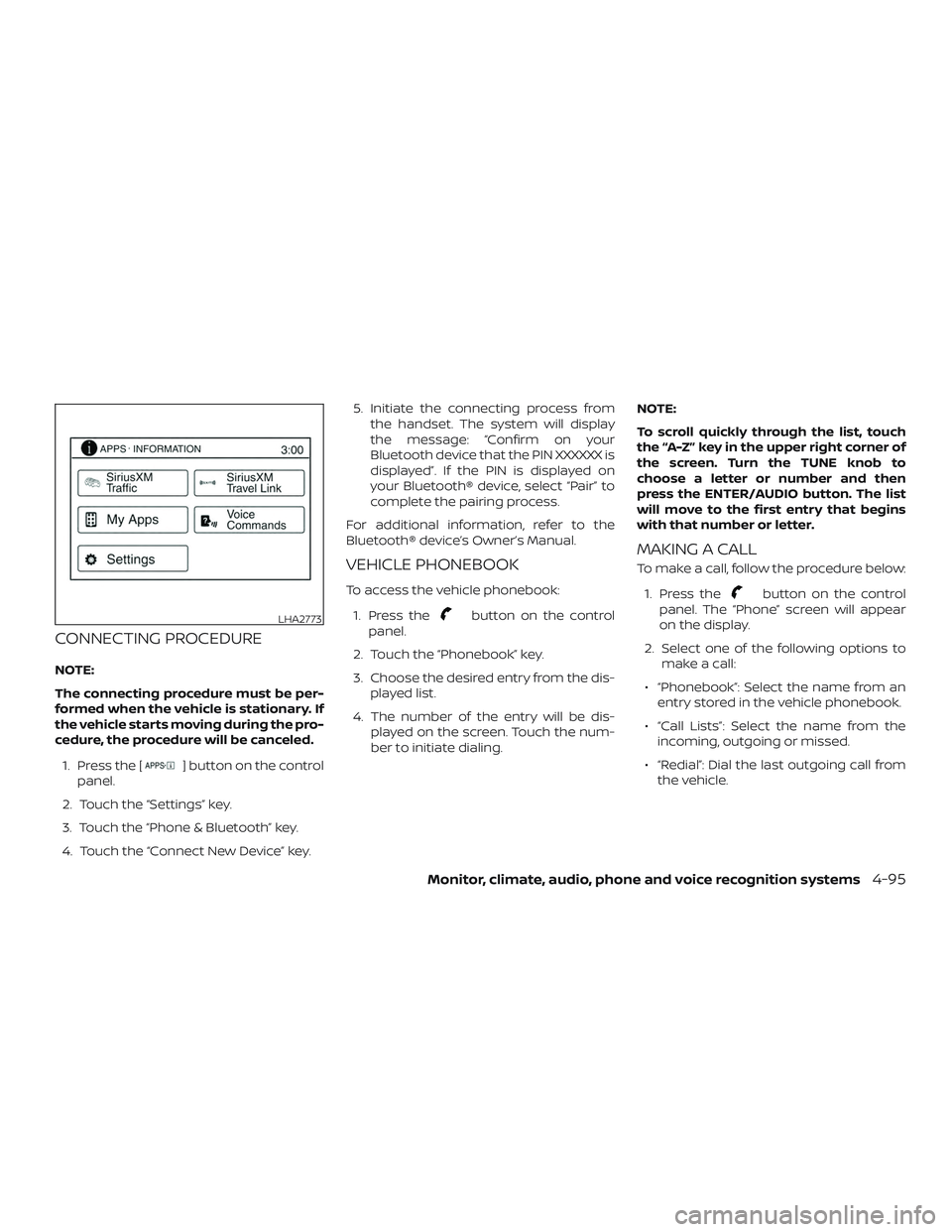
CONNECTING PROCEDURE
NOTE:
The connecting procedure must be per-
formed when the vehicle is stationary. If
the vehicle starts moving during the pro-
cedure, the procedure will be canceled.1. Press the [
] button on the control
panel.
2. Touch the “Settings” key.
3. Touch the “Phone & Bluetooth” key.
4. Touch the “Connect New Device” key. 5. Initiate the connecting process from
the handset. The system will display
the message: “Confirm on your
Bluetooth device that the PIN XXXXXX is
displayed”. If the PIN is displayed on
your Bluetooth® device, select “Pair” to
complete the pairing process.
For additional information, refer to the
Bluetooth® device’s Owner’s Manual.
VEHICLE PHONEBOOK
To access the vehicle phonebook:
1. Press the
button on the control
panel.
2. Touch the “Phonebook” key.
3. Choose the desired entry from the dis- played list.
4. The number of the entry will be dis- played on the screen. Touch the num-
ber to initiate dialing. NOTE:
To scroll quickly through the list, touch
the “A-Z” key in the upper right corner of
the screen. Turn the TUNE knob to
choose a letter or number and then
press the ENTER/AUDIO button. The list
will move to the first entry that begins
with that number or letter.
MAKING A CALL
To make a call, follow the procedure below:
1. Press the
button on the control
panel. The “Phone” screen will appear
on the display.
2. Select one of the following options to make a call:
∙ “Phonebook”: Select the name from an entry stored in the vehicle phonebook.
∙ “Call Lists”: Select the name from the incoming, outgoing or missed.
∙ “Redial”: Dial the last outgoing call from the vehicle.
LHA2773
Monitor, climate, audio, phone and voice recognition systems4-95
Page 297 of 502
∙“”: Input the phone number manu-
ally using a keypad displayed on the
screen. For additional information, refer
to “How to use the touch-screen” in this
section.
RECEIVING A CALL
When a call is placed to the connected
phone, the display will change to phone
mode.
To accept the incoming call, either:
∙ Press the
button on the steering
wheel, or
∙ Touch the
icon on the screen.
To reject the incoming call, either:
∙ Press the
button on the steering
wheel, or
∙ Touch the
icon on the screen.
DURING A CALL
While a call is active, the following options
are available on the screen: ∙ “Handset” Select this option to switch control of
the phone call over to the handset. ∙ “Mute Mic.”
Select this option to mute the micro-
phone. Select again to unmute the mi-
crophone.
∙ Phone
icon
Select to end the phone call.
ENDING A CALL
To end a phone call, select the phone
icon on the screen or press thebut-
ton on the steering wheel.
TEXT MESSAGING (if so equipped)
WARNING
∙ Laws in some jurisdictions may re- strict the use of “Text-to-Speech”.
Check local regulations before using
this feature.
∙ Laws in some jurisdictions may re- strict the use of some of the applica-
tions and features, such as social net-
working and texting. Check local
regulations for any requirements. ∙ Use the text messaging feature af ter
stopping your vehicle in a safe loca-
tion. If you have to use the feature
while driving, exercise extreme cau-
tion at all times so full attention may
be given to vehicle operation.
∙ If you are unable to devote full atten- tion to vehicle operation while using
the text messaging feature, pull off
the road to a safe location and stop
your vehicle.
NOTE:
This feature is automatically disabled if
the connected device does not support
the Message Access Profile (MAP). For
additional information, refer to the
phone’s Owner’s Manual for details and
instructions.
4-96Monitor, climate, audio, phone and voice recognition systems