AUX NISSAN FRONTIER 2019 Owner´s Manual
[x] Cancel search | Manufacturer: NISSAN, Model Year: 2019, Model line: FRONTIER, Model: NISSAN FRONTIER 2019Pages: 516, PDF Size: 5.04 MB
Page 271 of 516
![NISSAN FRONTIER 2019 Owner´s Manual Connecting Bluetooth® audio
To connect your Bluetooth® audio device
to the vehicle, follow the procedure below:1. Press the [
] button.
2. Touch the “Settings” key.
3. Touch the “Phone & Bluet](/img/5/40337/w960_40337-270.png "NISSAN FRONTIER 2019 Owner´s Manual Connecting Bluetooth® audio
To connect your Bluetooth® audio device
to the vehicle, follow the procedure below:1. Press the [
] button.
2. Touch the “Settings” key.
3. Touch the “Phone & Bluet")
Connecting Bluetooth® audio
To connect your Bluetooth® audio device
to the vehicle, follow the procedure below:1. Press the [
] button.
2. Touch the “Settings” key.
3. Touch the “Phone & Bluetooth” key. 4. Touch the “Connect New Device” key.
5. The system acknowledges the com-
mand and asks you to initiate connect-
ing from the phone handset. NOTE:
The connecting procedure of the cellular
phone varies according to each cellular
phone model. For additional informa-
tion, refer to the cellular phone owner’s
manual. You can also visit
www.nissanusa.com/bluetooth or
www.nissan.ca/bluetooth for instruc-
tions on connecting NISSAN recom-
mended cellular phones.
Audio main operation
To switch to the Bluetooth® audio mode,
press the AUX button repeatedly until the
Bluetooth® audio mode is displayed on the
screen.
The controls for the Bluetooth® audio are
displayed on the screen.
LHA2773LHA2844
Monitor, climate, audio, phone and voice recognition systems4-73
Page 273 of 516
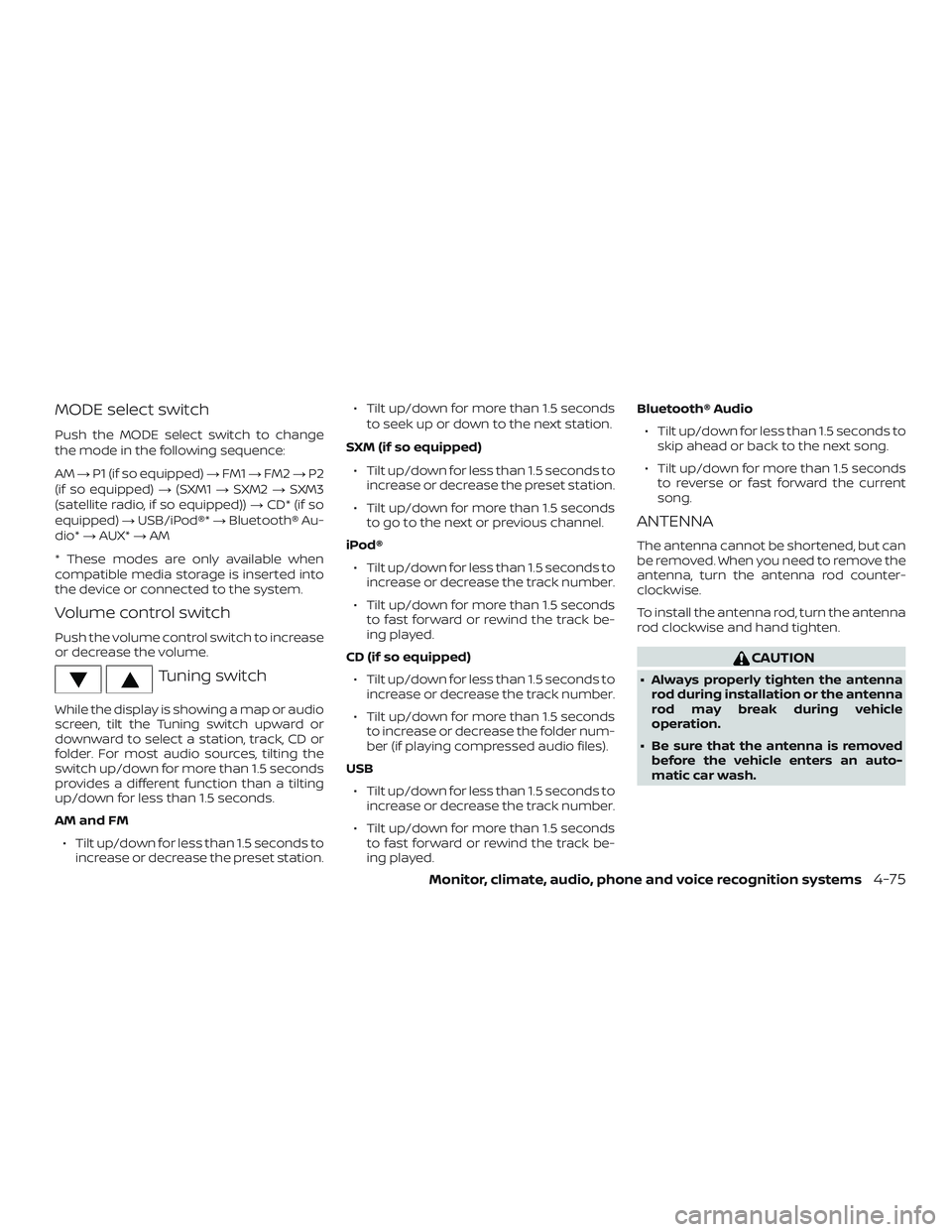
MODE select switch
Push the MODE select switch to change
the mode in the following sequence:
AM→P1 (if so equipped) →FM1 →FM2 →P2
(if so equipped) →(SXM1 →SXM2 →SXM3
(satellite radio, if so equipped)) →CD* (if so
equipped) →USB/iPod®* →Bluetooth® Au-
dio* →AUX* →AM
* These modes are only available when
compatible media storage is inserted into
the device or connected to the system.
Volume control switch
Push the volume control switch to increase
or decrease the volume.
Tuning switch
While the display is showing a map or audio
screen, tilt the Tuning switch upward or
downward to select a station, track, CD or
folder. For most audio sources, tilting the
switch up/down for more than 1.5 seconds
provides a different function than a tilting
up/down for less than 1.5 seconds.
AM and FM ∙ Tilt up/down for less than 1.5 seconds to increase or decrease the preset station. ∙ Tilt up/down for more than 1.5 seconds
to seek up or down to the next station.
SXM (if so equipped) ∙ Tilt up/down for less than 1.5 seconds to increase or decrease the preset station.
∙ Tilt up/down for more than 1.5 seconds to go to the next or previous channel.
iPod® ∙ Tilt up/down for less than 1.5 seconds to increase or decrease the track number.
∙ Tilt up/down for more than 1.5 seconds to fast forward or rewind the track be-
ing played.
CD (if so equipped) ∙ Tilt up/down for less than 1.5 seconds to increase or decrease the track number.
∙ Tilt up/down for more than 1.5 seconds to increase or decrease the folder num-
ber (if playing compressed audio files).
USB ∙ Tilt up/down for less than 1.5 seconds to increase or decrease the track number.
∙ Tilt up/down for more than 1.5 seconds to fast forward or rewind the track be-
ing played. Bluetooth® Audio
∙ Tilt up/down for less than 1.5 seconds to skip ahead or back to the next song.
∙ Tilt up/down for more than 1.5 seconds to reverse or fast forward the current
song.
ANTENNA
The antenna cannot be shortened, but can
be removed. When you need to remove the
antenna, turn the antenna rod counter-
clockwise.
To install the antenna rod, turn the antenna
rod clockwise and hand tighten.
CAUTION
∙ Always properly tighten the antennarod during installation or the antenna
rod may break during vehicle
operation.
∙ Be sure that the antenna is removed before the vehicle enters an auto-
matic car wash.
Monitor, climate, audio, phone and voice recognition systems4-75
Page 277 of 516
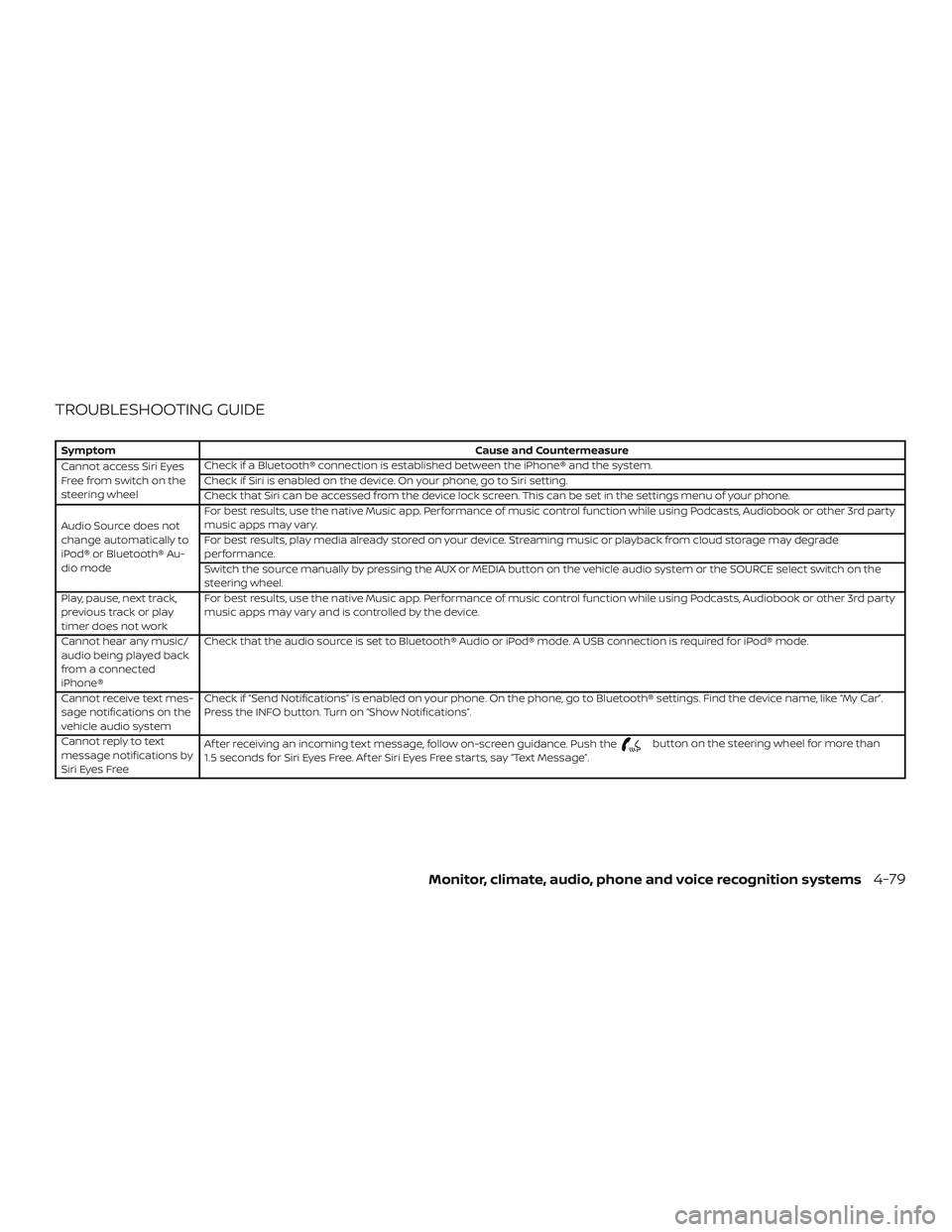
TROUBLESHOOTING GUIDE
SymptomCause and Countermeasure
Cannot access Siri Eyes
Freefromswitchonthe
steering wheel Check if a Bluetooth® connection is established between the iPhone® and the system.
Check if Siri is enabled on the device. On your phone, go to Siri setting.
Check that Siri can be accessed from the device lock screen. This can be set in the settings menu of your phone.
Audio Source does not
change automatically to
iPod® or Bluetooth® Au-
dio mode For best results, use the native Music app. Performance of music control function while using Podcasts, Audiobook or other 3rd party
music apps may vary.
For best results, play media already stored on your device. Streaming music or playback from cloud storage may degrade
performance.
Switch the source manually by pressing the AUX or MEDIA button on the vehicle audio system or the SOURCE select switch on the
steering wheel.
Play, pause, next track,
previous track or play
timer does not work For best results, use the native Music app. Performance of music control function while using Podcasts, Audiobook or other 3rd party
music apps may vary and is controlled by the device.
Cannot hear any music/
audio being played back
from a connected
iPhone® Check that the audio source is set to Bluetooth® Audio or iPod® mode. A USB connection is required for iPod® mode.
Cannot receive text mes-
sage notifications on the
vehicle audio system Check if “Send Notifications” is enabled on your phone. On the phone, go to Bluetooth® settings. Find the device name, like “My Car”.
Press the INFO button. Turn on “Show Notifications”.
Cannot reply to text
message notifications by
Siri Eyes Free Af ter receiving an incoming text message, follow on-screen guidance. Push the
button on the steering wheel for more than
1.5 seconds for Siri Eyes Free. Af ter Siri Eyes Free starts, say “Text Message”.
Monitor, climate, audio, phone and voice recognition systems4-79
Page 280 of 516
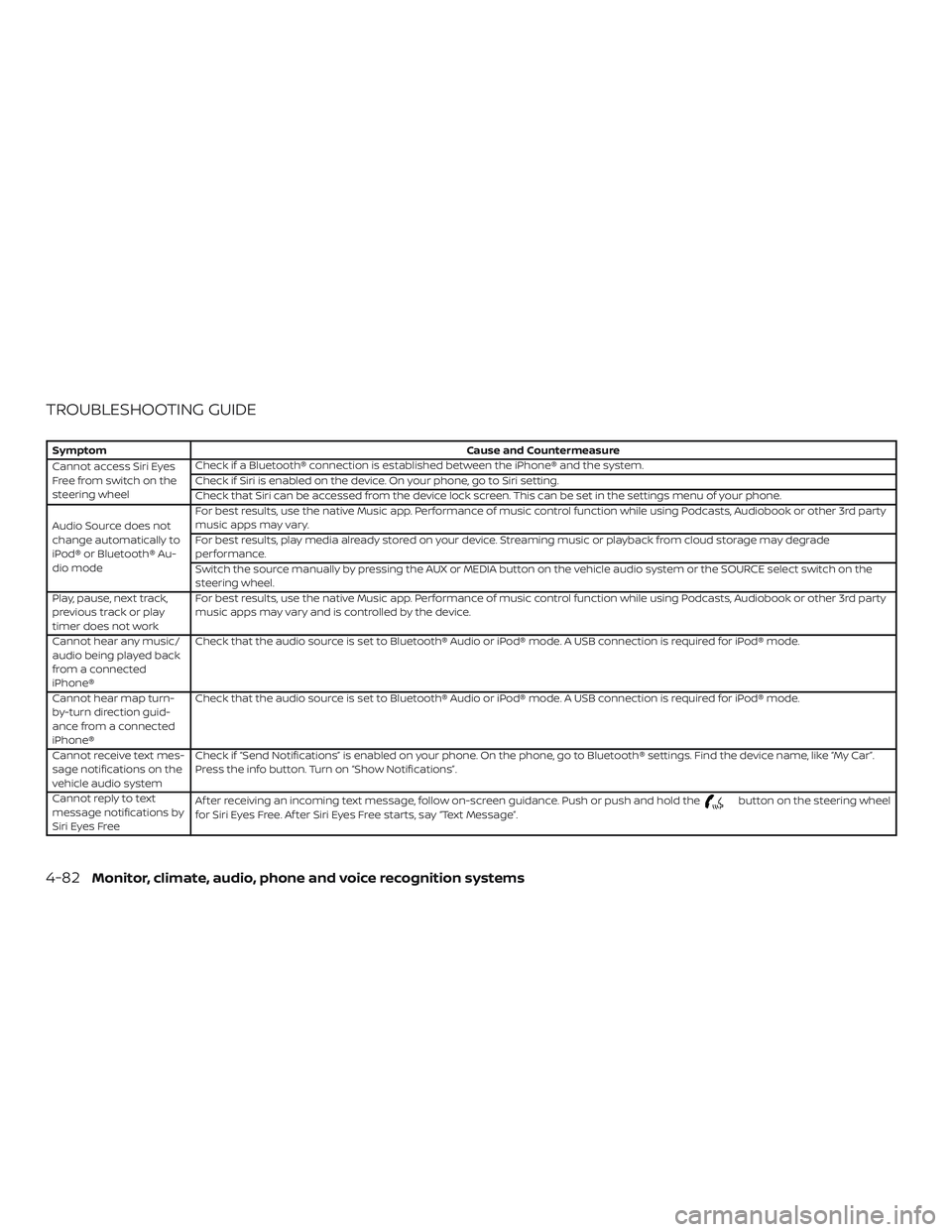
TROUBLESHOOTING GUIDE
SymptomCause and Countermeasure
Cannot access Siri Eyes
Freefromswitchonthe
steering wheel Check if a Bluetooth® connection is established between the iPhone® and the system.
Check if Siri is enabled on the device. On your phone, go to Siri setting.
Check that Siri can be accessed from the device lock screen. This can be set in the settings menu of your phone.
Audio Source does not
change automatically to
iPod® or Bluetooth® Au-
dio mode For best results, use the native Music app. Performance of music control function while using Podcasts, Audiobook or other 3rd party
music apps may vary.
For best results, play media already stored on your device. Streaming music or playback from cloud storage may degrade
performance.
Switch the source manually by pressing the AUX or MEDIA button on the vehicle audio system or the SOURCE select switch on the
steering wheel.
Play, pause, next track,
previous track or play
timer does not work For best results, use the native Music app. Performance of music control function while using Podcasts, Audiobook or other 3rd party
music apps may vary and is controlled by the device.
Cannot hear any music/
audio being played back
from a connected
iPhone® Check that the audio source is set to Bluetooth® Audio or iPod® mode. A USB connection is required for iPod® mode.
Cannot hear map turn-
by-turn direction guid-
ance from a connected
iPhone® Check that the audio source is set to Bluetooth® Audio or iPod® mode. A USB connection is required for iPod® mode.
Cannot receive text mes-
sage notifications on the
vehicle audio system Check if “Send Notifications” is enabled on your phone. On the phone, go to Bluetooth® settings. Find the device name, like “My Car”.
Press the info button. Turn on “Show Notifications”.
Cannot reply to text
message notifications by
Siri Eyes Free Af ter receiving an incoming text message, follow on-screen guidance. Push or push and hold the
button on the steering wheel
for Siri Eyes Free. Af ter Siri Eyes Free starts, say “Text Message”.
4-82Monitor, climate, audio, phone and voice recognition systems
Page 501 of 516
11 Index
4WDwarninglight ..............2-15
5-Speed automatic transmission fluid
(ATF).......................8-12A
Active Brake Limited Slip (ABLS)
system .....................5-37
Air bag (See supplemental restraint
system) .................... .1-73
Air bag system Front (See supplemental front impact
airbagsystem)..............1-81
Air bag warning labels ............1-89
Airbagwarninglight .........1-90, 2-20
Air bag warning light,
supplemental ..............1-90, 2-20
Air cleaner housing filter ..........8-19
Air conditioner Air conditioner operation .....4-27,4-35
Air conditioner service ..........4-37
Air conditioner specification label . .10-18
Air conditioner system refrigerant
and oil recommendations .......10-12
Air conditioner system refrigerant
recommendations ...........10-12
Heater and air conditioner
controls...............4-23,4-35
Servicing air conditioner ........4-37
Air flow charts .................4-28
Alarm system
(See vehicle security system) .......2-24Anchor point locations
............1-33
Antenna ....................4-75
Antifreeze ...................5-43
Anti-lock brake warning light ........2-15
Anti-lock Braking System (ABS) ......5-36
Apps .......................4-76
Audible reminders ..............2-24
Audiosystem.................4-37 AM/FMradio................4-48
AMradioreception............4-38
Auxiliary (AUX) devices operation . . .4-50
Bluetooth® audio ..........4-70,4-72
Compact disc (CD) player .......4-56
FM/AM/SAT radio with compact disc (CD)
player.................4-46,4-51
FMradioreception............4-38
iPod®Player.............4-63,4-66
iPod® player operation ......4-63,4-66
Radio ....................4-37
Steering wheel audio control
switch....................4-74
Autolightswitch ...............2-30
Automatic Automatic power window switch . . .2-51
Automatic transmission position
indicatorlight...............2-20
Driving with automatic
transmission ................5-14
Automatic anti-glare inside mirror ....3-16
Automatic door locks .............3-6
AUXjack....................4-58 B
Back button ..................4-13
Battery..................5-43,8-15 Charge warning light ...........2-17
Battery replacement ............8-26
Keyfob................8-26,8-27
Before starting the engine .........5-13
Belt(Seedrivebelt)..............8-17
Bluetooth® audio ............4-70,4-72
Bluetooth® hands-free phone
system ....................4-102
Bluetooth® connections ........4-99
Connecting procedure .....4-89,4-105
Phone indicators .............4-87
Text messaging ..........4-95,4-107
Voice commands ............4-90
Bluetooth® Hands-Free Phone System
without Navigation System ........4-84
Bluetooth® streaming audio with
NavigationSystem..............4-72
Booster seats .................1-68
Brake Anti-lock Br
aking System (ABS) ....5-36
Brakefluid.................8-13
Brakelight(Seestoplight).......8-30
Brakesystem...............5-35
Brakewarninglight............2-16
Brakewearindicators ......2-24,8-22
Parking brake operation .........5-21
Self-adjustingbrakes..........8-22
Brakefluid...................8-13