climate settings NISSAN FRONTIER 2019 Owner´s Manual
[x] Cancel search | Manufacturer: NISSAN, Model Year: 2019, Model line: FRONTIER, Model: NISSAN FRONTIER 2019Pages: 516, PDF Size: 5.04 MB
Page 300 of 516
Volume & beeps
There are several methods to customize
the volume settings.
Volume & Beeps
The Volume & Beeps screen can be found
by pressing the
MENU button on the
control panel, touching the “Settings” key
on the screen and selecting “Volume &
Beeps”. To adjust the volume of the follow-
ing options, touch the “–” and “+” keys on the
screen.
The available settings are:
∙ Ringtone Adjust the volume level of the ringtone
of incoming calls.
∙ Outgoing Call Adjust the volume level of the outgoing
calls.
∙ Voice Prompt Vol. Adjust the volume level of the system
voice.
∙ Text-to-speech Vol. Adjust the volume of the replay voice for
text messaging.
∙ Button Beeps Turns on/off the button beep sounds
and alarm for prohibited operations. Volume Settings
The Volume settings screen can be found
by pressing the
button on the control
panel then touching the “Volume” key on
the screen. To adjust the volume of the
following options, touch the “–” and “+” keys
on the screen.
The available settings are:
∙ Ringtone Adjust the volume level of the ringtone
of incoming calls.
∙ Outgoing Call Adjust the volume level of the outgoing
calls.
WARNING
∙ Use a phone af ter stopping your ve-hicle in a safe location. If you have to
use a phone while driving, exercise ex-
treme caution at all times so full at-
tention may be given to vehicle
operation.
∙ If you are unable to devote full atten- tion to vehicle operation while talking
on the phone, pull off the road to a
safe location and stop your vehicle.
CAUTION
To avoid discharging the vehicle bat-
tery, use a phone af ter starting the
engine.
BLUETOOTH® HANDS-FREE PHONE
SYSTEM WITH NAVIGATION SYSTEM
(if so equipped)
4-102Monitor, climate, audio, phone and voice recognition systems
Page 303 of 516
BLUETOOTH® is a
trademark owned
by Bluetooth SIG,
Inc. and licensed
to Bosch.
VOICE COMMANDS
You can use voice commands to operate
various Bluetooth® Hands-Free Phone Sys-
tem features using the NISSAN Voice Rec-
ognition system. For additional informa-
tion, refer to “NISSAN Voice Recognition
System” in this section.
Voice Prompt Interrupt
While using the Voice Recognition system,
the system voice can be interrupted to al-
low the user to speak commands. While
the system is speaking, press the
button on the steering wheel. The system
voice will stop and a tone will be heard.
Af ter the tone, speak desired command
(displayed on the touch-screen).
One Shot Call
To use the system faster, you may speak
the second level commands with the main
menu command on the main menu. For
example, press the
button and af ter
the tone say, “Call Redial”.
CONNECTING PROCEDURE
NOTE:
The connecting procedure must be per-
formed when the vehicle is stationary. If
the vehicle starts moving during the pro-
cedure, the procedure will be canceled.
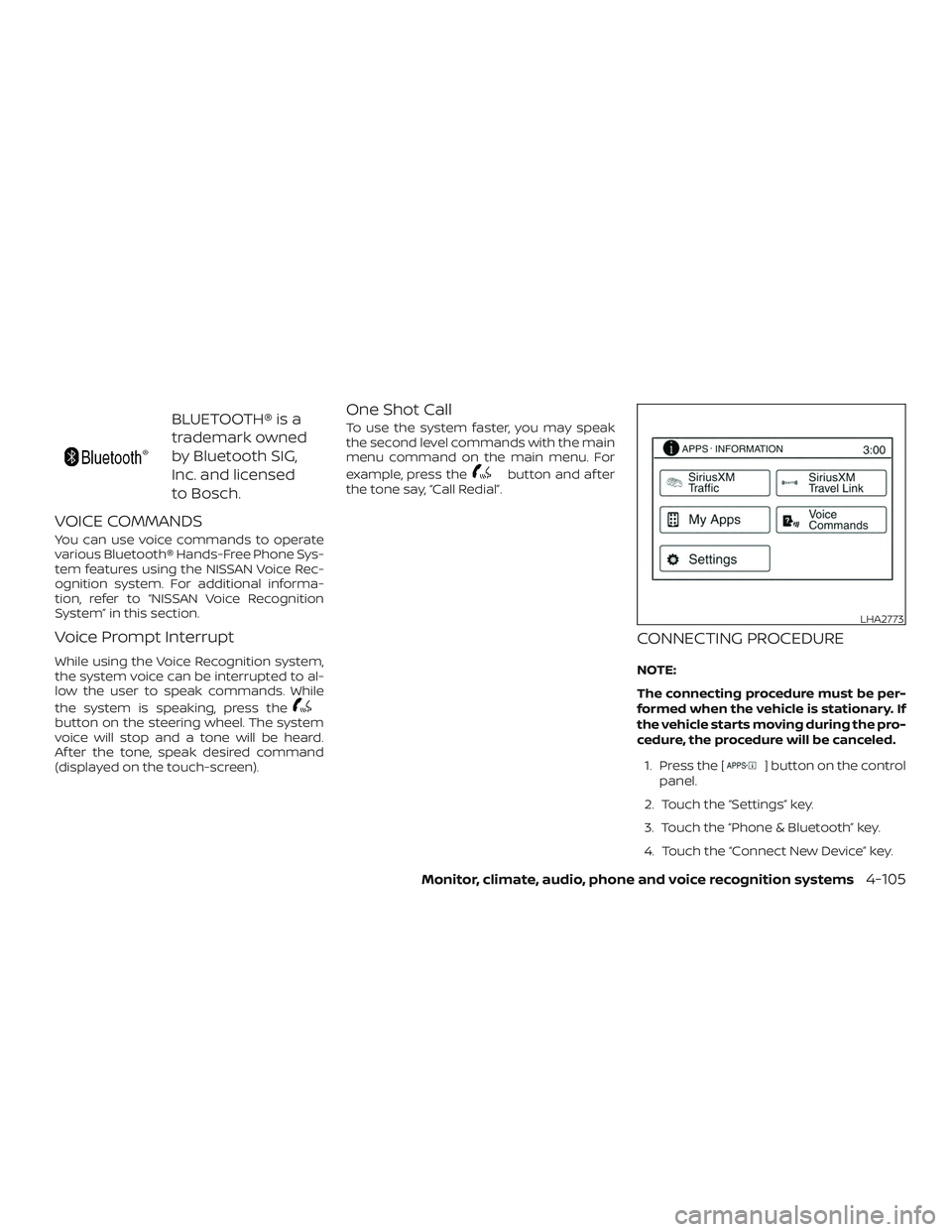
1. Press the [
] button on the control
panel.
2. Touch the “Settings” key.
3. Touch the “Phone & Bluetooth” key.
4. Touch the “Connect New Device” key.
LHA2773
Monitor, climate, audio, phone and voice recognition systems4-105
Page 306 of 516
5. Once a recipient is chosen, the systemprompts for which message to send.
Nine predefined messages are avail-
able as well as three custom mes-
sages. To choose one of the predefined
messages, speak one of the following
af ter the tone:
∙ “Driving, can’t text”
∙ “Call me”
∙ “On my way ”
∙ “Running late”
∙ “Okay ”
∙ “Yes”
∙ “No”
∙ “Where are you?”
∙ “When?”
∙ “Custom Messages”
To send one of the custom messages,
say “Custom Messages”. If more than
one custom message is stored, the
system will prompt for the number of
the desired custom message. For ad-
ditional information on setting and
managing custom text messages, re- fer to “Bluetooth® settings” in this sec-
tion.
Reading a received text message:
1. Press the
button on the steering
wheel.
2. Say “Phone” af ter the tone.
3. Say “Read Text” af ter the tone.
The text message, sender and delivery
time are shown on the screen. Use
the
buttons to scroll through all
text messages if more than one are avail-
able. Press the
button to exit the text
message screen. Press the
button to
access the following options for replying to
the text message:
∙ Call Back Speak this command to call the sender
of the text message using the
Bluetooth® Hands-Free Phone System.
∙ Send Text Speak this command to send a text
message response to the sender of the
text message.
∙ Read Text Speak this command to read the text
message again. ∙ Previous Text
Speak this command to move to the
previous text message (if available).
∙ Next Text Speak this command to move to the
next text message (if available).
Siri® Eyes Free (if so equipped)
If a connected phone is equipped with Siri®,
it can also be used to create custom mes-
sages that are sent through the phone. For
additional information, refer to “Siri® Eyes
Free (models with Navigation System)” in
this section.
NOTE:
Text messages are only displayed if the
vehicle speed is less than 5 mph
(8 km/h).
NOTE:
For Apple iPhones®, text messages can
only be sent through Siri.
4-108Monitor, climate, audio, phone and voice recognition systems
Page 307 of 516
![NISSAN FRONTIER 2019 Owner´s Manual BLUETOOTH® SETTINGS
To access the phone settings:1. Press the [
] button.
2. Touch the “Settings” key.
3. Touch the “Phone & Bluetooth” key.
Menu Item Result
Phone Settings For additional inf](/img/5/40337/w960_40337-306.png "NISSAN FRONTIER 2019 Owner´s Manual BLUETOOTH® SETTINGS
To access the phone settings:1. Press the [
] button.
2. Touch the “Settings” key.
3. Touch the “Phone & Bluetooth” key.
Menu Item Result
Phone Settings For additional inf")
BLUETOOTH® SETTINGS
To access the phone settings:1. Press the [
] button.
2. Touch the “Settings” key.
3. Touch the “Phone & Bluetooth” key.
Menu Item Result
Phone Settings For additional information, refer to “Phone settings” in this section.
Connect New Device Select to connect a new Bluetooth® device to the Bluetooth® Hands-Free Phone System.
Select Connected Device Select to choose a Bluetooth® device from a list of those devices connected to the Bluetooth® Hands-Free Phone System.
Replace Connected Device Select to replace a Bluetooth® device from a list of those devices connected to the Bluetooth® Hands-Free Phone System.
Delete Connected Device Select to delete a Bluetooth® device from a list of those devices connected to the Bluetooth® Hands-Free Phone System.
Bluetooth Select to toggle Bluetooth® on and off.
LHA2844
Monitor, climate, audio, phone and voice recognition systems4-109
Page 308 of 516
![NISSAN FRONTIER 2019 Owner´s Manual PHONE SETTINGS
To access the phone settings:1. Press the [
] button.
2. Touch the “Settings” key.
3. Touch the “Phone & Bluetooth” key.
4. Touch the “Phone Settings” key and ad- just the f](/img/5/40337/w960_40337-307.png "NISSAN FRONTIER 2019 Owner´s Manual PHONE SETTINGS
To access the phone settings:1. Press the [
] button.
2. Touch the “Settings” key.
3. Touch the “Phone & Bluetooth” key.
4. Touch the “Phone Settings” key and ad- just the f")
PHONE SETTINGS
To access the phone settings:1. Press the [
] button.
2. Touch the “Settings” key.
3. Touch the “Phone & Bluetooth” key.
4. Touch the “Phone Settings” key and ad- just the following settings as desired:
∙ Start Siri® by: Touch “Short Press” or “Long Press” to
set how Siri® is operated on the steering
wheel.
∙ Sort Phonebook By: Touch “First Name” or “Last Name” to
choose how phonebook entries are al-
phabetically displayed on the screen.
∙ Use Phonebook From: Touch “Handset” to use the phone’s
phonebook. Touch “SIM” to use the
phonebook on the SIM card. Select
“Both” to use both sources. ∙ Download Phonebook Now:
Touch to download the phonebook to
the vehicle from the chosen source.
∙ Record Name for Phonebook Entry: Touch to record a name for a phone-
book entry for use with the NISSAN
Voice Recognition System.
∙ Phone Notifications for: Notifications may be displayed on the
center display screen.
∙ Text Messaging (if so equipped): Touch to toggle the text message func-
tionality on or off.
∙ Show Incoming Text for: Text notifications may be displayed on
the center display screen. Touch “Off ” to
turn off all text notifications.
∙ Auto Reply: Touch to toggle the auto reply function-
ality on or off. ∙ Auto Reply Message:
Touch to indicate preferred message to
be sent when “Auto Reply” function is
activated.
∙ Use Vehicle’s Signature: Touch to toggle on or off the addition of
the vehicle signature to outgoing mes-
sages.
∙ Custom Text Messages: Touch this option to select a custom
message to edit. There are 4 customer
message slots available.
TROUBLESHOOTING GUIDE
The system should respond correctly to all
voice commands without difficulty. If prob-
lems are encountered, try the following so-
lutions.
Where the solutions are listed by number,
try each solution in turn, starting with num-
ber 1, until the problem is resolved.
4-110Monitor, climate, audio, phone and voice recognition systems