climate control NISSAN FRONTIER 2019 Owner´s Manual
[x] Cancel search | Manufacturer: NISSAN, Model Year: 2019, Model line: FRONTIER, Model: NISSAN FRONTIER 2019Pages: 516, PDF Size: 5.04 MB
Page 297 of 516
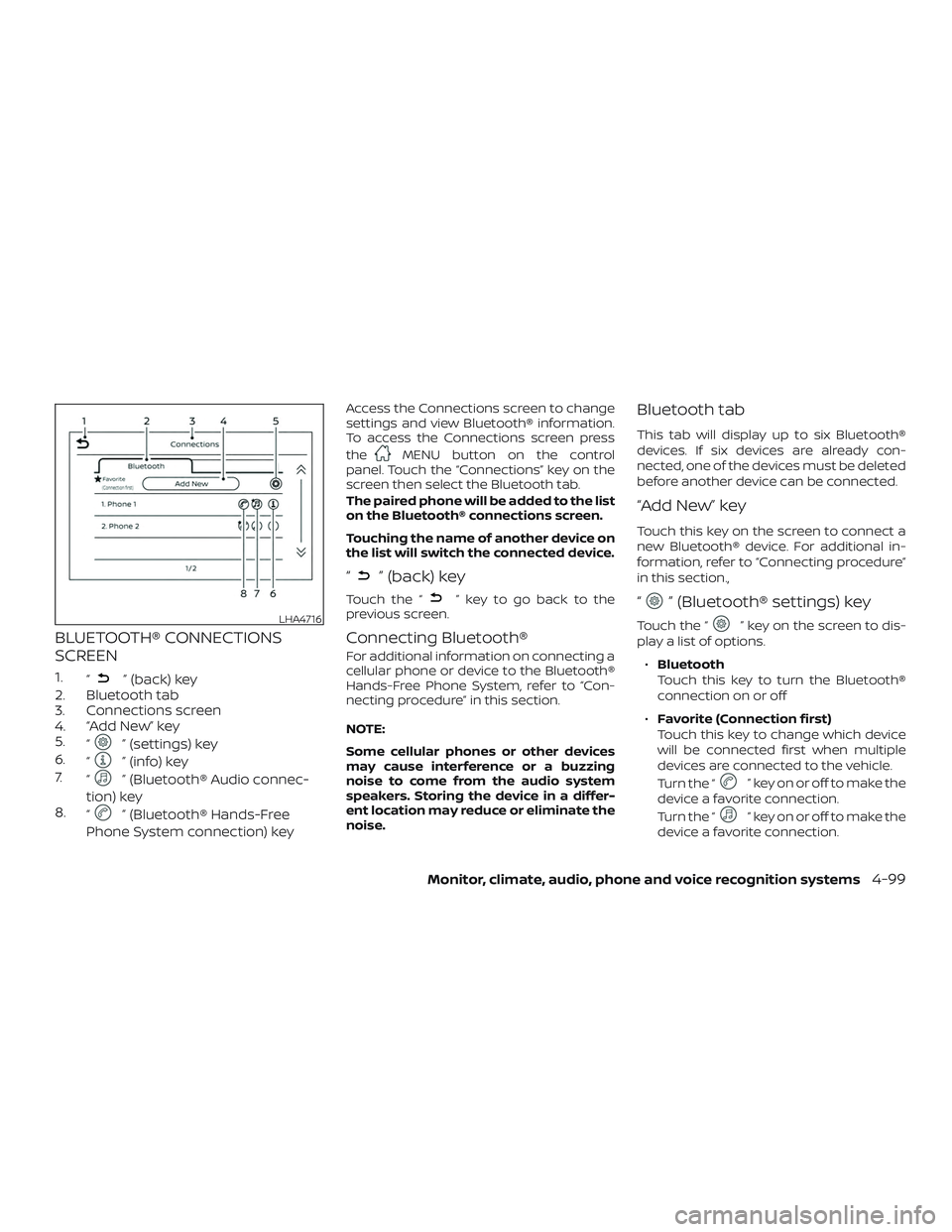
BLUETOOTH® CONNECTIONS
SCREEN
1.“” (back) key
2. Bluetooth tab
3. Connections screen
4. “Add New” key
5. “
” (settings) key
6. “
” (info) key
7. “
” (Bluetooth® Audio connec-
tion) key
8. “
” (Bluetooth® Hands-Free
Phone System connection) key
Access the Connections screen to change
settings and view Bluetooth® information.
To access the Connections screen press
the
MENU button on the control
panel. Touch the “Connections” key on the
screen then select the Bluetooth tab.
The paired phone will be added to the list
on the Bluetooth® connections screen.
Touching the name of another device on
the list will switch the connected device.
“” (back) key
Touch the “” key to go back to the
previous screen.
Connecting Bluetooth®
For additional information on connecting a
cellular phone or device to the Bluetooth®
Hands-Free Phone System, refer to “Con-
necting procedure” in this section.
NOTE:
Some cellular phones or other devices
may cause interference or a buzzing
noise to come from the audio system
speakers. Storing the device in a differ-
ent location may reduce or eliminate the
noise.
Bluetooth tab
This tab will display up to six Bluetooth®
devices. If six devices are already con-
nected, one of the devices must be deleted
before another device can be connected.
“Add New” key
Touch this key on the screen to connect a
new Bluetooth® device. For additional in-
formation, refer to “Connecting procedure”
in this section.,
“” (Bluetooth® settings) key
Touch the “” key on the screen to dis-
play a list of options.
∙ Bluetooth
Touch this key to turn the Bluetooth®
connection on or off
∙ Favorite (Connection first)
Touch this key to change which device
will be connected first when multiple
devices are connected to the vehicle.
Turn the “
” key on or off to make the
device a favorite connection.
Turn the “
” key on or off to make the
device a favorite connection.
LHA4716
Monitor, climate, audio, phone and voice recognition systems4-99
Page 298 of 516
∙Pin
Touch this key to customize the PIN
code. Input a four digit number then
touch the “OK” key. The new PIN will be
set.
“” (info) key
Touch the “” key on the screen to dis-
play the information of the cellular phone
or to delete the device.
Touch the “Delete” key to remove a paired
device then select “Yes” when a message
appears.
“” (Bluetooth® Hands-Free
Phone System connection)
key
A list of connected devices will be displayed
on the screen. Touch the “
” key next to
the name to connect a device to the
Hands-Free Phone System. If the phone is
listed as a favorite, a star will appear on the
icon. Touch the key again to disconnect the
device. The device will not be removed
from the list. For additional information on
removing a device, refer to “
(info) key”
in this section.
“” (Bluetooth® Audio
connection) key
A list of connected devices will be displayed
on the screen. Touch the “
” key next to
the name to connect a device to
Bluetooth® Audio. If the device is listed as a
favorite, a star will appear on the icon.
Touch the key again to disconnect the de-
vice. The device will not be removed from
the list. For additional information on re-
moving a device, refer to “
(info) key” in
this section.
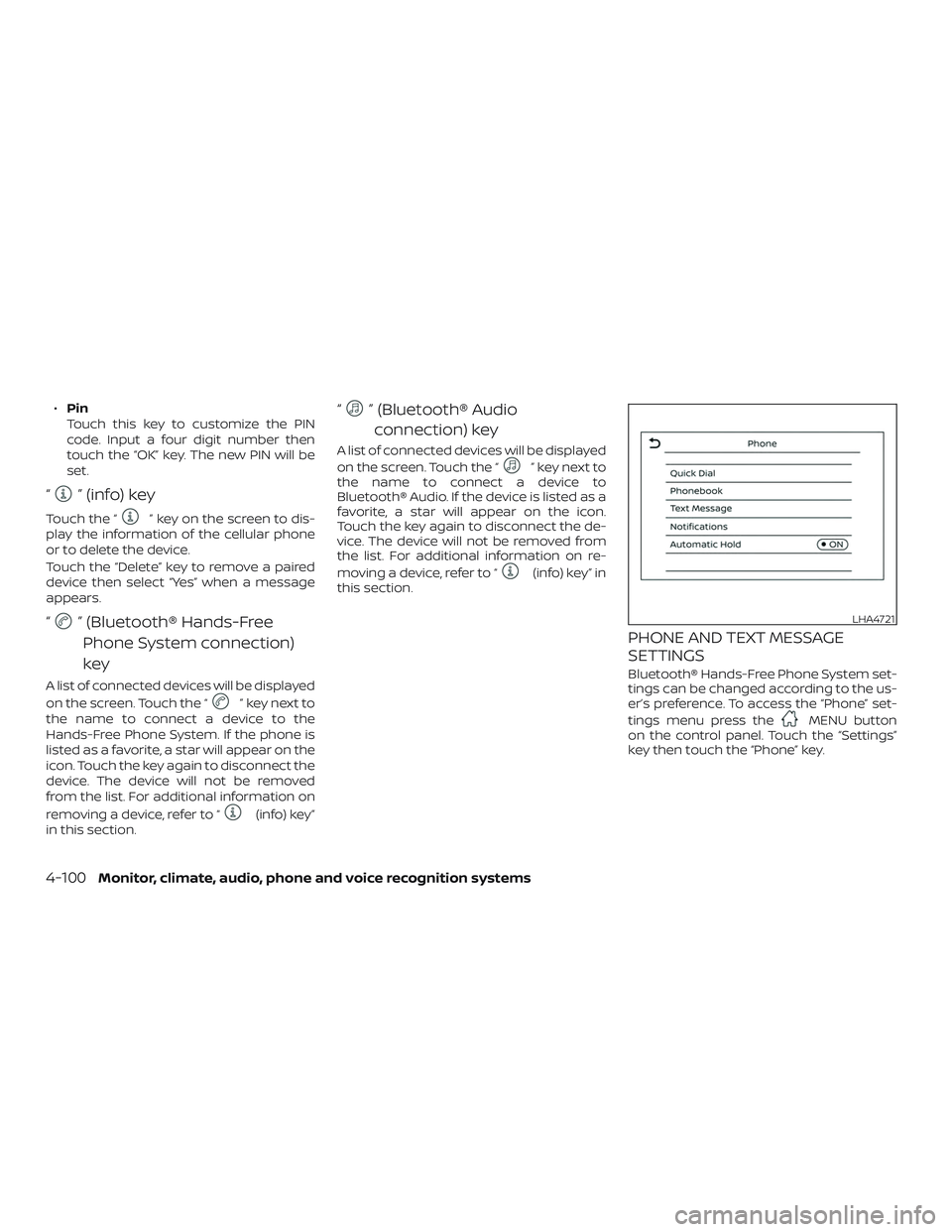
PHONE AND TEXT MESSAGE
SETTINGS
Bluetooth® Hands-Free Phone System set-
tings can be changed according to the us-
er’s preference. To access the “Phone” set-
tings menu press the
MENU button
on the control panel. Touch the “Settings”
key then touch the “Phone” key.
LHA4721
4-100Monitor, climate, audio, phone and voice recognition systems
Page 300 of 516
Volume & beeps
There are several methods to customize
the volume settings.
Volume & Beeps
The Volume & Beeps screen can be found
by pressing the
MENU button on the
control panel, touching the “Settings” key
on the screen and selecting “Volume &
Beeps”. To adjust the volume of the follow-
ing options, touch the “–” and “+” keys on the
screen.
The available settings are:
∙ Ringtone Adjust the volume level of the ringtone
of incoming calls.
∙ Outgoing Call Adjust the volume level of the outgoing
calls.
∙ Voice Prompt Vol. Adjust the volume level of the system
voice.
∙ Text-to-speech Vol. Adjust the volume of the replay voice for
text messaging.
∙ Button Beeps Turns on/off the button beep sounds
and alarm for prohibited operations. Volume Settings
The Volume settings screen can be found
by pressing the
button on the control
panel then touching the “Volume” key on
the screen. To adjust the volume of the
following options, touch the “–” and “+” keys
on the screen.
The available settings are:
∙ Ringtone Adjust the volume level of the ringtone
of incoming calls.
∙ Outgoing Call Adjust the volume level of the outgoing
calls.
WARNING
∙ Use a phone af ter stopping your ve-hicle in a safe location. If you have to
use a phone while driving, exercise ex-
treme caution at all times so full at-
tention may be given to vehicle
operation.
∙ If you are unable to devote full atten- tion to vehicle operation while talking
on the phone, pull off the road to a
safe location and stop your vehicle.
CAUTION
To avoid discharging the vehicle bat-
tery, use a phone af ter starting the
engine.
BLUETOOTH® HANDS-FREE PHONE
SYSTEM WITH NAVIGATION SYSTEM
(if so equipped)
4-102Monitor, climate, audio, phone and voice recognition systems
Page 303 of 516
BLUETOOTH® is a
trademark owned
by Bluetooth SIG,
Inc. and licensed
to Bosch.
VOICE COMMANDS
You can use voice commands to operate
various Bluetooth® Hands-Free Phone Sys-
tem features using the NISSAN Voice Rec-
ognition system. For additional informa-
tion, refer to “NISSAN Voice Recognition
System” in this section.
Voice Prompt Interrupt
While using the Voice Recognition system,
the system voice can be interrupted to al-
low the user to speak commands. While
the system is speaking, press the
button on the steering wheel. The system
voice will stop and a tone will be heard.
Af ter the tone, speak desired command
(displayed on the touch-screen).
One Shot Call
To use the system faster, you may speak
the second level commands with the main
menu command on the main menu. For
example, press the
button and af ter
the tone say, “Call Redial”.
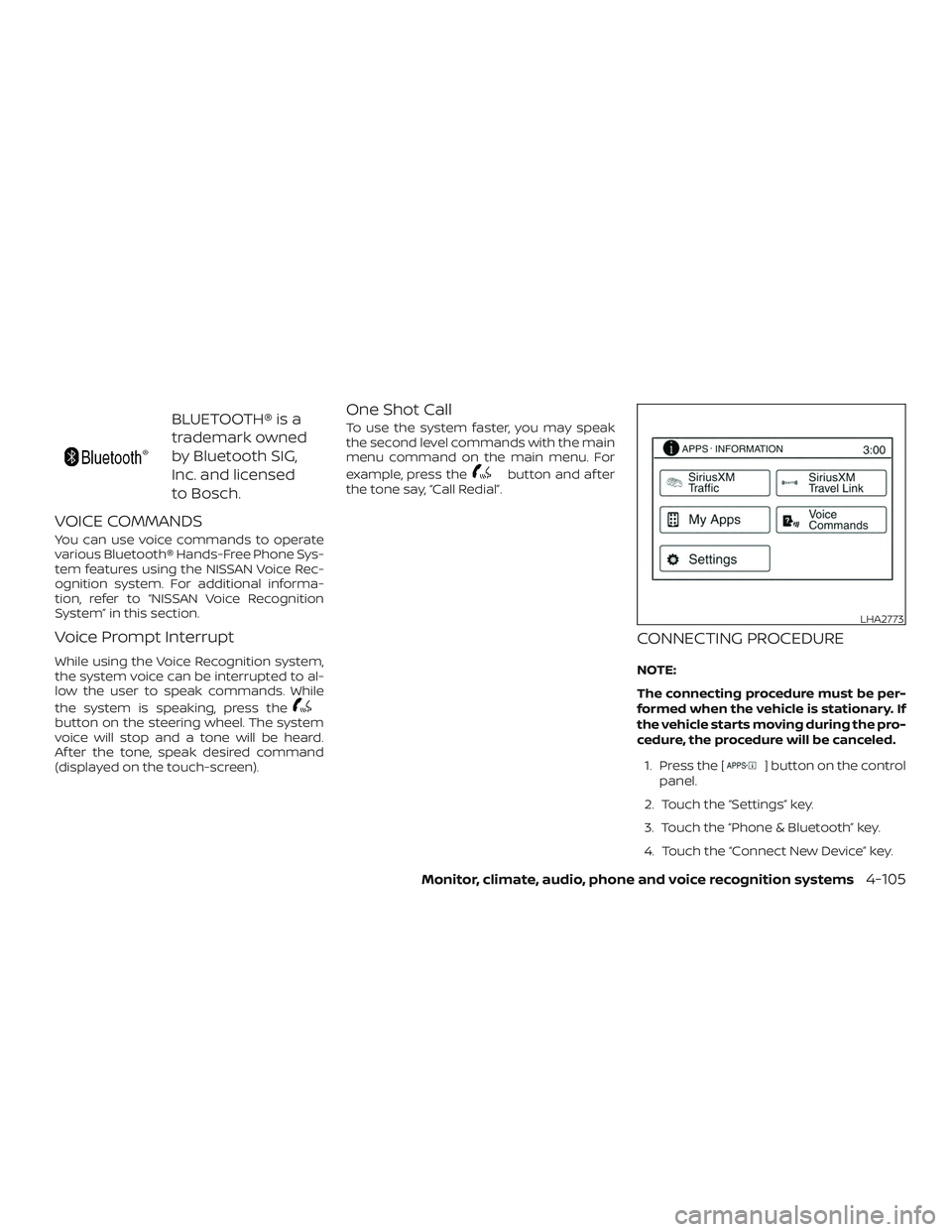
CONNECTING PROCEDURE
NOTE:
The connecting procedure must be per-
formed when the vehicle is stationary. If
the vehicle starts moving during the pro-
cedure, the procedure will be canceled.
1. Press the [
] button on the control
panel.
2. Touch the “Settings” key.
3. Touch the “Phone & Bluetooth” key.
4. Touch the “Connect New Device” key.
LHA2773
Monitor, climate, audio, phone and voice recognition systems4-105
Page 304 of 516
5. Initiate the connecting process fromthe handset. The system will display
the message: “Confirm on your
Bluetooth device that the PIN XXXXXX is
displayed”. If the PIN is displayed on
your Bluetooth® device, select “Pair” to
complete the pairing process.
For additional information, refer to the
Bluetooth® device’s owner’s manual.
VEHICLE PHONEBOOK
To access the vehicle phonebook:
1. Press the
button on the control
panel.
2. Touch the “Phonebook” key.
3. Choose the desired entry from the dis- played list.
4. The number of the entry will be dis- played on the screen. Touch the num-
ber to initiate dialing. NOTE:
To scroll quickly through the list, touch
the “A-Z” key in the upper right corner of
the screen. Turn the TUNE knob to
choose a letter or number and then
press the ENTER/AUDIO button. The list
will move to the first entry that begins
with that number or letter.
MAKING A CALL
To make a call, follow the procedure below:
1. Press the
button on the control
panel. The “Phone” screen will appear
on the display.
2. Select one of the following options to make a call:
∙ “Phonebook”: Select the name from an entry stored in the vehicle phonebook.
∙ “Call Lists”: Select the name from the incoming, outgoing or missed.
∙ “Redial”: Dial the last outgoing call from the vehicle.
∙“
”: Input the phone number manu-
ally using a keypad displayed on the
screen. For additional information, refer
to “How to use the touch-screen” in this
section.
RECEIVING A CALL
When a call is placed to the connected
phone, the display will change to phone
mode.
To accept the incoming call, either:
∙ Press the
button on the steering
wheel, or
∙ Touch the
icon on the screen.
To reject the incoming call, either:
∙ Press the
button on the steering
wheel, or
∙ Touch the
icon on the screen.
DURING A CALL
While a call is active, the following options
are available on the screen: ∙ “Handset” Select this option to switch control of
the phone call over to the handset.
∙ “Mute Mic.” Select this option to mute the micro-
phone. Select again to unmute the mi-
crophone.
∙ Phone
icon
Select to end the phone call.
4-106Monitor, climate, audio, phone and voice recognition systems
Page 310 of 516
The NISSAN Voice Recognition System al-
lows hands-free operation of the systems
equipped on this vehicle, such as the
phone and navigation systems.
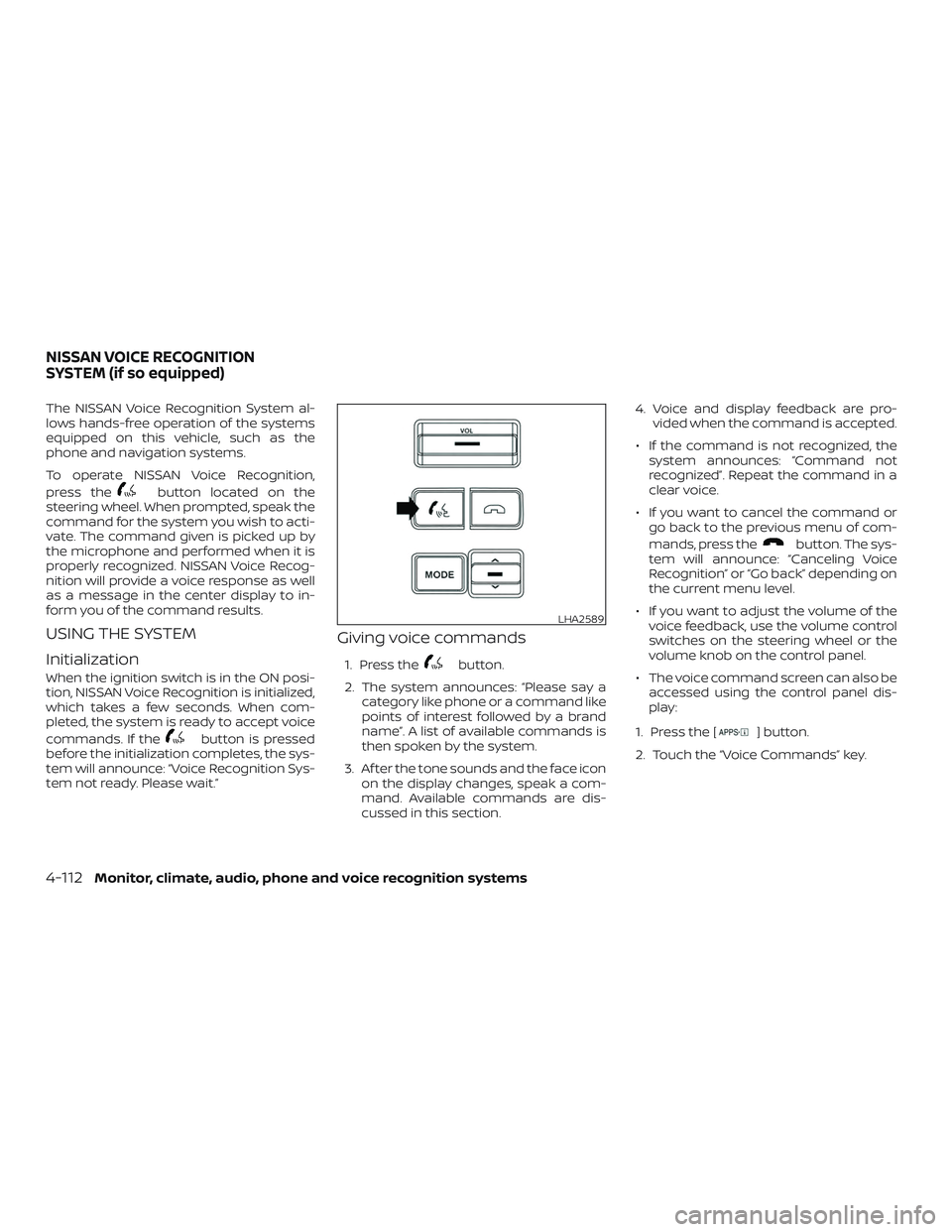
To operate NISSAN Voice Recognition,
press the
button located on the
steering wheel. When prompted, speak the
command for the system you wish to acti-
vate. The command given is picked up by
the microphone and performed when it is
properly recognized. NISSAN Voice Recog-
nition will provide a voice response as well
as a message in the center display to in-
form you of the command results.
USING THE SYSTEM
Initialization
When the ignition switch is in the ON posi-
tion, NISSAN Voice Recognition is initialized,
which takes a few seconds. When com-
pleted, the system is ready to accept voice
commands. If the
button is pressed
before the initialization completes, the sys-
tem will announce: “Voice Recognition Sys-
tem not ready. Please wait.”
Giving voice commands
1. Press thebutton.
2. The system announces: “Please say a category like phone or a command like
points of interest followed by a brand
name”. A list of available commands is
then spoken by the system.
3. Af ter the tone sounds and the face icon on the display changes, speak a com-
mand. Available commands are dis-
cussed in this section. 4. Voice and display feedback are pro-
vided when the command is accepted.
∙ If the command is not recognized, the system announces: “Command not
recognized”. Repeat the command in a
clear voice.
∙ If you want to cancel the command or go back to the previous menu of com-
mands, press the
button. The sys-
tem will announce: “Canceling Voice
Recognition” or “Go back” depending on
the current menu level.
∙ If you want to adjust the volume of the voice feedback, use the volume control
switches on the steering wheel or the
volume knob on the control panel.
∙ The voice command screen can also be accessed using the control panel dis-
play:
1. Press the [
] button.
2. Touch the “Voice Commands” key.
LHA2589
NISSAN VOICE RECOGNITION
SYSTEM (if so equipped)
4-112Monitor, climate, audio, phone and voice recognition systems
Page 312 of 516
BLUETOOTH® HANDS-FREE
PHONE SYSTEM VOICE
COMMANDS
To access the Bluetooth® Hands-Free
Phone System voice commands:1. Press the
button.
2. Say “Call” and then a name in the ve- hicle phonebook to call that entry. Oth-
erwise, say “Phone” to access various
phone commands.
If the Bluetooth® has been set to “Off ”, the
system announces: “Bluetooth® is off.
Would you like to turn Bluetooth® on?”
If no phone is connected to the system and
the vehicle is stationary, the system an-
nounces: “There is no phone connected.
Would you like to connect a phone now?”
Say “Yes” to connect a phone. All further
Bluetooth® Hands-Free Phone System
voice commands are only available if a
phone is connected.
If a phone is connected and Bluetooth® is
set to “On”, the following voice commands
are available: ∙ Call (a name)
Speak the name of the contact in
which you are trying to call. System will
confirm correct contact. Say “Dial” to
initiate dialing.
∙ Dial Number Allows for up to 24 digits to be dialed.
Af ter the number is entered, say “Dial”
to initiate dialing. Say “Correction” to
correct the number entered. Say “Go
Back” to return to the main menu.
∙ List Phonebook Starting with the first alphabetical en-
try in the vehicle phonebook, the sys-
tem prompts for an additional com-
mand. Say “Dial” to call the number of
the phonebook entry. Say “Send Text”
to send a text message to the number
of the phonebook entry. Say “Next En-
try” to skip to the next alphabetical en-
try in the vehicle phonebook, where
the same options will then be available.
∙ Recent Calls The system prompts for an additional
command. Say “Missed Calls”, “Incom-
ing Calls” or “Outgoing Calls” to display
a list of such calls on the screen. Speak the number of the entry dis-
played on the screen to dial that num-
ber or say “Next Page” to view entries
on the next page (if available).
∙ Redial Redials the last called number.
∙ Read Text Reads an incoming text message.
∙ Send Text Sends a text message.
∙ Select Phone The system replies “Please use manual
controls to continue”. Use manual con-
trols to change the active phone from
among the listed phones connected
to the vehicle.
∙ Siri (if so equipped) The system replies “starting Siri”. For
additional information, refer to “Siri®
Eyes Free (models with Navigation Sys-
tem)” in this section.
For additional information, refer to
“Bluetooth® Hands-Free Phone System
with Navigation System” in this section.
4-114Monitor, climate, audio, phone and voice recognition systems
Page 495 of 516
DOT (Department of Transportation) Qual-
ity Grades: All passenger car tires must
conform to federal safety requirements in
addition to these grades.
Quality grades can be found where appli-
cable on the tire sidewall between tread
shoulder and maximum section width. For
example:
Treadwear 200 Traction AA Temperature
A
Treadwear
The treadwear grade is a comparative rat-
ing based on the wear rate of the tire when
tested under controlled conditions on a
specified government test course. For ex-
ample, a tire graded 150 would wear one
and one-half (1 1/2) times as well on the
government course as a tire graded 100.
The relative performance of tires depends
upon the actual conditions of their use,
however, and may depart significantly from
the norm due to variations in driving habits,
service practices and differences in road
characteristics and climate.
Traction AA, A, B and C
The traction grades, from highest to low-
est, are AA, A, B, and C. Those grades repre-
sent the tire’s ability to stop on wet pave-ment as measured under controlled
conditions on specified government test
surfaces of asphalt and concrete. A tire
marked C may have poor traction perfor-
mance.
WARNING
The traction grade assigned to this tire
is based on straight-ahead braking
traction tests, and does not include ac-
celeration, cornering, hydroplaning, or
peak traction characteristics.
Temperature A, B and C
The temperature grades are A (the high-
est), B, and C, representing the tire’s resis-
tance to the generation of heat, and its
ability to dissipate heat when tested under
controlled conditions on a specified indoor
laboratory test wheel. Sustained high tem-
perature can cause the material of the tire
to degenerate and reduce tire life, and ex-
cessive temperature can lead to sudden
tire failure. The grade C corresponds to a
level of performance which all passenger
car tires must meet under the Federal Mo-
tor Vehicle Safety Standard No. 109. Grades
B and A represent higher levels of perfor-
mance on the laboratory test wheel than
the minimum required by law.
WARNING
The temperature grade for this tire is
established for a tire that is properly in-
flated and not overloaded. Excessive
speed, under-inflation, or excessive
loading, either separately or in combi-
nation, can cause heat build-up and
possible tire failure.
UNIFORM TIRE QUALITY GRADING
Technical and consumer information10-43