steering NISSAN FRONTIER 2020 Owner´s Manual
[x] Cancel search | Manufacturer: NISSAN, Model Year: 2020, Model line: FRONTIER, Model: NISSAN FRONTIER 2020Pages: 492, PDF Size: 3.05 MB
Page 129 of 492
WARNING
• Radio waves could adversely affect
electric medical equipment. Those
who use a pacemaker should contact
the electric medical equipment
manufacturer for the possible influ-
ences before use.
• If the light does not illuminate with
the ignition switch placed in the ON
position, have the vehicle checked as
soon as possible. It is recommended
that you visit a NISSAN dealer for this
service.
• If the light illuminates while driving,
avoid sudden steering maneuvers or
abrupt braking, reduce vehicle
speed, pull off the road to a safe loca-
tion and stop the vehicle as soon as
possible. Driving with under-inflated
tires may permanently damage the
tires and increase the likelihood of
tire failure. Serious vehicle damage
could occur and may lead to an acci-
dent and could result in serious per-
sonal injury or death. Check the tire
pressure for all four tires. Adjust the
tire pressure to the recommended
COLD tire pressure show on the Tire
and Loading Information label lo-
cated in the driver’s door opening to turn the low tire pressure warning
light off. If the light still illuminates
while driving af ter adjusting the tire
pressure, a tire may be flat or the
TPMS may be malfunctioning. If you
have a flat tire, replace it with a spare
tire as soon as possible. If no tire is
flat and all tires are properly inflated,
have the vehicle checked. It is recom-
mended that you visit a NISSAN
dealer for this service.
• When replacing a wheel without the
TPMS such as the spare tire, the TPMS
will not function and the low tire
pressure warning light will flash for
approximately 1 minute. The light will
remain on af ter 1 minute. Have your
tires replaced and/or TPMS system
reset as soon as possible. It is recom-
mended that you visit a NISSAN
dealer for these services.
• Replacing tires with those not origi-
nally specified by NISSAN could af-
fect the proper operation of the
TPMS.CAUTION
• The TPMS is not a substitute for the
regular tire pressure check. Be sure
to check the tire pressure regularly.
• If the vehicle is being driven at
speeds of less than 16 mph (25 km/h),
the TPMS may not operate correctly.
• Be sure to install the specified size of
tires to the four wheels correctly.
Low windshield-washer
fluid warning light (if so
equipped)
This light comes on when the windshield-
washer fluid is at a low level. Add
windshield-washer fluid as necessary. For
additional information, refer to “Windshield-
washer fluid” in the “Do-it-yourself ” section
of this manual.
Instruments and controls2-19
Page 130 of 492
NISSAN Intelligent Key®
warning light (if so
equipped)
Af ter the ignition switch is placed in the ON
position, this light comes on for about 2
seconds and then turns off. This light illumi-
nates or blinks as follows:
• The light blinks in yellow when the door isclosed with the Intelligent Key lef t outside
the vehicle and the ignition switch in the
ON position. Make sure that the Intelligent
Key is inside the vehicle.
• The light blinks in green when the Intelli- gent Key battery is running out of power.
Replace the battery with a new one. For
additional information, refer to “Battery”
in the “Do-it-yourself ” section of this
manual.
• The light illuminates in yellow when it warns of a malfunction with the electrical
steering lock system or the Intelligent Key
system.
If the warning light illuminates in yellow
while the engine is stopped, it may be im-
possible to free the steering lock or to start
the engine. If the light comes on while the
engine is running, you can drive the vehicle.
However, in these cases, have the vehicle
checked and repaired as soon as possible. It is recommended that you visit a NISSAN
dealer for this service.
For additional information, refer to “NISSAN
Intelligent Key®” in the “Pre-driving checks
and adjustments” section of this manual.
Seat belt warning light and
chime
The light and chime remind you to fasten
your seat belts. The light illuminates when-
ever the ignition switch is placed in the ON
position and remains illuminated until the
driver's seat belt is fastened. At the same
time, the chime sounds for about 6 sec-
onds unless the driver's seat belt is se-
curely fastened.
The seat belt warning light may also illumi-
nate if the front passenger's seat belt is not
fastened when the front passenger's seat
is occupied. For 7 seconds af ter the ignition
switch is placed in the ON position, the sys-
tem does not activate the warning light for
the front passenger.
For additional information, refer to “Seat
belts” in the “Safety—Seats, seat belts and
supplemental restraint system” section of
this manual.
Shif t P (Park) warning light
(if so equipped)
This light blinks red and the key reminder
chime sounds if the shif t lever is in any
position other than P (Park) and the ignition
switch is in the OFF position. Return the
shif t lever to P (Park) with the ignition
switch in the OFF position and the warning
light along with the chime will turn off. For
additional information, refer to “NISSAN In-
telligent Key®” in the “Pre-driving checks
and adjustments” section of this manual.
Supplemental air bag
warning light
When the ignition switch is placed in the ON
position, the supplemental air bag warning
light illuminates for about 7 seconds and
then turns off. This means the system is
operational.
If any of the following conditions occur, the
front air bag, side air bag, curtain air bag,
and pretensioner seat belt systems need
servicing:
• The supplemental air bag warning light
remains on af ter approximately 7 sec-
onds.
• The supplemental air bag warning light flashes intermittently.
2-20Instruments and controls
Page 144 of 492
The headlights must be on and the low
beams selected for the fog lights to oper-
ate. The fog lights automatically turn off
when the high beam headlights are se-
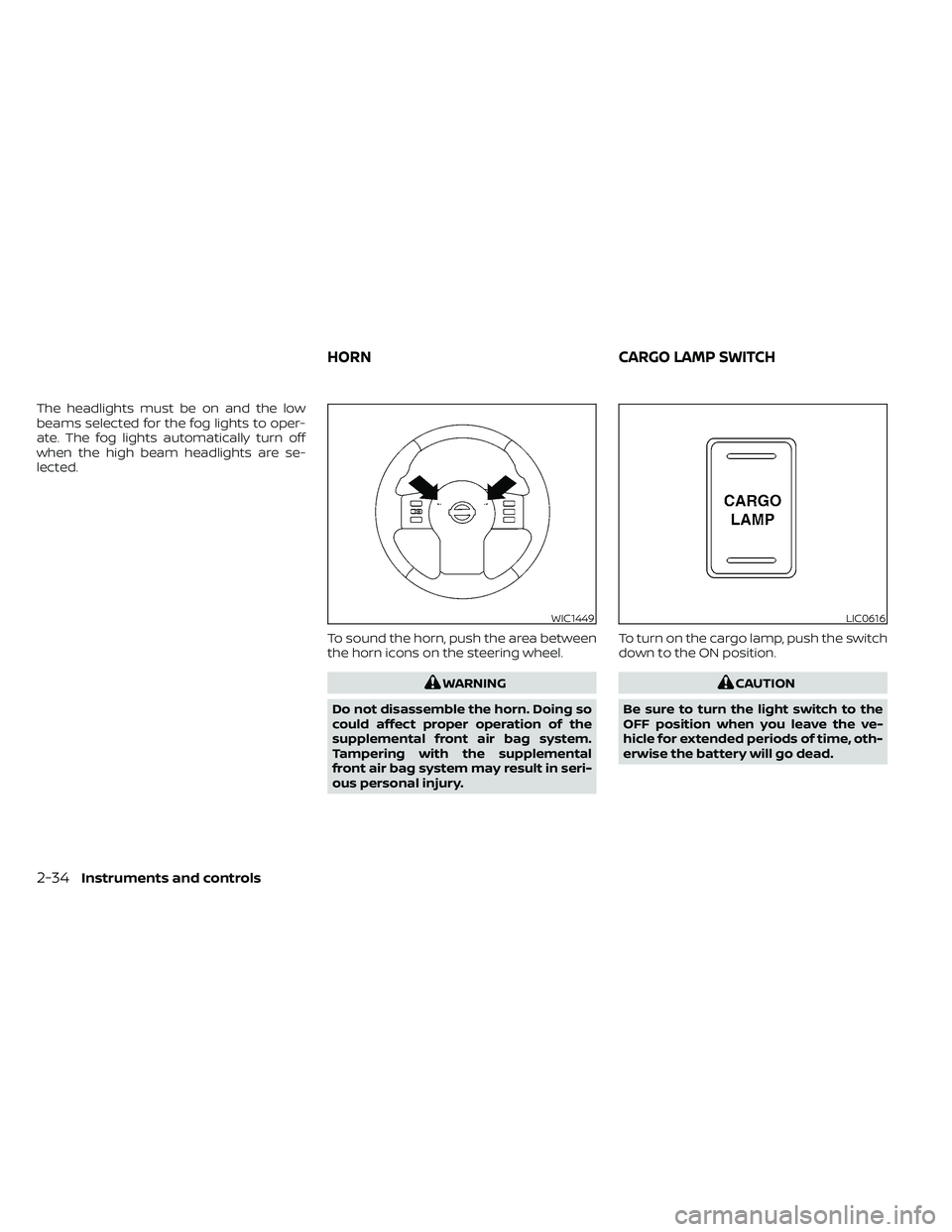
lected.To sound the horn, push the area between
the horn icons on the steering wheel.
WARNING
Do not disassemble the horn. Doing so
could affect proper operation of the
supplemental front air bag system.
Tampering with the supplemental
front air bag system may result in seri-
ous personal injury. To turn on the cargo lamp, push the switch
down to the ON position.CAUTION
Be sure to turn the light switch to the
OFF position when you leave the ve-
hicle for extended periods of time, oth-
erwise the battery will go dead.
WIC1449LIC0616
HORN CARGO LAMP SWITCH
2-34Instruments and controls
Page 147 of 492
•The hill descent control may not con-
trol the vehicle speed on a hill under
all load or road conditions. Always be
prepared to depress the brake pedal
to control vehicle speed. Failure to do
so may result in a collision or serious
personal injury.
CAUTION
When the hill descent control system op-
erates continuously for a long time, the
temperature of the brake pads may in-
crease and the hill descent control sys-
tem may be temporarily disabled (the in-
dicator light will blink). If the indicator
light does not come on continuously af-
ter blinking, stop using the system.
The hill descent control system is designed
to reduce driver workload when going down
steep hills. The hill descent control system
helps to control vehicle speed so the driver
can concentrate on steering the vehicle.
To activate the hill descent control system:
• The shif t lever must be in forward or re- verse gear,
• The 4WD switch must be in the 4L posi- tion and the vehicle speed must be under
15 mph (25 km/h) or • The 4WD switch must be in the 4H posi-
tion and the vehicle speed must be under
21 mph (35 km/h), and
• The hill descent control system switch must be ON.
The hill descent control system ON indica-
tor light will come on when the system is
activated. Also, the stop/tail lights illumi-
nate while the hill descent control system
applies the brakes to control vehicle speed.
If the accelerator or brake pedal is depressed
while the hill descent control system is on,
the system will stop operating temporarily.
As soon as the accelerator or brake pedal is
released, the hill descent control system be-
gins to function again if the hill descent con-
trol operating conditions are fulfilled.
The hill descent control system ON indica-
tor light blinks if the switch is on and all
conditions for system activation are not
met or if the system becomes disengaged
for any reason.
To turn off the hill descent control system,
push the switch to the OFF position.
For additional information, refer to “Hill de-
scent control system ON indicator light” in
this section and “Hill descent control sys-
tem” in the “Starting and driving” section of
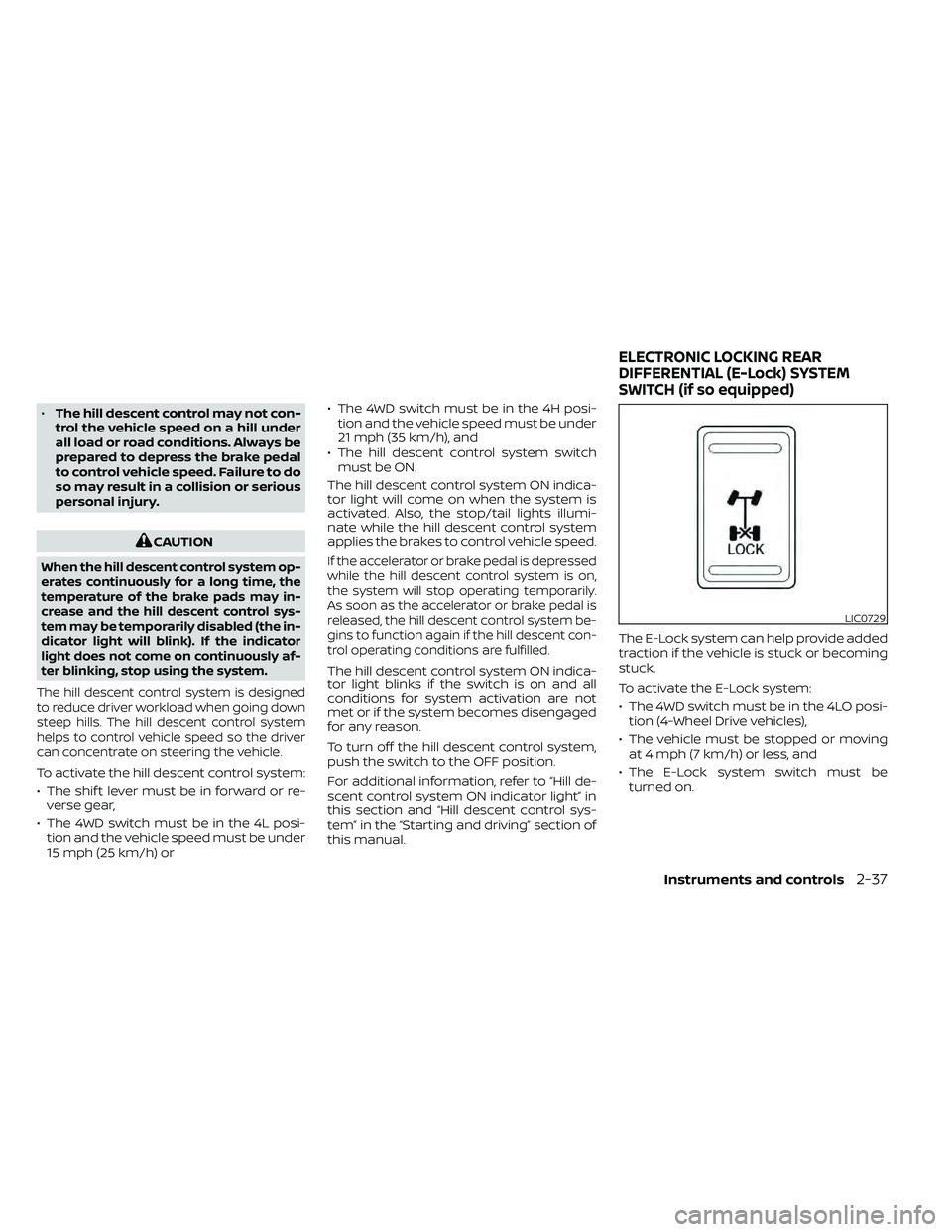
this manual. The E-Lock system can help provide added
traction if the vehicle is stuck or becoming
stuck.
To activate the E-Lock system:
• The 4WD switch must be in the 4LO posi-
tion (4-Wheel Drive vehicles),
• The vehicle must be stopped or moving at 4 mph (7 km/h) or less, and
• The E-Lock system switch must be turned on.
LIC0729
ELECTRONIC LOCKING REAR
DIFFERENTIAL (E-Lock) SYSTEM
SWITCH (if so equipped)
Instruments and controls2-37
Page 171 of 492
3 Pre-driving checks and adjustments
Keys.............................................3-2NISSAN Intelligent Key® .......................3-2
NISSAN Vehicle Immobilizer System
keys..........................................3-4
Doors ...........................................3-4
Locking with key .............................3-5
Locking with inside lock knob ................3-5
Locking with power door lock switch .........3-6
Rear doors (King Cab® models) ...............3-6
Automatic door locks ........................ 3-7
Child safety rear door lock
(if so equipped) ............................... 3-7
NISSAN Intelligent Key® ..........................3-8
How to use the remote keyless entry
function ......................................3-9
Warning signals .............................. 3-11
Troubleshooting guide ......................3-12Hood
........................................... 3-13
Fuel-filler door .................................. 3-13
Fuel-filler cap ................................ 3-13
Steering wheel ................................. 3-16
Tilt operation ................................ 3-16
Sun visors ...................................... 3-16
Vanity mirrors (if so equipped) ...............3-17
Mirrors ......................................... 3-17
Manual anti-glare rearview mirror
(if so equipped) .............................. 3-17
Automatic anti-glare rearview mirror ........3-18
Outside mirrors ............................. 3-19
Truck box ...................................... 3-20
Tailgate ..................................... 3-20
Bed extender (if so equipped) ...............3-24
Tie down hooks (if so equipped) .............3-25
Page 186 of 492
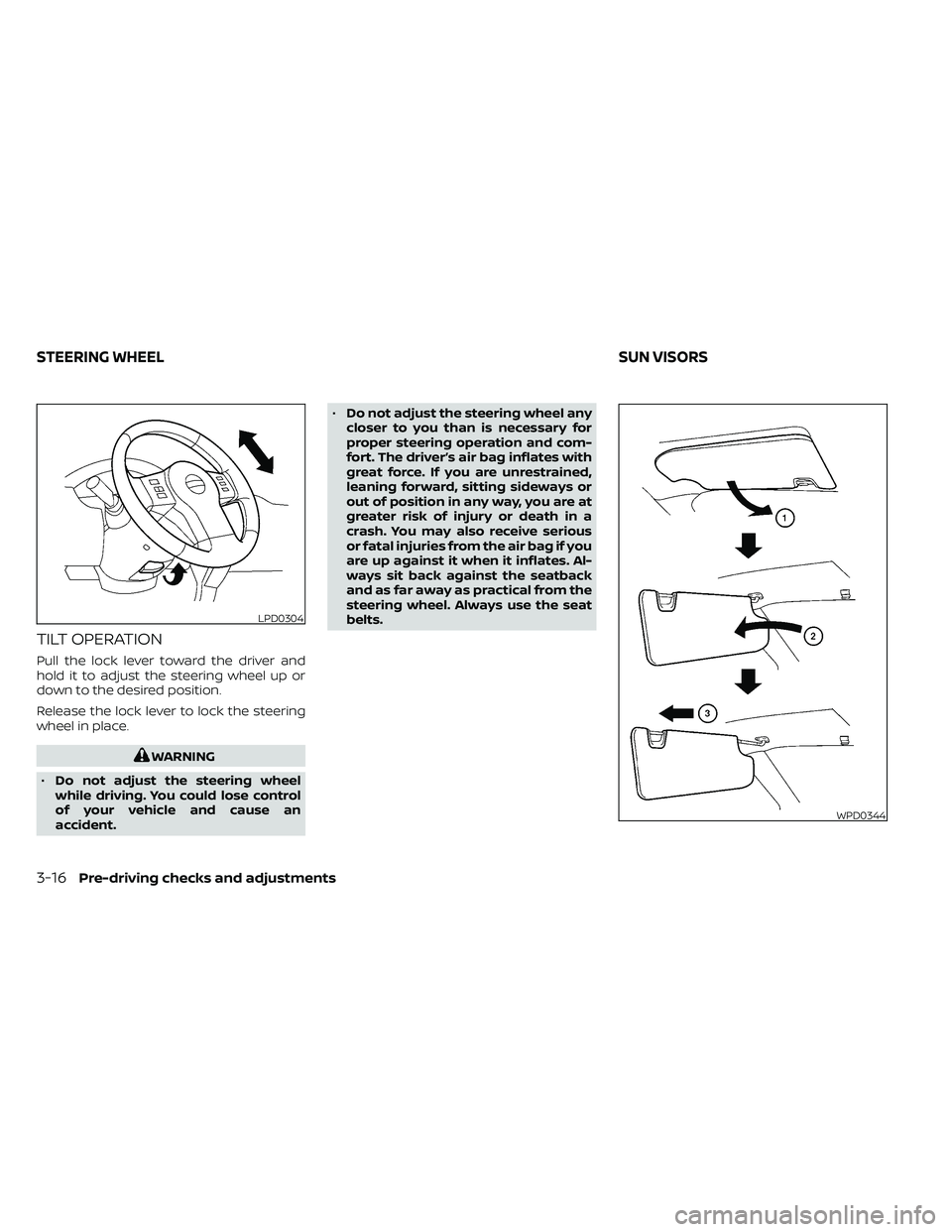
TILT OPERATION
Pull the lock lever toward the driver and
hold it to adjust the steering wheel up or
down to the desired position.
Release the lock lever to lock the steering
wheel in place.
WARNING
• Do not adjust the steering wheel
while driving. You could lose control
of your vehicle and cause an
accident. •
Do not adjust the steering wheel any
closer to you than is necessary for
proper steering operation and com-
fort. The driver’s air bag inflates with
great force. If you are unrestrained,
leaning forward, sitting sideways or
out of position in any way, you are at
greater risk of injury or death in a
crash. You may also receive serious
or fatal injuries from the air bag if you
are up against it when it inflates. Al-
ways sit back against the seatback
and as far away as practical from the
steering wheel. Always use the seat
belts.
LPD0304
WPD0344
STEERING WHEEL SUN VISORS
3-16Pre-driving checks and adjustments
Page 198 of 492
FM/AM radio (if so equipped)................4-44
FM/AM/SAT radio with Compact Disc
(CD) player (if so equipped) ..................4-49
USB (Universal Serial Bus) connection
port (models without Navigation
System) (if so equipped) .....................4-55
USB (Universal Serial Bus) connection
port (models with Navigation System)
(if so equipped) .............................. 4-58
iPod®* player operation without
Navigation System (if so equipped) ..........4-60
iPod®* player operation with Navigation
System (if so equipped) .....................4-63
Bluetooth® streaming audio without
Navigation System (if so equipped) ..........4-66
Bluetooth® streaming audio with
Navigation System (if so equipped) ..........4-69
CD care and cleaning .......................4-70
Steering wheel switch for audio control .....4-71
Antenna ..................................... 4-72
NissanConnect® Mobile Apps (if so equipped) . . 4-72 Registering with NissanConnect®
Mobile Apps ................................. 4-72
Connect Phone ............................. 4-72
Application download .......................4-73Siri® Eyes Free (models without Navigation
System) (if so equipped)
........................4-73
Requirements ............................... 4-73
Operating Siri® Eyes Free ....................4-74
Troubleshooting guide ......................4-75
Siri® Eyes Free (models with Navigation
System) (if so equipped) ........................4-76
Requirements ............................... 4-76
Siri® Activation .............................. 4-76
Operating Siri® Eyes Free ....................4-77
Changing Siri® Eyes Free settings ...........4-77
Troubleshooting guide ......................4-78
Car phone or CB radio .......................... 4-79
Bluetooth® Hands-Free Phone System
without Navigation System (if so equipped) ....4-79
Regulatory information ......................4-81
Using the system ........................... 4-81
Indicators ................................... 4-83
Control buttons ............................. 4-83
Connecting procedure ......................4-84
Voice commands ........................... 4-85
Phone display screen .......................
4-87
Making
a call ................................ 4-88
Receiving a call .............................. 4-88
Page 242 of 492
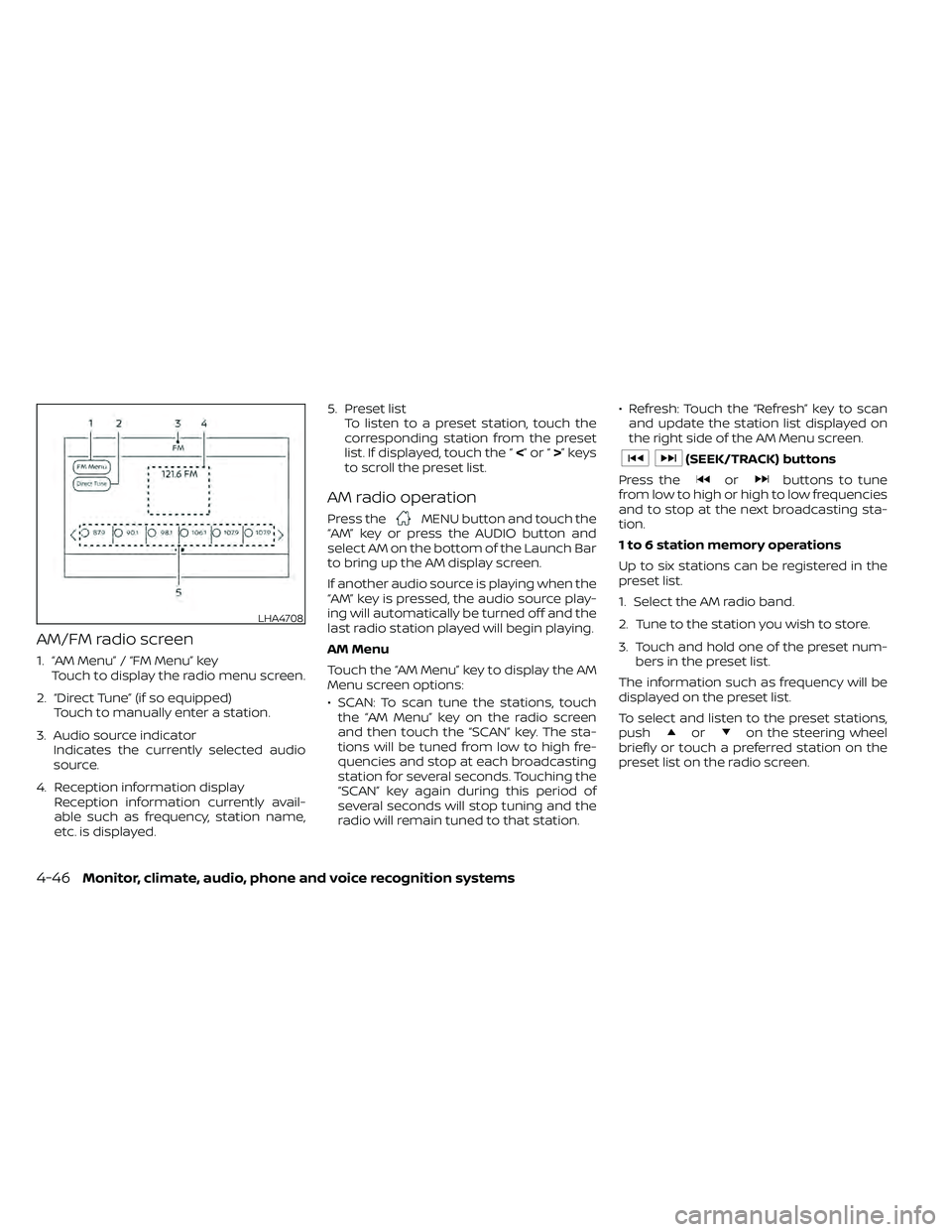
AM/FM radio screen
1. “AM Menu” / “FM Menu” keyTouch to display the radio menu screen.
2. “Direct Tune” (if so equipped) Touch to manually enter a station.
3. Audio source indicator Indicates the currently selected audio
source.
4. Reception information display Reception information currently avail-
able such as frequency, station name,
etc. is displayed. 5. Preset list
To listen to a preset station, touch the
corresponding station from the preset
list. If displayed, touch the “ <”or“>”keys
to scroll the preset list.
AM radio operation
Press theMENU button and touch the
“AM” key or press the AUDIO button and
select AM on the bottom of the Launch Bar
to bring up the AM display screen.
If another audio source is playing when the
“AM” key is pressed, the audio source play-
ing will automatically be turned off and the
last radio station played will begin playing.
AM Menu
Touch the “AM Menu” key to display the AM
Menu screen options:
• SCAN: To scan tune the stations, touch the “AM Menu” key on the radio screen
and then touch the “SCAN” key. The sta-
tions will be tuned from low to high fre-
quencies and stop at each broadcasting
station for several seconds. Touching the
“SCAN” key again during this period of
several seconds will stop tuning and the
radio will remain tuned to that station. • Refresh: Touch the “Refresh” key to scan
and update the station list displayed on
the right side of the AM Menu screen.
(SEEK/TRACK) buttons
Press the
orbuttons to tune
from low to high or high to low frequencies
and to stop at the next broadcasting sta-
tion.
1 to 6 station memory operations
Up to six stations can be registered in the
preset list.
1. Select the AM radio band.
2. Tune to the station you wish to store.
3. Touch and hold one of the preset num- bers in the preset list.
The information such as frequency will be
displayed on the preset list.
To select and listen to the preset stations,
push
oron the steering wheel
briefly or touch a preferred station on the
preset list on the radio screen.
LHA4708
4-46Monitor, climate, audio, phone and voice recognition systems
Page 243 of 492
FM radio operation
Press theMENU button and touch the
“FM” key or press the AUDIO button and
select FM on the bottom of the Launch Bar
to bring up the FM display screen.
If another audio source is playing when the
“FM” key is pressed, the audio source play-
ing will automatically be turned off and the
last radio station played will begin playing.
The FM stereo indicator (STEREO) is shown
on the screen during FM stereo reception.
When the stereo broadcast signal is weak,
the radio automatically changes from ste-
reo to monaural reception.
FM Menu
Touch the “FM Menu” key to display the FM
Menu screen options:
• SCAN: To scan tune the stations, touch the “FM Menu” key on the radio screen
and then touch the “SCAN” key. The sta-
tions will be tuned from low to high fre-
quencies and stop at each broadcasting
stations for several seconds. Touching
the “SCAN” key again during this period of
several seconds will stop tuning and the
radio will remain tuned to that station. • Refresh: Touch the “Refresh” key to up-
date the station list displayed on the right
side of the FM Menu screen.
• RDS Info: Radio station and song informa- tion can be displayed on the FM display
screen.
(SEEK/TRACK) buttons
Press the
orbuttons to tune
from low to high or high to low frequencies
and to stop at the next broadcasting sta-
tion.
1 to 12 Station memory operations
Up to 12 stations can be registered in the
preset list.
1. Select the FM radio band.
2. Tune to the station you wish to store.
3. Touch and hold one of the preset num- bers in the preset list.
The information such as frequency will be
displayed on the preset list.
To select and listen to the preset stations,
push
oron the steering wheel
briefly or touch a preferred station on the
preset list on the radio screen.
Auxiliary (AUX) devices operation
Connecting auxiliary devices
Connect an AUX device into the AUX input
jack located on the center console below
the heater and air conditioner controls.
The AUX input jack accepts any standard
analog audio input such as from a portable
cassette player, CD player, MP3 player or
phone.
Insert a 1/8 in (3.5 mm) stereo mini plug in
the audio input jack. If a cable with a mono
plug is used, the audio output may not
function normally.
Activation and playing
Turn on the AUX device. Connect an AUX
cable to the AUX device and the AUX input
jack. Select AUX mode from the audio
source menu screen or by pressing the
Source button on the steering wheel.
Monitor, climate, audio, phone and voice recognition systems4-47
Page 263 of 492
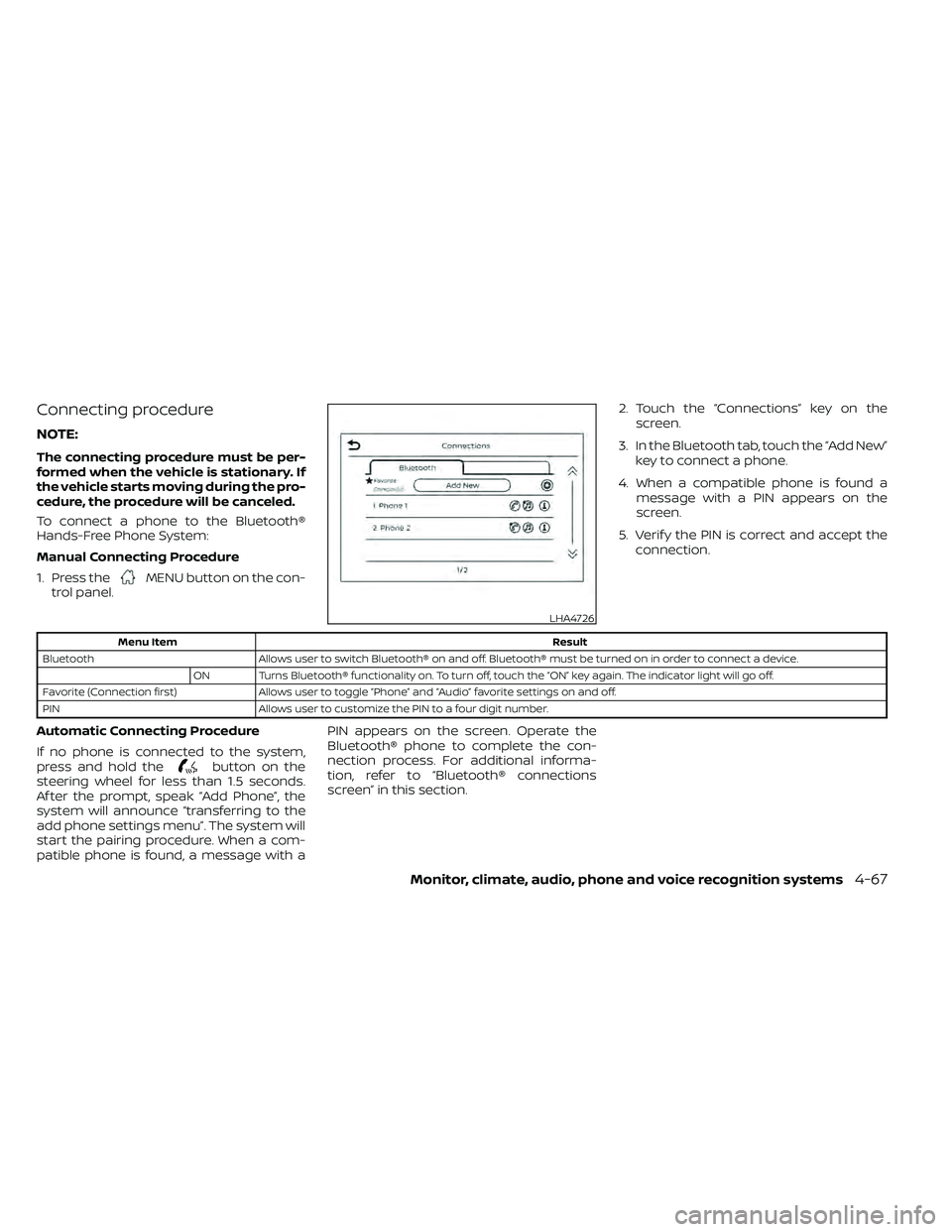
Connecting procedure
NOTE:
The connecting procedure must be per-
formed when the vehicle is stationary. If
the vehicle starts moving during the pro-
cedure, the procedure will be canceled.
To connect a phone to the Bluetooth®
Hands-Free Phone System:
Manual Connecting Procedure
1. Press the
MENU button on the con-
trol panel. 2. Touch the “Connections” key on the
screen.
3. In the Bluetooth tab, touch the “Add New” key to connect a phone.
4. When a compatible phone is found a message with a PIN appears on the
screen.
5. Verif y the PIN is correct and accept the connection.
Menu Item Result
Bluetooth Allows user to switch Bluetooth® on and off. Bluetooth® must be turned on in order to connect a device.
ON Turns Bluetooth® functionality on. To turn off, touch the “ON” key again. The indicator light will go off.
Favorite (Connection first) Allows user to toggle “Phone” and “Audio” favorite settings on and off.
PIN Allows user to customize the PIN to a four digit number.
Automatic Connecting Procedure
If no phone is connected to the system,
press and hold the
button on the
steering wheel for less than 1.5 seconds.
Af ter the prompt, speak “Add Phone”, the
system will announce “transferring to the
add phone settings menu”. The system will
start the pairing procedure. When a com-
patible phone is found, a message with a PIN appears on the screen. Operate the
Bluetooth® phone to complete the con-
nection process. For additional informa-
tion, refer to “Bluetooth® connections
screen” in this section.
LHA4726
Monitor, climate, audio, phone and voice recognition systems4-67