display NISSAN FRONTIER 2020 Owner´s Manual
[x] Cancel search | Manufacturer: NISSAN, Model Year: 2020, Model line: FRONTIER, Model: NISSAN FRONTIER 2020Pages: 492, PDF Size: 3.05 MB
Page 204 of 492
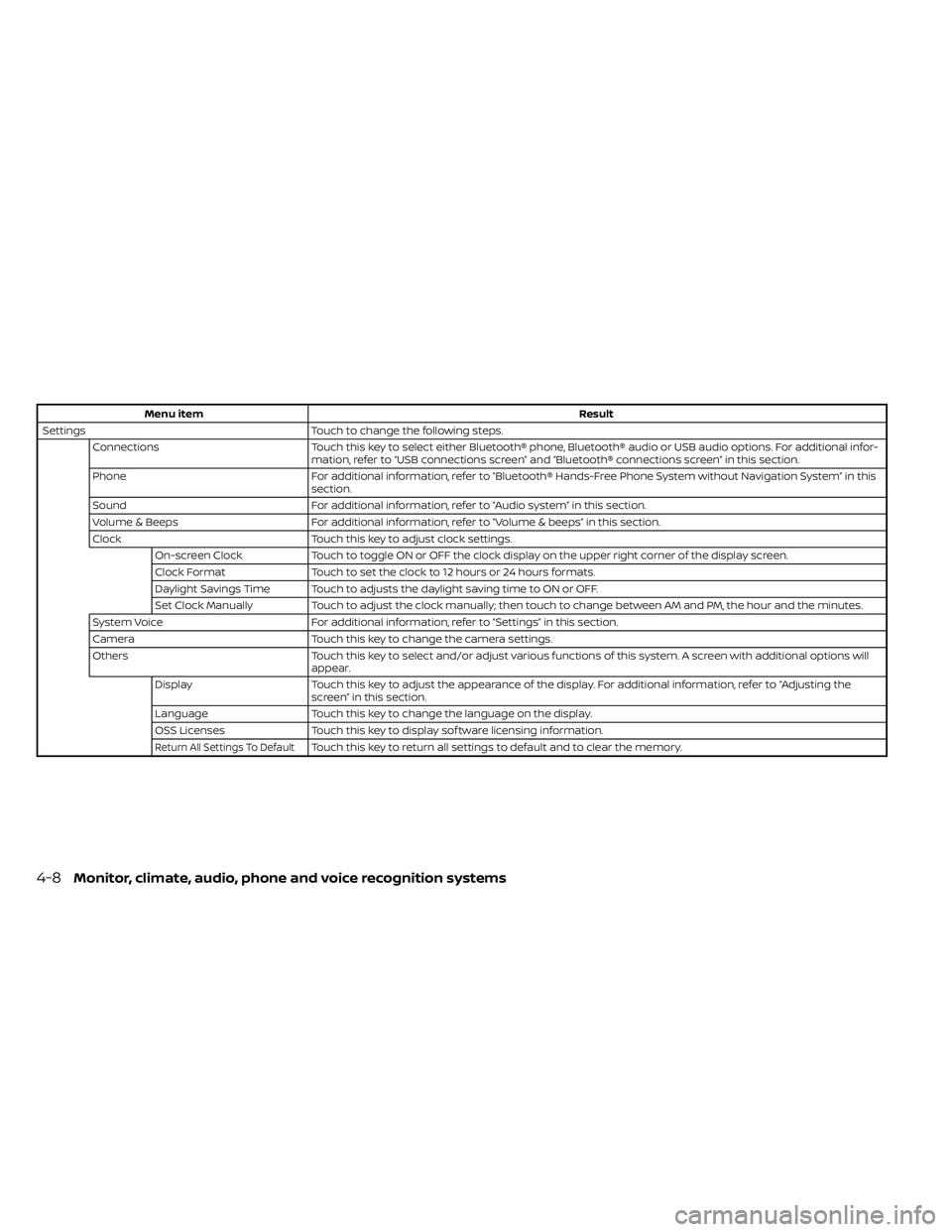
Menu itemResult
Settings Touch to change the following steps.
Connections Touch this key to select either Bluetooth® phone, Bluetooth® audio or USB audio options. For additional infor-
mation, refer to “USB connections screen” and “Bluetooth® connections screen” in this section.
Phone For additional information, refer to “Bluetooth® Hands-Free Phone System without Navigation System” in this
section.
Sound For additional information, refer to “Audio system” in this section.
Volume & Beeps For additional information, refer to “Volume & beeps” in this section.
Clock Touch this key to adjust clock settings.
On-screen Clock Touch to toggle ON or OFF the clock display on the upper right corner of the display screen.
Clock Format Touch to set the clock to 12 hours or 24 hours formats.
Daylight Savings Time Touch to adjusts the daylight saving time to ON or OFF.
Set Clock Manually Touch to adjust the clock manually; then touch to change between AM and PM, the hour and the minutes.
System Voice For additional information, refer to “Settings” in this section.
Camera Touch this key to change the camera settings.
Others Touch this key to select and/or adjust various functions of this system. A screen with additional options will
appear.
Display Touch this key to adjust the appearance of the display. For additional information, refer to “Adjusting the
screen” in this section.
Language Touch this key to change the language on the display.
OSS Licenses Touch this key to display sof tware licensing information.
Return All Settings To DefaultTouch this key to return all settings to default and to clear the memory.
4-8Monitor, climate, audio, phone and voice recognition systems
Page 205 of 492
(brightness control) BUTTON
To change the display brightness, press thebutton. Pressing the button again will
change the display to the day or the night
display.
Press and hold the
button for more
than 2 seconds to turn the display off. Press
and hold the button again to turn the dis-
play on.
HOW TO USE THE VOL (volume)
KNOB / PUSH
(power)
BUTTON
Press the PUSH(power) button to turn
audio function on and off. Turn the VOL
(volume) knob to adjust audio volume.
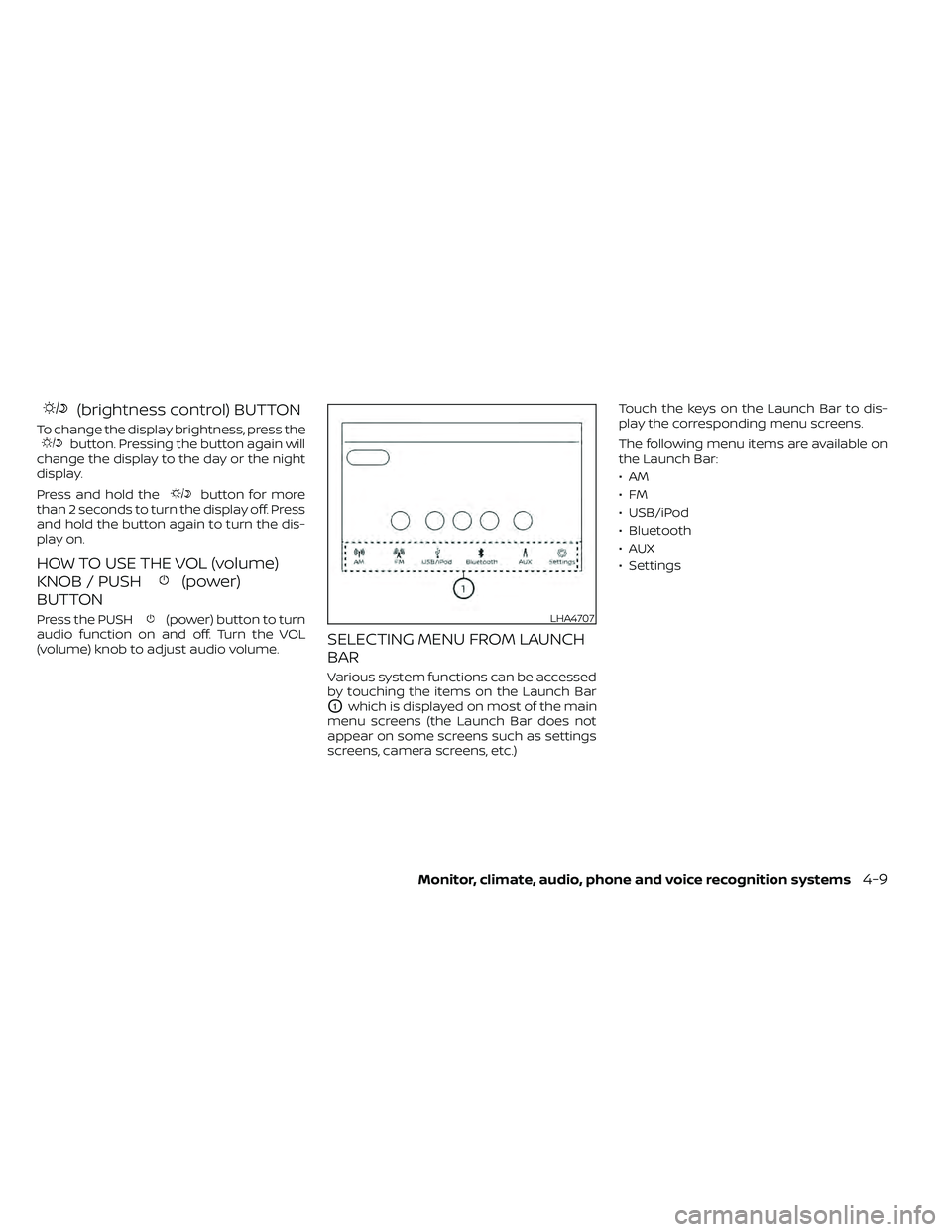
SELECTING MENU FROM LAUNCH
BAR
Various system functions can be accessed
by touching the items on the Launch Bar
O1which is displayed on most of the main
menu screens (the Launch Bar does not
appear on some screens such as settings
screens, camera screens, etc.) Touch the keys on the Launch Bar to dis-
play the corresponding menu screens.
The following menu items are available on
the Launch Bar:
•AM
•FM
• USB/iPod
• Bluetooth
•AUX
• Settings
LHA4707
Monitor, climate, audio, phone and voice recognition systems4-9
Page 206 of 492
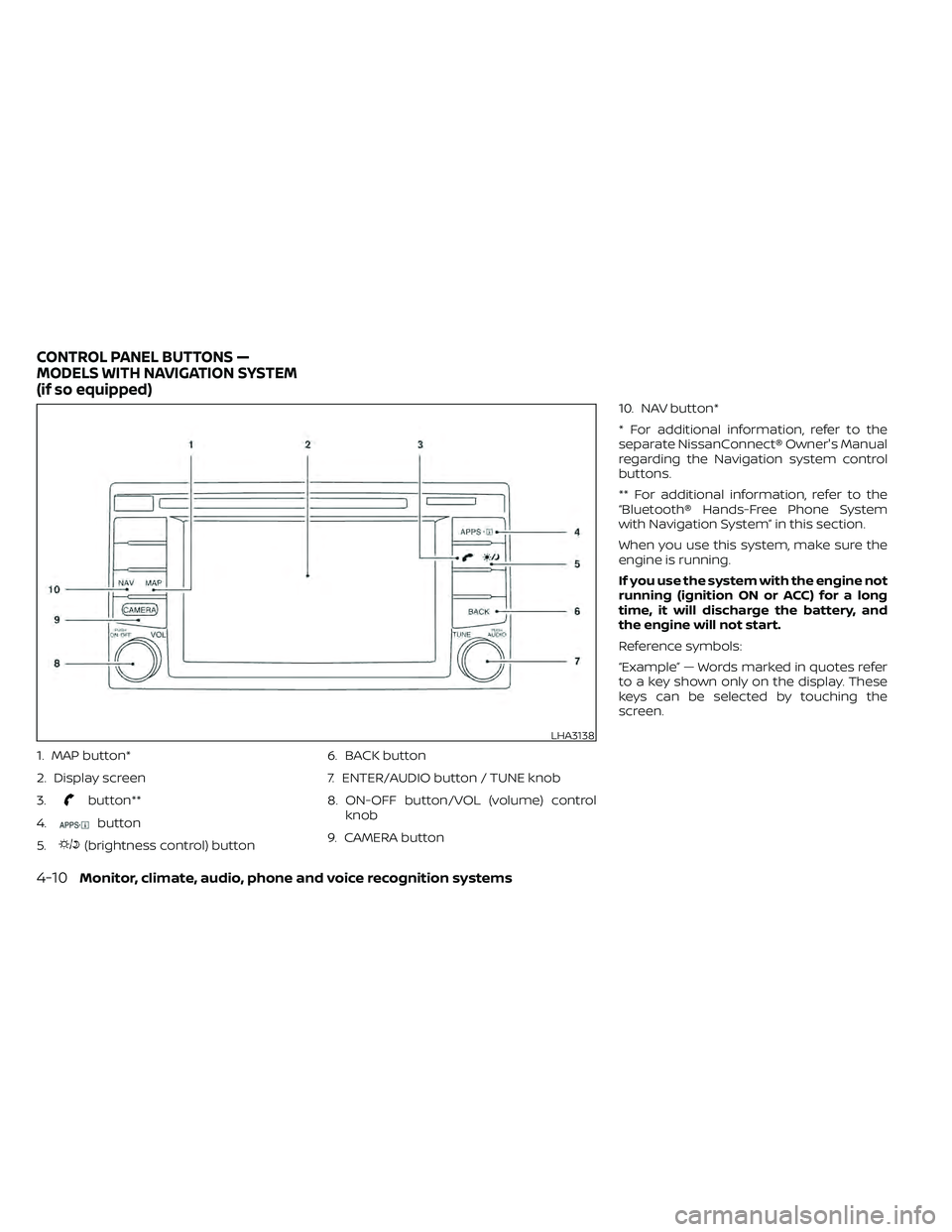
1. MAP button*
2. Display screen
3.
button**
4.
button
5.
(brightness control) button 6. BACK button
7. ENTER/AUDIO button / TUNE knob
8. ON-OFF button/VOL (volume) control
knob
9. CAMERA button 10. NAV button*
* For additional information, refer to the
separate NissanConnect® Owner's Manual
regarding the Navigation system control
buttons.
** For additional information, refer to the
“Bluetooth® Hands-Free Phone System
with Navigation System” in this section.
When you use this system, make sure the
engine is running.
If you use the system with the engine not
running (ignition ON or ACC) for a long
time, it will discharge the battery, and
the engine will not start.
Reference symbols:
“Example” — Words marked in quotes refer
to a key shown only on the display. These
keys can be selected by touching the
screen.
LHA3138
CONTROL PANEL BUTTONS —
MODELS WITH NAVIGATION SYSTEM
(if so equipped)
4-10Monitor, climate, audio, phone and voice recognition systems
Page 207 of 492
HOW TO USE THE TOUCH-SCREEN
CAUTION
• The glass display screen may break if
it is hit with a hard or sharp object. If
the glass screen breaks, do not touch
it. Doing so could result in an injury.
• To clean the display, never use a
rough cloth, alcohol, benzine, thinner
or any kind of solvent or paper towel
with a chemical cleaning agent. They
will scratch or deteriorate the panel.
• Do not splash any liquid such as wa-
ter or car fragrance on the display.
Contact with liquid will cause the sys-
tem to malfunction. To help ensure safe driving, some functions
cannot be operated while driving.
The on-screen functions that are not avail-
able while driving will be grayed out or
muted.
Park the vehicle in a safe location and then
operate the navigation system.
WARNING
• ALWAYS give your full attention to
driving.
• Avoid using vehicle features that
could distract you. If distracted, you
could lose control of your vehicle and
cause an accident.
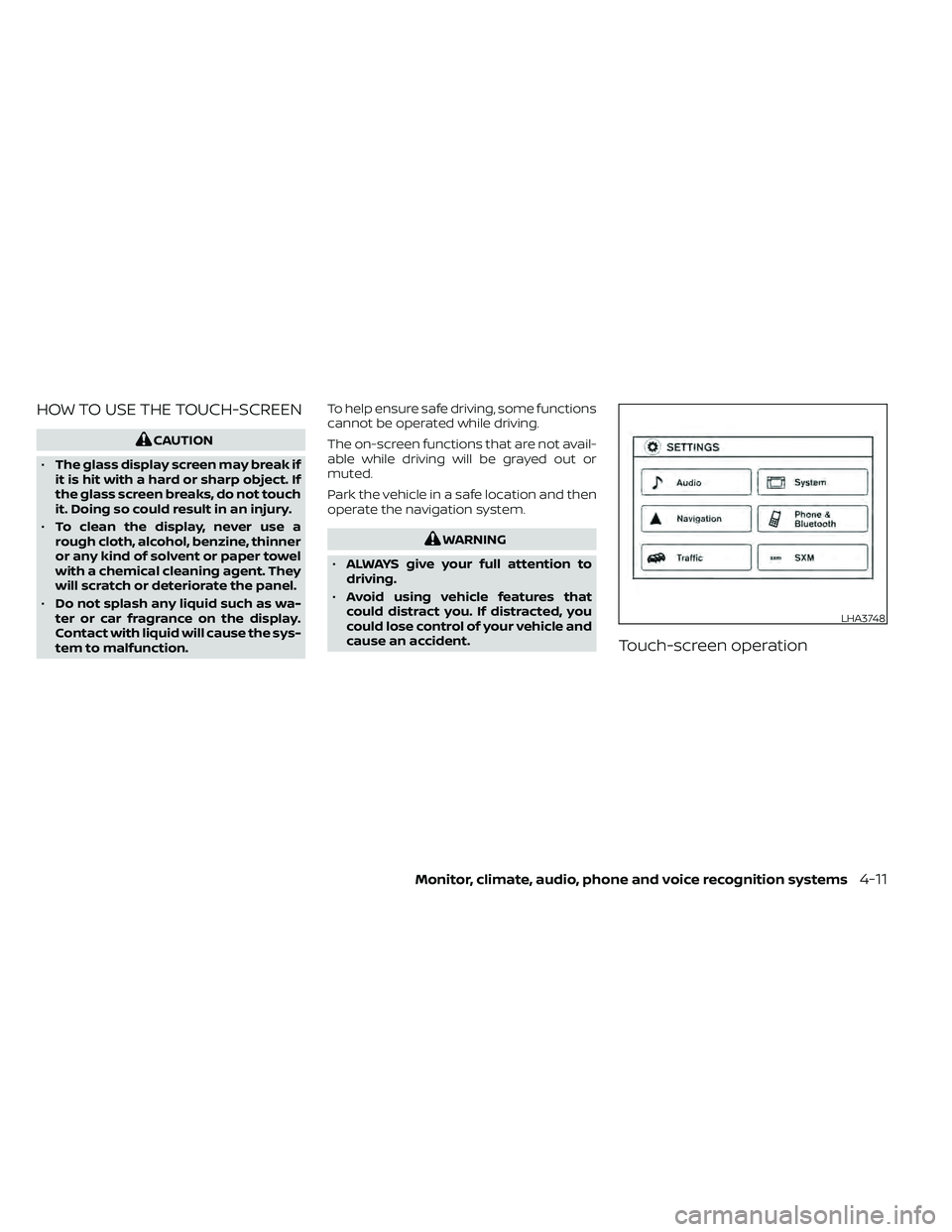
Touch-screen operation
LHA3748
Monitor, climate, audio, phone and voice recognition systems4-11
Page 208 of 492
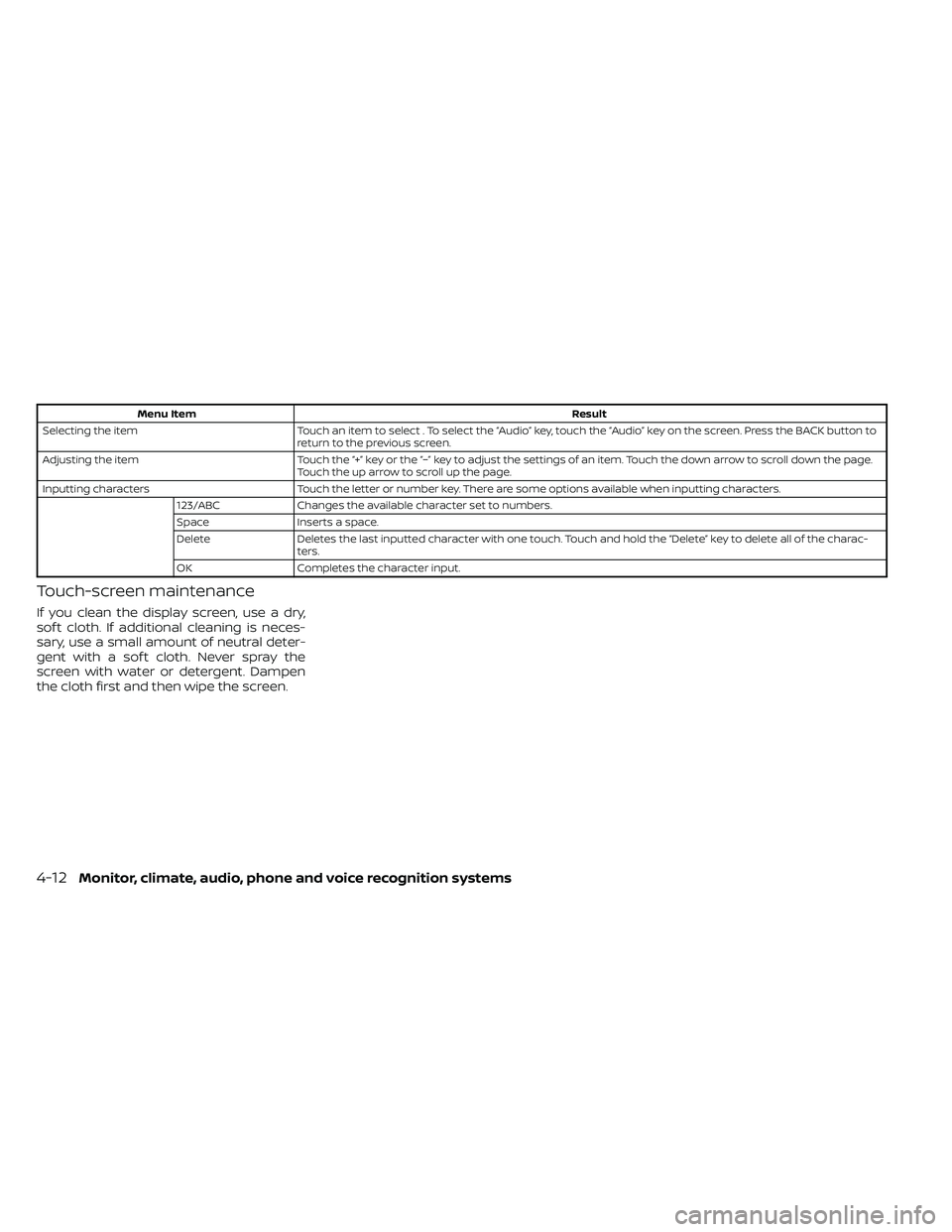
Menu ItemResult
Selecting the item Touch an item to select . To select the “Audio” key, touch the “Audio” key on the screen. Press the BACK button to
return to the previous screen.
Adjusting the item Touch the “+” key or the “−” key to adjust the settings of an item. Touch the down arrow to scroll down the page.
Touch the up arrow to scroll up the page.
Inputting characters Touch the letter or number key. There are some options available when inputting characters.
123/ABC Changes the available character set to numbers.
Space Inserts a space.
Delete Deletes the last inputted character with one touch. Touch and hold the “Delete” key to delete all of the charac-
ters.
OK Completes the character input.
Touch-screen maintenance
If you clean the display screen, use a dry,
sof t cloth. If additional cleaning is neces-
sary, use a small amount of neutral deter-
gent with a sof t cloth. Never spray the
screen with water or detergent. Dampen
the cloth first and then wipe the screen.
4-12Monitor, climate, audio, phone and voice recognition systems
Page 210 of 492
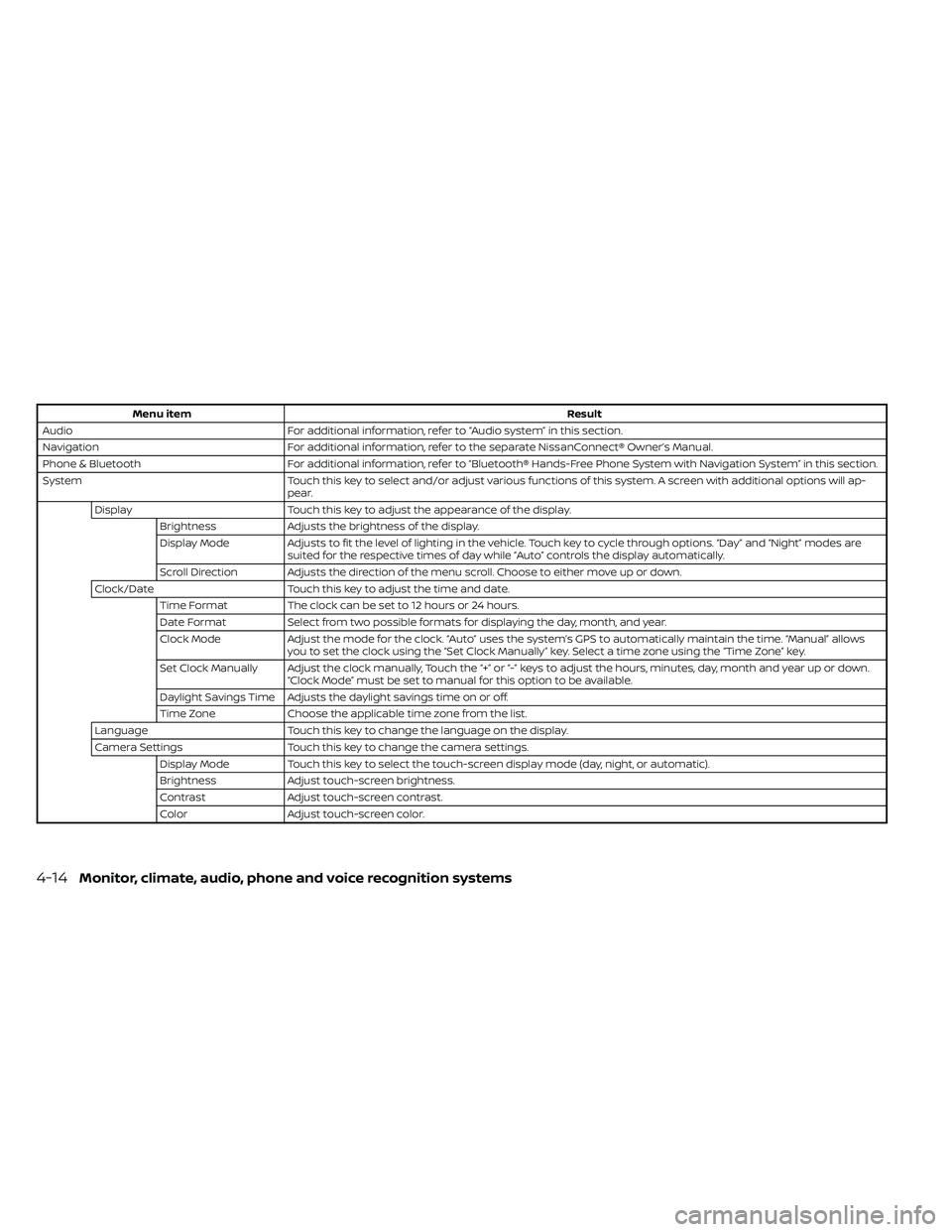
Menu itemResult
Audio For additional information, refer to “Audio system” in this section.
Navigation For additional information, refer to the separate NissanConnect® Owner’s Manual.
Phone & Bluetooth For additional information, refer to “Bluetooth® Hands-Free Phone System with Navigation System” in this section.
System Touch this key to select and/or adjust various functions of this system. A screen with additional options will ap-
pear.
Display Touch this key to adjust the appearance of the display.
Brightness Adjusts the brightness of the display.
Display Mode Adjusts to fit the level of lighting in the vehicle. Touch key to cycle through options. “Day ” and “Night” modes are
suited for the respective times of day while “Auto” controls the display automatically.
Scroll Direction Adjusts the direction of the menu scroll. Choose to either move up or down.
Clock/Date Touch this key to adjust the time and date.
Time Format The clock can be set to 12 hours or 24 hours.
Date Format Select from two possible formats for displaying the day, month, and year.
Clock Mode Adjust the mode for the clock. “Auto” uses the system’s GPS to automatically maintain the time. “Manual” allows
you to set the clock using the “Set Clock Manually ” key. Select a time zone using the “Time Zone” key.
Set Clock Manually Adjust the clock manually, Touch the “+” or “-” keys to adjust the hours, minutes, day, month and year up or down. “Clock Mode” must be set to manual for this option to be available.
Daylight Savings Time Adjusts the daylight savings time on or off.
Time Zone Choose the applicable time zone from the list.
Language Touch this key to change the language on the display.
Camera Settings Touch this key to change the camera settings.
Display Mode Touch this key to select the touch-screen display mode (day, night, or automatic).
Brightness Adjust touch-screen brightness.
Contrast Adjust touch-screen contrast.
Color Adjust touch-screen color.
4-14Monitor, climate, audio, phone and voice recognition systems
Page 211 of 492
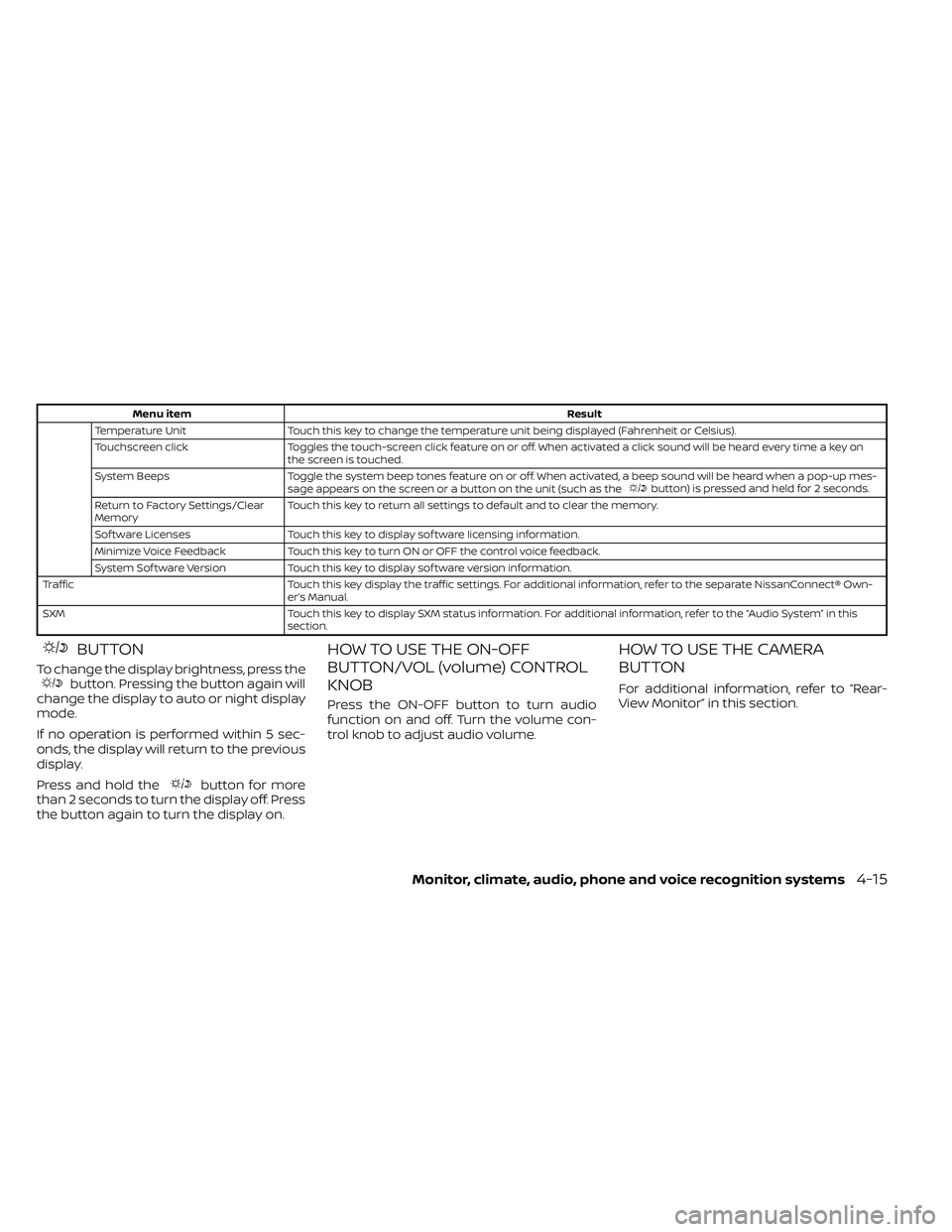
Menu itemResult
Temperature Unit Touch this key to change the temperature unit being displayed (Fahrenheit or Celsius).
Touchscreen click Toggles the touch-screen click feature on or off. When activated a click sound will be heard every time a key on
the screen is touched.
System Beeps Toggle the system beep tones feature on or off. When activated, a beep sound will be heard when a pop-up mes-
sage appears on the screen or a button on the unit (such as the
button) is pressed and held for 2 seconds.
Return to Factory Settings/Clear
Memory Touch this key to return all settings to default and to clear the memory.
Sof tware Licenses Touch this key to display sof tware licensing information.
Minimize Voice Feedback Touch this key to turn ON or OFF the control voice feedback.
System Sof tware Version Touch this key to display sof tware version information.
Traffic Touch this key display the traffic settings. For additional information, refer to the separate NissanConnect® Own- er’s Manual.
SXM Touch this key to display SXM status information. For additional information, refer to the “Audio System” in this section.
BUTTON
To change the display brightness, press thebutton. Pressing the button again will
change the display to auto or night display
mode.
If no operation is performed within 5 sec-
onds, the display will return to the previous
display.
Press and hold the
button for more
than 2 seconds to turn the display off. Press
the button again to turn the display on.
HOW TO USE THE ON-OFF
BUTTON/VOL (volume) CONTROL
KNOB
Press the ON-OFF button to turn audio
function on and off. Turn the volume con-
trol knob to adjust audio volume.
HOW TO USE THE CAMERA
BUTTON
For additional information, refer to “Rear-
View Monitor” in this section.
Monitor, climate, audio, phone and voice recognition systems4-15
Page 213 of 492
•The distance guide line and the ve-
hicle width line should be used as a
reference only when the vehicle is on
a level paved surface. The distance
viewed on the monitor is for refer-
ence only and may be different than
the actual distance between the ve-
hicle and displayed objects.
CAUTION
Do not scratch the camera lens when
cleaning dirt or snow from the front of
the camera.
The RearView Monitor system automati-
cally shows a rear view of the vehicle when
the shif t lever is shif ted into the R (Reverse)
position. Press the CAMERA button (if so
equipped) while in the R (Reverse) position
to cycle through guideline options. The ra-
dio can still be heard while the RearView
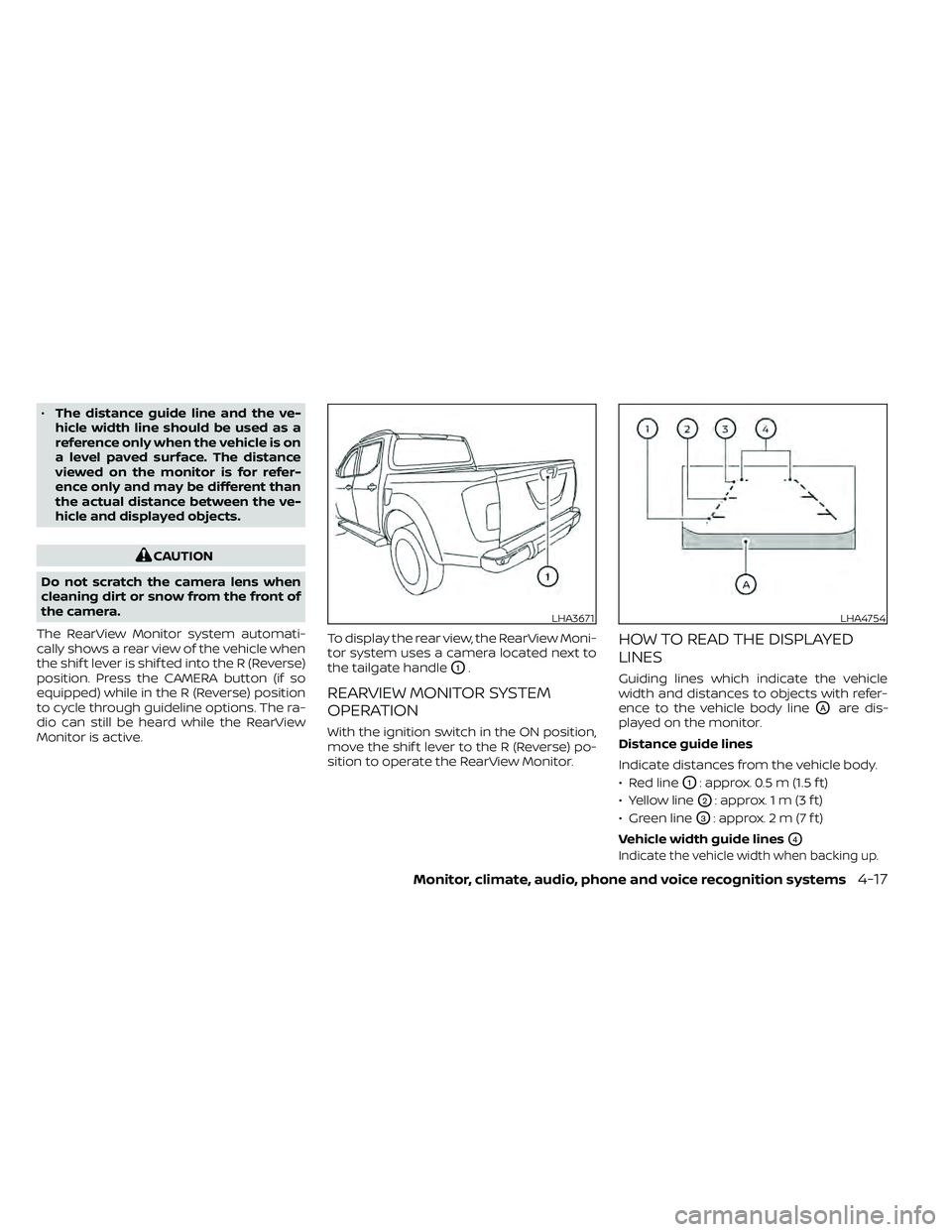
Monitor is active. To display the rear view, the RearView Moni-
tor system uses a camera located next to
the tailgate handle
O1.
REARVIEW MONITOR SYSTEM
OPERATION
With the ignition switch in the ON position,
move the shif t lever to the R (Reverse) po-
sition to operate the RearView Monitor.
HOW TO READ THE DISPLAYED
LINES
Guiding lines which indicate the vehicle
width and distances to objects with refer-
ence to the vehicle body line
OAare dis-
played on the monitor.
Distance guide lines
Indicate distances from the vehicle body.
• Red line
O1: approx. 0.5 m (1.5 f t)
• Yellow line
O2: approx. 1 m (3 f t)
• Green line
O3: approx. 2 m (7 f t)
Vehicle width guide lines
O4
Indicate the vehicle width when backing up.
LHA3671LHA4754
Monitor, climate, audio, phone and voice recognition systems4-17
Page 214 of 492
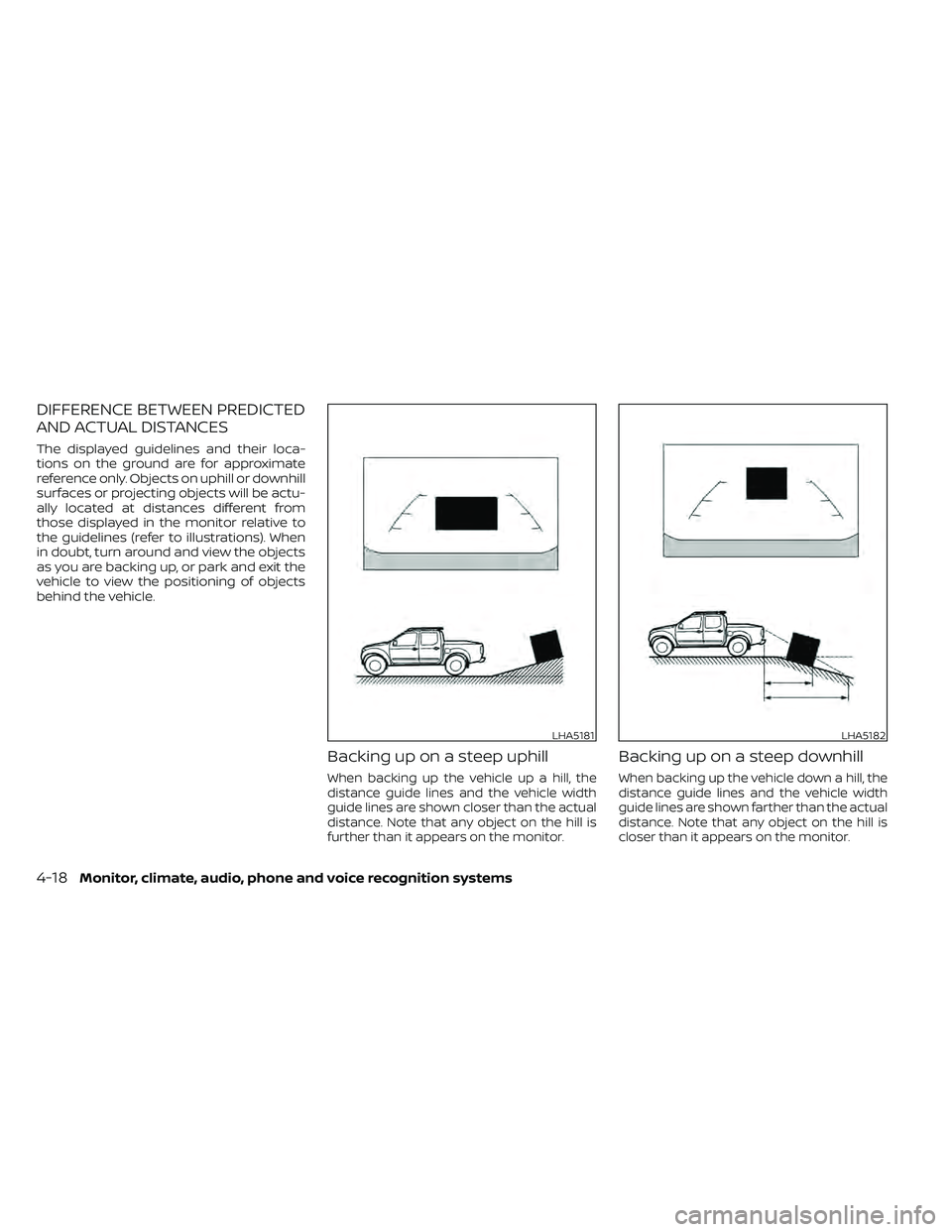
DIFFERENCE BETWEEN PREDICTED
AND ACTUAL DISTANCES
The displayed guidelines and their loca-
tions on the ground are for approximate
reference only. Objects on uphill or downhill
surfaces or projecting objects will be actu-
ally located at distances different from
those displayed in the monitor relative to
the guidelines (refer to illustrations). When
in doubt, turn around and view the objects
as you are backing up, or park and exit the
vehicle to view the positioning of objects
behind the vehicle.
Backing up on a steep uphill
When backing up the vehicle up a hill, the
distance guide lines and the vehicle width
guide lines are shown closer than the actual
distance. Note that any object on the hill is
further than it appears on the monitor.
Backing up on a steep downhill
When backing up the vehicle down a hill, the
distance guide lines and the vehicle width
guide lines are shown farther than the actual
distance. Note that any object on the hill is
closer than it appears on the monitor.
LHA5181LHA5182
4-18Monitor, climate, audio, phone and voice recognition systems
Page 215 of 492
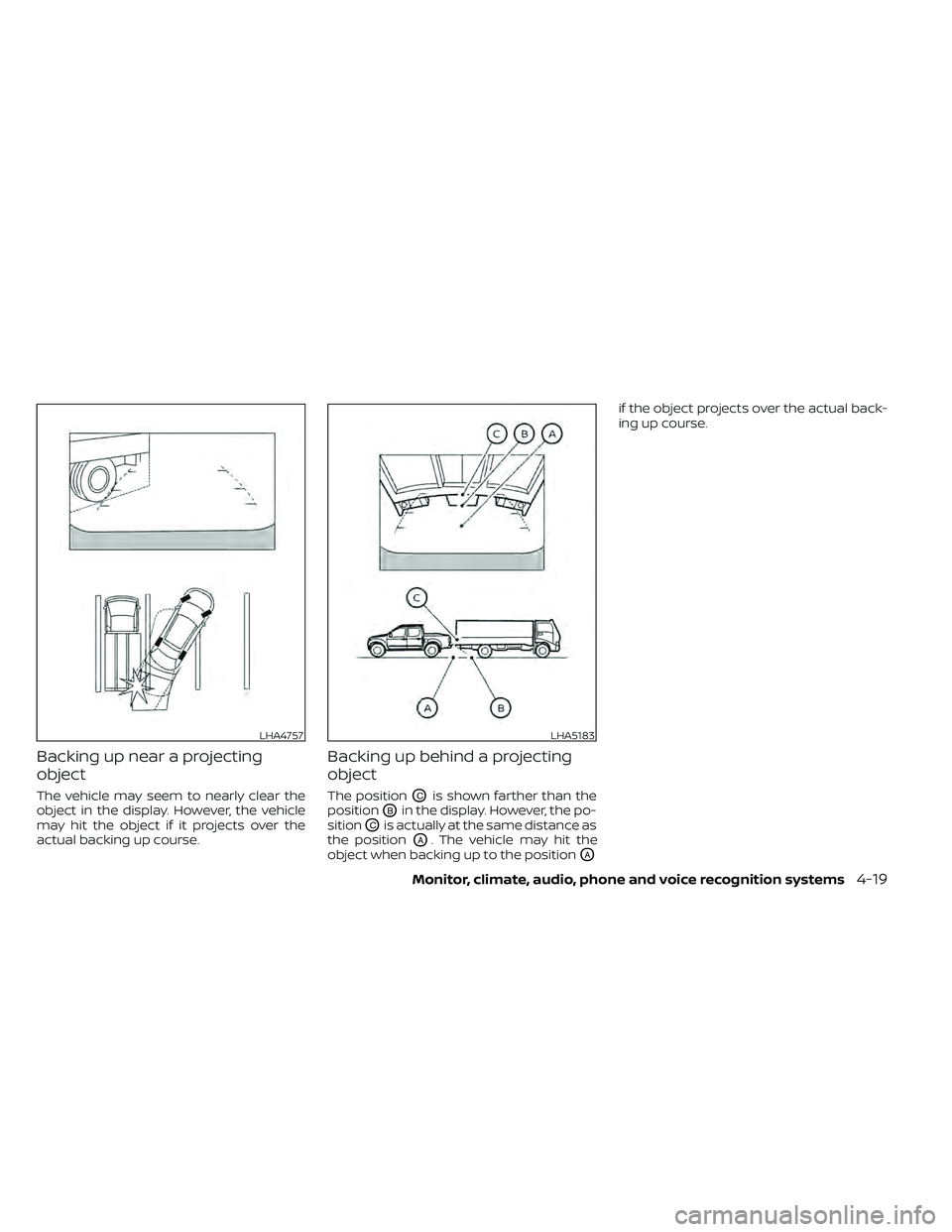
Backing up near a projecting
object
The vehicle may seem to nearly clear the
object in the display. However, the vehicle
may hit the object if it projects over the
actual backing up course.
Backing up behind a projecting
object
The positionOCis shown farther than the
position
OBin the display. However, the po-
sition
OCis actually at the same distance as
the position
OA. The vehicle may hit the
object when backing up to the position
OA
if the object projects over the actual back-
ing up course.
LHA4757LHA5183
Monitor, climate, audio, phone and voice recognition systems4-19