climate control NISSAN FRONTIER 2021 Owner's Guide
[x] Cancel search | Manufacturer: NISSAN, Model Year: 2021, Model line: FRONTIER, Model: NISSAN FRONTIER 2021Pages: 492, PDF Size: 2.86 MB
Page 278 of 492
Operating tips
To get the best performance out of the
NISSAN Voice Recognition System, observe
the following:
• Keep the interior of the vehicle as quiet aspossible. Keep all vents pointed away
from the microphone and close the win-
dows to eliminate surrounding noises
(traffic noises, vibration sounds, etc.),
which may prevent the system from rec-
ognizing voice commands correctly.
• Wait until the tone sounds before speak- ing a command. Otherwise, the com-
mand will not be received properly.
• Start speaking a command within 5 sec- onds af ter the tone sounds.
• Speak in a natural voice without pausing between words.
• For calling contacts by name, please say both the first and last name of the con-
tact for better recognition.
Giving voice commands
To operate NISSAN Voice Recognition,
press thebutton located on the
steering wheel for less than 1.5 seconds.
Af ter the tone sounds, speak a command.
The command given is picked up by the
microphone, and voice feedback is given
when the command is accepted.
• If a command is not recognized, the sys- tem announces, “Please say or select a
command from the displayed list.” Make
sure the command is said exactly as
prompted by the system and repeat the
command in a clear voice.
• If you want to go back to the previous command, you can say “Go back” any
time the system is waiting for a response.
• You can cancel a command when the system is waiting for a response by say-
ing, “Cancel” or “Quit.” The system an-
nounces “Exit” and ends the Voice Recog-
nition session. You can also press and
hold the
button on the steering
wheel for 1.5 seconds at any time to end
the Voice Recognition session. Whenever
the Voice Recognition session is can-
celed, a double beep is played to indicate
you have exited the system. • If you want to adjust the volume of the
voice feedback, push the (+ or -) volume
control switches on the steering wheel
while being provided with feedback. You
can also use the radio volume control
knob.
Voice Prompt Interrupt
In most cases you can interrupt the voice
feedback to speak the next command by
pressing the
button on the steering
wheel. Af ter interrupting the system, wait
for a beep before speaking your command.
One Shot Call (if so equipped)
To use the system faster, you may speak
the second level commands with the main
menu command on the main menu. For
example, press the
button and af ter
the tone say, “Call Redial”.
4-82Monitor, climate, audio, phone and voice recognition systems
Page 284 of 492
MAKING A CALL
To make a call press thebutton on the
control panel. Touch an option from menu
screen:
• Phonebook Select a person and the phone number
you wish to call from the phonebook.
Depending on the device, the phonebook
will be downloaded from the cellular
phone automatically when it is con-
nected. If the automatic download does
not take place, the phone number must
be transferred to the hands-free phone
system from the cellular phone prior to
using this method. For additional infor-
mation, refer to “Phone and text message
settings” in this section.
• Call History Select a phonebook name or phone
number from the recent incoming, out-
going or missed calls tabs. Touch a
phonebook name or phone number
listed to initiate the call.
• Dial Number Enter the phone number manually using
the keypad displayed on the screen.
Touch the “OK” key on the screen to initi-
ate the call.
For additional options to make a call, refer
to “Voice commands” in this section.
Quick Dial
Quick Dial entries can be used to quickly
make a call. The system allows up to 20
entries to be stored. To set up a quick dial
press the
button on the control panel.
Touch the “Quick Dial” key to display a list of
quick dial entries. Touch the “Edit” key to
edit current entries or touch the “Add New”
key to make a new entry. Two methods are
given to create a quick dial entry:
• Touch the “Copy from Call History ” key to save a phone number from the Incoming,
Outgoing or Missed call history lists. Se-
lect the person or phone number from
the menu to be added. A registration
menu will display the Entry #, phone num-
ber, phone number type stored in the cel-
lular phone and Voice Tag. Touch the “OK”
key.
• Touch the “Copy from Phonebook” key to save a number from the phonebook. Use
the scroll keys on the side to move up and
down through the menu. Select a person
to be added. A menu will display the Entry
#, phone number, phone number type
stored in the cellular phone and Voice
Tag. Touch the “OK” key.
Voice tag
A voice tag can be recorded for each of the
registered Quick Dial numbers and can be
used to dial the number by speaking it. On
the Quick Dial registration screen, touch
the “Voice Tag” key. Select a relationship
from the list or create a new voice tag. To
record a new voice tag touch the “Custom-
ize” key on the screen then touch the “Store”
key. Speak a name af ter the prompt, the
new tag will be stored. To edit or create a
new voice tag touch the “Customize” key
again. Touch the “Play ” key to play the re-
corded voice tag, touch the “Restore” key to
edit the voice tag or “Delete” to delete the
current voice tag.
RECEIVING A CALL
When a call is received by the phone con-
nected to the vehicle’s Bluetooth® Hands-
Free Phone System, the call information is
displayed on the control panel display.
Press the
button on the steering
wheel or touch the “Answer” key on
the screen to accept the call. To reject the
call touch the “
Decline” key on the
screen.
4-88Monitor, climate, audio, phone and voice recognition systems
Page 286 of 492
NOTE:
This feature is automatically disabled if
the connected device does not support
the Message Access Profile (MAP). For
additional information, refer to the
phone’s owner’s manual for details and
instructions.
NOTE:
Many phones may require special per-
mission to enable text messaging. Check
the phone’s screen during Bluetooth®
pairing. For some phones, you may need
to enable ‘Notifications’ in the phone’s
Bluetooth® menu for text messages to
appear on the headunit. For additional
information, refer to your phone’s own-
er’s manual. Text message integration
requires that the phone support MAP
(Message Access Profile) for both receiv-
ing and sending text messages. Some
phones may not support all text mes-
saging features. Please refer to
www.nissanusa.com/bluetooth or
www.nissan.ca/bluetooth for compat-
ibility information, as well as your de-
vice’s owner’s manual.
The system allows for the sending and re-
ceiving of text messages through the ve-
hicle interface.The availability of the text message func-
tion may vary depending on the cellular
phone.
When the cellular phone connected to the
vehicle receives a text message, a notifica-
tion will appear on the control panel dis-
play. To check the message, touch the
“Read” key. Touch the “Ignore” key to save
the message to be checked later.
Access text messaging through the ve-
hicles Bluetooth® Hands-Free Phone or
through the vehicles control panel.
Text messaging using Bluetooth®
Hands-Free Phone System (if so
equipped)
Sending a text message (if so equipped)
1. Press and hold the
button on the
steering wheel for less than 1.5 seconds.
2. Say “Send Text” af ter the tone.
3. The system will provide a list of available commands in order to determine the
recipient of the text message. Choose
from the following:
• Phonebook
• Quick Dial
• Incoming Calls • Outgoing Calls
• Missed Calls
• Dial
4. Once a recipient is chosen, the system prompts for which message to send.
Nine predefined messages are available
as well as three custom messages. To
choose one of the predefined mes-
sages, speak one of the following af ter
the tone:
• “Driving, can't text”
• “Call me”
• “On my way ”
• “Running late”
• “Okay ”
• “Yes”
• “No”
• “Where are you?”
• “When?”
To send one of the custom messages, say
“Custom Messages”. If more than one cus-
tom message is stored, the system will
prompt for the number of the desired cus-
tom message. For additional information
on setting and managing custom text
messages, refer to “Phone and text mes-
sage settings” in this section.
4-90Monitor, climate, audio, phone and voice recognition systems
Page 287 of 492
Reading a received text message
1. Press and hold the
button on the
steering wheel for less than 1.5 seconds.
2. Say “Read Text” af ter the tone.
The display will show a list of 20 messages
with the sender and delivery time. Touch
the “Next” key on the screen to view all mes-
sages. To view a text message press the
button on the steering wheel and
speak the number item list on the screen.
The following options will be available:
• Play Speak this command to have the system
say the message.
• Reply Speak this command to send a text mes-
sage response to the sender of the text
message.
• Call Speak this command to call the sender.
• Previous Speak this command to move to the pre-
vious text message (if available).
•Next Speak this command to move to the next
text message (if available). Siri® Eyes Free (if so equipped)
If a connected phone is equipped with Siri®,
it can also be used to create custom mes-
sages that are sent through the phone. For
additional information, refer to “Siri® Eyes
Free (models without Navigation System)”
in this section.
NOTE:
Text messages are only displayed if the
vehicle speed is less than 5 mph (8 km/h).
NOTE:
For Apple iPhones®, text messages can
only be sent through Siri.
Text messaging using the control
panel
Display received message list
1. Press the
button on the control
panel.
2. Touch the “Text Message” key on the screen
3. Touch an item on the list to read or reply to the message.
Up to 100 messages can be stored in the
message list. Received message screen
Touching the “Read” key on the incoming
message notification screen or selecting a
message from the message list will show
the details of the received message on the
display.
Available actions:
•Prev.
Touch this key to read the previous mes-
sage.
•Next Touch this key to read the next message.
• Play/Stop Touch the “Play ” key to have the hands-
free phone system read out the received
message. Touch the “Stop” key to stop
reading.
• Call If the sender of the message is registered
in the phonebook, touch the “Call” key to
make a call to the sender.
• Reply A reply message can be selected from
the predefined list or by a custom mes-
sage.
Monitor, climate, audio, phone and voice recognition systems4-91
Page 288 of 492
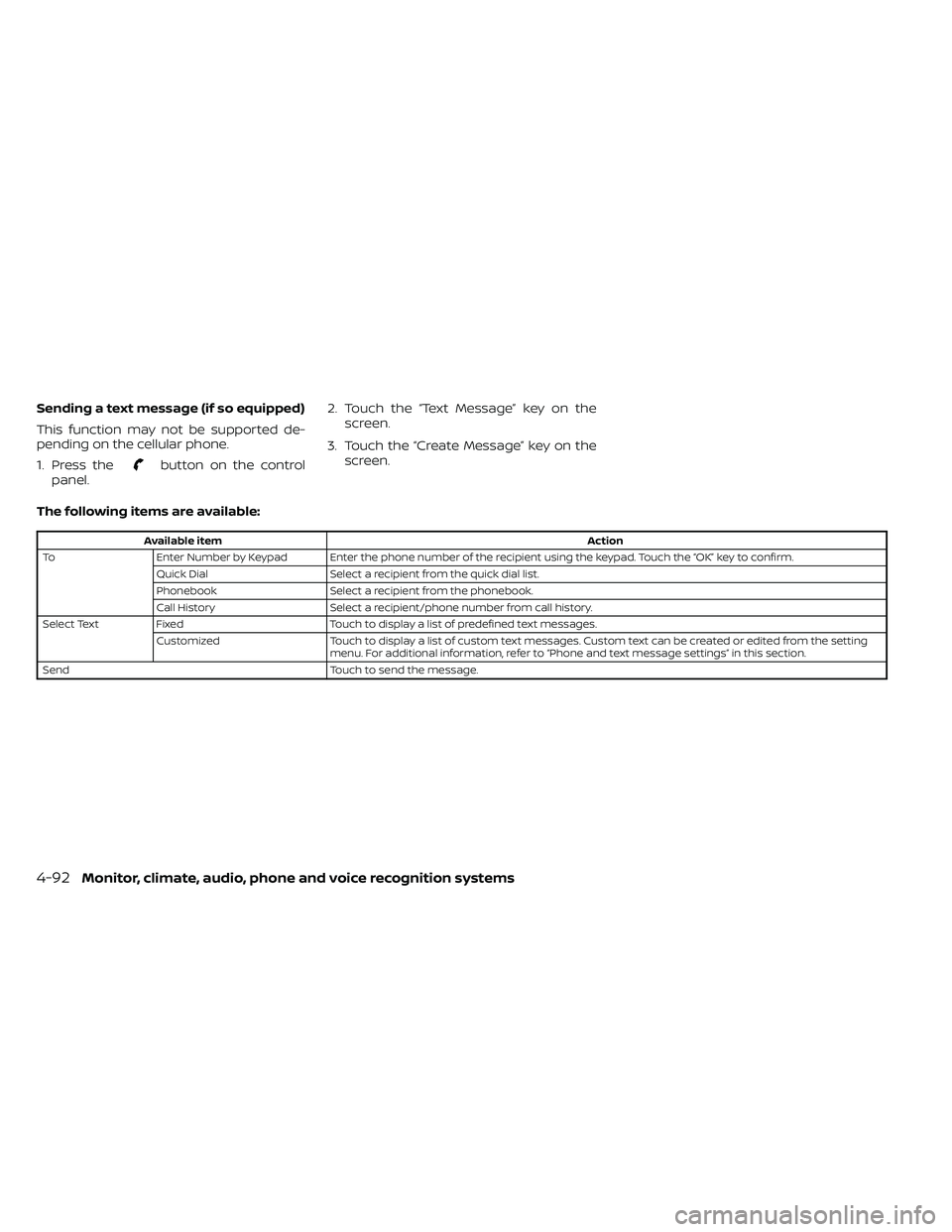
Sending a text message (if so equipped)
This function may not be supported de-
pending on the cellular phone.
1. Press the
button on the control
panel. 2. Touch the “Text Message” key on the
screen.
3. Touch the “Create Message” key on the screen.
The following items are available:
Available item Action
To Enter Number by Keypad Enter the phone number of the recipient using the keypad. Touch the “OK” key to confirm.
Quick Dial Select a recipient from the quick dial list.
Phonebook Select a recipient from the phonebook.
Call History Select a recipient/phone number from call history.
Select Text Fixed Touch to display a list of predefined text messages.
Customized Touch to display a list of custom text messages. Custom text can be created or edited from the setting
menu. For additional information, refer to “Phone and text message settings” in this section.
Send Touch to send the message.
4-92Monitor, climate, audio, phone and voice recognition systems
Page 290 of 492
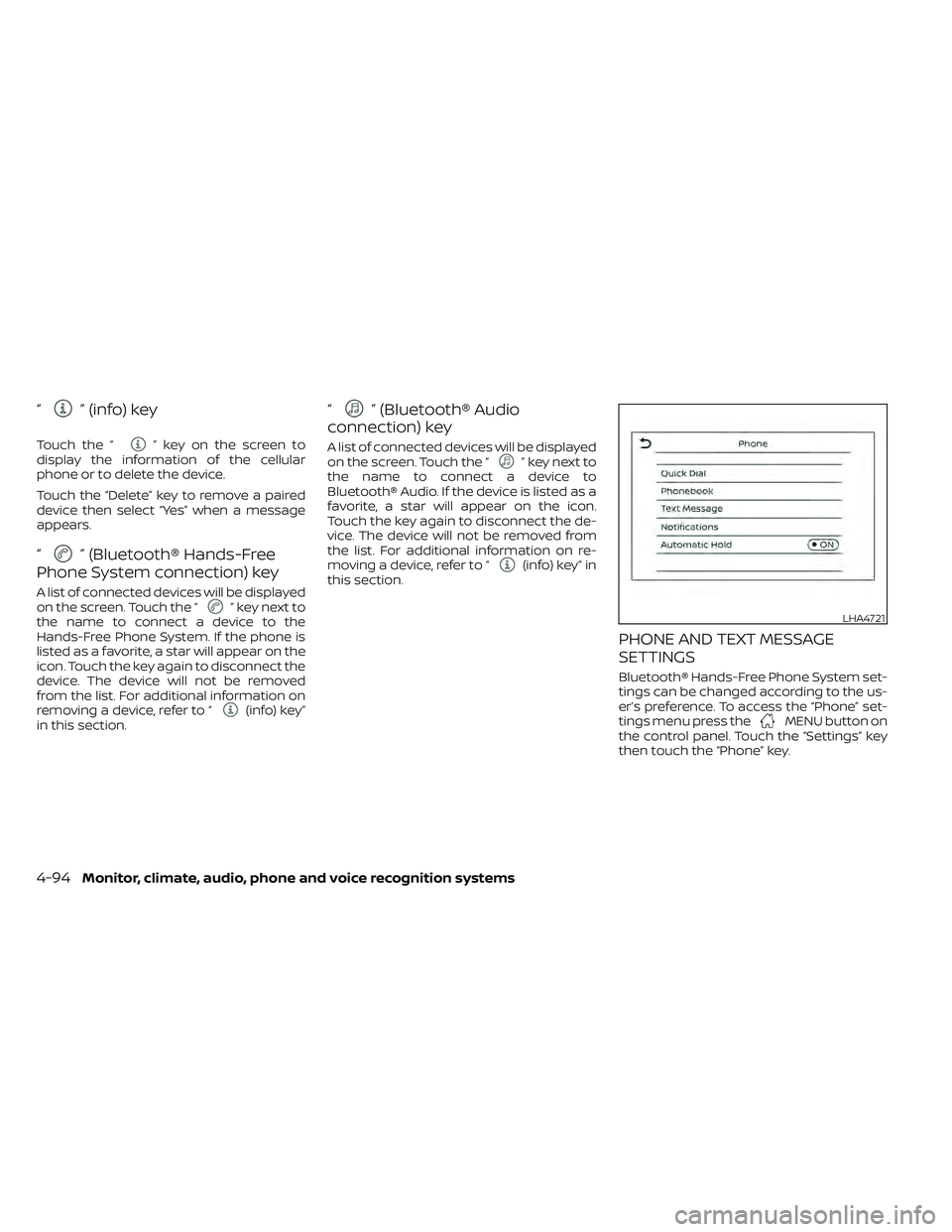
“” (info) key
Touch the “” key on the screen to
display the information of the cellular
phone or to delete the device.
Touch the “Delete” key to remove a paired
device then select “Yes” when a message
appears.
“” (Bluetooth® Hands-Free
Phone System connection) key
A list of connected devices will be displayed
on the screen. Touch the “” key next to
the name to connect a device to the
Hands-Free Phone System. If the phone is
listed as a favorite, a star will appear on the
icon. Touch the key again to disconnect the
device. The device will not be removed
from the list. For additional information on
removing a device, refer to “
(info) key”
in this section.
“” (Bluetooth® Audio
connection) key
A list of connected devices will be displayed
on the screen. Touch the “” key next to
the name to connect a device to
Bluetooth® Audio. If the device is listed as a
favorite, a star will appear on the icon.
Touch the key again to disconnect the de-
vice. The device will not be removed from
the list. For additional information on re-
moving a device, refer to “
(info) key” in
this section.
PHONE AND TEXT MESSAGE
SETTINGS
Bluetooth® Hands-Free Phone System set-
tings can be changed according to the us-
er’s preference. To access the “Phone” set-
tings menu press the
MENU button on
the control panel. Touch the “Settings” key
then touch the “Phone” key.
LHA4721
4-94Monitor, climate, audio, phone and voice recognition systems
Page 292 of 492
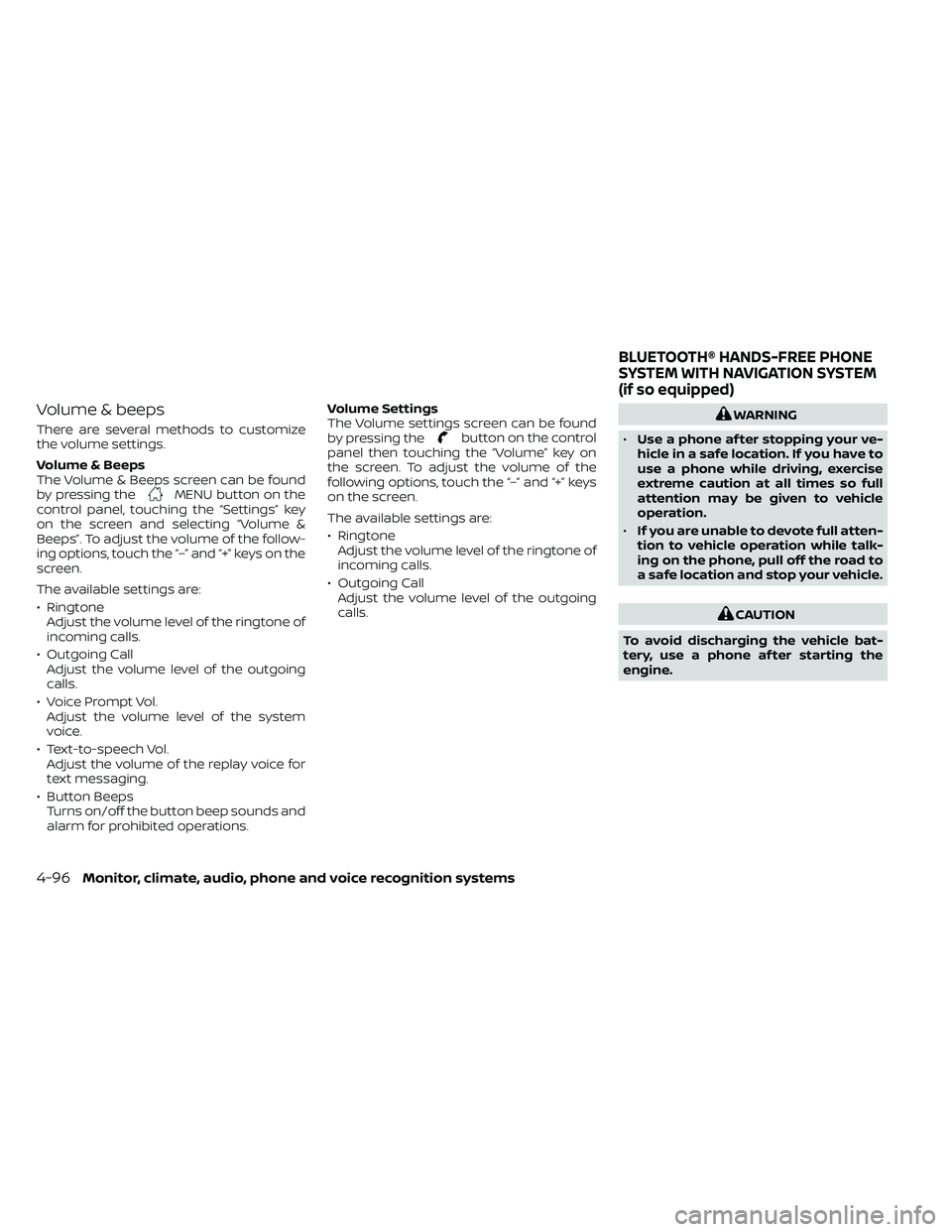
Volume & beeps
There are several methods to customize
the volume settings.
Volume & Beeps
The Volume & Beeps screen can be found
by pressing the
MENU button on the
control panel, touching the “Settings” key
on the screen and selecting “Volume &
Beeps”. To adjust the volume of the follow-
ing options, touch the “–” and “+” keys on the
screen.
The available settings are:
• Ringtone Adjust the volume level of the ringtone of
incoming calls.
• Outgoing Call Adjust the volume level of the outgoing
calls.
• Voice Prompt Vol. Adjust the volume level of the system
voice.
• Text-to-speech Vol. Adjust the volume of the replay voice for
text messaging.
• Button Beeps Turns on/off the button beep sounds and
alarm for prohibited operations. Volume Settings
The Volume settings screen can be found
by pressing the
button on the control
panel then touching the “Volume” key on
the screen. To adjust the volume of the
following options, touch the “–” and “+” keys
on the screen.
The available settings are:
• Ringtone Adjust the volume level of the ringtone of
incoming calls.
• Outgoing Call Adjust the volume level of the outgoing
calls.
CAUTION
To avoid discharging the vehicle bat-
tery, use a phone af ter starting the
engine.
BLUETOOTH® HANDS-FREE PHONE
SYSTEM WITH NAVIGATION SYSTEM
(if so equipped)
4-96Monitor, climate, audio, phone and voice recognition systems
Page 304 of 492
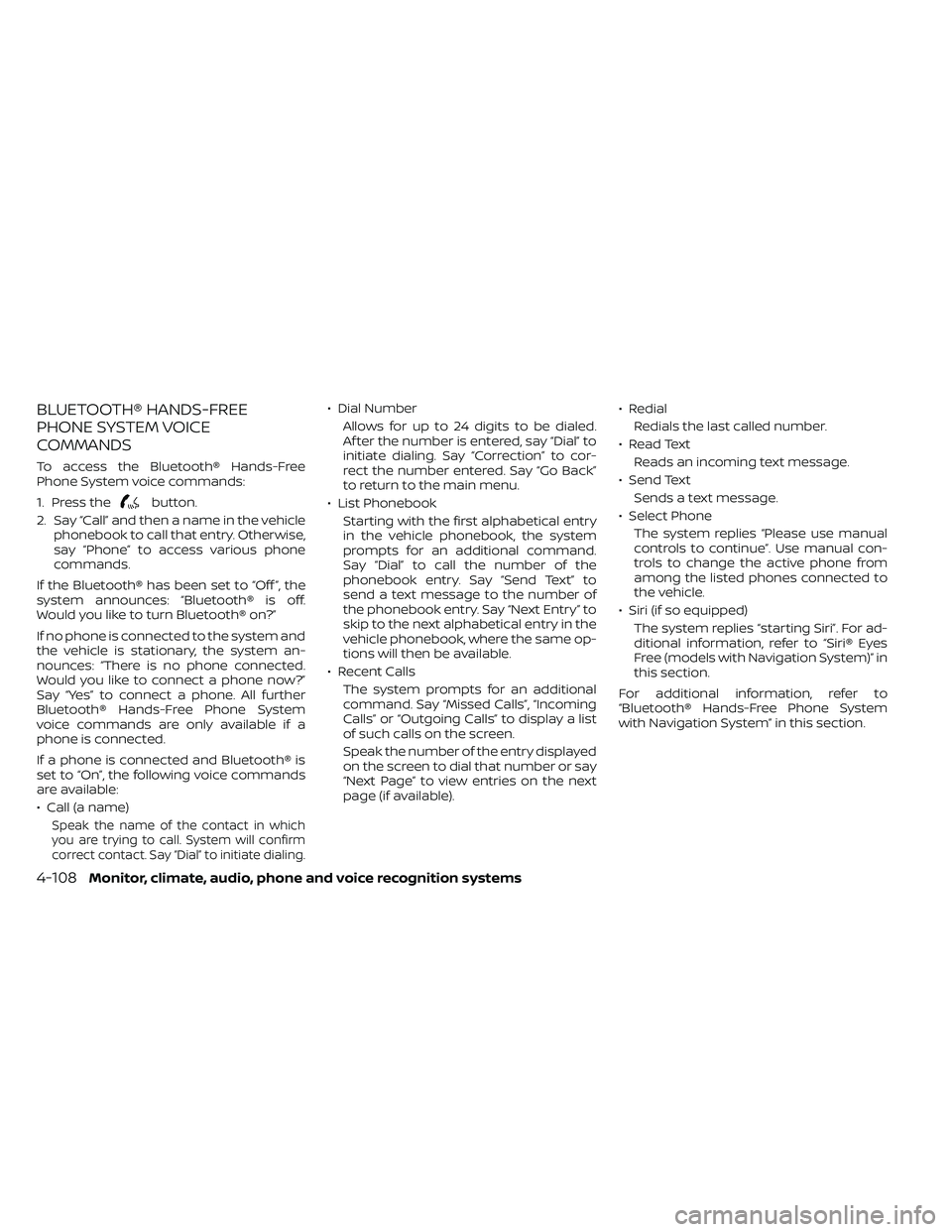
BLUETOOTH® HANDS-FREE
PHONE SYSTEM VOICE
COMMANDS
To access the Bluetooth® Hands-Free
Phone System voice commands:
1. Press the
button.
2. Say “Call” and then a name in the vehicle phonebook to call that entry. Otherwise,
say “Phone” to access various phone
commands.
If the Bluetooth® has been set to “Off ”, the
system announces: “Bluetooth® is off.
Would you like to turn Bluetooth® on?”
If no phone is connected to the system and
the vehicle is stationary, the system an-
nounces: “There is no phone connected.
Would you like to connect a phone now?”
Say “Yes” to connect a phone. All further
Bluetooth® Hands-Free Phone System
voice commands are only available if a
phone is connected.
If a phone is connected and Bluetooth® is
set to “On”, the following voice commands
are available:
• Call (a name)
Speak the name of the contact in which
you are trying to call. System will confirm
correct contact. Say “Dial” to initiate dialing.
• Dial Number Allows for up to 24 digits to be dialed.
Af ter the number is entered, say “Dial” to
initiate dialing. Say “Correction” to cor-
rect the number entered. Say “Go Back”
to return to the main menu.
• List Phonebook Starting with the first alphabetical entry
in the vehicle phonebook, the system
prompts for an additional command.
Say “Dial” to call the number of the
phonebook entry. Say “Send Text” to
send a text message to the number of
the phonebook entry. Say “Next Entry” to
skip to the next alphabetical entry in the
vehicle phonebook, where the same op-
tions will then be available.
• Recent Calls The system prompts for an additional
command. Say “Missed Calls”, “Incoming
Calls” or “Outgoing Calls” to display a list
of such calls on the screen.
Speak the number of the entry displayed
on the screen to dial that number or say
“Next Page” to view entries on the next
page (if available). • Redial
Redials the last called number.
• Read Text Reads an incoming text message.
• Send Text Sends a text message.
• Select Phone The system replies “Please use manual
controls to continue”. Use manual con-
trols to change the active phone from
among the listed phones connected to
the vehicle.
• Siri (if so equipped) The system replies “starting Siri”. For ad-
ditional information, refer to “Siri® Eyes
Free (models with Navigation System)” in
this section.
For additional information, refer to
“Bluetooth® Hands-Free Phone System
with Navigation System” in this section.
4-108Monitor, climate, audio, phone and voice recognition systems
Page 320 of 492
AUTO ACC:
With the vehicle in the P (Park) position, the
Intelligent Key with you, and the ignition
switch placed from the ON to the OFF po-
sition, the radio can still be used for a period
of time, or until the driver’s door is opened.
Af ter a period of time, functions such as
radio, navigation, and Bluetooth® Hands-
Free Phone System may be restarted by
pressing the “ON-OFF button/VOLUME
control knob” or the key fob unlock button.
For additional information, refer to “Monitor,
climate, audio, phone and voice recogni-
tion systems” in this manual.
EMERGENCY ENGINE SHUT OFF
To shut off the engine in an emergency
situation while driving, perform the follow-
ing procedure:
• Rapidly push the ignition switch threeconsecutive times in less than 1.5 sec-
onds, or
• Push and hold the ignition switch for more than 2 seconds.
NISSAN INTELLIGENT KEY®
BATTERY DISCHARGE
If the battery of the NISSAN Intelligent Key®
is discharged or environmental conditions
interfere with the Intelligent Key operation,
start the engine according to the following
procedure:
1. Place the shif t lever in the P (Park) position.
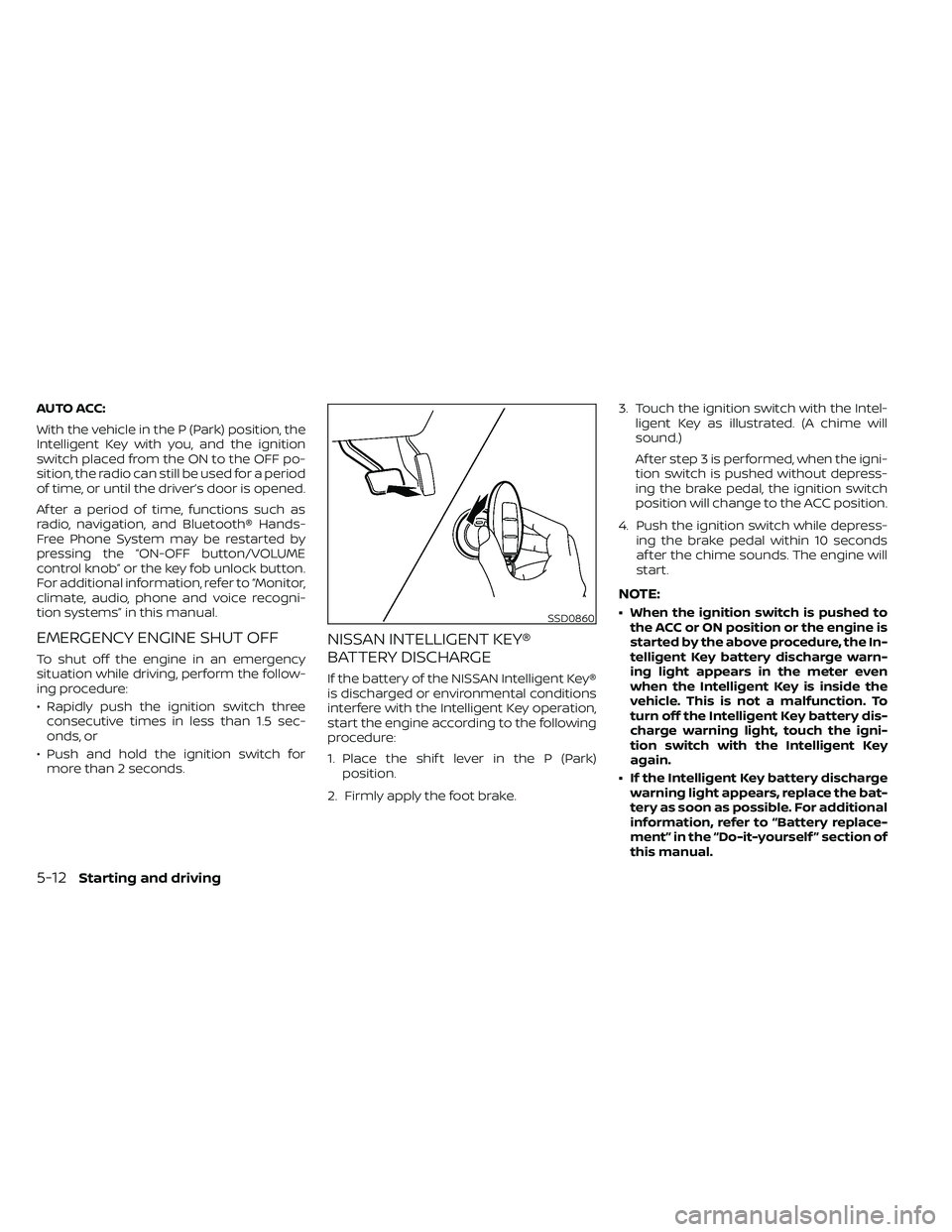
2. Firmly apply the foot brake. 3. Touch the ignition switch with the Intel-
ligent Key as illustrated. (A chime will
sound.)
Af ter step 3 is performed, when the igni-
tion switch is pushed without depress-
ing the brake pedal, the ignition switch
position will change to the ACC position.
4. Push the ignition switch while depress- ing the brake pedal within 10 seconds
af ter the chime sounds. The engine will
start.
NOTE:
• When the ignition switch is pushed tothe ACC or ON position or the engine is
started by the above procedure, the In-
telligent Key battery discharge warn-
ing light appears in the meter even
when the Intelligent Key is inside the
vehicle. This is not a malfunction. To
turn off the Intelligent Key battery dis-
charge warning light, touch the igni-
tion switch with the Intelligent Key
again.
• If the Intelligent Key battery discharge warning light appears, replace the bat-
tery as soon as possible. For additional
information, refer to “Battery replace-
ment” in the “Do-it-yourself ” section of
this manual.
5-12Starting and driving