radio NISSAN GT-R 2011 User Guide
[x] Cancel search | Manufacturer: NISSAN, Model Year: 2011, Model line: GT-R, Model: NISSAN GT-R 2011Pages: 312, PDF Size: 13.07 MB
Page 153 of 312
Black plate (153,1)
Model "R35-N" EDITED: 2009/ 10/ 30
.The recording process can be
stopped at any time. All tracks that
were played before the CD was
stopped are stored.
. Individual tracks can be deleted
from the hard-disk drive after the
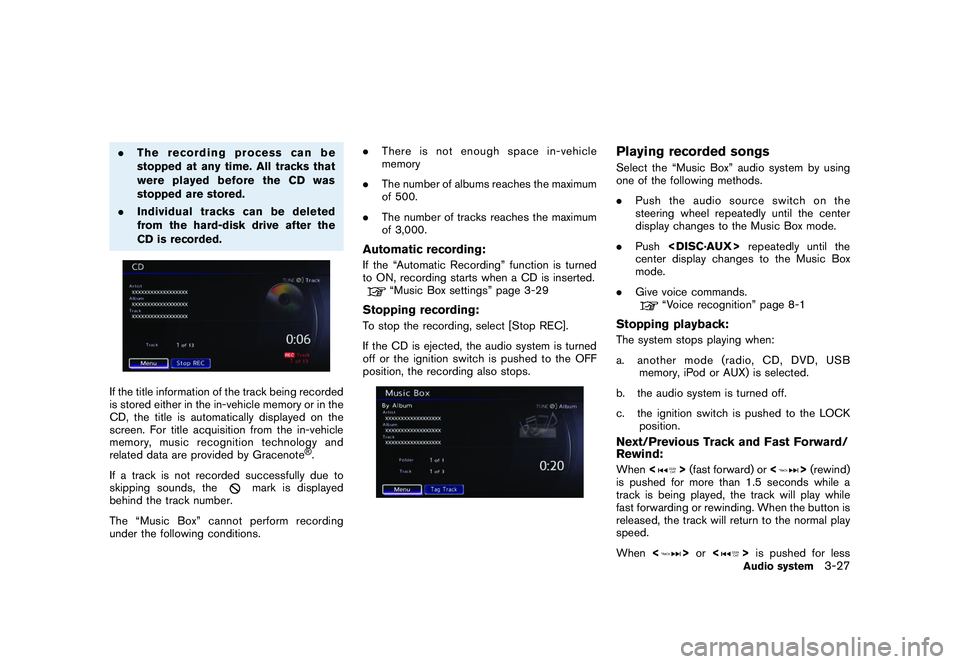
CD is recorded.If the title information of the track being recorded
is stored either in the in-vehicle memory or in the
CD, the title is automatically displayed on the
screen. For title acquisition from the in-vehicle
memory, music recognition technology and
related data are provided by Gracenote
®.
If a track is not recorded successfully due to
skipping sounds, the
mark is displayed
behind the track number.
The “Music Box” cannot perform recording
under the following conditions. .
There is not enough space in-vehicle
memory
. The number of albums reaches the maximum
of 500.
. The number of tracks reaches the maximum
of 3,000.
Automatic recording:If the “Automatic Recording” function is turned
to ON, recording starts when a CD is inserted.
“Music Box settings” page 3-29
Stopping recording:To stop the recording, select [Stop REC].
If the CD is ejected, the audio system is turned
off or the ignition switch is pushed to the OFF
position, the recording also stops.
Playing recorded songsSelect the “Music Box” audio system by using
one of the following methods.
.Push the audio source switch on the
steering wheel repeatedly until the center
display changes to the Music Box mode.
. Push
center display changes to the Music Box
mode.
. Give voice commands.
“Voice recognition” page 8-1
Stopping playback:The system stops playing when:
a. another mode (radio, CD, DVD, USB
memory, iPod or AUX) is selected.
b. the audio system is turned off.
c. the ignition switch is pushed to the LOCK position.Next/Previous Track and Fast Forward/
Rewind:When <
>(fast forward) or <
>(rewind)
is pushed for more than 1.5 seconds while a
track is being played, the track will play while
fast forwarding or rewinding. When the button is
released, the track will return to the normal play
speed.
When <
>or <
>is pushed for lessAudio system
3-27
Page 158 of 312
Black plate (158,1)
Model "R35-N" EDITED: 2009/ 10/ 30
sunlight.
. Do not spill any liquids on the USB memory.
Refer to the USB memory Owner’s Manual for
the details.
When installing a car phone or a CB radio in
your NISSAN, be sure to observe the following
cautions, otherwise the new equipment may
adversely affect the electronic control modules
and electronic control system harness.
WARNING
. A cellular telephone should not be
used while driving so full attention
may be given to vehicle operation.
Some jurisdictions prohibit the use
of cellular telephones while driving.
. If you must make a call while your
vehicle is in motion, the hands-free
cellular phone operational mode (if
so equipped) is highly recom-
mended. Exercise extreme caution
at all times so full attention may be
given to vehicle operation.
. If you are unable to devote full
attention to vehicle operation while
talking on the phone, pull off the
road to a safe location and stop
your vehicle.
CAUTION
.Keep the antenna as far away as
possible from the electronic control
modules.
. Keep the antenna wire more than 8
in (20 cm) away from the electronic
control system harness. Do not
route the antenna wire next to any
harness.
. Adjust the antenna standing-wave
ratio as recommended by the man-
ufacturer.
. Connect the ground wire from the
CB radio chassis to the body.
. For details, consult your NISSAN
dealer or GT-R certified NISSAN
dealer.
3-32
Audio system
CAR PHONE OR CB RADIO
Page 160 of 312
Black plate (162,1)
Model "R35-N" EDITED: 2009/ 10/ 30
WARNING
.Use a phone after stopping your
vehicle in a safe location. If you
have to use a phone while driving,
exercise extreme caution at all
times so full attention may be given
to vehicle operation.
. If you find yourself unable to devote
full attention to vehicle operation
while talking on the phone, pull off
the road to a safe location and stop
your vehicle before doing so.
CAUTION
To avoid draining the vehicle battery,
use a phone after starting the engine.
Your vehicle is equipped with Bluetooth
®
Hands-Free Phone System. If you are an owner
of a compatible Bluetooth
®
enabled cellular
phone, you can set up the wireless connection
between your cellular phone and the in-vehicle
phone module. With Bluetooth®wireless tech-
nology, you can make or receive a telephone call
with your cellular phone in your pocket.
Once a cellular phone is connected to the in-
vehicle phone module, no phone connecting procedure is required anymore. Your phone is
automatically connected with the in-vehicle
phonemodulewhentheignitionswitchis
pushed to the ON position with the registered
cellular phone turned on and carried in the
vehicle.
You can register up to 5 different Bluetooth
®
cellular phones in the in-vehicle phone module.
However, you can talk on only one cellular phone
at a time.
The NISSAN Voice Recognition system sup-
ports the phone commands, so dialing a phone
number using your voice is possible.
“Voice recognition” page 8-1
Before using the Bluetooth
®Hands-Free Phone
System, refer to the following notes.
. Set up the wireless connection between a
compatible cellular phone and the in-vehicle
phone module before using the Bluetooth
®
Hands-Free Phone System.
. Some Bluetooth
®enabled cellular phones
may not be recognized by the in-vehicle
phone module. Please visit
www.nissanusa.com/bluetooth for a recom-
mended phone list.
. You will not be able to use a hands-free
phone under the following conditions:
— Your vehicle is outside of the telephone service area.
— Your vehicle is in an area where it is difficult to receive radio waves; such as
in a tunnel, in an underground parking
garage, behind a tall building or in a
mountainous area.
— Your cellular phone is locked in order not to be dialed.
. When the radio wave condition is not ideal
or ambient sound is too loud, it may be
difficult to hear the other person’s voice
during a call.
. Immediately after the ignition switch is
pushed to the ON position, it may be
impossible to receive a call for a short
period of time.
. Do not place the cellular phone in an area
surrounded by metal or far away from the in-
vehicle phone module to prevent tone quality
degradation and wireless connection dis-
ruption.
. While a cellular phone is connected through
the Bluetooth
®
wireless connection, the
battery power of the cellular phone may
discharge quicker than usual.
. If the Bluetooth®Hands-Free Phone System
seems to be malfunctioning, please visit
www.nissanusa.com/bluetooth for trouble-
shooting help.
4-2
Bluetooth
®Hands-Free Phone System
BLUETOOTH
®HANDS-FREE PHONE
SYSTEM
Page 181 of 312
Black plate (185,1)
Model "R35-N" EDITED: 2009/ 10/ 30
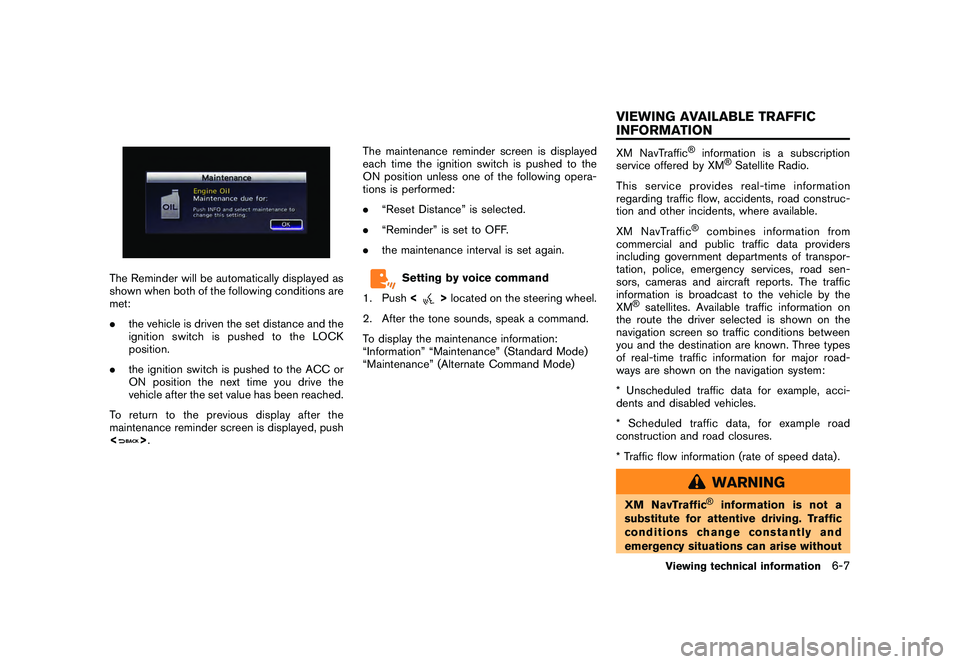
The Reminder will be automatically displayed as
shown when both of the following conditions are
met:
.the vehicle is driven the set distance and the
ignition switch is pushed to the LOCK
position.
. the ignition switch is pushed to the ACC or
ON position the next time you drive the
vehicle after the set value has been reached.
To return to the previous display after the
maintenance reminder screen is displayed, push
<
> . The maintenance reminder screen is displayed
each time the ignition switch is pushed to the
ON position unless one of the following opera-
tions is performed:
.
“Reset Distance” is selected.
. “Reminder” is set to OFF.
. the maintenance interval is set again.
Setting by voice command
1. Push <
>located on the steering wheel.
2. After the tone sounds, speak a command.
To display the maintenance information:
“Information” “Maintenance” (Standard Mode)
“Maintenance” (Alternate Command Mode)
XM NavTraffic
®
information is a subscription
service offered by XM
®Satellite Radio.
This service provides real-time information
regarding traffic flow, accidents, road construc-
tion and other incidents, where available.
XM NavTraffic
®
combines information from
commercial and public traffic data providers
including government departments of transpor-
tation, police, emergency services, road sen-
sors, cameras and aircraft reports. The traffic
information is broadcast to the vehicle by the
XM
®satellites. Available traffic information on
the route the driver selected is shown on the
navigation screen so traffic conditions between
you and the destination are known. Three types
of real-time traffic information for major road-
ways are shown on the navigation system:
* Unscheduled traffic data for example, acci-
dents and disabled vehicles.
* Scheduled traffic data, for example road
construction and road closures.
* Traffic flow information (rate of speed data) .
WARNING
XM NavTraffic
®
information is not a
substitute for attentive driving. Traffic
conditions change constantly and
emergency situations can arise without
Viewing technical information
6-7
VIEWING AVAILABLE TRAFFIC
INFORMATION
Page 182 of 312
Black plate (186,1)
Model "R35-N" EDITED: 2009/ 10/ 30
warning. Relying only on XM NavTraf-
fic®information may lead to a collision
and could result in serious personal
injury.
NOTICE
Flow information is provided only for
roads equipped with traffic sensors and
is not available in all markets covered
by the service. Flow data may not be
available on portions of a road that is
under construction.
XM NavTraffic
®information is available in limited
markets. To subscribe or to check if this service
is available in the area:
call 1-800-XM-RADIO (1-800-967-2346) or
see www.xmradio.com/navtraffic
INFO:
If a contract is not completed for XM NavTraffic
®
traffic information service, a message appears,
and it will not be possible to check the
information on the traffic information system.
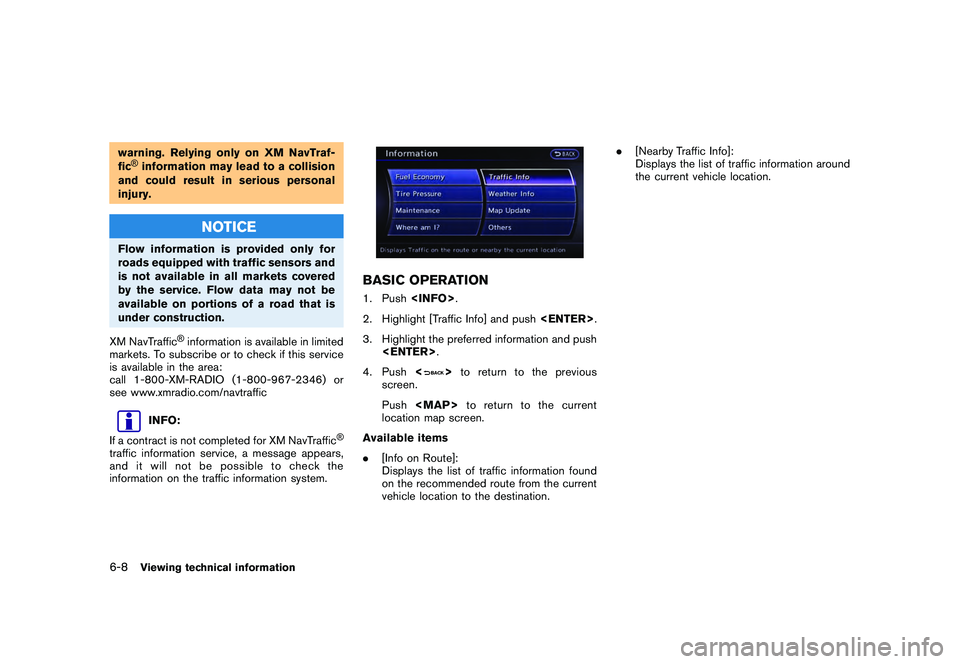
BASIC OPERATION1. Push
2. Highlight [Traffic Info] and push
3. Highlight the preferred information and push
4. Push <
>to return to the previous
screen.
Push
Page 187 of 312
Black plate (191,1)
Model "R35-N" EDITED: 2009/ 10/ 30
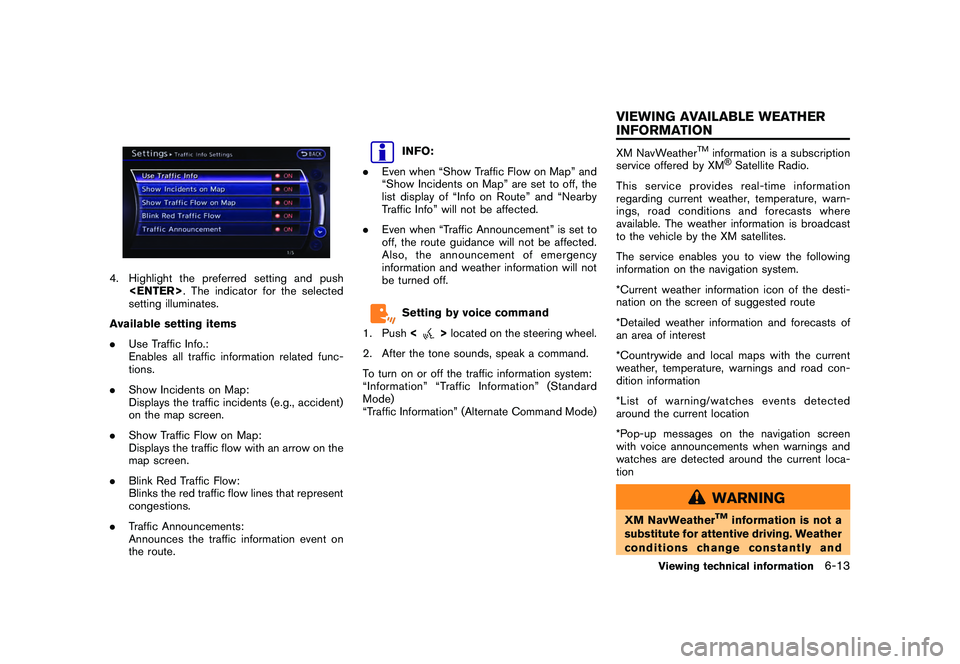
4. Highlight the preferred setting and push
setting illuminates.
Available setting items
. Use Traffic Info.:
Enables all traffic information related func-
tions.
. Show Incidents on Map:
Displays the traffic incidents (e.g., accident)
on the map screen.
. Show Traffic Flow on Map:
Displays the traffic flow with an arrow on the
map screen.
. Blink Red Traffic Flow:
Blinks the red traffic flow lines that represent
congestions.
. Traffic Announcements:
Announces the traffic information event on
the route.
INFO:
. Even when “Show Traffic Flow on Map” and
“Show Incidents on Map” are set to off, the
list display of “Info on Route” and “Nearby
Traffic Info” will not be affected.
. Even when “Traffic Announcement” is set to
off, the route guidance will not be affected.
Also, the announcement of emergency
information and weather information will not
be turned off.Setting by voice command
1. Push <
>located on the steering wheel.
2. After the tone sounds, speak a command.
To turn on or off the traffic information system:
“Information” “Traffic Information” (Standard
Mode)
“Traffic Information” (Alternate Command Mode)
XM NavWeather
TM
information is a subscription
service offered by XM®Satellite Radio.
This service provides real-time information
regarding current weather, temperature, warn-
ings, road conditions and forecasts where
available. The weather information is broadcast
to the vehicle by the XM satellites.
The service enables you to view the following
information on the navigation system.
*Current weather information icon of the desti-
nation on the screen of suggested route
*Detailed weather information and forecasts of
an area of interest
*Countrywide and local maps with the current
weather, temperature, warnings and road con-
dition information
*List of warning/watches events detected
around the current location
*Pop-up messages on the navigation screen
with voice announcements when warnings and
watches are detected around the current loca-
tion
WARNING
XM NavWeather
TM
information is not a
substitute for attentive driving. Weather
conditions change constantly and
Viewing technical information
6-13
VIEWING AVAILABLE WEATHER
INFORMATION
Page 188 of 312
Black plate (192,1)
Model "R35-N" EDITED: 2009/ 10/ 30
emergency situations can arise without
warning. Relying only on XM Nav-
Weather
TM
information could result in
serious personal injury.
XM NavWeatherTM
information is available in
limited markets. To subscribe to or check if this
service is available in the area, call 1-800-XM-
RADIO (1-800-967-2346) or access www.
xmradio.com/navweather.
INFO:
. If a contract is not completed for the XM
NavWeather
TM
information service, a mes-
sage appears and it will not be possible to
check the information on the traffic informa-
tion system.
. The weather information is available only for
areas that provide weather information to
XM NavWeatherTM.
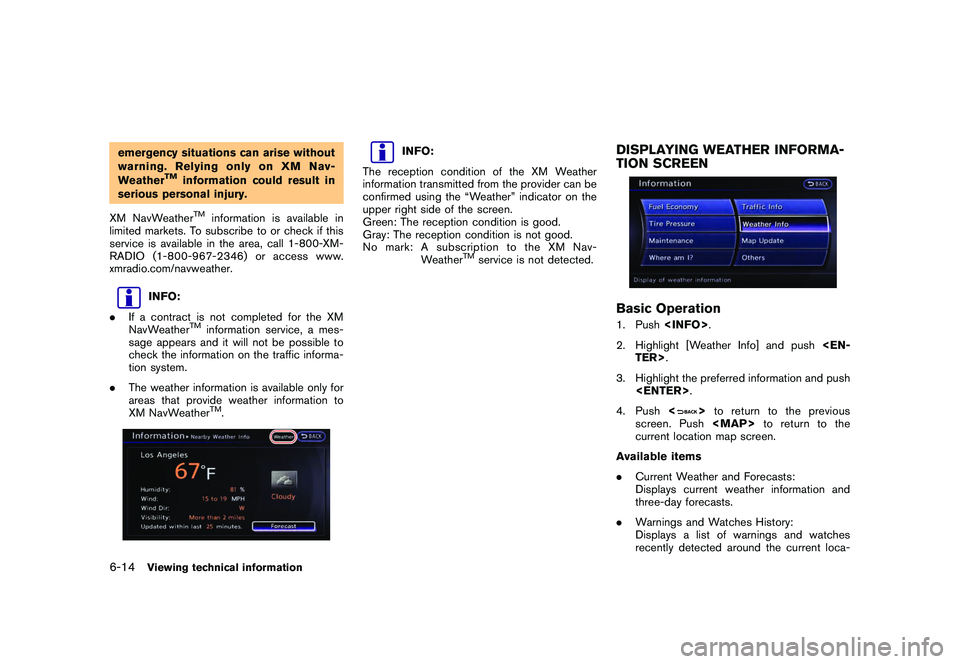
INFO:
The reception condition of the XM Weather
information transmitted from the provider can be
confirmed using the “Weather” indicator on the
upper right side of the screen.
Green: The reception condition is good.
Gray: The reception condition is not good.
No mark: A subscription to the XM Nav- Weather
TM
service is not detected.
DISPLAYING WEATHER INFORMA-
TION SCREENBasic Operation1. Push
2. Highlight [Weather Info] and push
3. Highlight the preferred information and push
4. Push <
>to return to the previous
screen. Push
Page 196 of 312
Black plate (200,1)
Model "R35-N" EDITED: 2009/ 10/ 30
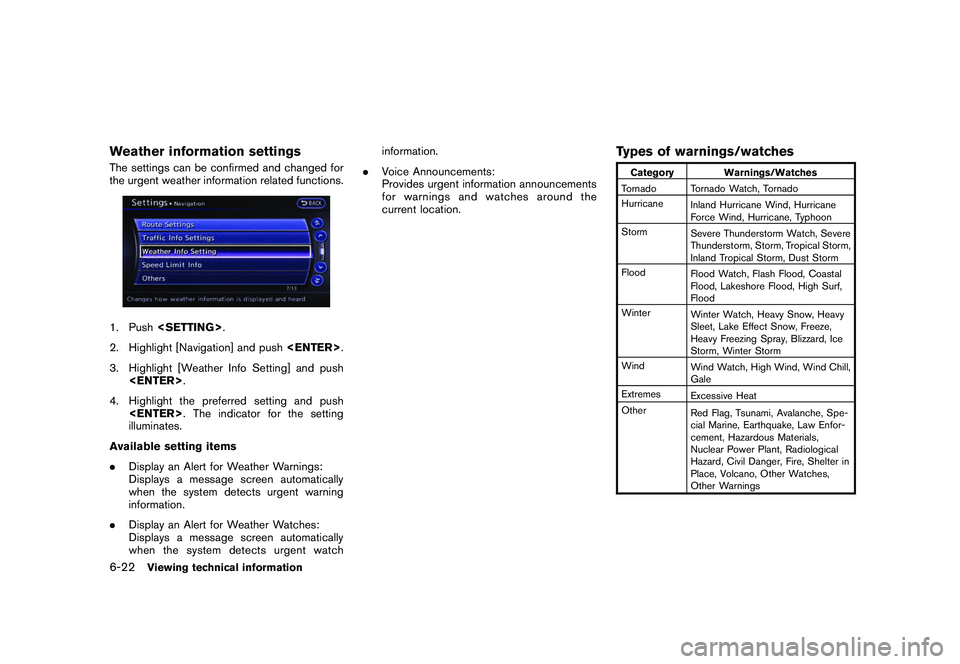
Weather information settingsThe settings can be confirmed and changed for
the urgent weather information related functions.1. Push
2. Highlight [Navigation] and push
3. Highlight [Weather Info Setting] and push
4. Highlight the preferred setting and push
illuminates.
Available setting items
. Display an Alert for Weather Warnings:
Displays a message screen automatically
when the system detects urgent warning
information.
. Display an Alert for Weather Watches:
Displays a message screen automatically
when the system detects urgent watch information.
. Voice Announcements:
Provides urgent information announcements
for warnings and watches around the
current location.
Types of warnings/watches
Category Warnings/Watches
Tornado Tornado Watch, Tornado
Hurricane Inland Hurricane Wind, Hurricane
Force Wind, Hurricane, Typhoon
Storm Severe Thunderstorm Watch, Severe
Thunderstorm, Storm, Tropical Storm,
Inland Tropical Storm, Dust Storm
Flood Flood Watch, Flash Flood, Coastal
Flood, Lakeshore Flood, High Surf,
Flood
Winter Winter Watch, Heavy Snow, Heavy
Sleet, Lake Effect Snow, Freeze,
Heavy Freezing Spray, Blizzard, Ice
Storm, Winter Storm
Wind Wind Watch, High Wind, Wind Chill,
Gale
Extremes Excessive Heat
Other Red Flag, Tsunami, Avalanche, Spe-
cial Marine, Earthquake, Law Enfor-
cement, Hazardous Materials,
Nuclear Power Plant, Radiological
Hazard, Civil Danger, Fire, Shelter in
Place, Volcano, Other Watches,
Other Warnings
6-22
Viewing technical information
Page 229 of 312
Black plate (235,1)
Model "R35-N" EDITED: 2009/ 10/ 30
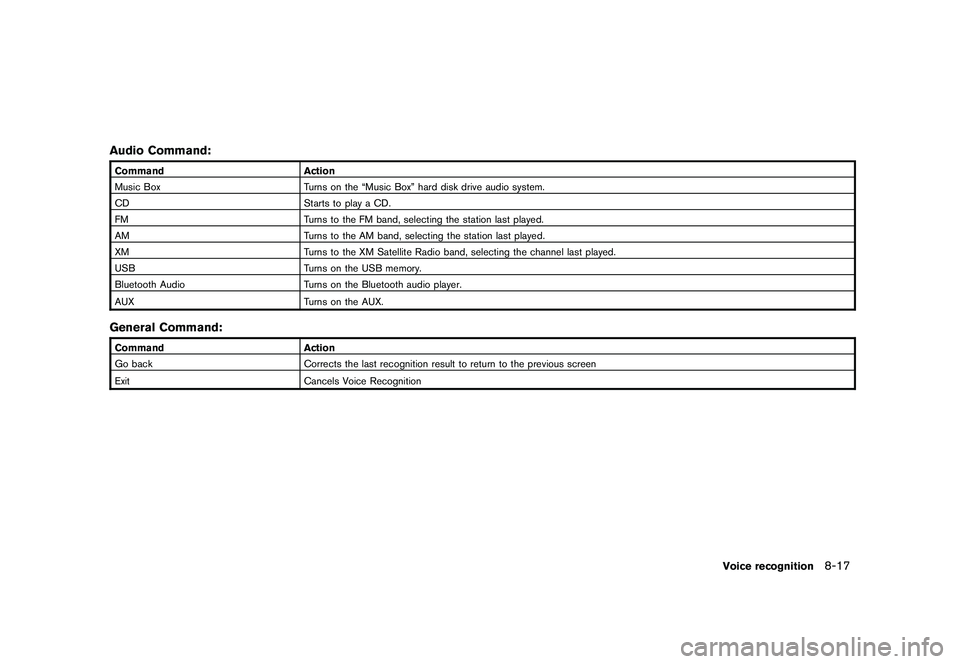
Audio Command:CommandAction
Music Box Turns on the “Music Box” hard disk drive audio system.
CD Starts to play a CD.
FM Turns to the FM band, selecting the station last played.
AM Turns to the AM band, selecting the station last played.
XM Turns to the XM Satellite Radio band, selecting the channel last played.
USB Turns on the USB memory.
Bluetooth Audio Turns on the Bluetooth audio player.
AUX Turns on the AUX.General Command:CommandAction
Go back Corrects the last recognition result to return to the previous screen
Exit Cancels Voice Recognition
Voice recognition
8-17
Page 280 of 312
Black plate (286,1)
Model "R35-N" EDITED: 2009/ 10/ 30
DISPLAY OF CURRENT VEHICLE
LOCATIONThis navigation system combines the data
obtained from the vehicle (by gyro sensor) and
from GPS (Global Positioning System) satellites
to calculate the current location of the vehicle.
This position is then displayed throughout route
guidance to a destination.WHAT IS GPS (Global Positioning
System)?GPS is a position detecting system that uses
satellites deployed by the U.S. government. This
navigation system receives radio signals from
three or more different satellites that orbit
13,049 miles (21,000 km) above the earth in
space, and detects the position of the vehicle by
utilizing the principle of triangulation.Positioning adjustmentWhen the system judges that the vehicle
position information is not accurate based on
vehicle speed and gyro sensor data calculations,
the system will automatically adjust the position
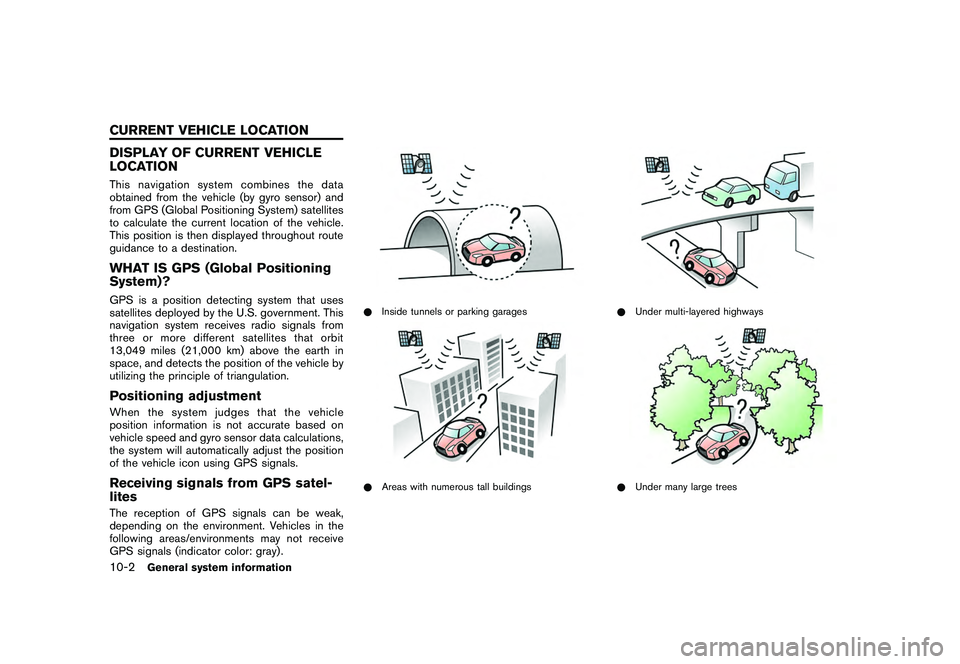
of the vehicle icon using GPS signals.Receiving signals from GPS satel-
litesThe reception of GPS signals can be weak,
depending on the environment. Vehicles in the
following areas/environments may not receive
GPS signals (indicator color: gray) .
*Inside tunnels or parking garages*Areas with numerous tall buildings
*Under multi-layered highways*Under many large trees
10-2
General system information
CURRENT VEHICLE LOCATION