navigation system NISSAN JUKE 2017 F15 / 1.G User Guide
[x] Cancel search | Manufacturer: NISSAN, Model Year: 2017, Model line: JUKE, Model: NISSAN JUKE 2017 F15 / 1.GPages: 416, PDF Size: 2.62 MB
Page 165 of 416

4-6Heater, air conditioner, audio and phone systems
Menu ItemResult
Audio For more details, see “FM-AM-SAT radio with Compact Disc (CD) player (Type B)” (P.4-62) .
Navigation See the separate Navigation System Owner’s Manual for more information.
Phone & Bluetooth For more details, see “Bluetooth
ŠHands-Free Phone System (models with navigation system)” (P.4-89) .
System Touch this key to select and/or adjust various functions of this system. A screen with additional options will
appear.
Display Touch this key to adjust the appearance of the display.
Brightness Adjusts the brightness of the display.
Display Mode Adjusts to fit the level of lighting in the vehicle. Touch key to cycle through options. “Day” and “Night” modes are
suited for the respective times of day while “Auto” controls the display automatically.
Scroll Direction Adjusts the direction of the menu scroll. Choose to either move up or down.
Clock Touch this key to adjust the time.
Time Format The clock can be set to 12 hours or 24 hours.
Date Format Select from five possible formats of displaying the day, month, and year.
Clock Mode Adjust the mode for the clock. “Auto” uses the system’s GPS to automatically maintain the time. “Manual” allows
you to set the clock using the “Set Clock Manually” key.
Set Clock Manually Adjust the clock manually, Touch the “+” or “-” keys to adjust the hours, minutes, day, month and year up or down.
“Clock Mode” must be set to manual for this option to be available.
Daylight Savings Time Adjusts the daylight savings time on or off.
Time Zone Choose the applicable time zone from the list.
Language Touch this key to change the language on the display.
Camera Settings Touch this key to change the camera settings.
Display Mode Touch this key to select the touch-screen display mode (day, night, or automatic) .
Brightness Adjust touch-screen brightness.
Contrast Adjust touch-screen contrast.
Page 166 of 416

ColorAdjust touch-screen color.
Temperature Unit Touch this key to change the temperature unit being displayed (Fahrenheit or Celsius) .
Touchscreen click Toggles the touch-screen click feature on or off. When activated a click sound will be heard every time a key on
the screen is touched.
System Beeps Toggle the system beep tones feature on or off. When activated, a beep sound will be heard when a pop-up
message appears on the screen or a button on the unit (such as the
button) is pushed and held for 2
seconds.
Return to Factory Settings / Clear Memory Touch this key to return all settings to default and to clear the memory.
Software Licenses Touch this key to display software licensing information.
Traffic Touch this key to display traffic settings. See the separate Navigation System Owner’s Manual for more
information.
SXM Touch this key to display SXM status information. For SXM setup, see “FM-AM-SAT radio with Compact Disc
(CD) player (Type B)” (P.4-62) .
Heater, air conditioner, audio and phone systems4-7
Page 167 of 416
4-8Heater, air conditioner, audio and phone systems
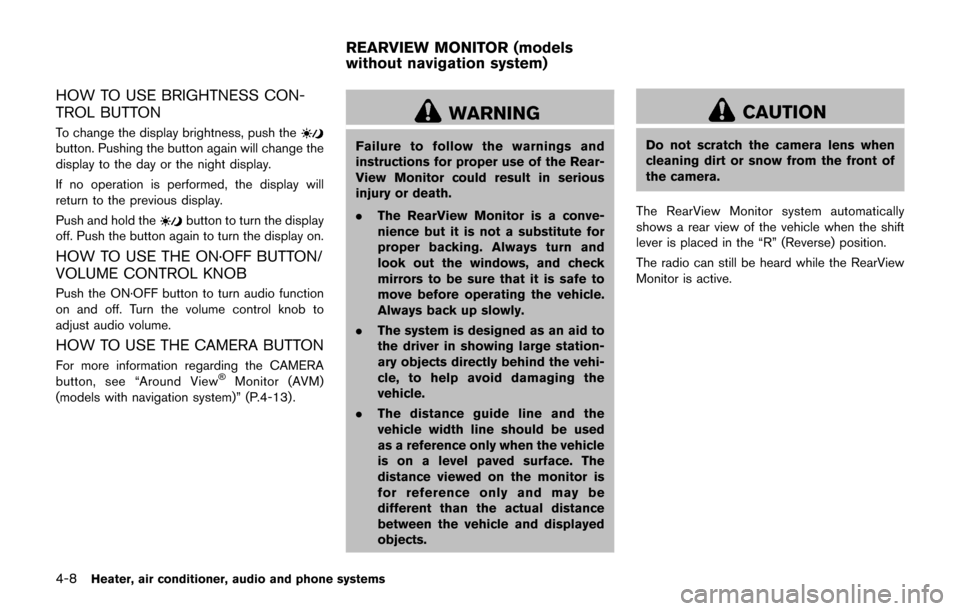
HOW TO USE BRIGHTNESS CON-
TROL BUTTON
To change the display brightness, push thebutton. Pushing the button again will change the
display to the day or the night display.
If no operation is performed, the display will
return to the previous display.
Push and hold the
button to turn the display
off. Push the button again to turn the display on.
HOW TO USE THE ON·OFF BUTTON/
VOLUME CONTROL KNOB
Push the ON·OFF button to turn audio function
on and off. Turn the volume control knob to
adjust audio volume.
HOW TO USE THE CAMERA BUTTON
For more information regarding the CAMERA
button, see “Around ViewŠMonitor (AVM)
(models with navigation system)” (P.4-13).
WARNING
Failure to follow the warnings and
instructions for proper use of the Rear-
View Monitor could result in serious
injury or death.
. The RearView Monitor is a conve-
nience but it is not a substitute for
proper backing. Always turn and
look out the windows, and check
mirrors to be sure that it is safe to
move before operating the vehicle.
Always back up slowly.
. The system is designed as an aid to
the driver in showing large station-
ary objects directly behind the vehi-
cle, to help avoid damaging the
vehicle.
. The distance guide line and the
vehicle width line should be used
as a reference only when the vehicle
is on a level paved surface. The
distance viewed on the monitor is
for reference only and may be
different than the actual distance
between the vehicle and displayed
objects.
CAUTION
Do not scratch the camera lens when
cleaning dirt or snow from the front of
the camera.
The RearView Monitor system automatically
shows a rear view of the vehicle when the shift
lever is placed in the “R” (Reverse) position.
The radio can still be heard while the RearView
Monitor is active.
REARVIEW MONITOR (models
without navigation system)
Page 172 of 416
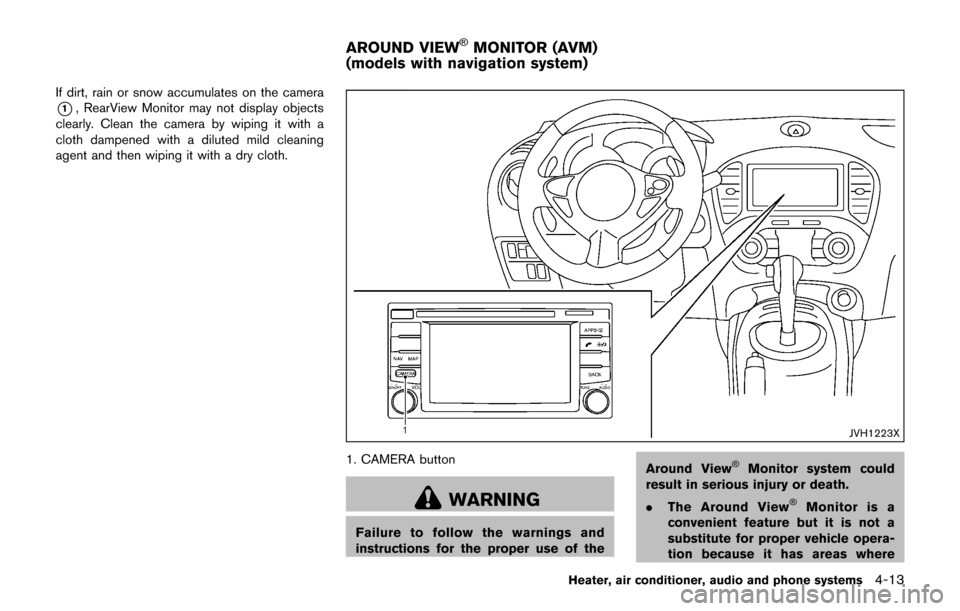
If dirt, rain or snow accumulates on the camera
*1, RearView Monitor may not display objects
clearly. Clean the camera by wiping it with a
cloth dampened with a diluted mild cleaning
agent and then wiping it with a dry cloth.
JVH1223X
1. CAMERA button
WARNING
Failure to follow the warnings and
instructions for the proper use of the Around View
ŠMonitor system could
result in serious injury or death.
. The Around View
ŠMonitor is a
convenient feature but it is not a
substitute for proper vehicle opera-
tion because it has areas where
Heater, air conditioner, audio and phone systems4-13
AROUND VIEWŠMONITOR (AVM)
(models with navigation system)
Page 183 of 416
4-24Heater, air conditioner, audio and phone systems
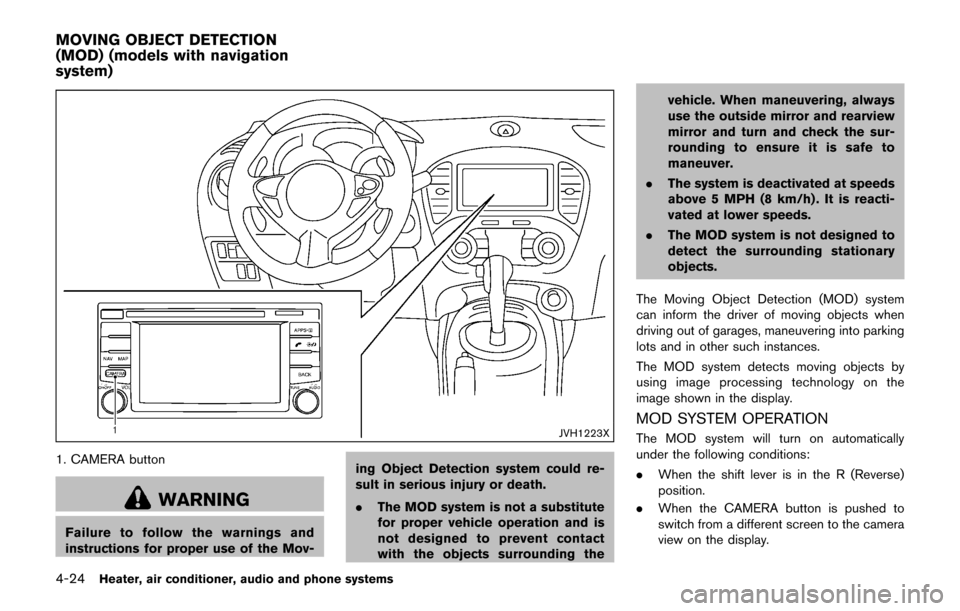
JVH1223X
1. CAMERA button
WARNING
Failure to follow the warnings and
instructions for proper use of the Mov-ing Object Detection system could re-
sult in serious injury or death.
.
The MOD system is not a substitute
for proper vehicle operation and is
not designed to prevent contact
with the objects surrounding the vehicle. When maneuvering, always
use the outside mirror and rearview
mirror and turn and check the sur-
rounding to ensure it is safe to
maneuver.
. The system is deactivated at speeds
above 5 MPH (8 km/h) . It is reacti-
vated at lower speeds.
. The MOD system is not designed to
detect the surrounding stationary
objects.
The Moving Object Detection (MOD) system
can inform the driver of moving objects when
driving out of garages, maneuvering into parking
lots and in other such instances.
The MOD system detects moving objects by
using image processing technology on the
image shown in the display.
MOD SYSTEM OPERATION
The MOD system will turn on automatically
under the following conditions:
. When the shift lever is in the R (Reverse)
position.
. When the CAMERA button is pushed to
switch from a different screen to the camera
view on the display.
MOVING OBJECT DETECTION
(MOD) (models with navigation
system)
Page 200 of 416

Specification chart (for models without navigation system) :
Supported mediaCD, CD-R, CD-RW, USB2.0
Supported file systems CD, CD-R, CD-RW: ISO9660 LEVEL1, ISO9660 LEVEL2, Romeo, Joliet
* ISO9660 Level 3 (packet writing) is not supported.
* Files saved using the Live File System component (on a Windows Vista-based computer) are
not supported.
USB memory: FAT16, FAT32
Supported versions*1 MP3
Version
MPEG1 Audio Layer 3
Sampling frequency 32 kHz - 48 kHz
Bit rate 32 kbps - 320 kbps, VBR*4
WMA*2 Version
WMA7, WMA8, WMA9
Sampling frequency 32 kHz - 48 kHz
Bit rate 32 kbps - 192 kbps, VBR4, 32 kbps - 320 kbps (WMA9 only)
Tag information (Song title and Artist name) ID3 tag VER1.0, VER1.1, VER2.2, VER2.3, VER2.4 (MP3 only)
WMA tag (WMA only)
Folder levels CD, CD-R, CD-RW Folder levels: 8, Folders: 255, Files: 999 (Max. 255 files for one folder)
USB
Folder levels: 8, Folders 255, Files: 2500 (Max. 255 files for one folder)
Memory size: 4GB
Displayable character codes*3 01: ASCII, 02: ISO-8859-1, 03: UNICODE (UTF-16 BOM Big Endian) , 04: UNICODE (UTF-16
Non-BOM Big Endian) , 05: UNICODE (UTF-8)
*1 Files created with a combination of 48 kHz sampling frequency and 64 kbps bit rate cannot be played.
*2 Protected WMA files (DRM) cannot be played.
*3 Available codes depend on what kind of media, versions and information are going to be displayed.
*4 When VBR files are played, the playback time may not be displayed correctly.
Heater, air conditioner, audio and phone systems4-41
Page 201 of 416

4-42Heater, air conditioner, audio and phone systems
Specification chart (for models with navigation system):
Supported mediaCD, CD-R, CD-RW
Supported file systems ISO9660 LEVEL1, ISO9660 LEVEL2, Apple ISO, Romeo, Joliet * ISO9660 Level 3 (packet writing) is not
supported.
Supported
versions*1 MP3
Version
MPEG1, MPEG2, MPEG2.5
Sampling frequency 8 kHz - 48 kHz
Bit rate 8 kbps - 320 kbps, VBR
WMA*2 Version
WMA7, WMA8, WMA9
Sampling frequency 32 kHz - 48 kHz
Bit rate 48 kbps - 192 kbps, VBR
Tag information ID3 tag VER1.0, VER1.1, VER2.2, VER2.3 (MP3 only)
Folder levels Folder levels: 8, Max folders: 255 (including root folder) , Files: 512 (Max. 255 files for one folder)
Text character number limitation 128 characters
Displayable character codes*2 01: ASCII, 02: ISO-8859-1, 03: UNICODE (UTF-16 BOM Big Endian) , 04: UNICODE (UTF-16 Non-BOM Big
Endian) , 05: UNICODE (UTF-8) , 06: UNICODE (Non-UTF-16 BOM Little Endian)
*1 Files created with a combination of 48 kHz sampling frequency and 64 kbps bit rate cannot be played.
*2 Available codes depend on what kind of media, versions and information are going to be displayed.
Page 235 of 416

4-76Heater, air conditioner, audio and phone systems
CONNECT PHONE
To use this feature, a compatible smartphone
must be connected via BluetoothŠor USB to
the vehicle. For more information on connecting
your phone, see “Bluetooth
ŠHands-Free Phone
System (models without navigation system)”
(P.4-80) or “Bluetooth
ŠHands-Free Phone
System (models with navigation system)” (P.4-
89) .
NOTE:
. For Apple iPhones
Š, NissanConnectSM
Apps REQUIRES the phone to be
plugged in via USB.
. For Android phones, NissanConnect
SM
Apps REQUIRES the phone to be
paired via BluetoothŠ.
APPLICATION DOWNLOAD
Once connected, the NissanConnectSMApp
will search your phone to determine which
compatible applications are currently installed.
The user will then choose which apps they want
to bring into their vehicle from the list of apps
within the “Manage My Apps” section of the
NissanConnect
SMApp on their smartphone. The
vehicle will then download the in-vehicle inter-
face for each of these compatible applications.
Once downloaded, the user can access their
selected smartphone applications through the
vehicle touchscreen. For more information on application availability see NissanConnect
SM
website.
NissanConnectSMwebsite:
For U.S.
www.nissanusa.com/connect/
For Canada
www.Nissan.ca/NissanConnect (English)
www.Nissan.ca/NissanConnect/fr (French)
GENERAL INFORMATION
Apple SiriŠEyes Free personal assistant can be
accessed from the vehicle. SiriŠEyes Free can
be accessed in SiriŠEyes Free mode to reduce
user distraction. In this mode, SiriŠEyes Free is
available for interaction by voice control. After
connecting a compatible Apple device by using
Bluetooth
Š, SiriŠEyes Free can be activated
using theTALK switch on the steering
wheel.
Siri
Šis a trademark of Apple Inc., registered in
the U.S. and other countries.
INFO:
. Some Siri
ŠEyes Free functions, such as
opening apps, may not be available during
driving.
. For best results, always update your device
to the latest software version.
. Keep the interior of the vehicle as quiet as
possible. Close the windows to eliminate the
surrounding noises (traffic noises, vibration
sounds, etc.) , which may prevent the system
from recognizing the voice commands cor-
rectly.
. For functions that can be used in Siri
ŠEyes
Free, please refer to the Apple website.
SIRIŠEYES FREE
Page 236 of 416

REQUIREMENTS
SiriŠis available on the iPhoneŠ4S or later.
Devices released before iPhoneŠ4S are not
supported by the SiriŠEyes Free system.
Visit www.apple.com/ios/siri for details about
device compatibility.
Siri
Šmust be enabled on the phone. Please
check phone settings.
If the device has a lock screen, Siri
Šmust be
accessible from the lock screen. Please check
phone settings.
For best results, always update your device to
the latest software version.
SAA3385
SIRIŠEYES FREE ACTIVATION
SiriŠEyes Free function can be activated by
using theTALK switch on the steering
wheel.
Models with navigation system
1. Connect a Siri
ŠEyes Free enabled iPhoneŠ
to the vehicle. (See “Connecting procedure”
(P.4-92) .)
2. After the Bluetooth
Šconnection is estab-
lished, push and hold theTALK switch
to activate the SiriŠEyes Free function.
Models without navigation system
1. Connect a Siri
ŠEyes Free enabled iPhoneŠ
to the vehicle. (See “Initialization” (P.4-83) .) 2. After the Bluetooth
Šconnection is estab-
lished, the switch operation select screen is
displayed.
3. Select “Short Press” or “Long Press” for Siri
ŠEyes Free activation. Switch action can
also be changed from the BluetoothŠ
settings menu. (See “Changing SiriŠEyes
Free Settings (models without navigation
system)” (P.4-78) .)
OPERATING SIRIŠEYES FREE
1. Push or push and hold theTALK switch.
2. Speak your command and then listen to the Siri
ŠEyes Free reply.
After starting SiriŠEyes Free, push theTALK switch again within 5 seconds of the end
of the SiriŠEyes Free announcement to extend
the session.
Example 1 - Playing music
1. Push or push and hold the
TALK switch.
2. Say “Play (artist name, song name, etc.)”.
3. Your vehicle will automatically change to Bluetooth
ŠAudio or iPodŠmode* when the
music starts playing. Mode selection is
determined by the phone.
*: If the iPhone
Šis also connected with the
USB cable.
If the audio track does not start playing
Heater, air conditioner, audio and phone systems4-77
Page 237 of 416

4-78Heater, air conditioner, audio and phone systems
automatically after SiriŠEyes Free ends, try
changing the track or audio source to resume
playback.
NOTE:
For best results, use the native music app.
Performance of music control function
while using Podcasts, Audiobook or other
3rd party music apps may vary and is
controlled by the iPhone
Š.
Example 2 - Replying to text messages
1. If a compatible iPhone
Šis connected and
“Show Notifications” of the iPhoneŠsettings
is enabled, the vehicle will display a notifica-
tion for new incoming text messages.
2. After reading the message, push or push and hold the
TALK switch to reply using
SiriŠEyes Free.
3. After a beep sounds, say “Text message” or a similar command to reply using Siri
ŠEyes
Free.
CHANGING SIRIŠEYES FREE SET-
TINGS (models without navigation sys-
tem)
Settings for SiriŠEyes Free can be found in the
BluetoothŠsettings menu. (See “BluetoothŠ
settings” (P.4-88) .) 1. Push the ENTER/SETTING button.
2. Use the TUNE·FOLDER or TUNE·SCROLL
knob to select “Bluetooth” and then push
the ENTER/SETTING button.
3. Use the TUNE·FOLDER or TUNE·SCROLL knob to select “Siri” and then push the
ENTER/SETTING button.
4. Select “Short Press” or “Long Press” using the TUNE·FOLDER or TUNE·SCROLL knob
and then push the ENTER/SETTING button.