audio NISSAN KICKS 2018 Owner´s Manual
[x] Cancel search | Manufacturer: NISSAN, Model Year: 2018, Model line: KICKS, Model: NISSAN KICKS 2018Pages: 435, PDF Size: 5.48 MB
Page 258 of 435
While a call is active, press thebutton
on the steering wheel to access additional
options. Speak one of the following com-
mands:
∙ “Send Digits” Speak this command followed by the
digits to enter digits during the phone
call.
∙ “Switch call” Speak this command to hold the sec-
ond call and switch back to the original
call.
ENDING A CALL
To end an active call, press thebutton
on the steering wheel or touch the
“
Hang up” key on the screen.
TEXT MESSAGING (if so equipped)
WARNING
∙ Laws in some jurisdictions may re- strict the use of “Text-to-Speech”.
Check local regulations before using
this feature. ∙ Laws in some jurisdictions may re-
strict the use of some of the applica-
tions and features, such as social net-
working and texting. Check local
regulations for any requirements.
∙ Use the text messaging feature af ter stopping your vehicle in a safe loca-
tion. If you have to use the feature
while driving, exercise extreme cau-
tion at all times so full attention may
be given to vehicle operation.
∙ If you are unable to devote full atten- tion to vehicle operation while using
the text messaging feature, pull off
the road to a safe location and stop
your vehicle.
NOTE:
This feature is automatically disabled if
the connected device does not support
the Message Access Profile (MAP). For
additional information, refer to the
phone’s Owner’s Manual for details and
instructions. NOTE:
Many phones may require special per-
mission to enable text messaging. Check
the phone’s screen during Bluetooth®
pairing. For some phones, you may need
to enable ‘Notifications’ in the phone’s
Bluetooth® menu for text messages to
appear on the headunit. For additional
information, refer to your phone’s Own-
er’s manual. Text message integration
requires that the phone support MAP
(Message Access Profile) for both receiv-
ing and sending text messages. Some
phones may not support all text mes-
saging features. Please refer to
www.nissanusa.com/bluetooth or
www.nissan.ca/bluetooth for compat-
ibility information, as well as your de-
vice’s Owner’s manual.
The system allows for the sending and re-
ceiving of text messages through the ve-
hicle interface.
The availability of the text message func-
tion may vary depending on the cellular
phone.
When the cellular phone connected to the
vehicle receives a text message, a notifica-
tion will appear on the control panel dis-
play. To check the message, touch the
4-80Monitor, climate, audio, phone and voice recognition systems
Page 259 of 435
“Read” key. Touch the “Ignore” key to save
the message to be checked later.
Access text messaging through the ve-
hicles Bluetooth® Hands-Free Phone or
through the vehicles control panel.
Text messaging using Bluetooth®
Hands-Free Phone System (if so
equipped)
Sending a text message (if so equipped)1. Press and hold the
button on the
steering wheel for more than 1.5 sec-
onds.
2. Say “Send Text” af ter the tone.
3. The system will provide a list of avail- able commands in order to determine
the recipient of the text message.
Choose from the following:
∙ Phonebook
∙ Quick Dial
∙ Incoming Calls
∙ Outgoing Calls
∙ Missed Calls
∙ Dial 4. Once a recipient is chosen, the system
prompts for which message to send.
Nine predefined messages are avail-
able as well as three custom mes-
sages. To choose one of the predefined
messages, speak one of the following
af ter the tone:
∙ “Driving, can’t text”
∙ “Call me”
∙ “On my way ”
∙ “Running late”
∙ “Okay ”
∙ “Yes”
∙ “No”
∙ “Where are you?”
∙ “When?”
To send one of the custom messages,
say “Custom Messages”. If more than
one custom message is stored, the
system will prompt for the number of
the desired custom message. For ad-
ditional information on setting and
managing custom text messages, re-
fer to “Phone and text message set-
tings” in this section. Reading a received text message
1. Press and hold the
button on the
steering wheel for more than 1.5 sec-
onds.
2. Say “Read Text” af ter the tone.
The display will show a list of 20 messages
with the sender and delivery time. Touch
the “Next” key on the screen to view all mes-
sages. To view a text message press
the
button on the steering wheel and
speak the number item list on the screen.
The following options will be available:
∙ Play Speak this command to have the sys-
tem say the message.
∙ Reply Speak this command to send a text
message response to the sender of the
text message.
∙ Call Speak this command to call the sender.
∙ Previous Speak this command to move to the
previous text message (if available).
∙Next Speak this command to move to the
next text message (if available).
Monitor, climate, audio, phone and voice recognition systems4-81
Page 260 of 435
Siri® Eyes Free (if so equipped)
If a connected phone is equipped with Siri®,
it can also be used to create custom mes-
sages that are sent through the phone. For
additional information, refer to “Siri® Eyes
Free” in this section.
NOTE:
Text messages are only displayed if the
vehicle speed is less than 5 mph
(8 km/h).
NOTE:
For Apple iPhones®, text messages can
only be sent through Siri.
Text messaging using the control
panel
Display received message list1. Press the
button on the control
panel.
2. Touch the “Text Message” key on the screen
3. Touch an item on the list to read or reply to the message.
Up to 100 messages can be stored in the
message list. Received message screen
Touching the “Read” key on the incoming
message notification screen or selecting a
message from the message list will show
the details of the received message on the
display.
Available actions:
∙Prev. Touch this key to read the previous
message.
∙Next Touch this key to read the next mes-
sage.
∙ Play/Stop Touch the “Play” key to have the hands-
free phone system read out the re-
ceived message. Touch the “Stop” key to
stop reading.
∙ Call If the sender of the message is regis-
tered in the phonebook, touch the “Call”
key to make a call to the sender.
∙ Reply A reply message can be selected from
the predefined list or by a custom mes-
sage. Sending a text message (if so equipped)
This function may not be supported de-
pending on the cellular phone.
1. Press the
button on the control
panel.
2. Touch the “Text Message” key on the screen.
3. Touch the “Create Message” key on the screen.
4-82Monitor, climate, audio, phone and voice recognition systems
Page 261 of 435
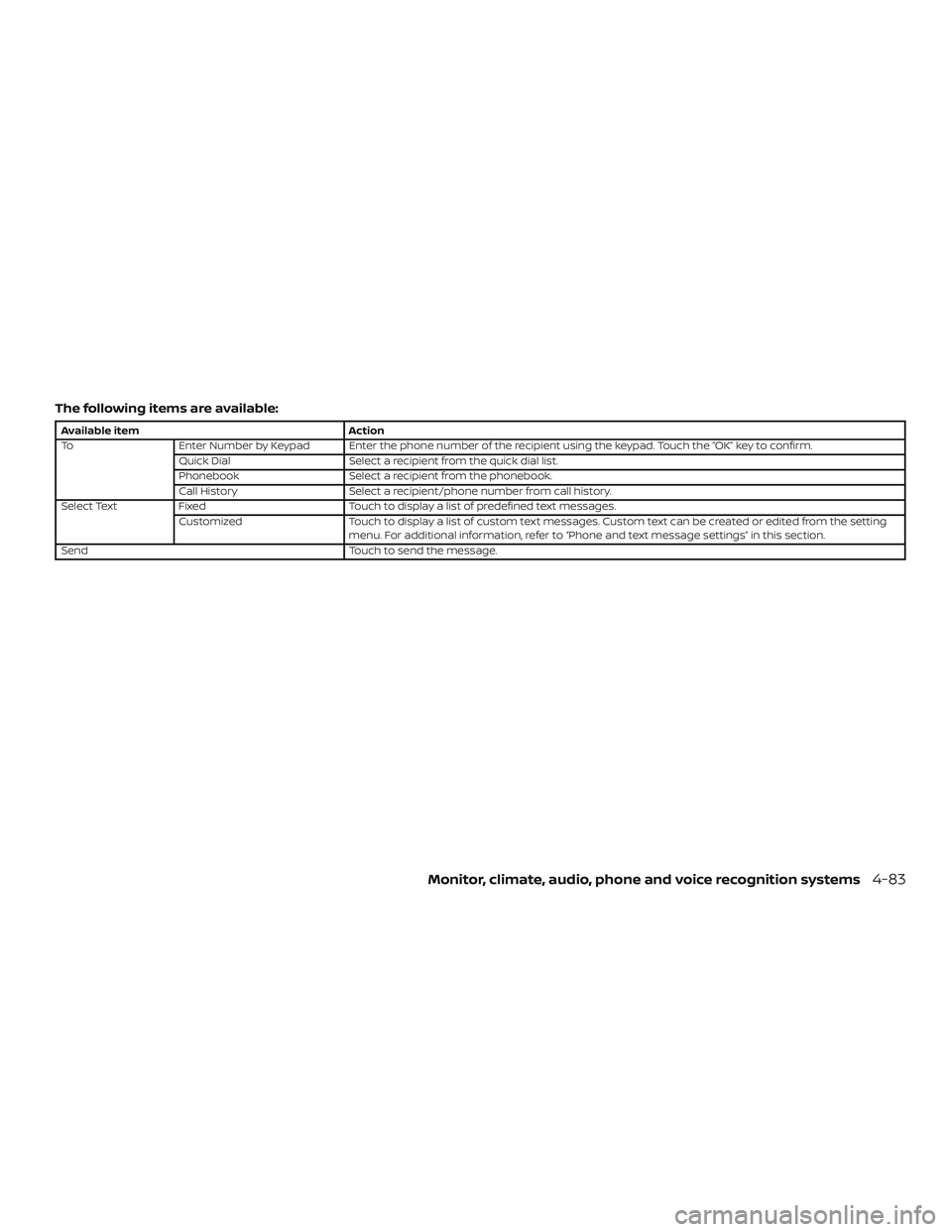
The following items are available:
Available itemAction
To Enter Number by Keypad Enter the phone number of the recipient using the keypad. Touch the “OK” key to confirm.
Quick Dial Select a recipient from the quick dial list.
Phonebook Select a recipient from the phonebook.
Call History Select a recipient/phone number from call history.
Select Text Fixed Touch to display a list of predefined text messages.
Customized Touch to display a list of custom text messages. Custom text can be created or edited from the setting
menu. For additional information, refer to “Phone and text message settings” in this section.
Send Touch to send the message.
Monitor, climate, audio, phone and voice recognition systems4-83
Page 262 of 435
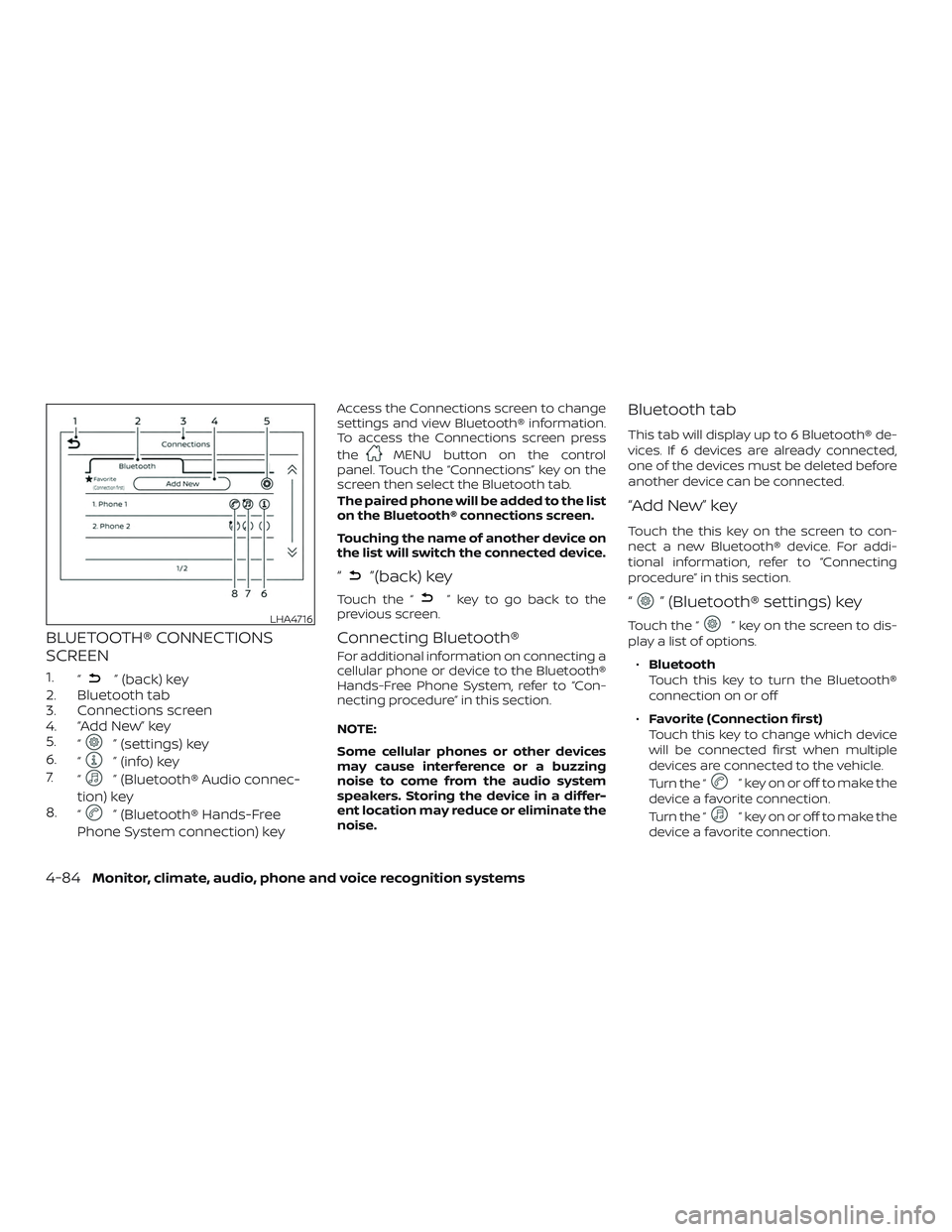
BLUETOOTH® CONNECTIONS
SCREEN
1.“” (back) key
2. Bluetooth tab
3. Connections screen
4. “Add New” key
5. “
” (settings) key
6. “
” (info) key
7. “
” (Bluetooth® Audio connec-
tion) key
8. “
” (Bluetooth® Hands-Free
Phone System connection) key
Access the Connections screen to change
settings and view Bluetooth® information.
To access the Connections screen press
the
MENU button on the control
panel. Touch the “Connections” key on the
screen then select the Bluetooth tab.
The paired phone will be added to the list
on the Bluetooth® connections screen.
Touching the name of another device on
the list will switch the connected device.
“”(back) key
Touch the “” key to go back to the
previous screen.
Connecting Bluetooth®
For additional information on connecting a
cellular phone or device to the Bluetooth®
Hands-Free Phone System, refer to “Con-
necting procedure” in this section.
NOTE:
Some cellular phones or other devices
may cause interference or a buzzing
noise to come from the audio system
speakers. Storing the device in a differ-
ent location may reduce or eliminate the
noise.
Bluetooth tab
This tab will display up to 6 Bluetooth® de-
vices. If 6 devices are already connected,
one of the devices must be deleted before
another device can be connected.
“Add New” key
Touch the this key on the screen to con-
nect a new Bluetooth® device. For addi-
tional information, refer to “Connecting
procedure” in this section.
“” (Bluetooth® settings) key
Touch the “” key on the screen to dis-
play a list of options.
∙ Bluetooth
Touch this key to turn the Bluetooth®
connection on or off
∙ Favorite (Connection first)
Touch this key to change which device
will be connected first when multiple
devices are connected to the vehicle.
Turn the “
” key on or off to make the
device a favorite connection.
Turn the “
” key on or off to make the
device a favorite connection.
LHA4716
4-84Monitor, climate, audio, phone and voice recognition systems
Page 263 of 435
∙Pin
Touch this key to customize the PIN
code. Input a four digit number then
touch the “OK” key. The new PIN will be
set.
“” (info) key
Touch the “” key on the screen to dis-
play the information of the cellular phone
or to delete the device.
Touch the “Delete” key to remove a paired
device then select “Yes” when a message
appears.
“” (Bluetooth® Hands-Free
Phone System connection) key
A list of connected devices will be displayed
on the screen. Touch the “
” key next to
the name to connect a device to the
Hands-Free Phone System. If the phone is
listed as a favorite, a star will appear on the
icon. Select the key again to disconnect the
device. The device will not be removed
from the list. For additional information on
removing a device, refer to “Info key” in this
section.
“” (Bluetooth® Audio
connection) key
A list of connected devices will be displayed
on the screen. Touch the “
” key next to
the name to connect a device to
Bluetooth® Audio. If the device is listed as a
favorite, a star will appear on the icon. Se-
lect the key again to disconnect the device.
The device will not be removed from the
list. For additional information on removing
a device, refer to “Info key” in this section.
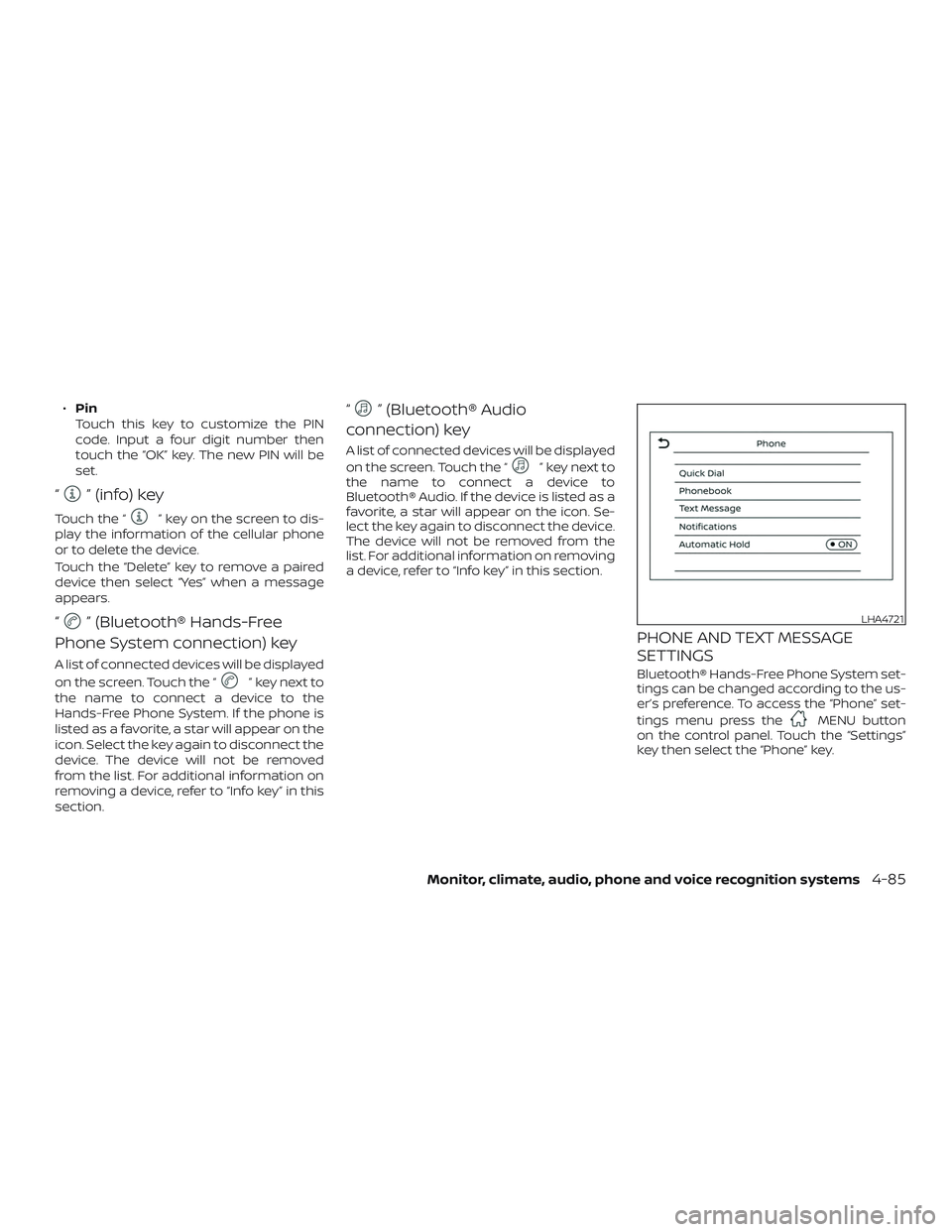
PHONE AND TEXT MESSAGE
SETTINGS
Bluetooth® Hands-Free Phone System set-
tings can be changed according to the us-
er’s preference. To access the “Phone” set-
tings menu press the
MENU button
on the control panel. Touch the “Settings”
key then select the “Phone” key.
LHA4721
Monitor, climate, audio, phone and voice recognition systems4-85
Page 264 of 435
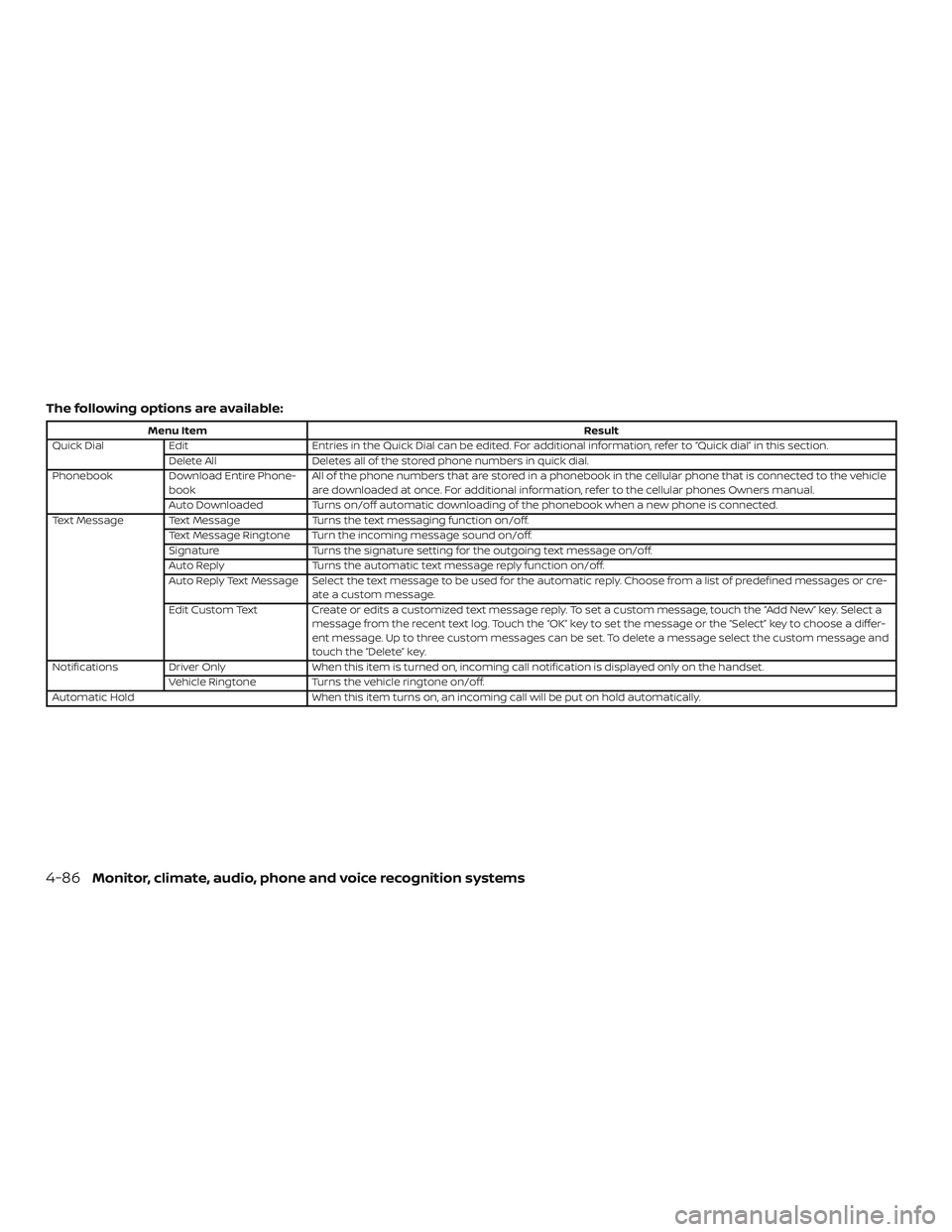
The following options are available:
Menu ItemResult
Quick Dial Edit Entries in the Quick Dial can be edited. For additional information, refer to “Quick dial” in this section.
Delete All Deletes all of the stored phone numbers in quick dial.
Phonebook Download Entire Phone-
book All of the phone numbers that are stored in a phonebook in the cellular phone that is connected to the vehicle
are downloaded at once. For additional information, refer to the cellular phones Owners manual.
Auto Downloaded Turns on/off automatic downloading of the phonebook when a new phone is connected.
Text Message Text Message Turns the text messaging function on/off.
Text Message Ringtone Turn the incoming message sound on/off.
Signature Turns the signature setting for the outgoing text message on/off.
Auto Reply Turns the automatic text message reply function on/off.
Auto Reply Text Message Select the text message to be used for the automatic reply. Choose from a list of predefined messages or cre- ate a custom message.
Edit Custom Text Create or edits a customized text message reply. To set a custom message, touch the “Add New” key. Select a message from the recent text log. Touch the “OK” key to set the message or the “Select” key to choose a differ-
ent message. Up to three custom messages can be set. To delete a message select the custom message and
touch the “Delete” key.
Notifications Driver Only When this item is turned on, incoming call notification is displayed only on the handset.
Vehicle Ringtone Turns the vehicle ringtone on/off.
Automatic Hold When this item turns on, an incoming call will be put on hold automatically.
4-86Monitor, climate, audio, phone and voice recognition systems
Page 265 of 435
Volume & beeps
There are several methods to customize
the volume settings.
Volume & Beeps
The Volume & Beeps screen can be found
by pressing the
MENU button on the
control panel, touching the “Settings” key
on the screen and selecting “Volume &
Beeps”. To adjust the volume of the follow-
ing options, touch the “-” and “+” keys on the
screen.
The available settings are:
∙ Ringtone Adjust the volume level of the ringtone
of incoming calls.
∙ Outgoing Call Adjust the volume level of the outgoing
calls.
∙ Voice Prompt Vol. Adjust the volume level of the system
voice.
∙ Text-to-speech Vol. Adjust the volume of the replay voice for
text messaging.
∙ Button Beeps Turns on/off the button beep sounds
and alarm for prohibited operations. Volume Settings
The Volume settings screen can be found
by pressing the
button on the control
panel then touching the “Volume” key on
the screen. To adjust the volume of the
following options, touch the “-” and “+” keys
on the screen.
The available settings are:
∙ Ringtone Adjust the volume level of the ringtone
of incoming calls.
∙ Outgoing Call Adjust the volume level of the outgoing
calls.
Monitor, climate, audio, phone and voice recognition systems4-87
Page 277 of 435
ON (Normal operating position)
This position turns on the ignition system
and electrical accessories.
ON has a battery saver feature that will
place the ignition switch in the OFF posi-
tion, if the vehicle is not running, af ter some
time under the following conditions:∙ The shif t lever is in P (Park).
∙ The hazard lamps are off.
∙ The turn signals are off.
The battery saver feature will be canceled if
any of the following occur: ∙ The shif t lever is moved out of the P (Park) position.
∙ The ignition switch changes position.
∙ The hazard lamps are turned on.
∙ The turn signals are turned on.
CAUTION
Do not leave the vehicle with the igni-
tion switch in the ON or AUTO ACC posi-
tion when the engine is not running for
an extended period. This can discharge
the battery. OFF
The ignition switch is in the OFF position
when the engine is turned off using the
ignition switch.
AUTO ACC:
With the vehicle in the P (Park) position, the
Intelligent Key with you, and the ignition
switch placed from the ON to the OFF po-
sition, the radio can still be used for a period
of time, or until the driver’s door is opened.
Af ter a period of time, functions such as
radio, navigation, and Bluetooth® Hands-
Free Phone System may be restarted by
pressing the “POWER button/VOLUME con-
trol knob” or the key fob unlock button. For
additional information, refer to “Monitor, cli-
mate, audio, phone and voice recognition
systems” in this manual.
EMERGENCY ENGINE SHUT OFF
To shut off the engine in an emergency
situation while driving, perform the follow-
ing procedure:
∙ Rapidly push the ignition switch three consecutive times in less than 1.5 sec-
onds, or
∙ Push and hold the ignition switch for more than 2 seconds.
Starting and driving5-11
Page 291 of 435
BSW SYSTEM LIMITATIONS
WARNING
Listed below are the system limitations
for the BSW system. Failure to operate
the vehicle in accordance with these
system limitations could result in seri-
ous injury or death.
∙ The BSW system cannot detect all ve-hicles under all conditions.
∙ The radar sensors may not be able to detect and activate BSW when certain
objects are present such as:
– Pedestrian, bicycles, animals.
– Vehicles such as motorcycles, low height vehicles, or high ground
clearance vehicles.
– Oncoming vehicles.
– Vehicles remaining in the detec- tion zone when you accelerate
from a stop.
– A vehicle merging into an adjacent lane at a speed approximately the
same as your vehicle.
– A vehicle approaching rapidly from behind. – A vehicle which your vehicle over-
takes rapidly.
– A vehicle that passes through the detection zone quickly.
– When overtaking several vehicles in a row, the vehicles af ter the first
vehicle may not be detected if they
are traveling close together.
∙ The radar sensors’ detection zone is designed based on a standard lane
width. When driving in a wider lane,
the radar sensors may not detect ve-
hicles in an adjacent lane. When driv-
ing in a narrow lane, the radar sensors
may detect vehicles driving two lanes
away.
∙ The radar sensors are designed to ig- nore most stationary objects, how-
ever objects such as guardrails, walls,
foliage and parked vehicles may oc-
casionally be detected. This is a nor-
mal operation condition.
∙ The following conditions may reduce the ability of the radar to detect other
vehicles:
– Severe weather
– Road spray – Ice/frost/snow/dirt build-up on
the vehicle
∙ Do not attach stickers (including transparent material), install accesso-
ries or apply additional paint near the
radar sensors. These conditions may
reduce the ability of the radar to de-
tect other vehicles.
∙ Excessive noise (for example, audio system volume, open vehicle window)
will interfere with the chime sound,
and it may not be heard.
Starting and driving5-25