USB NISSAN KICKS 2020 Owner´s Manual
[x] Cancel search | Manufacturer: NISSAN, Model Year: 2020, Model line: KICKS, Model: NISSAN KICKS 2020Pages: 500, PDF Size: 3.43 MB
Page 243 of 500
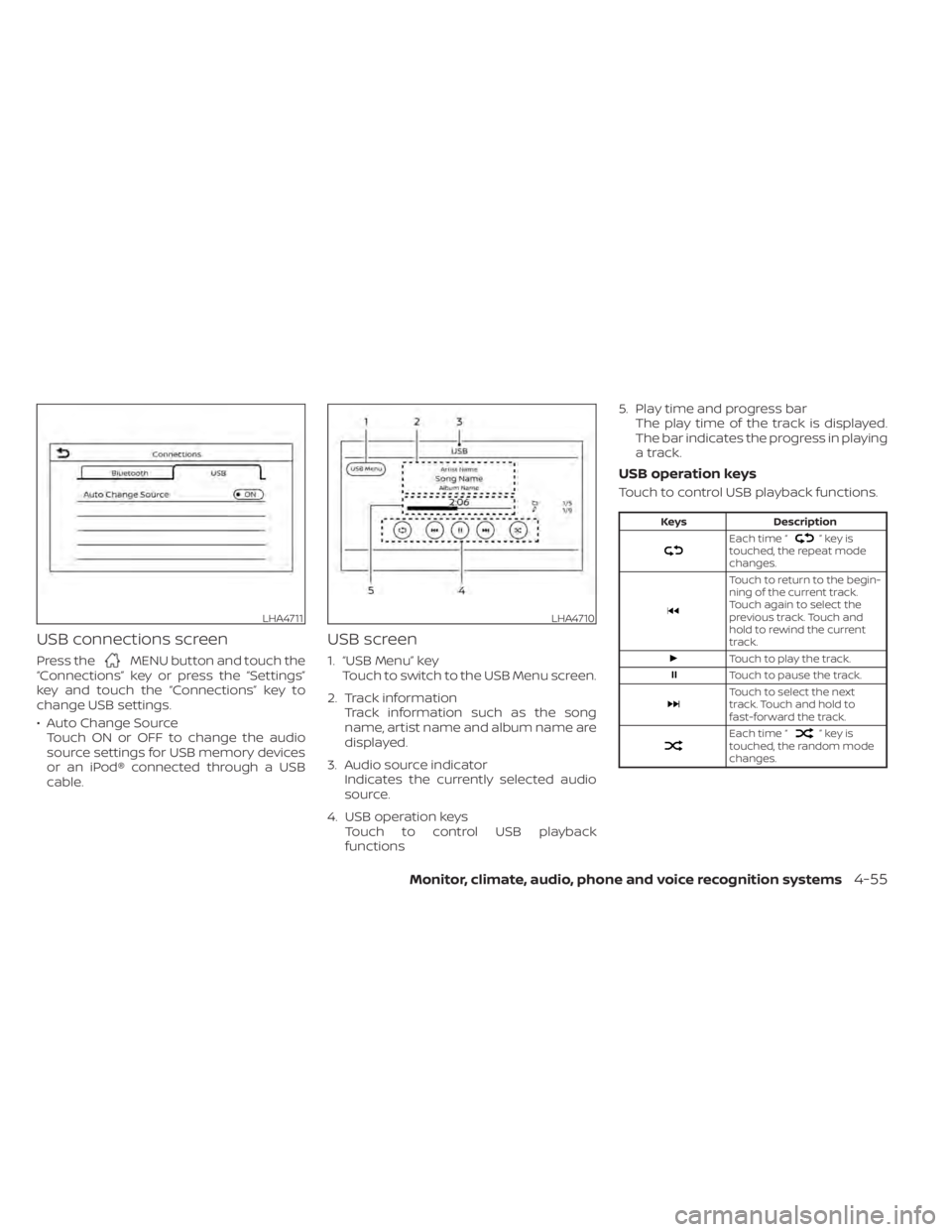
USB connections screen
Press theMENU button and touch the
“Connections” key or press the “Settings”
key and touch the “Connections” key to
change USB settings.
• Auto Change Source Touch ON or OFF to change the audio
source settings for USB memory devices
or an iPod® connected through a USB
cable.
USB screen
1. “USB Menu” key Touch to switch to the USB Menu screen.
2. Track information Track information such as the song
name, artist name and album name are
displayed.
3. Audio source indicator Indicates the currently selected audio
source.
4. USB operation keys Touch to control USB playback
functions 5. Play time and progress bar
The play time of the track is displayed.
The bar indicates the progress in playing
a track.
USB operation keys
Touch to control USB playback functions.
Keys Description
Each time “”keyis
touched, the repeat mode
changes.
Touch to return to the begin-
ning of the current track.
Touch again to select the
previous track. Touch and
hold to rewind the current
track.
Touch to play the track.
Touch to pause the track.
Touch to select the next
track. Touch and hold to
fast-forward the track.
Each time “”keyis
touched, the random mode
changes.
LHA4711LHA4710
Monitor, climate, audio, phone and voice recognition systems4-55
Page 244 of 500
USB memory device player
operation
Activation and playing
Connecting the USB memory device into
the port will start playing the USB memory.
USB memory device can also be played by
touching the “USB” key on the Menu screen
or by touching USB on the Launch Bar.
To pause playing the USB memory device
touch the “
” key. To resume playing,
touch the “”key.
Skipping tracks
To skip the tracks, press theorbuttons on the control panel or touch the “”or“” keys on the screen repeat-
edly until the preferred track is selected.
NOTE:
Depending on the condition, skipping to
the previous track may require pressing
the button or touching the key twice.
Pressing the button or touching the key
once may only restart the current track
from the beginning.
Fast-forwarding/rewinding
To rewind or fast-forward the track, press
and hold theorbuttons on the
control panel or touch and hold the “”
or “” keys on the screen.
Changing play mode
Repeat mode
Touch the “
” key on the USB screen to
change the repeat mode.
The following modes are available:
All: Repeat all
1 Folder: Repeat folder/sub-folder
1 Track: Repeat track
Random mode
Touch the “
” key on the screen to
change the random mode as follows:
No text displayed: Random off
All: Repeat all
1 Folder: Repeat folder/sub-folder
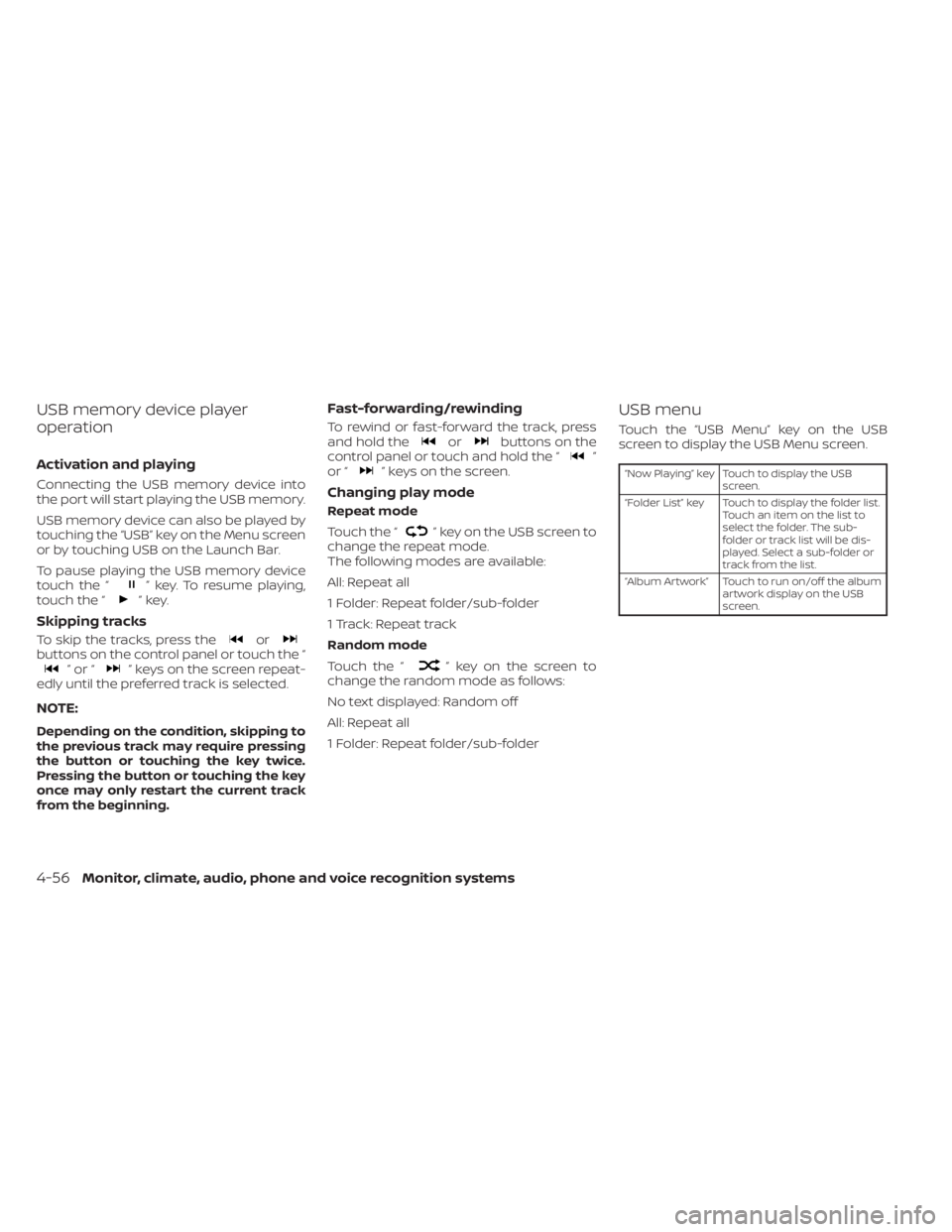
USB menu
Touch the “USB Menu” key on the USB
screen to display the USB Menu screen.
“Now Playing” key Touch to display the USB
screen.
“Folder List” key Touch to display the folder list. Touch an item on the list to
select the folder. The sub-
folder or track list will be dis-
played. Select a sub-folder or
track from the list.
“Album Artwork” Touch to run on/off the album artwork display on the USB
screen.
4-56Monitor, climate, audio, phone and voice recognition systems
Page 245 of 500
iPod®* PLAYER OPERATION
Connecting iPod®
WARNING
Do not connect, disconnect, or operate
the USB device while driving. Doing so
can be a distraction. If distracted you
could lose control of your vehicle and
cause an accident or serious injury.
CAUTION
• Do not force the USB device into the
USB port. Inserting the USB device
tilted or up-side-down into the port
may damage the port. Make sure
that the USB device is connected cor-
rectly into the USB port.
• Do not grab the USB port cover (if so
equipped) when pulling the USB de-
vice out of the port. This could dam-
age the port and the cover.
• Do not leave the USB cable in a place
where it can be pulled unintention-
ally. Pulling the cable may damage
the port.
For additional information, refer to your de-
vice manufacturer’s owner information re-
garding the proper use and care of the
device.
To connect an iPod® to the vehicle so that
the iPod® can be controlled with the audio
system controls and display screen, use
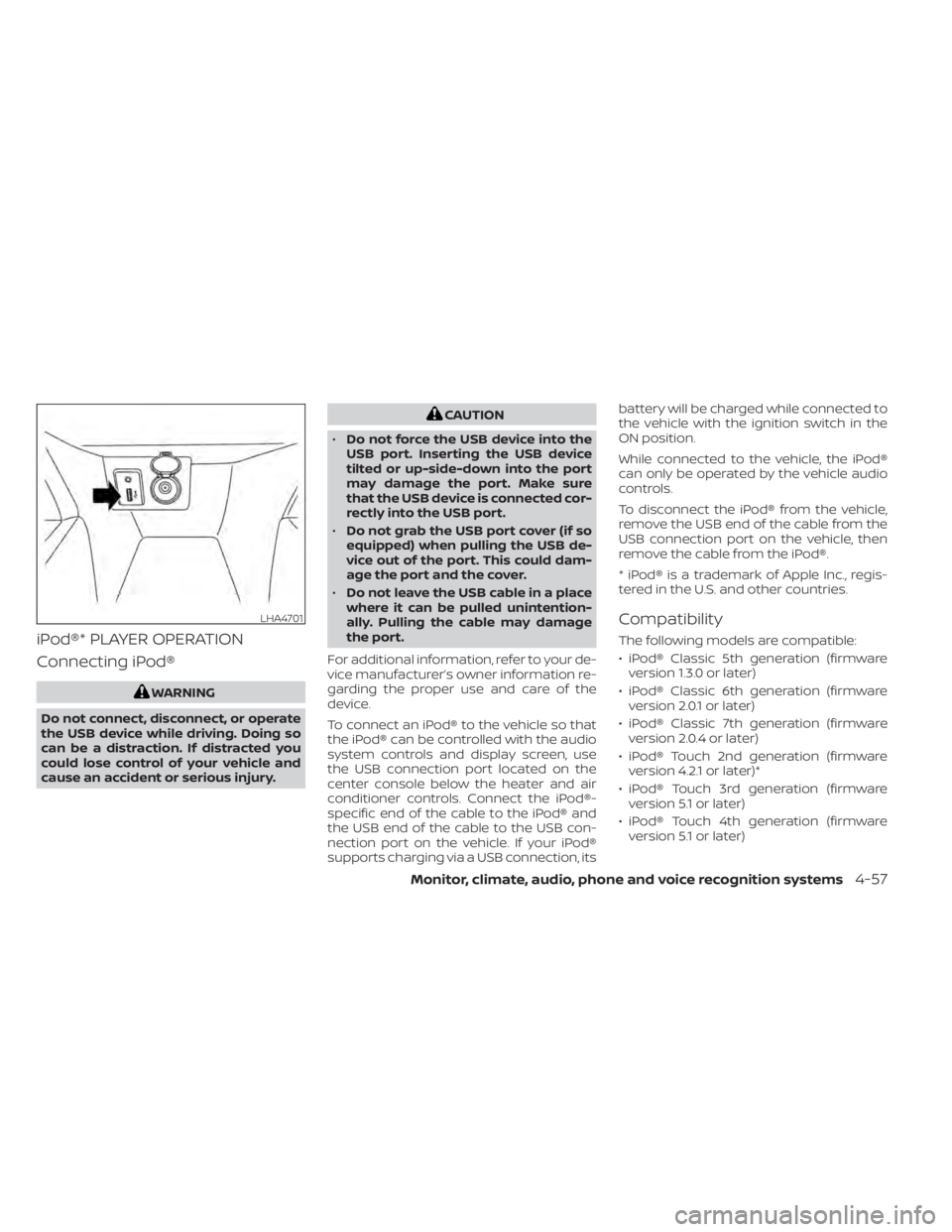
the USB connection port located on the
center console below the heater and air
conditioner controls. Connect the iPod®-
specific end of the cable to the iPod® and
the USB end of the cable to the USB con-
nection port on the vehicle. If your iPod®
supports charging via a USB connection, its battery will be charged while connected to
the vehicle with the ignition switch in the
ON position.
While connected to the vehicle, the iPod®
can only be operated by the vehicle audio
controls.
To disconnect the iPod® from the vehicle,
remove the USB end of the cable from the
USB connection port on the vehicle, then
remove the cable from the iPod®.
* iPod® is a trademark of Apple Inc., regis-
tered in the U.S. and other countries.
Compatibility
The following models are compatible:
• iPod® Classic 5th generation (firmware
version 1.3.0 or later)
• iPod® Classic 6th generation (firmware version 2.0.1 or later)
• iPod® Classic 7th generation (firmware version 2.0.4 or later)
• iPod® Touch 2nd generation (firmware version 4.2.1 or later)*
• iPod® Touch 3rd generation (firmware version 5.1 or later)
• iPod® Touch 4th generation (firmware version 5.1 or later)
LHA4701
Monitor, climate, audio, phone and voice recognition systems4-57
Page 247 of 500
iPod® memory device player
operation
Activation and playing
Connecting the iPod® to the vehicle via USB
cable will activate the iPod® mode.
The iPod® can also be played by touching
the “iPod” key on the Menu screen or by
touching iPod on the Launch Bar.
Skipping tracks
To skip the tracks, press theorbuttons on the control panel or touch the “”or“” keys on the screen repeat-
edly until the preferred track is selected.
NOTE:
Depending on the condition, skipping to
the previous track may require pressing
the button or touching the key twice.
Pressing the button or touching the key
once may only restart the current track
from the beginning.
Fast-forwarding/rewinding
To rewind or fast-forward the track, press
and hold theorbuttons on the
control panel or touch and hold the “”
or “” keys on the screen,
Changing play mode
Repeat mode
Touch the “
” key on the iPod® screen
to change the repeat mode. The following
modes are available.
No text displayed: Repeat off
All: Repeat all
One: Repeat track
Random mode
Touch the “
” key on the screen to
change the random mode as follows.
“
” is not highlighted: Random off
“
” highlighted: Random on
iPod® Menu
Touch the “iPod Menu” key on the iPod®
screen to display the iPod® Menu screen.
“Now Playing” key Touch to display the USB screen.
“Folder List” key (if
so equipped) Touch to display the folder list.
Touch an item on the list to
select the folder. The sub-
folder or track list will be dis-
played. Select a sub-folder or
track from the list.
“Album Artwork”
key Touch to run on/off the album
artwork display on the USB
screen.
“Playlists” key Touch to display the list ac- cording to the selected item.
“Artists” key
“Albums” key
“Songs” key
“Podcasts” key
“Genres” key
“Composers” key
“Audiobooks” key
“iTunes Radio”
key
Monitor, climate, audio, phone and voice recognition systems4-59
Page 251 of 500
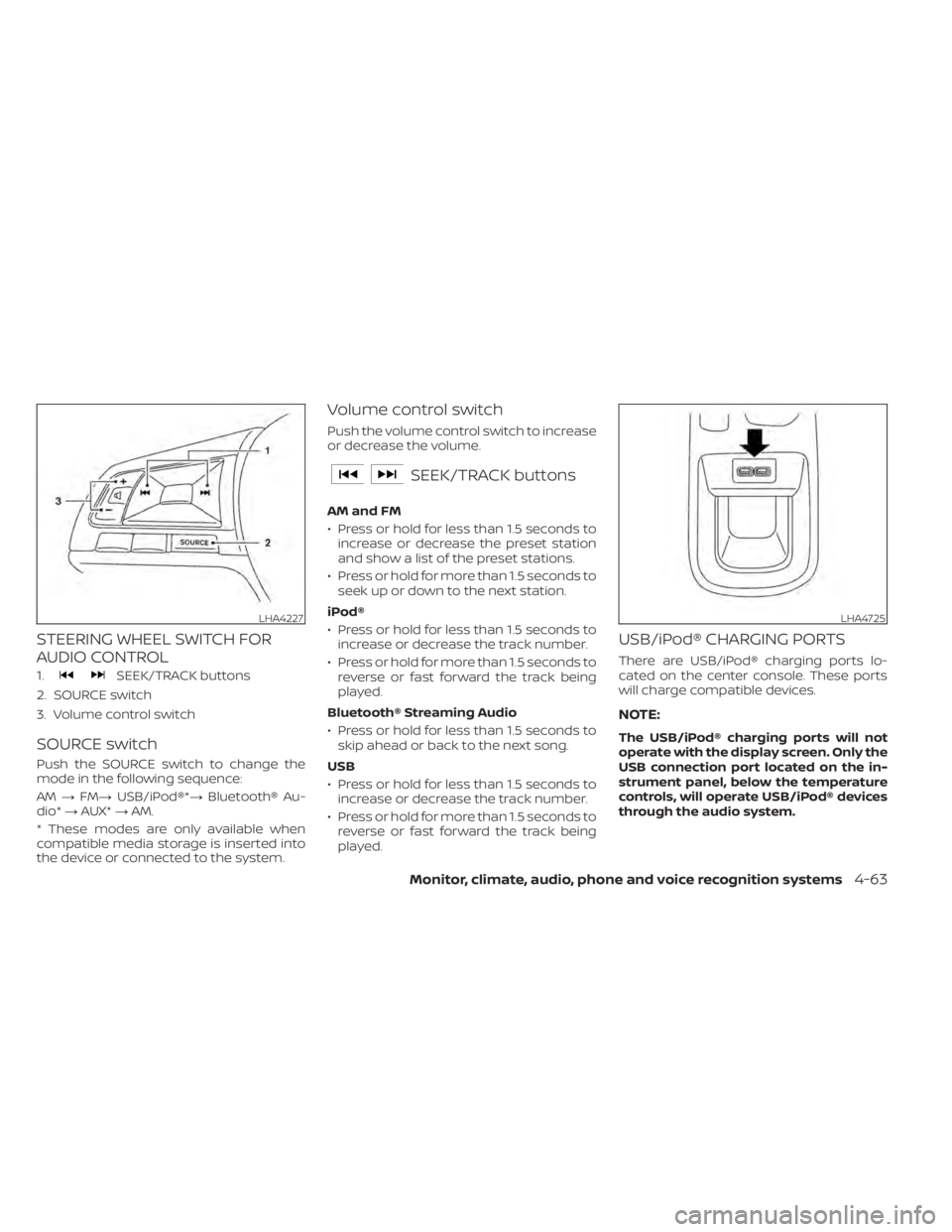
STEERING WHEEL SWITCH FOR
AUDIO CONTROL
1.SEEK/TRACK buttons
2. SOURCE switch
3. Volume control switch
SOURCE switch
Push the SOURCE switch to change the
mode in the following sequence:
AM →FM→ USB/iPod®*→ Bluetooth® Au-
dio* →AUX* →AM.
* These modes are only available when
compatible media storage is inserted into
the device or connected to the system.
Volume control switch
Push the volume control switch to increase
or decrease the volume.
SEEK/TRACK buttons
AM and FM
• Press or hold for less than 1.5 seconds to increase or decrease the preset station
and show a list of the preset stations.
• Press or hold for more than 1.5 seconds to seek up or down to the next station.
iPod®
• Press or hold for less than 1.5 seconds to increase or decrease the track number.
• Press or hold for more than 1.5 seconds to reverse or fast forward the track being
played.
Bluetooth® Streaming Audio
• Press or hold for less than 1.5 seconds to skip ahead or back to the next song.
USB
• Press or hold for less than 1.5 seconds to increase or decrease the track number.
• Press or hold for more than 1.5 seconds to reverse or fast forward the track being
played.
USB/iPod® CHARGING PORTS
There are USB/iPod® charging ports lo-
cated on the center console. These ports
will charge compatible devices.
NOTE:
The USB/iPod® charging ports will not
operate with the display screen. Only the
USB connection port located on the in-
strument panel, below the temperature
controls, will operate USB/iPod® devices
through the audio system.
LHA4227LHA4725
Monitor, climate, audio, phone and voice recognition systems4-63
Page 253 of 500
REQUIREMENTS
Siri® is only available on the iPhone® 4S or
later. Devices released before iPhone® 4S
are not supported by the Siri® Eyes Free
system. Visit www.apple.com/ios/siri for
details about device compatibility.
Siri must be enabled on the phone. Please
check phone settings.
If the device has a lock screen, Siri must be
accessible from the lock screen. Please
check phone settings.
For best results, always update your device
to the latest sof tware version.
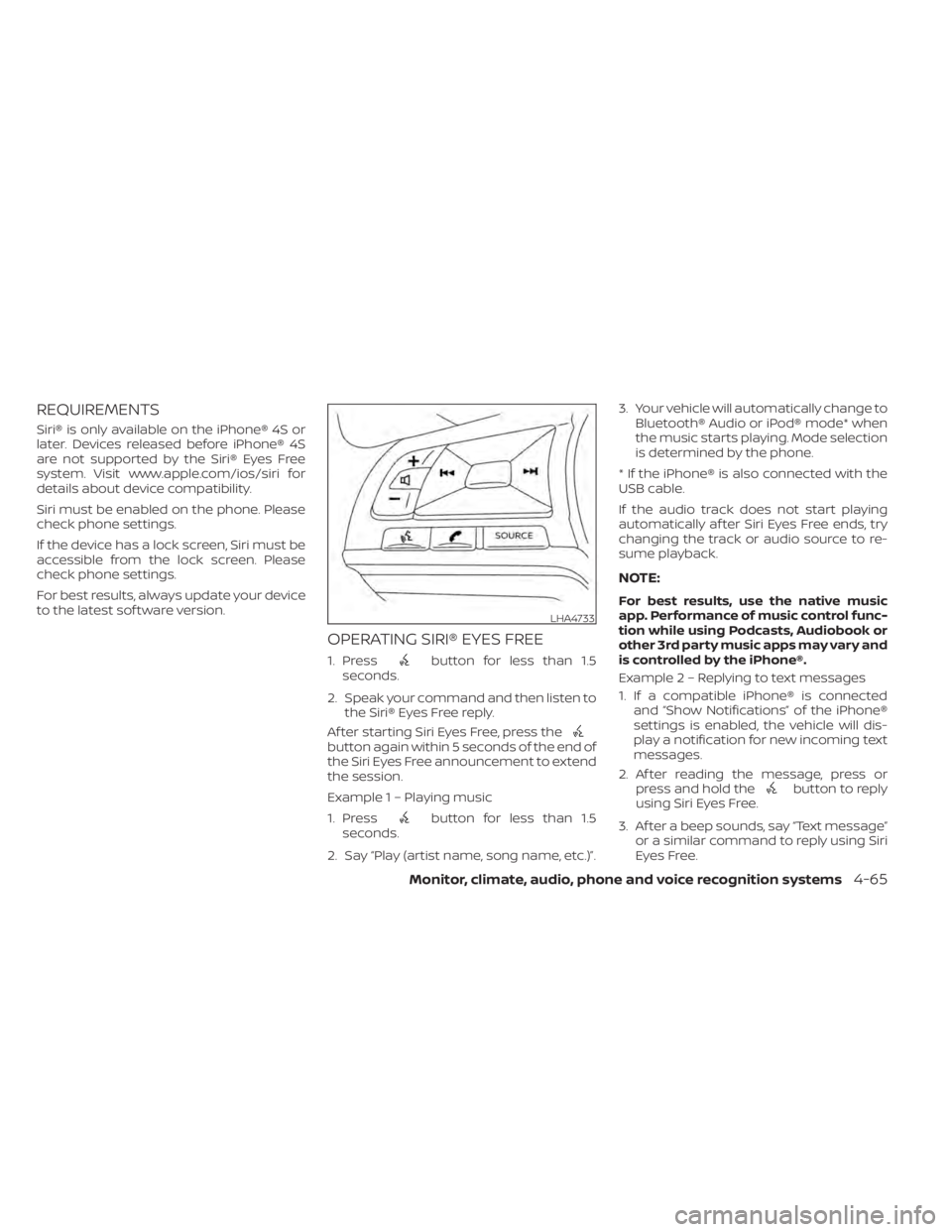
OPERATING SIRI® EYES FREE
1. Pressbutton for less than 1.5
seconds.
2. Speak your command and then listen to the Siri® Eyes Free reply.
Af ter starting Siri Eyes Free, press the
button again within 5 seconds of the end of
the Siri Eyes Free announcement to extend
the session.
Example 1 – Playing music
1. Press
button for less than 1.5
seconds.
2. Say “Play (artist name, song name, etc.)”. 3. Your vehicle will automatically change to
Bluetooth® Audio or iPod® mode* when
the music starts playing. Mode selection
is determined by the phone.
* If the iPhone® is also connected with the
USB cable.
If the audio track does not start playing
automatically af ter Siri Eyes Free ends, try
changing the track or audio source to re-
sume playback.
NOTE:
For best results, use the native music
app. Performance of music control func-
tion while using Podcasts, Audiobook or
other 3rd party music apps may vary and
is controlled by the iPhone®.
Example2–Repl ying to text messages
1. If a compatible iPhone® is connected and “Show Notifications” of the iPhone®
settings is enabled, the vehicle will dis-
play a notification for new incoming text
messages.
2. Af ter reading the message, press or press and hold the
button to reply
using Siri Eyes Free.
3. Af ter a beep sounds, say “Text message” or a similar command to reply using Siri
Eyes Free.
LHA4733
Monitor, climate, audio, phone and voice recognition systems4-65
Page 254 of 500
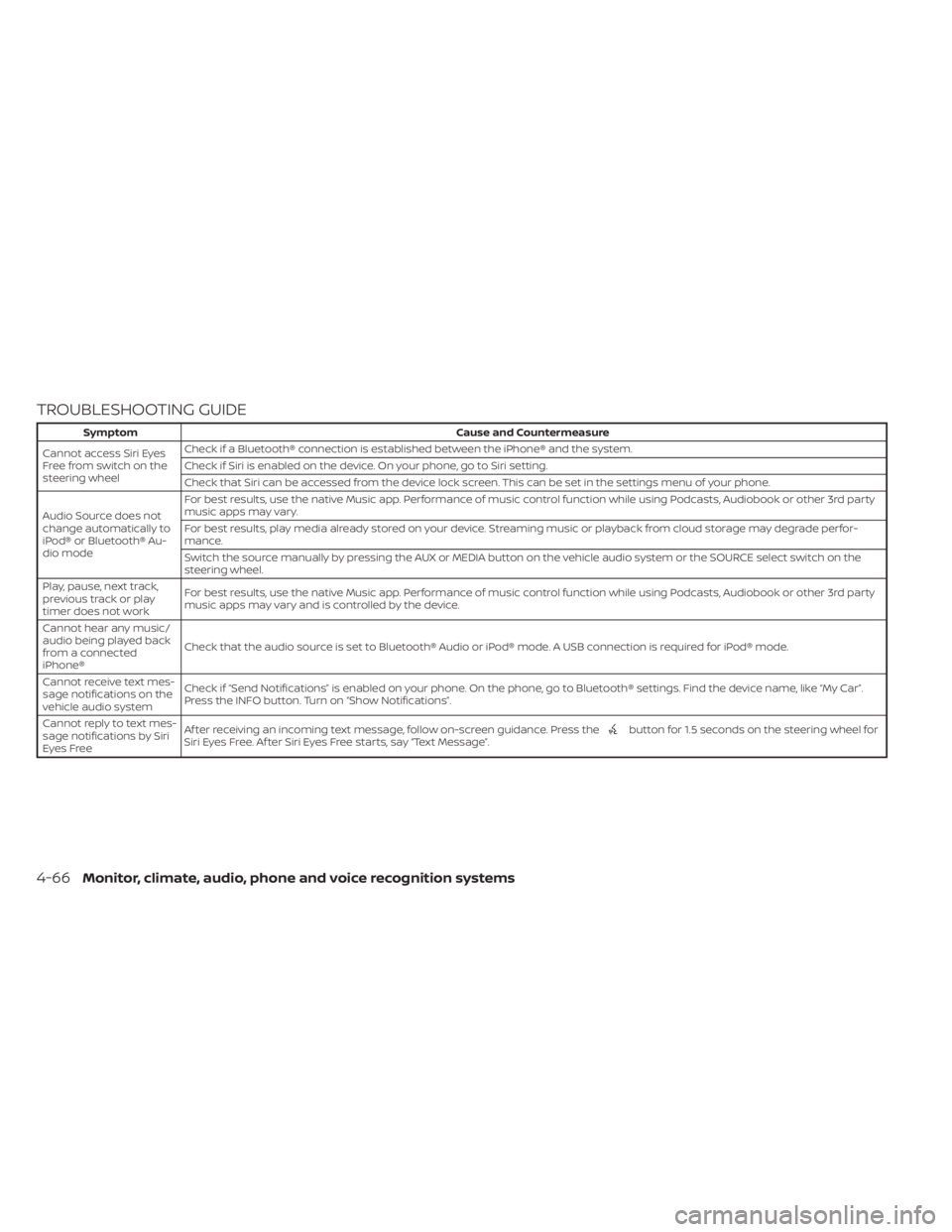
TROUBLESHOOTING GUIDE
SymptomCause and Countermeasure
Cannot access Siri Eyes
Freefromswitchonthe
steering wheel Check if a Bluetooth® connection is established between the iPhone® and the system.
Check if Siri is enabled on the device. On your phone, go to Siri setting.
Check that Siri can be accessed from the device lock screen. This can be set in the settings menu of your phone.
Audio Source does not
change automatically to
iPod® or Bluetooth® Au-
dio mode For best results, use the native Music app. Performance of music control function while using Podcasts, Audiobook or other 3rd party
music apps may vary.
For best results, play media already stored on your device. Streaming music or playback from cloud storage may degrade perfor-
mance.
Switch the source manually by pressing the AUX or MEDIA button on the vehicle audio system or the SOURCE select switch on the
steering wheel.
Play, pause, next track,
previous track or play
timer does not work For best results, use the native Music app. Performance of music control function while using Podcasts, Audiobook or other 3rd party
music apps may vary and is controlled by the device.
Cannot hear any music/
audio being played back
from a connected
iPhone® Check that the audio source is set to Bluetooth® Audio or iPod® mode. A USB connection is required for iPod® mode.
Cannot receive text mes-
sage notifications on the
vehicle audio system Check if “Send Notifications” is enabled on your phone. On the phone, go to Bluetooth® settings. Find the device name, like “My Car”.
Press the INFO button. Turn on “Show Notifications”.
Cannot reply to text mes-
sage notifications by Siri
Eyes Free Af ter receiving an incoming text message, follow on-screen guidance. Press the
button for 1.5 seconds on the steering wheel for
Siri Eyes Free. Af ter Siri Eyes Free starts, say “Text Message”.
4-66Monitor, climate, audio, phone and voice recognition systems
Page 485 of 500
11 Index
A
Active Ride Control (ARC).........5-104Air bag (See supplemental restraint
system).....................1-42Air bag system
Front (See supplemental front impact air
bag system)
................1-48Air bag warning labels............1-61Air bag warning light.........1-62, 2-18Air bag warning light,
supplemental..............1-62, 2-18Air cleaner housing filter..........8-16Air conditionerAir conditioner operation. . . .4-36, 4-42Air conditioner specification label. .10-12Air conditioner system refrigerant and oil
recommendations............10-7Air conditioner system refrigerant
recommendations............10-7Heater and air conditioner.......4-41Heater and air conditioner controls.4-42Servicing air conditioner........4-44Air flow charts................ .4-37Alarm system (See vehicle security
system)................... .2-38Anchor point locations...........1-25Antenna....................4-64Antifreeze...................5-111Anti-lock Braking System (ABS)......5-99Audio system.................4-44
AM/FM radio............4-49, 4-51AM radio operation............4-51AM radio reception............4-45Auxiliary (AUX) devices operation. . .4-53Bluetooth® audio.............4-60FM radio operation............4-52FM radio reception............4-45iPod® Player................4-57iPod® player operation..........4-57Radio................... .4-44Steering wheel audio control
switch....................4-63USB Connections.............4-55USB interface...............4-54Autolight switch...............2-45Automatic
Automatic power window switch. . .2-70Automatic door locks.............3-6Automatic Emergency Braking
(AEB)............2-12,2-13,2-17, 5-60Automatic Emergency Braking (AEB) with
Pedestrian Detection............5-69
B
Battery.................5-111, 8-12Charge warning light...........2-13Battery replacement............8-22Key fob...................8-22NISSAN Intelligent Key®.........8-22
Before starting the engine.........5-15Belt (See drive belt)..............8-14Blind Spot Warning (BSW).........5-30Blind Spot Warning (BSW) switch.....2-53Bluetooth® audio..............4-60Bluetooth® hands-free phone system. .4-67Bluetooth® connections.........4-81Connecting procedure..........4-72Phone indicators.............4-71Text messaging..............4-78Voice commands.............4-73Booster seats.................1-38Brake
Anti-lock Braking System (ABS). . . .5-99Brake fluid................. .8-9Brake light (See stop light).......8-26Brake system...............5-98Brake warning light............2-13Brake wear indicators.......2-22,8-18Parking brake operation.........5-23Self-adjusting brakes...........8-18Brake Assist.................5-100Brake fluid................... .8-9Brakes.....................8-18Brake system.................5-98Break-in schedule..............5-94Brightness/contrast button.........4-8Brightness control
Instrument panel.............2-50Bulb check/instrument panel.......2-12Bulb replacement..............8-26
Page 491 of 500
Turn signal switch.............2-51
T
Tachometer...................2-7Thef t (NISSAN Anti-Thef t System), engine
start....................2-39, 5-14Thef t (NISSAN Vehicle Immobilizer System),
engine start...............2-40, 5-14Three-way catalyst...............5-4Tire
Flat tire................. .6-3, 6-4Spare tire...............6-5, 8-39Tire and Loading Information label. .10-12Tire chains.................8-35Tire pressure................8-28Tire rotation.................8-36Types of tires................8-34Uniform tire quality grading.......10-18Wheels and tires..........8-28,10-9Wheel/tire size...............10-9Tire pressure
Low tire pressure warning light.....2-15Tire Pressure Monitoring System (TPMS). .5-5Top tether strap child restraint.......1-25Towing4-wheel drive models...........6-13Flat towing................ .10-17Trailer towing................10-17Towing a trailer................10-17Towing your vehicle..............6-12
Transmission
Continuously Variable Transmission (CVT)
fluid
..................... .8-9Driving with Continuously Variable
Transmission (CVT).............5-17Travel (See registering a vehicle in another
country)....................10-10Trip odometer...............2-5, 2-6Trunk light....................2-73Turn signal switch...............2-51
U
Uniform tire quality grading........10-18USB/iPod® Charging Ports.........4-63USB (Universal Serial Bus) Connection Port
(models without Navigation System). . .4-54
V
Vanity mirror..................3-27Variable voltage control system......8-14Vehicle dimensions and weights......10-9Vehicle Dynamic Control (VDC) OFF
switch..................... .2-55Vehicle Dynamic Control (VDC)
system.....................5-100Vehicle identification............10-10Vehicle identification number (VIN). . . .10-10Vehicle identification number (VIN)
(Chassis number)..............10-10Vehicle identification number (VIN)
plate......................10-10
Vehicle immobilizer system.....2-40, 5-14Vehicle information display.........2-23Vehicle loading information........10-13Vehicle recovery................6-14Vehicle security system...........2-38Vehicle security system
(NISSAN Anti-Thef t System),
engine start
...............2-39, 5-14Vehicle security system (NISSAN Vehicle
Immobilizer System), engine
start
....................2-40, 5-14Vents..................... .4-32Visors......................3-27Voice Prompt Interrupt............4-70
W
Warning
Air bag warning light........1-62, 2-18Battery charge warning light......2-13Brake warning light............2-13Door open warning light.........2-14Engine oil pressure warning light. . . .2-14Hazard warning flasher switch......6-2Low fuel warning light. . . .2-15, 2-16, 2-33Low tire pressure warning light.....2-15Low windshield-washer fluid warning
light......................2-16Passenger air bag and status light. . .1-51Seat belt warning light.......1-13,2-18Supplemental air bag warning
light.................. .1-62, 2-18Vehicle security system.........2-38
Index11-7