lock NISSAN KICKS 2021 Repair Manual
[x] Cancel search | Manufacturer: NISSAN, Model Year: 2021, Model line: KICKS, Model: NISSAN KICKS 2021Pages: 500, PDF Size: 3.24 MB
Page 184 of 500
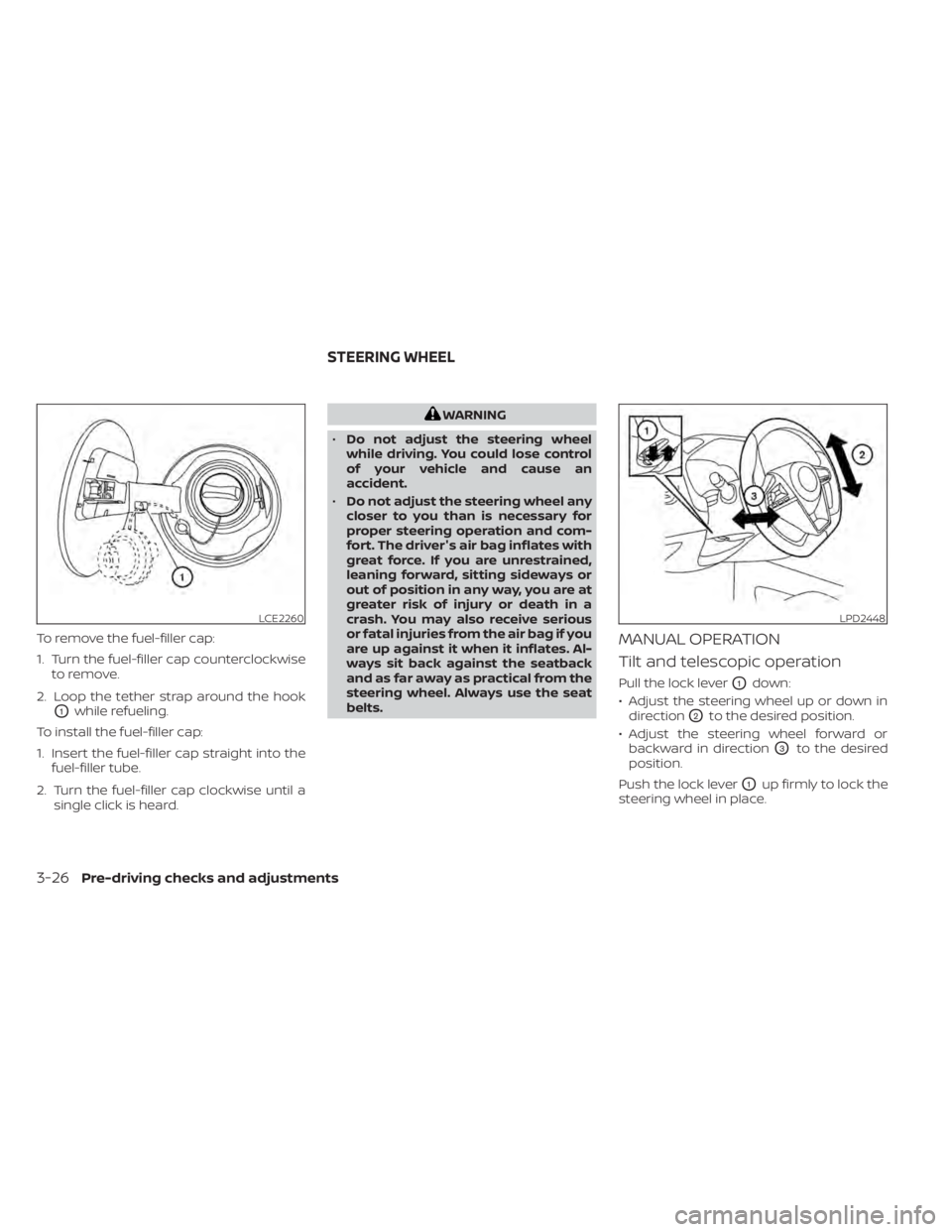
To remove the fuel-filler cap:
1. Turn the fuel-filler cap counterclockwiseto remove.
2. Loop the tether strap around the hook
O1while refueling.
To install the fuel-filler cap:
1. Insert the fuel-filler cap straight into the fuel-filler tube.
2. Turn the fuel-filler cap clockwise until a single click is heard.
LCE2260LPD2448
STEERING WHEEL
Page 185 of 500
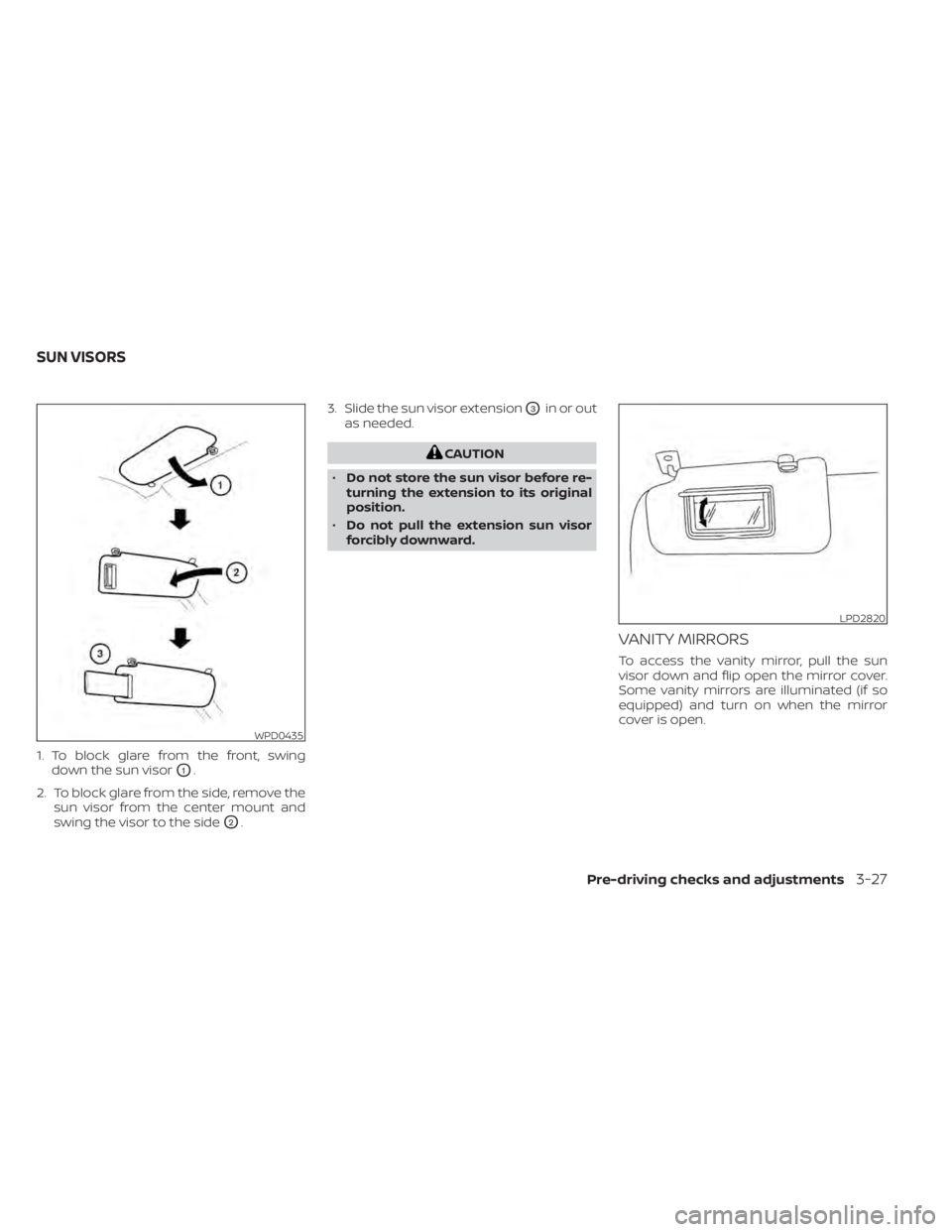
1. To block glare from the front, swingdown the sun visor
O1.
2. To block glare from the side, remove the sun visor from the center mount and
swing the visor to the side
O2. 3. Slide the sun visor extension
O3in or out
as needed.
WPD0435
LPD2820
SUN VISORS
Pre-driving checks and adjustments3-27
Page 195 of 500
Menu itemResult
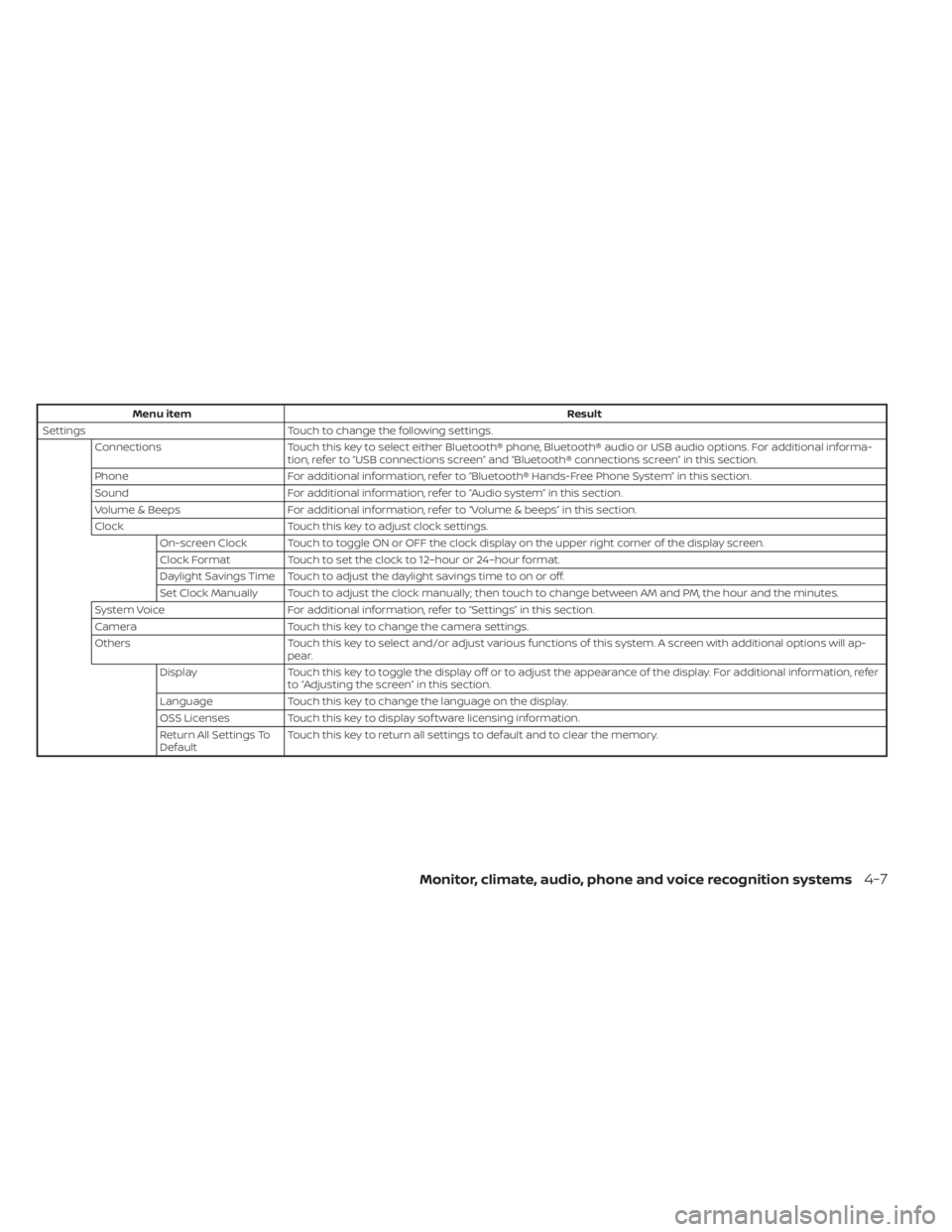
Settings Touch to change the following settings.
Connections Touch this key to select either Bluetooth® phone, Bluetooth® audio or USB audio options. For additional informa-
tion, refer to “USB connections screen” and “Bluetooth® connections screen” in this section.
Phone For additional information, refer to “Bluetooth® Hands-Free Phone System” in this section.
Sound For additional information, refer to “Audio system” in this section.
Volume & Beeps For additional information, refer to “Volume & beeps” in this section.
Clock Touch this key to adjust clock settings.
On-screen Clock Touch to toggle ON or OFF the clock display on the upper right corner of the display screen.
Clock Format Touch to set the clock to 12–hour or 24–hour format.
Daylight Savings Time Touch to adjust the daylight savings time to on or off.
Set Clock Manually Touch to adjust the clock manually; then touch to change between AM and PM, the hour and the minutes.
System Voice For additional information, refer to “Settings” in this section.
Camera Touch this key to change the camera settings.
Others Touch this key to select and/or adjust various functions of this system. A screen with additional options will ap-
pear.
Display Touch this key to toggle the display off or to adjust the appearance of the display. For additional information, refer
to “Adjusting the screen” in this section.
Language Touch this key to change the language on the display.
OSS Licenses Touch this key to display sof tware licensing information.
Return All Settings To
Default Touch this key to return all settings to default and to clear the memory.
Monitor, climate, audio, phone and voice recognition systems4-7
Page 252 of 500
ANTENNA
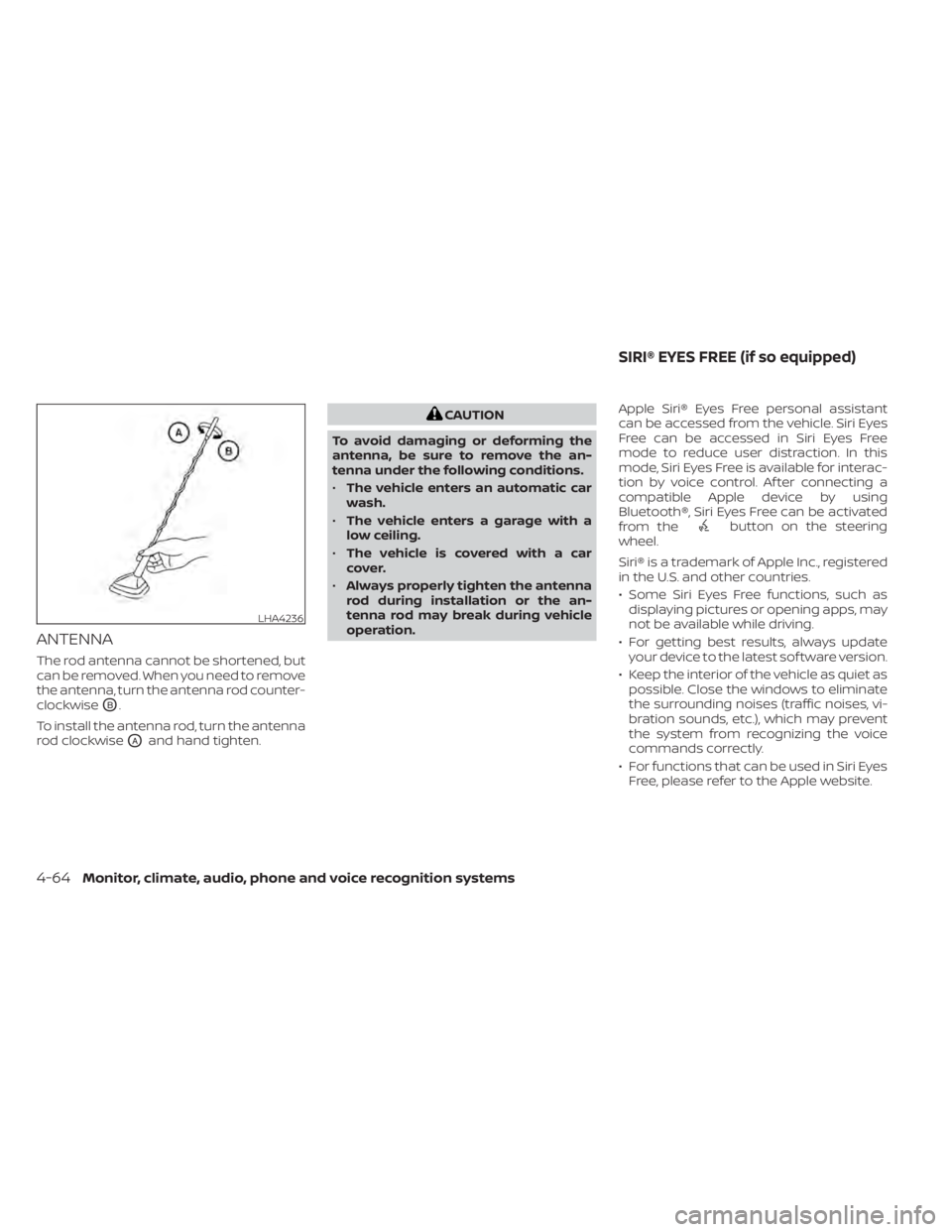
The rod antenna cannot be shortened, but
can be removed. When you need to remove
the antenna, turn the antenna rod counter-
clockwise
OB.
To install the antenna rod, turn the antenna
rod clockwise
OAand hand tighten.
button on the steering
wheel.
Siri® is a trademark of Apple Inc., registered
in the U.S. and other countries.
• Some Siri Eyes Free functions, such as displaying pictures or opening apps, may
not be available while driving.
• For getting best results, always update your device to the latest sof tware version.
• Keep the interior of the vehicle as quiet as possible. Close the windows to eliminate
the surrounding noises (traffic noises, vi-
bration sounds, etc.), which may prevent
the system from recognizing the voice
commands correctly.
• For functions that can be used in Siri Eyes Free, please refer to the Apple website.
LHA4236
SIRI® EYES FREE (if so equipped)
Page 253 of 500
REQUIREMENTS
Siri® is only available on the iPhone® 4S or
later. Devices released before iPhone® 4S
are not supported by the Siri® Eyes Free
system. Visit www.apple.com/ios/siri for
details about device compatibility.
Siri must be enabled on the phone. Please
check phone settings.
If the device has a lock screen, Siri must be
accessible from the lock screen. Please
check phone settings.
For best results, always update your device
to the latest sof tware version.
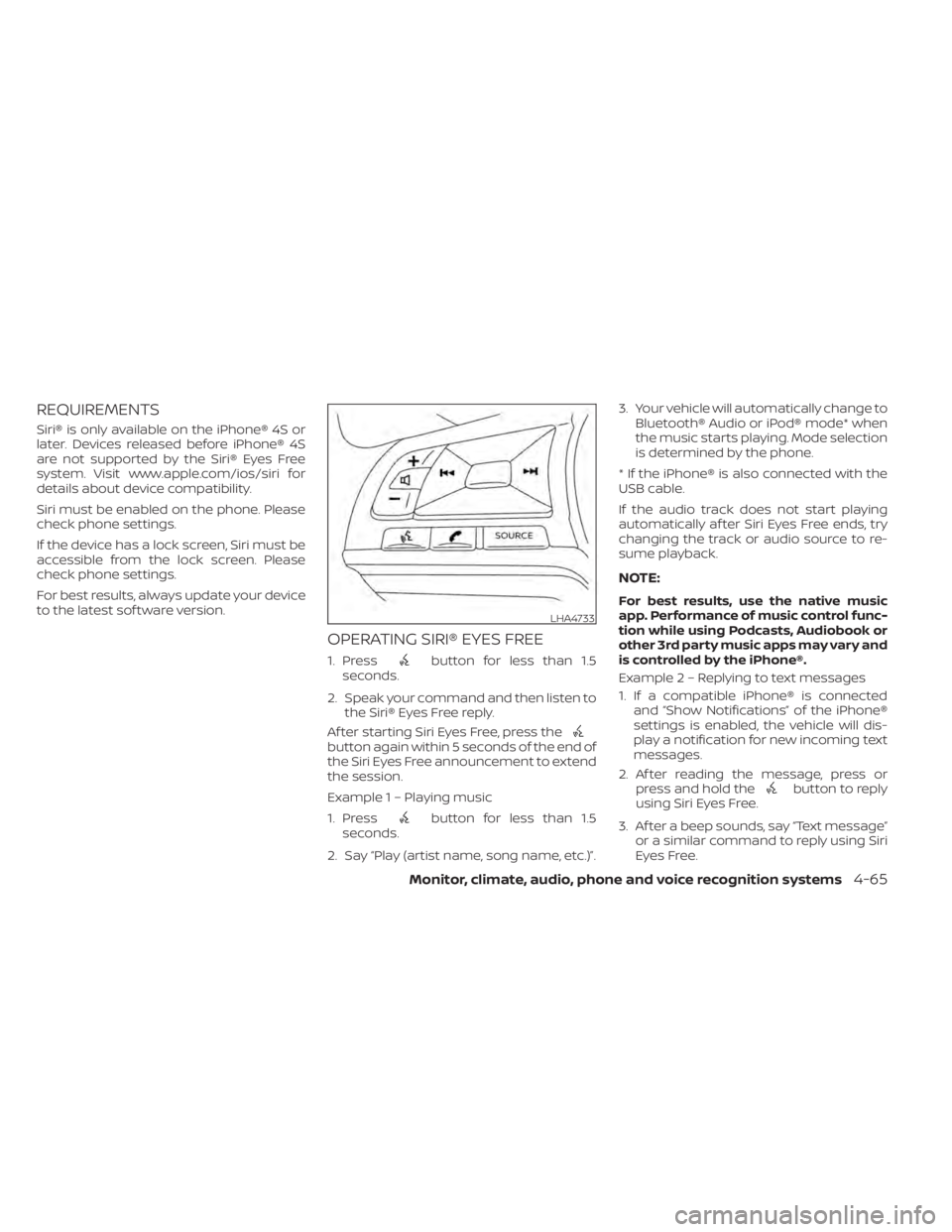
OPERATING SIRI® EYES FREE
1. Pressbutton for less than 1.5
seconds.
2. Speak your command and then listen to the Siri® Eyes Free reply.
Af ter starting Siri Eyes Free, press the
button again within 5 seconds of the end of
the Siri Eyes Free announcement to extend
the session.
Example 1 – Playing music
1. Press
button for less than 1.5
seconds.
2. Say “Play (artist name, song name, etc.)”. 3. Your vehicle will automatically change to
Bluetooth® Audio or iPod® mode* when
the music starts playing. Mode selection
is determined by the phone.
* If the iPhone® is also connected with the
USB cable.
If the audio track does not start playing
automatically af ter Siri Eyes Free ends, try
changing the track or audio source to re-
sume playback.
NOTE:
For best results, use the native music
app. Performance of music control func-
tion while using Podcasts, Audiobook or
other 3rd party music apps may vary and
is controlled by the iPhone®.
Example2–Repl ying to text messages
1. If a compatible iPhone® is connected and “Show Notifications” of the iPhone®
settings is enabled, the vehicle will dis-
play a notification for new incoming text
messages.
2. Af ter reading the message, press or press and hold the
button to reply
using Siri Eyes Free.
3. Af ter a beep sounds, say “Text message” or a similar command to reply using Siri
Eyes Free.
LHA4733
Page 257 of 500
• You will not be able to use a hands-freephone under the following conditions:
Your vehicle is outside of the cellular ser-
vice area.
Your vehicle is in an area where it is difficult
to receive a cellular signal; such as in a
tunnel, in an underground parking garage,
near a tall building or in a mountainous
area.
Your cellular phone is locked to prevent it
from being dialed.
• When the radio wave condition is not ideal or ambient sound is too loud, it may
be difficult to hear the other person's
voice during a call.
• Do not place the cellular phone in an area surrounded by metal or far away from
the in-vehicle phone module to prevent
tone quality degradation and wireless
connection disruption.
• While a cellular phone is connected through the Bluetooth® wireless connec-
tion, the battery power of the cellular
phone may discharge quicker than usual.
The Bluetooth® Hands-Free Phone Sys-
tem cannot charge cellular phones. • Some cellular phones or other devices
may cause interference or a buzzing
noise to come from the audio system
speakers. Storing the device in a different
location may reduce or eliminate the
noise.
• For additional information, refer to the cellular phone owner's manual regarding
the telephone charges, cellular phone
antenna and body, etc.
REGULATORY INFORMATION
FCC Regulatory information
– CAUTION: To maintain compliance with FCC’s RF exposure guidelines, use only
the supplied antenna. Unauthorized an-
tenna, modification, or attachments
could damage the transmitter and may
violate FCC regulations.
– Operation is subject to the following two conditions:1. 1) This device may not cause interfer- ence and
2.2) this device must accept any interfer- ence, including interference that may
cause undesired operation of the
device. IC Regulatory information
– Operation is subject to the following two
conditions: (1) this device may not cause
interference, and (2) this device must ac-
cept any interference, including interfer-
ence that may cause undesired opera-
tion of the device.
– This Class B digital apparatus meets all requirements of the Canadian
Interference-Causing Equipment Regu-
lations.BLUETOOTH® is a
trademark owned by
Bluetooth SIG, Inc. and
licensed to
Panasonic.
USING THE SYSTEM
The system allows hands-free operation of
the Bluetooth® Hands-Free Phone System.
If the vehicle is in motion, some commands
may not be available so full attention may
be given to vehicle operation.
Monitor, climate, audio, phone and voice recognition systems4-69
Page 274 of 500
Rear Automatic Braking (RAB) (if so equipped) . . 5-54RAB system operation .......................5-54
Turning the RAB system on/off ..............5-56
RAB system limitations ......................5-57
System malfunction ......................... 5-59
System maintenance .......................5-59
Automatic Emergency Braking (AEB)
(if so equipped) ................................. 5-60
AEB system operation ....................... 5-61
Turning the AEB system on/off ..............5-63
AEB system limitations ......................5-65
System temporarily unavailable .............5-66
System malfunction ......................... 5-67
System maintenance .......................5-68
Automatic Emergency Braking (AEB) with
Pedestrian Detection (if so equipped) ...........5-69
AEB with Pedestrian Detection system
operation ................................... 5-70
Turning the AEB with Pedestrian
Detection system on/off ....................5-72
AEB with Pedestrian Detection system
limitations ..................................5-74
System temporarily unavailable .............5-76
System malfunction ......................... 5-78
System maintenance .......................5-78Intelligent Forward Collision Warning (I-FCW) . . . 5-80
I-FCW system operation .....................5-82
Turning the I-FCW system on/off ............5-82
I-FCW system limitations ....................5-84
System temporarily unavailable .............5-88
System malfunction ......................... 5-90
System maintenance .......................5-90
Intelligent Driver Alertness (I-DA)
(if so equipped) ................................. 5-92
Intelligent Driver Alertness system
operation ................................... 5-92
How to enable/disable the Intelligent
Driver Alertness (I-DA) system ...............5-93
Intelligent Driver Alertness (I-DA)
system limitations .......................... 5-94
Break-in schedule .............................. 5-94
Fuel efficient driving tips ........................5-95
Increasing fuel economy .......................5-96
Parking/parking on hills ........................5-96
P
ower steering ................................. 5-97
Brake system .................................. 5-98
Brake precautions ........................... 5-98
Anti-lock Braking System (ABS) ..............5-99
Brake Assist ................................ 5-100
Page 275 of 500
Vehicle Dynamic Control (VDC) system........5-100
Brake force distribution ....................5-102
Chassis Control (if so equipped) ...............5-103
Intelligent Trace Control (I-TC) ..............5-103
Intelligent Engine Brake (I-EB) ...............5-103
Active Ride Control (ARC) ...................5-104
Hill start assist system ........................5-104
Rear Sonar System (RSS) (if so equipped) ......5-105
System operation .......................... 5-106
How to enable/disable the sonar
system ..................................... 5-108
Sonar limitations ........................... 5-109System temporarily unavailable
............5-110
System maintenance ......................5-110
Cold weather driving ........................... 5-111
Freeing a frozen door lock ...................5-111
Antifreeze ................................... 5-111
Battery...................................... 5-111
Draining of coolant water ...................5-111
Tire equipment .............................. 5-111
Special winter equipment ..................5-112
Driving on snow or ice ......................5-112
Parking brake .............................. 5-112
Engine block heater (if so equipped) ........5-112
Page 284 of 500
Some indicators and warnings for opera-
tion are displayed on the vehicle informa-
tion display (if so equipped). For additional
information, refer to “Vehicle information
display” in the “Instruments and controls”
section of this manual.
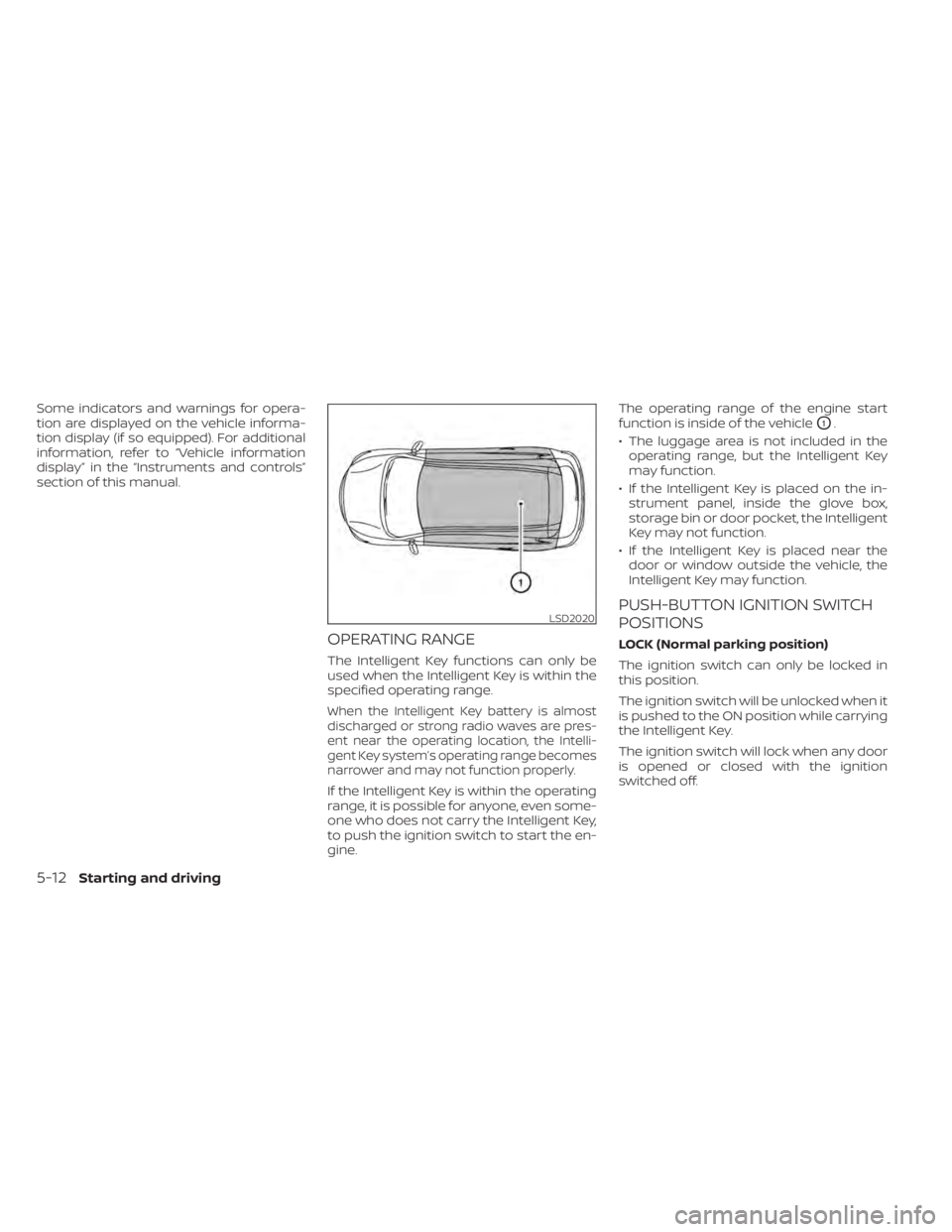
OPERATING RANGE
The Intelligent Key functions can only be
used when the Intelligent Key is within the
specified operating range.
When the Intelligent Key battery is almost
discharged or strong radio waves are pres-
ent near the operating location, the Intelli-
gent Key system’s operating range becomes
narrower and may not function properly.
If the Intelligent Key is within the operating
range, it is possible for anyone, even some-
one who does not carry the Intelligent Key,
to push the ignition switch to start the en-
gine.The operating range of the engine start
function is inside of the vehicle
O1.
• The luggage area is not included in the operating range, but the Intelligent Key
may function.
• If the Intelligent Key is placed on the in- strument panel, inside the glove box,
storage bin or door pocket, the Intelligent
Key may not function.
• If the Intelligent Key is placed near the door or window outside the vehicle, the
Intelligent Key may function.
PUSH-BUTTON IGNITION SWITCH
POSITIONS
LOCK (Normal parking position)
The ignition switch can only be locked in
this position.
The ignition switch will be unlocked when it
is pushed to the ON position while carrying
the Intelligent Key.
The ignition switch will lock when any door
is opened or closed with the ignition
switched off.
LSD2020
5-12Starting and driving
Page 286 of 500
(Af ter step 3 is performed, when the ig-
nition switch is pushed without de-
pressing the brake pedal, the ignition
switch position will change to ON.)
4. Push the ignition switch while depress- ing the brake pedal within 10 seconds
af ter the chime sounds. The engine will
start.
NOTE:
• When the ignition switch is pushed tothe ON position or the engine is started
by the above procedure, the Intelligent
Key battery discharge indicator ap-
pears in the vehicle information dis-
play (if so equipped) even when the In-
telligent Key is inside the vehicle. This
is not a malfunction. To turn off the In-
telligent Key battery discharge indica-
tor, touch the ignition switch with the
Intelligent Key again.
• If the Intelligent Key battery discharge indicator appears, replace the battery
as soon as possible. For additional in-
formation, refer to “Battery replace-
ment” in the “Do-it-yourself ” section of
this manual.
NISSAN ANTI-THEFT SYSTEM
(NATS) (if so equipped)
The NISSAN Anti-Thef t System (NATS) will
not allow the engine to start without the
use of the registered NATS key.
If the engine does not start by using the
registered NATS key, it may be due to inter-
ference caused by:
• Another NATS key.
• An automated toll road device.
• An automated payment device.
• Other devices that transmit similar sig-nals.
Start the engine using the following proce-
dure:
1. Remove any items that may be causing the interference away from the NATS key.
2. Leave the ignition switch in the ON posi- tion for approximately 5 seconds.
3. Place the ignition switch in the OFF or LOCK position, and wait approximately
10 seconds.
4. Repeat steps 2 and 3.
5. Start the engine.
6. Repeat the steps above until all possible interferences are eliminated. If this procedure allows the engine to start,
NISSAN recommends placing the regis-
tered NATS key separate from other de-
vices to avoid interference.
NISSAN VEHICLE IMMOBILIZER
SYSTEM
The NISSAN Vehicle Immobilizer System
will not allow the engine to start without
the use of the registered key.
If the engine fails to start using a registered
key (for example, when interference is
caused by another registered key, an auto-
mated toll road device or automatic pay-
ment device on the key ring), restart the
engine using the following procedures:
1. Leave the ignition switch in the ON posi-
tion for approximately 5 seconds.
2. Turn the ignition switch to the OFF or LOCK position, and wait approximately
10 seconds.
3. Repeat steps 1 and 2.
4. Restart the engine while holding the de- vice (which may have caused the inter-
ference) separate from the registered
key.
5-14Starting and driving