ad blue NISSAN KICKS 2023 Owners Manual
[x] Cancel search | Manufacturer: NISSAN, Model Year: 2023, Model line: KICKS, Model: NISSAN KICKS 2023Pages: 558, PDF Size: 6.25 MB
Page 7 of 558
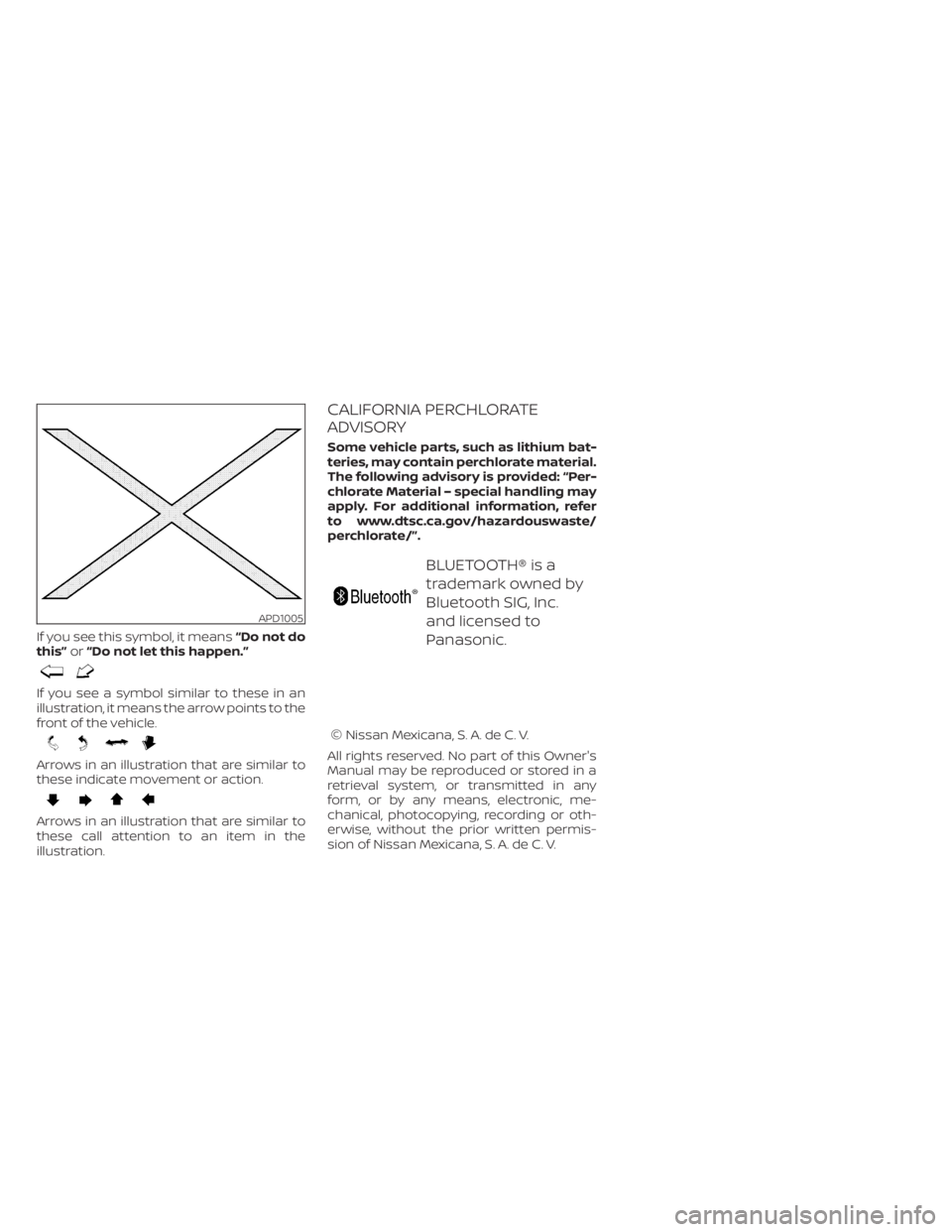
If you see this symbol, it means“Do not do
this” or“Do not let this happen.”
If you see a symbol similar to these in an
illustration, it means the arrow points to the
front of the vehicle.
Arrows in an illustration that are similar to
these indicate movement or action.
Arrows in an illustration that are similar to
these call attention to an item in the
illustration.
CALIFORNIA PERCHLORATE
ADVISORY
Some vehicle parts, such as lithium bat-
teries, may contain perchlorate material.
The following advisory is provided: “Per-
chlorate Material – special handling may
apply. For additional information, refer
to www.dtsc.ca.gov/hazardouswaste/
perchlorate/”.
BLUETOOTH® is a
trademark owned by
Bluetooth SIG, Inc.
and licensed to
Panasonic.
© Nissan Mexicana, S. A. de C. V.
All rights reserved. No part of this Owner's
Manual may be reproduced or stored in a
retrieval system, or transmitted in any
form, or by any means, electronic, me-
chanical, photocopying, recording or oth-
erwise, without the prior written permis-
sion of Nissan Mexicana, S. A. de C. V.
APD1005
Page 17 of 558
18. Bluetooth® Hands-Free Phone System(P. 4-2, 4-66)
Cruise control switches (if so equipped)
(P. 5-56)
Intelligent Cruise Control (ICC) switches
(if so equipped) (P. 5-58)
19. Driver supplemental knee air bag
(P. 1-60)
20. Tilt and telescopic steering wheel lock
lever (P. 3-26)
21. Hood release (P. 3-21) Fuel-filler door release (P. 3-25)
22. Steering wheel switches for audio
control (P. 4-2, 2-24)
Control panel and vehicle information
display switches (if so equipped)
(P. 2-24)
23. Blind Spot Warning (BSW) switch
(if so equipped) (P. 2-53)
Drive Systems OFF switch
(if so equipped) (P. 2-54)
Lane Departure Warning (LDW) switch
(if so equipped) (P. 2-54)
Rear Sonar System (RSS) OFF switch
(if so equipped) (P. 2-56)
Vehicle Dynamic Control (VDC) OFF
switch (if so equipped) (P. 2-55)
Instrument panel pocket (if so
equipped) (P. 2-62)
Enter/select switch for trip computer
(if so equipped) (P. 2-9)* Refer to the separate NissanConnect®
Owner's Manual (if so equipped).
Refer to the page number indicated in
parentheses for operating details.
Illustrated table of contents0-7
Page 21 of 558
Warning/Indicator light
(yellow) Name Page
NISSAN Intelligent
Key® warning light
(if so equipped)
2-20
Power steering
warning light
2-20
Rear Automatic
Braking (RAB) sys-
tem warning light
(if so equipped)2-20
Shif t P (Park)
warning light
(if so equipped)
2-21
Slip indicator light 2-21
Warning/
Indicator light
(yellow) Name Page
Vehicle Dynamic
Control (VDC) OFF
indicator light
2-21
Warning/
Indicator light
(other) Name Page
Automatic brake
hold indicator
light (white/
green) (if so
equipped) 2-21
CRUISE indicator
light (green)
(if so equipped)
2-22
Front fog light
indicator light
(green) (if so
equipped)2-22
Warning/
Indicator light
(other) Name Page
High Beam Assist
indicator light
(green) (if so
equipped) 2-22
High beam indi-
cator light (blue)
2-22
Lane Departure
Warning (LDW)
indicator light
(green) (if so
equipped)2-22
NISSAN Intelligent
Key® warning light
(green) (if so
equipped)
2-22
SET indicator light
(green) (if so
equipped)
2-22
Illustrated table of contents0-11
Page 91 of 558
18. Bluetooth® Hands-Free Phone System(P. 4-2, 4-66)
Cruise control switches (if so equipped)
(P. 5-56)
Intelligent Cruise Control (ICC) switches
(if so equipped) (P. 5-58)
19. Driver supplemental knee air bag
(P. 1-60)
20. Tilt and telescopic steering wheel lock
lever (P. 3-26)
21. Hood release (P. 3-21) Fuel-filler door release (P. 3-25)
22. Steering wheel switches for audio
control (P. 4-2, 2-24)
Control panel and vehicle information
display switches (if so equipped)
(P. 2-24)
23. Blind Spot Warning (BSW) switch
(if so equipped) (P. 2-53)
Drive Systems OFF switch
(if so equipped) (P. 2-54)
Lane Departure Warning (LDW) switch
(if so equipped) (P. 2-54)
Rear Sonar System (RSS) OFF switch
(if so equipped) (P. 2-56)
Vehicle Dynamic Control (VDC) OFF
switch (if so equipped) (P. 2-55)
Instrument panel pocket
(if so equipped) (P. 2-62)
Enter/select switch for trip computer
(if so equipped) (P. 2-9)* Refer to the separate NissanConnect®
Owner's Manual (if so equipped).
Refer to the page number indicated in
parentheses for operating details.
Instruments and controls2-3
Page 99 of 558
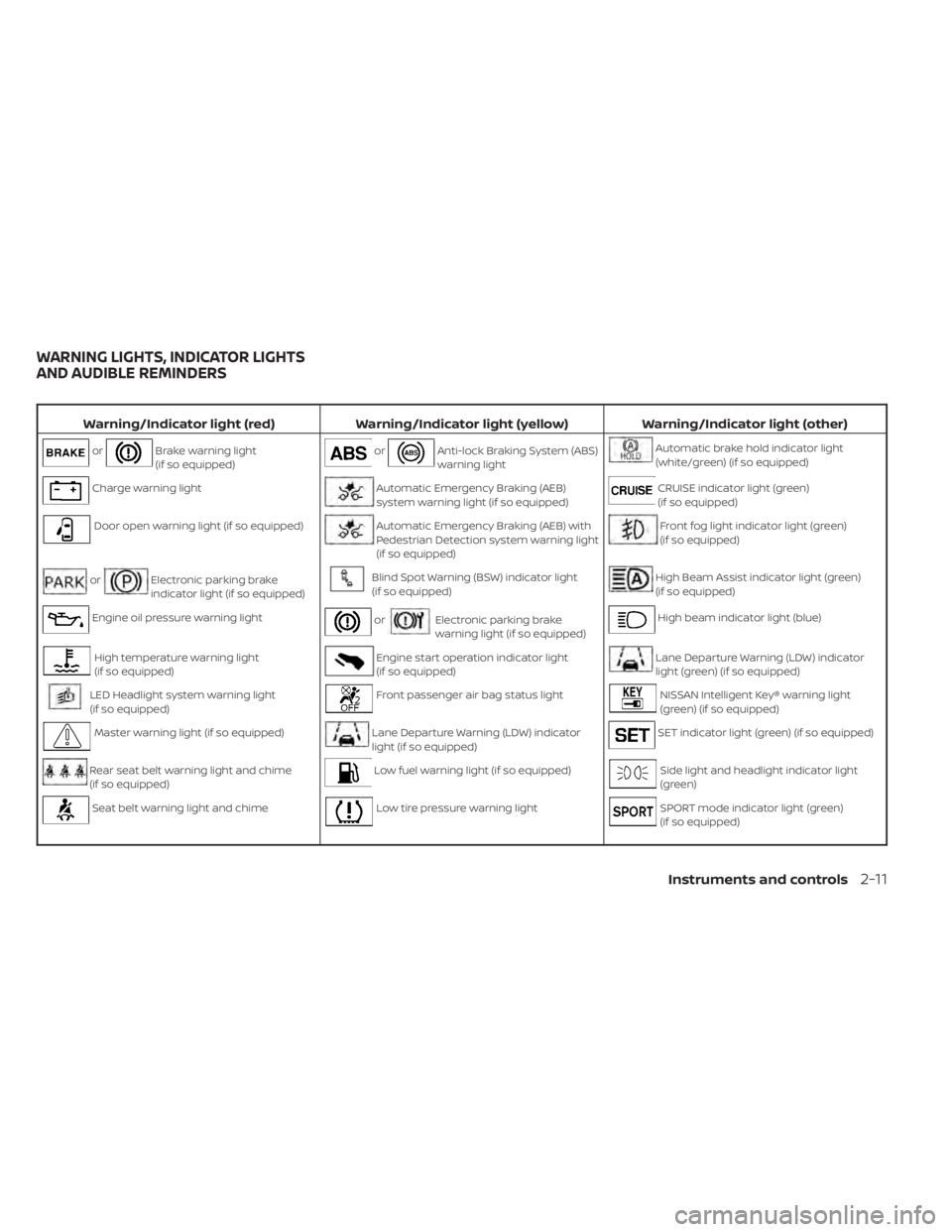
Warning/Indicator light (red)Warning/Indicator light (yellow) Warning/Indicator light (other)
orBrake warning light
(if so equipped)orAnti-lock Braking System (ABS)
warning lightAutomatic brake hold indicator light
(white/green) (if so equipped)
Charge warning lightAutomatic Emergency Braking (AEB)
system warning light (if so equipped)CRUISE indicator light (green)
(if so equipped)
Door open warning light (if so equipped)Automatic Emergency Braking (AEB) with
Pedestrian Detection system warning light
(if so equipped)Front fog light indicator light (green)
(if so equipped)
orElectronic parking brake
indicator light (if so equipped)Blind Spot Warning (BSW) indicator light
(if so equipped)High Beam Assist indicator light (green)
(if so equipped)
Engine oil pressure warning lightorElectronic parking brake
warning light (if so equipped)High beam indicator light (blue)
High temperature warning light
(if so equipped)Engine start operation indicator light
(if so equipped)Lane Departure Warning (LDW) indicator
light (green) (if so equipped)
LED Headlight system warning light
(if so equipped)Front passenger air bag status lightNISSAN Intelligent Key® warning light
(green) (if so equipped)
Master warning light (if so equipped)Lane Departure Warning (LDW) indicator
light (if so equipped)SET indicator light (green) (if so equipped)
Rear seat belt warning light and chime
(if so equipped)Low fuel warning light (if so equipped)Side light and headlight indicator light
(green)
Seat belt warning light and chimeLow tire pressure warning lightSPORT mode indicator light (green)
(if so equipped)
WARNING LIGHTS, INDICATOR LIGHTS
AND AUDIBLE REMINDERS
Instruments and controls2-11
Page 110 of 558
For additional information, see “Automatic
brake hold” (P. 5-25).
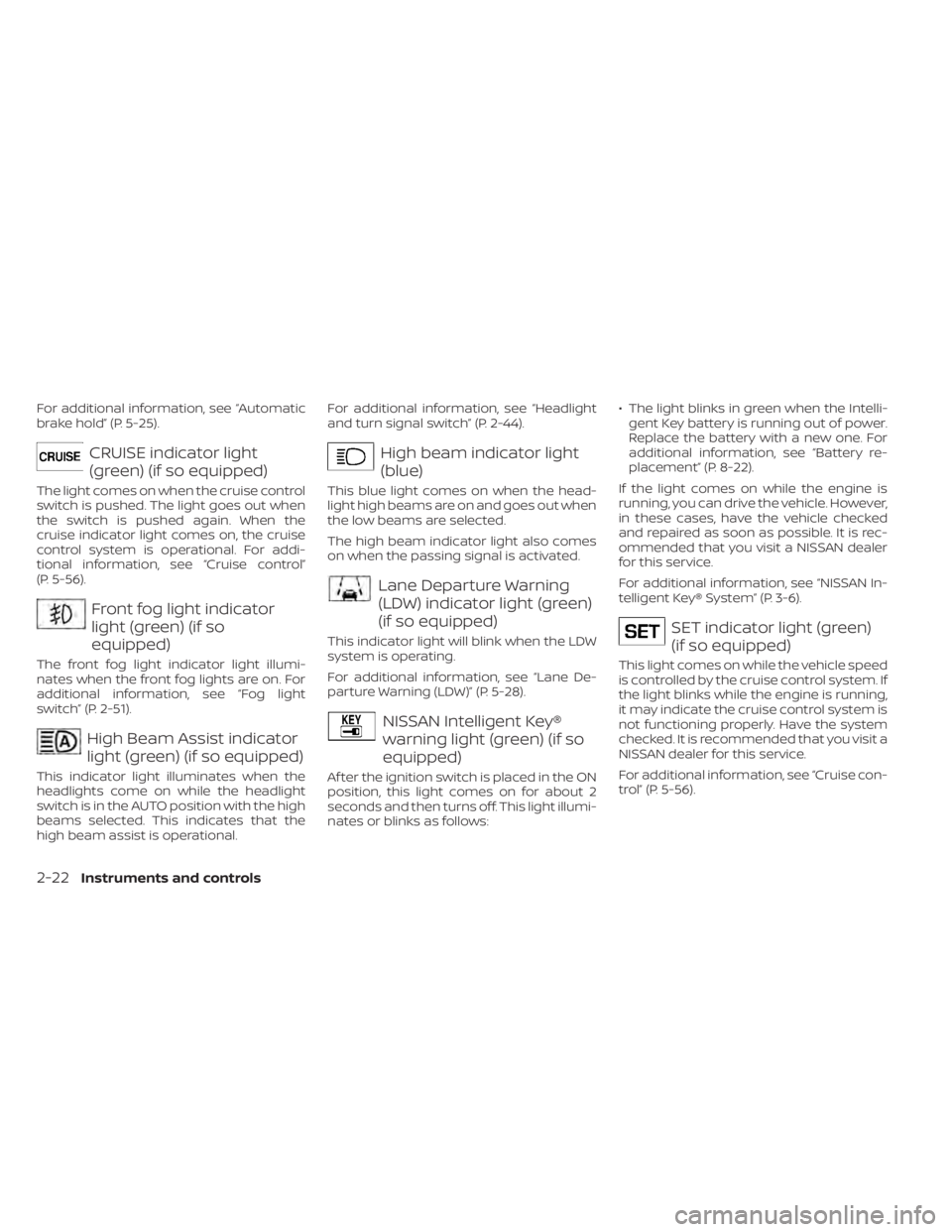
CRUISE indicator light
(green) (if so equipped)
The light comes on when the cruise control
switch is pushed. The light goes out when
the switch is pushed again. When the
cruise indicator light comes on, the cruise
control system is operational. For addi-
tional information, see “Cruise control”
(P. 5-56).
Front fog light indicator
light (green) (if so
equipped)
The front fog light indicator light illumi-
nates when the front fog lights are on. For
additional information, see “Fog light
switch” (P. 2-51).
High Beam Assist indicator
light (green) (if so equipped)
This indicator light illuminates when the
headlights come on while the headlight
switch is in the AUTO position with the high
beams selected. This indicates that the
high beam assist is operational.For additional information, see “Headlight
and turn signal switch” (P. 2-44).
High beam indicator light
(blue)
This blue light comes on when the head-
light high beams are on and goes out when
the low beams are selected.
The high beam indicator light also comes
on when the passing signal is activated.
Lane Departure Warning
(LDW) indicator light (green)
(if so equipped)
This indicator light will blink when the LDW
system is operating.
For additional information, see “Lane De-
parture Warning (LDW)” (P. 5-28).
NISSAN Intelligent Key®
warning light (green) (if so
equipped)
Af ter the ignition switch is placed in the ON
position, this light comes on for about 2
seconds and then turns off. This light illumi-
nates or blinks as follows:
• The light blinks in green when the Intelli-
gent Key battery is running out of power.
Replace the battery with a new one. For
additional information, see “Battery re-
placement” (P. 8-22).
If the light comes on while the engine is
running, you can drive the vehicle. However,
in these cases, have the vehicle checked
and repaired as soon as possible. It is rec-
ommended that you visit a NISSAN dealer
for this service.
For additional information, see “NISSAN In-
telligent Key® System” (P. 3-6).
SET indicator light (green)
(if so equipped)
This light comes on while the vehicle speed
is controlled by the cruise control system. If
the light blinks while the engine is running,
it may indicate the cruise control system is
not functioning properly. Have the system
checked. It is recommended that you visit a
NISSAN dealer for this service.
For additional information, see “Cruise con-
trol” (P. 5-56).
2-22Instruments and controls
Page 197 of 558
Audio system.................................. 4-43
Radio ....................................... 4-43
FM radio reception .......................... 4-44
AM radio reception .......................... 4-44
Audio operation precautions ................4-44
FM/AM radio ................................ 4-48
USB (Universal Serial Bus) connection
port......................................... 4-53
iPod®* player operation .....................4-56
Bluetooth® streaming audio .................4-59
Steering wheel switch for audio control .....4-62
Roof Mounted Antenna ......................4-62
Siri® Eyes Free (if so equipped) ..................4-63
Requirements ............................... 4-63
Operating Siri® Eyes Free ....................4-63
Troubleshooting guide ......................4-65
Car phone or CB radio .......................... 4-66Bluetooth® Hands-Free Phone System
.........4-66
Regulatory information ......................4-68
Using the system ........................... 4-68
Indicators ................................... 4-70
Control buttons ............................. 4-70
Connecting procedure ......................4-71
Voice commands ........................... 4-72
Phone display screen .......................4-74
Making a call ................................ 4-75
Receiving a call .............................. 4-75
During a call ................................. 4-75
Ending a call ................................ 4-76
Text messaging (if so equipped) .............4-76
Bluetooth® connections screen .............4-79
Phone and text message settings ...........4-80
iPod®/iPhone® ................................. 4-82
Page 198 of 558
Refer to the digital NissanConnect® Own-
er’s manual using the QR code on this
page, or your printed NissanConnect®
Owner’s manual (if so equipped). This
manual includes the following information:
• NissanConnect® Services (if so equipped)
• Audio system
• Apple CarPlay®
• Android Auto™
• Bluetooth® Hands-Free Phone system
• Viewing information
• Other settings• Voice Recognition
• General system information
WARNING
• Positioning of the heating or air con-
ditioning controls and display con-
trols should not be done while driv-
ing in order that full attention may be
given to the driving operation.
• Do not disassemble or modif y this
system. If you do, it may result in ac-
cidents, fire, or electrical shock.
• Do not use this system if you notice
any abnormality, such as a frozen
screen or lack of sound. Continued
use of the system may result in acci-
dent, fire or electric shock.
• In case you notice any foreign object
in the system hardware, spill liquid
on it, or notice smoke or smell com-
ing from it, stop using the system
immediately. Ignoring such condi-
tions may lead to accidents, fire or
electrical shock. It is recommended
that you visit a NISSAN dealer for
servicing.
LHA5695
NISSANCONNECT® OWNER’S
MANUAL (if so equipped)
4-2Monitor, climate, audio, phone and voice recognition systems
Page 199 of 558
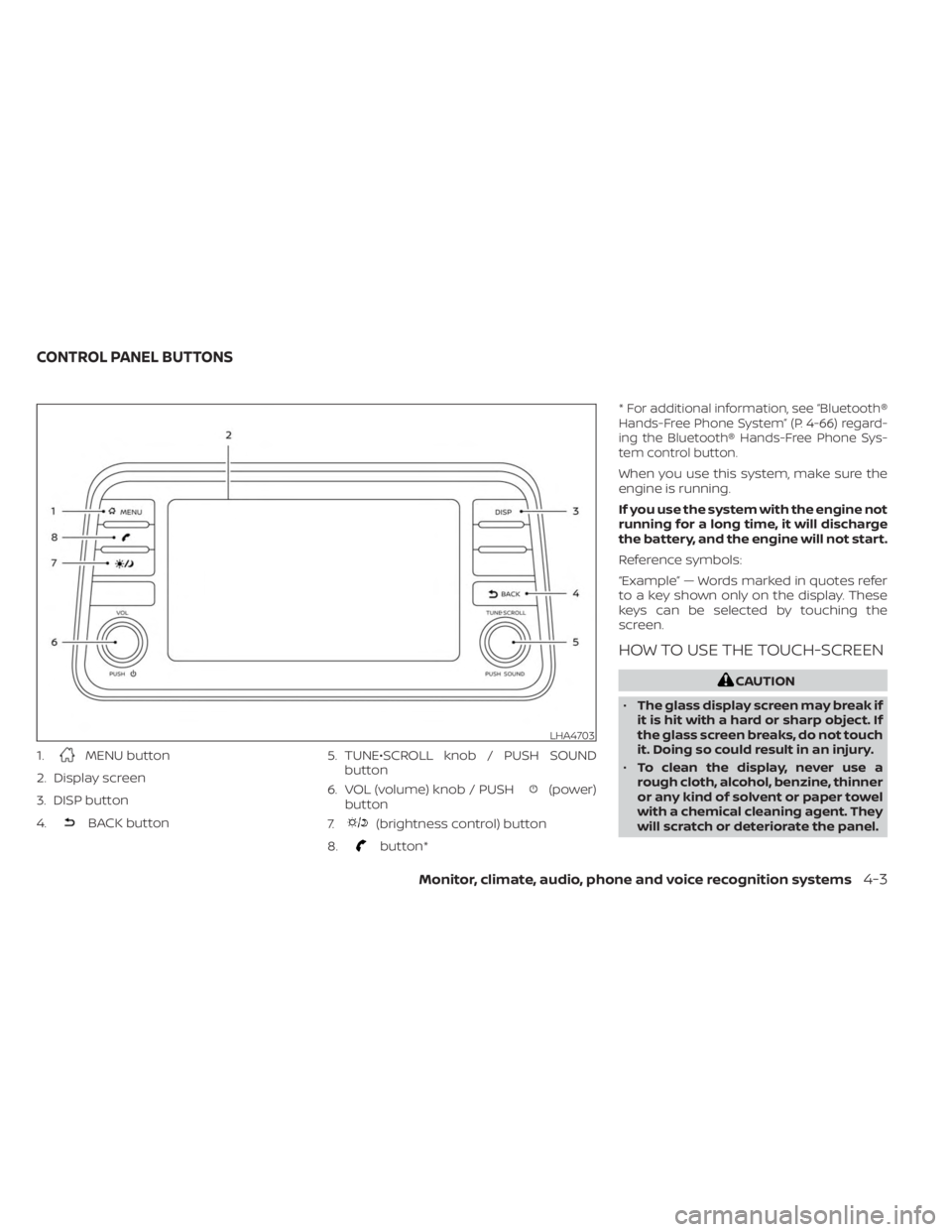
1.MENU button
2. Display screen
3. DISP button
4.
BACK button 5. TUNE•SCROLL knob / PUSH SOUND
button
6. VOL (volume) knob / PUSH
(power)
button
7.
(brightness control) button
8.
button* *
For additional information, see “Bluetooth®
Hands-Free Phone System” (P. 4-66) regard-
ing the Bluetooth® Hands-Free Phone Sys-
tem control button.
When you use this system, make sure the
engine is running.
If you use the system with the engine not
running for a long time, it will discharge
the battery, and the engine will not start.
Reference symbols:
“Example” — Words marked in quotes refer
to a key shown only on the display. These
keys can be selected by touching the
screen.
HOW TO USE THE TOUCH-SCREEN
CAUTION
• The glass display screen may break if
it is hit with a hard or sharp object. If
the glass screen breaks, do not touch
it. Doing so could result in an injury.
• To clean the display, never use a
rough cloth, alcohol, benzine, thinner
or any kind of solvent or paper towel
with a chemical cleaning agent. They
will scratch or deteriorate the panel.
LHA4703
CONTROL PANEL BUTTONS
Monitor, climate, audio, phone and voice recognition systems4-3
Page 202 of 558
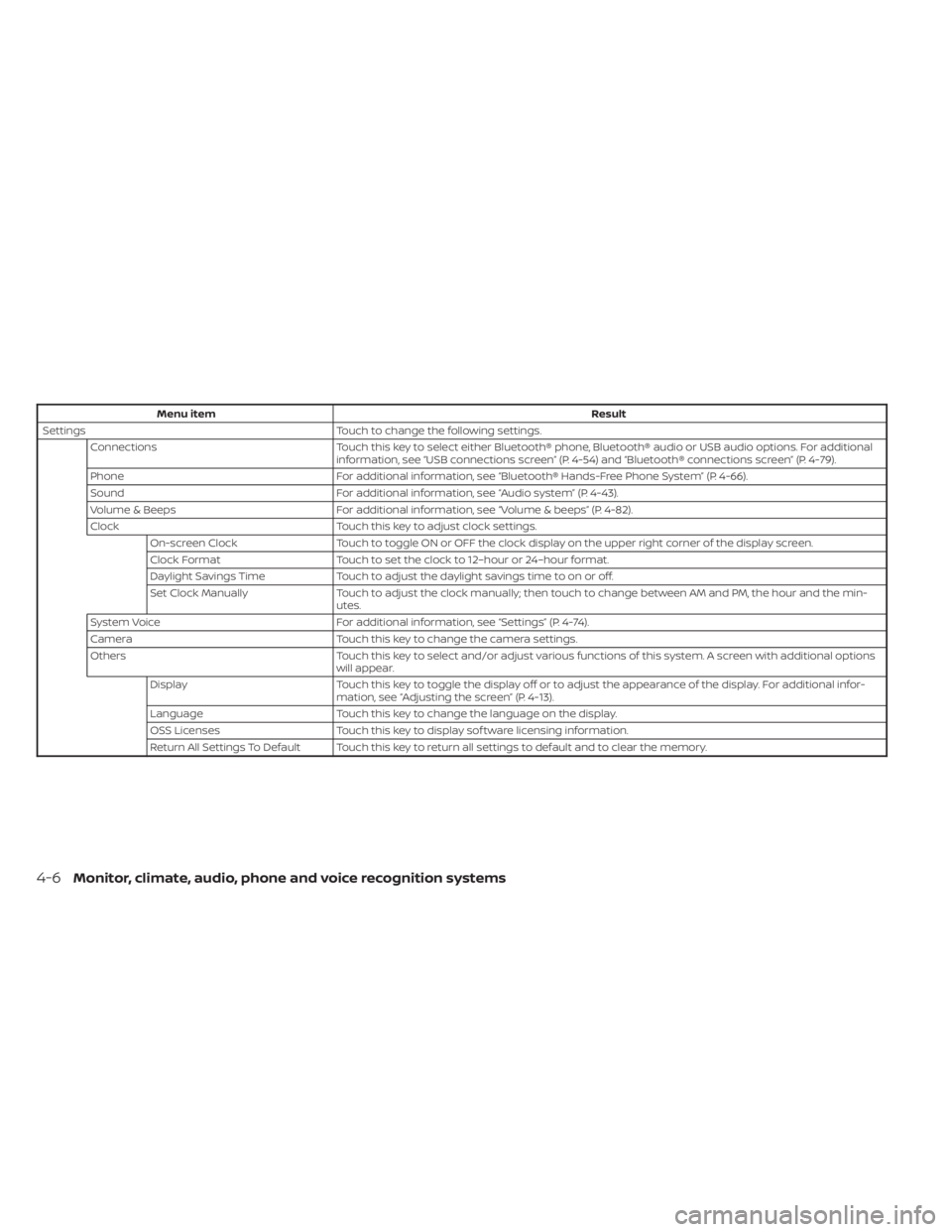
Menu itemResult
Settings Touch to change the following settings.
Connections Touch this key to select either Bluetooth® phone, Bluetooth® audio or USB audio options. For additional
information, see “USB connections screen” (P. 4-54) and “Bluetooth® connections screen” (P. 4-79).
Phone For additional information, see “Bluetooth® Hands-Free Phone System” (P. 4-66).
Sound For additional information, see “Audio system” (P. 4-43).
Volume & Beeps For additional information, see “Volume & beeps” (P. 4-82).
Clock Touch this key to adjust clock settings.
On-screen Clock Touch to toggle ON or OFF the clock display on the upper right corner of the display screen.
Clock Format Touch to set the clock to 12–hour or 24–hour format.
Daylight Savings Time Touch to adjust the daylight savings time to on or off.
Set Clock Manually Touch to adjust the clock manually; then touch to change between AM and PM, the hour and the min-
utes.
System Voice For additional information, see “Settings” (P. 4-74).
Camera Touch this key to change the camera settings.
Others Touch this key to select and/or adjust various functions of this system. A screen with additional options
will appear.
Display Touch this key to toggle the display off or to adjust the appearance of the display. For additional infor-
mation, see “Adjusting the screen” (P. 4-13).
Language Touch this key to change the language on the display.
OSS Licenses Touch this key to display sof tware licensing information.
Return All Settings To Default Touch this key to return all settings to default and to clear the memory.
4-6Monitor, climate, audio, phone and voice recognition systems