radio NISSAN LEAF 2013 1.G Navigation Manual
[x] Cancel search | Manufacturer: NISSAN, Model Year: 2013, Model line: LEAF, Model: NISSAN LEAF 2013 1.GPages: 275, PDF Size: 6.66 MB
Page 147 of 275
![NISSAN LEAF 2013 1.G Navigation Manual FM/AM radio screen:
*1Displays the broadcasting station and category
currently being received.
*2Displays the frequency currently being received.
*3[Info]:
Displays the broadcasting station informatio](/img/5/324/w960_324-146.png "NISSAN LEAF 2013 1.G Navigation Manual FM/AM radio screen:
*1Displays the broadcasting station and category
currently being received.
*2Displays the frequency currently being received.
*3[Info]:
Displays the broadcasting station informatio")
FM/AM radio screen:
*1Displays the broadcasting station and category
currently being received.
*2Displays the frequency currently being received.
*3[Info]:
Displays the broadcasting station information
currently being received.
*4[SCAN]:
Touch to tune from low to high frequencies and
stop at each broadcasting station for 5 seconds.
*5Displays the preset channel list. If 1 of the 6
preset stations listed is touched and held, the
current station will be stored as the new preset.
SiriusXM Satellite Radio screen:
*1Indicates the channel, category, program and title
currently being received.
*2Indicates the frequency currently being received.
*3[CAT]:
Displays a category list for SiriusXM Satellite
Radio. When a category is selected, the channel
list will be displayed.
*4[Direct]:
Input the channel number by using a keypad.
*5[Info]:
Indicates the broadcasting station information
currently being received.
*6[SCAN]:
Touch to tune from low to high frequencies and
stop at each broadcasting channel for 5 seconds.
*7Displays the preset channel list. If 1 of the 6
preset stations listed is touched and held, the
current station will be stored as the new preset.
Selecting channel/category
TUNE (Tuning):
For AM and FM radio:
Push theTUNE SEEK CH button for manual
tuning.
For SiriusXM Satellite Radio:
Push the TUNE SEEK CH button to seek
channels from all of the categories.
During satellite radio reception, the following
messages will be displayed under certain
conditions.
. No Signal (No signal is received while the
SAT tuner is connected)
. Channel Off Air (Broadcasting signed off)
. Check Antenna (Antenna connection error) .
Loading (The system is receiving the music
or information that is provided from the
selected channel)
. Channel Not Available (No channels are
searched)
. Channel Not Authorized (There is no user
subscription to this channel)
SEEK tuning:
For AM and FM radio:
Push the TUNE SEEK CH button for less than
1.5 seconds to tune from low to high or high to
low frequencies and to stop at the next broad-
casting station.
When the TUNE SEEK CH button is pushed
and held, radio frequencies will increase or
decrease by skipping the broadcasting stations.
When the button is released, the next broad-
casting station is selected.
SCAN tuning:
Touch [SCAN] to tune from low to high
frequencies and stop at each broadcasting
station/channel for 5 seconds.
Touch [SCAN] again during this 5 second
period to stop SCAN tuning. The radio will
remain tuned to that station/channel.
If [SCAN] is not touched within 5 seconds,
SCAN tuning moves to the next station/channel.
Audio system4-13
Page 148 of 275
4-14Audio system
Storing stations/channels
12 stations/channels can be set for the FM band
(6 each for FM1 and FM2) , 18 for SiriusXM
Satellite Radio (6 each for XM1, XM2 and XM3)
and 6 stations can be set for the AM band.
1. Choose the radio band pushing theFM·AM
button or XMbutton.
2. Tune to the preferred station/channel push- ing the TUNE SEEK CH button.
3. Touch and hold one of the preset lists to register the chosen broadcasting station or
channel.
COMPACT DISC (CD) PLAYER OP-
ERATION
Playing CD
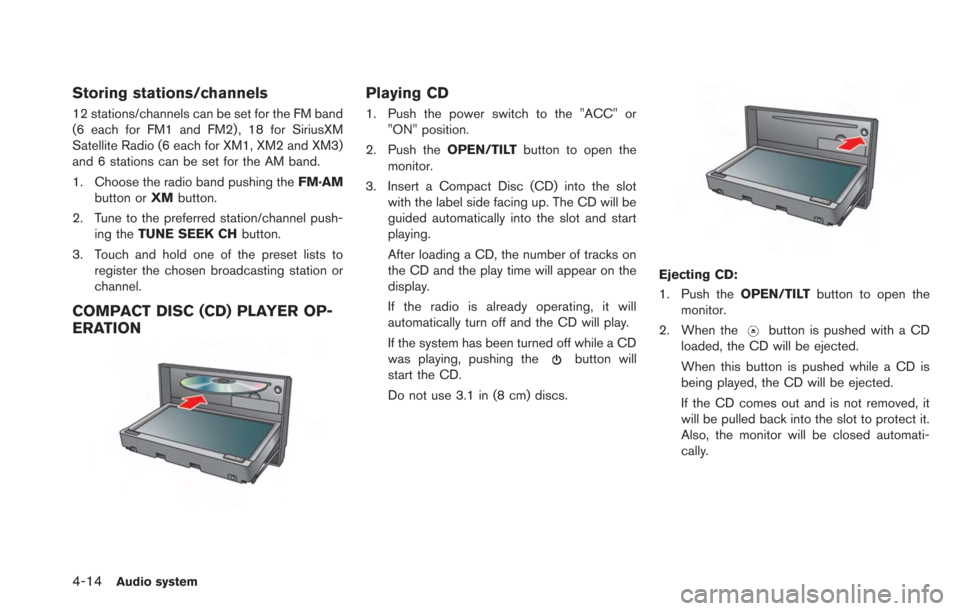
1. Push the power switch to the "ACC" or"ON" position.
2. Push the OPEN/TILTbutton to open the
monitor.
3. Insert a Compact Disc (CD) into the slot with the label side facing up. The CD will be
guided automatically into the slot and start
playing.
After loading a CD, the number of tracks on
the CD and the play time will appear on the
display.
If the radio is already operating, it will
automatically turn off and the CD will play.
If the system has been turned off while a CD
was playing, pushing the
button will
start the CD.
Do not use 3.1 in (8 cm) discs.
Ejecting CD:
1. Push the OPEN/TILTbutton to open the
monitor.
2. When the
button is pushed with a CD
loaded, the CD will be ejected.
When this button is pushed while a CD is
being played, the CD will be ejected.
If the CD comes out and is not removed, it
will be pulled back into the slot to protect it.
Also, the monitor will be closed automati-
cally.
Page 151 of 275
Next/Previous Track and Fast For-
ward/Rewind
Push theTUNE SEEK CH button for more than
1.5 seconds while an iPod®is playing to fast
forward or rewind through the current track.
When the button is released, the iPod
®will
return to the normal play speed.
When the TUNE SEEK CH button is pushed for
less than 1.5 seconds while an iPod
®is playing,
the next track or the beginning of the current
track on the iPod
®will be played.
Select play mode
The play mode setting display will appear when
[Mode] is touched.
Select the preferred play mode from the
following items.
. Shuffle
Choose "Off", "Songs" or "Albums".
. Repeat
Choose "One" or "All".
iPod®settings
The following items can be chosen from the
menu list screen. For further information about
each item, see the iPod
®Owner’s Manual.
. Now Playing .
Playlists
. Artists
. Albums
. Songs
. Podcasts
. Genres
. Composers
PANDORA®OPERATION (if so
equipped)
Connecting iPhone
®
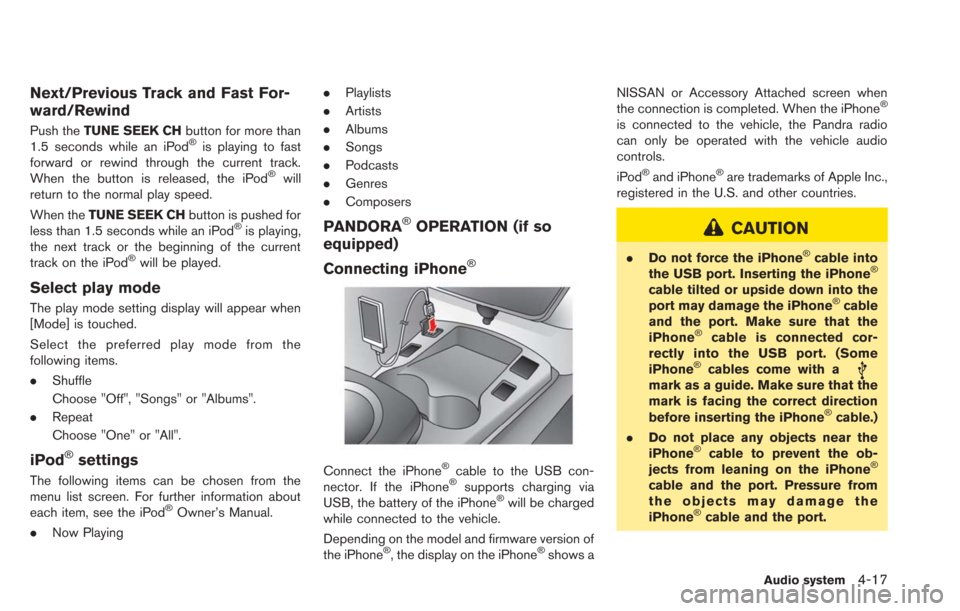
Connect the iPhone®cable to the USB con-
nector. If the iPhone®supports charging via
USB, the battery of the iPhone®will be charged
while connected to the vehicle.
Depending on the model and firmware version of
the iPhone
®, the display on the iPhone®shows a NISSAN or Accessory Attached screen when
the connection is completed. When the iPhone
®
is connected to the vehicle, the Pandra radio
can only be operated with the vehicle audio
controls.
iPod
®and iPhone®are trademarks of Apple Inc.,
registered in the U.S. and other countries.
CAUTION
. Do not force the iPhone®cable into
the USB port. Inserting the iPhone®
cable tilted or upside down into the
port may damage the iPhone®cable
and the port. Make sure that the
iPhone
®cable is connected cor-
rectly into the USB port. (Some
iPhone
®cables come with amark as a guide. Make sure that the
mark is facing the correct direction
before inserting the iPhone
®cable.)
. Do not place any objects near the
iPhone
®cable to prevent the ob-
jects from leaning on the iPhone®
cable and the port. Pressure from
the objects may damage the
iPhone
®cable and the port.
Audio system4-17
Page 158 of 275
4-24Audio system
.High
STEERING WHEEL SWITCHES FOR
AUDIO CONTROL
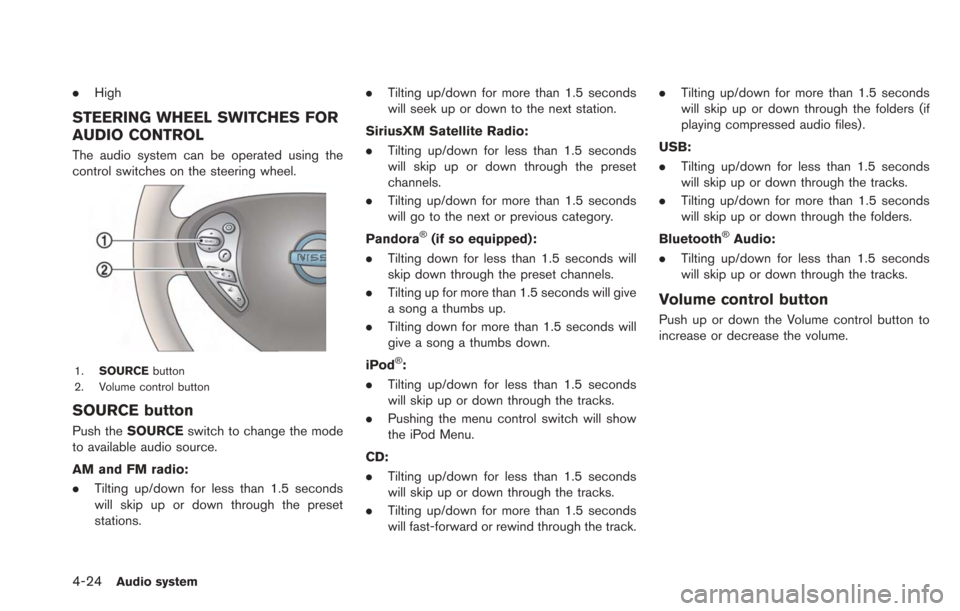
The audio system can be operated using the
control switches on the steering wheel.
1. SOURCE button
2. Volume control button
SOURCE button
Push the SOURCE switch to change the mode
to available audio source.
AM and FM radio:
. Tilting up/down for less than 1.5 seconds
will skip up or down through the preset
stations. .
Tilting up/down for more than 1.5 seconds
will seek up or down to the next station.
SiriusXM Satellite Radio:
. Tilting up/down for less than 1.5 seconds
will skip up or down through the preset
channels.
. Tilting up/down for more than 1.5 seconds
will go to the next or previous category.
Pandora
®(if so equipped):
. Tilting down for less than 1.5 seconds will
skip down through the preset channels.
. Tilting up for more than 1.5 seconds will give
a song a thumbs up.
. Tilting down for more than 1.5 seconds will
give a song a thumbs down.
iPod
®:
. Tilting up/down for less than 1.5 seconds
will skip up or down through the tracks.
. Pushing the menu control switch will show
the iPod Menu.
CD:
. Tilting up/down for less than 1.5 seconds
will skip up or down through the tracks.
. Tilting up/down for more than 1.5 seconds
will fast-forward or rewind through the track. .
Tilting up/down for more than 1.5 seconds
will skip up or down through the folders (if
playing compressed audio files) .
USB:
. Tilting up/down for less than 1.5 seconds
will skip up or down through the tracks.
. Tilting up/down for more than 1.5 seconds
will skip up or down through the folders.
Bluetooth
®Audio:
. Tilting up/down for less than 1.5 seconds
will skip up or down through the tracks.
Volume control button
Push up or down the Volume control button to
increase or decrease the volume.
Page 161 of 275
5 CARWINGSTM
Telematics overview .................................................................. 5-2
CARWINGSTMoverview.......................................................... 5-4
About service application .................................................. 5-6
Notice for usage................................................................... 5-6
Radio approval number and information ........................ 5-7
Displaying CARWINGS
TMinformation screen ................... 5-7
How to view information screen ...................................... 5-8
Storing favorites ........................................................................\
. 5-9
Google search ........................................................................\
. 5-10
Viewing CARWINGS
TMrecords ........................................ 5-11 CARWINGS
TMsettings ....................................................... 5-12
Setting messages that are received by email ......... 5-12
Information feed setting ................................................ 5-15
Displaying unit ID information ...................................... 5-18
Reset all CARWINGS
TMsettings to default ........... 5-18
Error message on communication ..................................... 5-19
Data communication settings.............................................. 5-20 Automatic carrier settings ............................................. 5-20
Manual carrier settings .................................................. 5-20
Page 163 of 275

data by NISSAN can be provided in various
ways. The vehicle is equipped with a “pop up”
screen on the vehicle navigation system that will
ask for your consent to this data transfer. A
version of the following message will appear:
“Pursuant to subscription agreement, your ve-
hicle wirelessly transmits recorded vehicle data
to NISSAN for various purposes, including
CARWINGS
TMservices, product evaluation,
research and development. By touching [OK],
you consent to the transmission and use of your
vehicle data. See Owner’s Manual or NISSAN
Owner’s portal webpage for terms and details.”
If you touch [OK], your vehicle will transmit data
as designed in connection with the vehicle
telematics system. If you touch [Decline] your
vehicle will not transmit data. However, the
telematics features referenced above, and per-
haps others, will not be available to you. The
vehicle’s static navigation system will remain
operational, and you will be able to access your
radio and climate controls.
Telematics features are dependent on cellular
data transmission. Some areas may have limited
or no cellular connectivity, resulting in a loss or
interruption of data transmission and, as a result,
certain features may be temporarily unavailable.
Even if areas with good signal reception, cellular
connectivity can be adversely affected by things
such as tall buildings, apartments, tunnels, underground parking, mountainous areas, etc.
Even if the signal strength bar of the in-vehicle
data communication module indicates good
reception, connectivity may be disrupted. This
does not indicate a malfunction. Operate the
system again after a few minutes to restore
connectivity. CARWINGS
TMtelematics features
are offered as a convenience to the vehicle
owner. NISSAN is not responsible for, and
owner assumes all risk of, interruptions in
service or errors based on incomplete or
inaccurate data. CARWINGS
TMcommunica-
tions may be received at a verified e-mail
address or by SMS/text messaging-enabled
mobile phone. Standard text rates and/or data
usage may apply depending on your carrier.
If your vehicle’s telematics account is active, and
you are not the original owner, please contact
NISSAN at the website or phone number above
as soon as possible to update the telematics
enrollment information. Upon sale of the vehicle,
please contact NISSAN at the website or phone
number above so that NISSAN’s records may be
updated. CARWINGS
TMsubscription services
will automatically terminate at the end of the
initial free term if you do not wish to renew your
subscription agreement at the prices then in
effect.
CARWINGSTM5-3
Page 167 of 275
RADIO APPROVAL NUMBER AND
INFORMATION
WARNING
.The TCU antenna is installed inside
the upper central part of the instru-
ment panel. An occupant should not
get any closer to the antenna than
specified by the pacemaker manu-
facturer. The radio waves from the
TCU antenna may adversely affect
the operation of the pacemaker
while using the CARWINGS
TMser-
vice.
. Radio waves could adversely affect
electric medical equipment. Those
who use a pacemaker should con-
tact the electric medical equipment
manufacturer regarding the possi-
ble influences before use.
. FCC ID: LHJGNOV1N
The antenna(s) used for this transmitter
must not be co-located or operating in
conjunction with any other antenna or
transmitter. .
IC ID: 2807E-GNOV1N
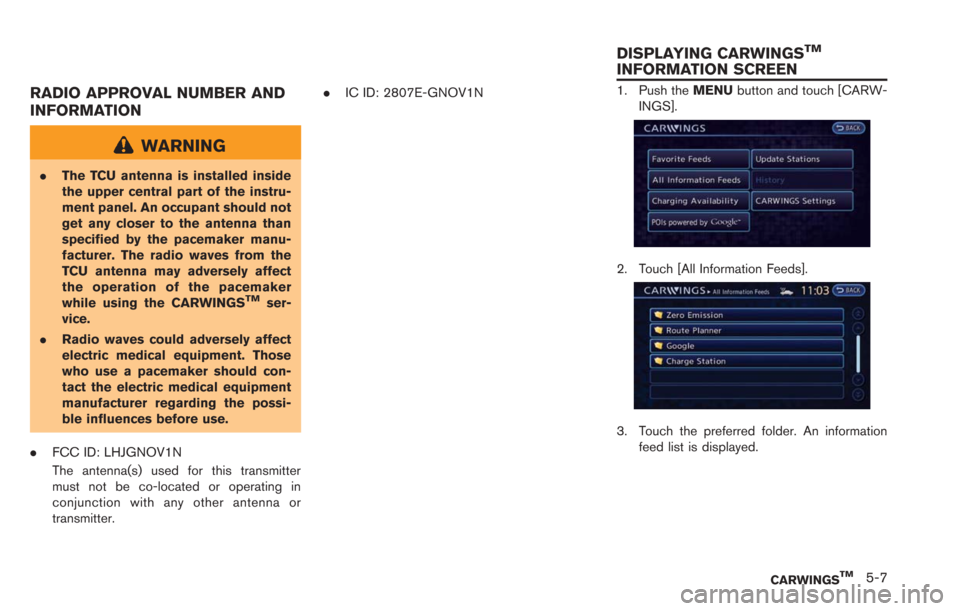
1. Push the MENUbutton and touch [CARW-
INGS].
2. Touch [All Information Feeds].
3. Touch the preferred folder. An information feed list is displayed.
CARWINGSTM5-7
DISPLAYING CARWINGSTM
INFORMATION SCREEN
Page 188 of 275
![NISSAN LEAF 2013 1.G Navigation Manual 6-6Viewing technical information
.[Call]:
Makes a call for the selected charging
station. A cellular phone should be con-
nected beforehand.
“Connecting cellular phone”
(page 1-13)
. [Details]:
Di](/img/5/324/w960_324-187.png "NISSAN LEAF 2013 1.G Navigation Manual 6-6Viewing technical information
.[Call]:
Makes a call for the selected charging
station. A cellular phone should be con-
nected beforehand.
“Connecting cellular phone”
(page 1-13)
. [Details]:
Di")
6-6Viewing technical information
.[Call]:
Makes a call for the selected charging
station. A cellular phone should be con-
nected beforehand.
“Connecting cellular phone”
(page 1-13)
. [Details]:
Displays detailed information including the
type and number of charging devices exist-
ing at the selected charging station.
NavTraffic information is a subscription service
offered by SiriusXM Satellite Radio.
This service provides real-time information
regarding traffic flow, accidents, road construc-
tion and other incidents, where available.
NavTraffic combines information from commer-
cial and public traffic data providers including
government departments of transportation, po-
lice, emergency services, road sensors, cameras
and aircraft reports. The traffic information is
broadcast to the vehicle by the SiriusXM
Satellite Radio. Available traffic information on
the route the driver selected is shown on the
navigation screen so traffic conditions between
you and the destination are known. Three types
of real-time traffic information for major road-
ways are shown on the navigation system:
* Unscheduled traffic data for example, acci-
dents and disabled vehicles.
* Scheduled traffic data, for example road
construction and road closures.
* Traffic flow information (rate of speed data) .WARNING
NavTraffic information is not a substi-
tute for attentive driving. Traffic condi-
tions change constantly and emergency
situations can arise without warning.
Relying only on NavTraffic information
may lead to a collision and could result
in serious personal injury.
INFO:
. Flow information is provided only for roads
equipped with traffic sensors and is not
available in all markets covered by the
service. Flow data may not be available on
portions of a road that is under construction.
. If a contract is not completed for NavTraffic
traffic information service, a message ap-
pears, and it will not be possible to check
the information on the traffic information
menu.
NavTraffic information is available in limited
markets. To subscribe or to check if this service
is available in the area:
call 1-866-635-2349 or see www.siriusxm.
com/navtraffic
VIEWING AVAILABLE TRAFFIC
INFORMATION
Page 195 of 275
7 Bluetooth®Hands-Free Phone System
Bluetooth®Hands-Free Phone System ............................... 7-2
Regulatory information ........................................................ 7-3
Control button and microphone ....................................... 7-3
Connecting procedure........................................................ 7-4
Phone selection .................................................................... 7-4
Making a call ........................................................................\
. 7-5 Receiving a call .................................................................. 7-5
During a call ........................................................................\
7-6
Storing vehicle phonebook ............................................. 7-6
Phone settings.................................................................... 7-8
Car phone or CB radio ........................................................ 7-10
Page 196 of 275
7-2Bluetooth®Hands-Free Phone System
WARNING
.Use a phone after stopping your
vehicle in a safe location. If you
have to use a phone while driving,
exercise extreme caution at all
times so full attention may be given
to vehicle operation.
. If you find yourself unable to devote
full attention to vehicle operation
while talking on the phone, pull off
the road to a safe location and stop
your vehicle before doing so.
CAUTION
To avoid draining the vehicle battery,
use a phone after the READY to drive
indicator light is ON.
Your vehicle is equipped with Bluetooth
®
Hands-Free Phone System. If you are an owner
of a compatible Bluetooth®enabled cellular
phone, you can set up the wireless connection
between your cellular phone and the in-vehicle
phone module. With Bluetooth
®wireless tech-
nology, you can make or receive a telephone call
with your cellular phone in your pocket. Once a cellular phone is connected to the in-
vehicle phone module, the procedure for con-
necting the phone does not need to be
performed again. Your phone is automatically
selected with the in-vehicle phone module when
the power switch is pushed to the "ON" position
with the selected cellular phone turned on and
carried in the vehicle.
You can register up to 3 different Bluetooth
®
cellular phones in the in-vehicle phone module.
However, you can talk on only one cellular phone
at a time.
The NISSAN Voice Recognition system sup-
ports phone commands, so dialing a phone
number using your voice is possible.
“8. Voice recognition”
Before using the Bluetooth®Hands-Free Phone
System, refer to the following notes.
. Wireless LAN (Wi-Fi) and the Bluetooth
®
functions share the same frequency band
(2.4 GHz) . Using the Bluetooth®and the
wireless LAN functions at the same time may
slow down or disconnect the communica-
tion and cause undesired noise. It is
recommended that you turn off the wireless
LAN (Wi-Fi) when using the Bluetooth
®
functions. .
Set up the wireless connection between a
compatible cellular phone and the in-vehicle
phone module before using the Bluetooth
®
Hands-Free Phone System.
. Some Bluetooth®enabled cellular phones
may not be recognized by the in-vehicle
phone module.
Please visit www.nissanusa.com/bluetooth
for a recommended phone list.
. You will not be able to use a hands-free
phone under the following conditions:
— Your vehicle is outside of the telephone
service area.
— Your vehicle is in an area where it is difficult to receive radio waves; such as in
a tunnel, in an underground parking
garage, behind a tall building or in a
mountainous area.
— Your cellular phone is locked in order to prevent dialing.
. When the radio wave condition is not ideal
or ambient sound is too loud, it may be
difficult to hear the other person’s voice
during a call.
. Immediately after the power switch is
pushed to the "ON" position, it may be
impossible to receive a call for a short period
of time.
BLUETOOTH®HANDS-FREE PHONE
SYSTEM