USB NISSAN LEAF 2013 1.G User Guide
[x] Cancel search | Manufacturer: NISSAN, Model Year: 2013, Model line: LEAF, Model: NISSAN LEAF 2013 1.GPages: 402, PDF Size: 5.02 MB
Page 266 of 402
IPOD® PLAYER OPERATION
Connecting iPod®:
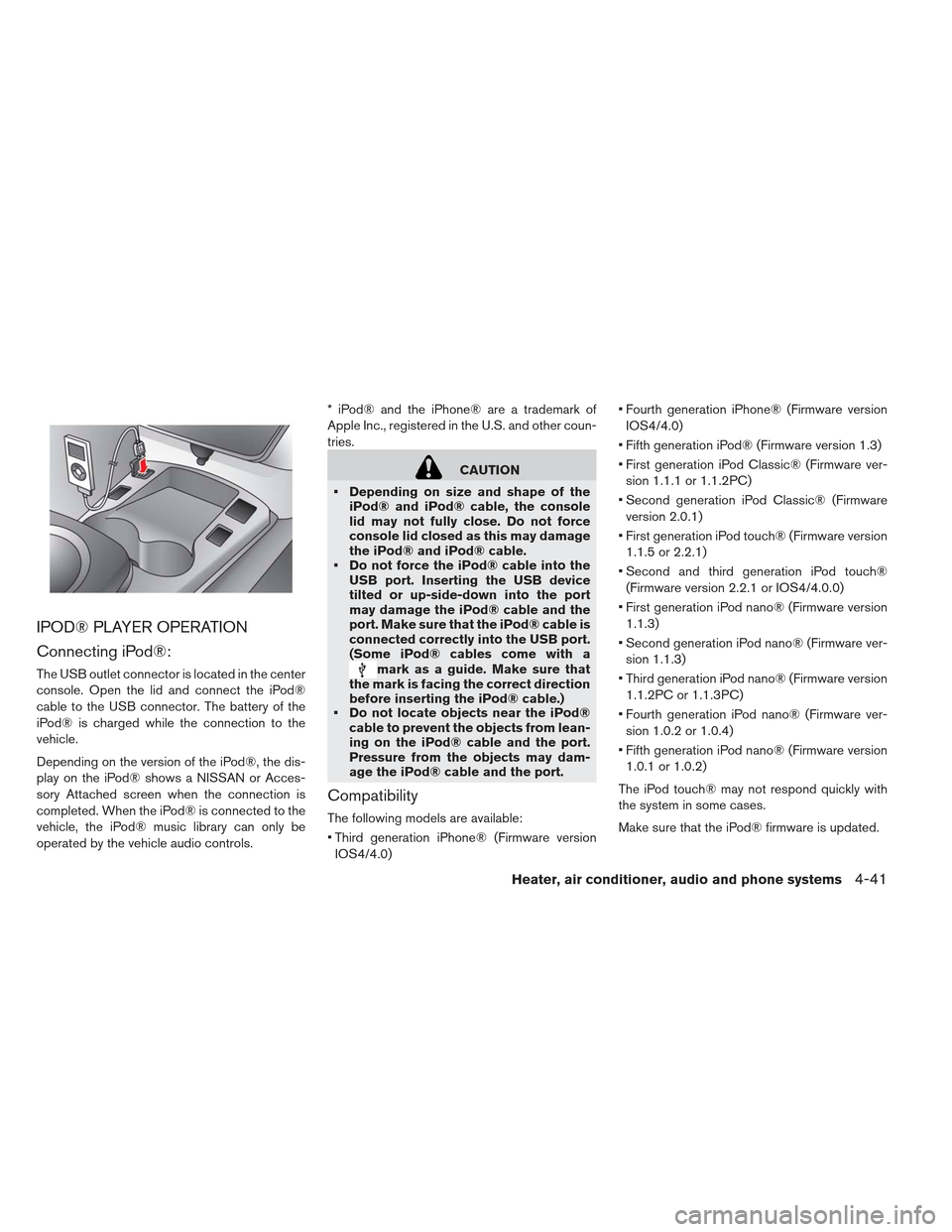
The USB outlet connector is located in the center
console. Open the lid and connect the iPod®
cable to the USB connector. The battery of the
iPod® is charged while the connection to the
vehicle.
Depending on the version of the iPod®, the dis-
play on the iPod® shows a NISSAN or Acces-
sory Attached screen when the connection is
completed. When the iPod® is connected to the
vehicle, the iPod® music library can only be
operated by the vehicle audio controls.* iPod® and the iPhone® are a trademark of
Apple Inc., registered in the U.S. and other coun-
tries.
CAUTION
Depending on size and shape of the iPod® and iPod® cable, the console
lid may not fully close. Do not force
console lid closed as this may damage
the iPod® and iPod® cable.
Do not force the iPod® cable into the USB port. Inserting the USB device
tilted or up-side-down into the port
may damage the iPod® cable and the
port. Make sure that the iPod® cable is
connected correctly into the USB port.
(Some iPod® cables come with a
mark as a guide. Make sure that
the mark is facing the correct direction
before inserting the iPod® cable.)
Do not locate objects near the iPod®
cable to prevent the objects from lean-
ing on the iPod® cable and the port.
Pressure from the objects may dam-
age the iPod® cable and the port.
Compatibility
The following models are available:
Third generation iPhone® (Firmware version
IOS4/4.0) Fourth generation iPhone® (Firmware version
IOS4/4.0)
Fifth generation iPod® (Firmware version 1.3)
First generation iPod Classic® (Firmware ver- sion 1.1.1 or 1.1.2PC)
Second generation iPod Classic® (Firmware version 2.0.1)
First generation iPod touch® (Firmware version 1.1.5 or 2.2.1)
Second and third generation iPod touch® (Firmware version 2.2.1 or IOS4/4.0.0)
First generation iPod nano® (Firmware version 1.1.3)
Second generation iPod nano® (Firmware ver- sion 1.1.3)
Third generation iPod nano® (Firmware version 1.1.2PC or 1.1.3PC)
Fourth generation iPod nano® (Firmware ver- sion 1.0.2 or 1.0.4)
Fifth generation iPod nano® (Firmware version 1.0.1 or 1.0.2)
The iPod touch® may not respond quickly with
the system in some cases.
Make sure that the iPod® firmware is updated.
Heater, air conditioner, audio and phone systems4-41
Page 268 of 402
CD CARE AND CLEANING
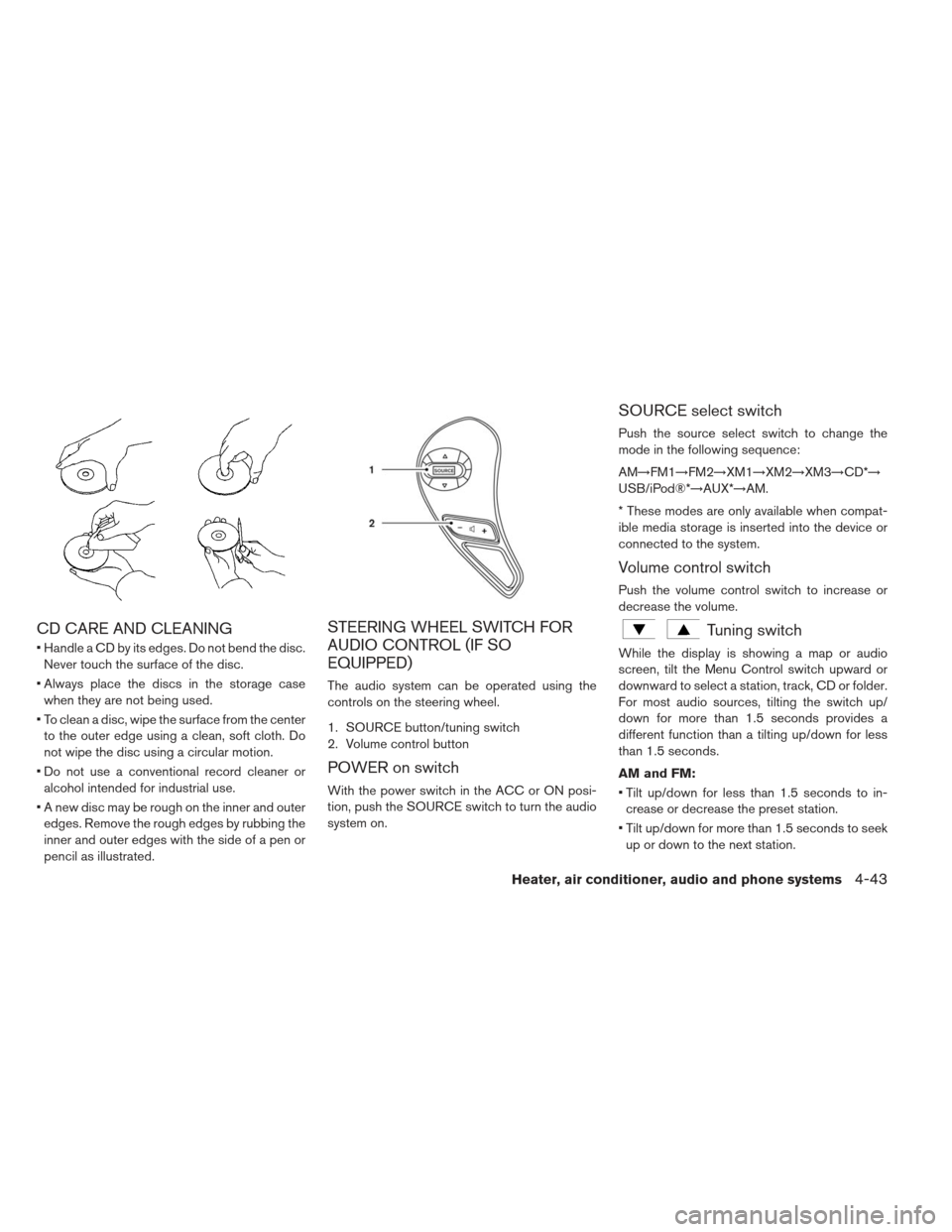
Handle a CD by its edges. Do not bend the disc.Never touch the surface of the disc.
Always place the discs in the storage case when they are not being used.
To clean a disc, wipe the surface from the center to the outer edge using a clean, soft cloth. Do
not wipe the disc using a circular motion.
Do not use a conventional record cleaner or alcohol intended for industrial use.
A new disc may be rough on the inner and outer edges. Remove the rough edges by rubbing the
inner and outer edges with the side of a pen or
pencil as illustrated.
STEERING WHEEL SWITCH FOR
AUDIO CONTROL (IF SO
EQUIPPED)
The audio system can be operated using the
controls on the steering wheel.
1. SOURCE button/tuning switch
2. Volume control button
POWER on switch
With the power switch in the ACC or ON posi-
tion, push the SOURCE switch to turn the audio
system on.
SOURCE select switch
Push the source select switch to change the
mode in the following sequence:
AM→FM1→FM2→XM1→XM2→XM3→CD*→
USB/iPod®*→AUX*→AM.
* These modes are only available when compat-
ible media storage is inserted into the device or
connected to the system.
Volume control switch
Push the volume control switch to increase or
decrease the volume.
Tuning switch
While the display is showing a map or audio
screen, tilt the Menu Control switch upward or
downward to select a station, track, CD or folder.
For most audio sources, tilting the switch up/
down for more than 1.5 seconds provides a
different function than a tilting up/down for less
than 1.5 seconds.
AM and FM:
Tilt up/down for less than 1.5 seconds to in- crease or decrease the preset station.
Tilt up/down for more than 1.5 seconds to seek up or down to the next station.
Heater, air conditioner, audio and phone systems4-43
Page 269 of 402
XM:
Tilt up/down for less than 1.5 seconds to in-crease or decrease the preset station.
Tilt up/down for more than 1.5 seconds to go to the next or previous category.
Press the ENTER button to show the XM Menu.
iPod®:
Tilt up/down for less than 1.5 seconds to in- crease or decrease the track number.
Press the iPod MENU button to show the iPod Menu.
CD:
Tilt up/down for less than 1.5 seconds to in- crease or decrease the track number.
Tilt up/down for more than 1.5 seconds to in- crease or decrease the folder number (if playing
compressed audio files) .
Press the ENTER button to show the CD Menu. USB:
Tilt up/down for less than 1.5 seconds to in-
crease or decrease the track number.
Tilt up/down for more than 1.5 seconds to in- crease or decrease the folder number.
Press the ENTER button to show the USB Menu.
ANTENNA
Removing antenna
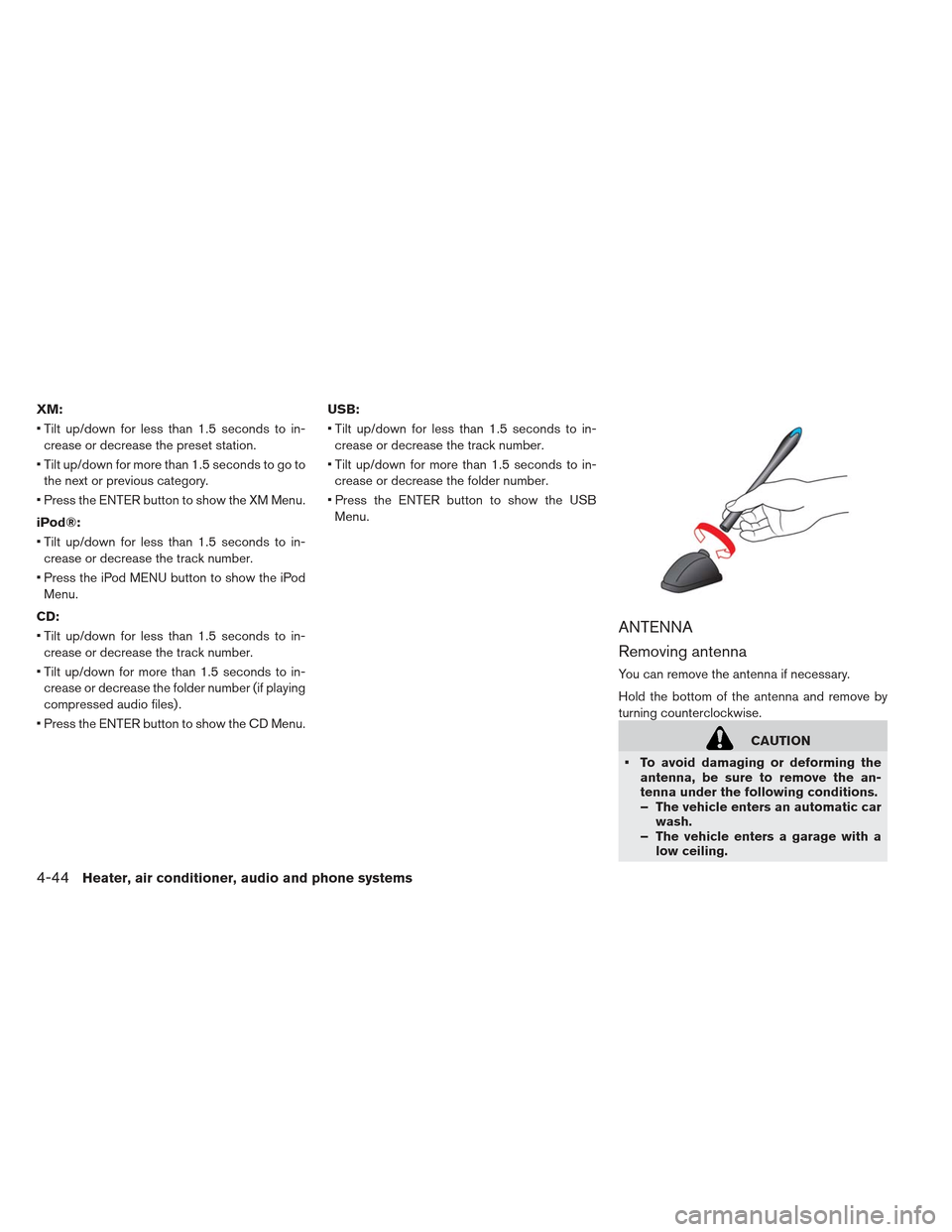
You can remove the antenna if necessary.
Hold the bottom of the antenna and remove by
turning counterclockwise.
CAUTION
To avoid damaging or deforming the antenna, be sure to remove the an-
tenna under the following conditions.
– The vehicle enters an automatic carwash.
– The vehicle enters a garage with a low ceiling.
4-44Heater, air conditioner, audio and phone systems