phone NISSAN LEAF 2018 Owner´s Manual
[x] Cancel search | Manufacturer: NISSAN, Model Year: 2018, Model line: LEAF, Model: NISSAN LEAF 2018Pages: 435, PDF Size: 5.48 MB
Page 260 of 435
Siri® Eyes Free (if so equipped)
If a connected phone is equipped with Siri®,
it can also be used to create custom mes-
sages that are sent through the phone. For
additional information, refer to “Siri® Eyes
Free” in this section.
NOTE:
Text messages are only displayed if the
vehicle speed is less than 5 mph
(8 km/h).
NOTE:
For Apple iPhones®, text messages can
only be sent through Siri.
Text messaging using the control
panel
Display received message list1. Press the
button on the control
panel.
2. Touch the “Text Message” key on the screen
3. Touch an item on the list to read or reply to the message.
Up to 100 messages can be stored in the
message list. Received message screen
Touching the “Read” key on the incoming
message notification screen or selecting a
message from the message list will show
the details of the received message on the
display.
Available actions:
∙Prev. Touch this key to read the previous
message.
∙Next Touch this key to read the next mes-
sage.
∙ Play/Stop Touch the “Play” key to have the hands-
free phone system read out the re-
ceived message. Touch the “Stop” key to
stop reading.
∙ Call If the sender of the message is regis-
tered in the phonebook, touch the “Call”
key to make a call to the sender.
∙ Reply A reply message can be selected from
the predefined list or by a custom mes-
sage. Sending a text message (if so equipped)
This function may not be supported de-
pending on the cellular phone.
1. Press the
button on the control
panel.
2. Touch the “Text Message” key on the screen.
3. Touch the “Create Message” key on the screen.
4-82Monitor, climate, audio, phone and voice recognition systems
Page 261 of 435
The following items are available:
Available itemAction
To Enter Number by Keypad Enter the phone number of the recipient using the keypad. Touch the “OK” key to confirm.
Quick Dial Select a recipient from the quick dial list.
Phonebook Select a recipient from the phonebook.
Call History Select a recipient/phone number from call history.
Select Text Fixed Touch to display a list of predefined text messages.
Customized Touch to display a list of custom text messages. Custom text can be created or edited from the setting
menu. For additional information, refer to “Phone and text message settings” in this section.
Send Touch to send the message.
Monitor, climate, audio, phone and voice recognition systems4-83
Page 262 of 435
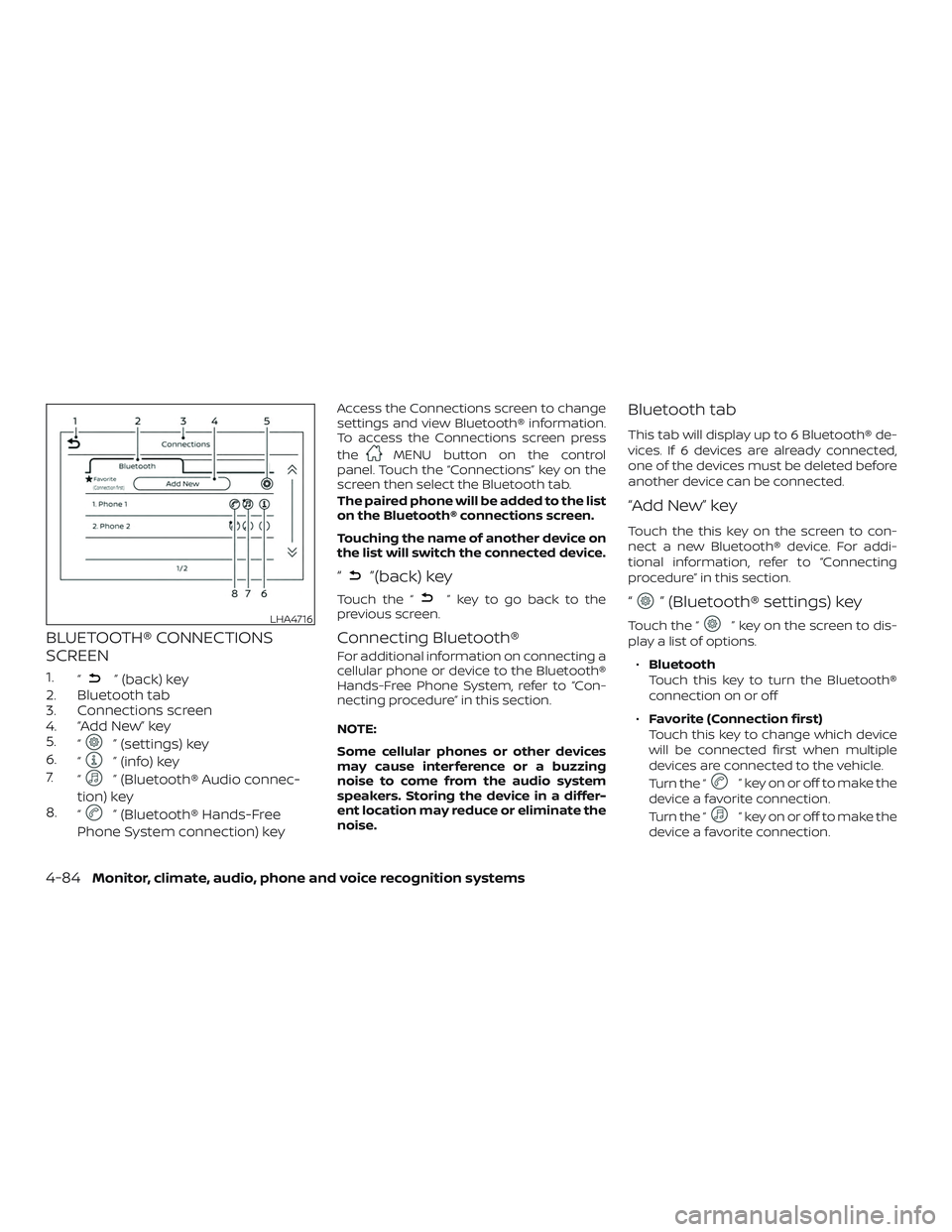
BLUETOOTH® CONNECTIONS
SCREEN
1.“” (back) key
2. Bluetooth tab
3. Connections screen
4. “Add New” key
5. “
” (settings) key
6. “
” (info) key
7. “
” (Bluetooth® Audio connec-
tion) key
8. “
” (Bluetooth® Hands-Free
Phone System connection) key
Access the Connections screen to change
settings and view Bluetooth® information.
To access the Connections screen press
the
MENU button on the control
panel. Touch the “Connections” key on the
screen then select the Bluetooth tab.
The paired phone will be added to the list
on the Bluetooth® connections screen.
Touching the name of another device on
the list will switch the connected device.
“”(back) key
Touch the “” key to go back to the
previous screen.
Connecting Bluetooth®
For additional information on connecting a
cellular phone or device to the Bluetooth®
Hands-Free Phone System, refer to “Con-
necting procedure” in this section.
NOTE:
Some cellular phones or other devices
may cause interference or a buzzing
noise to come from the audio system
speakers. Storing the device in a differ-
ent location may reduce or eliminate the
noise.
Bluetooth tab
This tab will display up to 6 Bluetooth® de-
vices. If 6 devices are already connected,
one of the devices must be deleted before
another device can be connected.
“Add New” key
Touch the this key on the screen to con-
nect a new Bluetooth® device. For addi-
tional information, refer to “Connecting
procedure” in this section.
“” (Bluetooth® settings) key
Touch the “” key on the screen to dis-
play a list of options.
∙ Bluetooth
Touch this key to turn the Bluetooth®
connection on or off
∙ Favorite (Connection first)
Touch this key to change which device
will be connected first when multiple
devices are connected to the vehicle.
Turn the “
” key on or off to make the
device a favorite connection.
Turn the “
” key on or off to make the
device a favorite connection.
LHA4716
4-84Monitor, climate, audio, phone and voice recognition systems
Page 263 of 435
∙Pin
Touch this key to customize the PIN
code. Input a four digit number then
touch the “OK” key. The new PIN will be
set.
“” (info) key
Touch the “” key on the screen to dis-
play the information of the cellular phone
or to delete the device.
Touch the “Delete” key to remove a paired
device then select “Yes” when a message
appears.
“” (Bluetooth® Hands-Free
Phone System connection) key
A list of connected devices will be displayed
on the screen. Touch the “
” key next to
the name to connect a device to the
Hands-Free Phone System. If the phone is
listed as a favorite, a star will appear on the
icon. Select the key again to disconnect the
device. The device will not be removed
from the list. For additional information on
removing a device, refer to “Info key” in this
section.
“” (Bluetooth® Audio
connection) key
A list of connected devices will be displayed
on the screen. Touch the “
” key next to
the name to connect a device to
Bluetooth® Audio. If the device is listed as a
favorite, a star will appear on the icon. Se-
lect the key again to disconnect the device.
The device will not be removed from the
list. For additional information on removing
a device, refer to “Info key” in this section.
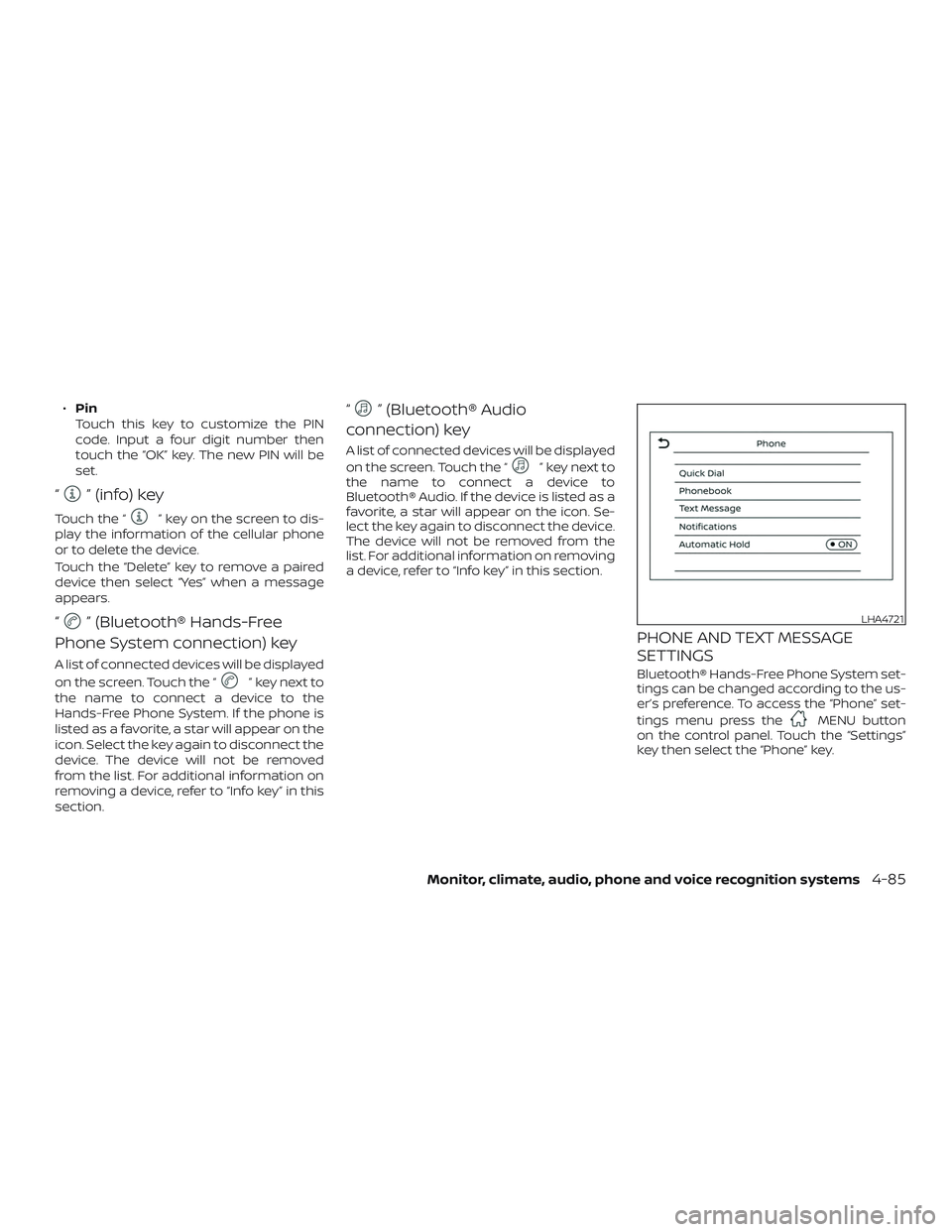
PHONE AND TEXT MESSAGE
SETTINGS
Bluetooth® Hands-Free Phone System set-
tings can be changed according to the us-
er’s preference. To access the “Phone” set-
tings menu press the
MENU button
on the control panel. Touch the “Settings”
key then select the “Phone” key.
LHA4721
Monitor, climate, audio, phone and voice recognition systems4-85
Page 264 of 435
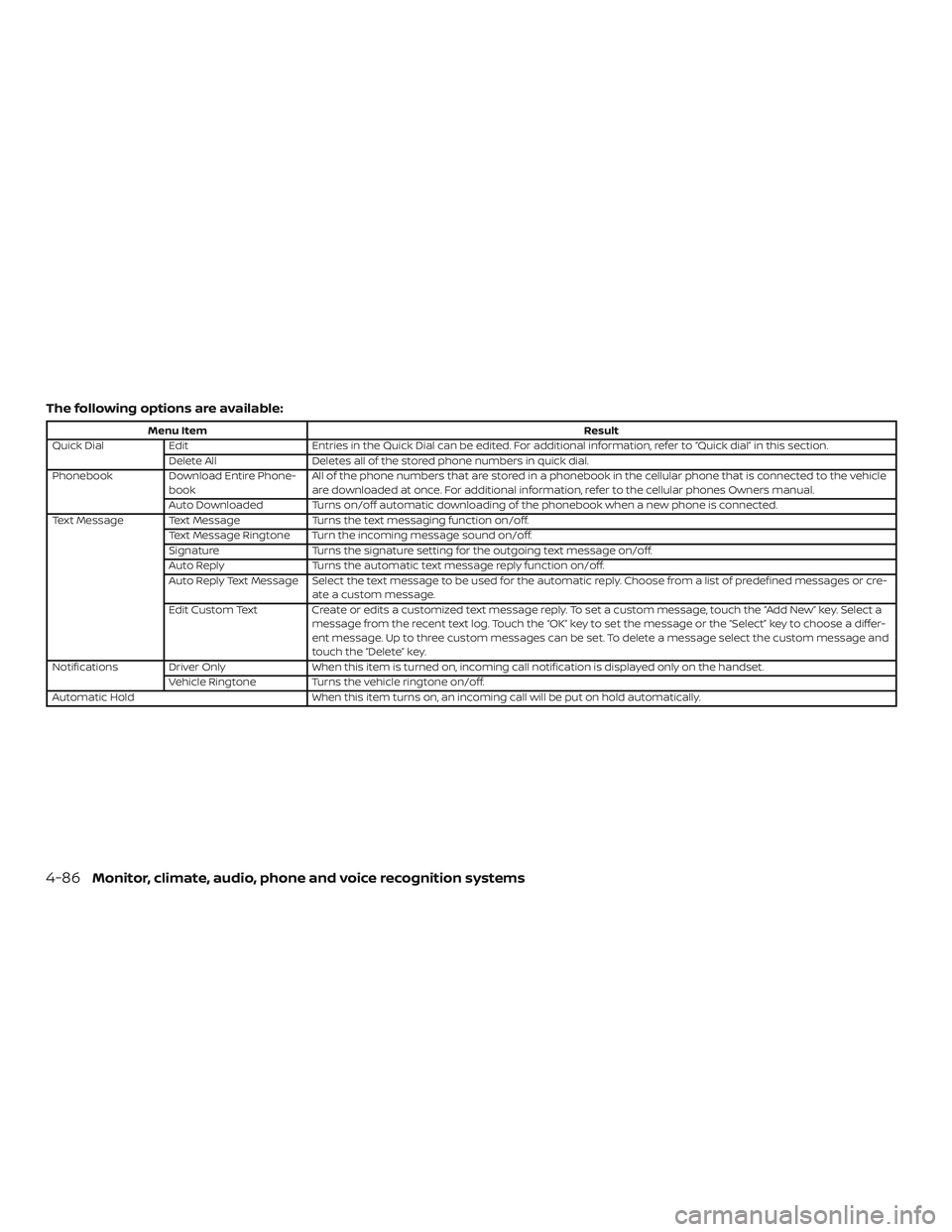
The following options are available:
Menu ItemResult
Quick Dial Edit Entries in the Quick Dial can be edited. For additional information, refer to “Quick dial” in this section.
Delete All Deletes all of the stored phone numbers in quick dial.
Phonebook Download Entire Phone-
book All of the phone numbers that are stored in a phonebook in the cellular phone that is connected to the vehicle
are downloaded at once. For additional information, refer to the cellular phones Owners manual.
Auto Downloaded Turns on/off automatic downloading of the phonebook when a new phone is connected.
Text Message Text Message Turns the text messaging function on/off.
Text Message Ringtone Turn the incoming message sound on/off.
Signature Turns the signature setting for the outgoing text message on/off.
Auto Reply Turns the automatic text message reply function on/off.
Auto Reply Text Message Select the text message to be used for the automatic reply. Choose from a list of predefined messages or cre- ate a custom message.
Edit Custom Text Create or edits a customized text message reply. To set a custom message, touch the “Add New” key. Select a message from the recent text log. Touch the “OK” key to set the message or the “Select” key to choose a differ-
ent message. Up to three custom messages can be set. To delete a message select the custom message and
touch the “Delete” key.
Notifications Driver Only When this item is turned on, incoming call notification is displayed only on the handset.
Vehicle Ringtone Turns the vehicle ringtone on/off.
Automatic Hold When this item turns on, an incoming call will be put on hold automatically.
4-86Monitor, climate, audio, phone and voice recognition systems
Page 265 of 435
Volume & beeps
There are several methods to customize
the volume settings.
Volume & Beeps
The Volume & Beeps screen can be found
by pressing the
MENU button on the
control panel, touching the “Settings” key
on the screen and selecting “Volume &
Beeps”. To adjust the volume of the follow-
ing options, touch the “-” and “+” keys on the
screen.
The available settings are:
∙ Ringtone Adjust the volume level of the ringtone
of incoming calls.
∙ Outgoing Call Adjust the volume level of the outgoing
calls.
∙ Voice Prompt Vol. Adjust the volume level of the system
voice.
∙ Text-to-speech Vol. Adjust the volume of the replay voice for
text messaging.
∙ Button Beeps Turns on/off the button beep sounds
and alarm for prohibited operations. Volume Settings
The Volume settings screen can be found
by pressing the
button on the control
panel then touching the “Volume” key on
the screen. To adjust the volume of the
following options, touch the “-” and “+” keys
on the screen.
The available settings are:
∙ Ringtone Adjust the volume level of the ringtone
of incoming calls.
∙ Outgoing Call Adjust the volume level of the outgoing
calls.
Monitor, climate, audio, phone and voice recognition systems4-87
Page 277 of 435
ON (Normal operating position)
This position turns on the ignition system
and electrical accessories.
ON has a battery saver feature that will
place the ignition switch in the OFF posi-
tion, if the vehicle is not running, af ter some
time under the following conditions:∙ The shif t lever is in P (Park).
∙ The hazard lamps are off.
∙ The turn signals are off.
The battery saver feature will be canceled if
any of the following occur: ∙ The shif t lever is moved out of the P (Park) position.
∙ The ignition switch changes position.
∙ The hazard lamps are turned on.
∙ The turn signals are turned on.
CAUTION
Do not leave the vehicle with the igni-
tion switch in the ON or AUTO ACC posi-
tion when the engine is not running for
an extended period. This can discharge
the battery. OFF
The ignition switch is in the OFF position
when the engine is turned off using the
ignition switch.
AUTO ACC:
With the vehicle in the P (Park) position, the
Intelligent Key with you, and the ignition
switch placed from the ON to the OFF po-
sition, the radio can still be used for a period
of time, or until the driver’s door is opened.
Af ter a period of time, functions such as
radio, navigation, and Bluetooth® Hands-
Free Phone System may be restarted by
pressing the “POWER button/VOLUME con-
trol knob” or the key fob unlock button. For
additional information, refer to “Monitor, cli-
mate, audio, phone and voice recognition
systems” in this manual.
EMERGENCY ENGINE SHUT OFF
To shut off the engine in an emergency
situation while driving, perform the follow-
ing procedure:
∙ Rapidly push the ignition switch three consecutive times in less than 1.5 sec-
onds, or
∙ Push and hold the ignition switch for more than 2 seconds.
Starting and driving5-11
Page 280 of 435
1. Apply the parking brake.
2. Move the shif t lever to P (Park) or N(Neutral). P (Park) is recommended.
The shif t lever cannot be moved out
of P (Park) and into any of the other
gear positions if the ignition switch
is placed in the OFF position.
The starter is designed not to oper-
ate if the shif t lever is in any of the
driving positions.
3. Push the ignition switch to the ON po- sition. Depress the brake pedal and
push the ignition switch to start the
engine.
To start the engine immediately, push
and release the ignition switch while
depressing the brake pedal with the
ignition switch in any position.
∙ If the engine is very hard to start in extremely cold weather or when re-
starting, depress the accelerator
pedal a little (approximately 1/3 to the
floor) and while holding, crank the en-
gine. Release the accelerator pedal
when the engine starts. ∙ If the engine is very hard to start be-
cause it is flooded, depress the accel-
erator pedal all the way to the floor
and hold it. Push the ignition switch
to the ON position to start cranking
the engine. Af ter 5 or 6 seconds, stop
cranking by pushing the ignition
switch to LOCK. Af ter cranking the
engine, release the accelerator pedal.
Crank the engine with your foot off
the accelerator pedal by depressing
the brake pedal and pushing the igni-
tion switch to start the engine. If the
engine starts, but fails to run, repeat
the above procedure.
CAUTION
Do not operate the starter for more
than 15 seconds at a time. If the engine
does not start, push the ignition switch
to the OFF position and wait 10 seconds
before cranking again, otherwise the
starter could be damaged. 4.
Warm-up:
Allow the engine to idle for at least
30 seconds af ter starting. Do not race
the engine while warming it up. Drive at
a moderate speed for a short distance
first, especially in cold weather. In cold
weather, keep the engine running for a
minimum of2-3minutes before shut-
ting it off. Starting and stopping the
engine over a short period of time may
make the vehicle more difficult to start.
5. To stop the engine, move the shif t lever to the P (Park) position and push the
ignition switch to the OFF position.
NOTE:Care should be taken to avoid situations
that can lead to potential battery discharge
and potential no-start conditions such as:
1. Installation or extended use of elec-
tronic accessories that consume bat-
tery power when the engine is not
running (phone chargers, GPS, DVD
players, etc.).
2. The vehicle is not driven regularly
and/or only driven short distances.
In these cases, the battery may need to
be charged to maintain battery health.
STARTING THE ENGINE
5-14Starting and driving
Page 361 of 435
∙ Keep the battery surface clean and dry.Clean the battery with a solution of bak-
ing soda and water.
∙ Make certain the terminal connections are clean and securely tightened.
∙ If the vehicle is not to be used for 30 days or longer, disconnect the nega-
tive (-) battery terminal cable to prevent
discharge.
NOTE:
Care should be taken to avoid situations
that can lead to potential battery dis-
charge and potential no-start conditions
such as: 1. Installation or extended use of elec-
tronic accessories that consume bat-
tery power when the engine is not
running (Phone chargers, GPS, DVD
players, etc.).
2. Vehicle is not driven regularly and/or
only driven short distances.
In these cases, the battery may need to
be charged to maintain battery health.WARNING
∙ Do not expose the battery to flames, an electrical spark or a cigarette. Hy-
drogen gas generated by the battery
is explosive. Explosive gases can
cause blindness or injury. Do not allow
battery fluid to contact your skin,
eyes, fabrics or painted surfaces. Sul-
furic acid can cause blindness or in-
jury. Af ter touching a battery or bat-
tery cap, do not touch or rub your
eyes. Thoroughly wash your hands. If
the acid contacts your eyes, skin or
clothing, immediately flush with wa-
ter for at least 15 minutes and seek
medical attention.
∙ Do not operate the vehicle if the fluid in the battery is low. Low battery fluid
can cause a higher load on the battery
which can generate heat, reduce bat-
tery life, and in some cases lead to an
explosion.
∙ When working on or near a battery, always wear suitable eye protection
and remove all jewelry. ∙ Battery posts, terminals and related
accessories contain lead and lead
compounds. Wash hands af ter
handling.
∙ Keep battery out of the reach of children.
∙ Do not tip the battery. Keep the vent caps tight and the battery level.
BATTERY
Do-it-yourself8-11
Page 392 of 435
Seats:Check seat position controls such
as seat adjusters, seatback recliner, etc., to
ensure they operate smoothly and all
latches lock securely in every position.
Check that the head restraints/headrests
move up and down smoothly and the locks
(if so equipped) hold securely in all latched
positions.
Seat belts: Check that all parts of the seat
belt system (for example, buckles, anchors,
adjusters and retractors) operate properly
and smoothly, and are installed securely.
Check the belt webbing for cuts, fraying,
wear or damage.
Steering wheel: Check for changes in the
steering system, such as excessive free
play, hard steering or strange noises.
Warning lights and chimes: Make sure all
warning lights and chimes are operating
properly.
Windshield defroster: Check that the air
comes out of the defroster outlets properly
and in sufficient quantity when operating
the heater or air conditioner.
Windshield wiper and washer*: Check
that the wipers and washer operate prop-
erly and that the wipers do not streak.Under the hood and vehicle
The maintenance items listed here should
be checked periodically (for example, each
time you check the engine oil or refuel).
Battery*: Check the fluid level in each cell.
The fluid should be at the bottom of the
filler opening. Vehicles operated in high
temperatures or under severe conditions
require frequent checks of the battery fluid
level.
NOTE:
Care should be taken to avoid situations
that can lead to potential battery dis-
charge and potential no-start conditions
such as:
1. Installation or extended use of elec-
tronic accessories that consume bat-
tery power when the engine is not
running (Phone chargers, GPS, DVD
players, etc.).
2. Vehicle is not driven regularly and/or
only driven short distances.
In these cases, the battery may need to
be charged to maintain battery health. Brake fluid level*:
Make sure that the brake
fluid level is between the MIN and MAX lines
on the reservoir.
Engine coolant level*: Check the coolant
level when the engine is cold.
Engine drive belt*: Make sure the drive belt
is not frayed, worn, cracked or oily.
Engine oil level*: Check the level af ter
parking the vehicle on a level surface with
the engine off. Wait more than 15 minutes
for the oil to drain back into the oil pan.
Exhaust system: Make sure there are no
loose supports, cracks or holes. If the
sound of the exhaust seems unusual or
there is a smell of exhaust fumes, immedi-
ately have the exhaust system inspected. It
is recommended that you visit a NISSAN
dealer for this service. For additional infor-
mation, refer to “Exhaust gas (carbon mon-
oxide)” in the “Starting and driving” section
of this manual.
Fluid leaks: Check under the vehicle for
fuel, oil, water or other fluid leaks af ter the
vehicle has been parked for a while. Water
dripping from the air conditioner af ter use
is normal. If you should notice any leaks or if
fuel fumes are evident, check for the cause
and have it corrected immediately.
9-4Maintenance and schedules