bluetooth NISSAN LEAF 2019 Owner´s Manual
[x] Cancel search | Manufacturer: NISSAN, Model Year: 2019, Model line: LEAF, Model: NISSAN LEAF 2019Pages: 610, PDF Size: 7.11 MB
Page 4 of 610
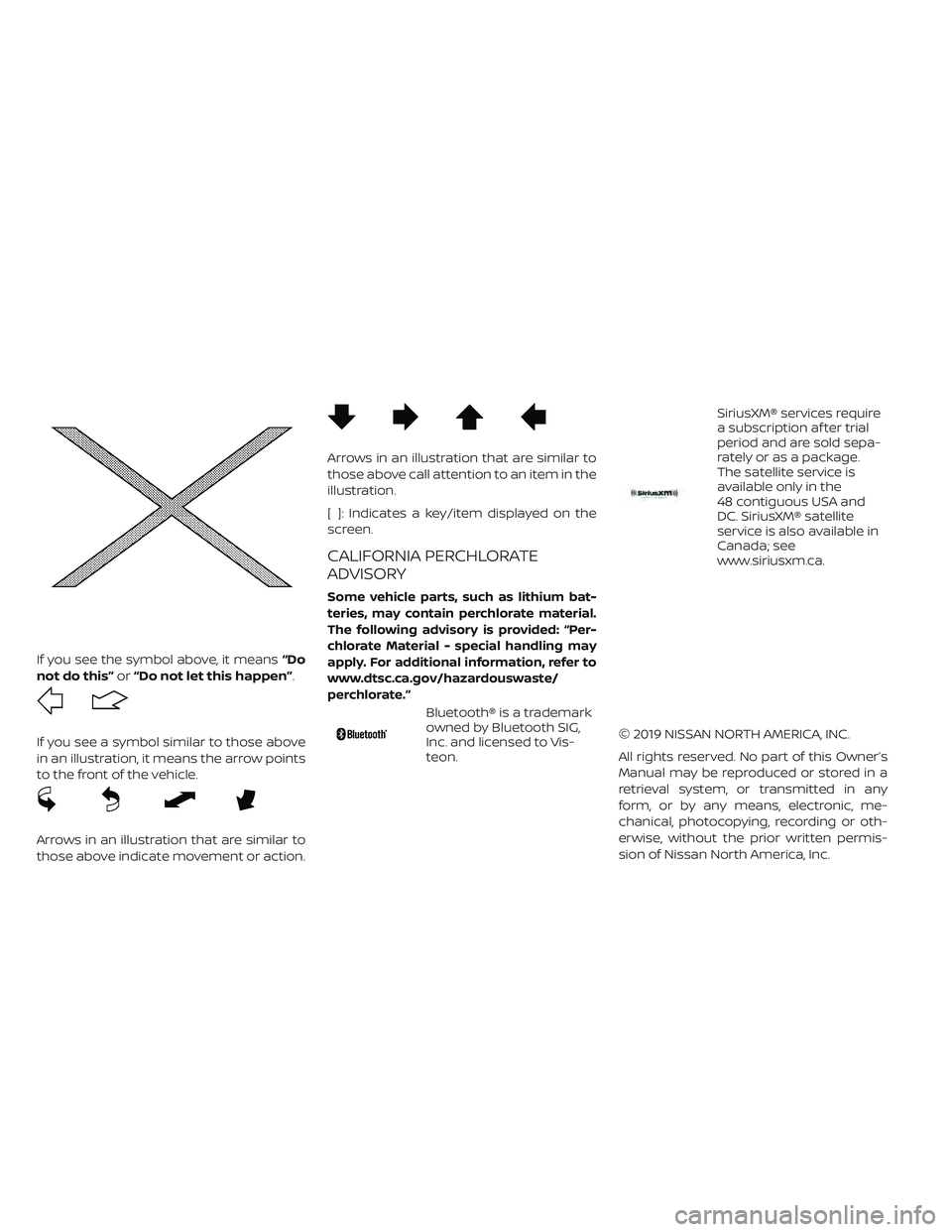
If you see the symbol above, it means“Do
not do this” or“Do not let this happen”.
If you see a symbol similar to those above
in an illustration, it means the arrow points
to the front of the vehicle.
Arrows in an illustration that are similar to
those above indicate movement or action.
Arrows in an illustration that are similar to
those above call attention to an item in the
illustration.
[ ]: Indicates a key/item displayed on the
screen.
CALIFORNIA PERCHLORATE
ADVISORY
Some vehicle parts, such as lithium bat-
teries, may contain perchlorate material.
The following advisory is provided: “Per-
chlorate Material - special handling may
apply. For additional information, refer to
www.dtsc.ca.gov/hazardouswaste/
perchlorate.”
Bluetooth® is a trademark
owned by Bluetooth SIG,
Inc. and licensed to Vis-
teon.
SiriusXM® services require
a subscription af ter trial
period and are sold sepa-
rately or as a package.
The satellite service is
available only in the
48 contiguous USA and
DC. SiriusXM® satellite
service is also available in
Canada; see
www.siriusxm.ca.
© 2019 NISSAN NORTH AMERICA, INC.
All rights reserved. No part of this Owner’s
Manual may be reproduced or stored in a
retrieval system, or transmitted in any
form, or by any means, electronic, me-
chanical, photocopying, recording or oth-
erwise, without the prior written permis-
sion of Nissan North America, Inc.
Page 13 of 610
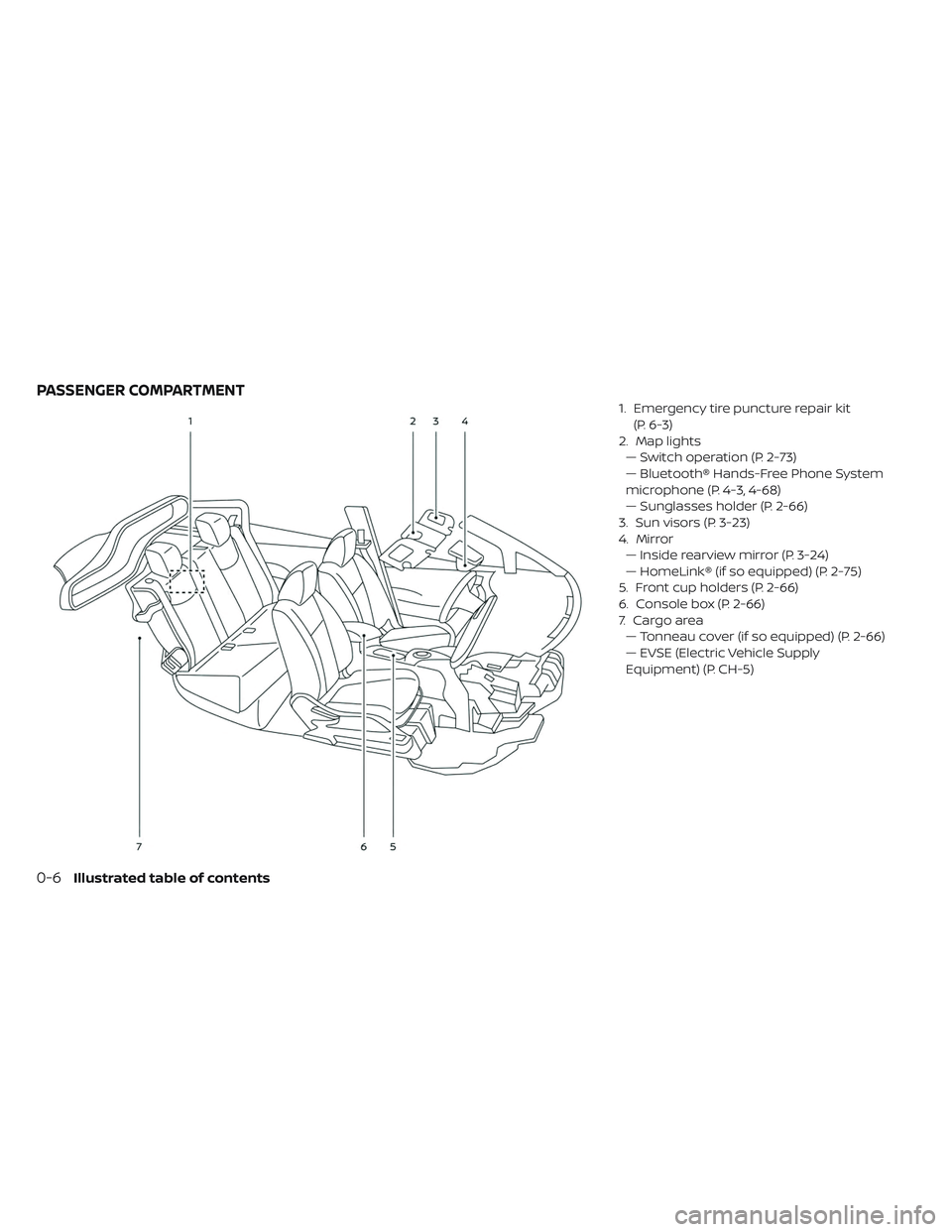
1. Emergency tire puncture repair kit(P. 6-3)
2. Map lights — Switch operation (P. 2-73)
— Bluetooth® Hands-Free Phone System
microphone (P. 4-3, 4-68)
— Sunglasses holder (P. 2-66)
3. Sun visors (P. 3-23)
4. Mirror — Inside rearview mirror (P. 3-24)
— HomeLink® (if so equipped) (P. 2-75)
5. Front cup holders (P. 2-66)
6. Console box (P. 2-66)
7. C a r g o a r e a — Tonneau cover (if so equipped) (P. 2-66)
— EVSE (Electric Vehicle Supply
Equipment) (P. CH-5)
PASSENGER COMPARTMENT
0-6Illustrated table of contents
Page 15 of 610
— Bluetooth® Hands-Free Phone System
control (P. 4-3, 4-68)
7. Shif t lever (P. 5-15) — ECO switch (P. 2-60)
— e-Pedal switch (P. 5-22)
8. Console box (P. 2-66)
9. Parking brake (switch type) (if so equipped) (P. 5-19)
10. Tilting steering wheel lever (P. 3-23)
11. Charge port lid switch (P. 3-20) — Immediate charge switch (P. 2-63)
— Heated steering wheel switch
(if so equipped) (P. 2-62)
— Steering Assist switch (if so equipped)
(P. 5-80)
12. Fuse box cover (P. 8-18)
0-8Illustrated table of contents
Page 177 of 610
— Bluetooth® Hands-Free Phone System
control (P. 4-3, 4-68)
7. Shif t lever (P. 5-15) — ECO switch (P. 2-60)
— e-Pedal switch (P. 5-22)
8. Console box (P. 2-66)
9. Parking brake (switch type) (if so equipped) (P. 5-19)
10. Tilting steering wheel lever (P. 3-23)
11. Charge port lid switch (P. 3-20) — Immediate charge switch (P. 2-63)
— Heated steering wheel switch (if so
equipped) (P. 2-62)
— Steering Assist switch (if so equipped)
(P. 5-80)
12. Fuse box cover (P. 8-18)
2-4Instruments and controls
Page 281 of 610
Automatic climate control
(models with Navigation System)........4-38
Climate ctrl. timer .................. .4-41
Audio system (models without NissanConnect®
System) .......................... .4-46
Radio .......................... .4-46
FM radio reception ................. .4-47
AM radio reception ................. .4-47
Satellite radio reception ...............4-48
Audio operation precautions ...........4-48
FM/AM/SAT radio with Compact Disc (CD)
player...........................4-55
USB (Universal Serial Bus) connection port . . .4-61
iPod® player operation ...............4-62
Bluetooth® streaming audio ............4-65
Aux device player operation ............4-65
CD care and cleaning ................4-66
Steering wheel switch for audio control . . . .4-66 Antenna
.......................... .4-67
Car phone or CB radio .................4-68
Bluetooth® Hands-Free Phone System without
Navigation System (for models without
NissanConnect® system) ................4-68
Regulatory information ...............4-70
Using the system .................. .4-70
Control buttons ................... .4-71
Connecting procedure ...............4-72
Voice commands .................. .4-73
Making a call ......................4-74
Receiving a call ................... .4-75
During a call ......................4-75
Ending a call ......................4-75
Text messaging (if so equipped) .........4-76
Bluetooth® settings ................. .4-77
Manual control .................... .4-78
Troubleshooting guide ...............4-79
Page 333 of 610
Bluetooth® streaming audio
• Some Bluetooth® audio devices may notbe recognized by the in-vehicle audio
system.
•
It is necessary to set up the wireless con-
nection between a compatible Bluetooth®
audio device and the in-vehicle Bluetooth®
module before using the Bluetooth® audio.
• Operating procedure of the Bluetooth® audio will vary depending on the devices.
Make sure how to operate your audio de-
vice before using it with this system.
• The Bluetooth® audio may be stopped under the following conditions: – Receiving a call on the Hands-FreePhone System.
– Checking the connection to the hands- free phone. • Do not place the Bluetooth® audio device
in an area surrounded by metal or far
away from the in-vehicle Bluetooth® mod-
ule to prevent tone quality degradation
and wireless connection disruption.
• While an audio device is connected through the Bluetooth® wireless connec-
tion, the battery power of the device may
discharge quicker than usual.
• This system supports the Bluetooth® Audio Distribution Profile (A2DP, AVRCP).
BLUETOOTH® is a trademark
owned by Bluetooth SIG, Inc. and licensed
to Visteon.
4-54Monitor, climate, audio, phone and voice recognition systems
Page 337 of 610
Bass, treble, balance and fade can also be
adjusted by pressing the ENTER/SETTING
button and turning the TUNE/SCROLL con-
trol knob to select the item to adjust.
DISP button
Display of the screen can be canceled by
pressing the DISP button. You can then lis-
ten to music that is being played back. If
you want to display the screen again, either
press the DISP button once more or press
the FM·AM, or XM Satellite Radio button.
MEDIA button
Pressing the MEDIA button will switch the
displays as follows:
iPod®/USB→Bluetooth
Audio→AUX→CD→iPod®/USB
BACK button
When the BACK button is pressed, it returns
to the previous display.
iPod MENU button
Press the iPod MENU button while the
iPod® is connected to show the iPod® op-
eration menu on the audio display. Scroll
through the menu list using the TUNE/ SCROLL knob. Press the ENTER/SETTING
button to select a menu item.
For additional information, refer to the
iPod® Owner’s Manual.
FM/AM/SAT radio operation
FM∙AM band select
Pressing the radio band select button will
change the band as follows:
AM→FM1→FM2→AM
XM band select
Pressing the XM band select button will
change the band as follows:
XM1→XM2→XM3→XM1
When the XM band select button is pressed
while the power switch is in the ACC or ON
position, the radio will come on at the
channel last played.
The last station played will also come on
when the
button is pressed to radio ON.
*When the XM button is pressed, the satel-
lite radio mode will be skipped unless a
SiriusXM® Satellite Radio service subscrip-
tion is active. Satellite radio is not available
in Alaska, Hawaii and Guam.If a compact disc is playing when the XM
button is pressed, the compact disc will
automatically be turned off and the last
radio station played will come on.
TUNE/SCROLL knob (Tuning)
Turn the TUNE/SCROLL knob to the lef t or
right for manual tuning.
SEEK tuning
Press the SEEK/CAT
orbutton to
tune from low to high or high to low fre-
quencies and to stop at the next broad-
casting station.
SCAN tuning
Press the SCAN button to stop at each
broadcasting station for 5 seconds. SCAN
will appear on the screen while the radio is
scan tuning.
Pressing the button again during this
5 second period will stop SCAN tuning and
the radio will remain tuned to that station. If
the SCAN button is not pressed within
5 seconds, SCAN tuning moves to the next
station.
4-58Monitor, climate, audio, phone and voice recognition systems
Page 339 of 610
CD eject
When the CD eject button is pressed with
a compact disc loaded, the CD will be
ejected.
When this button is pressed while the CD is
being played, the CD will be ejected.
If the CD comes out and is not removed, it
will be pulled back into the slot to protect
it.
AUX IN jack
The AUX IN jack is located beneath the
heater and air conditioner controls. The
AUX IN audio jack accepts any standard
analog audio input such as from a portable
cassette tape/CD player, MP3 player or lap-
top computer.
MEDIA
With a CD loaded, press the MEDIA button
until the CD mode is displayed on the
screen. Pressing the MEDIA button repeat-
edly will maneuver through CD, USB,
Bluetooth® Audio and AUX modes. CD/MP3 display mode
While listening to an MP3/WMA CD, certain
text may be displayed on the screen if the
CD has been encoded with the text infor-
mation. Depending on how the MP3/WMA
CD is encoded, information such as artist,
song and folder will be displayed.
The track number and total number of
tracks in the current folder or on the cur-
rent disc are displayed on the screen as
well.
TUNE/SCROLL knob (MP3/WMA CD only)
If a MP3/WMA CD with multiple folders is
playing, turn the TUNE/SCROLL knob to
change folders. Turn the knob to the lef t to
skip back a folder. Turn the knob to the right
to skip ahead a folder.
Additional features
For additional information about the iPod®
player available with this system, refer to
“iPod® player operation” in this section.
For additional information about the USB
(Universal Serial Bus) connection port avail-
able with this system, refer to “USB (Univer-
sal Serial Bus) connection port” in this sec-
tion.
For additional information about the
Bluetooth® audio interface available with
this system, refer to “Bluetooth® streaming
audio” in this section.
4-60Monitor, climate, audio, phone and voice recognition systems
Page 344 of 610
BLUETOOTH® STREAMING AUDIO
If you have a compatible Bluetooth® audio
device that is capable of playing audio files,
the device can be connected to the vehi-
cle’s audio system so that the audio files on
the device play through the vehicle’s
speakers. For additional information, refer
to “FM/AM/SAT radio with Compact Disc
(CD) player” in this section.
NOTE:
For additional information regarding
Bluetooth® Streaming Audio, refer to
the cellular phone owner’s manual.
Connecting Bluetooth® audio
To connect your Bluetooth® audio device
to the vehicle, follow the procedure below:
1. Press the ENTER/SETTING button.
2. Select “Bluetooth”.
3. Select “Add Phone”. This same screencan be accessed to remove, replace or
select a different Bluetooth® device. 4.
The system acknowledges the com-
mand and asks you to initiate connecting
from the phone handset. The connecting
procedure of the cellular phone varies ac-
cording to each cellular phone model. For
additional information, refer to the cellular
phone’s owner’s manual. You can also
visit www.nissanusa.com/bluetooth or
www.nissan.ca/bluetooth for instructions
on connecting NISSAN-recommended
cellular phones.
Audio main operation:
To switch to the Bluetooth® audio mode,
press the MEDIA button repeatedly until the
Bluetooth® audio mode is displayed on the
screen. Use the vehicle audio controls or
the Bluetooth® device’s controls to play,
pause, skip or reverse tracks.
AUX DEVICE PLAYER OPERATION
The AUX input jack is located beneath the
heater and air conditioner controls. The
AUX input jack accepts any standard ana-
log audio input such as from a portable
cassette tape/CD player, MP3 player or lap-
top computer.
NISSAN strongly recommends using a ste-
reo mini plug when connecting your music
device to the audio system. Music may not
play properly when monaural cable is used.
To switch the AUX mode, press the MEDIA
button until the AUX mode is selected,
while the power switch is in the “ON” or
“ACC” position.
Monitor, climate, audio, phone and voice recognition systems4-65
Page 347 of 610
When installing a CB, ham radio or car
phone in your vehicle, be sure to observe
the following precautions; otherwise, the
new equipment may adversely affect the
EV control system and other electronic
parts.
WARNING
• A cellular phone should not be used for any purpose while driving so full
attention may be given to vehicle
operation. Some jurisdictions pro-
hibit the use of cellular phones while
driving.
• If you must make a call while your vehicle is in motion, the hands free
cellular phone operational mode is
highly recommended. Exercise ex-
treme caution at all times so full at-
tention may be given to vehicle op-
eration.
• If you are unable to devote full at- tention to vehicle operation while
talking on the phone, pull off the
road to a safe location and stop your
vehicle.
CAUTION
• Keep the antenna as far away as possible from the electronic control
modules.
• Keep the antenna wire more than 8 in (20 cm) away from the electronic
control system harnesses. Do not
route the antenna wire next to any
harness.
• Adjust the antenna standing-wave ratio as recommended by the manu-
facturer.
• Connect the ground wire from the CB radio chassis to the body.
• For additional information, it is rec- ommended that you visit a NISSAN
certified LEAF dealer.
WARNING
• Use a phone af ter stopping your ve- hicle in a safe location. If you have to
use a phone while driving, exercise
extreme caution at all times so full
attention may be given to vehicle
operation.
• If you are unable to devote full at- tention to vehicle operation while
talking on the phone, pull off the
road to a safe location and stop your
vehicle.
CAUTION
To avoid draining the vehicle battery,
use a phone af ter the READY to drive
indicator light is on.
CAR PHONE OR CB RADIO BLUETOOTH® HANDS-FREE PHONE
SYSTEM WITHOUT NAVIGATION
SYSTEM (FOR MODELS WITHOUT
NISSANCONNECT® SYSTEM)
4-68Monitor, climate, audio, phone and voice recognition systems