buttons NISSAN LEAF 2021 Owner´s Manual
[x] Cancel search | Manufacturer: NISSAN, Model Year: 2021, Model line: LEAF, Model: NISSAN LEAF 2021Pages: 602, PDF Size: 4.22 MB
Page 203 of 602
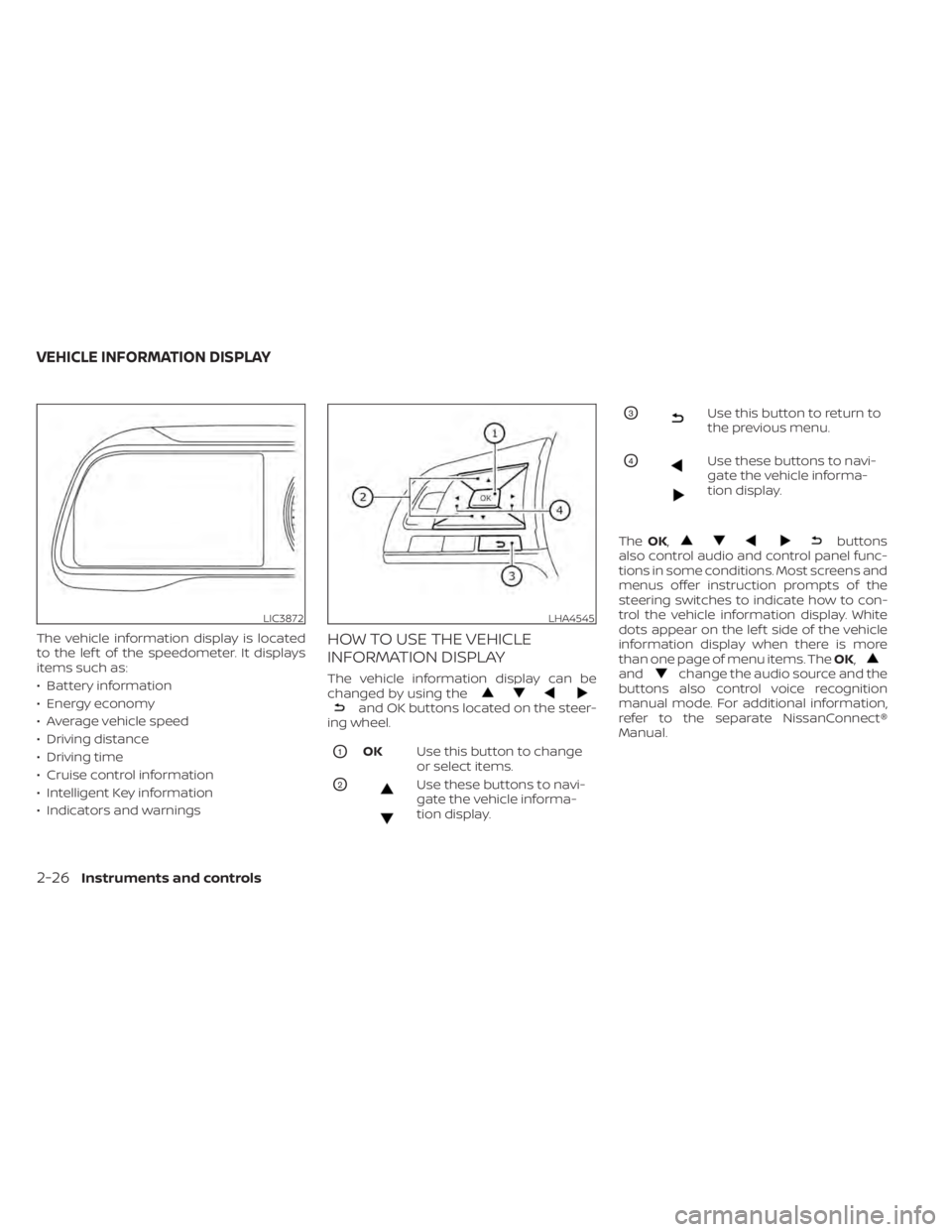
The vehicle information display is located
to the lef t of the speedometer. It displays
items such as:
• Battery information
• Energy economy
• Average vehicle speed
• Driving distance
• Driving time
• Cruise control information
• Intelligent Key information
• Indicators and warningsHOW TO USE THE VEHICLE
INFORMATION DISPLAY
The vehicle information display can be
changed by using the
and OK buttons located on the steer-
ing wheel.
O1OK Use this button to change
or select items.
O2Use these buttons to navi-
gate the vehicle informa-
tion display.
O3Use this button to return to
the previous menu.
O4Use these buttons to navi-
gate the vehicle informa-
tion display.
The OK,
buttons
also control audio and control panel func-
tions in some conditions. Most screens and
menus offer instruction prompts of the
steering switches to indicate how to con-
trol the vehicle information display. White
dots appear on the lef t side of the vehicle
information display when there is more
than one page of menu items. The OK,
andchange the audio source and the
buttons also control voice recognition
manual mode. For additional information,
refer to the separate NissanConnect®
Manual.
LIC3872LHA4545
VEHICLE INFORMATION DISPLAY
2-26Instruments and controls
Page 246 of 602
ROOM LIGHT
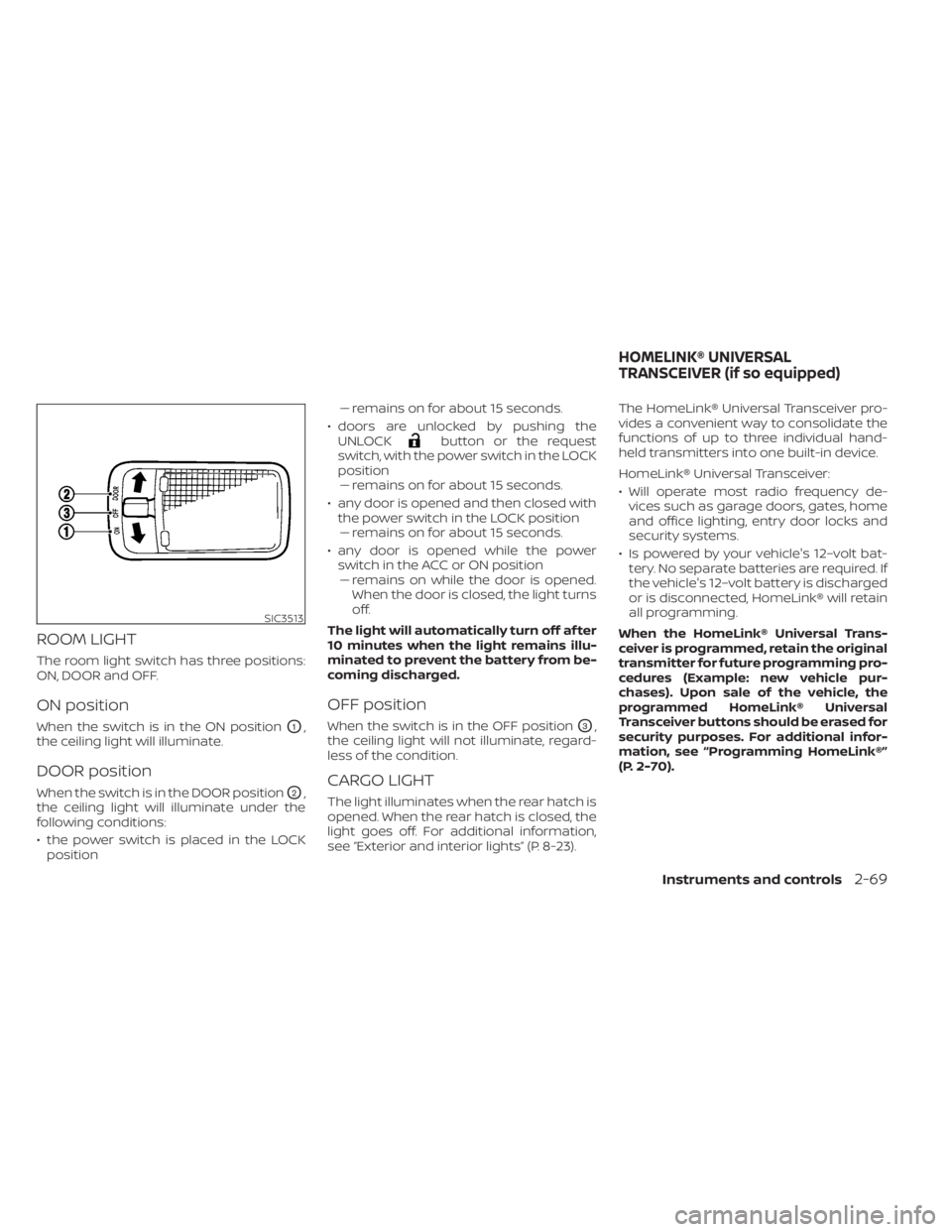
The room light switch has three positions:
ON, DOOR and OFF.
ON position
When the switch is in the ON positionO1,
the ceiling light will illuminate.
DOOR position
When the switch is in the DOOR positionO2,
the ceiling light will illuminate under the
following conditions:
• the power switch is placed in the LOCK position –– remains on for about 15 seconds.
• doors are unlocked by pushing the UNLOCK
button or the request
switch, with the power switch in the LOCK
position –– remains on for about 15 seconds.
• any door is opened and then closed with the power switch in the LOCK position–– remains on for about 15 seconds.
• any door is opened while the power switch in the ACC or ON position– – remains on while the door is opened.
When the door is closed, the light turns
off.
The light will automatically turn off af ter
10 minutes when the light remains illu-
minated to prevent the battery from be-
coming discharged.
OFF position
When the switch is in the OFF positionO3,
the ceiling light will not illuminate, regard-
less of the condition.
CARGO LIGHT
The light illuminates when the rear hatch is
opened. When the rear hatch is closed, the
light goes off. For additional information,
see “Exterior and interior lights” (P. 8-23). The HomeLink® Universal Transceiver pro-
vides a convenient way to consolidate the
functions of up to three individual hand-
held transmitters into one built-in device.
HomeLink® Universal Transceiver:
• Will operate most radio frequency de-
vices such as garage doors, gates, home
and office lighting, entry door locks and
security systems.
• Is powered by your vehicle's 12–volt bat- tery. No separate batteries are required. If
the vehicle's 12–volt battery is discharged
or is disconnected, HomeLink® will retain
all programming.
When the HomeLink® Universal Trans-
ceiver is programmed, retain the original
transmitter for future programming pro-
cedures (Example: new vehicle pur-
chases). Upon sale of the vehicle, the
programmed HomeLink® Universal
Transceiver buttons should be erased for
security purposes. For additional infor-
mation, see “Programming HomeLink®”
(P. 2-70).
SIC3513
HOMELINK® UNIVERSAL
TRANSCEIVER (if so equipped)
Instruments and controls2-69
Page 247 of 602
WARNING
• Your vehicle's EV system should be
turned off while programming the
HomeLink® Universal Transceiver. For
additional information, see “Push-
button power switch” (P. 5-9).
• Do not use the HomeLink® Universal
Transceiver with any garage door
opener that lacks safety stop and re-
verse features as required by federal
safety standards. (These standards
became effective for opener models
manufactured af ter April 1, 1982). A
garage door opener which cannot
detect an object in the path of a clos-
ing garage door and then automati-
cally stop and reverse, does not meet
current federal safety standards. Us-
ing a garage door opener without
these features increases the risk of
serious injury or death.
• During the programming procedure
your garage door or security gate will
open and close (if the transmitter is
within range). Make sure that people
or objects are clear of the garage
door, gate, etc. that you are
programming.PROGRAMMING HOMELINK®
If you have any questions or are having
difficulty programming your HomeLink®
buttons, refer to the HomeLink® web site at:
www.homelink.com or call 1-800-355-3515.
NOTE:
Place the power switch in the ON or ACC
position (without starting the EV system)
when programming HomeLink®. It is also
recommended that a new battery be
placed in the hand-held transmitter of
the device being programmed to
HomeLink® for quicker programming
and accurate transmission of the radio
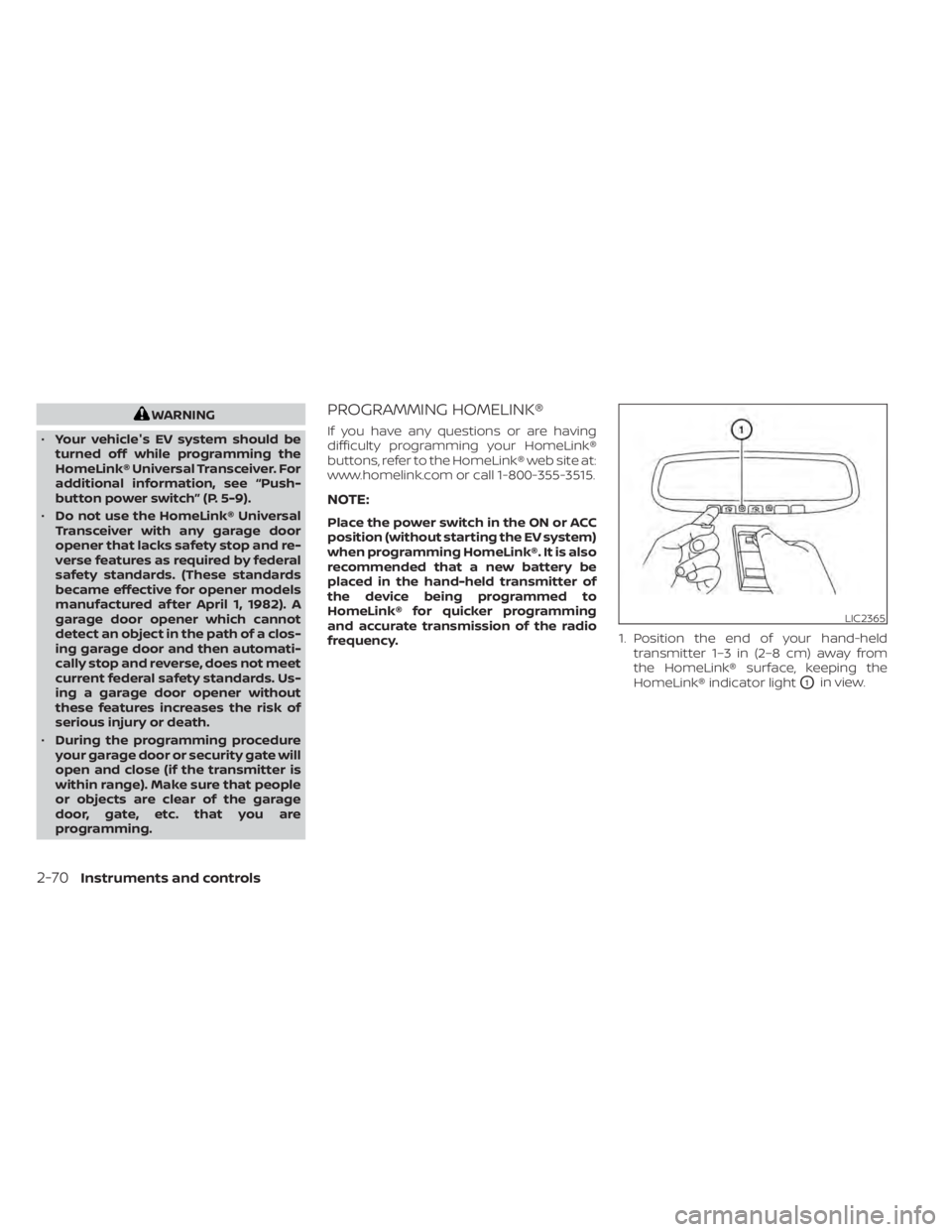
frequency. 1. Position the end of your hand-held
transmitter 1–3 in (2–8 cm) away from
the HomeLink® surface, keeping the
HomeLink® indicator light
O1in view.
LIC2365
2-70Instruments and controls
Page 248 of 602
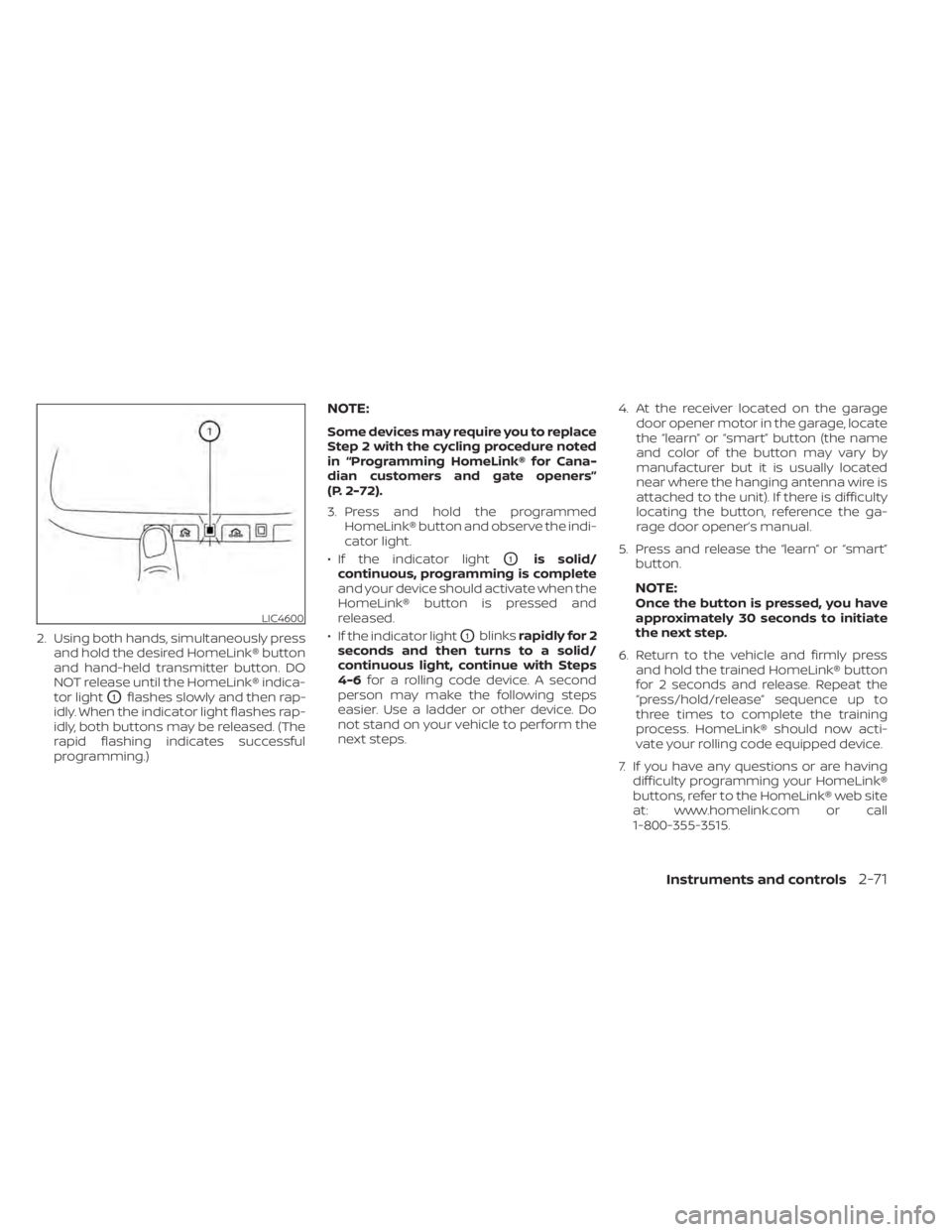
2. Using both hands, simultaneously pressand hold the desired HomeLink® button
and hand-held transmitter button. DO
NOT release until the HomeLink® indica-
tor light
O1flashes slowly and then rap-
idly. When the indicator light flashes rap-
idly, both buttons may be released. (The
rapid flashing indicates successful
programming.)
NOTE:
Some devices may require you to replace
Step 2 with the cycling procedure noted
in “Programming HomeLink® for Cana-
dian customers and gate openers”
(P. 2-72).
3. Press and hold the programmed HomeLink® button and observe the indi-
cator light.
• If the indicator light
O1is solid/
continuous, programming is complete
and your device should activate when the
HomeLink® button is pressed and
released.
• If the indicator light
O1blinks rapidly for 2
seconds and then turns to a solid/
continuous light, continue with Steps
4-6 for a rolling code device. A second
person may make the following steps
easier. Use a ladder or other device. Do
not stand on your vehicle to perform the
next steps. 4. At the receiver located on the garage
door opener motor in the garage, locate
the “learn” or “smart” button (the name
and color of the button may vary by
manufacturer but it is usually located
near where the hanging antenna wire is
attached to the unit). If there is difficulty
locating the button, reference the ga-
rage door opener’s manual.
5. Press and release the “learn” or “smart” button.
NOTE:Once the button is pressed, you have
approximately 30 seconds to initiate
the next step.
6. Return to the vehicle and firmly press and hold the trained HomeLink® button
for 2 seconds and release. Repeat the
“press/hold/release” sequence up to
three times to complete the training
process. HomeLink® should now acti-
vate your rolling code equipped device.
7. If you have any questions or are having difficulty programming your HomeLink®
buttons, refer to the HomeLink® web site
at: www.homelink.com or call
1-800-355-3515.LIC4600
Instruments and controls2-71
Page 249 of 602
PROGRAMMING HOMELINK® FOR
CANADIAN CUSTOMERS AND GATE
OPENERS
Canadian radio-frequency laws require
transmitter signals to “time-out” (or quit)
af ter several seconds of transmission –
which may not be long enough for
HomeLink® to pick up the signal during
training. Similar to this Canadian law, some
U.S. gate operators are designed to “tim-
eout” in the same manner.
If you live in Canada or you are having diffi-
culties training a gate operatororgarage
door opener by using the “Training” proce-
dures, replace “Programming HomeLink®”
step 2 with the following:
NOTE:
When programming a garage door
opener, etc., unplug the device during
the “cycling” process to prevent possible
damage to the garage door opener
components.
1. For additional information, see “Pro-
gramming HomeLink®” step 1 (P. 2-70). 2. Using both hands, simultaneously press
and hold the desired HomeLink® button
and the hand-held transmitter button.
During training, your hand-held trans-
mitter may automatically stop transmit-
ting. Continue to press and hold the de-
sired HomeLink® button while you press
and re-press (“cycle”) your hand-held
transmitter every 2 seconds until the
frequency signal has been learned. The
HomeLink® indicator light will flash
slowly and then rapidly af ter several
seconds upon successful training. DO
NOT release until the HomeLink® indica-
tor light flashes slowly and then rapidly.
When the indicator light flashes rapidly,
both buttons may be released. The rapid
flashing indicates successful training.
Proceed with “Programming
HomeLink®” step 3 to complete.
If the device was unplugged during the
programming procedure, remember to
plug it back in when programming is
completed.
OPERATING THE HOMELINK®
UNIVERSAL TRANSCEIVER
The HomeLink® Universal Transceiver, af ter
it is programmed, can be used to activate
the programmed device. To operate, sim-
ply press and release the appropriate pro- grammed HomeLink® Universal Trans-
ceiver button. The amber indicator light will
illuminate while the signal is being
transmitted.
For convenience, the hand-held transmit-
ter of the device may also be used at any
time.
PROGRAMMING TROUBLE-
DIAGNOSIS
If the HomeLink® does not quickly learn the
hand-held transmitter information:
• replace the hand-held transmitter bat-
teries with new batteries.
• position the hand-held transmitter with its battery area facing away from the
HomeLink® surface.
• press and hold both the HomeLink® and hand-held transmitter buttons without
interruption.
• position the hand-held transmitter1-3in (26 - 76 mm) away from the HomeLink®
surface. Hold the transmitter in that posi-
tion for up to 15 seconds. If HomeLink® is
not programmed within that time, try
holding the transmitter in another posi-
tion – keeping the indicator light in view at
all times.
2-72Instruments and controls
Page 250 of 602
If you have any questions or are having
difficulty programming your HomeLink®
buttons, refer to the HomeLink® web site at:
www.homelink.com or call 1-800-355-3515.
CLEARING THE PROGRAMMED
INFORMATION
The following procedure clears the pro-
grammed information from both buttons.
Individual buttons cannot be cleared. How-
ever, individual buttons can be repro-
grammed. For additional information, see
“Reprogramming a single HomeLink® but-
ton” (P. 2-73).
To clear all programming:
1. Press and hold the two outer HomeLink®buttons until the indicator light begins to
flash in approximately 10 seconds. Do
not hold for longer than 20 seconds.
2. Release both buttons.
HomeLink® is now in the programming
mode and can be programmed at any
time beginning with “Programming
HomeLink®” - Step 1.
REPROGRAMMING A SINGLE
HOMELINK® BUTTON
To reprogram a HomeLink® Universal
Transceiver button, complete the following:
1. Press and hold the desired HomeLink® button. DO NOT release the button.
2. The indicator light will begin to flash af- ter 20 seconds. Without releasing the
HomeLink® button, proceed with “Pro-
gramming HomeLink®” - Step 1.
For questions or comments, contact
HomeLink® at: www.homelink.com or
1–800–355–3515 (except Mexico).
The HomeLink® Universal Transceiver but-
ton has now been reprogrammed. The new
device can be activated by pressing the
HomeLink® button that was just pro-
grammed. This procedure will not affect any
other programmed HomeLink® buttons.
IF YOUR VEHICLE IS STOLEN
If your vehicle is stolen, you should change
the codes of any non-rolling code device
that has been programmed into
HomeLink®. Consult the Owner's Manual of
each device or call the manufacturer or
dealer of those devices for additional
information. When your vehicle is recovered, you will
need to reprogram the HomeLink® Uni-
versal Transceiver with your new trans-
mitter information.
FCC Notice:
For USA:
This device complies with Part 15 of the
FCC Rules. Operation is subject to the fol-
lowing two conditions: (1) This device
may not cause harmful interference, and
(2) this device must accept any interfer-
ence received, including interference
that may cause undesired operation.
NOTE:
Changes or modifications not expressly
approved by the party responsible for
compliance could void the user’s author-
ity to operate the equipment.
For Canada:
This device complies with Industry
Canada licence-exempt RSS standard(s).
Operation is subject to the following two
conditions: (1) this device may not cause
interference, and (2) this device must ac-
cept any received, including interference
that may cause undesired operation of
the device.
Instruments and controls2-73
Page 258 of 602
WARNING
• Radio waves could adversely affect
electric medical equipment. Those
who use a pacemaker should contact
the electric medical equipment
manufacturer for the possible influ-
ences before use.
• The Intelligent Key transmits radio
waves when the buttons are pressed.
The FAA advises the radio waves may
affect aircraf t navigation and com-
munication systems. Do not operate
the Intelligent Key while on an air-
plane. Make sure the buttons are not
operated unintentionally when the
unit is stored for a flight.
• Never leave the Intelligent Key in the
vehicle when you leave the vehicle.
The Intelligent Key system can operate all
the door locks using the remote control
function or pushing the request switch on
the vehicle without taking the key out from
a pocket or purse. The operating environ-
ment and/or conditions may affect the In-
telligent Key system operation.
Be sure to read the following before using
the Intelligent Key system.CAUTION
Be sure to carry the Intelligent Key with
you when operating the vehicle.
The Intelligent Key is capable of receiving
and transmitting radio waves. The Intelli-
gent Key system transmits weak radio
waves from various distances. Environ-
mental conditions may interfere with the
operation of the Intelligent Key system un-
der the following operating conditions:
• When operating near a location where strong radio waves are transmitted, such
as a TV tower, power station and broad-
casting station.
• When in possession of wireless equip- ment, such as a cellular telephone, trans-
ceiver or a CB radio.
• When the Intelligent Key is in contact with or covered by metallic materials.
• When any type of radio wave remote con- trol is used nearby.
• When the Intelligent Key is placed near an electric appliance such as a personal
computer.
• When the vehicle is parked near a parking meter. In such cases, correct the operating condi-
tions before using the Intelligent Key func-
tion or use the mechanical key.
Although the life of the battery varies de-
pending on the operating conditions, the
battery’s life is approximately two years. If
the battery is discharged, replace it with a
new one.
When the Intelligent Key battery is low, the
“Key Battery Low” indicator illuminates in
the vehicle information display. For addi-
tional information, see “Key Battery Low”
(P. 2-34).
Since the Intelligent Key is capable of re-
ceiving radio waves, if the key is lef t near
equipment which transmits strong radio
waves, such as signals from a TV and per-
sonal computer, the battery life may be-
come shorter.
For additional information, see “NISSAN In-
telligent Key® battery replacement” (P. 8-19).
Pay special attention that the vehicle bat-
tery is not completely discharged.
NISSAN INTELLIGENT KEY® SYSTEM
Pre-driving checks and adjustments3-7
Page 263 of 602
Using the interior lights
The interior lights illuminate for a period of
time when a door is unlocked and the
room light switch is in the DOOR position.
The lights can be turned off without waiting
by performing one of the following
operations:
• Placing the power switch in the ONposition.
• Locking the doors with the Intelligent Key.
• Switching the room light switch to the “OFF” position.
For additional information, see “Interior
lights” (P. 2-68).
Opening rear hatch
1. Carry the Intelligent Key.
2. Push the rear hatch opener switch
OC.
3. The rear hatch will unlock and open.
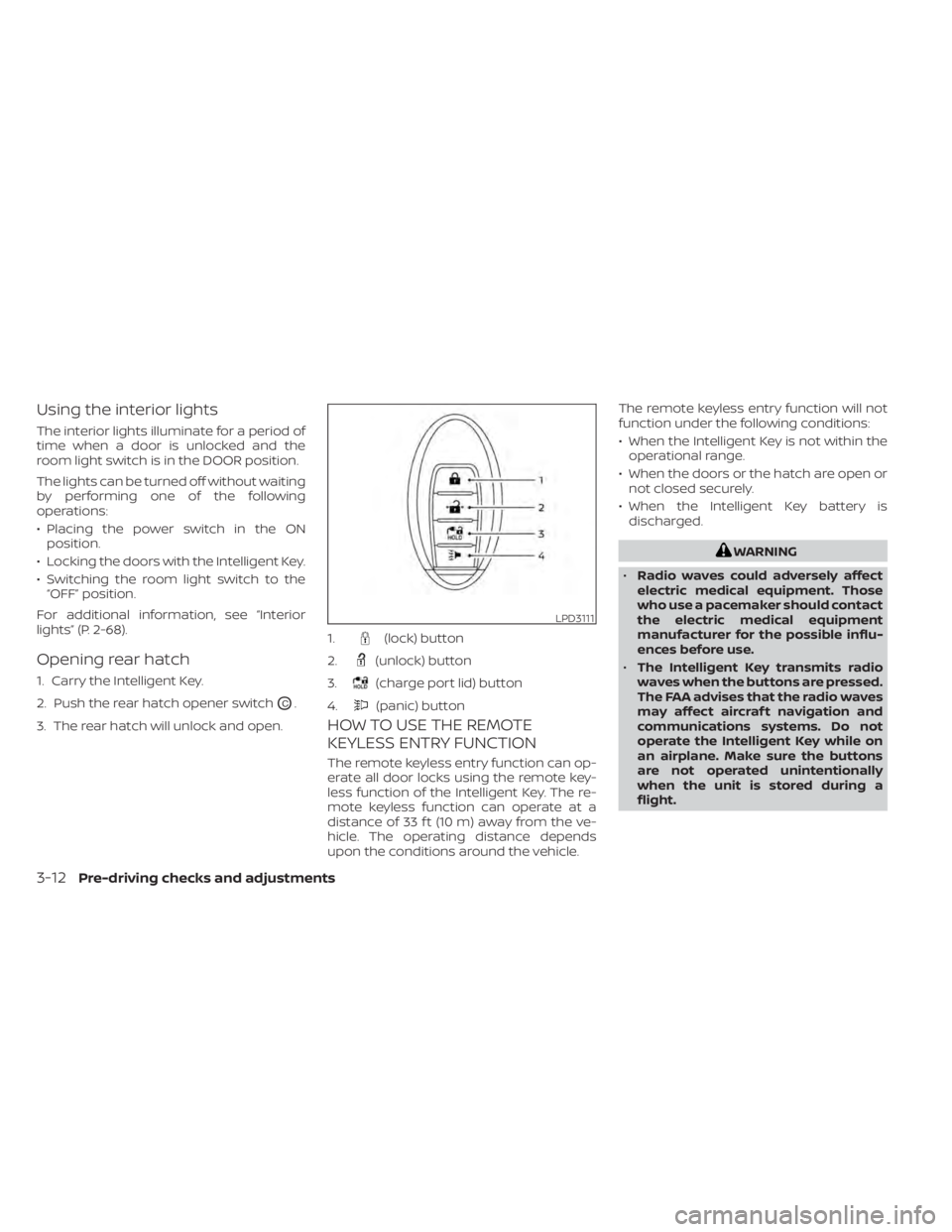
HOW TO USE THE REMOTE
KEYLESS ENTRY FUNCTION
The remote keyless entry function can op-
erate all door locks using the remote key-
less function of the Intelligent Key. The re-
mote keyless function can operate at a
distance of 33 f t (10 m) away from the ve-
hicle. The operating distance depends
upon the conditions around the vehicle. The remote keyless entry function will not
function under the following conditions:
• When the Intelligent Key is not within the
operational range.
• When the doors or the hatch are open or not closed securely.
• When the Intelligent Key battery is discharged.
WARNING
• Radio waves could adversely affect
electric medical equipment. Those
who use a pacemaker should contact
the electric medical equipment
manufacturer for the possible influ-
ences before use.
• The Intelligent Key transmits radio
waves when the buttons are pressed.
The FAA advises that the radio waves
may affect aircraf t navigation and
communications systems. Do not
operate the Intelligent Key while on
an airplane. Make sure the buttons
are not operated unintentionally
when the unit is stored during a
flight.
LPD3111
1.(lock) button
2.
(unlock) button
3.
(charge port lid) button
4.
(panic) button
3-12Pre-driving checks and adjustments
Page 267 of 602
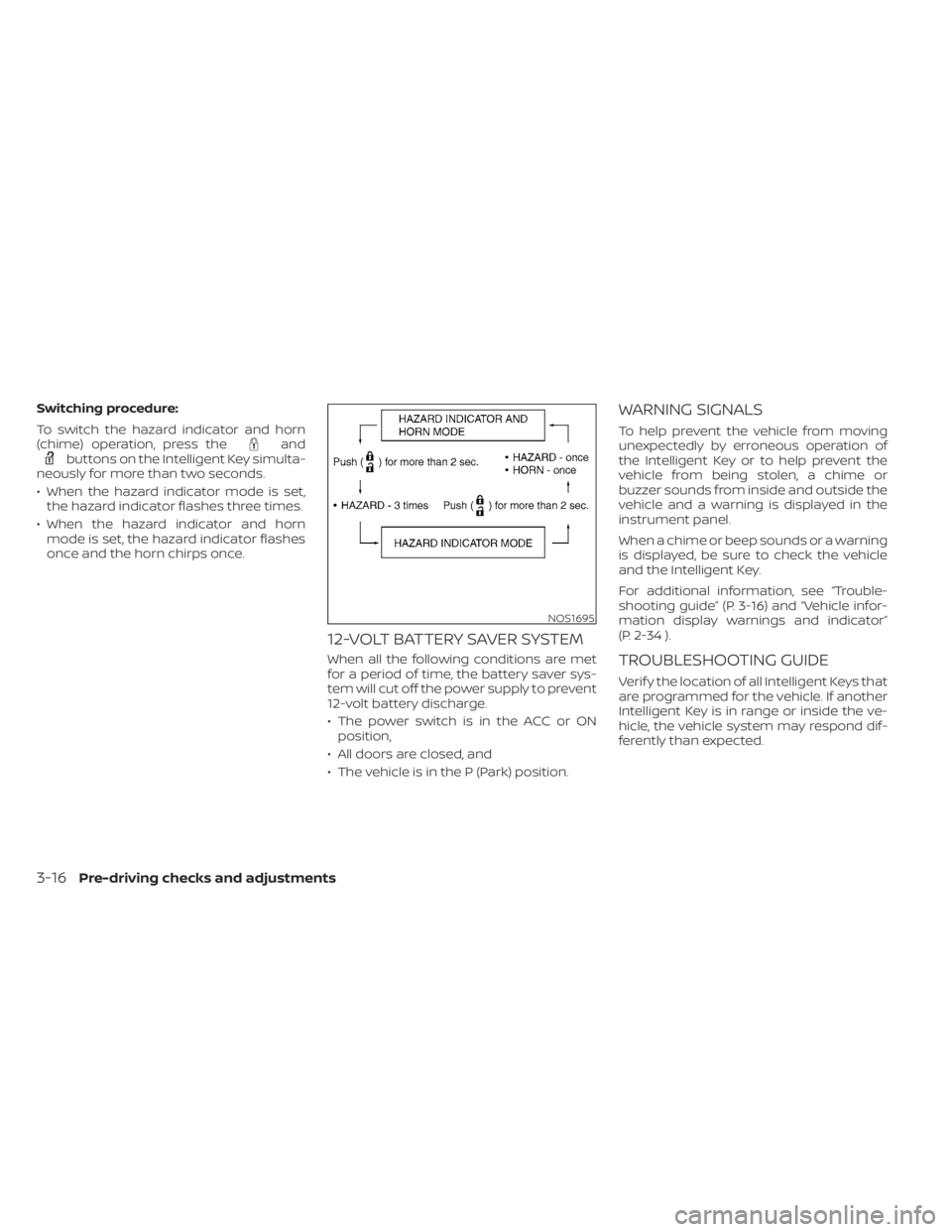
Switching procedure:
To switch the hazard indicator and horn
(chime) operation, press the
andbuttons on the Intelligent Key simulta-
neously for more than two seconds.
• When the hazard indicator mode is set, the hazard indicator flashes three times.
• When the hazard indicator and horn mode is set, the hazard indicator flashes
once and the horn chirps once.
12-VOLT BATTERY SAVER SYSTEM
When all the following conditions are met
for a period of time, the battery saver sys-
tem will cut off the power supply to prevent
12-volt battery discharge.
• The power switch is in the ACC or ONposition,
• All doors are closed, and
• The vehicle is in the P (Park) position.
WARNING SIGNALS
To help prevent the vehicle from moving
unexpectedly by erroneous operation of
the Intelligent Key or to help prevent the
vehicle from being stolen, a chime or
buzzer sounds from inside and outside the
vehicle and a warning is displayed in the
instrument panel.
When a chime or beep sounds or a warning
is displayed, be sure to check the vehicle
and the Intelligent Key.
For additional information, see “Trouble-
shooting guide” (P. 3-16) and “Vehicle infor-
mation display warnings and indicator”
(P. 2-34 ).
TROUBLESHOOTING GUIDE
Verif y the location of all Intelligent Keys that
are programmed for the vehicle. If another
Intelligent Key is in range or inside the ve-
hicle, the vehicle system may respond dif-
ferently than expected.
NOS1695
3-16Pre-driving checks and adjustments
Page 307 of 602
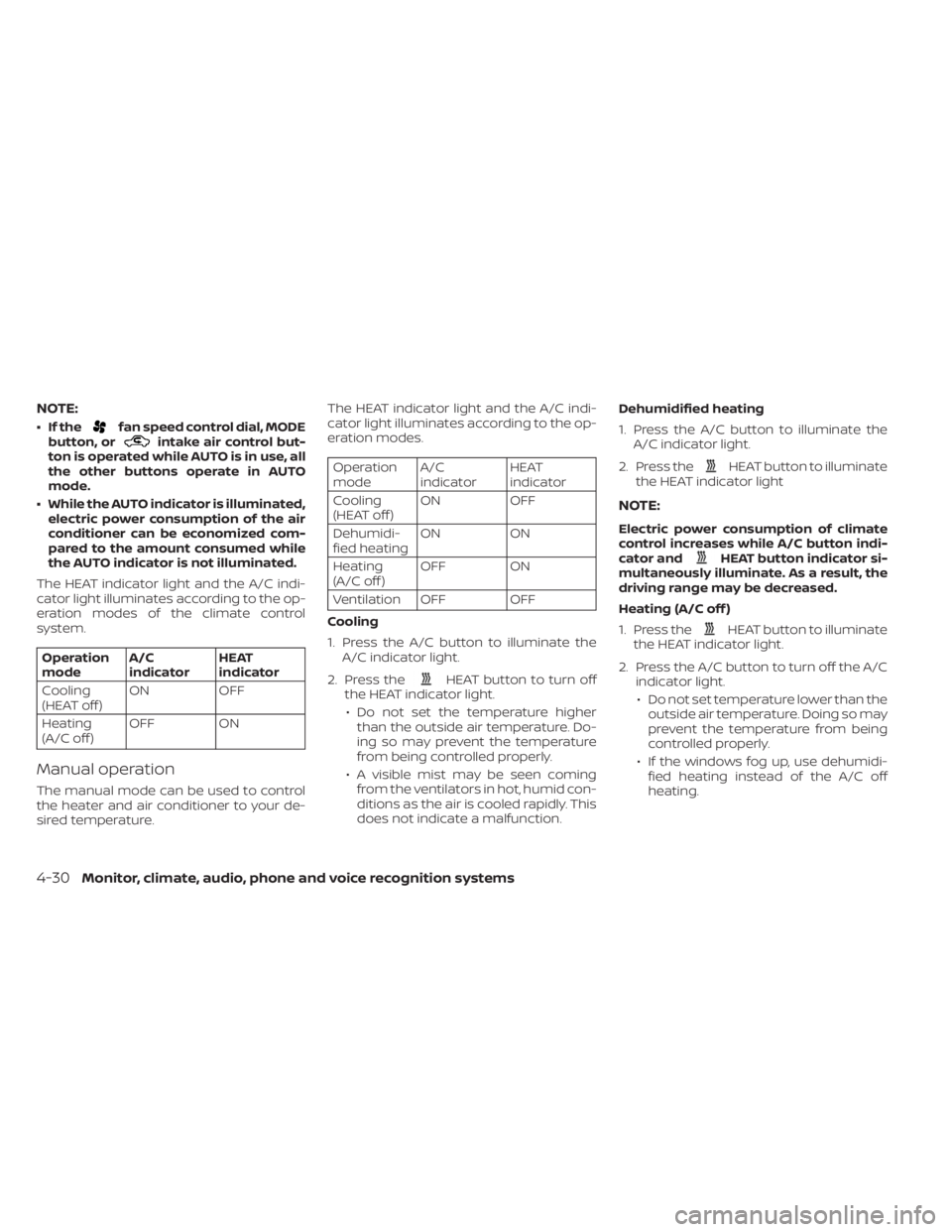
NOTE:
• If thefan speed control dial, MODE
button, orintake air control but-
ton is operated while AUTO is in use, all
the other buttons operate in AUTO
mode.
• While the AUTO indicator is illuminated, electric power consumption of the air
conditioner can be economized com-
pared to the amount consumed while
the AUTO indicator is not illuminated.
The HEAT indicator light and the A/C indi-
cator light illuminates according to the op-
eration modes of the climate control
system.
Operation
mode A/C
indicator HEAT
indicator
Cooling
(HEAT off ) ON OFF
Heating
(A/C off ) OFF ON
Manual operation
The manual mode can be used to control
the heater and air conditioner to your de-
sired temperature. The HEAT indicator light and the A/C indi-
cator light illuminates according to the op-
eration modes.
Operation
mode
A/C
indicator HEAT
indicator
Cooling
(HEAT off ) ON OFF
Dehumidi-
fied heating ON ON
Heating
(A/C off ) OFF ON
Ventilation OFF OFF
Cooling
1. Press the A/C button to illuminate the A/C indicator light.
2. Press the
HEAT button to turn off
the HEAT indicator light.
• Do not set the temperature higher than the outside air temperature. Do-
ing so may prevent the temperature
from being controlled properly.
• A visible mist may be seen coming from the ventilators in hot, humid con-
ditions as the air is cooled rapidly. This
does not indicate a malfunction. Dehumidified heating
1. Press the A/C button to illuminate the
A/C indicator light.
2. Press the
HEAT button to illuminate
the HEAT indicator light
NOTE:
Electric power consumption of climate
control increases while A/C button indi-
cator and
HEAT button indicator si-
multaneously illuminate. As a result, the
driving range may be decreased.
Heating (A/C off )
1. Press the
HEAT button to illuminate
the HEAT indicator light.
2. Press the A/C button to turn off the A/C indicator light.
• Do not set temperature lower than the outside air temperature. Doing so may
prevent the temperature from being
controlled properly.
• If the windows fog up, use dehumidi- fied heating instead of the A/C off
heating.
4-30Monitor, climate, audio, phone and voice recognition systems