ESP NISSAN MAXIMA 2010 Owner´s Manual
[x] Cancel search | Manufacturer: NISSAN, Model Year: 2010, Model line: MAXIMA, Model: NISSAN MAXIMA 2010Pages: 457, PDF Size: 4.66 MB
Page 230 of 457

This vehicle has Speed Sensitive Volume (SSV)
for audio. The audio volume changes as the driv-
ing speed changes.
AUDIO control knob (Bass, Treble, Balance
and Fade):
Press the AUDIO control knob to change the
mode as follows:
Bass!Treble!Balance!Fade
To adjust Bass, Treble, Balance and Fade, press
the AUDIO control knob until the desired mode
appears in the display. Turn the tuning knob to
adjust Bass and Treble to the desired level. You
can also use the tuning knob to adjust Fade and
Balance modes. Fade adjusts the sound level
between the front and rear speakers and Balance
adjusts the sound between the right and left
speakers.
Once you have adjusted the sound quality to the
desired level, press the AUDIO control knob re-
peatedly until the radio or CD display reappears.
If the control knob is not pressed for approxi-
mately 10 seconds, the radio or CD display will
automatically reappear.Speed Sensitive Volume (SSV):
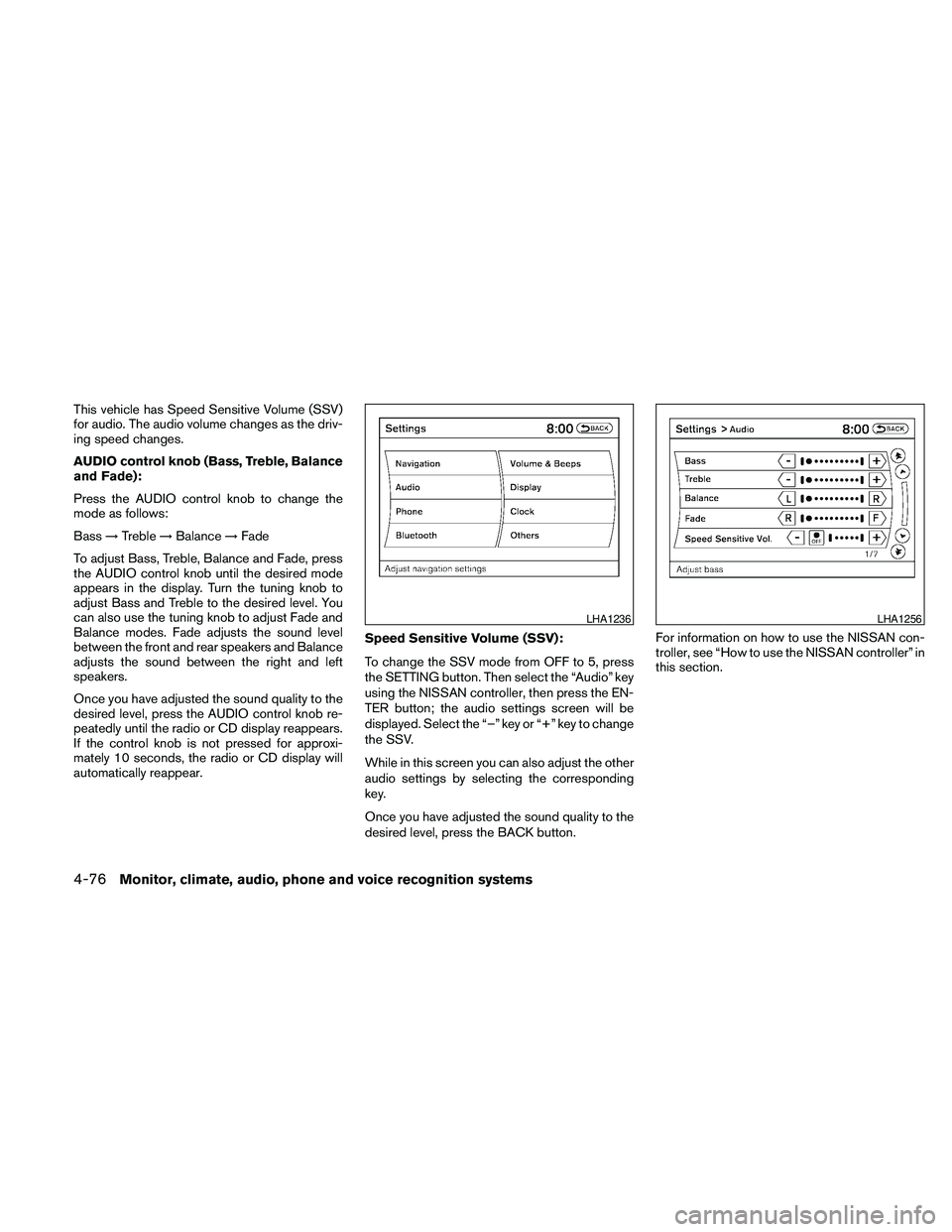
To change the SSV mode from OFF to 5, press
the SETTING button. Then select the “Audio” key
using the NISSAN controller; the audio settings
screen will be displayed. Select the “–” key or “+”
key to change the SSV.
While in this screen you can also adjust the other
audio settings by selecting the corresponding key.
Once you have adjusted the sound quality to the
desired level, press the BACK button.
For information on how to use the NISSAN con-
troller, see “How to use the NISSAN controller” in
this section.Clock operation
For additional information on setting the clock,
see “Adjusting the time” in this section.
LHA1304LHA1314
4-70Monitor, climate, audio, phone and voice recognition systems
Page 236 of 457
This vehicle has Speed Sensitive Volume (SSV)
for audio. The audio volume changes as the driv-
ing speed changes.
AUDIO control knob (Bass, Treble, Balance
and Fade):
Press the AUDIO control knob to change the
mode as follows:
Bass!Treble!Balance!Fade
To adjust Bass, Treble, Balance and Fade, press
the AUDIO control knob until the desired mode
appears in the display. Turn the tuning knob to
adjust Bass and Treble to the desired level. You
can also use the tuning knob to adjust Fade and
Balance modes. Fade adjusts the sound level
between the front and rear speakers and Balance
adjusts the sound between the right and left
speakers.
Once you have adjusted the sound quality to the
desired level, press the AUDIO control knob re-
peatedly until the radio or CD display reappears.
If the control knob is not pressed for approxi-
mately 10 seconds, the radio or CD display will
automatically reappear.Speed Sensitive Volume (SSV):
To change the SSV mode from OFF to 5, press
the SETTING button. Then select the “Audio” key
using the NISSAN controller, then press the EN-
TER button; the audio settings screen will be
displayed. Select the “–” key or “+” key to change
the SSV.
While in this screen you can also adjust the other
audio settings by selecting the corresponding
key.
Once you have adjusted the sound quality to the
desired level, press the BACK button.For information on how to use the NISSAN con-
troller, see “How to use the NISSAN controller” in
this section.
LHA1236LHA1256
4-76Monitor, climate, audio, phone and voice recognition systems
Page 245 of 457

The operation screen will be turned on when the
DISC-AUX button is pressed while a DVD is
playing. The operation screen will turn off auto-
matically after a period of time. To turn it on again,
press the DISC-AUX button.
DVD operation keys
When the DVD is playing without the operation
screen being shown, you may use the touch-
screen to select items from the displayed video.
You may also use the NISSAN controller to select
an item from the displayed video. When the op-
eration screen is being shown, use the NISSAN
controller or touchscreen to select an item from
the displayed menus.
PAUSE:
Select the
key to pause the DVD. To re-
sume playing the DVD, use the
key.
PLAY:
Select the
key to start playing the DVD or
resume playing the DVD after it has been paused.
STOP:
Select the
key to stop playing the DVD.
NEXT/PREVIOUS
CHAPTER:
Select the
key to skip the chapter(s) of
the disc forward. Select the
key to skip
the chapter(s) of the disc backward. The chap-
ters will advance forward or backward the num-
ber of times the respective key is touched or
selected with the NISSAN controller.
CM SKIP:
This function is only for DVD-VIDEO and DVD-
VR. Select the
orkey to fast forward
or rewind a set interval of time based on the CM
settings. For more information, see “DVD set-
tings” in this section.
Next/Prev:
This function is only for DVD-AUDIO. Select the
“+” or “-” key to advance or rewind the still image.
The still image will advance or rewind the number
of times the key is touched or selected with the
NISSAN controller.
Top Menu:
When the “Top Menu” key is selected while the
DVD is playing, the top menu specific to each
disc will be displayed. For details, see the instruc-
tions attached to the disc.
DVD settings
Select the “Settings” key to adjust the following
settings:
cKey(DVD-VIDEO, DVD-AUDIO)
Displays the operation keys for the specific
DVD menu.
– Select the directional keys to move the
cursor on the DVD menu.
– Select the “Enter” key to fix the selected
menu item.
– Select the “Move” key to move the loca-
tion of the operation keys on the screen.
– Select the “Back” key to return to the
previous menu screen.
– Select the “Hide” key to hide the opera-
tion keys.
cTitle Menu(DVD-VIDEO)
Some menus specific to each disc will be
shown. For details, see the instructions at-
tached to the disc.
cTitle Search(DVD-VIDEO, DVD-VR)
The scene with the specified title will be
displayed the number of times the “+” or “-”
side is selected.
Monitor, climate, audio, phone and voice recognition systems4-85
Page 246 of 457
cGroup Search(DVD-AUDIO, VIDEO CD)
The scene with the specified group will be
displayed the number of times the “+” or “-”
side is selected.
c10 Key Search(DVD-VIDEO, VIDEO CD,
CD-DA, DVD-VR)
Select the “10 Key Search” key to open the
number entry screen. Input the number you
want to search for and select the “OK” key.
The specified Title/Chapter or Group/Track
will be played.
cSelect No.(VIDEO CD)
Select the “Select No.” key to open the
number entry screen. Input the number you
want to search for and select the “OK” key.
The specified scene will be played.
cAngle(DVD-VIDEO)
If the DVD contains different angles (such as
moving images) , the current image angle
can be switched to another one. Select the
“Angle” key and use the “+” or “-” key to
change the angle.
cAngle Mark(DVD-VIDEO)
When this item is turned on, an angle mark
will be shown on the bottom of the screen if
the scene can be seen from a different angle.cMenu Skip(DVD-VIDEO)
DVD menus are automatically configured
and the contents will be played directly
when the “Menu Skip” key is turned on. Note
that some discs may not be played directly
even if this item is turned on.
cCM Skip(DVD-VIDEO)
Select the “CM Skip” key to choose the
setting time for CM backward and forward
operations. Use the “+” or “-” key to choose
a setting time of 15, 30 or 60 seconds.
cDRC(DVD-VIDEO, DVD-VR)
DRC (Dynamic Range Compression) auto-
matically adjusts the soundtrack volume
level to maintain a more even sound to the
speakers.
cDVD Language(DVD-VIDEO, VIDEO CD)
Select the “DVD Language” key to open the
number entry screen. Input the number cor-
responding to the preferred language and
select the “OK” key. The DVD top menu
language will be changed to the one speci-
fied.
cDisplay
Adjust the image quality of the screen by
selecting the preferred adjustment items.cAudio
Choose the preferred language for the au-
dio.
cSubtitle(DVD-VIDEO, DVD-VR)
Choose the preferred language for the sub-
titles.
cDisplay Mode(DVD-VIDEO, VIDEO CD,
DVD-VR)
Choose from the “Full”, “Wide”, “Normal” or
“Cinema” mode.
cTitle List(DVD-VR)
Choose the preferred title from the list.
cPlay Mode
Choose the preferred play mode.
cPG/PL Mode(DVD-VR)
Choose from the “PG” or “PL” mode.
4-86Monitor, climate, audio, phone and voice recognition systems
Page 280 of 457
Operating tips
To get the best performance out of the NISSAN
Voice Recognition system, observe the following:
cKeep the interior of the vehicle as quiet as
possible. Close the windows to eliminate
surrounding noises (traffic noises, vibration
sounds, etc.) , which may prevent the system
from recognizing voice commands correctly.
cWait until the tone sounds before speaking a
command. Otherwise, the command will not
be received properly.
cStart speaking a command within 5 seconds
after the tone sounds.
cSpeak in a natural voice without pausing
between words.
Giving voice commands
To operate NISSAN Voice Recognition, press
and release the
button located on the
steering wheel. After the tone sounds, speak a
command.
The command given is picked up by the micro-
phone, and voice feedback is given when the
command is accepted.
cIf you need to hear the available commands
for the current menu again, say “Help” and
the system will repeat them.cIf a command is not recognized, the system
announces, “Command not recognized.
Please try again.” Repeat the command in a
clear voice.
cIf you want to go back to the previous com-
mand, you can say “Go back” or “Correc-
tion” any time the system is waiting for a
response.
cYou can cancel a command when the sys-
tem is waiting for a response by saying,
“Cancel” or “Quit.” The system announces
“Cancel” and ends the VR session. You can
also press and hold the
button on the
steering wheel for 5 seconds at any time to
end the VR session. Whenever the VR ses-
sion is cancelled, a double beep is played to
indicate you have exited the system.
cIf you want to adjust the volume of the voice
feedback, press the volume control switches
(+ or -) on the steering wheel while being
provided with feedback. You can also use
the radio volume control knob.
cIn most cases you can interrupt the voice
feedback to speak the next command by
pressing the
button on the steering
wheel.cTo use the system faster, you may speak the
second level commands with the main menu
command on the main menu. For example,
press the
button and after the tone
say, “Call Redial.”
NOTE:
The combined command of Call and (a
Name) cannot be used.
How to say numbers
NISSAN Voice Recognition requires a certain
way to speak numbers in voice commands. Refer
to the following rules and examples.
cEither “zero” or “oh” can be used for “0”.
Example: 1-800-662-6200
– “One eight oh oh six six two six two oh
oh”, or
– “One eight zero zero six six two six two oh
oh”
cWords can be used for the first 4 digits
places only.
Example: 1-800-662-6200
– “One eight hundred six six two six two oh
oh”,
4-120Monitor, climate, audio, phone and voice recognition systems
Page 284 of 457
Once the call has ended, press thebutton
on the steering wheel.
NOTE:
If you do not wish to take the call when you
hear the ring tone, press the
button
on the steering wheel.
For additional command options, see “List of
voice commands” later in this section.
LIST OF VOICE COMMANDS
Main Menu
“Call”
“Phonebook”
“Recent Calls”
“Connect Phone”
When you press and release thebutton on
the steering wheel, you can choose from the
commands on the Main Menu. The following
pages describe these commands and the com-
mands in each sub-menu.
Remember to wait for the tone before
speaking.
After the main menu, you can say “Help” to hear
the list of commands currently available any time
the system is waiting for a response.If you want to end an action without completing it,
you can say “Cancel” or “Quit” at any time the
system is waiting for a response. The system will
end the VR session. Whenever the VR session is
cancelled, a double beep is played to indicate
you have exited the system.
If you want to go back to the previous command,
you can say “Go back” or “Correction” any time
the system is waiting for a response.
“Call”
Main Menu
“Call”
(Speak name)
sA
“Phone Number”
(Speak Digits)
sB
“Special Number”sC
“Redial”sD
“Call Back”sE
(Speak Name)sA
If you have stored entries in the phonebook, you
can dial a number associated with a name and
location.
See “Phonebook” in this section to learn how to
store entries.When prompted by the system, say the name of
the phone book entry you wish to call. The system
acknowledges the name.
If there are multiple locations associated with the
name, the system asks you to choose the loca-
tion.
Once you have confirmed the name and location,
the system begins the call.
(Speak Digits)
sB
When prompted by the system, say the number
you wish to call. Refer to “How to say numbers”
and “Making a call by entering a phone number”
in this section for more details.
“Special Number”
sC
For dialing more than 10 digits or any special
characters, say “Special Number”. When the
system acknowledges the command, the system
will prompt you to speak the number.
“Redial”
sD
Use the Redial command to call the last number
that was dialed.
The system acknowledges the command, re-
peats the number and begins dialing.
If a redial number does not exist, the system
announces, “There is no number to redial” and
ends the VR session.
4-124Monitor, climate, audio, phone and voice recognition systems
Page 290 of 457
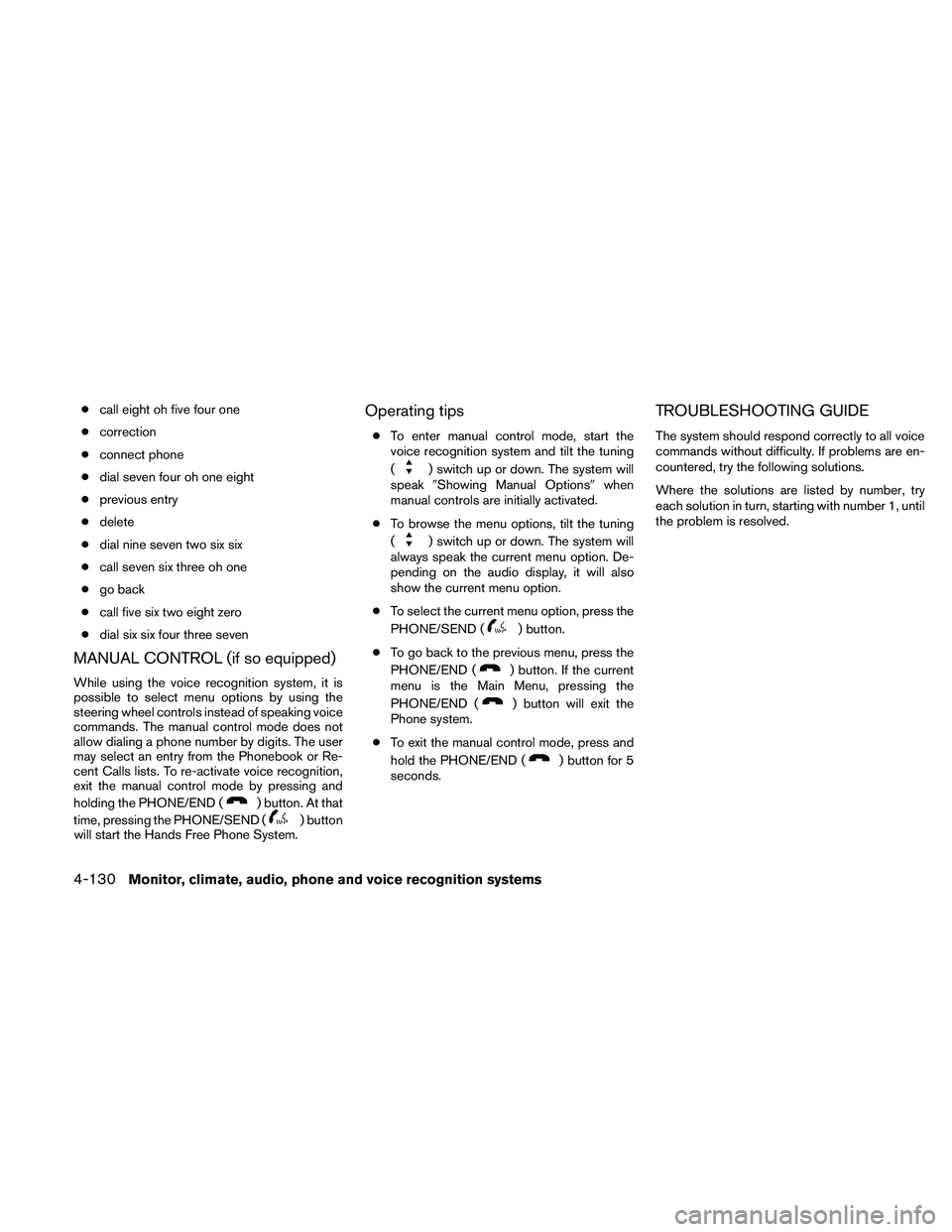
ccall eight oh five four one
ccorrection
cconnect phone
cdial seven four oh one eight
cprevious entry
cdelete
cdial nine seven two six six
ccall seven six three oh one
cgo back
ccall five six two eight zero
cdial six six four three seven
MANUAL CONTROL (if so equipped)
While using the voice recognition system, it is
possible to select menu options by using the
steering wheel controls instead of speaking voice
commands. The manual control mode does not
allow dialing a phone number by digits. The user
may select an entry from the Phonebook or Re-
cent Calls lists. To re-activate voice recognition,
exit the manual control mode by pressing and
holding the PHONE/END (
) button. At that
time, pressing the PHONE/SEND (
) button
will start the Hands Free Phone System.
Operating tips
cTo enter manual control mode, start the
voice recognition system and tilt the tuning
(
) switch up or down. The system will
speak9Showing Manual Options9when
manual controls are initially activated.
cTo browse the menu options, tilt the tuning
(
) switch up or down. The system will
always speak the current menu option. De-
pending on the audio display, it will also
show the current menu option.
cTo select the current menu option, press the
PHONE/SEND (
) button.
cTo go back to the previous menu, press the
PHONE/END (
) button. If the current
menu is the Main Menu, pressing the
PHONE/END (
) button will exit the
Phone system.
cTo exit the manual control mode, press and
hold the PHONE/END (
) button for 5
seconds.
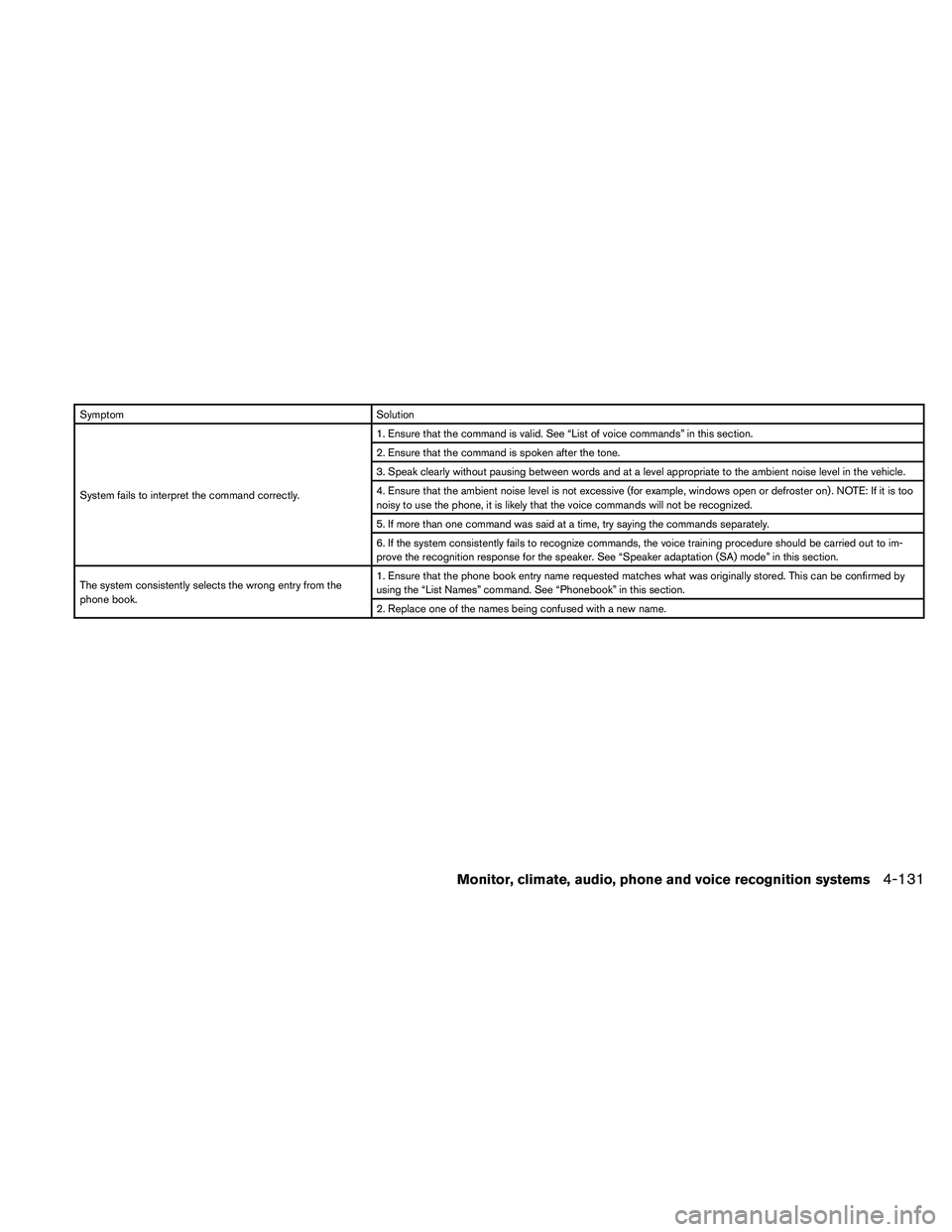
TROUBLESHOOTING GUIDE
The system should respond correctly to all voice
commands without difficulty. If problems are en-
countered, try the following solutions.
Where the solutions are listed by number, try
each solution in turn, starting with number 1, until
the problem is resolved.
4-130Monitor, climate, audio, phone and voice recognition systems
Page 291 of 457
Symptom Solution
System fails to interpret the command correctly.1. Ensure that the command is valid. See “List of voice commands” in this section.
2. Ensure that the command is spoken after the tone.
3. Speak clearly without pausing between words and at a level appropriate to the ambient noise level in the vehicle.
4. Ensure that the ambient noise level is not excessive (for example, windows open or defroster on) . NOTE: If it is too
noisy to use the phone, it is likely that the voice commands will not be recognized.
5. If more than one command was said at a time, try saying the commands separately.
6. If the system consistently fails to recognize commands, the voice training procedure should be carried out to im-
prove the recognition response for the speaker. See “Speaker adaptation (SA) mode” in this section.
The system consistently selects the wrong entry from the
phone book.1. Ensure that the phone book entry name requested matches what was originally stored. This can be confirmed by
using the “List Names” command. See “Phonebook” in this section.
2. Replace one of the names being confused with a new name.
Monitor, climate, audio, phone and voice recognition systems4-131
Page 304 of 457
NISSAN Voice Recognition allows hands-free
operation of the systems equipped on this ve-
hicle, such as phone and vehicle information.
There are two voice recognition modes of opera-
tion available. They are:
cStandard Mode
cAlternate Command Mode
In Standard Mode (the factory default setting) ,
commands that are available are always shown
on the display and announced by the system. You
can complete your desired operation by simply
following the prompts given by the system. Not all
NISSAN Voice Recognition options are available
while in Standard Mode.
For advanced operation, you can change to an
Alternate Command Mode that enables the op-
eration of the display, audio, and climate control
through NISSAN Voice Recognition. When this
mode is active, an expanded list of commands
can be spoken after pushing the TALK
switch on the steering wheel, and the voice com-
mand menu prompts are turned off.
In Alternate Command Mode the recognition
success rate may be affected because the num-
ber of available commands and the ways of
speaking each command are increased. See
“NISSAN Voice Recognition Alternate Com-
mand Mode” in this section.To improve the recognition success rate when
Alternate Command Mode is active, try using the
Speaker Adaptation Function available in that
mode. See “Speaker Adaptation Function” in this
section. Otherwise, it is recommended that Alter-
nate Command Mode be turned off and Standard
Mode be used for the best recognition perfor-
mance.
While using the NISSAN Voice Recognition sys-
tem for certain Phone and Navigation features,
you can switch to using manual controls (touch-
screen, NISSAN controller, steering wheel con-
trols) and the information you have already en-
tered by voice control will be retained. To switch
to manual controls, select the “Manual Controls”
key on the display when it appears. The system
will respond by speaking “Changing to manual
operation. Please use manual controls to con-
tinue.”
For the voice commands for the navigation sys-
tem, refer to the Navigation System Owner’s
Manual of your vehicle.
For vehicles in the U.S., the factory default setting
is the Standard Mode. See “Standard Mode” in
this section. For vehicles in Canada, the factory
default setting is the Alternate Command Mode.
See “Alternate Command Mode” in this section.
NISSAN VOICE RECOGNITION
STANDARD MODE
The Standard Mode enables control of naviga-
tion, phone and vehicle information. With this
setting active, commands that are available are
always shown on the display and announced by
the system.
Displaying user guide
If you use the NISSAN Voice Recognition system
for the first time or you do not know how to
operate it, you can display the User Guide for
confirmation.
You can confirm how to use voice commands by
accessing a simplified User Guide, which con-
tains basic instructions and tutorials for several
voice commands.
NISSAN VOICE RECOGNITION
SYSTEM (if so equipped)
4-144Monitor, climate, audio, phone and voice recognition systems
Page 317 of 457
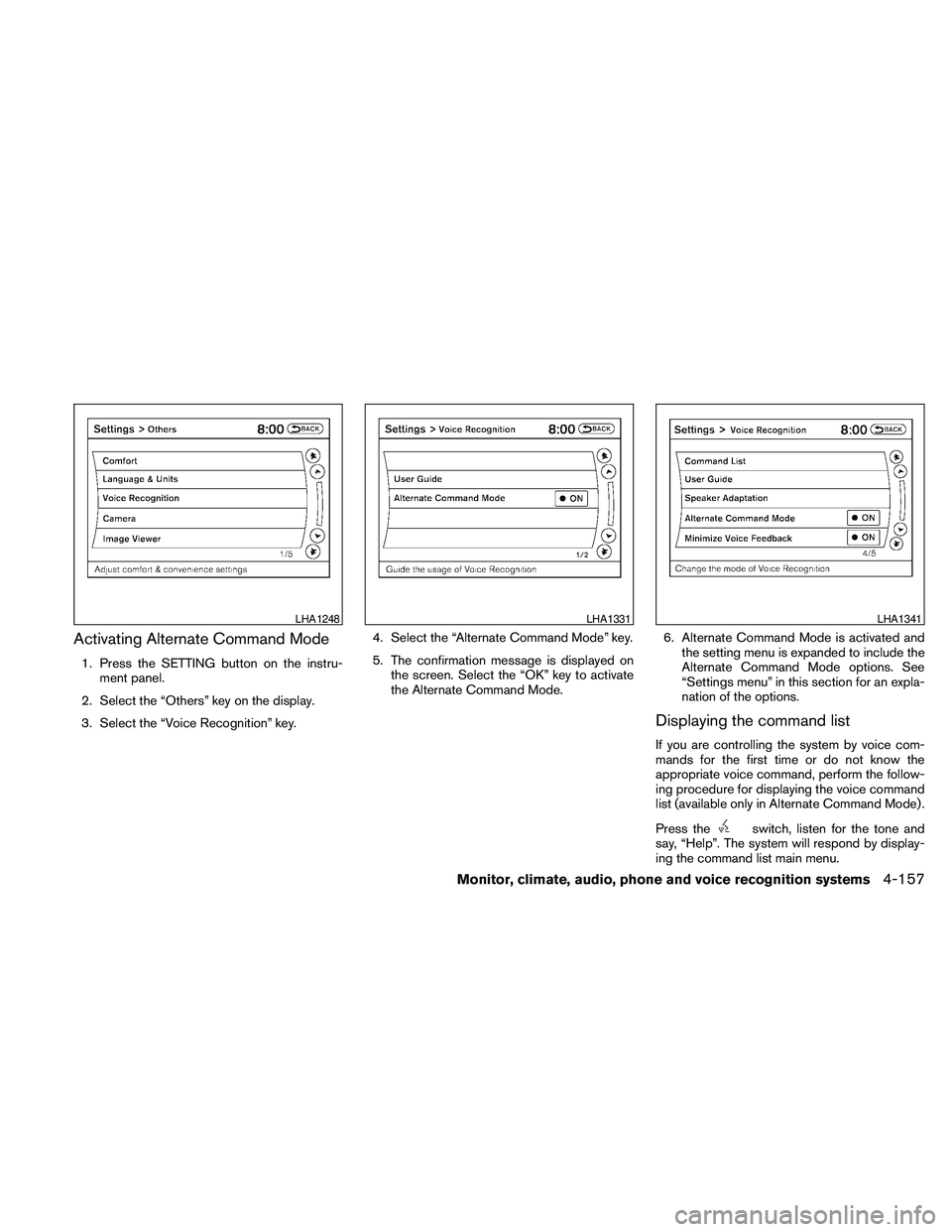
Activating Alternate Command Mode
1. Press the SETTING button on the instru-
ment panel.
2. Select the “Others” key on the display.
3. Select the “Voice Recognition” key.4. Select the “Alternate Command Mode” key.
5. The confirmation message is displayed on
the screen. Select the “OK” key to activate
the Alternate Command Mode.6. Alternate Command Mode is activated and
the setting menu is expanded to include the
Alternate Command Mode options. See
“Settings menu” in this section for an expla-
nation of the options.
Displaying the command list
If you are controlling the system by voice com-
mands for the first time or do not know the
appropriate voice command, perform the follow-
ing procedure for displaying the voice command
list (available only in Alternate Command Mode) .
Press the
switch, listen for the tone and
say, “Help”. The system will respond by display-
ing the command list main menu.
LHA1248LHA1331LHA1341
Monitor, climate, audio, phone and voice recognition systems4-157