USB NISSAN MAXIMA 2010 Owner´s Manual
[x] Cancel search | Manufacturer: NISSAN, Model Year: 2010, Model line: MAXIMA, Model: NISSAN MAXIMA 2010Pages: 457, PDF Size: 4.66 MB
Page 221 of 457
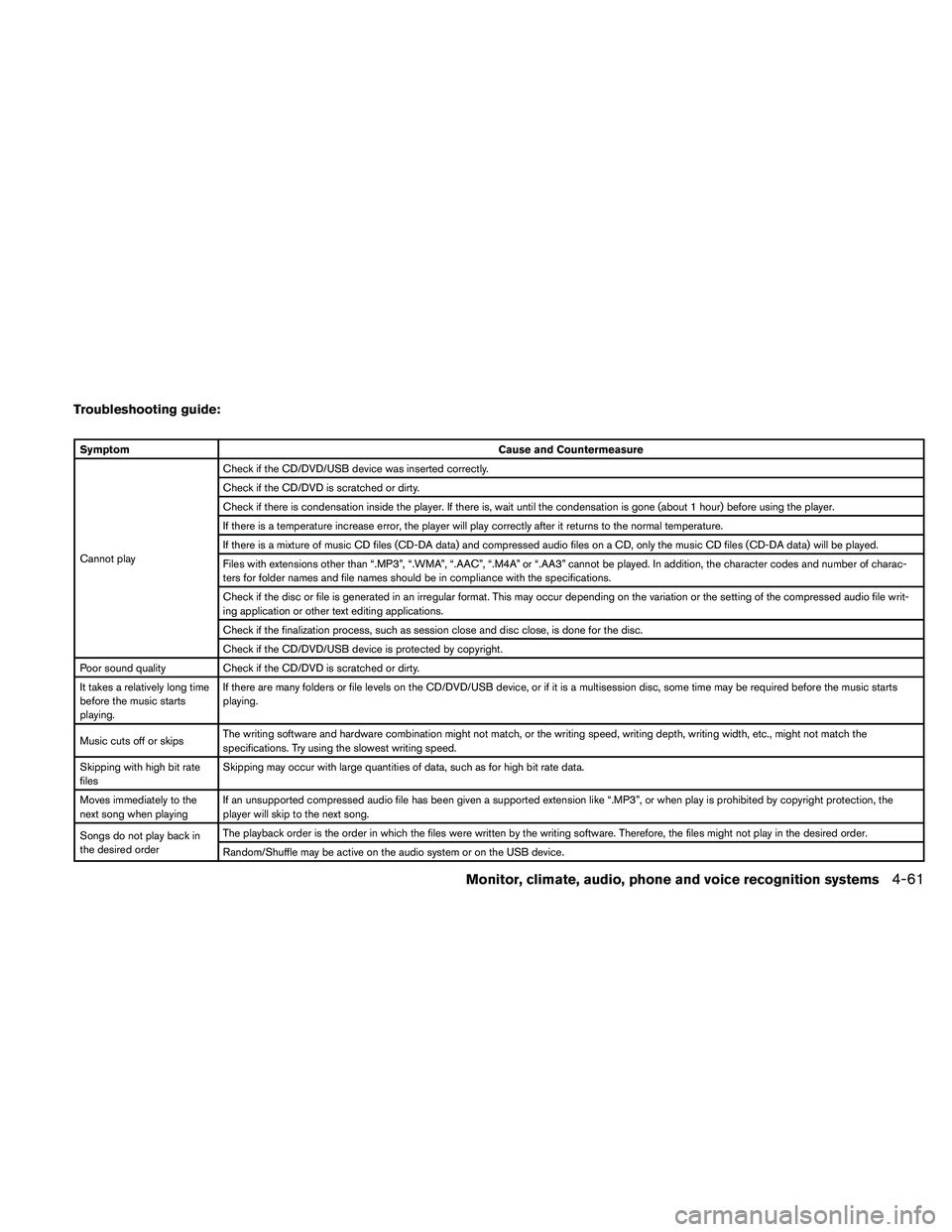
Troubleshooting guide:
SymptomCause and Countermeasure
Cannot playCheck if the CD/DVD/USB device was inserted correctly.
Check if the CD/DVD is scratched or dirty.
Check if there is condensation inside the player. If there is, wait until the condensation is gone (about 1 hour) before using the player.
If there is a temperature increase error, the player will play correctly after it returns to the normal temperature.
If there is a mixture of music CD files (CD-DA data) and compressed audio files on a CD, only the music CD files (CD-DA data) will be played.
Files with extensions other than “.MP3”, “.WMA”, “.AAC”, “.M4A” or “.AA3” cannot be played. In addition, the character codes and number of charac-
ters for folder names and file names should be in compliance with the specifications.
Check if the disc or file is generated in an irregular format. This may occur depending on the variation or the setting of the compressed audio file writ-
ing application or other text editing applications.
Check if the finalization process, such as session close and disc close, is done for the disc.
Check if the CD/DVD/USB device is protected by copyright.
Poor sound quality Check if the CD/DVD is scratched or dirty.
It takes a relatively long time
before the music starts
playing.If there are many folders or file levels on the CD/DVD/USB device, or if it is a multisession disc, some time may be required before the music starts
playing.
Music cuts off or skipsThe writing software and hardware combination might not match, or the writing speed, writing depth, writing width, etc., might not match the
specifications. Try using the slowest writing speed.
Skipping with high bit rate
filesSkipping may occur with large quantities of data, such as for high bit rate data.
Moves immediately to the
next song when playingIf an unsupported compressed audio file has been given a supported extension like “.MP3”, or when play is prohibited by copyright protection, the
player will skip to the next song.
Songs do not play back in
the desired orderThe playback order is the order in which the files were written by the writing software. Therefore, the files might not play in the desired order.
Random/Shuffle may be active on the audio system or on the USB device.
Monitor, climate, audio, phone and voice recognition systems4-61
Page 223 of 457
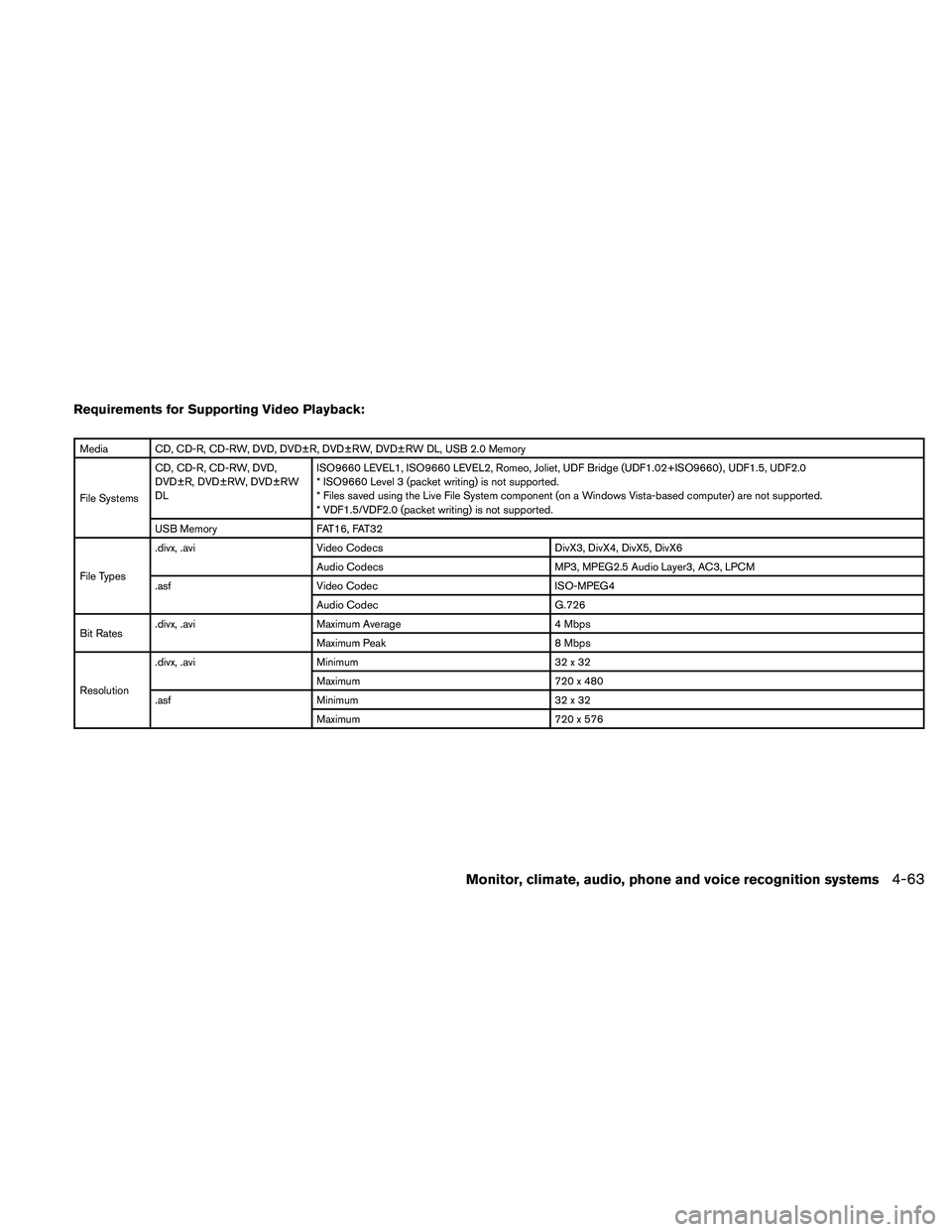
Requirements for Supporting Video Playback:
Media CD, CD-R, CD-RW, DVD, DVD±R, DVD±RW, DVD±RW DL, USB 2.0 Memory
File SystemsCD, CD-R, CD-RW, DVD,
DVD±R, DVD±RW, DVD±RW
DLISO9660 LEVEL1, ISO9660 LEVEL2, Romeo, Joliet, UDF Bridge (UDF1.02+ISO9660) , UDF1.5, UDF2.0
* ISO9660 Level 3 (packet writing) is not supported.
* Files saved using the Live File System component (on a Windows Vista-based computer) are not supported.
* VDF1.5/VDF2.0 (packet writing) is not supported.
USB Memory FAT16, FAT32
File Types.divx, .avi Video Codecs DivX3, DivX4, DivX5, DivX6
Audio Codecs MP3, MPEG2.5 Audio Layer3, AC3, LPCM
.asf Video Codec ISO-MPEG4
Audio Codec G.726
Bit Rates.divx, .avi Maximum Average 4 Mbps
Maximum Peak 8 Mbps
Resolution.divx, .avi Minimum 32 x 32
Maximum 720 x 480
.asf Minimum 32 x 32
Maximum 720 x 576
Monitor, climate, audio, phone and voice recognition systems4-63
Page 231 of 457
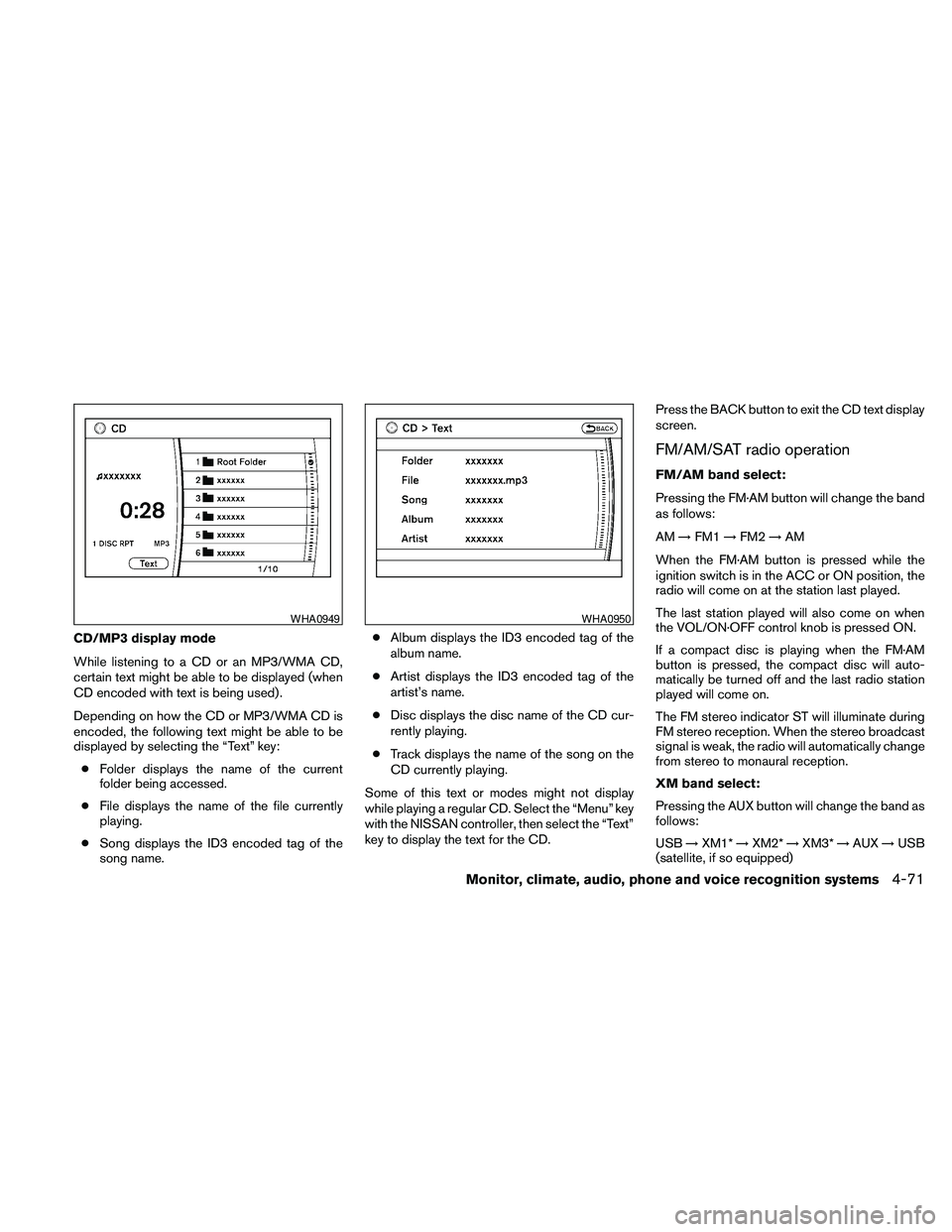
CD/MP3 display mode
While listening to a CD or an MP3/WMA CD,
certain text might be able to be displayed (when
CD encoded with text is being used) .
Depending on how the CD or MP3/WMA CD is
encoded, the following text might be able to be
displayed by selecting the “Text” key:
cFolder displays the name of the current
folder being accessed.
cFile displays the name of the file currently
playing.
cSong displays the ID3 encoded tag of the
song name.cAlbum displays the ID3 encoded tag of the
album name.
cArtist displays the ID3 encoded tag of the
artist’s name.
cDisc displays the disc name of the CD cur-
rently playing.
cTrack displays the name of the song on the
CD currently playing.
Some of this text or modes might not display
while playing a regular CD. Select the “Menu” key
with the NISSAN controller, then select the “Text”
key to display the text for the CD.Press the BACK button to exit the CD text display
screen.
FM/AM/SAT radio operation
FM/AM band select:
Pressing the FM·AM button will change the band
as follows:
AM!FM1!FM2!AM
When the FM·AM button is pressed while the
ignition switch is in the ACC or ON position, the
radio will come on at the station last played.
The last station played will also come on when
the VOL/ON·OFF control knob is pressed ON.
If a compact disc is playing when the FM·AM
button is pressed, the compact disc will auto-
matically be turned off and the last radio station
played will come on.
The FM stereo indicator ST will illuminate during
FM stereo reception. When the stereo broadcast
signal is weak, the radio will automatically change
from stereo to monaural reception.
XM band select:
Pressing the AUX button will change the band as
follows:
USB!XM1*!XM2*!XM3*!AUX!USB
(satellite, if so equipped)
WHA0949WHA0950
Monitor, climate, audio, phone and voice recognition systems4-71
Page 237 of 457
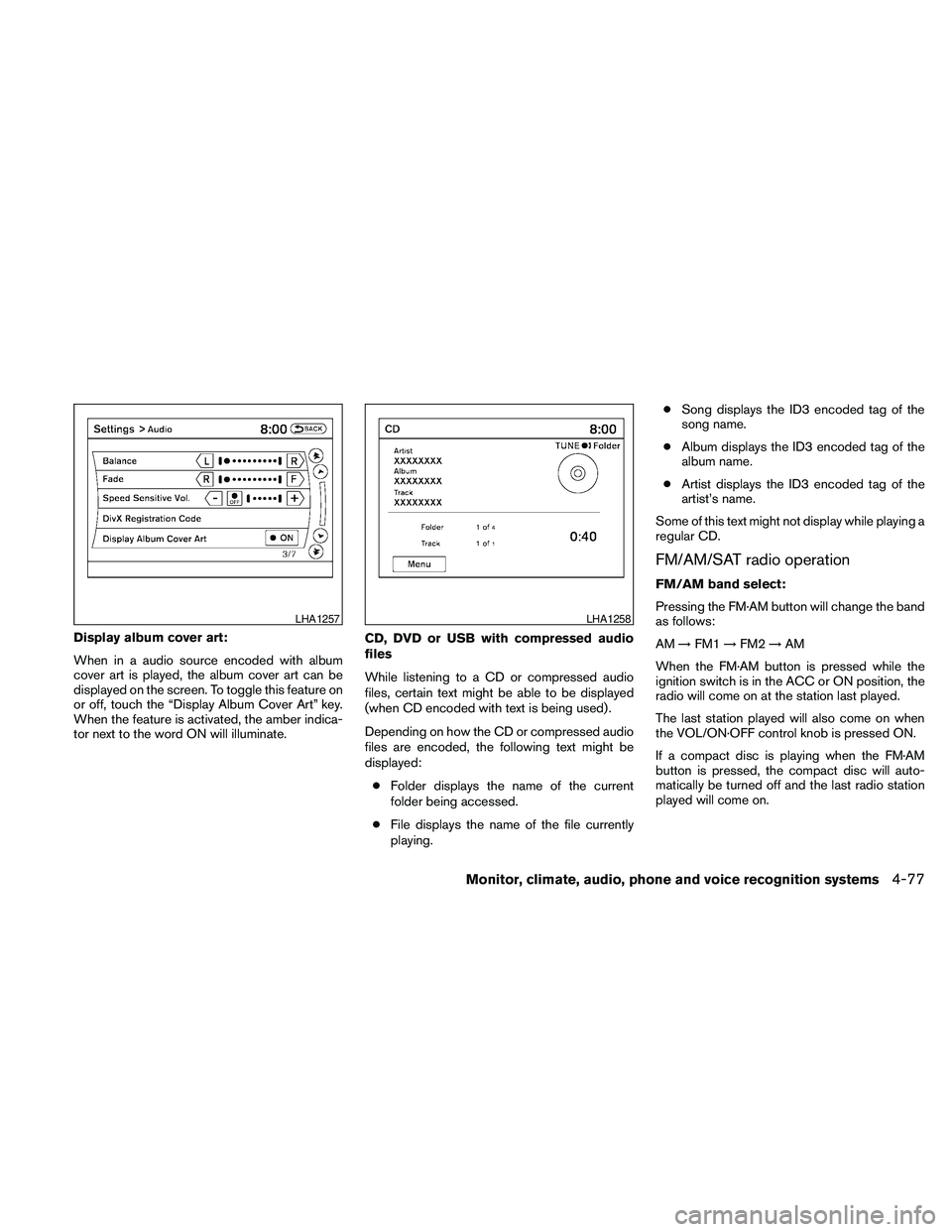
Display album cover art:
When in a audio source encoded with album
cover art is played, the album cover art can be
displayed on the screen. To toggle this feature on
or off, touch the “Display Album Cover Art” key.
When the feature is activated, the amber indica-
tor next to the word ON will illuminate.CD, DVD or USB with compressed audio
files
While listening to a CD or compressed audio
files, certain text might be able to be displayed
(when CD encoded with text is being used) .
Depending on how the CD or compressed audio
files are encoded, the following text might be
displayed:
cFolder displays the name of the current
folder being accessed.
cFile displays the name of the file currently
playing.cSong displays the ID3 encoded tag of the
song name.
cAlbum displays the ID3 encoded tag of the
album name.
cArtist displays the ID3 encoded tag of the
artist’s name.
Some of this text might not display while playing a
regular CD.
FM/AM/SAT radio operation
FM/AM band select:
Pressing the FM·AM button will change the band
as follows:
AM!FM1!FM2!AM
When the FM·AM button is pressed while the
ignition switch is in the ACC or ON position, the
radio will come on at the station last played.
The last station played will also come on when
the VOL/ON·OFF control knob is pressed ON.
If a compact disc is playing when the FM·AM
button is pressed, the compact disc will auto-
matically be turned off and the last radio station
played will come on.
LHA1257LHA1258
Monitor, climate, audio, phone and voice recognition systems4-77
Page 247 of 457

USB INTERFACE (models without
Navigation System) (if so equipped)
Connecting a device to the USB input
jack
The USB input jack is located in the center con-
sole. Open the protective cover
s1on the USB
jack, then insert the USB device into the jack.
When a compatible storage device is plugged
into the jack, compatible audio files on the stor-
age device can be played through the vehicle’s
audio system.
Audio file operation
AUX button:
Place the ignition switch in the ON or ACC
position and press the AUX button to switch to
the USB input mode. If another audio source is
playing and a USB memory device is inserted,
press the AUX button repeatedly until the center
display changes to the USB memory mode.
If the system has been turned off while the USB
memory was playing, push the ON-OFF/VOL
control knob to restart the USB memory.
SEEK/CAT and TRACK
(Reverse or Fast Forward)
buttons:
Press and hold the SEEK/CAT
(rewind)
button or TRACK
(fast forward) button for
1.5 seconds while an audio file on the USB
device is playing to reverse or fast forward the
track being played. The track plays at an in-
creased speed while reversing or fast forwarding.
When the button is released, the audio file re-
turns to normal play speed.
SEEK/CAT and TRACK
buttons:
Press the SEEK/CAT button
while an au-
dio file on the USB device is playing to return to
the beginning of the current track. Press the
SEEK/CAT button
several times to skip
backward several tracks.
Press the TRACK button
while an audio
file on the USB device is playing to advance one
track. Press the TRACK button
several
times to skip forward several tracks. If the last
track in a folder on the USB device is skipped, the
first track of the next folder is played.
Folder selection:
To change to another folder in the USB memory,
turn the TUNE/FOLDER knob or choose a folder
displayed on the screen using the NISSAN con-
troller.
RPT/RDM button:
When the RPT/RDM button is pressed while the
USB memory is playing, the play pattern can be
changed as follows:
Repeat All!1 Folder Repeat!1 Track Repeat
!All Random!1 Folder Random!Repeat All
WHA1366
Monitor, climate, audio, phone and voice recognition systems4-87
Page 248 of 457
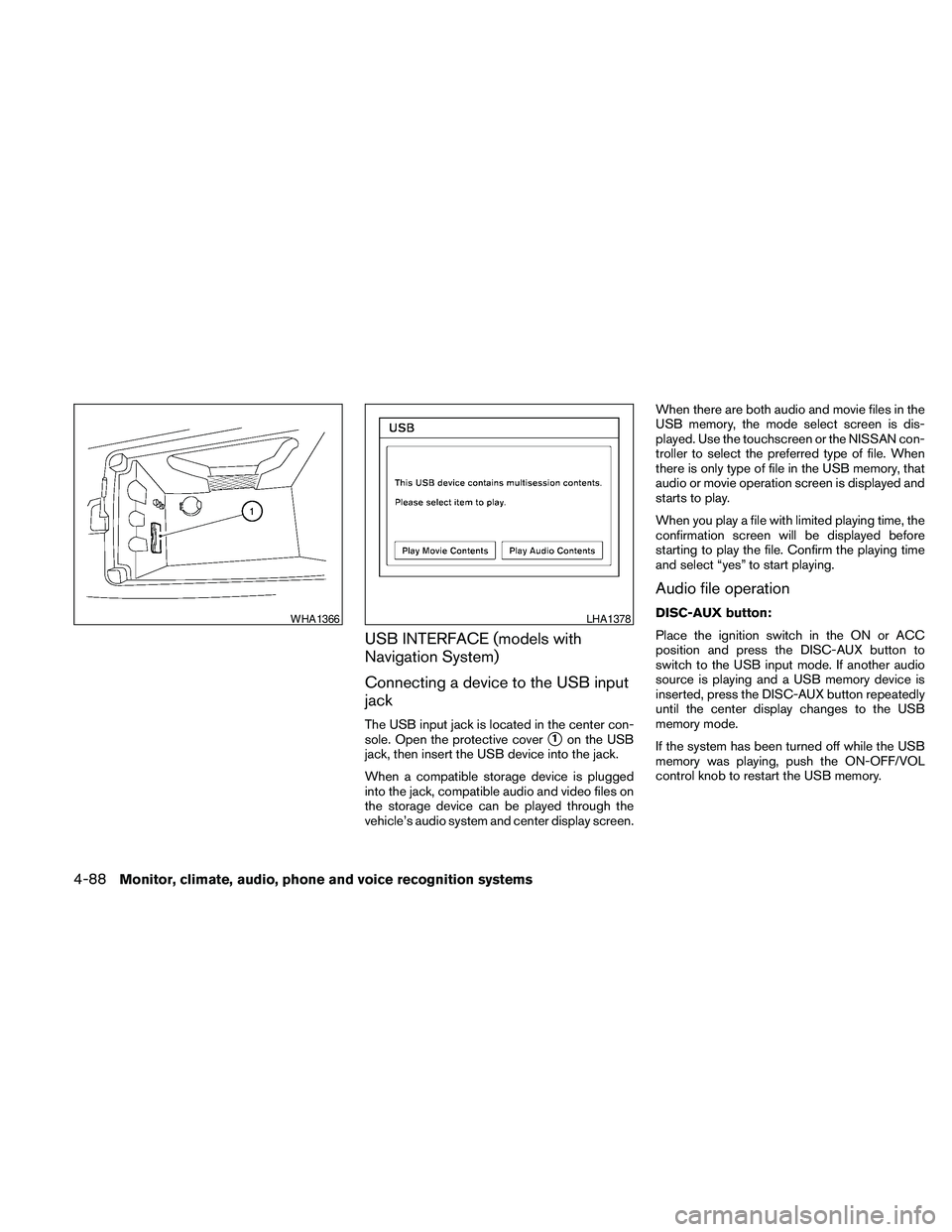
USB INTERFACE (models with
Navigation System)
Connecting a device to the USB input
jack
The USB input jack is located in the center con-
sole. Open the protective cover
s1on the USB
jack, then insert the USB device into the jack.
When a compatible storage device is plugged
into the jack, compatible audio and video files on
the storage device can be played through the
vehicle’s audio system and center display screen.When there are both audio and movie files in the
USB memory, the mode select screen is dis-
played. Use the touchscreen or the NISSAN con-
troller to select the preferred type of file. When
there is only type of file in the USB memory, that
audio or movie operation screen is displayed and
starts to play.
When you play a file with limited playing time, the
confirmation screen will be displayed before
starting to play the file. Confirm the playing time
and select “yes” to start playing.
Audio file operation
DISC-AUX button:
Place the ignition switch in the ON or ACC
position and press the DISC-AUX button to
switch to the USB input mode. If another audio
source is playing and a USB memory device is
inserted, press the DISC-AUX button repeatedly
until the center display changes to the USB
memory mode.
If the system has been turned off while the USB
memory was playing, push the ON-OFF/VOL
control knob to restart the USB memory.WHA1366LHA1378
4-88Monitor, climate, audio, phone and voice recognition systems
Page 249 of 457
SEEK/CAT and TRACK
(Reverse or Fast Forward)
buttons:
Press and hold the SEEK/CAT
(rewind)
button or TRACK
(fast forward) button for
1.5 seconds while an audio file on the USB
device is playing to reverse or fast forward the
track being played. The track plays at an in-
creased speed while reversing or fast forwarding.
When the button is released, the audio file re-
turns to normal play speed.
SEEK/CAT and TRACK
buttons:
Press the SEEK/CAT button
while an au-
dio file on the USB device is playing to return to
the beginning of the current track. Press the
SEEK/CAT button
several times to skip
backward several tracks.
Press the TRACK button
while an audio
file on the USB device is playing to advance one
track. Press the TRACK button
several
times to skip forward several tracks. If the last
track in a folder on the USB device is skipped, the
first track of the next folder is played.Folder selection:
To change to another folder in the USB memory,
turn the TUNE/FOLDER knob or choose a folder
displayed on the screen using the NISSAN con-
troller.
RPT/RDM button:
When the RPT/RDM button is pressed while the
USB memory is playing, the play pattern can be
changed as follows:
Normal!1 Folder Repeat!1 Track Repeat!
All Random!1 Folder Random!Normal
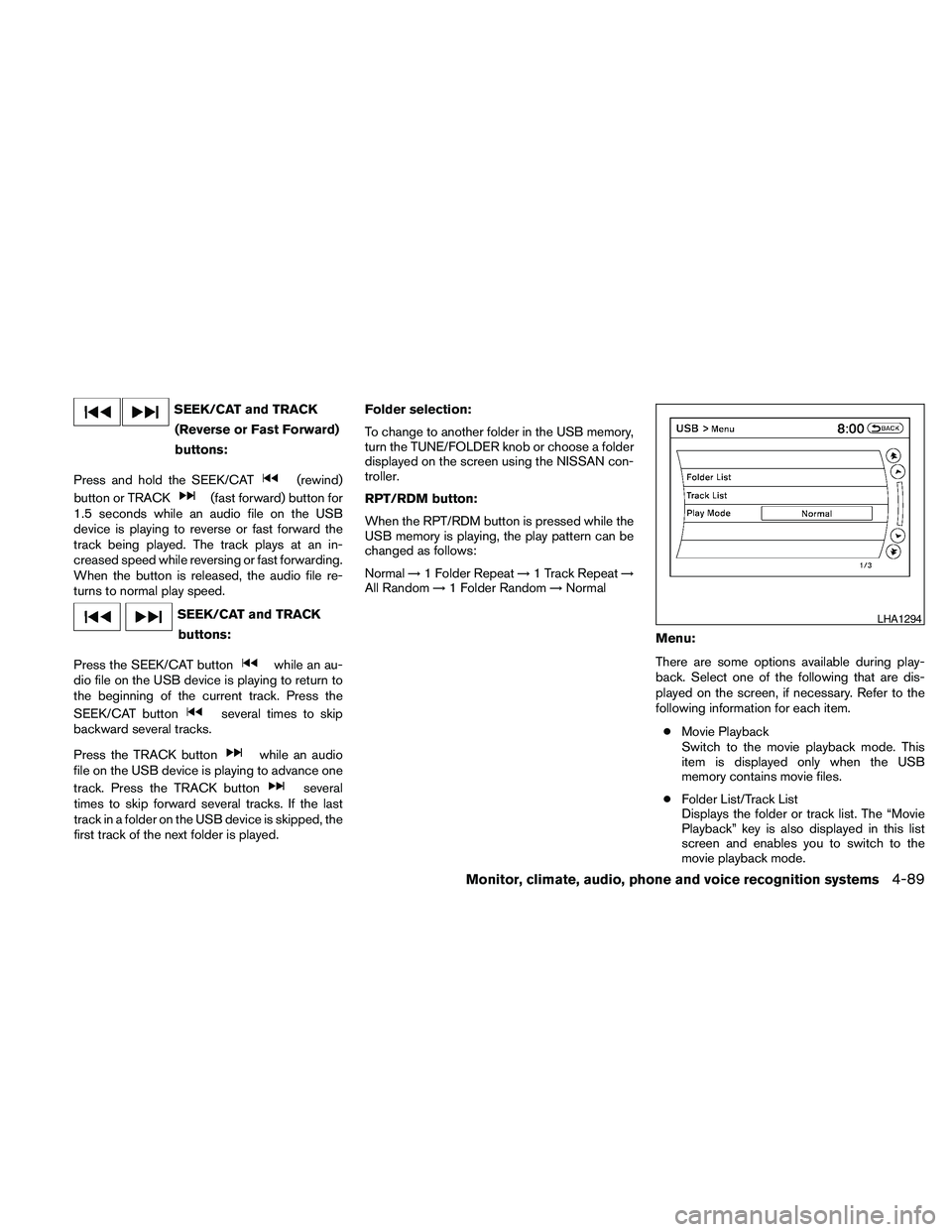
Menu:
There are some options available during play-
back. Select one of the following that are dis-
played on the screen, if necessary. Refer to the
following information for each item.
cMovie Playback
Switch to the movie playback mode. This
item is displayed only when the USB
memory contains movie files.
cFolder List/Track List
Displays the folder or track list. The “Movie
Playback” key is also displayed in this list
screen and enables you to switch to the
movie playback mode.
LHA1294
Monitor, climate, audio, phone and voice recognition systems4-89
Page 250 of 457
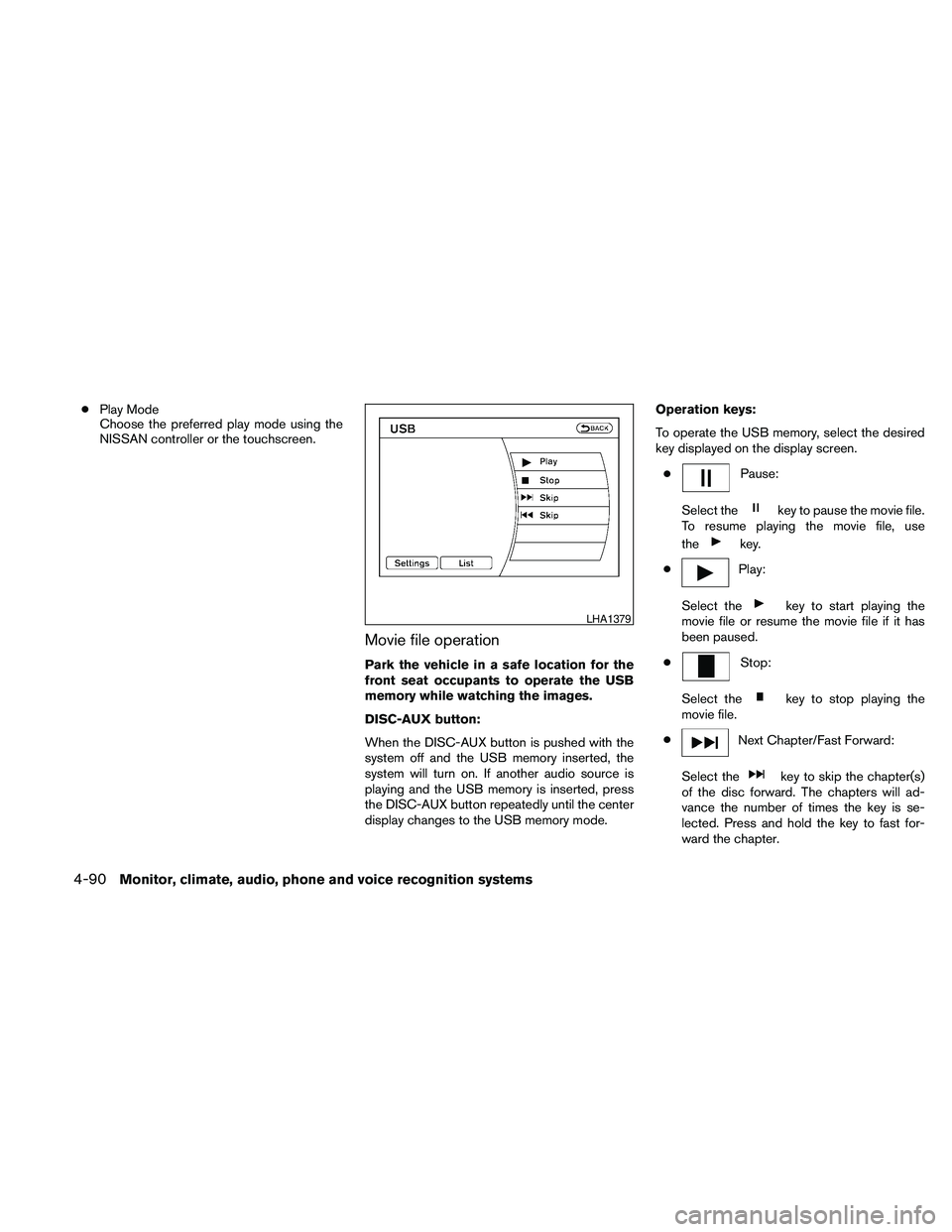
cPlay Mode
Choose the preferred play mode using the
NISSAN controller or the touchscreen.
Movie file operation
Park the vehicle in a safe location for the
front seat occupants to operate the USB
memory while watching the images.
DISC-AUX button:
When the DISC-AUX button is pushed with the
system off and the USB memory inserted, the
system will turn on. If another audio source is
playing and the USB memory is inserted, press
the DISC-AUX button repeatedly until the center
display changes to the USB memory mode.Operation keys:
To operate the USB memory, select the desired
key displayed on the display screen.
c
Pause:
Select the
key to pause the movie file.
To resume playing the movie file, use
the
key.
c
Play:
Select the
key to start playing the
movie file or resume the movie file if it has
been paused.
c
Stop:
Select the
key to stop playing the
movie file.
c
Next Chapter/Fast Forward:
Select the
key to skip the chapter(s)
of the disc forward. The chapters will ad-
vance the number of times the key is se-
lected. Press and hold the key to fast for-
ward the chapter.
LHA1379
4-90Monitor, climate, audio, phone and voice recognition systems
Page 251 of 457
cPrevious Chapter/Rewind:
Select the
key to skip the chapter(s)
of the disc backward. The chapters will go
back the number of times the key is selected.
Press and hold the key to rewind the chap-
ter.
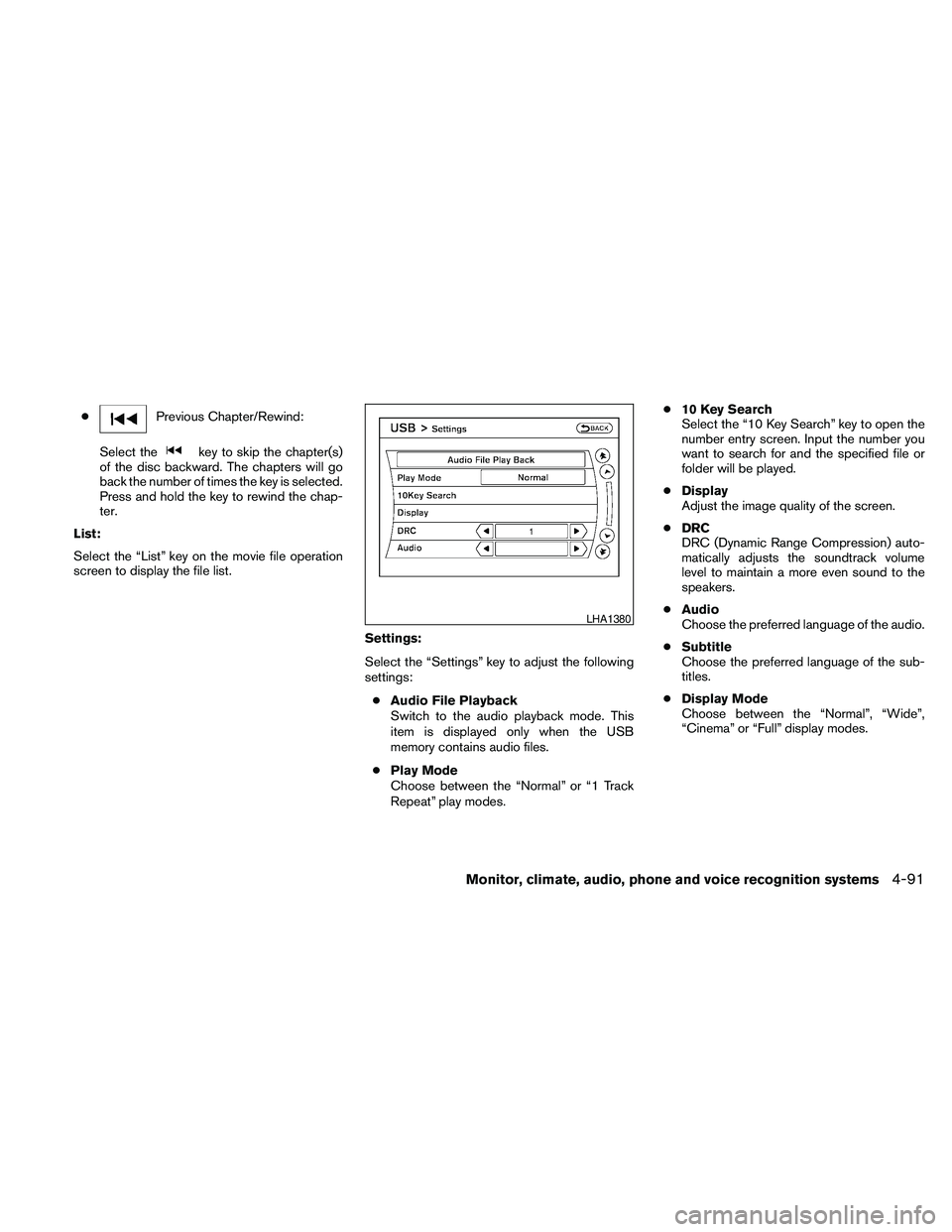
List:
Select the “List” key on the movie file operation
screen to display the file list.
Settings:
Select the “Settings” key to adjust the following
settings:
cAudio File Playback
Switch to the audio playback mode. This
item is displayed only when the USB
memory contains audio files.
cPlay Mode
Choose between the “Normal” or “1 Track
Repeat” play modes.c10 Key Search
Select the “10 Key Search” key to open the
number entry screen. Input the number you
want to search for and the specified file or
folder will be played.
cDisplay
Adjust the image quality of the screen.
cDRC
DRC (Dynamic Range Compression) auto-
matically adjusts the soundtrack volume
level to maintain a more even sound to the
speakers.
cAudio
Choose the preferred language of the audio.
cSubtitle
Choose the preferred language of the sub-
titles.
cDisplay Mode
Choose between the “Normal”, “Wide”,
“Cinema” or “Full” display modes.
LHA1380
Monitor, climate, audio, phone and voice recognition systems4-91
Page 252 of 457
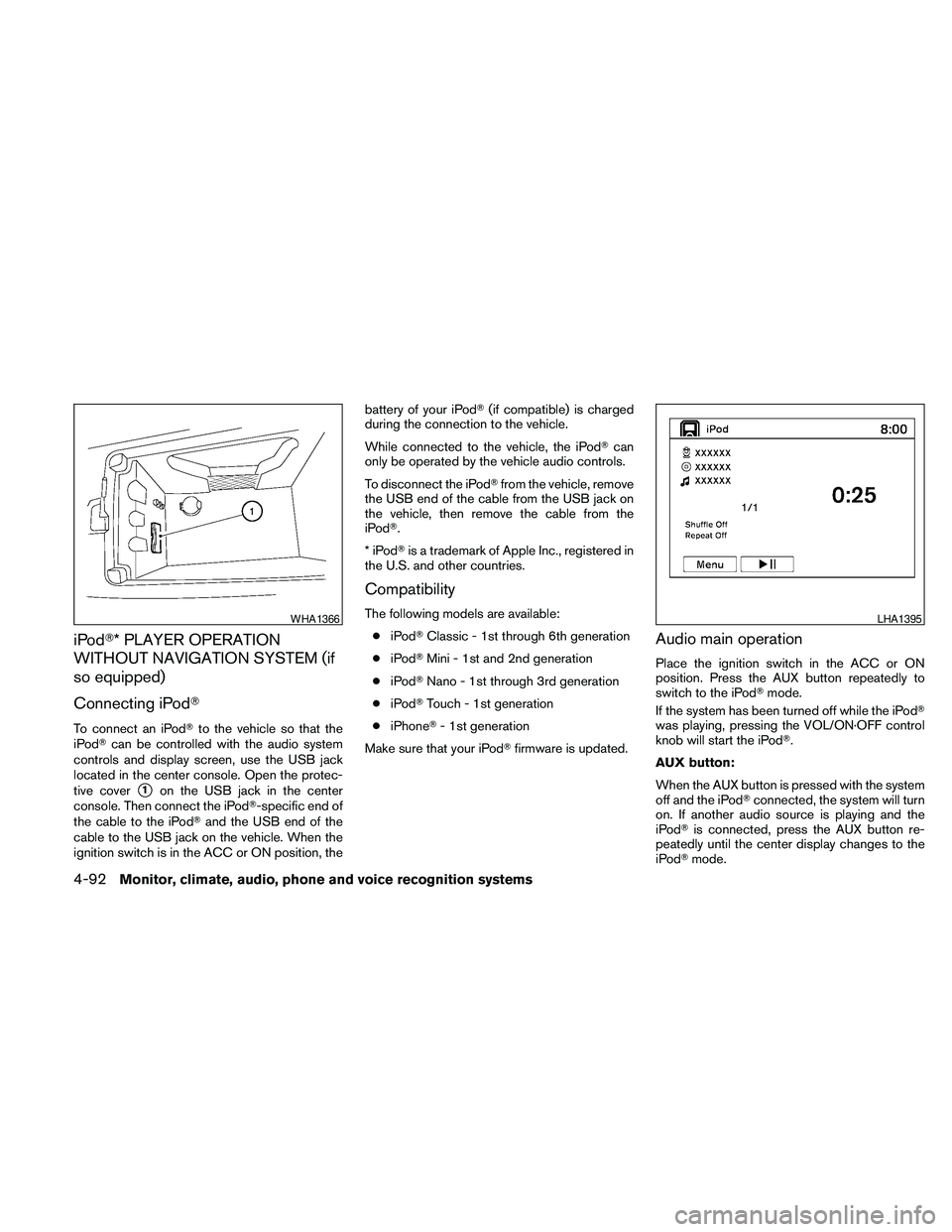
iPodT* PLAYER OPERATION
WITHOUT NAVIGATION SYSTEM (if
so equipped)
Connecting iPodT
To connect an iPodTto the vehicle so that the
iPodTcan be controlled with the audio system
controls and display screen, use the USB jack
located in the center console. Open the protec-
tive cover
s1on the USB jack in the center
console. Then connect the iPodT-specific end of
the cable to the iPodTand the USB end of the
cable to the USB jack on the vehicle. When the
ignition switch is in the ACC or ON position, thebattery of your iPodT(if compatible) is charged
during the connection to the vehicle.
While connected to the vehicle, the iPodTcan
only be operated by the vehicle audio controls.
To disconnect the iPodTfrom the vehicle, remove
the USB end of the cable from the USB jack on
the vehicle, then remove the cable from the
iPodT.
*iPodTis a trademark of Apple Inc., registered in
the U.S. and other countries.
Compatibility
The following models are available:
ciPodTClassic - 1st through 6th generation
ciPodTMini - 1st and 2nd generation
ciPodTNano - 1st through 3rd generation
ciPodTTouch - 1st generation
ciPhoneT- 1st generation
Make sure that your iPodTfirmware is updated.
Audio main operation
Place the ignition switch in the ACC or ON
position. Press the AUX button repeatedly to
switch to the iPodTmode.
If the system has been turned off while the iPodT
was playing, pressing the VOL/ON·OFF control
knob will start the iPodT.
AUX button:
When the AUX button is pressed with the system
off and the iPodTconnected, the system will turn
on. If another audio source is playing and the
iPodTis connected, press the AUX button re-
peatedly until the center display changes to the
iPodTmode.
WHA1366LHA1395
4-92Monitor, climate, audio, phone and voice recognition systems