change time NISSAN MAXIMA 2010 Owner´s Manual
[x] Cancel search | Manufacturer: NISSAN, Model Year: 2010, Model line: MAXIMA, Model: NISSAN MAXIMA 2010Pages: 457, PDF Size: 4.66 MB
Page 193 of 457
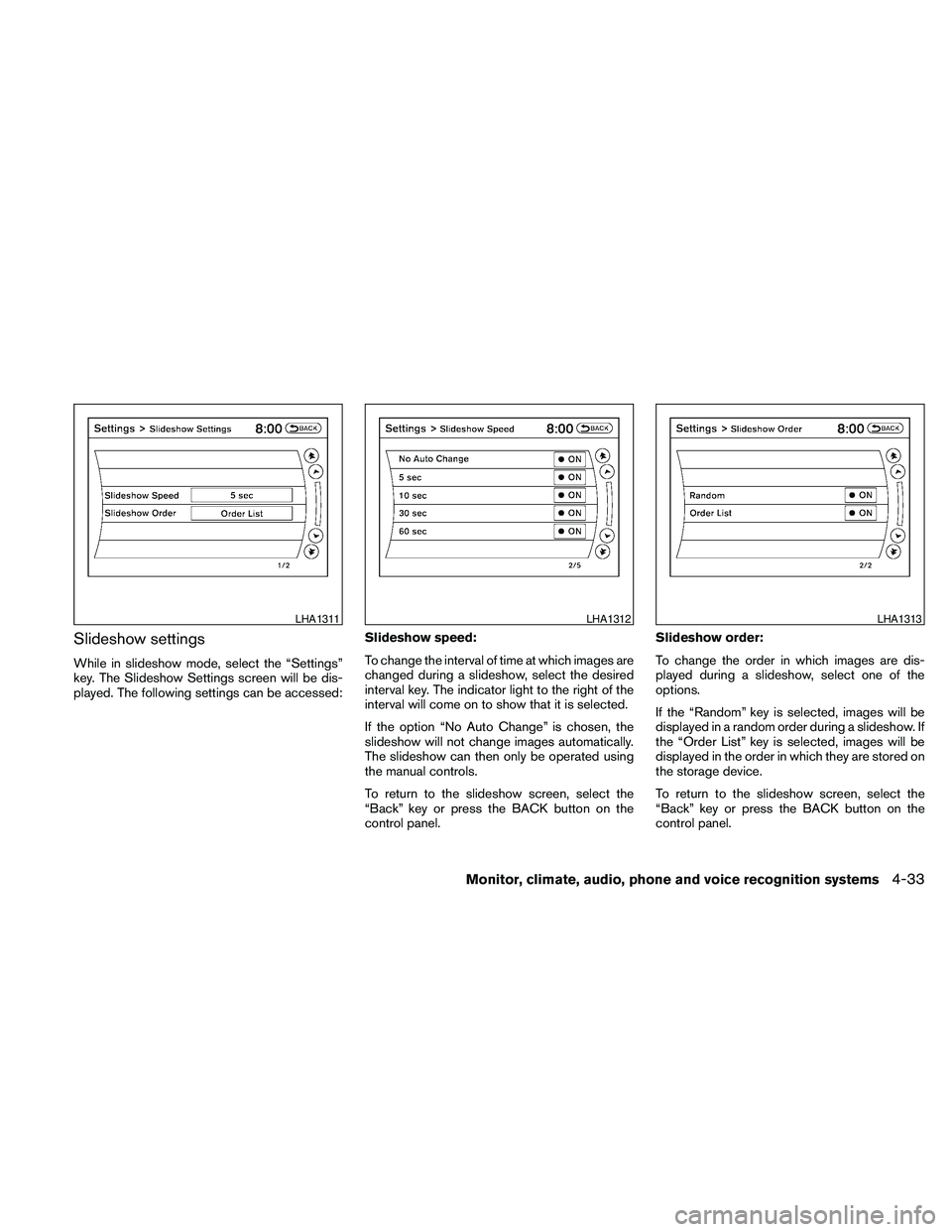
Slideshow settings
While in slideshow mode, select the “Settings”
key. The Slideshow Settings screen will be dis-
played. The following settings can be accessed:Slideshow speed:
To change the interval of time at which images are
changed during a slideshow, select the desired
interval key. The indicator light to the right of the
interval will come on to show that it is selected.
If the option “No Auto Change” is chosen, the
slideshow will not change images automatically.
The slideshow can then only be operated using
the manual controls.
To return to the slideshow screen, select the
“Back” key or press the BACK button on the
control panel.Slideshow order:
To change the order in which images are dis-
played during a slideshow, select one of the
options.
If the “Random” key is selected, images will be
displayed in a random order during a slideshow. If
the “Order List” key is selected, images will be
displayed in the order in which they are stored on
the storage device.
To return to the slideshow screen, select the
“Back” key or press the BACK button on the
control panel.
LHA1311LHA1312LHA1313
Monitor, climate, audio, phone and voice recognition systems4-33
Page 199 of 457
the positionsAif the object projects over the
actual backing up course.
HOW TO ADJUST THE SCREEN
To adjust the Display ON/OFF, Brightness, Tint,
Color, Contrast and Black Level of the RearView
Monitor, push the SETTING button with the
RearView Monitor on and select the “Display”
key. Select one of the items and change the value
by touching the “+” or “-” key or by turning the
NISSAN controller.
Do not adjust the Brightness, Tint, Color, Con-
trast and Black Level of the RearView Monitor
while the vehicle is moving. Make sure the park-
ing brake is firmly applied and the engine is not
running.
OPERATING TIPS
cWhen the shift selector is shifted to the R
(Reverse) position, the display screen auto-
matically changes to the RearView Monitor
mode. However, the radio can be heard.cIt may take some time until the RearView
Monitor or the normal screen is displayed
after the shift selector has been shifted to R
(Reverse) from another position or to an-
other position from R (Reverse) . Objects
may be distorted momentarily until the Rear-
View Monitor screen is displayed com-
pletely.
cWhen the temperature is extremely high or
low, the screen may not clearly display ob-
jects. This is not a malfunction.
cWhen strong light directly enters the cam-
era, objects may not be displayed clearly.
This is not a malfunction.
cVertical lines may be seen in objects on the
screen. This is due to strong reflected light
from the bumper. This is not a malfunction.
cThe screen may flicker under fluorescent
light. This is not a malfunction.
cThe colors of objects on the RearView Moni-
tor may differ somewhat from those of the
actual object.
cObjects on the monitor may not be clear in a
dark place or at night. This is not a malfunc-
tion.cIf dirt, rain or snow attaches to the camera,
the RearView Monitor may not clearly display
objects. Clean the camera.
cDo not use alcohol, benzine or thinner to
clean the camera. This will cause discolora-
tion. To clean the camera, wipe with a cloth
dampened with diluted mild cleaning agent
and then wipe with a dry cloth.
cDo not damage the camera as the monitor
screen may be adversely affected.
cDo not use wax on the camera window.
Wipe off any wax with a clean cloth damp-
ened with mild detergent diluted with water.
Monitor, climate, audio, phone and voice recognition systems4-39
Page 207 of 457
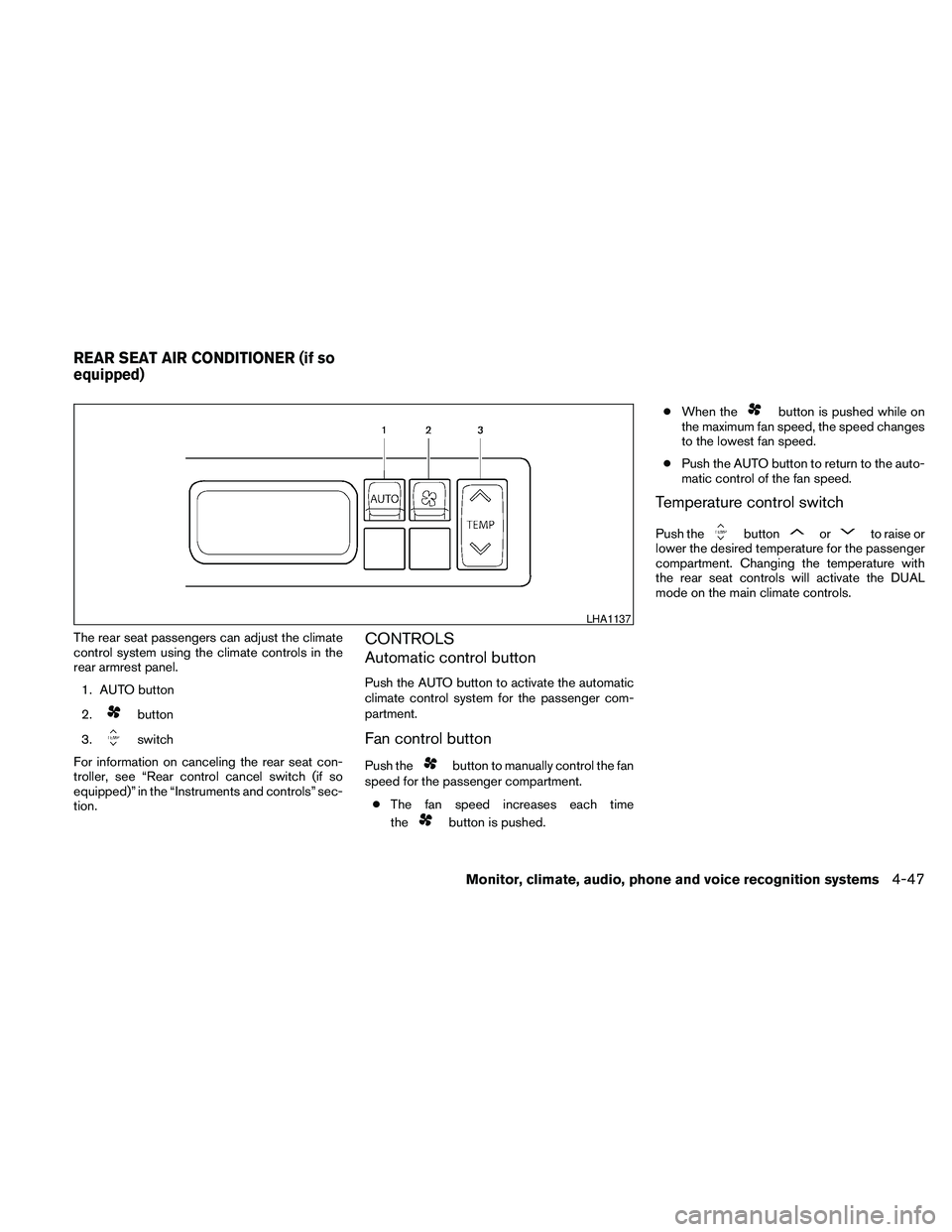
The rear seat passengers can adjust the climate
control system using the climate controls in the
rear armrest panel.
1. AUTO button
2.
button
3.
switch
For information on canceling the rear seat con-
troller, see “Rear control cancel switch (if so
equipped)” in the “Instruments and controls” sec-
tion.
CONTROLS
Automatic control button
Push the AUTO button to activate the automatic
climate control system for the passenger com-
partment.
Fan control button
Push thebutton to manually control the fan
speed for the passenger compartment.
cThe fan speed increases each time
the
button is pushed.cWhen the
button is pushed while on
the maximum fan speed, the speed changes
to the lowest fan speed.
cPush the AUTO button to return to the auto-
matic control of the fan speed.
Temperature control switch
Push thebuttonorto raise or
lower the desired temperature for the passenger
compartment. Changing the temperature with
the rear seat controls will activate the DUAL
mode on the main climate controls.
LHA1137
REAR SEAT AIR CONDITIONER (if so
equipped)
Monitor, climate, audio, phone and voice recognition systems4-47
Page 208 of 457
The air conditioner system in your NISSAN ve-
hicle is charged with a refrigerant designed with
the environment in mind.
This refrigerant does not harm the earth’s
ozone layer.
Special charging equipment and lubricant is re-
quired when servicing your NISSAN air condi-
tioner. Using improper refrigerants or lubricants
will cause severe damage to your air conditioner
system. See “Air conditioner system refrigerant
and oil recommendations” in the “Technical and
consumer information” section of this manual.
A NISSAN dealer is able to service your “environ-
mentally friendly” air conditioning system.
WARNING
The air conditioner system contains re-
frigerant under high pressure. To avoid
personal injury, any air conditioner ser-
vice should be done only by an experi-
enced technician with proper equipment.
RADIO
Place the ignition switch in the ACC or ON
position and press the VOL (volume)/ON·OFF
(power) knob to turn the radio on. If you listen to
the radio with the engine not running, the ignition
switch should be placed in the ACC position.
Radio reception is affected by station signal
strength, distance from radio transmitter, build-
ings, bridges, mountains and other external influ-
ences. Intermittent changes in reception quality
normally are caused by these external influences.
Using a cellular phone in or near the ve-
hicle may influence radio reception quality.
Radio reception
Your NISSAN radio system is equipped with
state-of-the-art electronic circuits to enhance ra-
dio reception. These circuits are designed to
extend reception range, and to enhance the qual-
ity of that reception.
However, there are some general characteristics
of both FM and AM radio signals that can affect
radio reception quality in a moving vehicle, even
when the finest equipment is used. These char-
acteristics are completely normal in a given re-
ception area and do not indicate any malfunction
in your NISSAN radio system.Reception conditions will constantly change be-
cause of vehicle movement. Buildings, terrain,
signal distance and interference from other ve-
hicles can work against ideal reception. De-
scribed below are some of the factors that can
affect your radio reception.
Some cellular phones or other devices may
cause interference or a buzzing noise to come
from the audio system speakers. Storing the de-
vice in a different location may reduce or elimi-
nate the noise.
FM RADIO RECEPTION
Range: FM range is normally limited to 25 – 30 mi
(40 – 48 km) , with monaural (single channel) FM
having slightly more range than stereo FM. Exter-
nal influences may sometimes interfere with FM
station reception even if the FM station is within
25 mi (40 km) . The strength of the FM signal is
directly related to the distance between the
transmitter and receiver. FM signals follow a line-
of-sight path, exhibiting many of the same char-
acteristics as light. For example, they will reflect
off objects.
Fade and drift: As your vehicle moves away from
a station transmitter, the signals will tend to fade
and/or drift.
SERVICING AIR CONDITIONER AUDIO SYSTEM
4-48Monitor, climate, audio, phone and voice recognition systems
Page 210 of 457
Compact disc (CD) player (models
without Navigation System)
CAUTION
cDo not force a compact disc into the CD
insert slot. This could damage the CD
and/or CD changer/player.
cTrying to load a CD with the CD door
closed could damage the CD and/or CD
changer.
cOnly one CD can be loaded into the CD
player at a time.
cOnly use high quality 4.7 in (12 cm)
round discs that have the “COMPACT
disc DIGITAL AUDIO” logo on the disc
or packaging.
cDuring cold weather or rainy days, the
player may malfunction due to the hu-
midity. If this occurs, remove the CD
and dehumidify or ventilate the player
completely.
cThe player may skip while driving on
rough roads.cThe CD player sometimes cannot func-
tion when the compartment tempera-
ture is extremely high or low.
Decrease/increase the temperature
before use.
cDo not expose the CD to direct sun-
light.
cCDs that are in poor condition or are
dirty, scratched or covered with finger-
prints may not work properly.
cThe following CDs may not work prop-
erly:
cCopy control compact discs (CCCD)
cRecordable compact discs (CD-R)
cRewritable compact discs (CD-RW)
cDo not use the following CDs as they
may cause the CD player to malfunc-
tion:
c3.1 in (8 cm) discs with an adapter
cCDs that are not round
cCDs with a paper label
cCDs that are warped, scratched, or
have abnormal edgescThis audio system can only play pre-
recorded CDs. It has no capability to
record or burn CDs.
cIf the CD cannot be played, one of the
following messages will be displayed.
CHECK DISC:
cConfirm that the CD is inserted cor-
rectly (the label side is facing up,
etc.) .
cConfirm that the CD is not bent or
warped and it is free of scratches.
PRESS EJECT:
This is an error due to excessive tem-
perature inside the player. Remove the
CD by pressing the EJECT button. After
a short time, reinsert the CD. The CD
can be played when the temperature of
the player returns to normal.
UNPLAYABLE:
The file is unplayable in this audio sys-
tem (only MP3 or WMA (if so equipped)
CD) .
4-50Monitor, climate, audio, phone and voice recognition systems
Page 213 of 457
cDuring cold weather or rainy days, the player
may malfunction due to the humidity. If this
occurs, remove the USB memory stick and
dehumidify or ventilate the player com-
pletely.
cThe player sometimes cannot function when
the passenger compartment temperature is
extremely high. Decrease the temperature
before use.
cDo not leave the USB memory in a place
prone to static electricity or where the air
conditioner blows directly. The data in the
USB memory may be damaged.
cPrepare the USB device by yourself be-
cause it is not equipped with the vehicle.
cThe USB device cannot be formatted with
this system. If you want to format the USB
memory, use your personal computer.
cPartitioned USB devices may not be played
correctly.
cSome characters used in other languages
(Chinese, Japanese, etc.) are not displayed
properly on the vehicle center screen.
NISSAN recommends using English lan-
guage characters with USB devices.cDo not connect the USB device if the con-
nector or cable is wet. Allow the cable
and/or connectors to dry completely before
connecting the USB device.
cLarge video podcast files cause slow re-
sponses in the iPodT. The vehicle center
display may momentarily black out, but it will
soon recover.
cIf the iPodTautomatically selects large video
podcast files while in the shuffle mode, the
vehicle center display may momentarily
black out, but it will soon recover.
cAudiobooks may not play in the same order
as they appear on the iPodT.
cThe iPodTnano (1st Generation) may re-
main in fast forward or rewind mode if it is
connected during a seek operation. In this
case, please manually reset the iPodT.
cThe iPodTnano (2nd Generation) will con-
tinue to fast forward or rewind if it is discon-
nected during a seek operation.
cAn incorrect song title may appear when the
Play Mode is changed while using the iPodT
nano (2nd generation) .cIf you are using an iPodT(3rd Generation
with Dock connector) , do not use very long
names for the song title, album name or artist
name to avoid the iPodTresetting itself.
iPodTis a trademark of Apple Inc., registered in
the U.S. and other countries.
BluetoothTaudio player (if so
equipped)
cSome BluetoothTaudio devices may not be
recognized by the in-vehicle audio system.
Contact a NISSAN dealer for the compatible
device.
cIt is necessary to set up the wireless con-
nection between a compatible BluetoothT
audio device and the in-vehicle BluetoothT
module before using the BluetoothTaudio.
cOperating procedure of the BluetoothTau-
dio will vary depending on the devices. Make
sure how to operate your audio device be-
fore using it with this system.
cThe BluetoothTaudio may be stopped under
the following conditions:
cReceiving a call on the Hands-Free
Phone System.
cChecking the connection to the hands-
free phone.
Monitor, climate, audio, phone and voice recognition systems4-53
Page 225 of 457

AUDIO control knob (Bass, Treble, Fade,
Balance and Beep):
Press the AUDIO control knob to change the
mode as follows:
Bass!Treble!Fade!Balance!Beep
ON/OFF!Bass
To adjust Bass, Treble, Fade and Balance, press
the AUDIO control knob until the desired mode
appears on the display. Turn the TUNE/FOLDER
knob to adjust Bass and Treble to the desired
level. You can also use the TUNE/FOLDER knob
to adjust Fade and Balance modes. Fade adjusts
the sound level between the front and rear speak-
ers and Balance adjusts the sound between the
right and left speakers.
To change the Beep to ON or OFF, turn the
TUNE/FOLDER knob left or right. This will enable
or disable the beep sound heard during menu
selection.
Once you have adjusted the sound quality to the
desired level, press the AUDIO control knob re-
peatedly until the radio or CD display reappears.
Otherwise, the radio or CD display will automati-
cally reappear after about five seconds.
Clock set
The clock displays the time when the ignition
switch is placed in the ACC or ON position.Adjusting the time
1. Push and hold the DISP/CLOCK button for
more than 2 seconds until the display shows
“Hour Adjust”.
2. Turn the TUNE/FOLDER knob to adjust the
hour.
3. Press the DISP/CLOCK button again; the
display will show “Minute Adjust”.
4. Turn the TUNE/FOLDER knob to adjust the
minutes.
5. Press the DISP/CLOCK button again to exit
the clock set mode.
Press the DISP/CLOCK button again to return to
the regular clock display. If no action is taken, the
display will return to the regular clock display
after 10 seconds.
If the power supply is disconnected, the clock will
not indicate the correct time.
Readjust the time.
CD display mode
To change the text displayed while playing a CD
with text, press the DISP/CLOCK button. The
DISP/CLOCK button will allow you to scroll
through CD text as follows: Track number and
Track timeÃ!Album titleÃ!Song title.cTrack number displays the track number se-
lected on the disc.
cTrack time displays the amount of time the
track has played.
cAlbum title displays the title of the CD being
played.
cSong title displays the title of the selected
CD track.
MP3 display mode
To change the text displayed when listening to a
CD with MP3s and ID3 tags, press the
DISP/CLOCK button. The DISP/CLOCK button
will scroll through the CD text as follows: Disc
number, Track number and Folder numberÃ!
Folder titleÃ!Song titleÃ!Artist nameÃ!
Album title.
cDisc number displays the number of the
current disc playing.
cTrack number displays the number of the
track playing on the selected disc.
cFolder number displays the number of the
current folder on the MP3 CD.
cFolder title displays the title of the folder.
cSong title displays the title of the song play-
ing.
Monitor, climate, audio, phone and voice recognition systems4-65
Page 227 of 457
To insert 6 CDs to the CD changer, press the
LOAD button for more than 1.5 seconds.
The slot numbers (1 – 6) will illuminate on the
display when CDs are loaded into the changer.
DISC button:
When the DISC button is pressed with the sys-
tem off and a compact disc loaded, the system
will turn on and the compact disc will start to play.
When the DISC button is pressed with a com-
pact disc loaded with the radio playing, the radio
will automatically be turned off and the compact
disc will start to play.
SEEK/CAT and TRACK
buttons:
When the SEEK/CAT
button is pressed
while a compact disc is playing, the track being
played returns to its beginning. Press several
times to skip back through tracks. The compact
disc will go back the number of times the button
is pressed.When the TRACK
button is pressed while
the compact disc is playing, the next track will
start to play from its beginning. Press several
times to skip through tracks. The compact disc
will advance the number of times the button is
pressed. (When the last track on the compact
disc is skipped through, the first track will be
played.)
SEEK/CAT and TRACK
(Rewind·Fast Forward)
buttons:
Press and hold the SEEK/CAT
(rewind)
button or the TRACK
(fast forward) button
while a compact disc is playing, the compact disc
will play while rewinding or fast forwarding. When
the button is released, the compact disc will
return to normal play speed.
TUNE/FOLDER knob
While playing an MP3/WMA CD, turn the
TUNE/FOLDER knob right or left to scan forward
or backward through available folders.
CD select buttons:
To play another CD that has been loaded, press a
CD select button (1 – 6) .RPT/RDM button:
When the RPT/RDM button is pressed while the
compact disc is playing, the play pattern can be
changed as follows:
CD:
All Disc Repeat!1 Disc Repeat!1 Track
Repeat!All Disc Random!1 Disc Random!
All Disc Repeat
MP3/WMA CD:
All Disc Repeat!1 Disc Repeat!1 Folder
Repeat!1 Track Repeat!All Disc Random!
1 Disc Random!1 Folder Random!All Disc
Repeat
All Disc Repeat: All discs loaded will be re-
peated.
1 Disc Repeat: The disc that is currently playing
will be repeated.
1 Track Repeat: The track that is currently playing
will be repeated.
1 Folder Repeat: The folder that is currently being
accessed will be repeated.
All Disc Random: All discs loaded will be played
in a mixed order.
1 Disc Random: The tracks on the disc that is
currently playing will be played in a mixed order.
1 Folder Random: The tracks in the folder that is
currently being accessed will be played in a
mixed order.
Monitor, climate, audio, phone and voice recognition systems4-67
Page 230 of 457

This vehicle has Speed Sensitive Volume (SSV)
for audio. The audio volume changes as the driv-
ing speed changes.
AUDIO control knob (Bass, Treble, Balance
and Fade):
Press the AUDIO control knob to change the
mode as follows:
Bass!Treble!Balance!Fade
To adjust Bass, Treble, Balance and Fade, press
the AUDIO control knob until the desired mode
appears in the display. Turn the tuning knob to
adjust Bass and Treble to the desired level. You
can also use the tuning knob to adjust Fade and
Balance modes. Fade adjusts the sound level
between the front and rear speakers and Balance
adjusts the sound between the right and left
speakers.
Once you have adjusted the sound quality to the
desired level, press the AUDIO control knob re-
peatedly until the radio or CD display reappears.
If the control knob is not pressed for approxi-
mately 10 seconds, the radio or CD display will
automatically reappear.Speed Sensitive Volume (SSV):
To change the SSV mode from OFF to 5, press
the SETTING button. Then select the “Audio” key
using the NISSAN controller; the audio settings
screen will be displayed. Select the “–” key or “+”
key to change the SSV.
While in this screen you can also adjust the other
audio settings by selecting the corresponding key.
Once you have adjusted the sound quality to the
desired level, press the BACK button.
For information on how to use the NISSAN con-
troller, see “How to use the NISSAN controller” in
this section.Clock operation
For additional information on setting the clock,
see “Adjusting the time” in this section.
LHA1304LHA1314
4-70Monitor, climate, audio, phone and voice recognition systems
Page 233 of 457
If the radio is already operating, it will automati-
cally turn off and the compact disc will play.
If the system has been turned off while the com-
pact disc was playing, pressing the
VOL/ON·OFF control knob will start the compact
disc.
DISC button:
When the DISC button is pressed with the sys-
tem off and a compact disc loaded, the system
will turn on and the compact disc will start to play.
When the DISC button is pressed with a com-
pact disc loaded with the radio playing, the radio
will automatically be turned off and the compact
disc will start to play.
SEEK/CAT and TRACK
buttons:
When the SEEK/CAT
button is pressed
while a compact disc is playing, the track being
played returns to its beginning. Press several
times to skip back through tracks. The compact
disc will go back the number of times the button
is pressed.
When the TRACK
button is pressed while
a compact disc is playing, the next track will start
to play from its beginning. Press several times to
skip through tracks. The compact disc will ad-vance the number of times the button is pressed.
(When the last track on the compact disc is
skipped through, the first track will be played.)
The NISSAN controller can also be used to se-
lect tracks when a CD is playing.
SEEK/CAT and TRACK
(Rewind and Fast
Forward) buttons:
Press and hold the SEEK/CAT
(rewind)
button or the TRACK
(fast forward) button
while a compact disc is playing; the compact disc
will play while rewinding or fast forwarding. When
the button is released, the compact disc will
return to normal play speed.
TUNE/FOLDER knob
While playing an MP3/WMA CD, turn the
TUNE/FOLDER knob right or left to scan forward
or backward through available folders.
RPT/RDM button:
When the RPT/RDM button is pressed while the
compact disc is playing, the play pattern can be
changed as follows:
CD:
Repeat All!1 Track Repeat!1 Disc Random
!Repeat AllCD with compressed audio files:
Repeat All!1 Folder Repeat!1 Track Repeat
!1 Disc Random!1 Folder Random!Re-
peat All
Repeat All: Normal play mode. All tracks will
constantly play in sequential order.
1 Folder Repeat: The folder that is currently being
accessed will be repeated.
1 Track Repeat: The track that is currently playing
will be repeated.
1 Disc Random: The tracks on the disc that is
currently playing will be played in a mixed order.
1 Folder Random: The tracks in the folder that is
currently playing will be played in a mixed order.
CD EJECT button:
When the
button is pressed with the com-
pact disc loaded, the compact disc will be
ejected.
When the
button is pressed while the
compact disc is being played, the compact disc
will eject and the system will turn off.
Monitor, climate, audio, phone and voice recognition systems4-73