wheel NISSAN MAXIMA 2010 Owner´s Manual
[x] Cancel search | Manufacturer: NISSAN, Model Year: 2010, Model line: MAXIMA, Model: NISSAN MAXIMA 2010Pages: 457, PDF Size: 4.66 MB
Page 159 of 457
The driver’s seat, steering column, and outside
mirrors will move to the memorized position with
the indicator light blinking, and then the light will
stay on for approximately 5 seconds.
ENTRY/EXIT FUNCTION
This system is designed so that the driver’s seat
and automatic operation steering column will au-
tomatically move when the shift selector is in the
P (Park) position. This allows the driver to get into
and out of the driver’s seat more easily.
The driver’s seat will slide backward and the
steering wheel will move up when the driver’s
door is opened and the ignition switch is in the
LOCK position.
The driver’s seat and steering wheel will return to
the previous position when the driver’s door is
closed and the ignition switch is pushed.
The entry/exit function can be adjusted or can-
celed. See “Comfort & Convenience settings” in
the “Monitor, climate, audio, phone and voice
recognition systems” section of this manual.
Restarting the entry/exit function
If the battery cable is disconnected or if the fuse
opens, the entry/exit function will be disabled.
Drive the vehicle over 25 MPH (40 km/h) to
restart the entry/exit function. You can also restart
the entry/exit function using the following proce-
dure.
1. Connect the battery cable or replace the
fuse.
2. Open and close the driver’s door more than
2 times with the ignition switch in the LOCK
position.
The entry/exit function should now work properly.
SYSTEM OPERATION
The automatic drive positioner system will not
work or will stop operating under the following
conditions:
cWhen the vehicle speed is above 4 MPH (7
km/h) .
cWhen any of the memory switches are
pushed while the automatic drive positioner
is operating.cWhen the adjusting switch for the driver’s
seat is turned on while the automatic drive
positioner is operating.
cWhen the seat has been already moved to
the memorized position.
cWhen no seat position is stored in the
memory switch.
cWhen the shift selector is moved from P
(Park) to any other position.
cWhen the driver’s door remains open more
than 45 seconds and the ignition switch is
not in the ON position.
The automatic drive positioner system can be
adjusted and canceled for vehicles with naviga-
tion system. See “Comfort & Convenience set-
tings” in the “Monitor, climate, audio, phone and
voice recognition systems” section of this
manual.
Pre-driving checks and adjustments3-31
Page 162 of 457
FM/AM radio with compact disc (CD)
changer (if so equipped).......................4-64
FM/AM/SAT radio with compact disc (CD)
player (if so equipped).........................4-69
FM/AM/SAT radio with CD/DVD player
(if so equipped)...............................4-75
Digital Versatile Disc (DVD) Player
Operation (models with Navigation System)......4-84
USB interface (models without Navigation
System) (if so equipped).......................4-87
USB interface (models with Navigation
System)......................................4-88
iPodT* Player Operation without Navigation
System (if so equipped)........................4-92
iPodT* Player Operation with Navigation
System (if so equipped)........................4-93
Music Box™ Hard Drive audio system
without Navigation System (if so equipped).......4-96
Music Box™ Hard Drive audio system with
Navigation System (if so equipped).............4-102
BluetoothTaudio (if so equipped)..............4-109
CD care and cleaning.........................4-112
Steering wheel switch for audio control.........4-113
Rear audio controls (if so equipped)............4-115Antenna.....................................4-116
Car phone or CB radio...........................4-117
BluetoothTHands-Free Phone System without
Navigation System (if so equipped)................4-117
Regulatory Information........................4-119
Using the system.............................4-119
Control buttons..............................4-121
Getting started...............................4-122
List of voice commands.......................4-124
Speaker adaptation (SA) mode.................4-128
Manual Control (if so equipped)................4-130
Troubleshooting guide........................4-130
BluetoothTHands-Free Phone System with
Navigation System (if so equipped)................4-132
Regulatory Information........................4-134
Voice commands.............................4-134
Connecting procedure........................4-134
Vehicle Phonebook...........................4-136
Handset Phonebook..........................4-138
Making a call.................................4-139
Receiving a call..............................4-139
During a call.................................4-140
Ending a call.................................4-141
Page 174 of 457
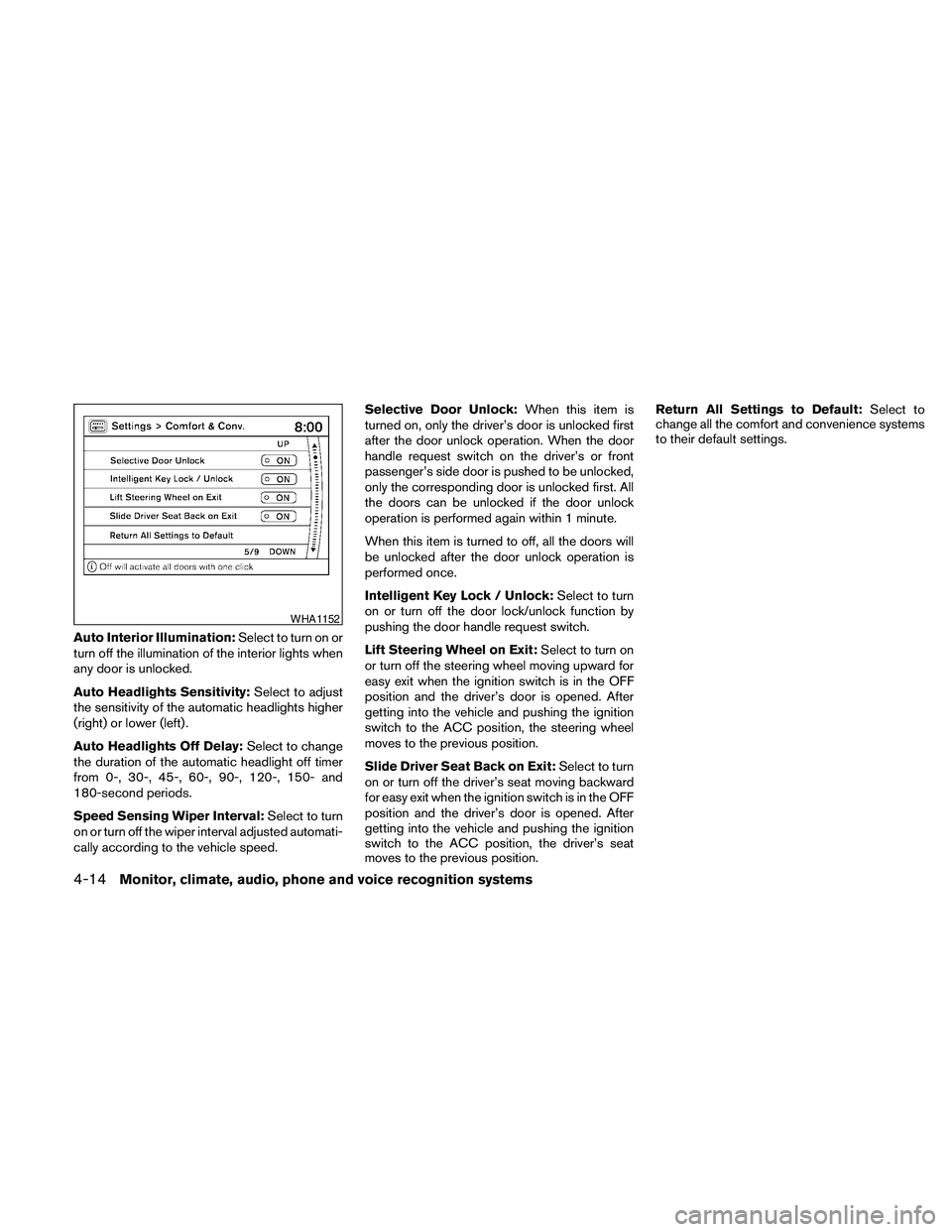
Auto Interior Illumination:Select to turn on or
turn off the illumination of the interior lights when
any door is unlocked.
Auto Headlights Sensitivity:Select to adjust
the sensitivity of the automatic headlights higher
(right) or lower (left) .
Auto Headlights Off Delay:Select to change
the duration of the automatic headlight off timer
from 0-, 30-, 45-, 60-, 90-, 120-, 150- and
180-second periods.
Speed Sensing Wiper Interval:Select to turn
on or turn off the wiper interval adjusted automati-
cally according to the vehicle speed.Selective Door Unlock:When this item is
turned on, only the driver’s door is unlocked first
after the door unlock operation. When the door
handle request switch on the driver’s or front
passenger’s side door is pushed to be unlocked,
only the corresponding door is unlocked first. All
the doors can be unlocked if the door unlock
operation is performed again within 1 minute.
When this item is turned to off, all the doors will
be unlocked after the door unlock operation is
performed once.
Intelligent Key Lock / Unlock:Select to turn
on or turn off the door lock/unlock function by
pushing the door handle request switch.
Lift Steering Wheel on Exit:Select to turn on
or turn off the steering wheel moving upward for
easy exit when the ignition switch is in the OFF
position and the driver’s door is opened. After
getting into the vehicle and pushing the ignition
switch to the ACC position, the steering wheel
moves to the previous position.
Slide Driver Seat Back on Exit:Select to turn
on or turn off the driver’s seat moving backward
for easy exit when the ignition switch is in the OFF
position and the driver’s door is opened. After
getting into the vehicle and pushing the ignition
switch to the ACC position, the driver’s seat
moves to the previous position.Return All Settings to Default:Select to
change all the comfort and convenience systems
to their default settings.
WHA1152
4-14Monitor, climate, audio, phone and voice recognition systems
Page 188 of 457
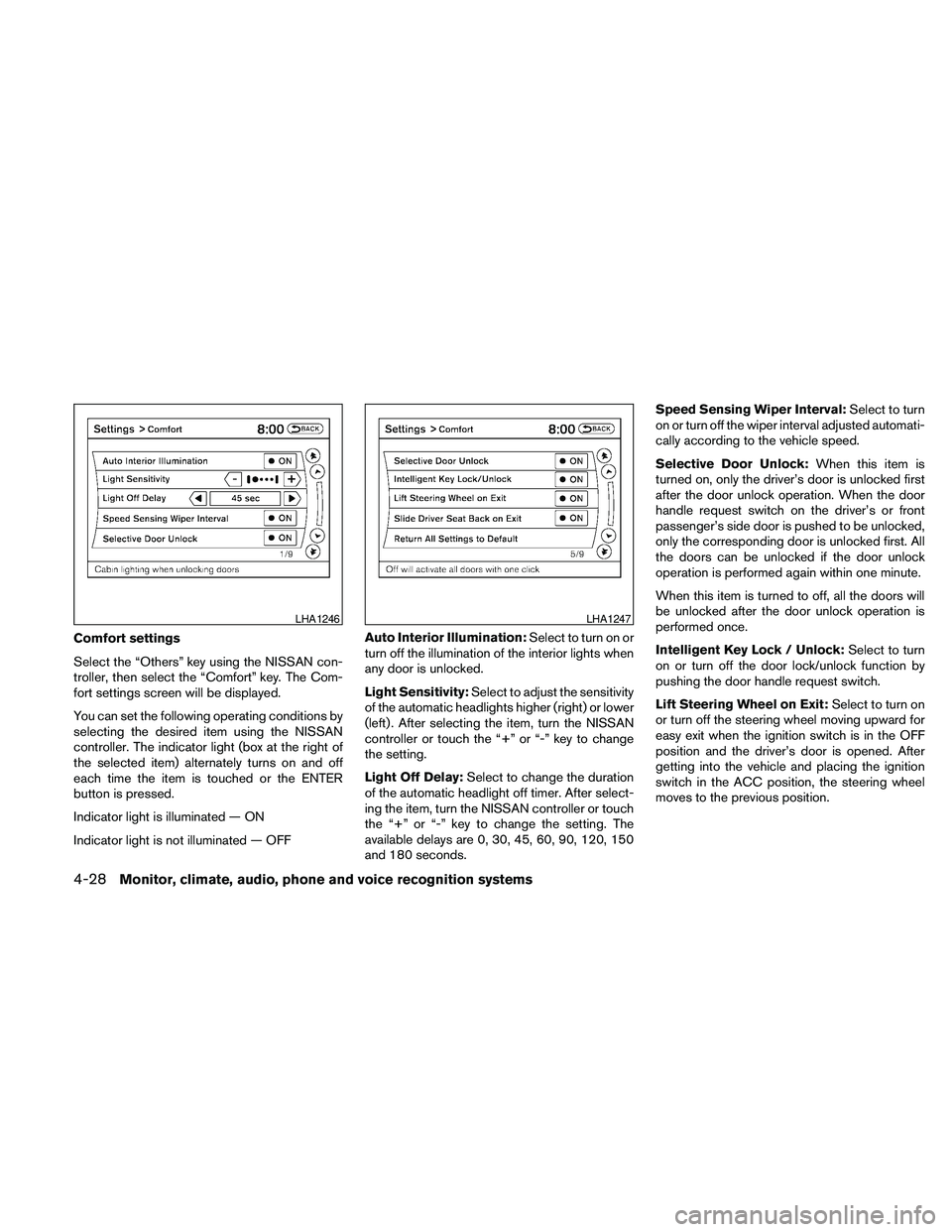
Comfort settings
Select the “Others” key using the NISSAN con-
troller, then select the “Comfort” key. The Com-
fort settings screen will be displayed.
You can set the following operating conditions by
selecting the desired item using the NISSAN
controller. The indicator light (box at the right of
the selected item) alternately turns on and off
each time the item is touched or the ENTER
button is pressed.
Indicator light is illuminated — ON
Indicator light is not illuminated — OFFAuto Interior Illumination:Select to turn on or
turn off the illumination of the interior lights when
any door is unlocked.
Light Sensitivity:Select to adjust the sensitivity
of the automatic headlights higher (right) or lower
(left) . After selecting the item, turn the NISSAN
controller or touch the “+” or “-” key to change
the setting.
Light Off Delay:Select to change the duration
of the automatic headlight off timer. After select-
ing the item, turn the NISSAN controller or touch
the “+” or “-” key to change the setting. The
available delays are 0, 30, 45, 60, 90, 120, 150
and 180 seconds.Speed Sensing Wiper Interval:Select to turn
on or turn off the wiper interval adjusted automati-
cally according to the vehicle speed.
Selective Door Unlock:When this item is
turned on, only the driver’s door is unlocked first
after the door unlock operation. When the door
handle request switch on the driver’s or front
passenger’s side door is pushed to be unlocked,
only the corresponding door is unlocked first. All
the doors can be unlocked if the door unlock
operation is performed again within one minute.
When this item is turned to off, all the doors will
be unlocked after the door unlock operation is
performed once.
Intelligent Key Lock / Unlock:Select to turn
on or turn off the door lock/unlock function by
pushing the door handle request switch.
Lift Steering Wheel on Exit:Select to turn on
or turn off the steering wheel moving upward for
easy exit when the ignition switch is in the OFF
position and the driver’s door is opened. After
getting into the vehicle and placing the ignition
switch in the ACC position, the steering wheel
moves to the previous position.
LHA1246LHA1247
4-28Monitor, climate, audio, phone and voice recognition systems
Page 195 of 457
Vehicle width guide liness5:
Indicate the vehicle width when backing up.
Predicted course lines
s6:
Indicate the predicted course when backing up.
The predicted course lines will be displayed on
the monitor when the shift selector is in the R
(Reverse) position and the steering wheel is
turned. The predicted course lines will move de-
pending on how much the steering wheel is
turned and will not be displayed while the steer-
ing wheel is in the neutral position.
HOW TO PARK WITH PREDICTED
COURSE LINES
WARNING
cAlways turn and check that it is safe to
do so before backing up. Always back
up slowly.
cUse the displayed lines as a reference.
The lines are highly affected by the
number of occupants, fuel level, vehicle
position, road conditions and road
grade.
cIf the tires are replaced with different
sized tires, the predicted course lines
may be displayed incorrectly.cOn a snow-covered or slippery road,
there may be a difference between the
predicted course line and the actual
course line.
cIf the battery is disconnected or be-
comes discharged, the predicted
course lines may be displayed incor-
rectly. If this occurs, please perform the
following procedures:
– Turn the steering wheel from lock to
lock while the engine is running.
– Drive the vehicle on a straight road
for more than 5 minutes.
cWhen the steering wheel is turned with
the ignition switch in the ACC position,
the predicted course lines may be dis-
played incorrectly.
cThe distance guide line and the vehicle
width line should be used as a refer-
ence only when the vehicle is on a level
paved surface. The distance viewed on
the monitor is for reference only and
may be different than the actual dis-
tance between the vehicle and dis-
played objects.cWhen backing up the vehicle up a hill,
objects viewed in the monitor are fur-
ther than they appear. When backing up
the vehicle down a hill, objects viewed
in the monitor are closer than they ap-
pear. Use the inside mirror or glance
over your shoulder to properly judge
distances to other objects.
The vehicle width and predicted course
lines are wider than the actual width and
course.
Monitor, climate, audio, phone and voice recognition systems4-35
Page 196 of 457
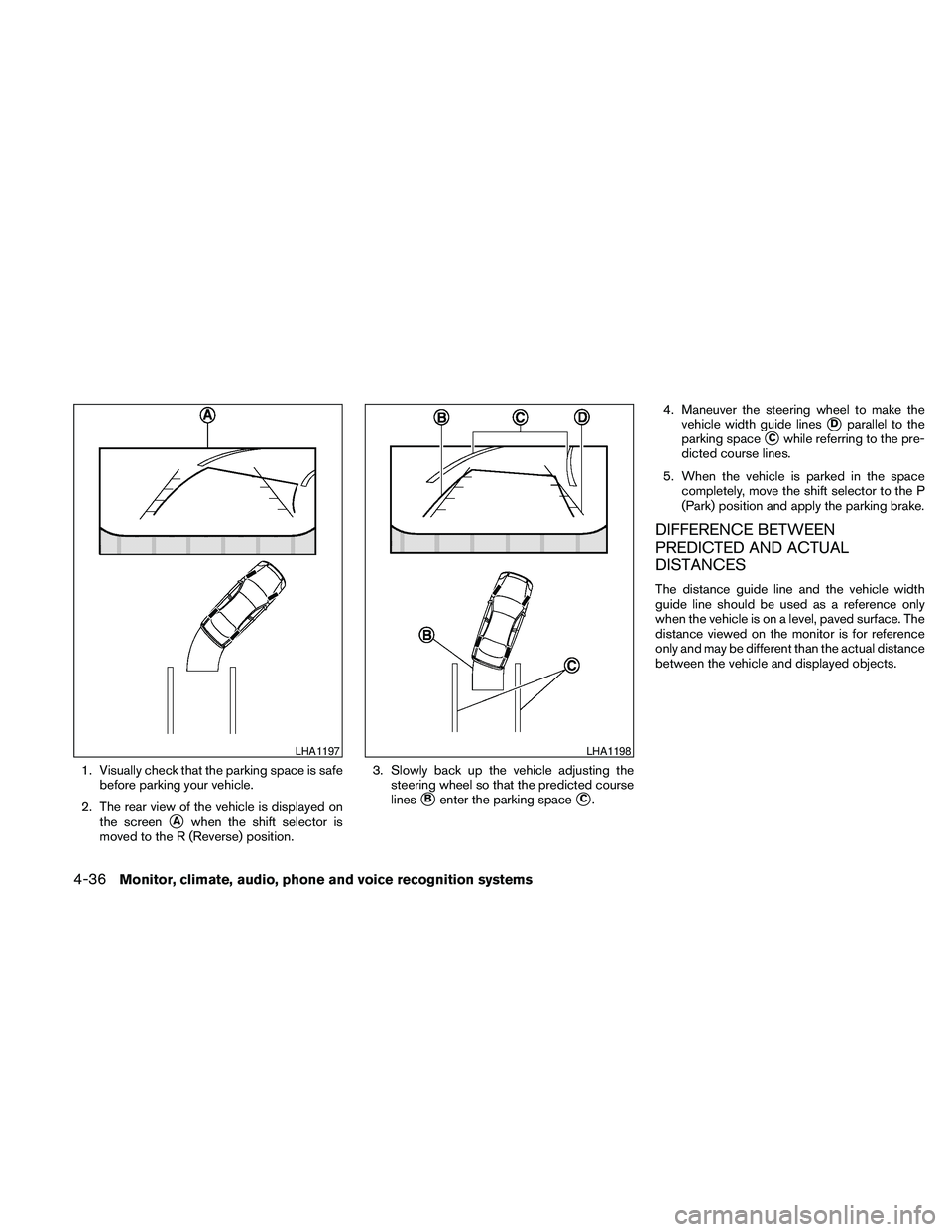
1. Visually check that the parking space is safe
before parking your vehicle.
2. The rear view of the vehicle is displayed on
the screen
sAwhen the shift selector is
moved to the R (Reverse) position.3. Slowly back up the vehicle adjusting the
steering wheel so that the predicted course
lines
sBenter the parking spacesC.4. Maneuver the steering wheel to make the
vehicle width guide lines
sDparallel to the
parking space
sCwhile referring to the pre-
dicted course lines.
5. When the vehicle is parked in the space
completely, move the shift selector to the P
(Park) position and apply the parking brake.
DIFFERENCE BETWEEN
PREDICTED AND ACTUAL
DISTANCES
The distance guide line and the vehicle width
guide line should be used as a reference only
when the vehicle is on a level, paved surface. The
distance viewed on the monitor is for reference
only and may be different than the actual distance
between the vehicle and displayed objects.
LHA1197LHA1198
4-36Monitor, climate, audio, phone and voice recognition systems
Page 256 of 457
When theSEEK/CAT button orTRACK button is pressed for more than 1.5 sec-
onds while the iPodTis playing, the iPodTwill
play while fast forwarding or rewinding. When the
button is released, the iPodTwill return to the
normal play speed.
The NISSAN controller can also be used to se-
lect tracks when the iPodTis playing.
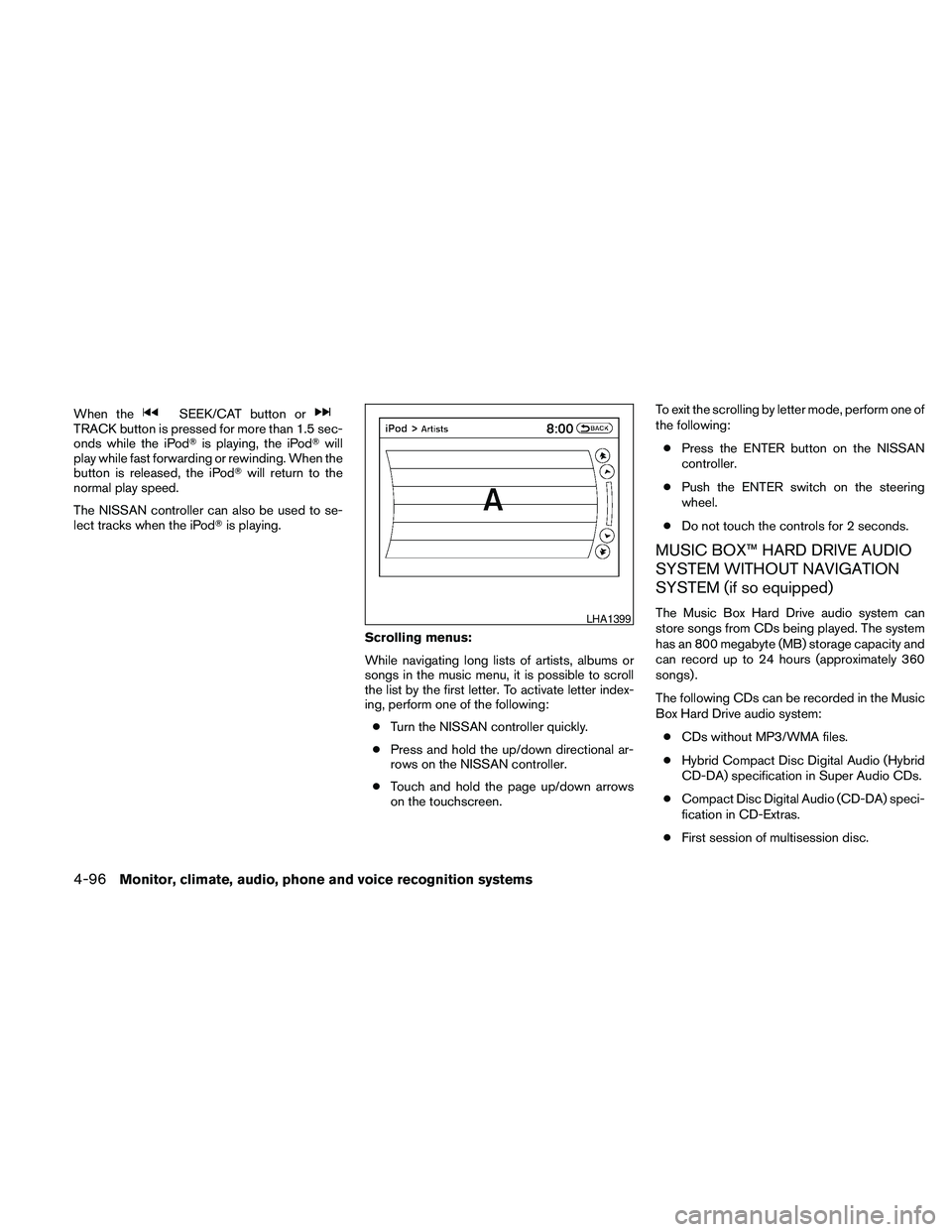
Scrolling menus:
While navigating long lists of artists, albums or
songs in the music menu, it is possible to scroll
the list by the first letter. To activate letter index-
ing, perform one of the following:
cTurn the NISSAN controller quickly.
cPress and hold the up/down directional ar-
rows on the NISSAN controller.
cTouch and hold the page up/down arrows
on the touchscreen.To exit the scrolling by letter mode, perform one of
the following:
cPress the ENTER button on the NISSAN
controller.
cPush the ENTER switch on the steering
wheel.
cDo not touch the controls for 2 seconds.
MUSIC BOX™ HARD DRIVE AUDIO
SYSTEM WITHOUT NAVIGATION
SYSTEM (if so equipped)
The Music Box Hard Drive audio system can
store songs from CDs being played. The system
has an 800 megabyte (MB) storage capacity and
can record up to 24 hours (approximately 360
songs) .
The following CDs can be recorded in the Music
Box Hard Drive audio system:
cCDs without MP3/WMA files.
cHybrid Compact Disc Digital Audio (Hybrid
CD-DA) specification in Super Audio CDs.
cCompact Disc Digital Audio (CD-DA) speci-
fication in CD-Extras.
cFirst session of multisession disc.LHA1399
4-96Monitor, climate, audio, phone and voice recognition systems
Page 258 of 457
The Music Box audio system cannot perform
recording under the following conditions:
cThere is not enough space in the Music Box.
cThe number of albums reaches the maximum
of 99.
cThe number of tracks reaches the maximum
of 2,000.
Automatic recording:
If the “Automatic Recording” function is turned to
ON, recording starts when a CD is inserted and
any previous CD “converting” is finished. For
more information, see “Music Box settings” in this
section.
Stopping recording:
To stop the recording, select the “Stop REC” key
on the screen. If the CD is ejected, the audio
system is turned off or the ignition switch is
placed in the OFF position, the recording also
stops.
Playing recorded songs
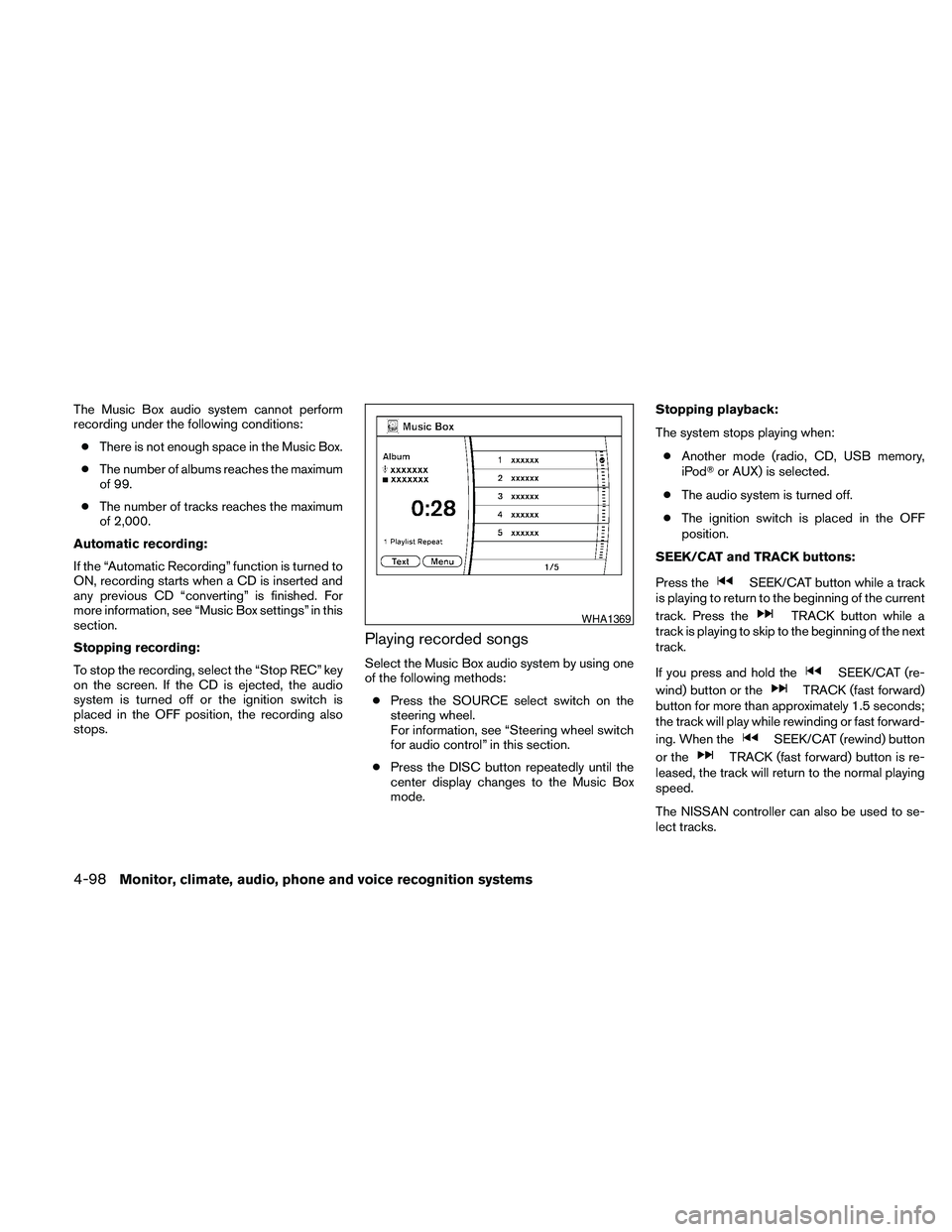
Select the Music Box audio system by using one
of the following methods:
cPress the SOURCE select switch on the
steering wheel.
For information, see “Steering wheel switch
for audio control” in this section.
cPress the DISC button repeatedly until the
center display changes to the Music Box
mode.Stopping playback:
The system stops playing when:
cAnother mode (radio, CD, USB memory,
iPodTor AUX) is selected.
cThe audio system is turned off.
cThe ignition switch is placed in the OFF
position.
SEEK/CAT and TRACK buttons:
Press the
SEEK/CAT button while a track
is playing to return to the beginning of the current
track. Press the
TRACK button while a
track is playing to skip to the beginning of the next
track.
If you press and hold the
SEEK/CAT (re-
wind) button or the
TRACK (fast forward)
button for more than approximately 1.5 seconds;
the track will play while rewinding or fast forward-
ing. When the
SEEK/CAT (rewind) button
or the
TRACK (fast forward) button is re-
leased, the track will return to the normal playing
speed.
The NISSAN controller can also be used to se-
lect tracks.
WHA1369
4-98Monitor, climate, audio, phone and voice recognition systems
Page 264 of 457
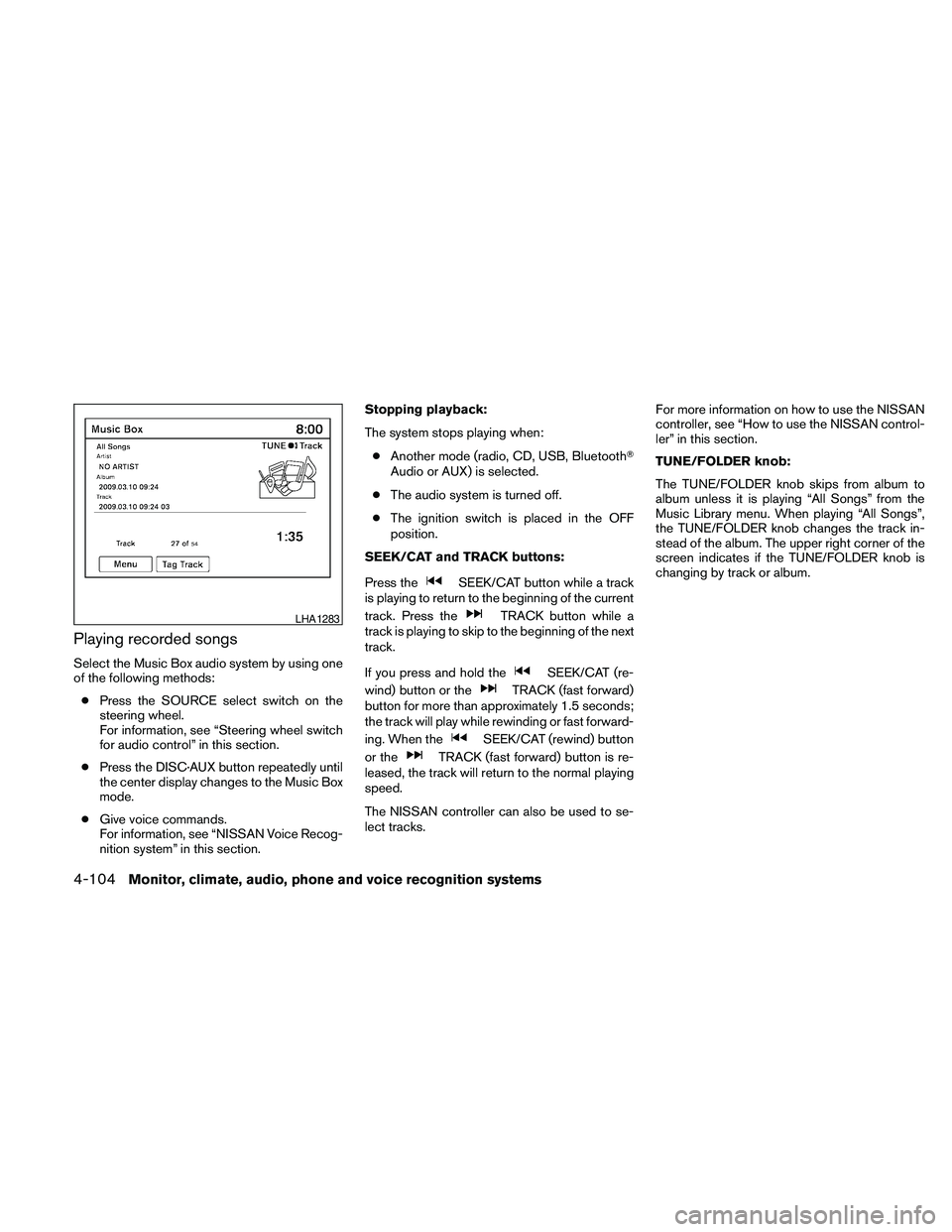
Playing recorded songs
Select the Music Box audio system by using one
of the following methods:
cPress the SOURCE select switch on the
steering wheel.
For information, see “Steering wheel switch
for audio control” in this section.
cPress the DISC·AUX button repeatedly until
the center display changes to the Music Box
mode.
cGive voice commands.
For information, see “NISSAN Voice Recog-
nition system” in this section.Stopping playback:
The system stops playing when:
cAnother mode (radio, CD, USB, BluetoothT
Audio or AUX) is selected.
cThe audio system is turned off.
cThe ignition switch is placed in the OFF
position.
SEEK/CAT and TRACK buttons:
Press the
SEEK/CAT button while a track
is playing to return to the beginning of the current
track. Press the
TRACK button while a
track is playing to skip to the beginning of the next
track.
If you press and hold the
SEEK/CAT (re-
wind) button or the
TRACK (fast forward)
button for more than approximately 1.5 seconds;
the track will play while rewinding or fast forward-
ing. When the
SEEK/CAT (rewind) button
or the
TRACK (fast forward) button is re-
leased, the track will return to the normal playing
speed.
The NISSAN controller can also be used to se-
lect tracks.For more information on how to use the NISSAN
controller, see “How to use the NISSAN control-
ler” in this section.
TUNE/FOLDER knob:
The TUNE/FOLDER knob skips from album to
album unless it is playing “All Songs” from the
Music Library menu. When playing “All Songs”,
the TUNE/FOLDER knob changes the track in-
stead of the album. The upper right corner of the
screen indicates if the TUNE/FOLDER knob is
changing by track or album.
LHA1283
4-104Monitor, climate, audio, phone and voice recognition systems
Page 273 of 457
cA new disc may be rough on the inner and
outer edges. Remove the rough edges by
rubbing the inner and outer edges with the
side of a pen or pencil as illustrated.
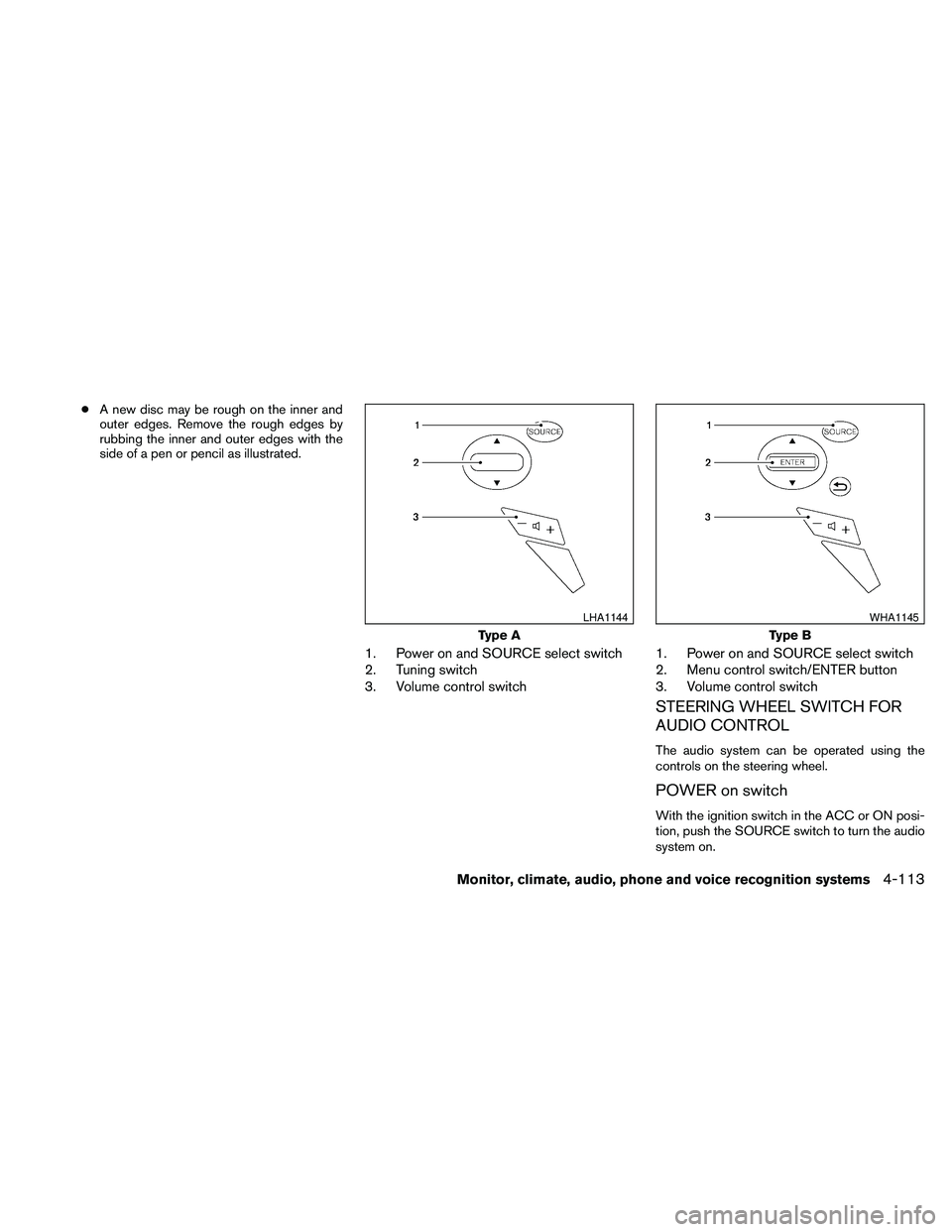
1. Power on and SOURCE select switch
2. Tuning switch
3. Volume control switch1. Power on and SOURCE select switch
2. Menu control switch/ENTER button
3. Volume control switch
STEERING WHEEL SWITCH FOR
AUDIO CONTROL
The audio system can be operated using the
controls on the steering wheel.
POWER on switch
With the ignition switch in the ACC or ON posi-
tion, push the SOURCE switch to turn the audio
system on.
Type A
LHA1144
Type B
WHA1145
Monitor, climate, audio, phone and voice recognition systems4-113