steering NISSAN MAXIMA 2010 Owner´s Manual
[x] Cancel search | Manufacturer: NISSAN, Model Year: 2010, Model line: MAXIMA, Model: NISSAN MAXIMA 2010Pages: 457, PDF Size: 4.66 MB
Page 287 of 457
When a phone is connected to the system, the
phonebook is automatically downloaded to the
vehicle. This feature allows you to access your
phonebook from the BluetoothTsystem and call
contacts by name. You can record a custom
voice tag for contact names that the system has
difficulty recognizing. For more information see
“Record Name” in this section.
NOTE:
Each phone has its own separate phone-
book. You cannot access Phone A’s phone-
book if you are currently connected with
Phone B.
“List names”
sA
Use the List Names command to hear all the
names and locations in the phone book.
The system recites the phone book entries but
does not include the actual phone numbers.
When the playback of the list is complete, the
system goes back to the main menu.
You can stop the playback of the list at any time
by pressing the
button on the steering
wheel. The system ends the VR session. See the
“Record Name” command in this section for in-
formation about recording custom voice tags for
list entries that the system has difficulty pro-
nouncing.“Transfer entry”
sB
Use the Transfer Entry command to store a new
name in the system.
When prompted by the system, say the name you
would like to give the new entry.
For example, say: “Mary.”
If the name is too long or too short, the system
tells you, then prompts you for a name again.
Also, if the name sounds too much like a name
already stored, the system tells you, then prompts
you for a name again.
The system will ask you to transfer a phone
number stored in the cellular phone’s memory.
Enter a phone number by voice command:
For example, say: “five five five one two one two.”
See “How to say numbers” in this section for
more information.
To transfer a phone number stored in the cellular
phone’s memory:
Say “Transfer entry.” The system acknowledges
the command and asks you to initiate the transfer
from the phone handset. The new contact phone
number will be transferred from the cellular
phone via the BluetoothTcommunication link.The transfer procedure varies according to each
cellular phone. See the cellular phone Owner’s
Manual for details. You can also visit
www.nissanusa.com/bluetooth for instructions
on transferring phone numbers from NISSAN
recommended cellular phones.
The system repeats the number and prompts you
for the next command. When you have finished
entering numbers or transferring an entry, choose
“Store.”
The system confirms the name, location and
number.
“Delete Entry”
sC
Use the Delete Entry command to erase one
entry from the phonebook. After the system rec-
ognizes the command, speak the name to delete
or say “List Names” to choose an entry.
“Record name”
sD
The system allows you to record custom voice
tags for contact names in the phonebook that the
vehicle has difficulty recognizing. This feature can
also be used to record voice tags to directly dial
an entry with multiple numbers. Up to 40 voice
tags can be recorded to the system.
Monitor, climate, audio, phone and voice recognition systems4-127
Page 290 of 457
ccall eight oh five four one
ccorrection
cconnect phone
cdial seven four oh one eight
cprevious entry
cdelete
cdial nine seven two six six
ccall seven six three oh one
cgo back
ccall five six two eight zero
cdial six six four three seven
MANUAL CONTROL (if so equipped)
While using the voice recognition system, it is
possible to select menu options by using the
steering wheel controls instead of speaking voice
commands. The manual control mode does not
allow dialing a phone number by digits. The user
may select an entry from the Phonebook or Re-
cent Calls lists. To re-activate voice recognition,
exit the manual control mode by pressing and
holding the PHONE/END (
) button. At that
time, pressing the PHONE/SEND (
) button
will start the Hands Free Phone System.
Operating tips
cTo enter manual control mode, start the
voice recognition system and tilt the tuning
(
) switch up or down. The system will
speak9Showing Manual Options9when
manual controls are initially activated.
cTo browse the menu options, tilt the tuning
(
) switch up or down. The system will
always speak the current menu option. De-
pending on the audio display, it will also
show the current menu option.
cTo select the current menu option, press the
PHONE/SEND (
) button.
cTo go back to the previous menu, press the
PHONE/END (
) button. If the current
menu is the Main Menu, pressing the
PHONE/END (
) button will exit the
Phone system.
cTo exit the manual control mode, press and
hold the PHONE/END (
) button for 5
seconds.
TROUBLESHOOTING GUIDE
The system should respond correctly to all voice
commands without difficulty. If problems are en-
countered, try the following solutions.
Where the solutions are listed by number, try
each solution in turn, starting with number 1, until
the problem is resolved.
4-130Monitor, climate, audio, phone and voice recognition systems
Page 298 of 457
cVoicetag
Confirm and store the voicetag. Voicetags
allow easy dialing using the NISSAN Voice
Recognition system. For more information,
see “Nissan Voice Recognition System” in
this section.
To delete an entry, select the “Delete” key at step
3.
HANDSET PHONEBOOK
Many phones will support an automatic down-
load of the cellular phone’s phonebook. Since
this method allows for up to 1000 numbers to be
stored and entries are automatically assigned
voice tags by the system, this is a useful function
for easy dialing supported by the Voice Recogni-
tion system.
Transferring the handset phonebook
If your cellular phone supports automatic down-
loading, the system transfers the handset phone-
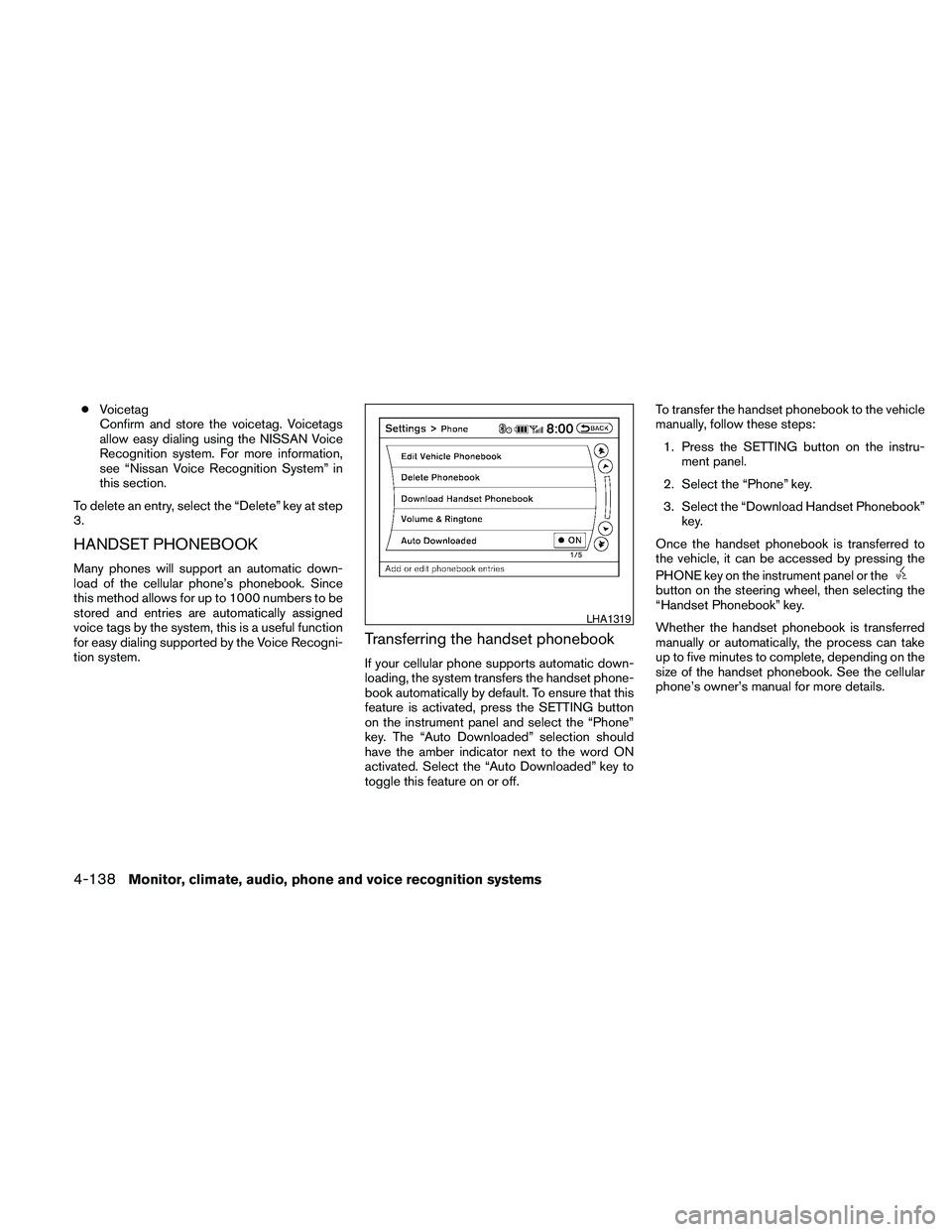
book automatically by default. To ensure that this
feature is activated, press the SETTING button
on the instrument panel and select the “Phone”
key. The “Auto Downloaded” selection should
have the amber indicator next to the word ON
activated. Select the “Auto Downloaded” key to
toggle this feature on or off.To transfer the handset phonebook to the vehicle
manually, follow these steps:
1. Press the SETTING button on the instru-
ment panel.
2. Select the “Phone” key.
3. Select the “Download Handset Phonebook”
key.
Once the handset phonebook is transferred to
the vehicle, it can be accessed by pressing the
PHONE key on the instrument panel or the
button on the steering wheel, then selecting the
“Handset Phonebook” key.
Whether the handset phonebook is transferred
manually or automatically, the process can take
up to five minutes to complete, depending on the
size of the handset phonebook. See the cellular
phone’s owner’s manual for more details.
LHA1319
4-138Monitor, climate, audio, phone and voice recognition systems
Page 299 of 457
MAKING A CALL
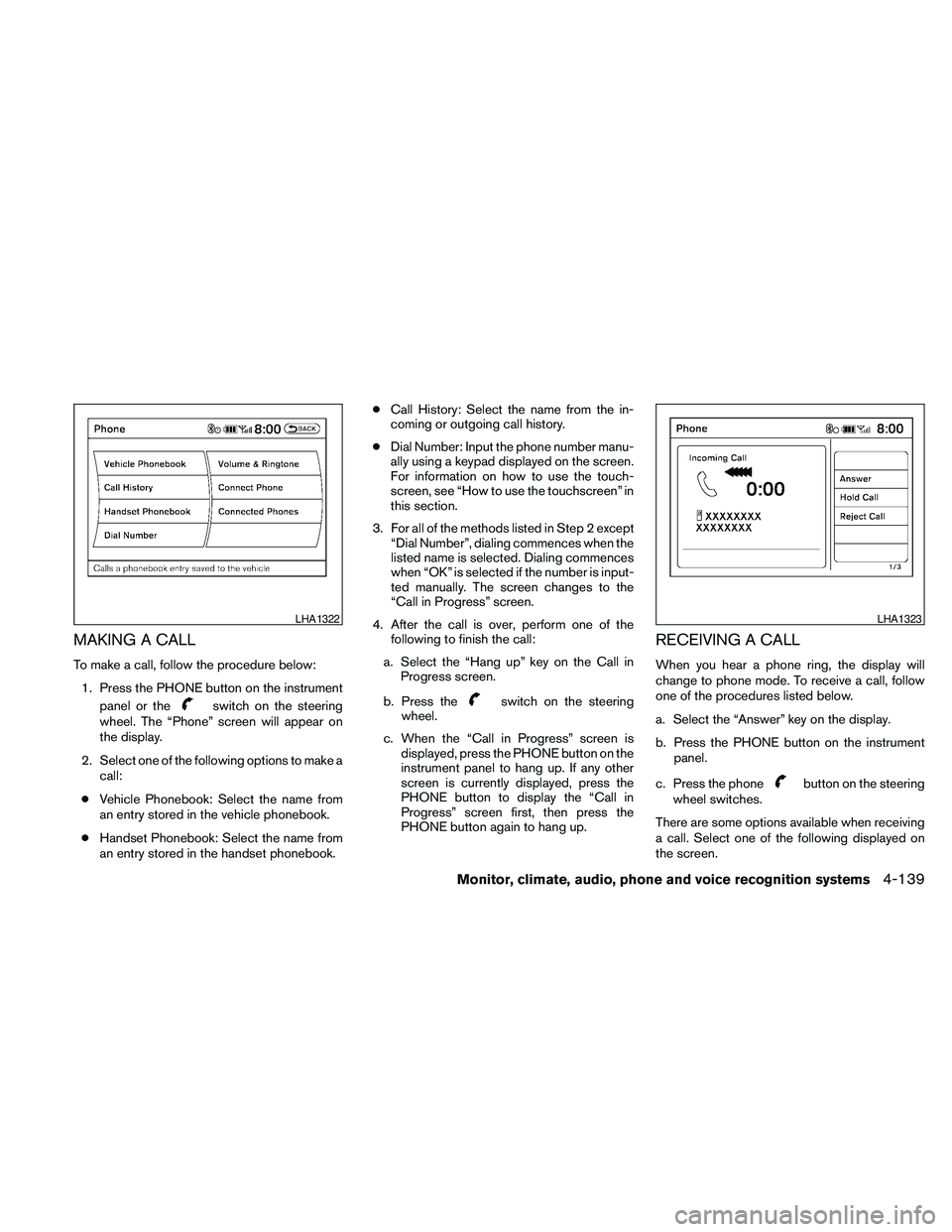
To make a call, follow the procedure below:
1. Press the PHONE button on the instrument
panel or the
switch on the steering
wheel. The “Phone” screen will appear on
the display.
2. Select one of the following options to make a
call:
cVehicle Phonebook: Select the name from
an entry stored in the vehicle phonebook.
cHandset Phonebook: Select the name from
an entry stored in the handset phonebook.cCall History: Select the name from the in-
coming or outgoing call history.
cDial Number: Input the phone number manu-
ally using a keypad displayed on the screen.
For information on how to use the touch-
screen, see “How to use the touchscreen” in
this section.
3. For all of the methods listed in Step 2 except
“Dial Number”, dialing commences when the
listed name is selected. Dialing commences
when “OK” is selected if the number is input-
ted manually. The screen changes to the
“Call in Progress” screen.
4. After the call is over, perform one of the
following to finish the call:
a. Select the “Hang up” key on the Call in
Progress screen.
b. Press theswitch on the steering
wheel.
c. When the “Call in Progress” screen is
displayed, press the PHONE button on the
instrument panel to hang up. If any other
screen is currently displayed, press the
PHONE button to display the “Call in
Progress” screen first, then press the
PHONE button again to hang up.
RECEIVING A CALL
When you hear a phone ring, the display will
change to phone mode. To receive a call, follow
one of the procedures listed below.
a. Select the “Answer” key on the display.
b. Press the PHONE button on the instrument
panel.
c. Press the phone
button on the steering
wheel switches.
There are some options available when receiving
a call. Select one of the following displayed on
the screen.
LHA1322LHA1323
Monitor, climate, audio, phone and voice recognition systems4-139
Page 300 of 457
Answer:
Accept an incoming call to talk.
Hold Call:
Put an incoming call on hold.
Reject Call:
Reject an incoming call.
To finish the call, follow one of the procedures
listed below:
a. Select the “Reject Call” key on the display.
b. Press the PHONE button on the instrument
panel.
c. Press and hold the phone
button on the
steering wheel switches.
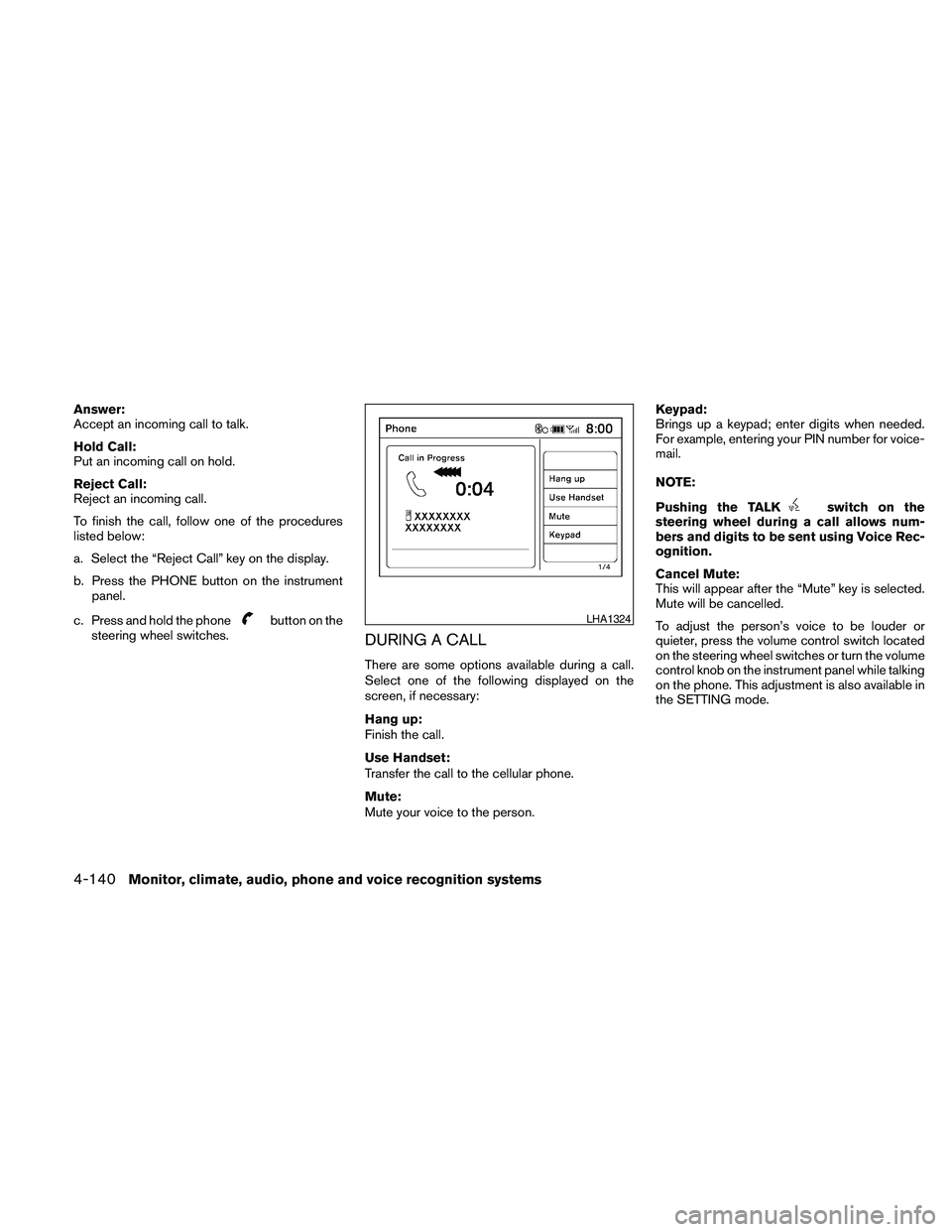
DURING A CALL
There are some options available during a call.
Select one of the following displayed on the
screen, if necessary:
Hang up:
Finish the call.
Use Handset:
Transfer the call to the cellular phone.
Mute:
Mute your voice to the person.Keypad:
Brings up a keypad; enter digits when needed.
For example, entering your PIN number for voice-
mail.
NOTE:
Pushing the TALK
switch on the
steering wheel during a call allows num-
bers and digits to be sent using Voice Rec-
ognition.
Cancel Mute:
This will appear after the “Mute” key is selected.
Mute will be cancelled.
To adjust the person’s voice to be louder or
quieter, press the volume control switch located
on the steering wheel switches or turn the volume
control knob on the instrument panel while talking
on the phone. This adjustment is also available in
the SETTING mode.
LHA1324
4-140Monitor, climate, audio, phone and voice recognition systems
Page 301 of 457
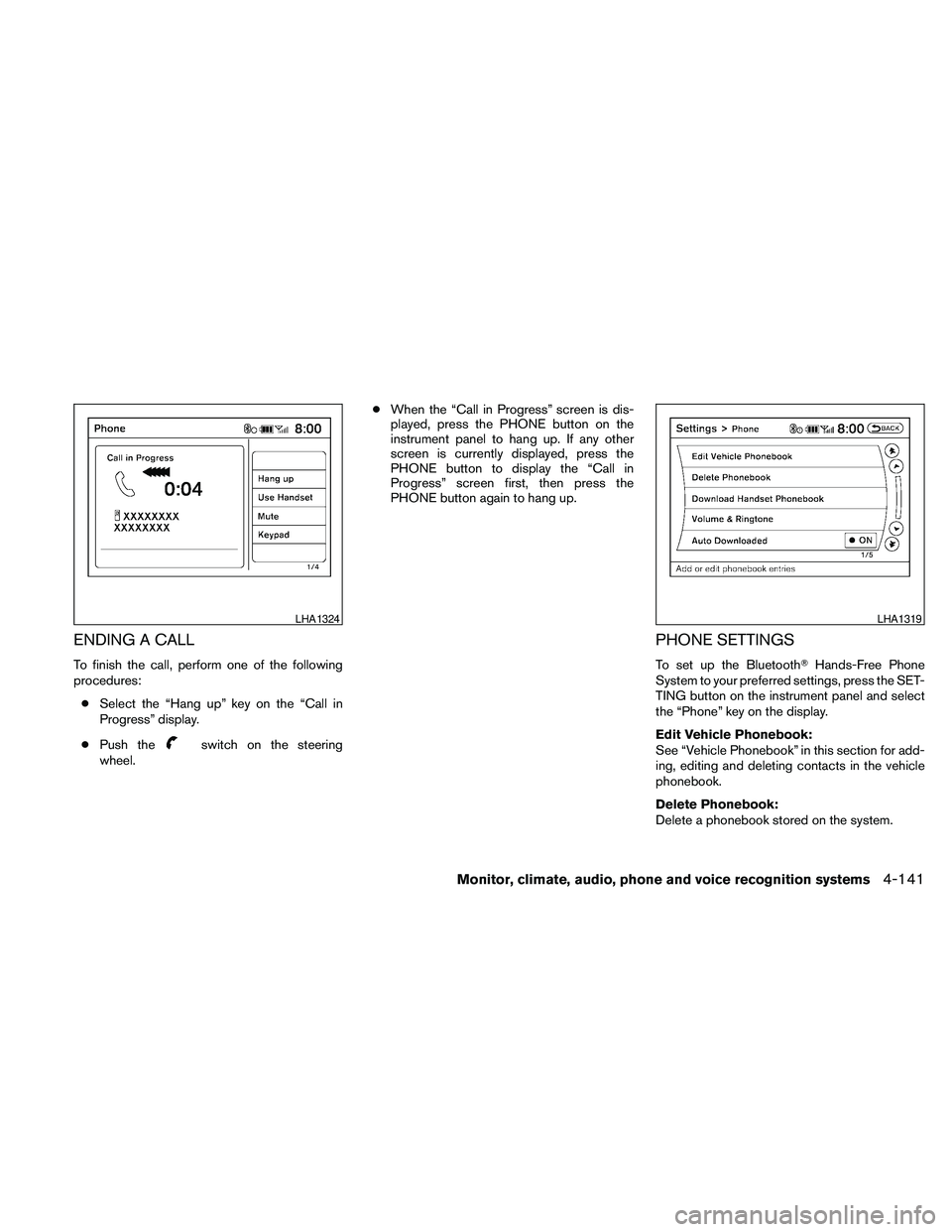
ENDING A CALL
To finish the call, perform one of the following
procedures:
cSelect the “Hang up” key on the “Call in
Progress” display.
cPush the
switch on the steering
wheel.cWhen the “Call in Progress” screen is dis-
played, press the PHONE button on the
instrument panel to hang up. If any other
screen is currently displayed, press the
PHONE button to display the “Call in
Progress” screen first, then press the
PHONE button again to hang up.
PHONE SETTINGS
To set up the BluetoothTHands-Free Phone
System to your preferred settings, press the SET-
TING button on the instrument panel and select
the “Phone” key on the display.
Edit Vehicle Phonebook:
See “Vehicle Phonebook” in this section for add-
ing, editing and deleting contacts in the vehicle
phonebook.
Delete Phonebook:
Delete a phonebook stored on the system.
LHA1324LHA1319
Monitor, climate, audio, phone and voice recognition systems4-141
Page 303 of 457
Edit Bluetooth Info:
Check information about the device name, device
address and device PIN.
Replace Connected Phone:
Replace the phone currently connected to the
system. This option allows you to keep any voic-
etags that were recorded using the previous
phone.
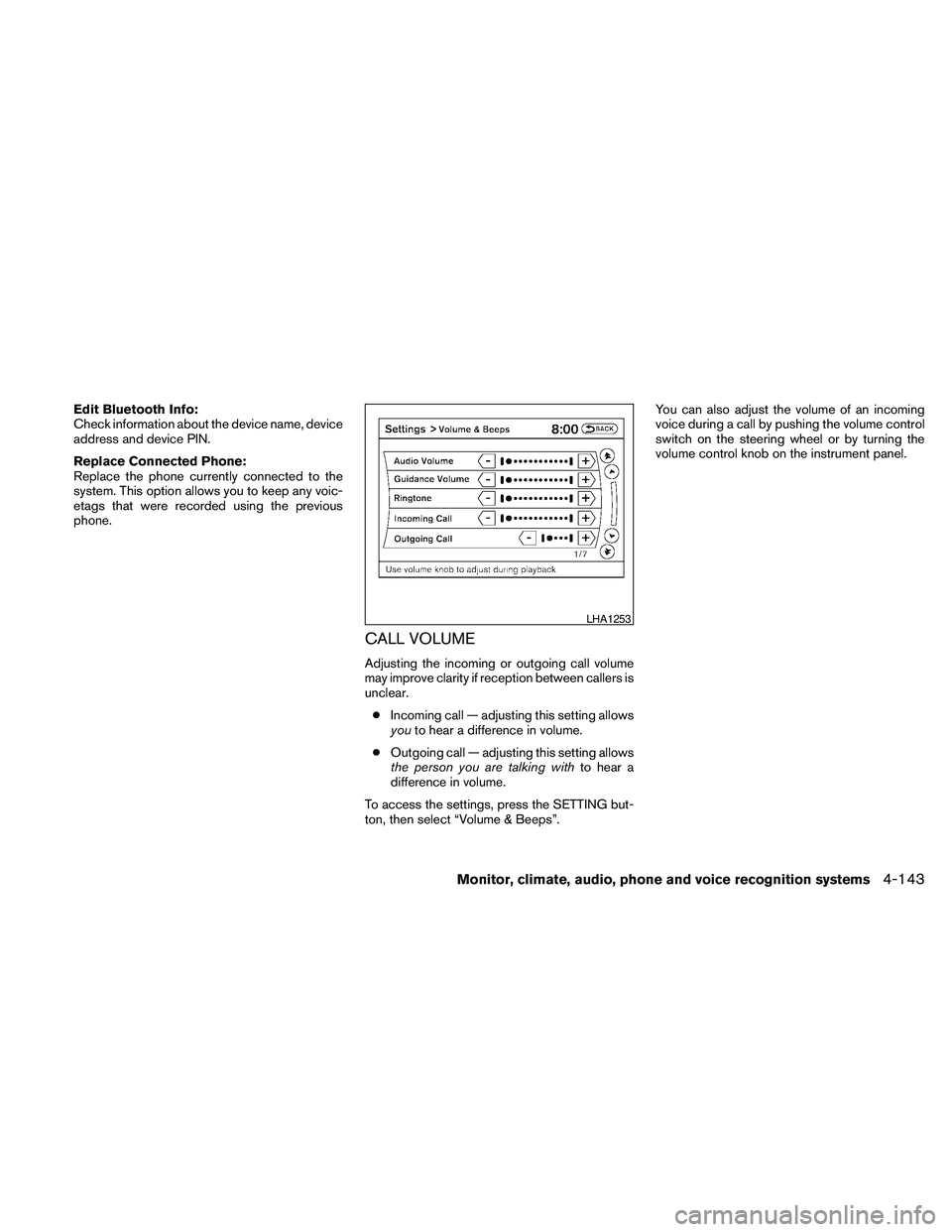
CALL VOLUME
Adjusting the incoming or outgoing call volume
may improve clarity if reception between callers is
unclear.
cIncoming call — adjusting this setting allows
youto hear a difference in volume.
cOutgoing call — adjusting this setting allows
the person you are talking withto hear a
difference in volume.
To access the settings, press the SETTING but-
ton, then select “Volume & Beeps”.You can also adjust the volume of an incoming
voice during a call by pushing the volume control
switch on the steering wheel or by turning the
volume control knob on the instrument panel.
LHA1253
Monitor, climate, audio, phone and voice recognition systems4-143
Page 304 of 457
NISSAN Voice Recognition allows hands-free
operation of the systems equipped on this ve-
hicle, such as phone and vehicle information.
There are two voice recognition modes of opera-
tion available. They are:
cStandard Mode
cAlternate Command Mode
In Standard Mode (the factory default setting) ,
commands that are available are always shown
on the display and announced by the system. You
can complete your desired operation by simply
following the prompts given by the system. Not all
NISSAN Voice Recognition options are available
while in Standard Mode.
For advanced operation, you can change to an
Alternate Command Mode that enables the op-
eration of the display, audio, and climate control
through NISSAN Voice Recognition. When this
mode is active, an expanded list of commands
can be spoken after pushing the TALK
switch on the steering wheel, and the voice com-
mand menu prompts are turned off.
In Alternate Command Mode the recognition
success rate may be affected because the num-
ber of available commands and the ways of
speaking each command are increased. See
“NISSAN Voice Recognition Alternate Com-
mand Mode” in this section.To improve the recognition success rate when
Alternate Command Mode is active, try using the
Speaker Adaptation Function available in that
mode. See “Speaker Adaptation Function” in this
section. Otherwise, it is recommended that Alter-
nate Command Mode be turned off and Standard
Mode be used for the best recognition perfor-
mance.
While using the NISSAN Voice Recognition sys-
tem for certain Phone and Navigation features,
you can switch to using manual controls (touch-
screen, NISSAN controller, steering wheel con-
trols) and the information you have already en-
tered by voice control will be retained. To switch
to manual controls, select the “Manual Controls”
key on the display when it appears. The system
will respond by speaking “Changing to manual
operation. Please use manual controls to con-
tinue.”
For the voice commands for the navigation sys-
tem, refer to the Navigation System Owner’s
Manual of your vehicle.
For vehicles in the U.S., the factory default setting
is the Standard Mode. See “Standard Mode” in
this section. For vehicles in Canada, the factory
default setting is the Alternate Command Mode.
See “Alternate Command Mode” in this section.
NISSAN VOICE RECOGNITION
STANDARD MODE
The Standard Mode enables control of naviga-
tion, phone and vehicle information. With this
setting active, commands that are available are
always shown on the display and announced by
the system.
Displaying user guide
If you use the NISSAN Voice Recognition system
for the first time or you do not know how to
operate it, you can display the User Guide for
confirmation.
You can confirm how to use voice commands by
accessing a simplified User Guide, which con-
tains basic instructions and tutorials for several
voice commands.
NISSAN VOICE RECOGNITION
SYSTEM (if so equipped)
4-144Monitor, climate, audio, phone and voice recognition systems
Page 308 of 457
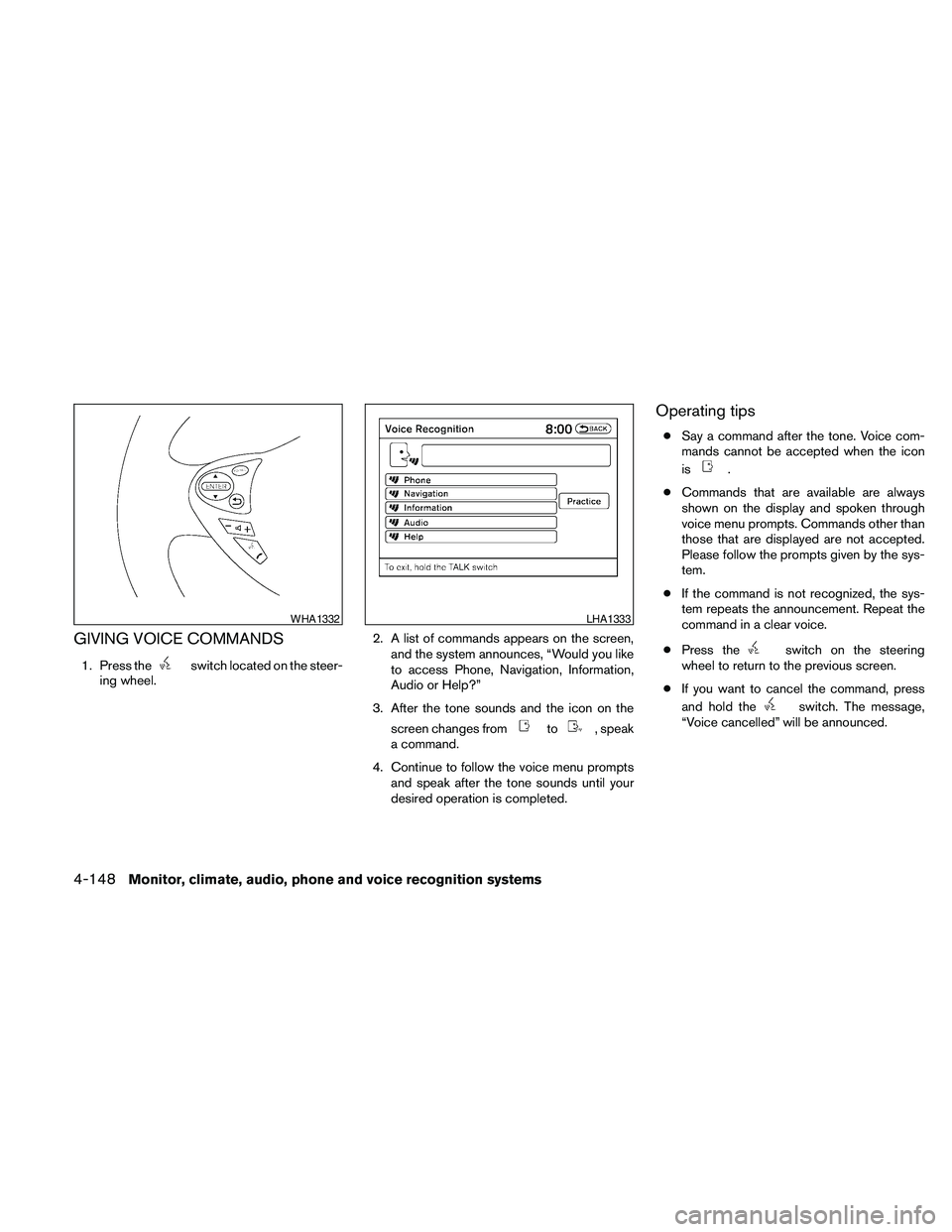
GIVING VOICE COMMANDS
1. Press theswitch located on the steer-
ing wheel.2. A list of commands appears on the screen,
and the system announces, “Would you like
to access Phone, Navigation, Information,
Audio or Help?”
3. After the tone sounds and the icon on the
screen changes from
to, speak
a command.
4. Continue to follow the voice menu prompts
and speak after the tone sounds until your
desired operation is completed.
Operating tips
cSay a command after the tone. Voice com-
mands cannot be accepted when the icon
is
.
cCommands that are available are always
shown on the display and spoken through
voice menu prompts. Commands other than
those that are displayed are not accepted.
Please follow the prompts given by the sys-
tem.
cIf the command is not recognized, the sys-
tem repeats the announcement. Repeat the
command in a clear voice.
cPress the
switch on the steering
wheel to return to the previous screen.
cIf you want to cancel the command, press
and hold the
switch. The message,
“Voice cancelled” will be announced.
WHA1332LHA1333
4-148Monitor, climate, audio, phone and voice recognition systems
Page 309 of 457
cIf you want to adjust the volume of the sys-
tem feedback, push the volume control
switch on the steering wheel or use the
audio system volume knob while the system
is making an announcement.
How to speak numbers
Voice Recognition requires a certain way to
speak numbers when giving voice commands.
Refer to the following examples.
General rule:
cOnly single digits 0 (zero) to 9 can be used.
cWhen saying the phone number 800-662-
6200, the system will accept “eight-
hundred” in addition to “eight zero zero” or
“eight oh oh”. 500, 700, and 900 are also
supported.
Examples:
c1-800-662-6200
– “One eight zero zero six six two six two
zero zero”
– “One eight hundred six six two six two
zero zero”Improving Recognition of Phone numbers:
You can improve the recognition of phone num-
bers by saying the phone number in three groups
of numbers. For example, when you try to call
800-662-6200, say “eight zero zero” first, and
the system will then ask you for the next three
digits. Then, say “six six two”. After recognition,
the system will then ask for the last four digits.
Say, “six two zero zero”. Using this method of
phone digit entry can improve recognition perfor-
mance.
NOTE:
When speaking a house number, speak the
number “0” as “zero” or “oh”. If the letter
“O” is included in the house number, it will
not be recognized as “0” even if you speak
“oh” instead of “zero”.
Monitor, climate, audio, phone and voice recognition systems4-149