clock NISSAN MAXIMA 2010 Owner´s Manual
[x] Cancel search | Manufacturer: NISSAN, Model Year: 2010, Model line: MAXIMA, Model: NISSAN MAXIMA 2010Pages: 457, PDF Size: 4.66 MB
Page 140 of 457
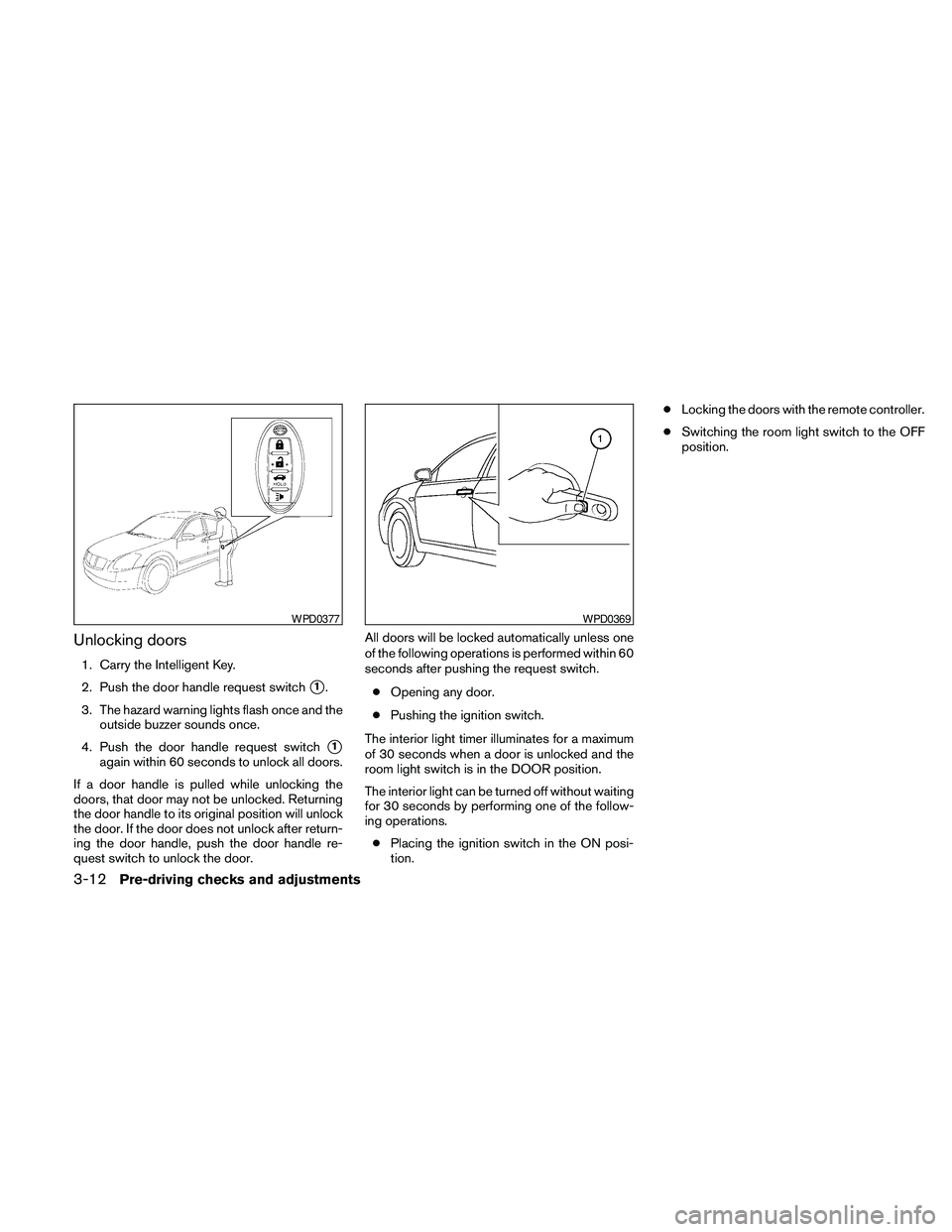
Unlocking doors
1. Carry the Intelligent Key.
2. Push the door handle request switch
s1.
3. The hazard warning lights flash once and the
outside buzzer sounds once.
4. Push the door handle request switch
s1
again within 60 seconds to unlock all doors.
If a door handle is pulled while unlocking the
doors, that door may not be unlocked. Returning
the door handle to its original position will unlock
the door. If the door does not unlock after return-
ing the door handle, push the door handle re-
quest switch to unlock the door.All doors will be locked automatically unless one
of the following operations is performed within 60
seconds after pushing the request switch.
cOpening any door.
cPushing the ignition switch.
The interior light timer illuminates for a maximum
of 30 seconds when a door is unlocked and the
room light switch is in the DOOR position.
The interior light can be turned off without waiting
for 30 seconds by performing one of the follow-
ing operations.
cPlacing the ignition switch in the ON posi-
tion.cLocking the doors with the remote controller.
cSwitching the room light switch to the OFF
position.
WPD0377WPD0369
3-12Pre-driving checks and adjustments
Page 142 of 457
CAUTION
After locking the doors using the Intelli-
gent Key, be sure that the doors have been
securely locked by operating the door
handles.
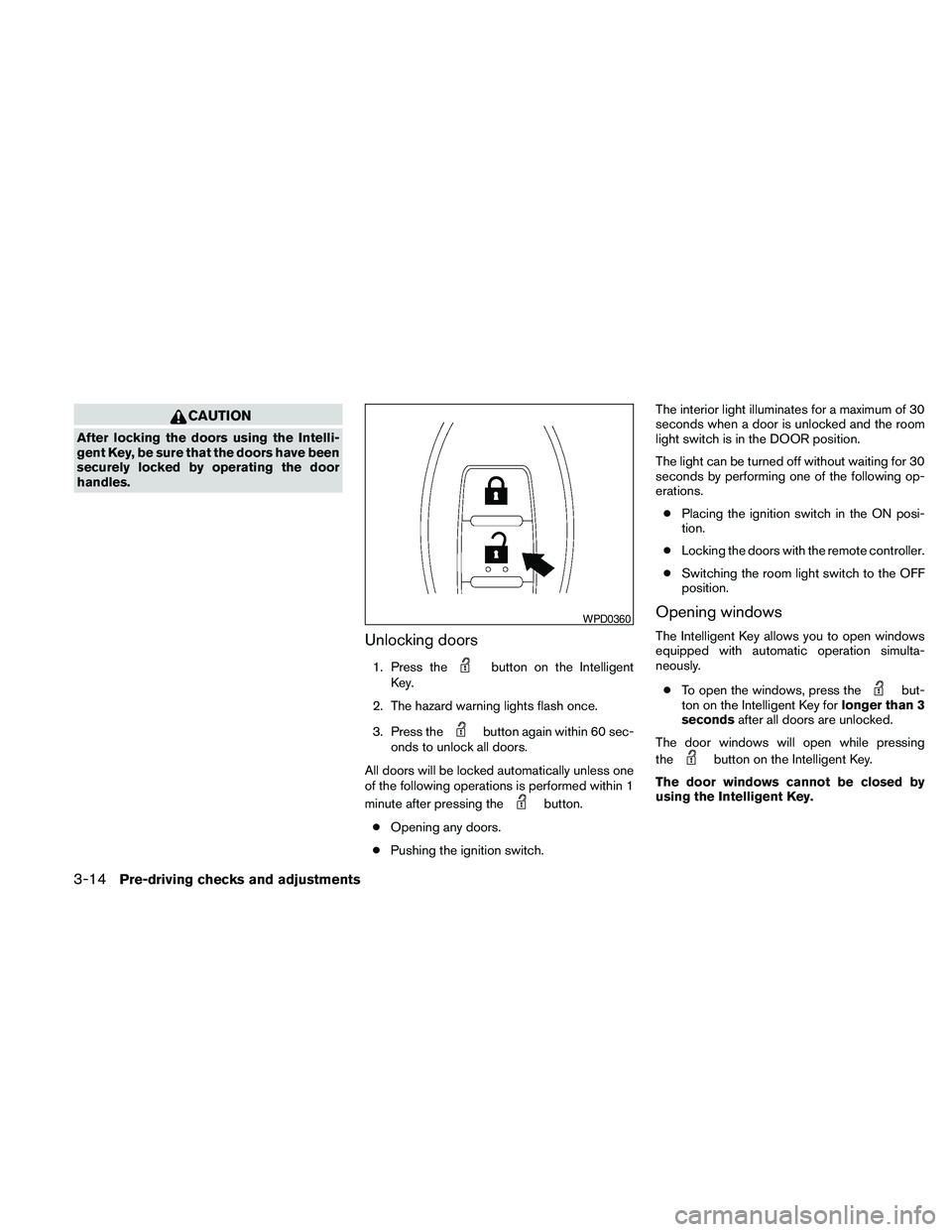
Unlocking doors
1. Press thebutton on the Intelligent
Key.
2. The hazard warning lights flash once.
3. Press the
button again within 60 sec-
onds to unlock all doors.
All doors will be locked automatically unless one
of the following operations is performed within 1
minute after pressing the
button.
cOpening any doors.
cPushing the ignition switch.The interior light illuminates for a maximum of 30
seconds when a door is unlocked and the room
light switch is in the DOOR position.
The light can be turned off without waiting for 30
seconds by performing one of the following op-
erations.
cPlacing the ignition switch in the ON posi-
tion.
cLocking the doors with the remote controller.
cSwitching the room light switch to the OFF
position.
Opening windows
The Intelligent Key allows you to open windows
equipped with automatic operation simulta-
neously.
cTo open the windows, press the
but-
ton on the Intelligent Key forlonger than 3
secondsafter all doors are unlocked.
The door windows will open while pressing
the
button on the Intelligent Key.
The door windows cannot be closed by
using the Intelligent Key.
WPD0360
3-14Pre-driving checks and adjustments
Page 149 of 457

OPENING THE FUEL-FILLER DOOR
The fuel-filler door automatically unlocks when all
doors are unlocked.
1. Unlock the fuel-filler door using one of the
following operations.
cUnlock all doors with the keyfob.
cUnlock all doors with the key.
cPush the power door lock switch to the
unlock position.
2. To open the fuel filler door, push the right
side of the fuel filler door to release.To lock, close the fuel-filler door securely and
lock the doors.
FUEL-FILLER CAP
The fuel-filler cap is a ratcheting type. Turn the
cap counterclockwise to remove. To tighten, turn
the cap clockwise until ratcheting clicks are
heard.
Put the fuel-filler cap on the cap holder
s1while
refueling.
WPD0454LPD0482
FUEL-FILLER DOOR
Pre-driving checks and adjustments3-21
Page 166 of 457
If you press the BACK buttons4during setup,
the setup will be canceled and/or the display will
return to the previous screen.
cFinish setup.
In some screens pressing the BACK button
s4
accepts the changes made during setup.
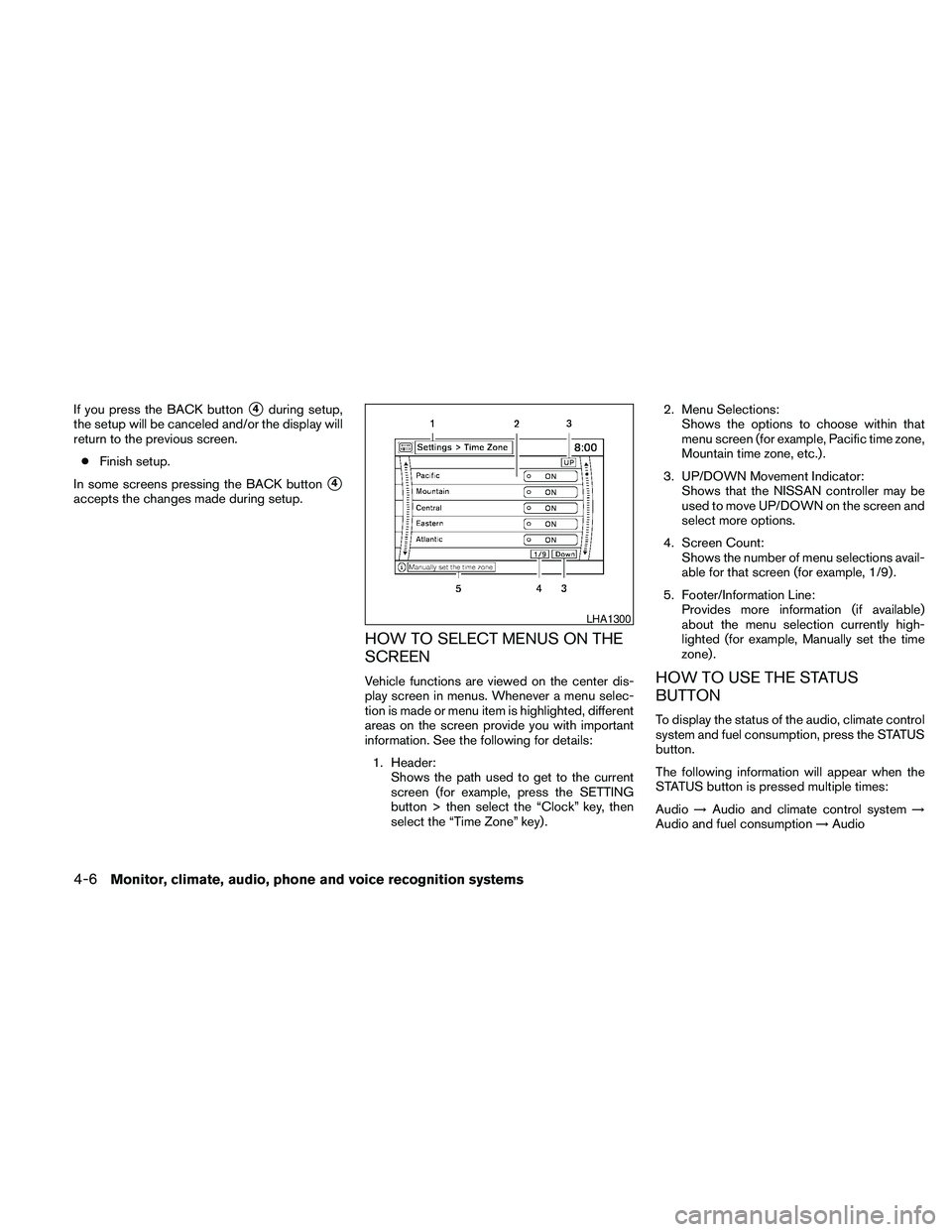
HOW TO SELECT MENUS ON THE
SCREEN
Vehicle functions are viewed on the center dis-
play screen in menus. Whenever a menu selec-
tion is made or menu item is highlighted, different
areas on the screen provide you with important
information. See the following for details:
1. Header:
Shows the path used to get to the current
screen (for example, press the SETTING
button > then select the “Clock” key, then
select the “Time Zone” key) .2. Menu Selections:
Shows the options to choose within that
menu screen (for example, Pacific time zone,
Mountain time zone, etc.) .
3. UP/DOWN Movement Indicator:
Shows that the NISSAN controller may be
used to move UP/DOWN on the screen and
select more options.
4. Screen Count:
Shows the number of menu selections avail-
able for that screen (for example, 1/9) .
5. Footer/Information Line:
Provides more information (if available)
about the menu selection currently high-
lighted (for example, Manually set the time
zone) .HOW TO USE THE STATUS
BUTTON
To display the status of the audio, climate control
system and fuel consumption, press the STATUS
button.
The following information will appear when the
STATUS button is pressed multiple times:
Audio!Audio and climate control system!
Audio and fuel consumption!Audio
LHA1300
4-6Monitor, climate, audio, phone and voice recognition systems
Page 172 of 457

Clock
The following display will appear after pressing
the SETTING button, then selecting the “Clock”
key using the NISSAN controller.
On-screen Clock:
When this item is enabled (indicator light illumi-
nated) , a clock is always displayed in the upper
right corner of the screen.
Clock Format:
Choose either the 12h (12-hour) clock display or
the 24h (24-hour) clock display.Daylight Savings Time:
When this item is enabled (indicator light illumi-
nated) , daylight savings time is on. To turn off the
daylight savings time, touch the “ON” key; the
amber indicator light will go out.
Time Zone:
Select the “Time Zone” key; the Time Zone
screen will appear.
Select one of the following zones, depending on
the current location, by selecting the correct time
zone key to enable that time zone (indicator light
will illuminate for that location) .
cPacific
cMountain
cCentral
cEastern
cAtlantic
LHA1307LHA0933
4-12Monitor, climate, audio, phone and voice recognition systems
Page 173 of 457
cNewfoundland
cAleutian
cHawaii
cAlaska
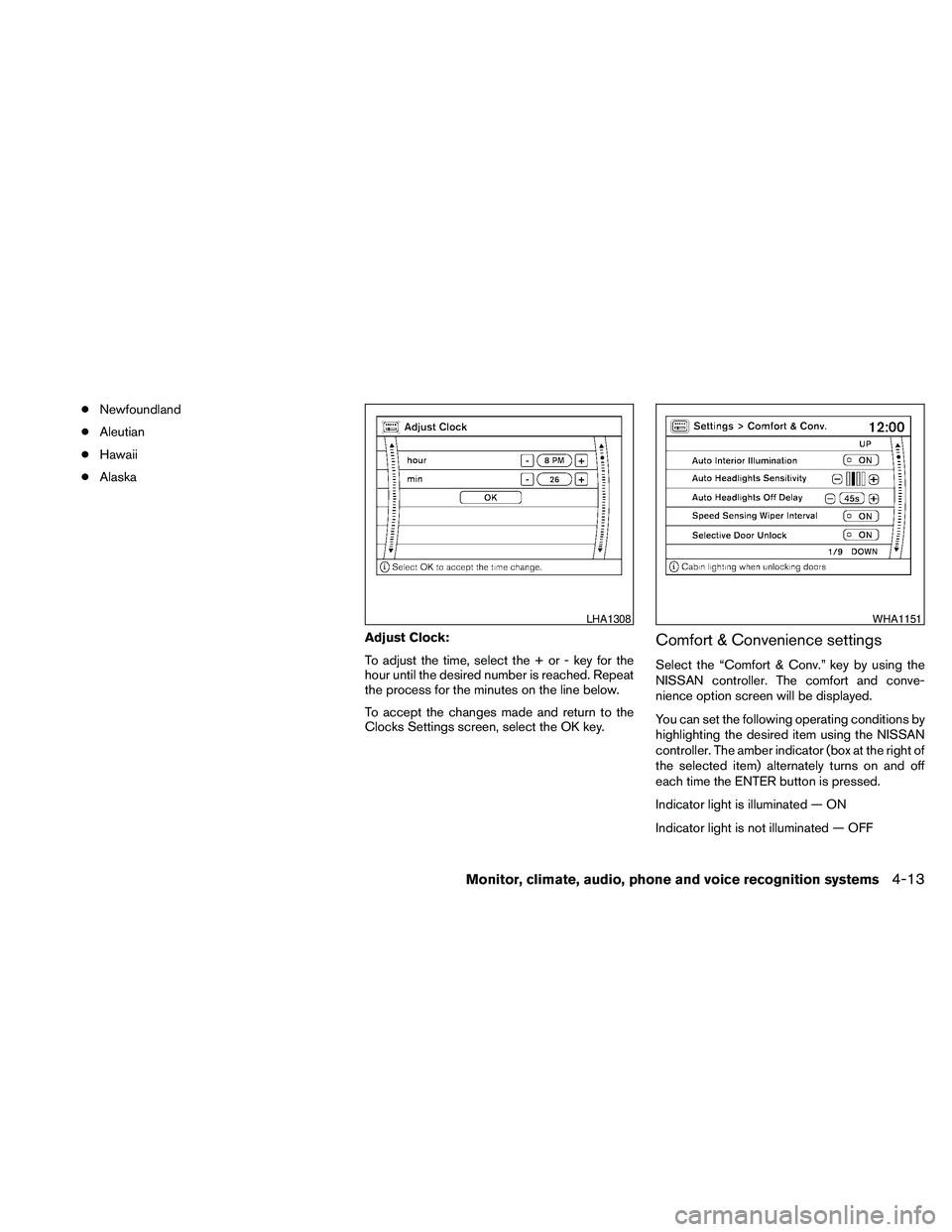
Adjust Clock:
To adjust the time, select the + or - key for the
hour until the desired number is reached. Repeat
the process for the minutes on the line below.
To accept the changes made and return to the
Clocks Settings screen, select the OK key.
Comfort & Convenience settings
Select the “Comfort & Conv.” key by using the
NISSAN controller. The comfort and conve-
nience option screen will be displayed.
You can set the following operating conditions by
highlighting the desired item using the NISSAN
controller. The amber indicator (box at the right of
the selected item) alternately turns on and off
each time the ENTER button is pressed.
Indicator light is illuminated — ON
Indicator light is not illuminated — OFF
LHA1308WHA1151
Monitor, climate, audio, phone and voice recognition systems4-13
Page 186 of 457
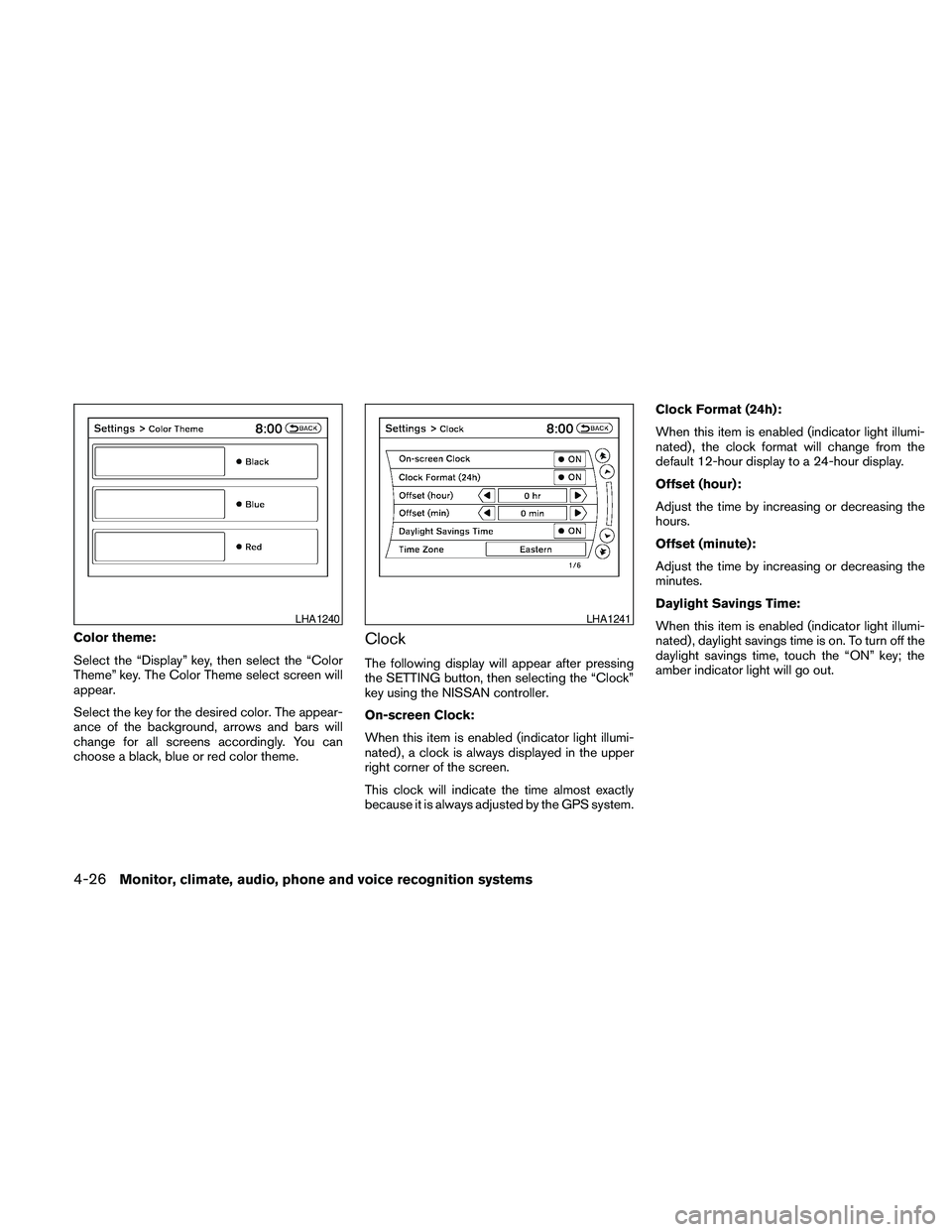
Color theme:
Select the “Display” key, then select the “Color
Theme” key. The Color Theme select screen will
appear.
Select the key for the desired color. The appear-
ance of the background, arrows and bars will
change for all screens accordingly. You can
choose a black, blue or red color theme.Clock
The following display will appear after pressing
the SETTING button, then selecting the “Clock”
key using the NISSAN controller.
On-screen Clock:
When this item is enabled (indicator light illumi-
nated) , a clock is always displayed in the upper
right corner of the screen.
This clock will indicate the time almost exactly
because it is always adjusted by the GPS system.Clock Format (24h):
When this item is enabled (indicator light illumi-
nated) , the clock format will change from the
default 12-hour display to a 24-hour display.
Offset (hour):
Adjust the time by increasing or decreasing the
hours.
Offset (minute):
Adjust the time by increasing or decreasing the
minutes.
Daylight Savings Time:
When this item is enabled (indicator light illumi-
nated) , daylight savings time is on. To turn off the
daylight savings time, touch the “ON” key; the
amber indicator light will go out.
LHA1240LHA1241
4-26Monitor, climate, audio, phone and voice recognition systems
Page 224 of 457
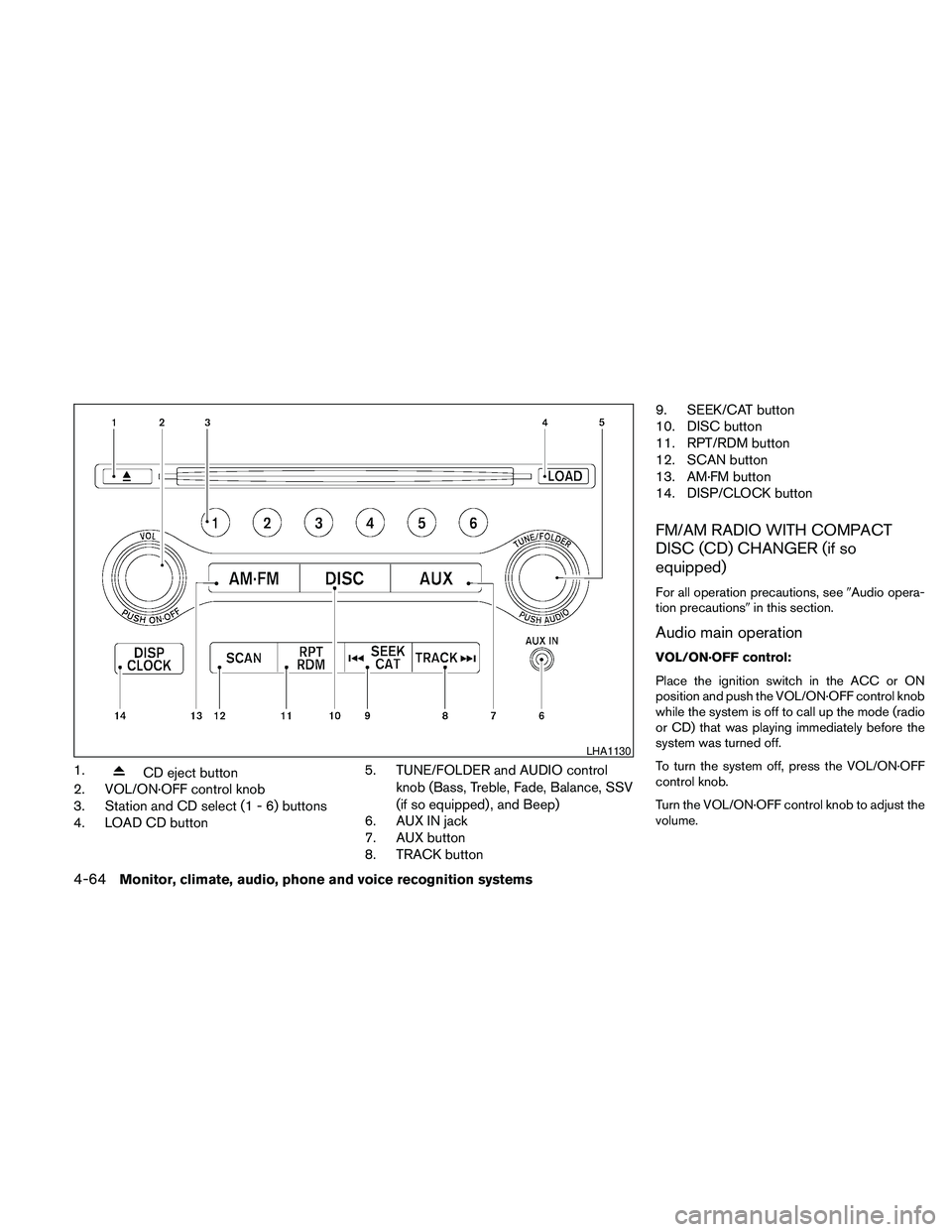
1.CD eject button
2. VOL/ON·OFF control knob
3. Station and CD select (1 - 6) buttons
4. LOAD CD button5. TUNE/FOLDER and AUDIO control
knob (Bass, Treble, Fade, Balance, SSV
(if so equipped) , and Beep)
6. AUX IN jack
7. AUX button
8. TRACK button9. SEEK/CAT button
10. DISC button
11. RPT/RDM button
12. SCAN button
13. AM·FM button
14. DISP/CLOCK button
FM/AM RADIO WITH COMPACT
DISC (CD) CHANGER (if so
equipped)
For all operation precautions, see9Audio opera-
tion precautions9in this section.
Audio main operation
VOL/ON·OFF control:
Place the ignition switch in the ACC or ON
position and push the VOL/ON·OFF control knob
while the system is off to call up the mode (radio
or CD) that was playing immediately before the
system was turned off.
To turn the system off, press the VOL/ON·OFF
control knob.
Turn the VOL/ON·OFF control knob to adjust the
volume.
LHA1130
4-64Monitor, climate, audio, phone and voice recognition systems
Page 225 of 457

AUDIO control knob (Bass, Treble, Fade,
Balance and Beep):
Press the AUDIO control knob to change the
mode as follows:
Bass!Treble!Fade!Balance!Beep
ON/OFF!Bass
To adjust Bass, Treble, Fade and Balance, press
the AUDIO control knob until the desired mode
appears on the display. Turn the TUNE/FOLDER
knob to adjust Bass and Treble to the desired
level. You can also use the TUNE/FOLDER knob
to adjust Fade and Balance modes. Fade adjusts
the sound level between the front and rear speak-
ers and Balance adjusts the sound between the
right and left speakers.
To change the Beep to ON or OFF, turn the
TUNE/FOLDER knob left or right. This will enable
or disable the beep sound heard during menu
selection.
Once you have adjusted the sound quality to the
desired level, press the AUDIO control knob re-
peatedly until the radio or CD display reappears.
Otherwise, the radio or CD display will automati-
cally reappear after about five seconds.
Clock set
The clock displays the time when the ignition
switch is placed in the ACC or ON position.Adjusting the time
1. Push and hold the DISP/CLOCK button for
more than 2 seconds until the display shows
“Hour Adjust”.
2. Turn the TUNE/FOLDER knob to adjust the
hour.
3. Press the DISP/CLOCK button again; the
display will show “Minute Adjust”.
4. Turn the TUNE/FOLDER knob to adjust the
minutes.
5. Press the DISP/CLOCK button again to exit
the clock set mode.
Press the DISP/CLOCK button again to return to
the regular clock display. If no action is taken, the
display will return to the regular clock display
after 10 seconds.
If the power supply is disconnected, the clock will
not indicate the correct time.
Readjust the time.
CD display mode
To change the text displayed while playing a CD
with text, press the DISP/CLOCK button. The
DISP/CLOCK button will allow you to scroll
through CD text as follows: Track number and
Track timeÃ!Album titleÃ!Song title.cTrack number displays the track number se-
lected on the disc.
cTrack time displays the amount of time the
track has played.
cAlbum title displays the title of the CD being
played.
cSong title displays the title of the selected
CD track.
MP3 display mode
To change the text displayed when listening to a
CD with MP3s and ID3 tags, press the
DISP/CLOCK button. The DISP/CLOCK button
will scroll through the CD text as follows: Disc
number, Track number and Folder numberÃ!
Folder titleÃ!Song titleÃ!Artist nameÃ!
Album title.
cDisc number displays the number of the
current disc playing.
cTrack number displays the number of the
track playing on the selected disc.
cFolder number displays the number of the
current folder on the MP3 CD.
cFolder title displays the title of the folder.
cSong title displays the title of the song play-
ing.
Monitor, climate, audio, phone and voice recognition systems4-65
Page 230 of 457

This vehicle has Speed Sensitive Volume (SSV)
for audio. The audio volume changes as the driv-
ing speed changes.
AUDIO control knob (Bass, Treble, Balance
and Fade):
Press the AUDIO control knob to change the
mode as follows:
Bass!Treble!Balance!Fade
To adjust Bass, Treble, Balance and Fade, press
the AUDIO control knob until the desired mode
appears in the display. Turn the tuning knob to
adjust Bass and Treble to the desired level. You
can also use the tuning knob to adjust Fade and
Balance modes. Fade adjusts the sound level
between the front and rear speakers and Balance
adjusts the sound between the right and left
speakers.
Once you have adjusted the sound quality to the
desired level, press the AUDIO control knob re-
peatedly until the radio or CD display reappears.
If the control knob is not pressed for approxi-
mately 10 seconds, the radio or CD display will
automatically reappear.Speed Sensitive Volume (SSV):
To change the SSV mode from OFF to 5, press
the SETTING button. Then select the “Audio” key
using the NISSAN controller; the audio settings
screen will be displayed. Select the “–” key or “+”
key to change the SSV.
While in this screen you can also adjust the other
audio settings by selecting the corresponding key.
Once you have adjusted the sound quality to the
desired level, press the BACK button.
For information on how to use the NISSAN con-
troller, see “How to use the NISSAN controller” in
this section.Clock operation
For additional information on setting the clock,
see “Adjusting the time” in this section.
LHA1304LHA1314
4-70Monitor, climate, audio, phone and voice recognition systems