climate settings NISSAN MAXIMA 2013 A35 / 7.G Owner's Manual
[x] Cancel search | Manufacturer: NISSAN, Model Year: 2013, Model line: MAXIMA, Model: NISSAN MAXIMA 2013 A35 / 7.GPages: 444, PDF Size: 3.18 MB
Page 242 of 444
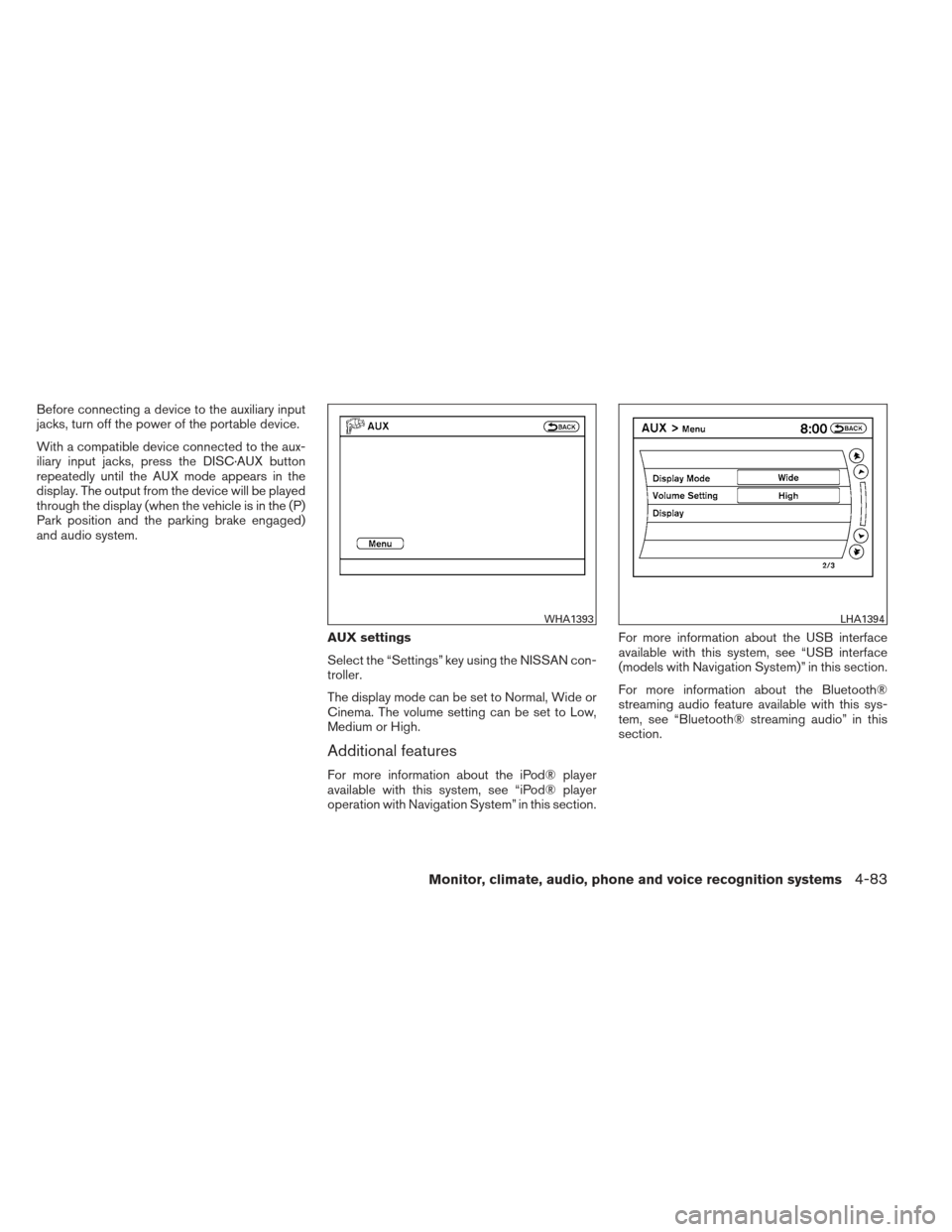
Before connecting a device to the auxiliary input
jacks, turn off the power of the portable device.
With a compatible device connected to the aux-
iliary input jacks, press the DISC·AUX button
repeatedly until the AUX mode appears in the
display. The output from the device will be played
through the display (when the vehicle is in the (P)
Park position and the parking brake engaged)
and audio system.AUX settings
Select the “Settings” key using the NISSAN con-
troller.
The display mode can be set to Normal, Wide or
Cinema. The volume setting can be set to Low,
Medium or High.
Additional features
For more information about the iPod® player
available with this system, see “iPod® player
operation with Navigation System” in this section.For more information about the USB interface
available with this system, see “USB interface
(models with Navigation System)” in this section.
For more information about the Bluetooth®
streaming audio feature available with this sys-
tem, see “Bluetooth® streaming audio” in this
section.
WHA1393LHA1394
Monitor, climate, audio, phone and voice recognition systems4-83
Page 244 of 444
The operation screen will be turned on when the
DISC-AUX button is pressed while a DVD is
playing. The operation screen will turn off auto-
matically after a period of time. To turn it on again,
press the DISC-AUX button.
DVD operation keys
When the DVD is playing without the operation
screen being shown, you may use the touch-
screen to select items from the displayed video.
You may also use the NISSAN controller to select
an item from the displayed video. When the op-
eration screen is being shown, use the NISSAN
controller or the touchscreen to select an item
from the displayed menus.
PAUSE:
Select the
key to pause the DVD. To re-
sume playing the DVD, use the
key.
PLAY:
Select the
key to start playing the DVD or
resume playing the DVD after it has been paused.
STOP:
Select the
key to stop playing the DVD.
NEXT/PREVIOUS
CHAPTER:
Select the
key to skip the chapter(s) of the
disc forward. Select the
key to skip the
chapter(s) of the disc backward. The chapters
will advance forward or backward the number of
times the respective key is touched or selected
with the NISSAN controller.
CM SKIP:
This function is only for DVD-VIDEO and DVD-
VR. Select the
orkey to fast forward
or rewind a set interval of time based on the CM
settings. For more information, see “DVD set-
tings” in this section.
Top Menu:
When the “Top Menu” key is selected while the
DVD is playing, the top menu specific to each
disc will be displayed. For details, see the instruc-
tions attached to the disc.
DVD settings
Select the “Settings” key to adjust the following
settings:
● Key (DVD-VIDEO)
Displays the operation keys for the specific
DVD menu. – Select the directional keys to move the
cursor on the DVD menu.
– Select the “Enter” key to fix the selected menu item.
– Select the “Move” key to move the loca- tion of the operation keys on the screen.
– Select the “Back” key to return to the previous menu screen.
– Select the “Hide” key to hide the opera- tion keys.
● Title Menu (DVD-VIDEO)
Some menus specific to each disc will be
shown. For details, see the instructions at-
tached to the disc.
● Title Search (DVD-VIDEO, DVD-VR)
The scene with the specified title will be
displayed the number of times the “+” or “-”
side is selected.
● Group Search (VIDEO CD)
The scene with the specified group will be
displayed the number of times the “+” or “-”
side is selected.
Monitor, climate, audio, phone and voice recognition systems4-85
Page 250 of 444
Operation keys:
To operate the USB memory, select the desired
key displayed on the display screen.●
Pause:
Select the
key to pause the movie file.
To resume playing the movie file, use
the
key.
●
Play:
Select the
key to start playing the
movie file or resume the movie file if it has
been paused.
●
Stop:
Select the
key to stop playing the
movie file.
●
Next Chapter/Fast Forward:
Select the
key to skip the chapter(s)
of the disc forward. The chapters will ad-
vance the number of times the key is se-
lected. Press and hold the key to fast for-
ward the chapter. ●
Previous Chapter/Rewind:
Select the
key to skip the chapter(s)
of the disc backward. The chapters will go
back the number of times the key is selected.
Press and hold the key to rewind the chap-
ter.
List:
Select the “List” key on the movie file operation
screen to display the file list.
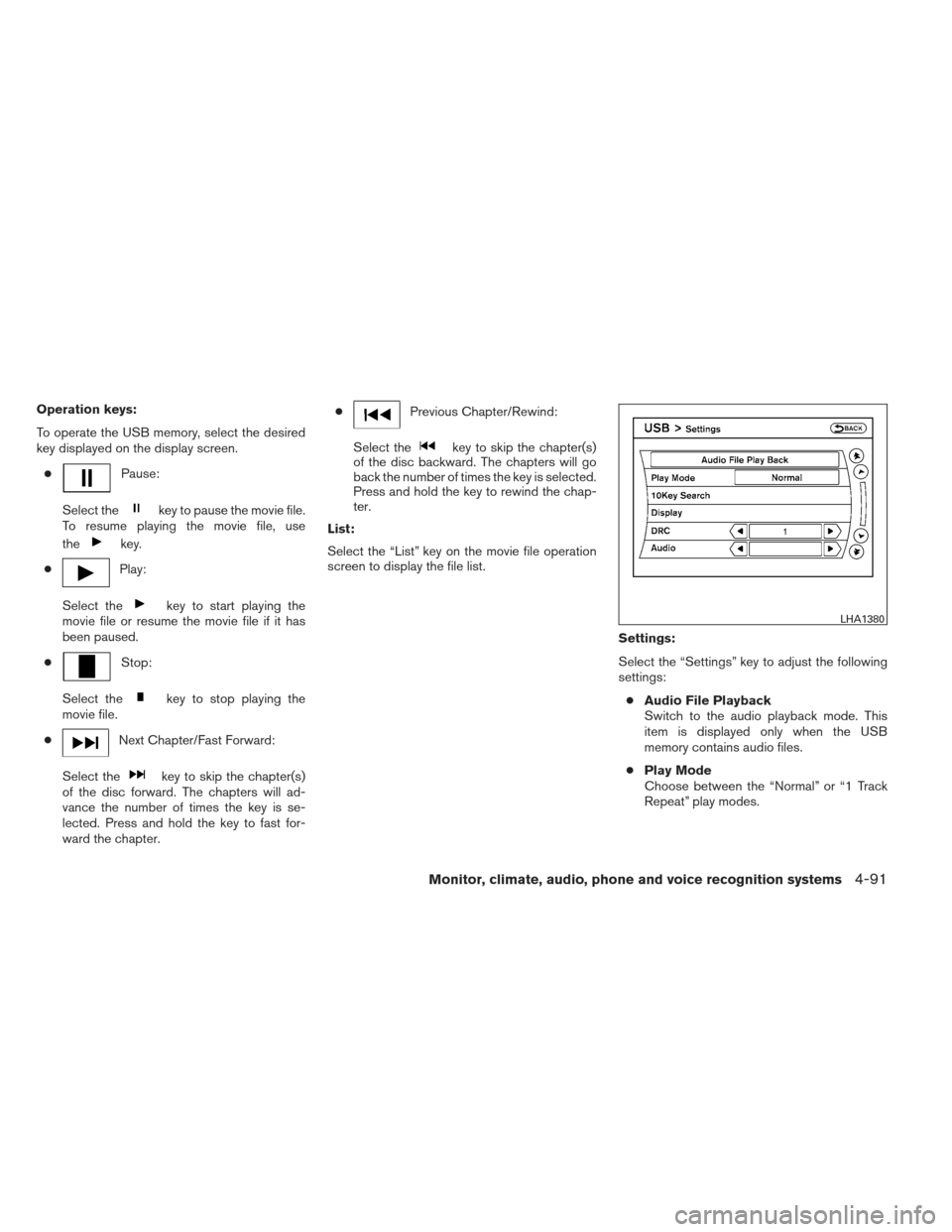
Settings:
Select the “Settings” key to adjust the following
settings:● Audio File Playback
Switch to the audio playback mode. This
item is displayed only when the USB
memory contains audio files.
● Play Mode
Choose between the “Normal” or “1 Track
Repeat” play modes.
LHA1380
Monitor, climate, audio, phone and voice recognition systems4-91
Page 253 of 444
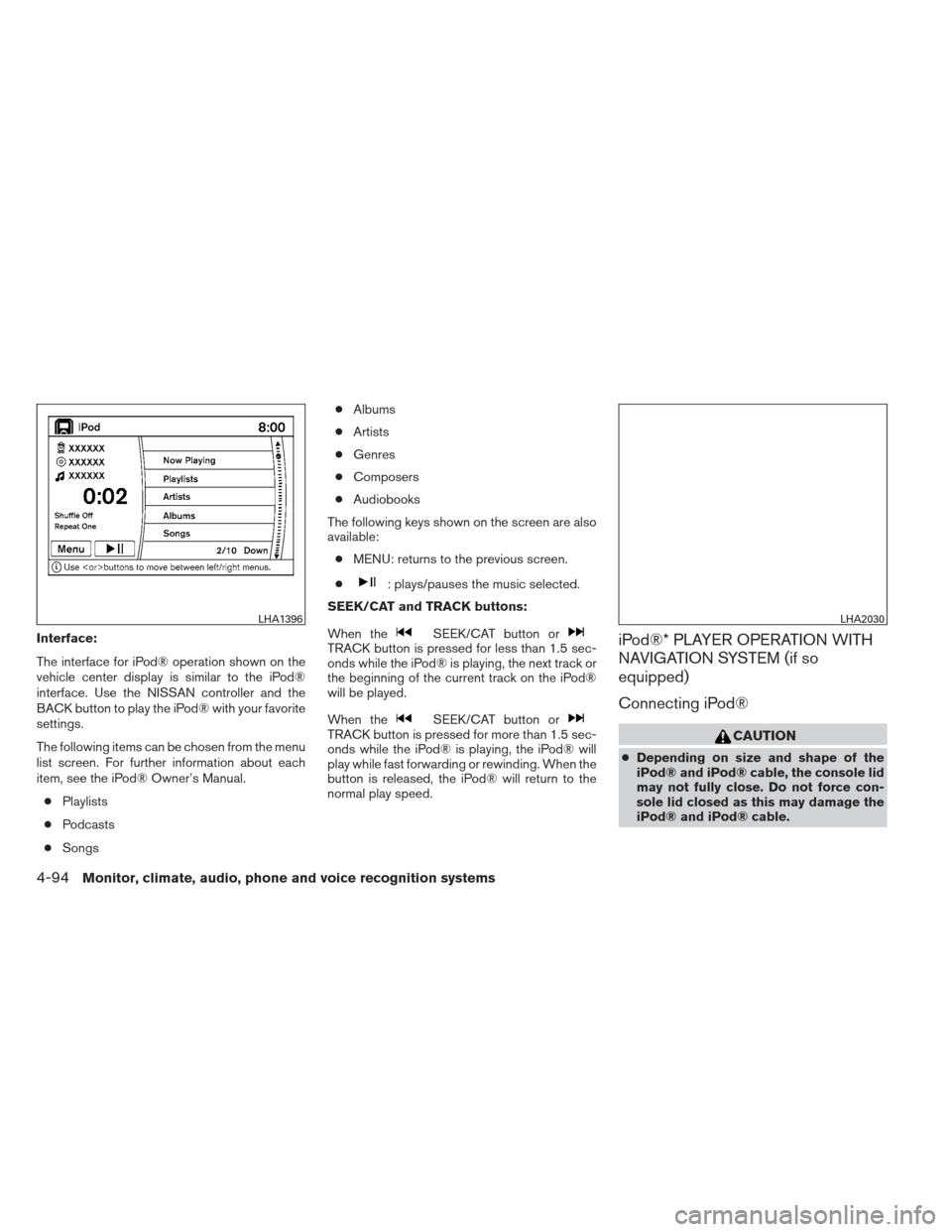
Interface:
The interface for iPod® operation shown on the
vehicle center display is similar to the iPod®
interface. Use the NISSAN controller and the
BACK button to play the iPod® with your favorite
settings.
The following items can be chosen from the menu
list screen. For further information about each
item, see the iPod® Owner’s Manual.● Playlists
● Podcasts
● Songs ●
Albums
● Artists
● Genres
● Composers
● Audiobooks
The following keys shown on the screen are also
available: ● MENU: returns to the previous screen.
●
: plays/pauses the music selected.
SEEK/CAT and TRACK buttons:
When the
SEEK/CAT button orTRACK button is pressed for less than 1.5 sec-
onds while the iPod® is playing, the next track or
the beginning of the current track on the iPod®
will be played.
When the
SEEK/CAT button orTRACK button is pressed for more than 1.5 sec-
onds while the iPod® is playing, the iPod® will
play while fast forwarding or rewinding. When the
button is released, the iPod® will return to the
normal play speed.
iPod®* PLAYER OPERATION WITH
NAVIGATION SYSTEM (if so
equipped)
Connecting iPod®
CAUTION
● Depending on size and shape of the
iPod® and iPod® cable, the console lid
may not fully close. Do not force con-
sole lid closed as this may damage the
iPod® and iPod® cable.
LHA1396LHA2030
4-94Monitor, climate, audio, phone and voice recognition systems
Page 255 of 444
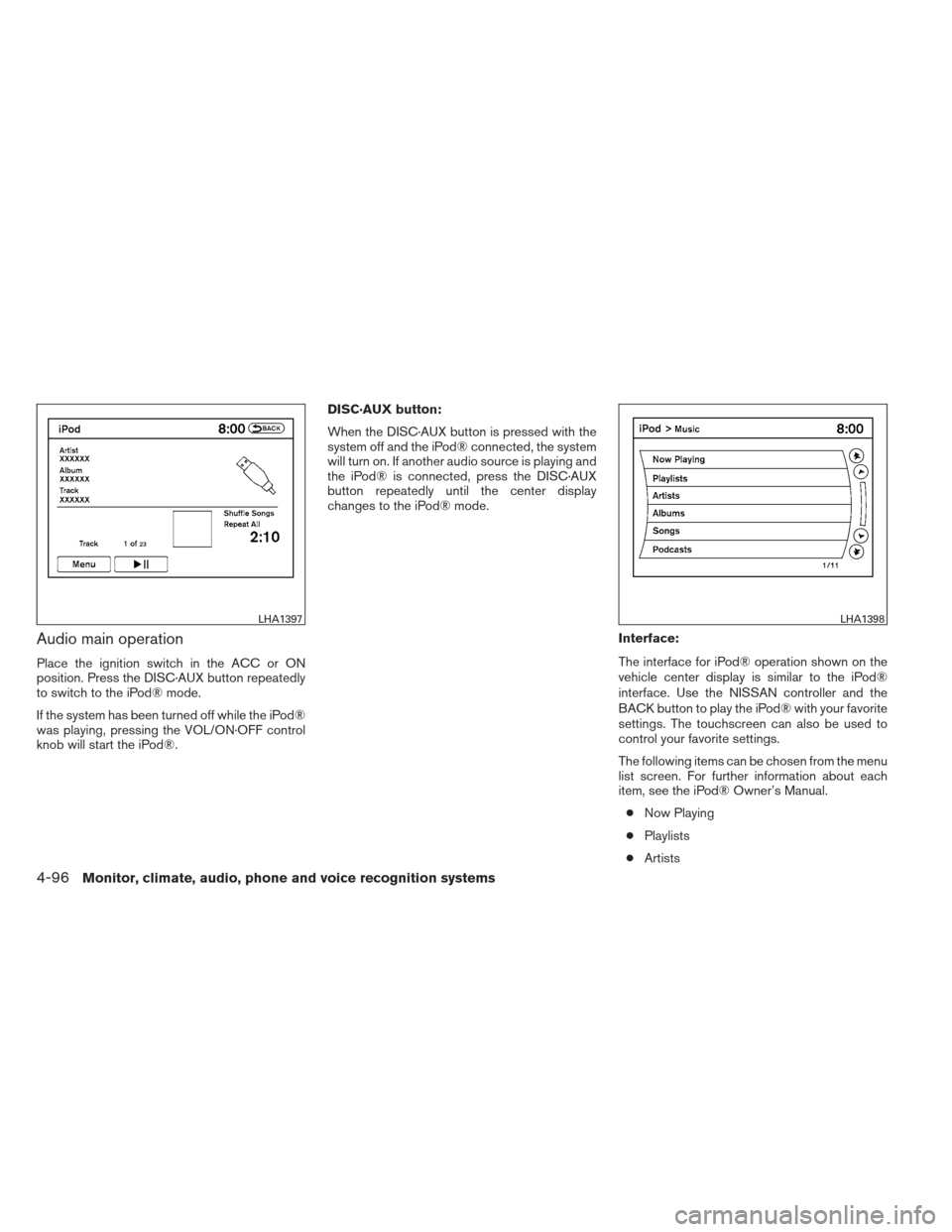
Audio main operation
Place the ignition switch in the ACC or ON
position. Press the DISC·AUX button repeatedly
to switch to the iPod® mode.
If the system has been turned off while the iPod®
was playing, pressing the VOL/ON·OFF control
knob will start the iPod®.DISC·AUX button:
When the DISC·AUX button is pressed with the
system off and the iPod® connected, the system
will turn on. If another audio source is playing and
the iPod® is connected, press the DISC·AUX
button repeatedly until the center display
changes to the iPod® mode.
Interface:
The interface for iPod® operation shown on the
vehicle center display is similar to the iPod®
interface. Use the NISSAN controller and the
BACK button to play the iPod® with your favorite
settings. The touchscreen can also be used to
control your favorite settings.
The following items can be chosen from the menu
list screen. For further information about each
item, see the iPod® Owner’s Manual.● Now Playing
● Playlists
● Artists
LHA1397LHA1398
4-96Monitor, climate, audio, phone and voice recognition systems
Page 256 of 444
●Albums
● Songs
● Podcasts
● Genres
● Composers
● Audiobooks
● Shuffle Songs
The following keys shown on the screen are also
available: ● MENU: returns to the previous screen.
●
: plays/pauses the music selected. Play mode:
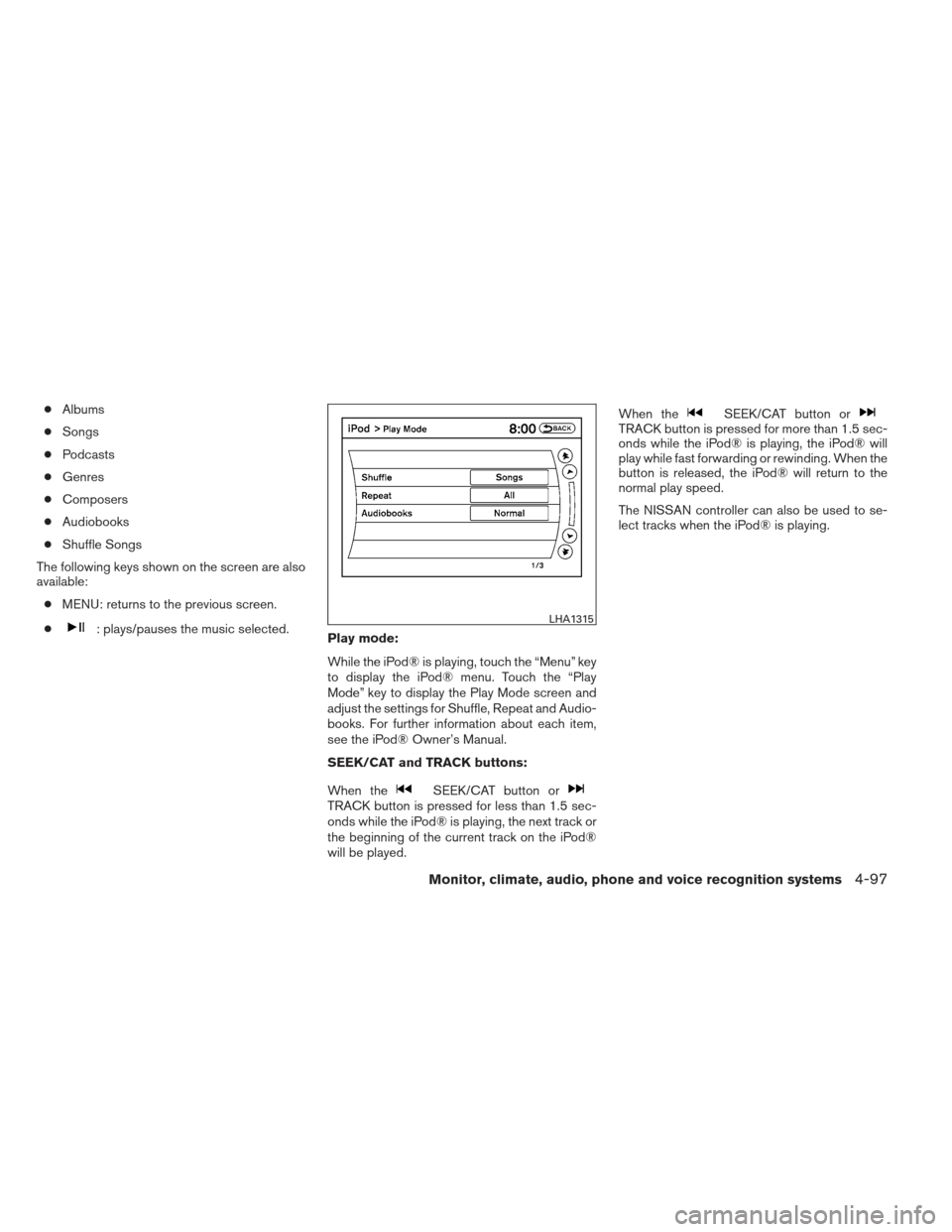
While the iPod® is playing, touch the “Menu” key
to display the iPod® menu. Touch the “Play
Mode” key to display the Play Mode screen and
adjust the settings for Shuffle, Repeat and Audio-
books. For further information about each item,
see the iPod® Owner’s Manual.
SEEK/CAT and TRACK buttons:
When the
SEEK/CAT button orTRACK button is pressed for less than 1.5 sec-
onds while the iPod® is playing, the next track or
the beginning of the current track on the iPod®
will be played. When the
SEEK/CAT button orTRACK button is pressed for more than 1.5 sec-
onds while the iPod® is playing, the iPod® will
play while fast forwarding or rewinding. When the
button is released, the iPod® will return to the
normal play speed.
The NISSAN controller can also be used to se-
lect tracks when the iPod® is playing.
LHA1315
Monitor, climate, audio, phone and voice recognition systems4-97
Page 259 of 444
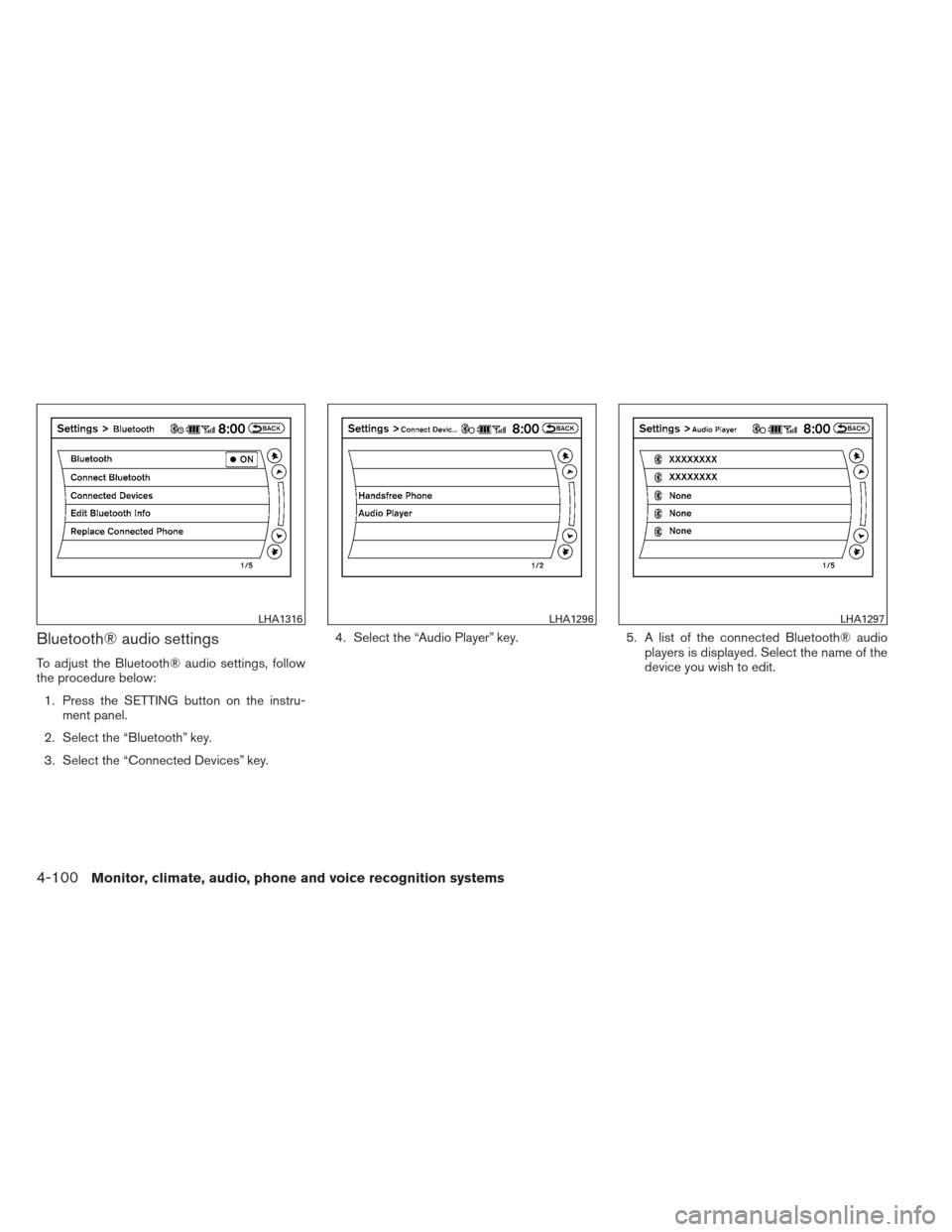
Bluetooth® audio settings
To adjust the Bluetooth® audio settings, follow
the procedure below:1. Press the SETTING button on the instru- ment panel.
2. Select the “Bluetooth” key.
3. Select the “Connected Devices” key. 4. Select the “Audio Player” key.
5. A list of the connected Bluetooth® audio
players is displayed. Select the name of the
device you wish to edit.
LHA1316LHA1296LHA1297
4-100Monitor, climate, audio, phone and voice recognition systems
Page 280 of 444
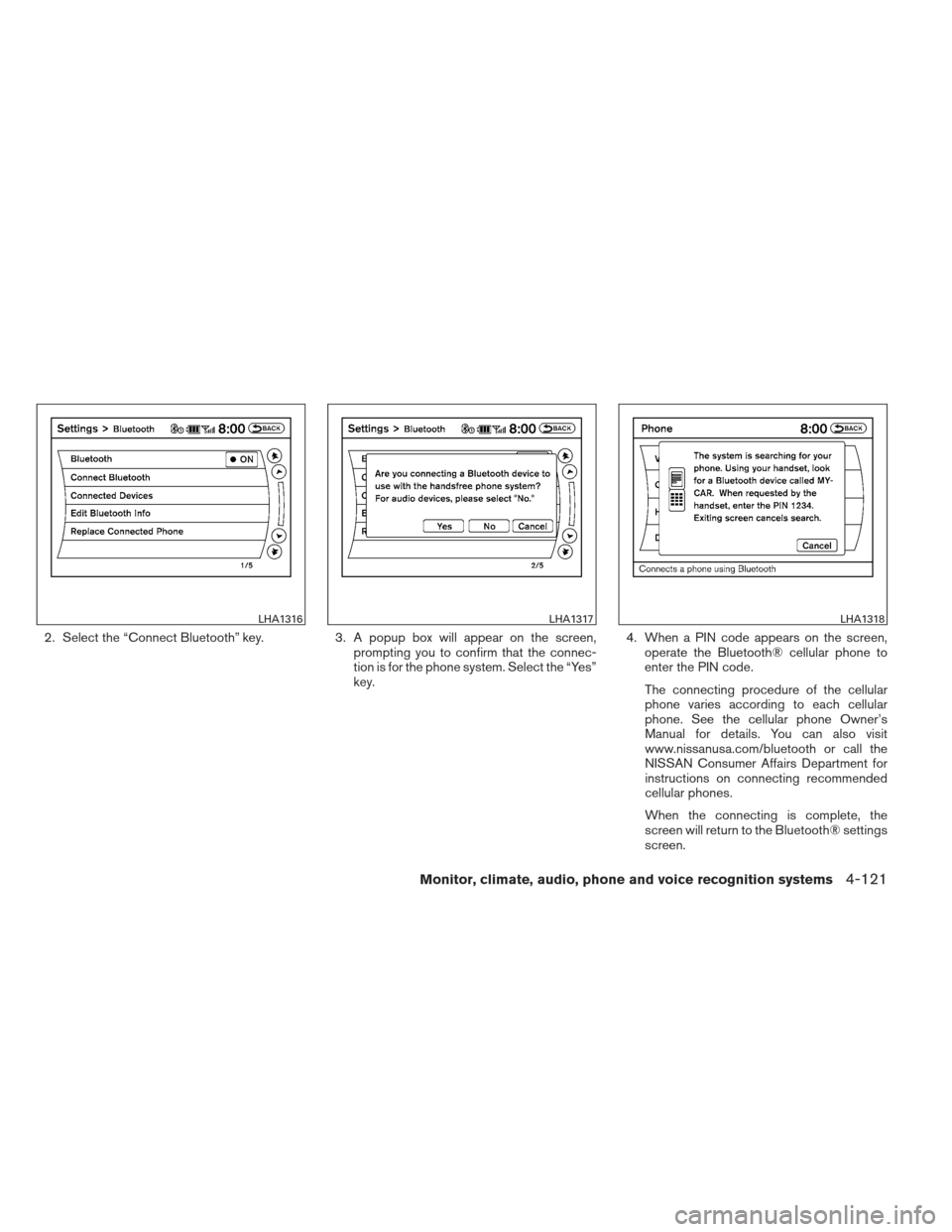
2. Select the “Connect Bluetooth” key.3. A popup box will appear on the screen,
prompting you to confirm that the connec-
tion is for the phone system. Select the “Yes”
key. 4. When a PIN code appears on the screen,
operate the Bluetooth® cellular phone to
enter the PIN code.
The connecting procedure of the cellular
phone varies according to each cellular
phone. See the cellular phone Owner’s
Manual for details. You can also visit
www.nissanusa.com/bluetooth or call the
NISSAN Consumer Affairs Department for
instructions on connecting recommended
cellular phones.
When the connecting is complete, the
screen will return to the Bluetooth® settings
screen.
LHA1316LHA1317LHA1318
Monitor, climate, audio, phone and voice recognition systems4-121
Page 286 of 444
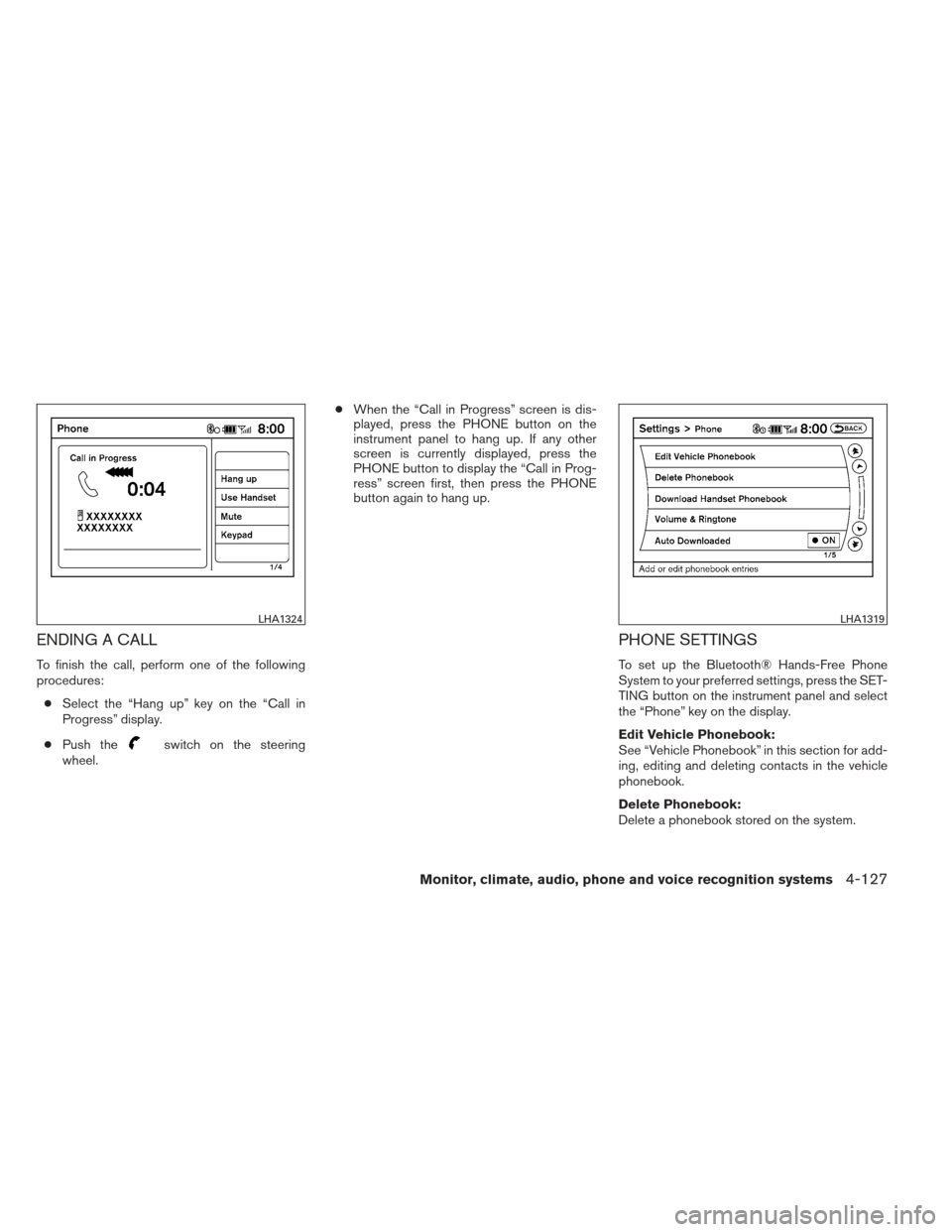
ENDING A CALL
To finish the call, perform one of the following
procedures:● Select the “Hang up” key on the “Call in
Progress” display.
● Push the
switch on the steering
wheel. ●
When the “Call in Progress” screen is dis-
played, press the PHONE button on the
instrument panel to hang up. If any other
screen is currently displayed, press the
PHONE button to display the “Call in Prog-
ress” screen first, then press the PHONE
button again to hang up.
PHONE SETTINGS
To set up the Bluetooth® Hands-Free Phone
System to your preferred settings, press the SET-
TING button on the instrument panel and select
the “Phone” key on the display.
Edit Vehicle Phonebook:
See “Vehicle Phonebook” in this section for add-
ing, editing and deleting contacts in the vehicle
phonebook.
Delete Phonebook:
Delete a phonebook stored on the system.
LHA1324LHA1319
Monitor, climate, audio, phone and voice recognition systems4-127
Page 287 of 444
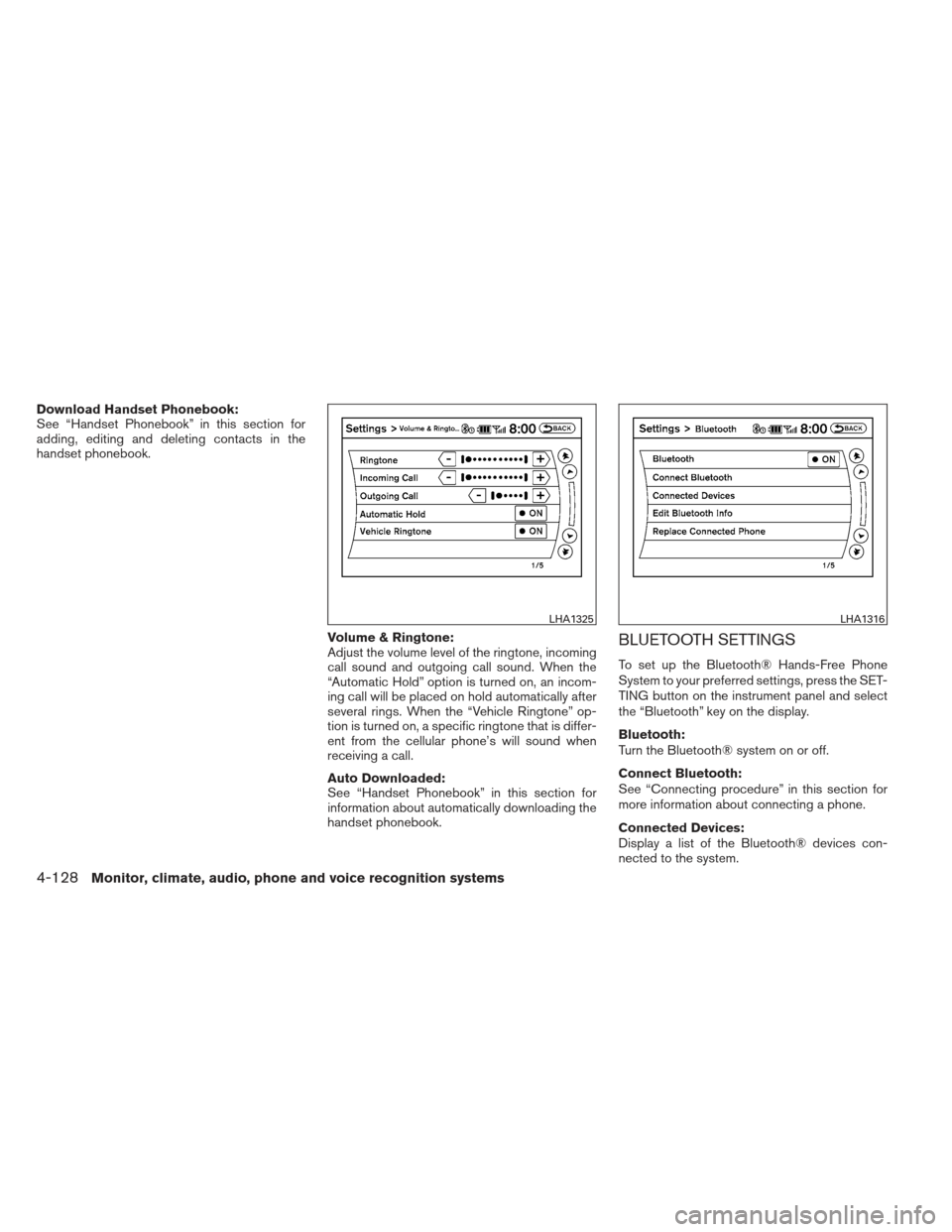
Download Handset Phonebook:
See “Handset Phonebook” in this section for
adding, editing and deleting contacts in the
handset phonebook.Volume & Ringtone:
Adjust the volume level of the ringtone, incoming
call sound and outgoing call sound. When the
“Automatic Hold” option is turned on, an incom-
ing call will be placed on hold automatically after
several rings. When the “Vehicle Ringtone” op-
tion is turned on, a specific ringtone that is differ-
ent from the cellular phone’s will sound when
receiving a call.
Auto Downloaded:
See “Handset Phonebook” in this section for
information about automatically downloading the
handset phonebook.
BLUETOOTH SETTINGS
To set up the Bluetooth® Hands-Free Phone
System to your preferred settings, press the SET-
TING button on the instrument panel and select
the “Bluetooth” key on the display.
Bluetooth:
Turn the Bluetooth® system on or off.
Connect Bluetooth:
See “Connecting procedure” in this section for
more information about connecting a phone.
Connected Devices:
Display a list of the Bluetooth® devices con-
nected to the system.
LHA1325LHA1316
4-128Monitor, climate, audio, phone and voice recognition systems