buttons NISSAN MAXIMA 2023 User Guide
[x] Cancel search | Manufacturer: NISSAN, Model Year: 2023, Model line: MAXIMA, Model: NISSAN MAXIMA 2023Pages: 494, PDF Size: 5.7 MB
Page 231 of 494
seats (if so equipped) and heated steering
wheel (if so equipped) may be activated
automatically.
MANUAL OPERATION
Fan speed control
Press thefan speed control buttons
to manually control the fan speed.
Press the AUTO button to return to auto-
matic control of the fan speed.
Temperature control dial
The temperature control dial allows you to
adjust the temperature of the outlet air. To
lower the temperature, turn the dial to the
lef t. To increase the temperature, turn the
dial to the right. Temperature can be ad-
justed on the driver’s and passenger’s side.
Air recirculation
Press theair recirculation button to
recirculate interior air inside the vehicle.
The
indicator light on the button will
come on. The air recirculation cannot be activated
when the air conditioner is in the
front
defrosting mode.
When the outside temperature exceeds
70°F (21°C), the air conditioning system may
default to air recirculation mode automati-
cally to reduce overall power consumption.
To exit air recirculation mode, select the
fresh air intake button (the air recircu-
lation indicator will turn off, the fresh air
indicator will turn on) to enter fresh air
mode.
Fresh air intake
Press thefresh air intake button to
draw outside air into the passenger
compartment.
A/C (air conditioner) button
Start the engine, press thefan speed
control buttons to the desired position and
press the
button to turn on the air
conditioner. To turn off the air conditioner,
press the
button again.
The air conditioner cooling function op-
erates only when the engine is running.
Air flow control
Pressing the MODE button manually con-
trols air flow and selects the air outlet:
— Air flows mainly from center and side vents.
— Air flows mainly from center andside vents and foot outlets.
— Air flows mainly from foot outletsand partly from defroster.
— Air flows mainly from defrosterand foot outlets.
To turn system off
Press the ON-OFF button.
Rear window and outside mirror
defroster switch
For additional information, see “Rear win-
dow and outside mirror defroster switch”
(P. 2-45).
Monitor, climate, audio, phone and voice recognition systems4-31
Page 262 of 494
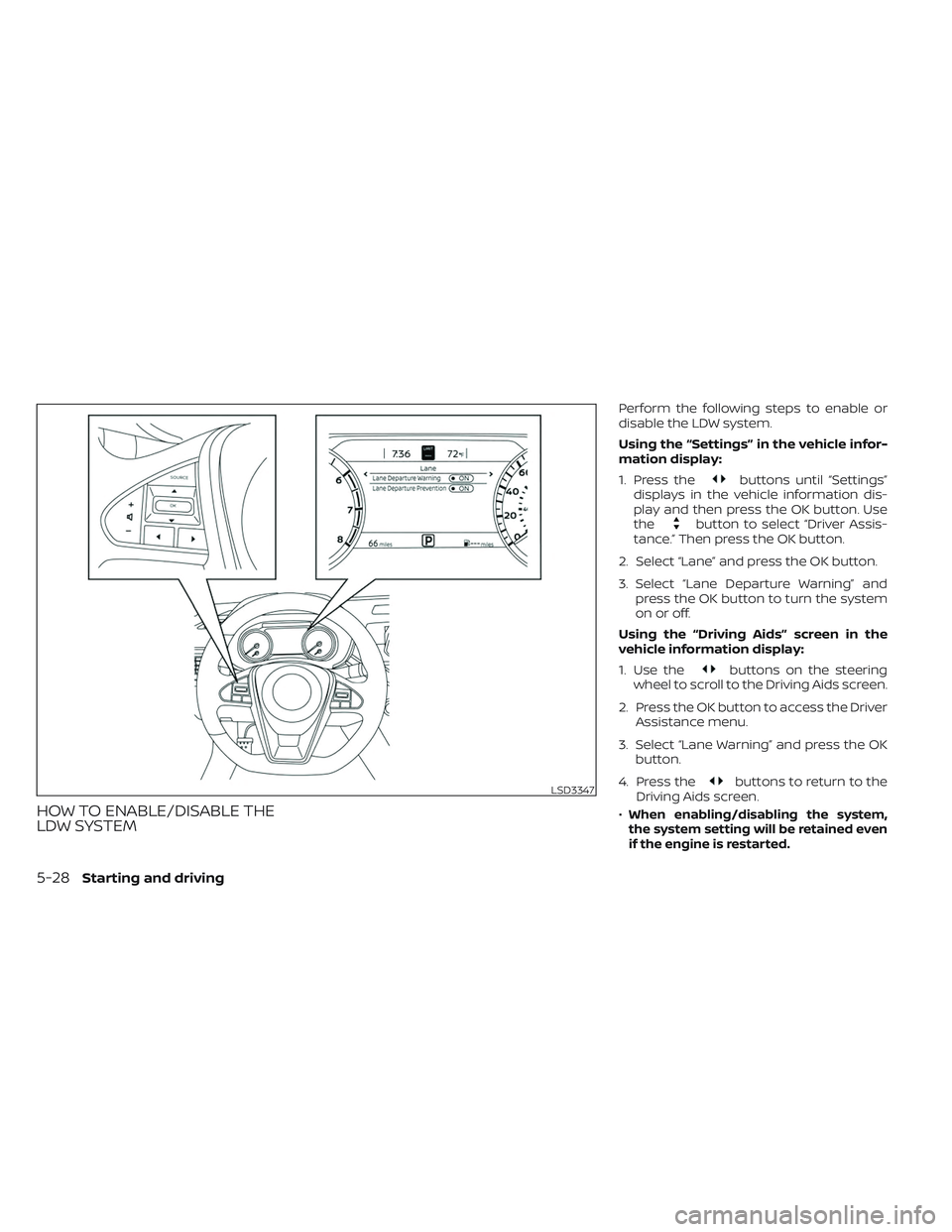
HOW TO ENABLE/DISABLE THE
LDW SYSTEM
Perform the following steps to enable or
disable the LDW system.
Using the “Settings” in the vehicle infor-
mation display:
1. Press the
buttons until “Settings”
displays in the vehicle information dis-
play and then press the OK button. Use
the
button to select “Driver Assis-
tance.” Then press the OK button.
2. Select “Lane” and press the OK button.
3. Select “Lane Departure Warning” and press the OK button to turn the system
on or off.
Using the “Driving Aids” screen in the
vehicle information display:
1. Use the
buttons on the steering
wheel to scroll to the Driving Aids screen.
2. Press the OK button to access the Driver Assistance menu.
3. Select “Lane Warning” and press the OK button.
4. Press the
buttons to return to the
Driving Aids screen.
•
When enabling/disabling the system,
the system setting will be retained even
if the engine is restarted.
LSD3347
5-28Starting and driving
Page 267 of 494
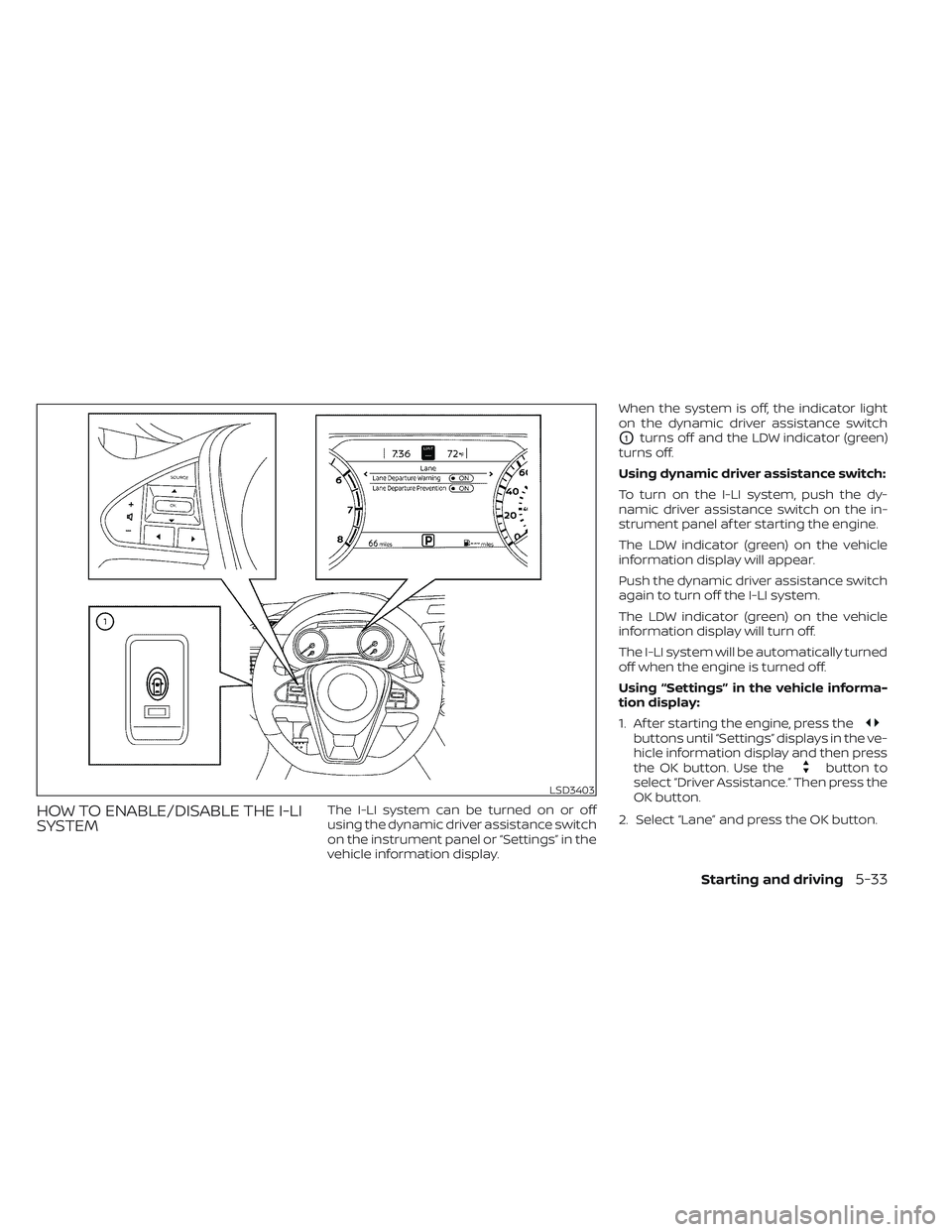
HOW TO ENABLE/DISABLE THE I-LI
SYSTEMThe I-LI system can be turned on or off
using the dynamic driver assistance switch
on the instrument panel or “Settings” in the
vehicle information display.When the system is off, the indicator light
on the dynamic driver assistance switch
O1turns off and the LDW indicator (green)
turns off.
Using dynamic driver assistance switch:
To turn on the I-LI system, push the dy-
namic driver assistance switch on the in-
strument panel af ter starting the engine.
The LDW indicator (green) on the vehicle
information display will appear.
Push the dynamic driver assistance switch
again to turn off the I-LI system.
The LDW indicator (green) on the vehicle
information display will turn off.
The I-LI system will be automatically turned
off when the engine is turned off.
Using “Settings” in the vehicle informa-
tion display:
1. Af ter starting the engine, press the
buttons until “Settings” displays in the ve-
hicle information display and then press
the OK button. Use the
button to
select “Driver Assistance.” Then press the
OK button.
2. Select “Lane” and press the OK button.
LSD3403
Starting and driving5-33
Page 268 of 494
3. Select “Lane Departure Prevention” andpress the OK button to turn the system
on or off.
Using “Driving Aids” screen in the vehicle
information display:
1. Use the
buttons on the steering
wheel to scroll to the Driving Aids screen.
2. Press the OK button to access the Driv- ing Aids menu.
3. Select “Lane” and press the OK button until “Lane Prevent” is displayed.
4. Press the
buttons to return to the
Driving Aids screen.
To turn on the the I-LI system push the
Dynamic Driver Assistance switch on
the instrument panel af ter starting the
engine.
I-LI SYSTEM LIMITATIONS
WARNING
Listed below are the system limitations
for the I-LI system. Failure to follow the
warnings and instructions for proper
use of the I-LI system could result in
serious injury or death. •
The I-LI system may activate if you
change lanes without first activating
your turn signal or, for example, if a
construction zone directs traffic to
cross an existing lane marker. If this
occurs you may need to apply correc-
tive steering to complete your lane
change.
• Because the I-LI may not activate un-
der the road, weather, and lane
marker conditions described in this
section, it may not activate every
time your vehicle begins to leave its
lane and you will need to apply cor-
rective steering.
• When the I-LI system is operating,
avoid excessive or sudden steering
maneuvers. Otherwise, you could
lose control of the vehicle.
• The I-LI system will not operate at
speeds below approximately 37 mph
(60 km/h) or if it cannot detect lane
markers.
• Do not use the I-LI system under the
following conditions as it may not
function properly:
– During bad weather (rain, fog,
snow, etc.). –
When driving on slippery roads,
such as on ice or snow.
– When driving on winding or un-
even roads.
– When there is a lane closure due to
road repairs.
– When driving in a makeshif t or
temporary lane.
– When driving on roads where the
lane width is too narrow.
–
When driving without normal tire conditions (for example, tire wear,
low tire pressure, installation of
spare tire, tire chains, non-standard
wheels).
– When the vehicle is equipped with
nonoriginal brake parts or sus-
pension parts.
– When you are towing a trailer or
other vehicle.
– On roads where there are multiple
parallel lane markers; lane mark-
ers that are faded or not painted
clearly; yellow painted lane mark-
ers; non-standard lane markers;
or lane markers covered with wa-
ter, dirt, snow, etc.
5-34Starting and driving
Page 274 of 494
Using the “Settings” in the vehicle infor-
mation display:
1. Press the
buttons until “Settings”
displays in the vehicle information dis-
play and then press the OK button. Use
the
button to select “Driver Assis-
tance.” Then press the OK button.
2. Select “Blind Spot” and press the OK button.
Using the “Driving Aids” screen in the ve-
hicle information display:
1. Use the
buttons on the steering
wheel to scroll to the Driving Aids screen.
2. Press the OK button to access the Driv- ing Aids menu.
3. Select “Blind Spot” and press the OK to change the Driving Aids setting.
NOTE:
• When enabling/disabling the system,the system will retain current settings
even if the engine is restarted.
• The RCTA system is integrated into the BSW system. There is not a separate
selection in the vehicle information
display for the RCTA system. When the
BSW is disabled, the RCTA system is
also disabled. • When the BSW system is turned on, the
BSW/RCTA indicator (white) in the ve-
hicle information display illuminates.
BSW SYSTEM LIMITATIONS
WARNING
Listed below are the system limitations
for the BSW system. Failure to operate
the vehicle in accordance with these
system limitations could result in seri-
ous injury or death.
• The BSW system cannot detect all ve-
hicles under all conditions.
• The radar sensors may not be able to
detect and activate BSW when cer-
tain objects are present such as:
– Pedestrian, bicycles, animals.
– Vehicles such as motorcycles, low
height vehicles, or high ground
clearance vehicles.
– Oncoming vehicles.
– Vehicles remaining in the detec-
tion zone when you accelerate
from a stop.
– A vehicle merging into an adjacent
lane at a speed approximately the
same as your vehicle. –
A vehicle approaching rapidly
from behind.
– A vehicle which your vehicle over-
takes rapidly.
– A vehicle that passes through the
detection zone quickly.
– When overtaking several vehicles
in a row, the vehicles af ter the first
vehicle may not be detected if
they are traveling close together.
• The radar sensors’ detection zone is
designed based on a standard lane
width. When driving in a wider lane,
the radar sensors may not detect ve-
hicles in an adjacent lane. When driv-
ing in a narrow lane, the radar sen-
sors may detect vehicles driving two
lanes away.
• The radar sensors are designed to ig-
nore most stationary objects; how-
ever, objects such as guardrails,
walls, foliage and parked vehicles
may occasionally be detected. This is
a normal operation condition.
5-40Starting and driving
Page 284 of 494
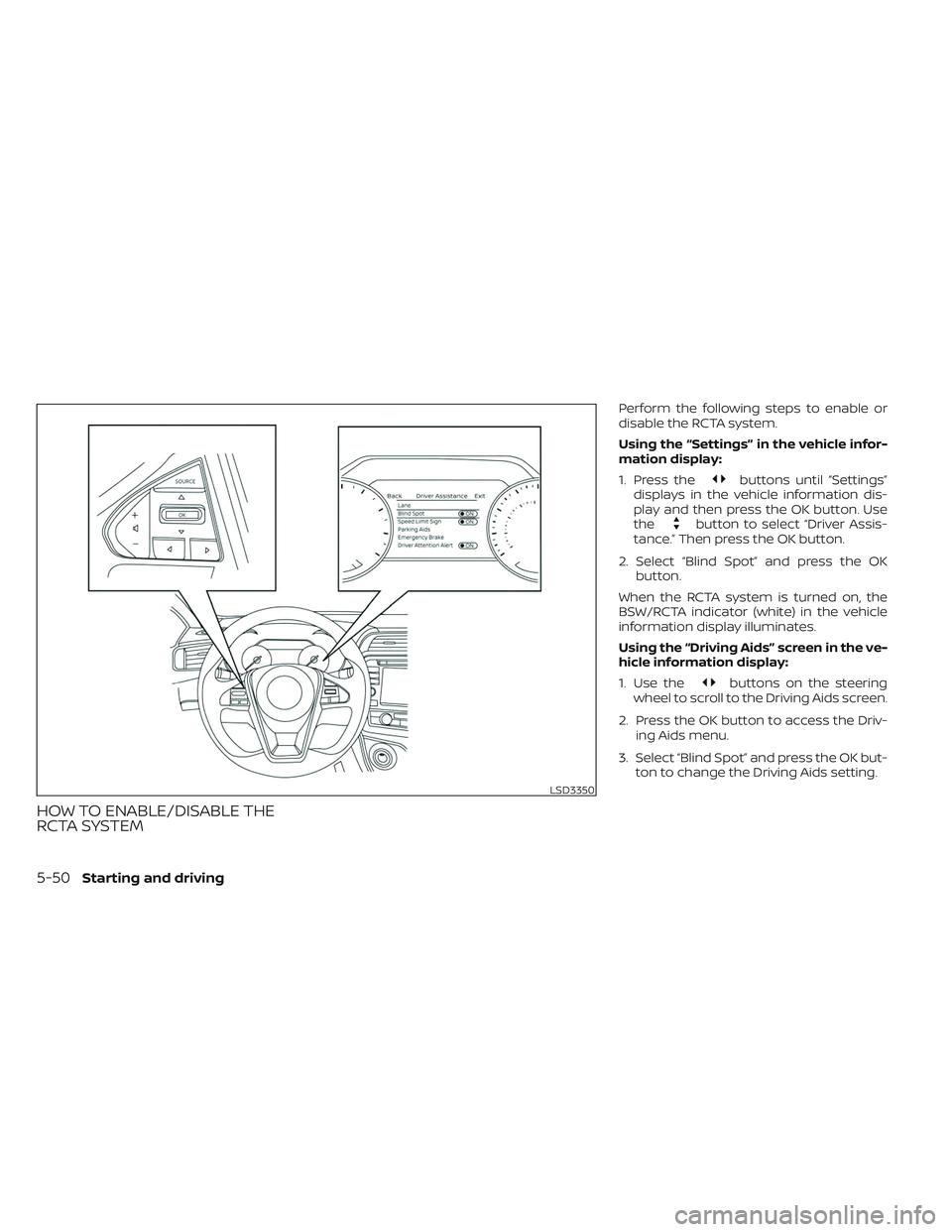
HOW TO ENABLE/DISABLE THE
RCTA SYSTEM
Perform the following steps to enable or
disable the RCTA system.
Using the “Settings” in the vehicle infor-
mation display:
1. Press the
buttons until “Settings”
displays in the vehicle information dis-
play and then press the OK button. Use
the
button to select “Driver Assis-
tance.” Then press the OK button.
2. Select “Blind Spot” and press the OK button.
When the RCTA system is turned on, the
BSW/RCTA indicator (white) in the vehicle
information display illuminates.
Using the “Driving Aids” screen in the ve-
hicle information display:
1. Use the
buttons on the steering
wheel to scroll to the Driving Aids screen.
2. Press the OK button to access the Driv- ing Aids menu.
3. Select “Blind Spot” and press the OK but- ton to change the Driving Aids setting.
LSD3350
5-50Starting and driving
Page 297 of 494
This message will disappear af ter about
6 seconds, or can be dismissed by pushing
the OK button and then
buttons.
Cruise control status will continue to dis-
play in the upper right corner of the vehicle
information display while the system is on.
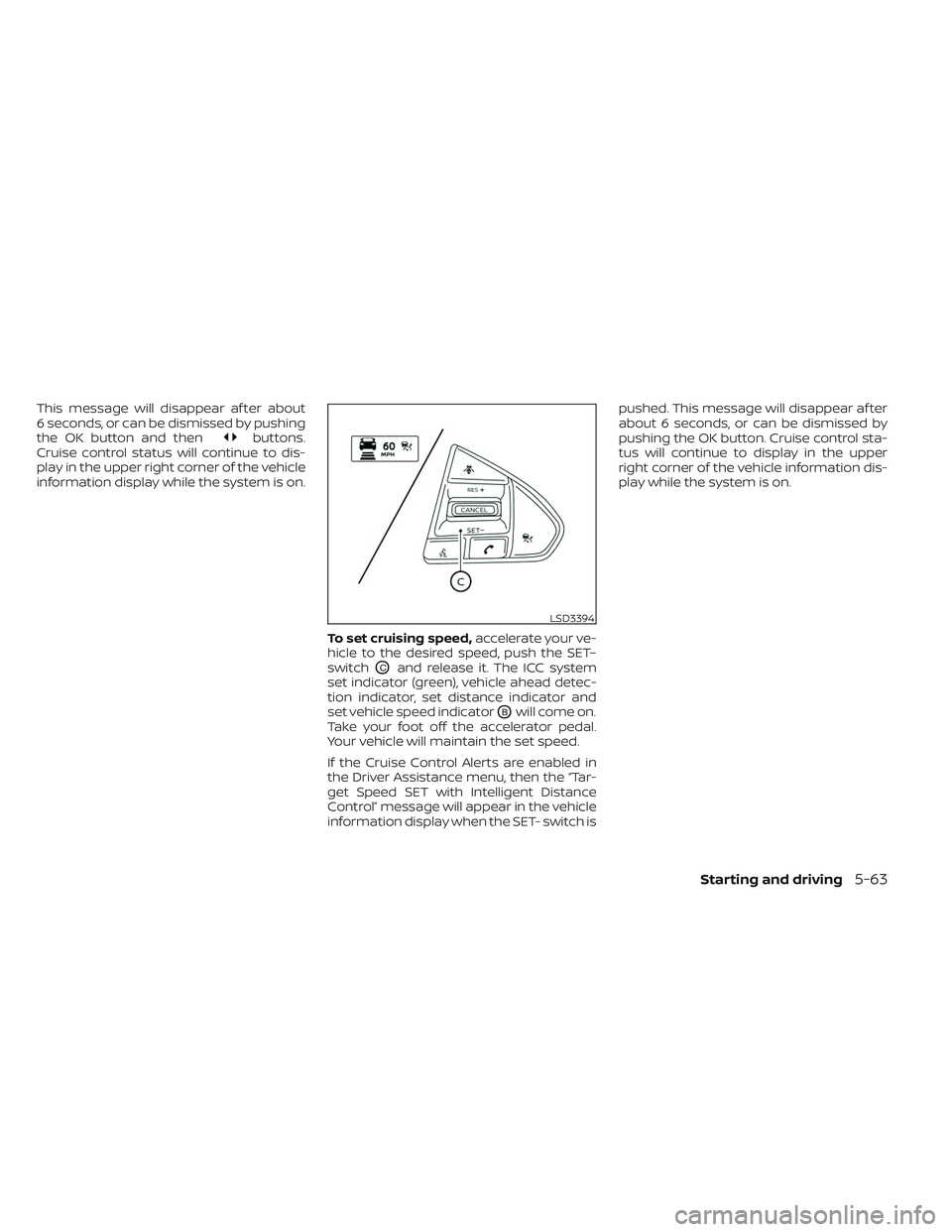
To set cruising speed,accelerate your ve-
hicle to the desired speed, push the SET–
switch
OCand release it. The ICC system
set indicator (green), vehicle ahead detec-
tion indicator, set distance indicator and
set vehicle speed indicator
OBwill come on.
Take your foot off the accelerator pedal.
Your vehicle will maintain the set speed.
If the Cruise Control Alerts are enabled in
the Driver Assistance menu, then the “Tar-
get Speed SET with Intelligent Distance
Control” message will appear in the vehicle
information display when the SET- switch is pushed. This message will disappear af ter
about 6 seconds, or can be dismissed by
pushing the OK button. Cruise control sta-
tus will continue to display in the upper
right corner of the vehicle information dis-
play while the system is on.
LSD3394
Starting and driving5-63
Page 354 of 494
•The system may not detect the follow-
ing objects: fluff y objects such as
snow, cloth, cotton, glass, wool, etc.,
and thin objects such as rope, wire and
chain, etc., or wedge-shaped objects.
•The sonar sensors may cause mal-
function when a horn, etc. sounds or
there is an ultrasonic source (such as
parking sensors of other vehicles)
around the vehicle because the sonar
sensors detect the distance between
the vehicle and the obstacle by detect-
ing the sound wave reflected from the
surface of an obstacle.
If your vehicle sustains damage to the
bumper fascia, leaving it misaligned or
bent, the sensing zone may be altered
causing inaccurate measurement of ob-
stacles or false alarms.
CAUTION
• Excessive noise (such as audio sys-
tem volume or an open vehicle win-
dow) will interfere with the tone and
it may not be heard. •
Keep the sonar sensors (located on
the bumper fascia) free from snow,
ice and large accumulations of dirt.
Do not clean the sensors with sharp
objects. If the sensors are covered,
the accuracy of the sonar function
will be diminished.
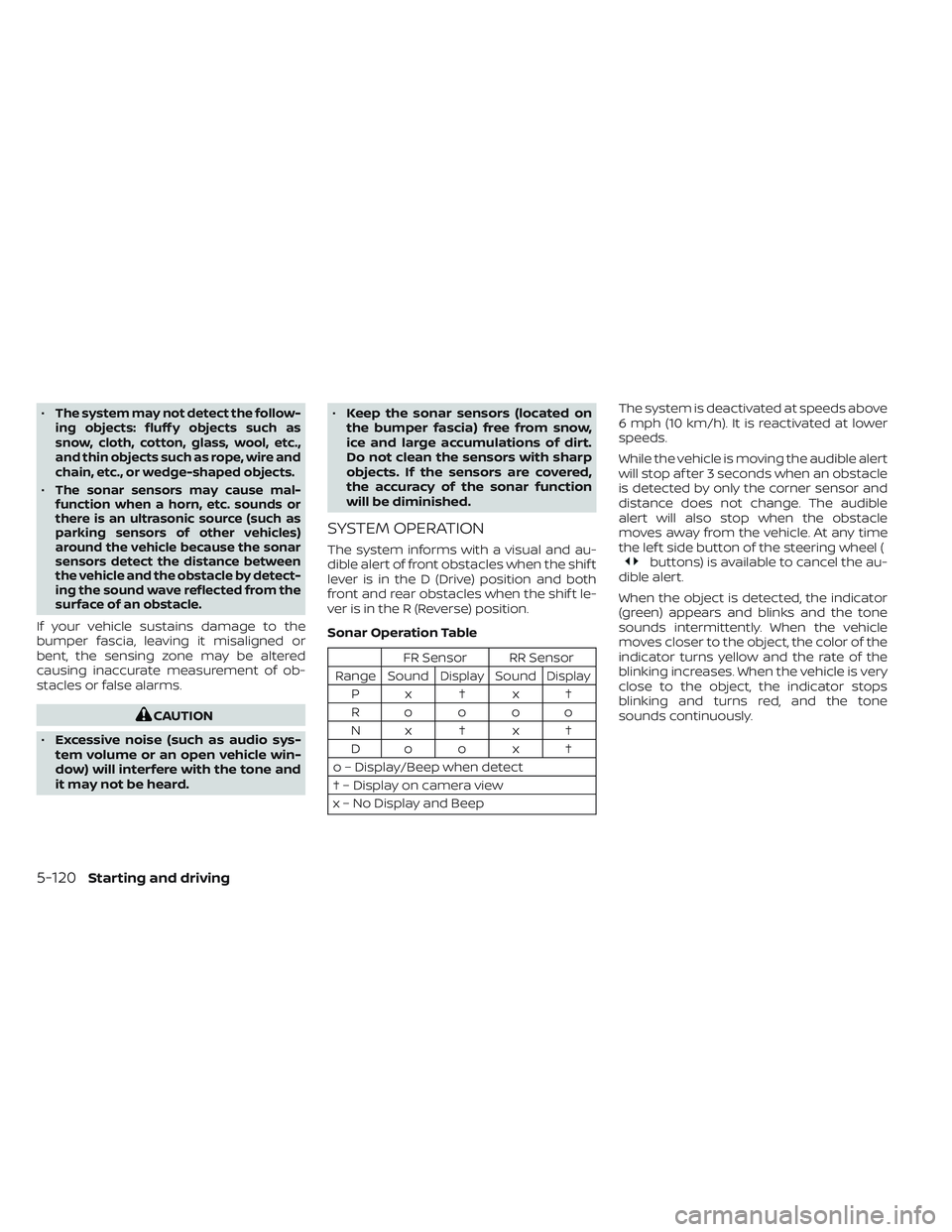
SYSTEM OPERATION
The system informs with a visual and au-
dible alert of front obstacles when the shif t
lever is in the D (Drive) position and both
front and rear obstacles when the shif t le-
ver is in the R (Reverse) position.
Sonar Operation Table
FR Sensor RR Sensor
Range Sound
DisplaySoundDisplay
Px†x†
Roooo
Nx†x† Do o x †
o – Display/Beep when detect
† – Display on camera view
x – No Display and Beep The system is deactivated at speeds above
6 mph (10 km/h). It is reactivated at lower
speeds.
While the vehicle is moving the audible alert
will stop af ter 3 seconds when an obstacle
is detected by only the corner sensor and
distance does not change. The audible
alert will also stop when the obstacle
moves away from the vehicle. At any time
the lef t side button of the steering wheel (
buttons) is available to cancel the au-
dible alert.
When the object is detected, the indicator
(green) appears and blinks and the tone
sounds intermittently. When the vehicle
moves closer to the object, the color of the
indicator turns yellow and the rate of the
blinking increases. When the vehicle is very
close to the object, the indicator stops
blinking and turns red, and the tone
sounds continuously.
5-120Starting and driving
Page 407 of 494
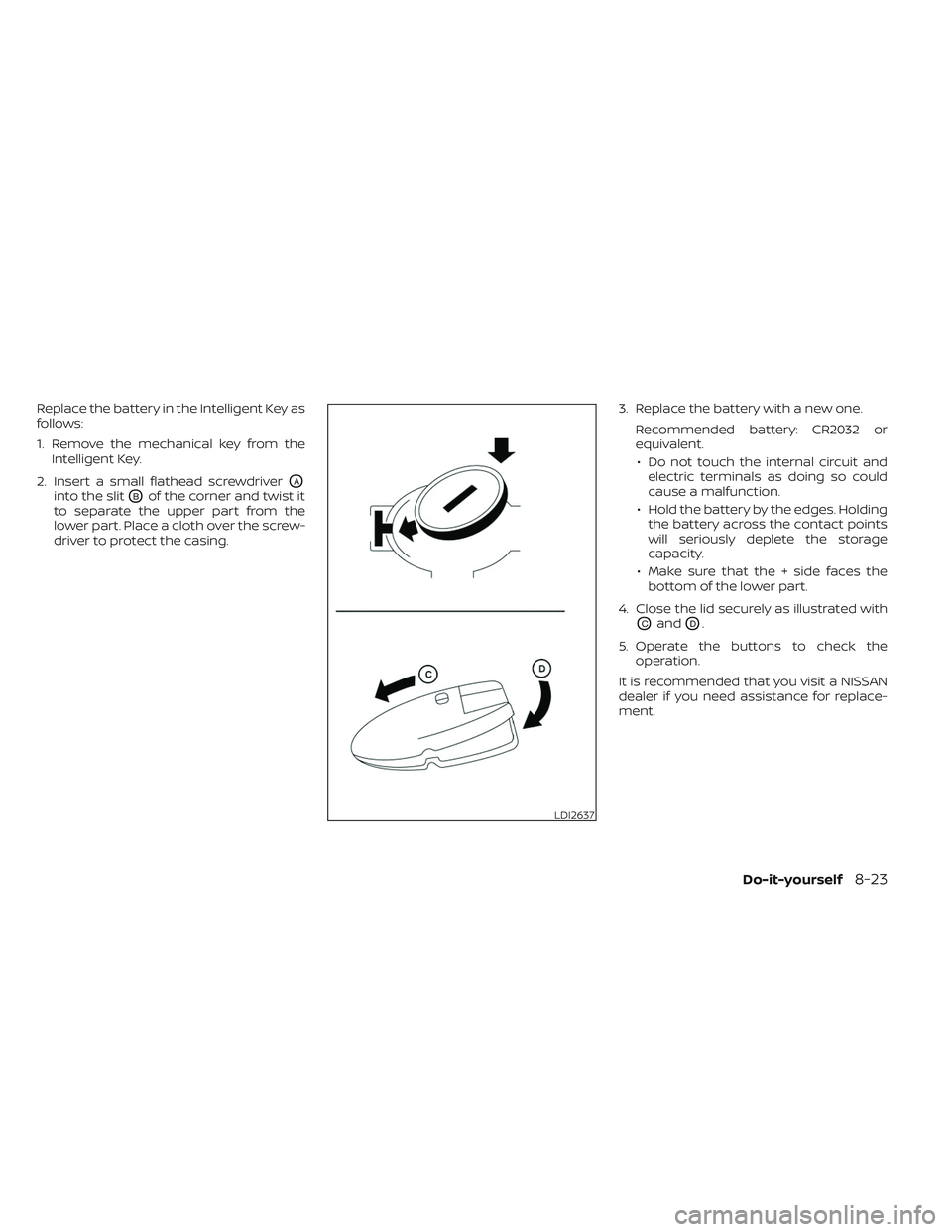
Replace the battery in the Intelligent Key as
follows:
1. Remove the mechanical key from theIntelligent Key.
2. Insert a small flathead screwdriver
OA
into the slitOBof the corner and twist it
to separate the upper part from the
lower part. Place a cloth over the screw-
driver to protect the casing. 3. Replace the battery with a new one.
Recommended battery: CR2032 or
equivalent.• Do not touch the internal circuit and electric terminals as doing so could
cause a malfunction.
• Hold the battery by the edges. Holding the battery across the contact points
will seriously deplete the storage
capacity.
• Make sure that the + side faces the bottom of the lower part.
4. Close the lid securely as illustrated with
OCandOD.
5. Operate the buttons to check the operation.
It is recommended that you visit a NISSAN
dealer if you need assistance for replace-
ment.
LDI2637
Do-it-yourself8-23