key NISSAN MICRA 2019 Owner´s Manual
[x] Cancel search | Manufacturer: NISSAN, Model Year: 2019, Model line: MICRA, Model: NISSAN MICRA 2019Pages: 346, PDF Size: 4.05 MB
Page 172 of 346
iPod® memory device player
operation
Activation and playing
Connecting the iPod® to the vehicle via USB
cable will activate the iPod® mode.
The iPod® can also be played by touching
the “iPod” key on the Menu screen or by
touching iPod on the Launch Bar.
Skipping tracks
To skip the tracks, push the
orbuttons on the control panel or touch the
“
”or“” keys on the screen repeat-
edly until the preferred track is selected.
NOTE:
Depending on the condition, skipping to
the previous track may require pushing
the button or touching the key twice.
Pushing the button or touching the key
once may only restart the current track
from the beginning. Fast-forwarding/rewinding
To rewind or fast-forward the track, push
and hold the
orbuttons on the
control panel or touch and hold the “
”
or “
” keys on the screen,
Changing play mode
Repeat mode
Touch the “
” key on the iPod® screen
to change the repeat mode. The following
modes are available.
No text displayed: Repeat off
All: Repeat all
One: Repeat track
Random mode
Touch the “
” key on the screen to
change the random mode as follows.
No text displayed: Random off
Songs: Random play
iPod® Menu
Touch the “iPod Menu” key on the iPod®
screen to display the iPod® Menu screen.
“Now Playing” key Touch to display the USB
screen.
“Folder List” key
(if so equipped) Touch to display the folder
list. Touch an item on the list
to select the folder. The sub-
folder or track list will be
displayed. Select a sub-folder
or track from the list.
“Album Artwork”
key Touch to run on/off the al-
bum artwork display on the
USB screen.
“Playlists” key Touch to display the list ac- cording to the selected item.
“Artists” key
“Albums” key
“Songs” key
“Podcasts” key
“Genres” key
“Composers” key
“Audiobooks” key
“iTunes Radio”
key
Heater, air conditioner, audio and phone systems4-43
Page 173 of 346
BLUETOOTH® STREAMING AUDIO
If you have a compatible Bluetooth® audio
device that is capable of playing audio files,
the device can be connected to the vehi-
cle’s audio system so that the audio files on
the device play through the vehicle’s
speakers. For additional information, refer
to “FM/AM radio” in this section.
NOTE:
For additional information, refer to the
cellular phone owner’s manual.
Connecting procedure
NOTE:
The connecting procedure must be per-
formed when the vehicle is stationary. If
the vehicle starts moving during the pro-
cedure, the procedure will be canceled.To connect a phone to the Bluetooth®
Hands-Free Phone System:
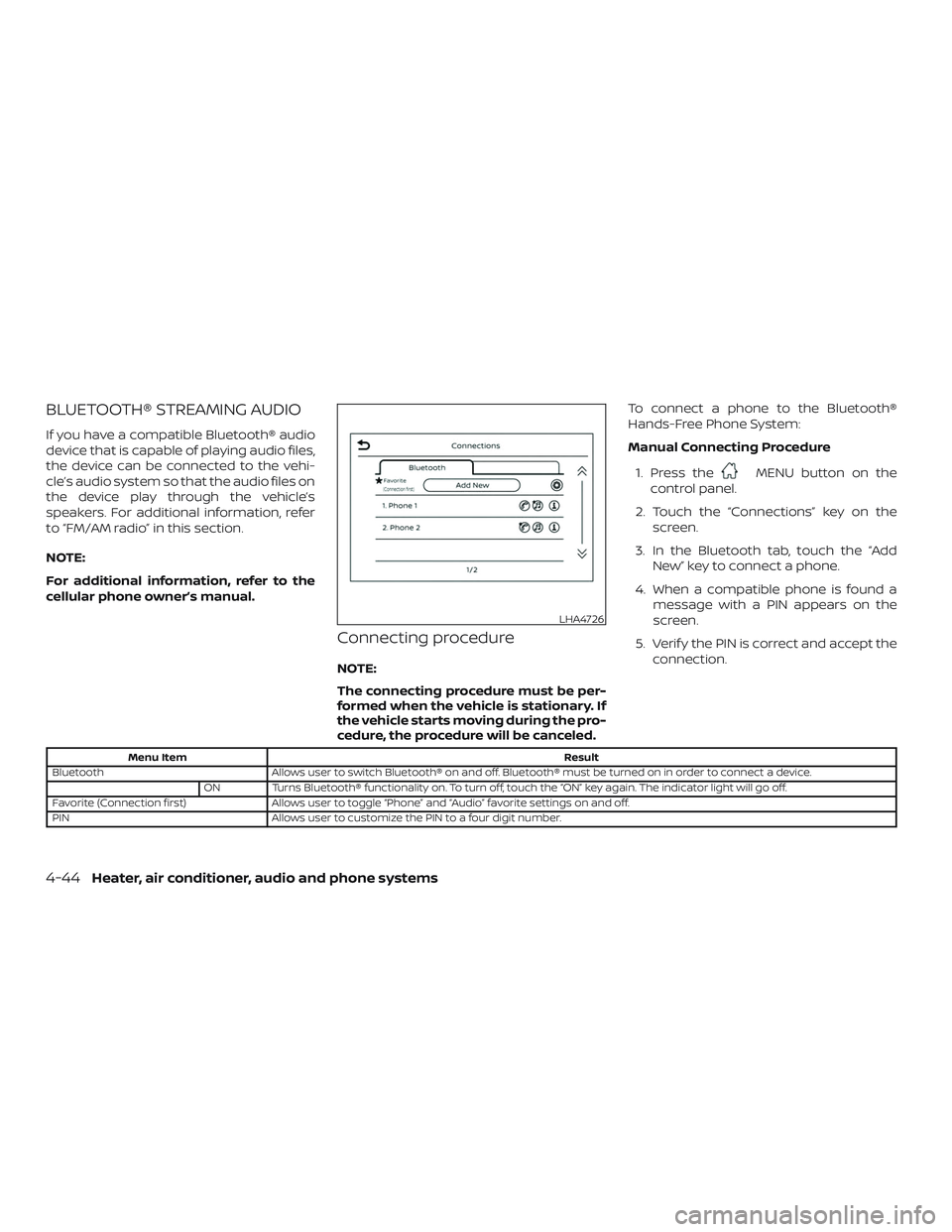
Manual Connecting Procedure
1. Press the
MENU button on the
control panel.
2. Touch the “Connections” key on the screen.
3. In the Bluetooth tab, touch the “Add New” key to connect a phone.
4. When a compatible phone is found a message with a PIN appears on the
screen.
5. Verif y the PIN is correct and accept the connection.
Menu Item Result
Bluetooth Allows user to switch Bluetooth® on and off. Bluetooth® must be turned on in order to connect a device.
ON Turns Bluetooth® functionality on. To turn off, touch the “ON” key again. The indicator light will go off.
Favorite (Connection first) Allows user to toggle “Phone” and “Audio” favorite settings on and off.
PIN Allows user to customize the PIN to a four digit number.
LHA4726
4-44Heater, air conditioner, audio and phone systems
Page 174 of 346
Automatic Connecting Procedure
If no phone is connected to the system,
press and hold the
button on the
steering wheel for less than 1.5 seconds.
Af ter the prompt, speak “Add Phone”, the
system will announce “transferring to the
add phone settings menu”. The system will
start the pairing procedure. When a com-
patible phone is found, a message with a
PIN appears on the screen. Operate the
Bluetooth® phone to complete the con-
nection process. For additional informa-
tion, refer to “Bluetooth® connections
screen” in this section.
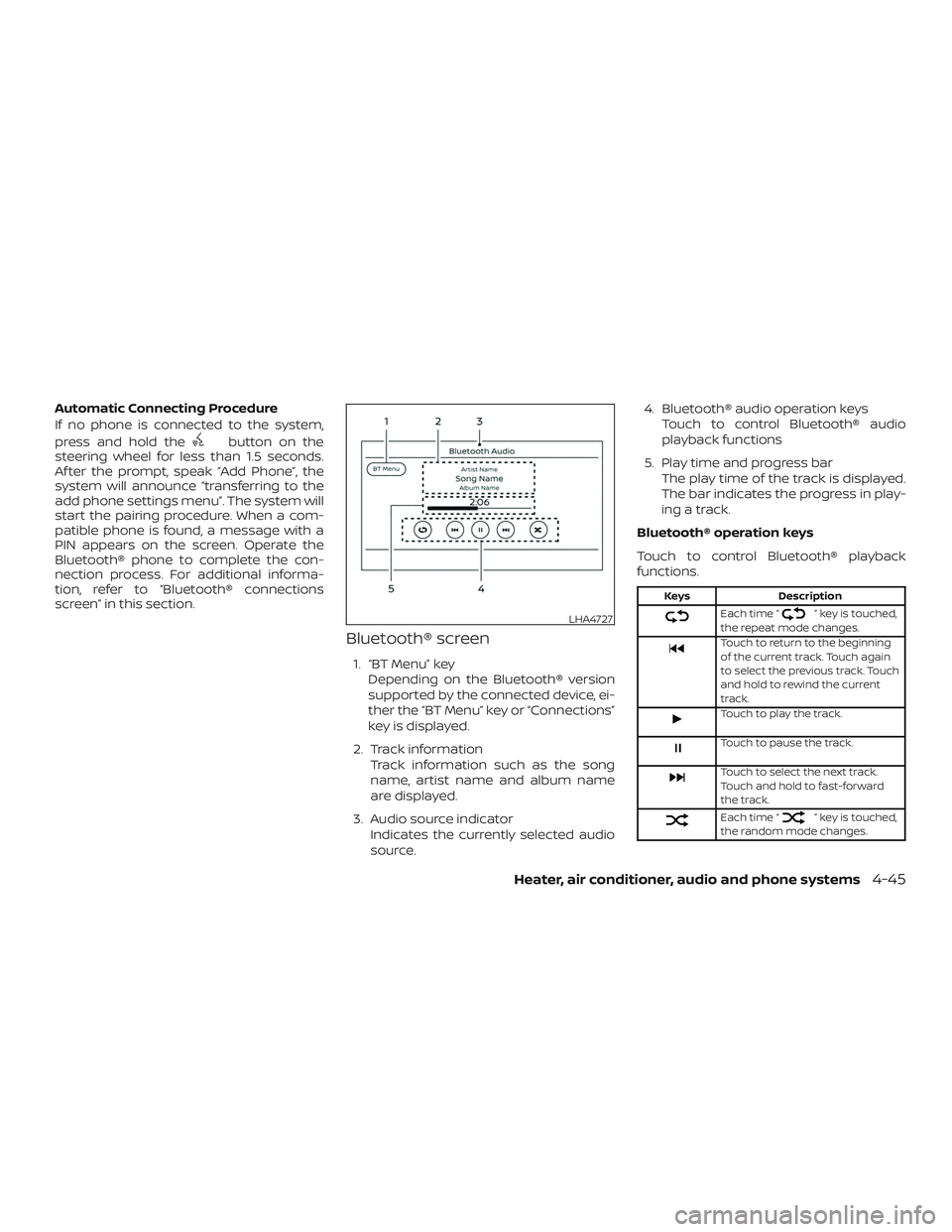
Bluetooth® screen
1. “BT Menu” key
Depending on the Bluetooth® version
supported by the connected device, ei-
ther the “BT Menu” key or “Connections”
key is displayed.
2. Track information Track information such as the song
name, artist name and album name
are displayed.
3. Audio source indicator Indicates the currently selected audio
source. 4. Bluetooth® audio operation keys
Touch to control Bluetooth® audio
playback functions
5. Play time and progress bar The play time of the track is displayed.
The bar indicates the progress in play-
ing a track.
Bluetooth® operation keys
Touch to control Bluetooth® playback
functions.
Keys Description
Each time “” key is touched,
the repeat mode changes.
Touch to return to the beginning
of the current track. Touch again
to select the previous track. Touch
and hold to rewind the current
track.
Touch to play the track.
Touch to pause the track.
Touch to select the next track.
Touch and hold to fast-forward
the track.
Each time “” key is touched,
the random mode changes.
LHA4727
Heater, air conditioner, audio and phone systems4-45
Page 175 of 346
Bluetooth® audio operation
The ability to pause, change tracks, fast
forward, rewind, randomize and repeat
music may be different between devices.
Some or all of these functions may not be
supported on each device.
NOTE:
Depending on the Bluetooth® audio de-
vice that is connected, it may not be pos-
sible to perform audio operations or a
delay may occur before music is played
back.
Activation and playing
A Bluetooth® audio device can be played by
touching the “Bluetooth” key on the Menu
screen or by touching Bluetooth on the
Launch Bar.
To pause playing the Bluetooth® audio,
touch the “
” key. Touch the “”key
to resume playing.
Changing folders
To change folders, touch the “BT Menu” key. Fast-forwarding/rewinding
To fast-forward or rewind the track, push
and hold the
orbuttons on the
control panel or touch the “
”or“”
keys on the screen.
Changing play mode
Repeat mode
Touch the “
” key on the screen to
change the repeat mode.
Random mode
Touch the “
” key on the screen to
change the random mode.
NOTE:
Available repeat/random modes change
depending on the connected device.
BT Menu
Touch the “BT Menu” key on the Bluetooth®
audio screen to display the Bluetooth® au-
dio menu screen.
The following items are available.
“Now Playing” key Touch to display the
Bluetooth® audio screen.
“Current List” key (if so
equipped)* A list of track in the cur-
rently selected folder is
displayed.
“Connections” key Touch to display the connections screen.
“Folder List” key* Touch to display the folder list. Touch an item
on the list to select the
folder.
*: displayed only when available.
NOTE:
Depending on the connected device, the
“BT Menu” key may not be displayed.
4-46Heater, air conditioner, audio and phone systems
Page 186 of 346
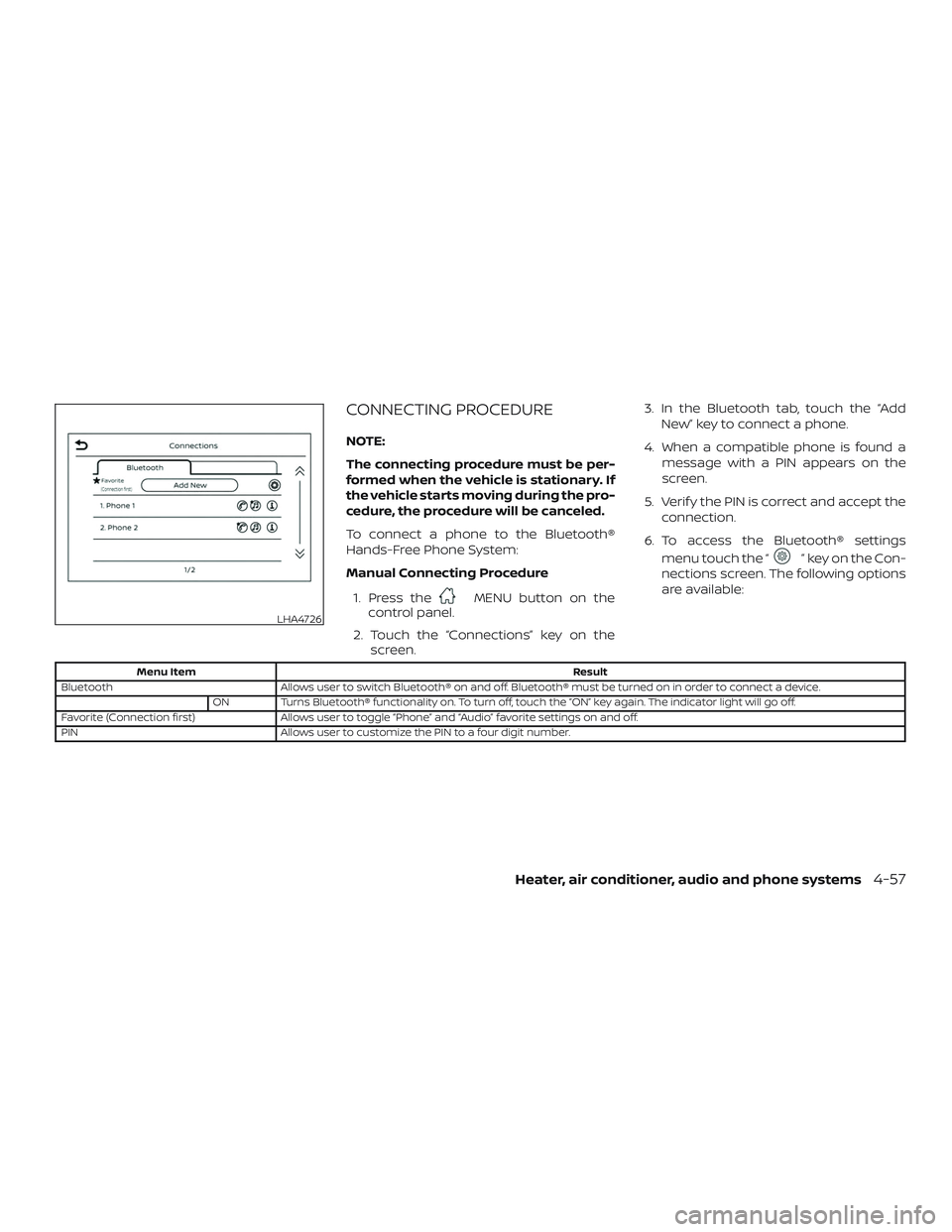
CONNECTING PROCEDURE
NOTE:
The connecting procedure must be per-
formed when the vehicle is stationary. If
the vehicle starts moving during the pro-
cedure, the procedure will be canceled.
To connect a phone to the Bluetooth®
Hands-Free Phone System:
Manual Connecting Procedure1. Press the
MENU button on the
control panel.
2. Touch the “Connections” key on the screen. 3. In the Bluetooth tab, touch the “Add
New” key to connect a phone.
4. When a compatible phone is found a message with a PIN appears on the
screen.
5. Verif y the PIN is correct and accept the connection.
6. To access the Bluetooth® settings menu touch the “
” key on the Con-
nections screen. The following options
are available:
Menu Item Result
Bluetooth Allows user to switch Bluetooth® on and off. Bluetooth® must be turned on in order to connect a device.
ON Turns Bluetooth® functionality on. To turn off, touch the “ON” key again. The indicator light will go off.
Favorite (Connection first) Allows user to toggle “Phone” and “Audio” favorite settings on and off.
PIN Allows user to customize the PIN to a four digit number.
LHA4726
Heater, air conditioner, audio and phone systems4-57
Page 188 of 346
“Recent Calls”
The following commands are available un-
der “Recent Calls”:∙ Incoming Calls Speak this command to list the last
20 incoming calls to the vehicle. If the
call is from an entry in the phonebook,
the name will be displayed. Otherwise,
the phone number of the incoming call
will be displayed.
When prompted, speak or touch the
item number on the screen to place the
call. Select the “Next” key to move
through the list of incoming calls.
∙ Outgoing Calls Speak this command to list the last 20
outgoing calls from the vehicle. If the
call was to an entry in the phonebook,
the name will be displayed. Otherwise,
the phone number of the outgoing call
will be displayed.
When prompted, speak or touch the
item number on the screen to place the
call. Select the “Next” key to move
through the list of outgoing calls. ∙ Missed Calls
Speak this command to list the last 20
missed calls to the vehicle. If the call is
from an entry in the phonebook, the
name will be displayed. Otherwise, the
phone number of the missed call will be
displayed.
When prompted, speak or touch the
item number on the screen to place the
call. Select the “Next” key to move
through the list of missed calls.
“Read Text/Send Text” (if so
equipped)
Speak this command to access text mes-
saging functions. For additional informa-
tion, refer to “Text messaging” in this sec-
tion.
“Phonebook through voice
command”
Speak “Phonebook” to view a list of quick
steps to access entries stored in the
phonebook. Commands are organized by
the phone number type selected in the cel-
lular device. For additional information, re-
fer to the cellular phone’s owner’s manual. The following commands are available:
∙
∙
∙
∙
∙
∙
For additional information on manually se-
lecting phonebook entries, refer to “Making
a call” in this section.
“Quick dial”
Speak this command to access the Quick
dial menu. Af ter the prompt, speak or se-
lect an item number on the displayed list to
place the call. For additional information,
refer to “Making a call” in this section.
“Redial”
Speak this command to call the last num-
ber dialed. Af ter the prompt, say “Redial” to
dial the number of the last outgoing call.
The system will display “Redialing
phonebook entry will be displayed if it is
available, otherwise the number being re-
dialed will be displayed.
Heater, air conditioner, audio and phone systems4-59
Page 189 of 346
“Select Phone”
Speak this command to access the Con-
nections menu. For additional information,
refer to “Bluetooth® connections screen” in
this section.
“Add Phone”
Speak this command to access the Con-
nections menu. For additional information,
refer to “Bluetooth® connections screen” in
this section.
“Settings”
Speak this command to access the Sys-
tem Voice settings menu. The system will
exit Voice Recognition mode. Touch one of
the following options on the screen to
change the settings.∙ Beep Only for Opening Prompt By touching the “ON” key, the indicator
light will illuminate, the system voice will
turn off and only a tone will sound when
the Bluetooth® Hands-Free Phone Sys-
tem is activated. To turn the system
voice back on, touch the “ON” key again,
the indicator light will turn off. ∙ Best Match List
When the system doesn’t recognize a
phonebook name or dial number, it will
provide a list of similar sounding results.
To turn this off, touch the “ON” key, the
indicator light will turn off. To turn on,
touch the “ON” key again, the indicator
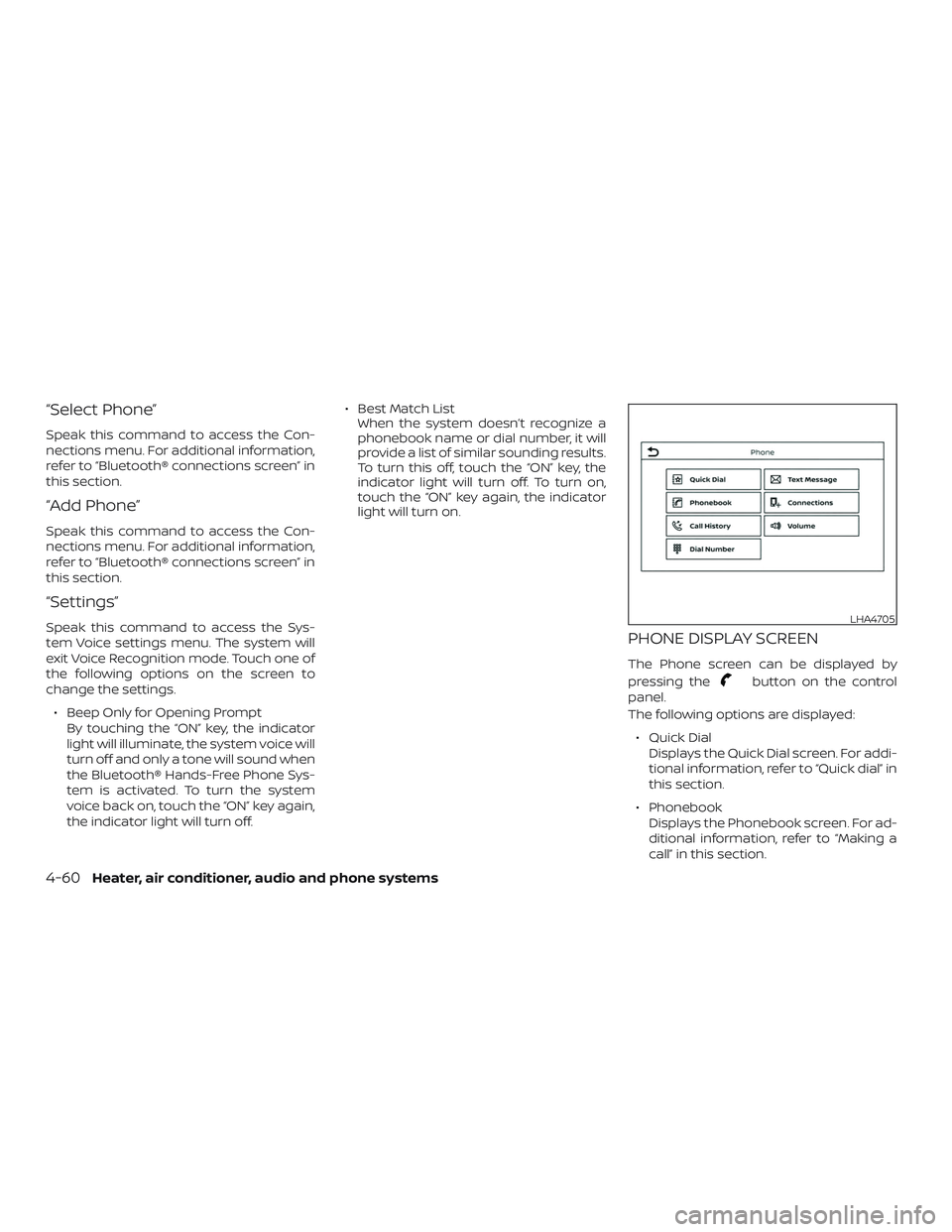
light will turn on.PHONE DISPLAY SCREEN
The Phone screen can be displayed by
pressing the
button on the control
panel.
The following options are displayed:
∙ Quick Dial Displays the Quick Dial screen. For addi-
tional information, refer to “Quick dial” in
this section.
∙ Phonebook Displays the Phonebook screen. For ad-
ditional information, refer to “Making a
call” in this section.
LHA4705
4-60Heater, air conditioner, audio and phone systems
Page 190 of 346
∙ Call HistoryDisplays the Call History screen. For ad-
ditional information, refer to “Making a
call” in this section.
∙ Dial Number Displays the Dial Number screen. For
additional information, refer to “Making
a call” in this section.
∙ Text Message Displays the received message screen.
For additional information, refer to “Text
messaging” in this section.
∙ Connections Displays the Connections screen. For
additional information, refer to
“Bluetooth® connections screen” in this
section.
∙ Volume Displays the volume adjustment
screen. For additional information, refer
to “Volume & beeps” in this section.MAKING A CALL
To make a call press thebutton on
the control panel. Touch an option from
menu screen:
∙ Phonebook Select a person and the phone number
you wish to call from the phonebook.
Depending on the device, the phone-
book will be downloaded from the cel-
lular phone automatically when it is
connected. If the automatic download
does not take place, the phone number
must be transferred to the hands-free
phone system from the cellular phone
prior to using this method. For addi-
tional information, refer to “Phone and
text message settings” in this section.
∙ Call History Select a phonebook name or phone
number from the recent incoming, out-
going or missed calls tabs. Touch a
phonebook name or phone number
listed to initiate the call.
∙ Dial Number Enter the phone number manually us-
ing the keypad displayed on the screen.
Press the “OK” key on the screen to initi-
ate the call. For additional options to make a call, refer
to “Voice commands” in this section.
Quick Dial
Quick Dial entries can be used to quickly
make a call. The system allows up to 20
entries to be stored. To set up a quick dial
press the
button on the control
panel. Touch the “Quick Dial” key to display a
list of quick dial entries. Touch the “Edit” key
to edit current entries or touch the “Add
New” key to make a new entry. Two meth-
ods are given to create a quick dial entry:
∙ Touch the “Copy from Call History” key to save a phone number from the In-
coming, Outgoing or Missed call history
lists. Select the person or phone num-
ber from the menu to be added. A reg-
istration menu will display the Entry #,
phone number, phone number type
stored in the cellular phone and Voice
Tag. Select the “OK” key.
Heater, air conditioner, audio and phone systems4-61
Page 191 of 346
∙Touch the “Copy from Phonebook” key to
save a number from the phonebook. Use
thescrollkeysonthesidetomoveup
and down through the menu. Select a
person to be added. A menu will display
the Entry #, phone number, phone num-
ber type stored in the cellular phone and
Voice Tag. Select the “OK” key.
Voice tag
A voice tag can be recorded for each of the
registered Quick Dial numbers and can be
used to dial the number by speaking it. On
the Quick Dial registration screen, touch
the “Voice Tag” key. Select a relationship
from the list or create a new voice tag. To
record a new voice tag touch the “Custom-
ize” key on the screen then touch the “Store”
key. Speak a name af ter the prompt, the
new tag will be stored. To edit or create a
new voice tag select the “Customize” key
again. Touch the “Play” key to play the re-
corded voice tag, touch the “Restore” key to
edit the voice tag or “Delete” to delete the
current voice tag.
RECEIVING A CALL
When a call is received by the phone con-
nected to the vehicle’s Bluetooth® Hands-
Free Phone System, the call information is
displayed on the control panel display.
Press the
button on the steering
wheel or touch the “
Answer” key on
the screen to accept the call. To reject the
call touch the “
Decline” key on the
screen.
If the user is not able to answer the call
right away, touch the “Hold Call” key dis-
played on the screen. A message will be
played for the caller: “I’m not able to take a
call right now.” The user may then accept
the call when available or reject the call.
To reject a call, press and hold the
button on the steering wheel.
DURING A CALL
While a call is active the following options
will appear on the control panel display:
∙ Mute Touch this key to mute or unmute the
system. ∙ Dial Number
Touch this key to dial digits during the
phone call.
∙ Use Handset Touch this key to transfer the call to the
handset. To transfer the call back from
the handset to the Bluetooth® Hands-
Free Phone System, press the
button on the control panel then select
the “Transfer Hands-free” key on the
screen.
∙ Switch Call This option will only be available when a
second call is active.
If supported by the phone, the
Bluetooth® Hands-Free Phone System
allows for call waiting functionality. If a
call is received while another call is al-
ready active, a message will be dis-
played on the screen. Press the
button on the steering wheel or touch
the “
Answer” key on screen to ac-
cept the incoming call. Touch the
“
Decline” key on the screen to re-
ject the second call.
4-62Heater, air conditioner, audio and phone systems
Page 192 of 346
While a call is active, press thebutton
on the steering wheel to access additional
options. Speak one of the following com-
mands:
∙ “Send Digits” Speak this command followed by the
digits to enter digits during the phone
call.
∙ “Switch call” Speak this command to hold the sec-
ond call and switch back to the original
call.
ENDING A CALL
To end an active call, press thebutton
on the steering wheel or touch the
“
Hang up” key on the screen.
TEXT MESSAGING (if so equipped)
WARNING
∙ Laws in some jurisdictions may re- strict the use of “Text-to-Speech”.
Check local regulations before using
this feature. ∙ Laws in some jurisdictions may re-
strict the use of some of the applica-
tions and features, such as social net-
working and texting. Check local
regulations for any requirements.
∙ Use the text messaging feature af ter stopping your vehicle in a safe loca-
tion. If you have to use the feature
while driving, exercise extreme cau-
tion at all times so full attention may
be given to vehicle operation.
∙ If you are unable to devote full atten- tion to vehicle operation while using
the text messaging feature, pull off
the road to a safe location and stop
your vehicle.
NOTE:
This feature is automatically disabled if
the connected device does not support
the Message Access Profile (MAP). For
additional information, refer to the
phone’s owner’s manual for details and
instructions. NOTE:
Many phones may require special per-
mission to enable text messaging. Check
the phone’s screen during Bluetooth®
pairing. For some phones, you may need
to enable ‘Notifications’ in the phone’s
Bluetooth® menu for text messages to
appear on the head unit. For additional
information, refer to your phone’s own-
er’s manual. Text message integration
requires that the phone support MAP
(Message Access Profile) for both receiv-
ing and sending text messages. Some
phones may not support all text mes-
saging features. Please refer to
www.nissanusa.com/bluetooth or
www.nissan.ca/bluetooth for compat-
ibility information, as well as your de-
vice’s owner’s manual.
The system allows for the sending and re-
ceiving of text messages through the ve-
hicle interface.
The availability of the text message func-
tion may vary depending on the cellular
phone.
Heater, air conditioner, audio and phone systems4-63