battery NISSAN MURANO 2010 Owner´s Manual
[x] Cancel search | Manufacturer: NISSAN, Model Year: 2010, Model line: MURANO, Model: NISSAN MURANO 2010Pages: 425, PDF Size: 3.62 MB
Page 175 of 425
Black plate (171,1)
Model "Z51-D" EDITED: 2009/ 8/ 3
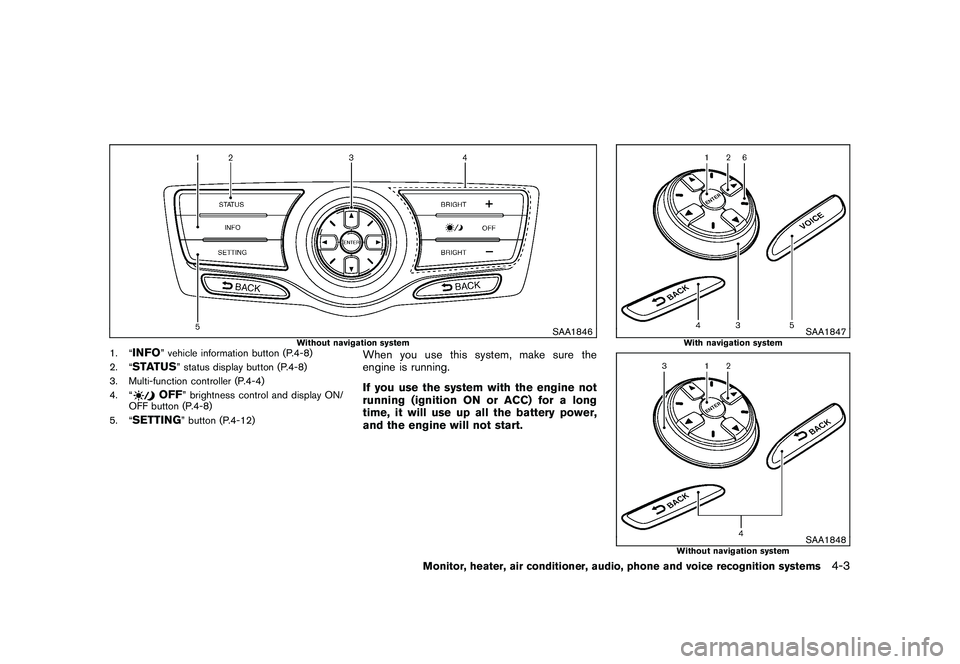
SAA1846
Without navigation system
1. “
INFO
” vehicle information button (P.4-8)
2. “
STATUS
” status display button (P.4-8)
3. Multi-function controller (P.4-4)
4. “
OFF
” brightness control and display ON/
OFF button (P.4-8)
5. “
SETTING
” button (P.4-12)
When you use this system, make sure the
engine is running.
If you use the system with the engine not
running (ignition ON or ACC) for a long
time, it will use up all the battery power,
and the engine will not start.
SAA1847
With navigation system
SAA1848
Without navigation system
Monitor, heater, air conditioner, audio, phone and voice recognition systems
4-3
Page 193 of 425
Black plate (189,1)
Model "Z51-D" EDITED: 2009/ 8/ 3
.On a snow-covered or slippery road,
there may be a difference between
the predicted course line and the
actual course line.
. If the battery is disconnected or
becomes discharged, the predicted
course lines may be displayed in-
correctly. If this occurs, please per-
form the following procedures:
— Turn the steering wheel from
lock to lock while the engine is
running.
— Drive the vehicle on a straight road for more than 5 minutes.
. When the steering wheel is turned
with the ignition switch in the ACC
position, the predicted course lines
may be displayed incorrectly.
. The displayed lines will appear
slightly off to the right because the
rear view camera is not installed in
the rear center of the vehicle.
. The distance guide line and the
vehicle width line should be used
as a reference only when the vehicle
is on a level paved surface. The
distance viewed on the monitor is
for reference only and may be different than the actual distance
between the vehicle and displayed
objects.
. When backing-up the vehicle up a
hill objects viewed in the monitor
are further than they appear. When
backing-up the vehicle down a hill,
objects viewed in the monitor are
closer than they appear. Use the
inside mirror or glance over your
shoulder to properly judge dis-
tances to other objects.
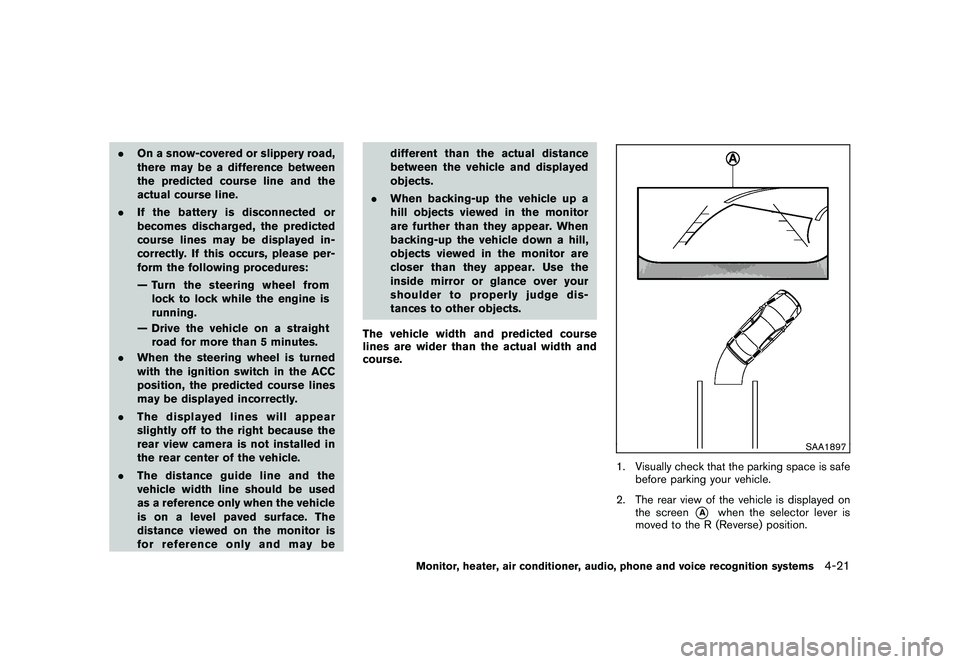
The vehicle width and predicted course
lines are wider than the actual width and
course.
SAA1897
1. Visually check that the parking space is safe before parking your vehicle.
2. The rear view of the vehicle is displayed on the screen
*A
when the selector lever is
moved to the R (Reverse) position.
Monitor, heater, air conditioner, audio, phone and voice recognition systems
4-21
Page 204 of 425
Black plate (200,1)
Model "Z51-D" EDITED: 2009/ 8/ 3
Static and flutter: During signal interference from
buildings, large hills or due to antenna position,
usually in conjunction with increased distance
from the station transmitter, static or flutter can
be heard. This can be reduced by lowering the
treble setting to reduce the treble response.
Multipath reception: Because of the reflective
characteristics of FM signals, direct and re-
flected signals reach the receiver at the same
time. The signals may cancel each other,
resulting in momentary flutter or loss of sound.
AM radio reception:
AM signals, because of their low frequency, can
bend around objects and skip along the ground.
In addition, the signals can be bounced off the
ionosphere and bent back to earth. Because of
these characteristics. AM signals are also
subject to interference as they travel from
transmitter to receiver.
Fading: Occurs while the vehicle is passing
through freeway underpasses or in areas with
many tall buildings. It can also occur for several
seconds during ionospheric turbulence even in
areas where no obstacles exist.
Static: Caused by thunderstorms, electrical
power lines, electric signs and even traffic lights.Satellite radio reception (if so equipped):
When the satellite radio is first installed or the
battery has been replaced, the satellite radio
may not work properly. This is not a malfunction.
Wait more than 10 minutes with satellite radio
ON for satellite radio to receive all of the
necessary data.
The satellite radio mode requires an active XM
®
satellite radio service subscription. Satellite
radio is not available in Alaska, Hawaii and
Guam.
Satellite radio performance may be affected if
cargo carried on the roof blocks the satellite
radio signal.
If possible, do not put cargo near the satellite
antenna.
A build up of ice on the satellite radio antenna
can affect satellite radio performance. Remove
the ice to restore satellite radio reception.
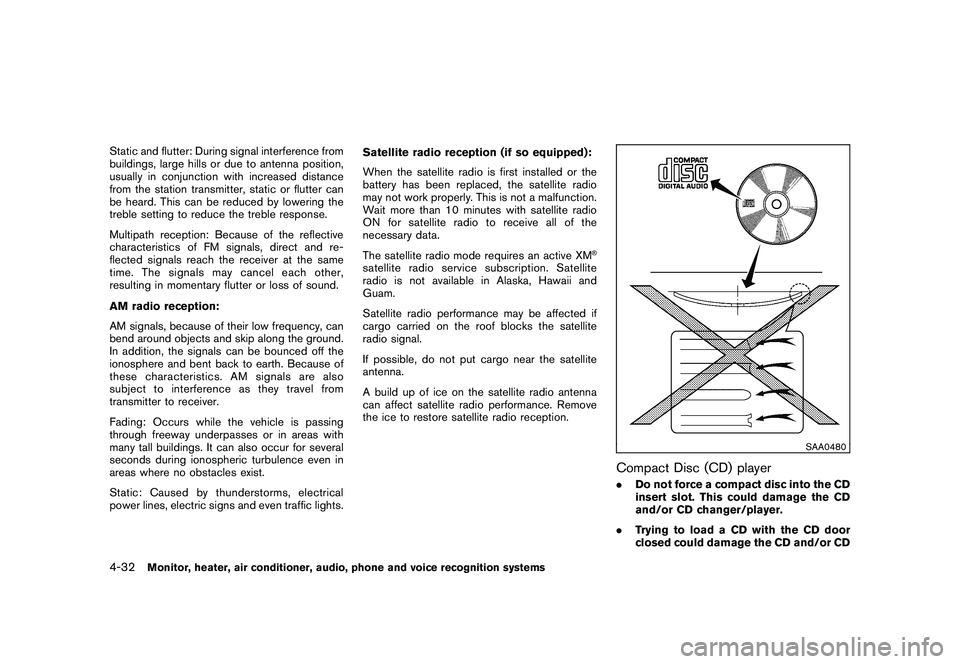
SAA0480
Compact Disc (CD) player.
Do not force a compact disc into the CD
insert slot. This could damage the CD
and/or CD changer/player.
. Trying to load a CD with the CD door
closed could damage the CD and/or CD
4-32
Monitor, heater, air conditioner, audio, phone and voice recognition systems
Page 213 of 425
Black plate (209,1)
Model "Z51-D" EDITED: 2009/ 8/ 3
buttons
*1
to
*6
until a beep sound is
heard. (The radio mutes when the select
button is pushed.)
4. The channel indicator will then come on and the sound will resume. Memorizing is now
complete.
5. Other buttons can be set in the same manner.
If the battery cable is disconnected, or if the fuse
blows, the radio memory will be erased. In that
case, reset the desired stations.
Compact Disc (CD) changer operationPush the ignition switch to the ACC or ON
position, push the LOAD button and insert the
compact disc into the slot with the label side
facing up. The compact disc will be guided
automatically into the slot and start playing.
After loading the disc, the number of tracks on
the disc and the play time will appear on the
display.
If the radio is already operating, it will auto-
matically turn off and the compact disc will play.
If the system has been turned off while the
compact disc was playing, pushing the
ON·OFF/VOL control knob will start the com-
pact disc.
CD LOAD:
To insert a CD in the CD changer, push the
LOAD button for less than 1.5 seconds. Select
the loading position by pushing the CD insert
select button
*1
to*6, then insert the CD.
To insert 6 CDs to the CD changer in
succession, push the LOAD button for more
than 1.5 seconds.
The inserted slot numbers will illuminate on the
display.
PLAY:
When the DISC (CD play) button is pushed with
the system off and the compact disc loaded, the
system will turn on and the compact disc will
start to play.
When the DISC button is pushed with the
compact disc loaded and the radio playing, the
radio will automatically be turned off and the
compact disc will start to play.
CD PLAY INFORMATION:
When the DISP button is pushed for less than
1.5 seconds while the CD is being played, the
disc information display will change as follows:
CD:
CD with MP3 or WMA:
FF (Fast Forward) , REW (Re-
wind)/APS (Automatic Pro-
gram Search) FF, APS REW:
When the(fast forward) or
(rewind)
button is pushed for more than 1.5 seconds
while the compact disc is being played, the
compact disc will play while fast forwarding or
rewinding. When the button is released, the
compact disc will return to normal play speed.
When the
or
button is pushed for less
than 1.5 seconds while the compact disc is
being played, the next track or the beginning of
Monitor, heater, air conditioner, audio, phone and voice recognition systems
4-41
Page 218 of 425
Black plate (214,1)
Model "Z51-D" EDITED: 2009/ 8/ 3
low frequencies and to stop at the next
broadcasting station.
. For XM satellite radio
Push the SEEK·CAT or TRACK buttonor
to tune to the first channel of the
next or previous category.
During satellite radio reception, the following
notices will be displayed under certain condi-
tions.
. NO SIGNAL (No signal is received while the
SAT tuner is connected.)
. OFF AIR (Broadcasting signed off)
. ANTENNA ERROR (Antenna connection
error)
. LOADING (When the initial setting is
performed)
. UPDATING (When the satellite radio sub-
scription is not active)
. INVALID CH (Invalid channel is received.)
SCAN tuning:
Push the SCAN tuning button to tune from low
to high frequencies and stops at each broad-
casting station for 5 seconds. Pushing the
button again during this 5 seconds period will
stop SCAN tuning and the radio will remain tuned to that station.
If the SCAN tuning button is not pushed within 5
seconds, SCAN tuning moves to the next
station.
*1
to
*6
Station memory operations:
Twelve stations/channels can be set for the FM
band (6 for FM1, 6 for FM2) and the SAT radio
(6 for SAT1, 6 for SAT2) , and 6 stations can be
set for the AM band.
1. Choose the radio band using the radio band select button.
2. Tune to the desired station using the SEEK, SCAN or TUNE button.
3. Select the desired station/channel and keep pushing any of the desired station preset
buttons*1
to
*6
until a beep sound is
heard. (The radio mutes when the select
button is pushed.)
4. The channel indicator will then come on and the sound will resume. Memorizing is now
complete.
5. Other buttons can be set in the same manner.
If the battery cable is disconnected, or if the fuse
blows, the radio memory will be erased. In that
case, reset the desired stations. Text:
When the “Text” key is selected with the multi-
function controller on the display and then the
ENTER button is pushed while the satellite radio
is being played, the text information will be
displayed on the screen.
.
CH Name
. Category
. Name
. Title
. Other
Compact Disc (CD) player/changer op-
erationPush the ignition switch to the ACC or ON
position, push the LOAD button (if so equipped)
and insert the compact disc into the slot with the
label side facing up. The compact disc will be
guided automatically into the slot and start
playing.
After loading the disc, the number of tracks on
the disc and the play time will appear on the
display.
If the radio is already operating, it will auto-
matically turn off and the compact disc will play.
If the system has been turned off while the
compact disc was playing, pushing the
4-46
Monitor, heater, air conditioner, audio, phone and voice recognition systems
Page 223 of 425
Black plate (219,1)
Model "Z51-D" EDITED: 2009/ 8/ 3
iPod
®PLAYER OPERATION (if so
equipped)
Connecting iPod
®
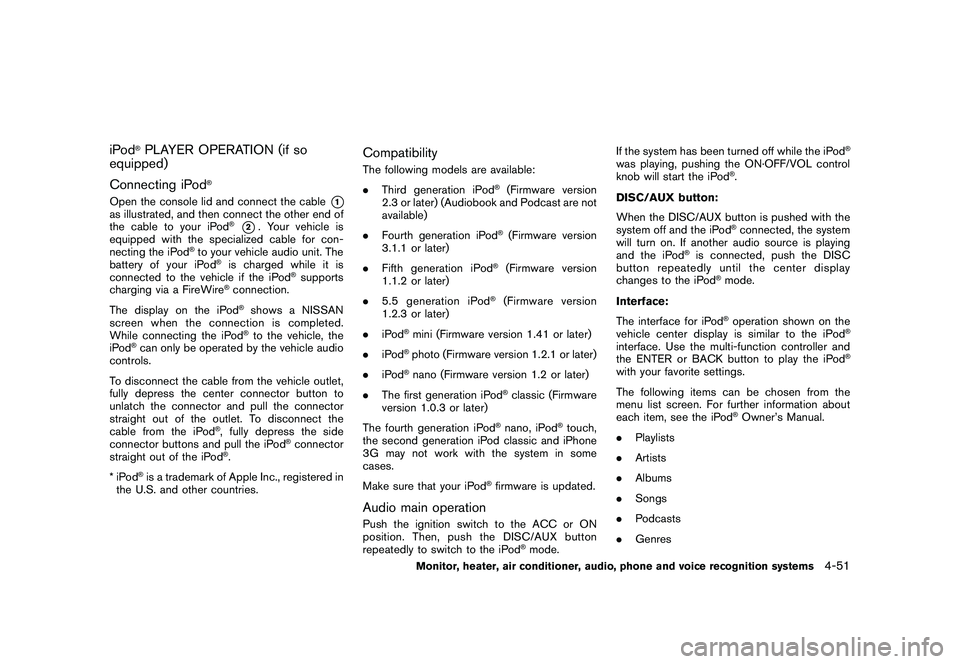
Open the console lid and connect the cable
*1
as illustrated, and then connect the other end of
the cable to your iPod
®*2. Your vehicle is
equipped with the specialized cable for con-
necting the iPod
®to your vehicle audio unit. The
battery of your iPod
®is charged while it is
connected to the vehicle if the iPod
®supports
charging via a FireWire
®connection.
The display on the iPod®shows a NISSAN
screen when the connection is completed.
While connecting the iPod®to the vehicle, the
iPod
®can only be operated by the vehicle audio
controls.
To disconnect the cable from the vehicle outlet,
fully depress the center connector button to
unlatch the connector and pull the connector
straight out of the outlet. To disconnect the
cable from the iPod
®, fully depress the side
connector buttons and pull the iPod
®connector
straight out of the iPod
®.
*iPod
®is a trademark of Apple Inc., registered in
the U.S. and other countries.
CompatibilityThe following models are available:
. Third generation iPod
®(Firmware version
2.3 or later) (Audiobook and Podcast are not
available)
. Fourth generation iPod®(Firmware version
3.1.1 or later)
. Fifth generation iPod
®(Firmware version
1.1.2 or later)
. 5.5 generation iPod
®(Firmware version
1.2.3 or later)
. iPod
®mini (Firmware version 1.41 or later)
. iPod®photo (Firmware version 1.2.1 or later)
. iPod®nano (Firmware version 1.2 or later)
. The first generation iPod
®classic (Firmware
version 1.0.3 or later)
The fourth generation iPod
®nano, iPod
®touch,
the second generation iPod classic and iPhone
3G may not work with the system in some
cases.
Make sure that your iPod
®firmware is updated.
Audio main operationPush the ignition switch to the ACC or ON
position. Then, push the DISC/AUX button
repeatedly to switch to the iPod
®mode. If the system has been turned off while the iPod
®
was playing, pushing the ON·OFF/VOL control
knob will start the iPod
®.
DISC/AUX button:
When the DISC/AUX button is pushed with the
system off and the iPod®connected, the system
will turn on. If another audio source is playing
and the iPod
®is connected, push the DISC
button repeatedly until the center display
changes to the iPod
®mode.
Interface:
The interface for iPod®operation shown on the
vehicle center display is similar to the iPod
®
interface. Use the multi-function controller and
the ENTER or BACK button to play the iPod
®
with your favorite settings.
The following items can be chosen from the
menu list screen. For further information about
each item, see the iPod
®Owner’s Manual.
. Playlists
. Artists
. Albums
. Songs
. Podcasts
. Genres
Monitor, heater, air conditioner, audio, phone and voice recognition systems
4-51
Page 235 of 425
Black plate (231,1)
Model "Z51-D" EDITED: 2009/ 8/ 3
This vehicle is equipped with the mobile
entertainment system, which enables you to
play a Digital Versatile Disc (DVD) , providing the
images and sounds both in the front and rear
display screens.
WARNING
.The driver must not attempt to
operate or view the Mobile Enter-
tainment System (MES) while the
vehicle is in motion so that full
attention may be given to vehicle
operation.
. Do not attempt to modify the system
to display a movie on the front
screen while the vehicle is being
driven. Doing so may distract the
driver and may cause a collision and
serious personal injury or death.
CAUTION
.The glass screen on the liquid
crystal display may break if hit with
a hard or sharp object. If the glass
breaks, do not touch the liquid
crystalline material, which contains
a small amount of mercury. In case of contact with skin, wash immedi-
ately with soap and water.
. Use a damp, soft cloth when clean-
ing the Mobile Entertainment Sys-
tem components. Do not use
solvents or cleaning solutions.
. Do not attempt to use the system in extreme
temperature conditions [below 48F
( 20 8C) or above 158 8F (70 8C)].
. To avoid discharging the vehicle battery, do
not operate the system more than 15
minutes without starting the engine.
Movies will not be shown on the front display
while the vehicle is in any drive position to
reduce driver distraction. Audio is available
when a movie is played. To view movies in the
front display, stop the vehicle in a safe location,
move the selector lever to the P (Park) position
and apply the parking brake.
LHA0484
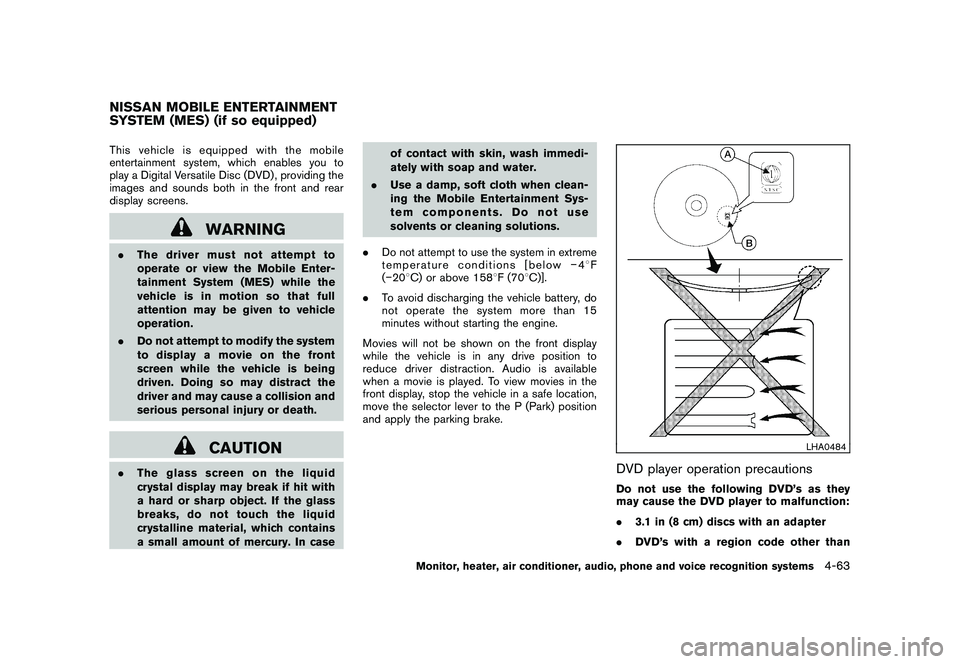
DVD player operation precautionsDo not use the following DVD’s as they
may cause the DVD player to malfunction:
. 3.1 in (8 cm) discs with an adapter
. DVD’s with a region code other than
NISSAN MOBILE ENTERTAINMENT
SYSTEM (MES) (if so equipped)
Monitor, heater, air conditioner, audio, phone and voice recognition systems
4-63
Page 238 of 425
Black plate (234,1)
Model "Z51-D" EDITED: 2009/ 8/ 3
SAA0720
HeadphonesHeadphones are a wireless type and no cables
are necessary. You can use them in almost all
the ranges in the rear seat for listening to the
sound from DVD or AUX. (It is not possible to
use the headphones in the front seat.)
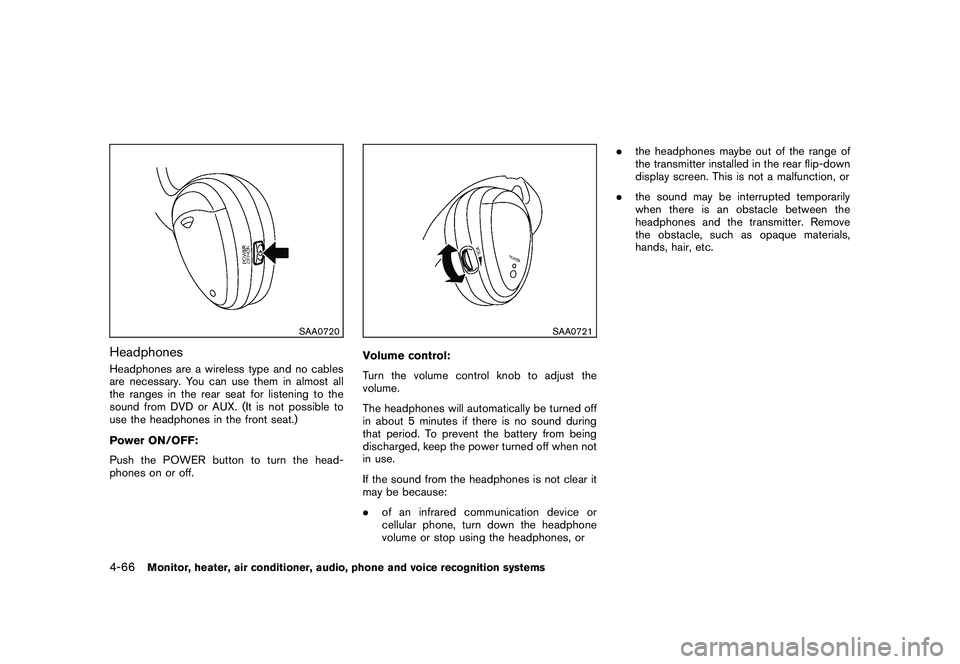
Power ON/OFF:
Push the POWER button to turn the head-
phones on or off.
SAA0721
Volume control:
Turn the volume control knob to adjust the
volume.
The headphones will automatically be turned off
in about 5 minutes if there is no sound during
that period. To prevent the battery from being
discharged, keep the power turned off when not
in use.
If the sound from the headphones is not clear it
may be because:
.of an infrared communication device or
cellular phone, turn down the headphone
volume or stop using the headphones, or .
the headphones maybe out of the range of
the transmitter installed in the rear flip-down
display screen. This is not a malfunction, or
. the sound may be interrupted temporarily
when there is an obstacle between the
headphones and the transmitter. Remove
the obstacle, such as opaque materials,
hands, hair, etc.
4-66
Monitor, heater, air conditioner, audio, phone and voice recognition systems
Page 240 of 425
Black plate (236,1)
Model "Z51-D" EDITED: 2009/ 8/ 3
REMOTE CONTROLLER AND HEAD-
PHONES BATTERY REPLACEMENTReplace the battery as follows:
1. Open the lid.
2. Replace both batteries with new ones..Size AA (remote control)
. Size AAA (headphones)
Make sure that the +and 7ends on
the batteries match the markings in-
side the compartment.
3. Close the lid securely. If the battery is removed for any reason
other than replacement, close the lid
securely.
.If you will not be using the remote
control for long periods of time,
remove the batteries.
. Replacement of the batteries is
needed when the remote control
only functions at extremely close
distances to the MES or not at all.
. Be careful not to touch the battery
terminal.
. An improperly disposed battery can
harm the environment. Always con- firm local regulations for battery
disposal.
. When changing batteries, do not let
dust or oil get on the remote control
and headphones.
FCC Notice:
Changes or modifications not expressly
approved by the manufacturer compliance
could void the user’s authority to operate
the equipment. This device complies with
Part 15 of the FCC Rules and RSS-210 of
Industry Canada. Operation is subject to
the following two conditions: (1) This
device may not cause harmful interference,
and (2) this device must accept any inter-
ference received, including interference
that may cause undesired operation of
the device.
BEFORE OPERATING THE DVD EN-
TERTAINMENT SYSTEM
PrecautionsStart the engine when using the DVD entertain-
ment system.
WARNING
The driver must not attempt to operate
the DVD system or wear the head- phones while the vehicle is in motion so
that full attention may be given to
vehicle operation.
CAUTION
.
Only operate the DVD while the
vehicle engine is running. Operating
the DVD for extended periods of
time with the engine OFF can dis-
charge the vehicle battery.
. Do not allow the system to get wet.
Excessive moisture such as spilled
liquids may cause the system to
malfunction.
. While playing VIDEO-CD media, this
DVD player does not guarantee
complete functionality of all VI-
DEO-CD formats.Copyright and trademark.The technology protected by the U.S. patent
and other intellectual property rights owned
by Macrovision Corporation and other right
holders is adopted for this system.
. This copyright protected technology cannot
be used without a permit from Macrovision
Corporation. It is limited to be personal use,
4-68
Monitor, heater, air conditioner, audio, phone and voice recognition systems
Page 247 of 425
Black plate (243,1)
Model "Z51-D" EDITED: 2009/ 8/ 3
CAUTION
.Keep the antenna as far away as
possible from the electronic control
modules.
. Keep the antenna wire more than 8
in (20 cm) away from the electronic
control system harness. Do not
route the antenna wire next to any
harness.
. Adjust the antenna standing-wave
ratio as recommended by the man-
ufacturer.
. Connect the ground wire from the
CB radio chassis to the body.
. For details, consult a NISSAN deal-
er.
WARNING
.Use a phone after stopping your
vehicle in a safe location. If you
have to use a phone while driving,
exercise extreme caution at all
times so full attention may be given
to vehicle operation.
. If you find yourself unable to devote
full attention to vehicle operation
while talking on the phone, pull off
the road to a safe location and stop
your vehicle before doing so.
CAUTION
To avoid draining the vehicle battery,
use a phone after starting the engine.
Your NISSAN is equipped with Bluetooth
®
Hands-Free Phone System. If you are an owner
of a compatible Bluetooth
®enabled cellular
phone, you can set up the wireless connection
between your cellular phone and the in-vehicle
phone module. With Bluetooth®wireless tech-
nology, you can make or receive a telephone call
with your cellular phone in your pocket.
Once your cellular phone is paired to the in-
vehicle phone module, no phone connecting procedure is required anymore. Your phone is
automatically connected with the in-vehicle
phonemodulewhentheignitionswitchis
pushed to the ON position with the registered
cellular phone turned on and carried in the
vehicle.
You can register up to 5 different Bluetooth
®
cellular phones in the in-vehicle phone module.
However, you can talk on only one cellular phone
at a time.
The NISSAN Voice Recognition system sup-
ports the phone commands, so dialing a phone
number using your voice is possible. For more
details, see “NISSAN VOICE RECOGNITION
SYSTEM (models with navigation system)” later
in this section; page 4-99.
Before using the Bluetooth
®Hands-Free Phone
System, refer to the following notes.
. Set up the wireless connection between a
cellular phone and the in-vehicle phone
module before using the Bluetooth
®
Hands-Free Phone System.
. Some Bluetooth
®enabled cellular phones
may not be recognized by the in-vehicle
phone module. Please visit
www.nissanusa.com/bluetooth for a recom-
mended phone list.
. You will not be able to use a hands-free
phone under the following conditions:
BLUETOOTH
®HANDS-FREE PHONE
SYSTEM WITH NAVIGATION
SYSTEM
Monitor, heater, air conditioner, audio, phone and voice recognition systems
4-75