buttons NISSAN MURANO 2010 Owner´s Manual
[x] Cancel search | Manufacturer: NISSAN, Model Year: 2010, Model line: MURANO, Model: NISSAN MURANO 2010Pages: 425, PDF Size: 3.62 MB
Page 214 of 425
Black plate (210,1)
Model "Z51-D" EDITED: 2009/ 8/ 3
the current track on the CD will be played.
CD PLAY selection:
To change to another CD already loaded into the
player, push the CD play select buttons
*1
to
*6.
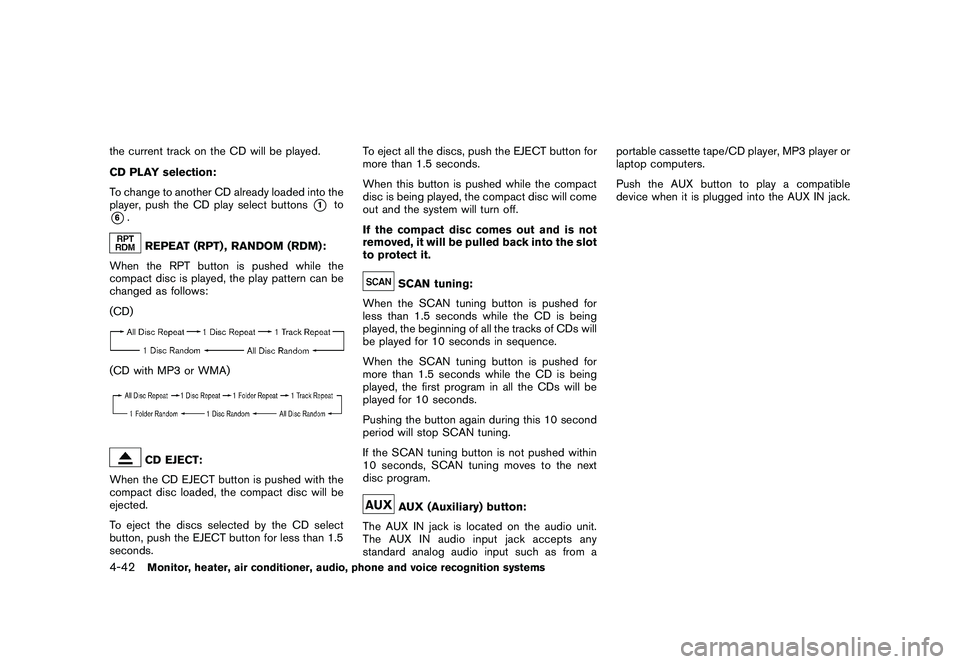
REPEAT (RPT) , RANDOM (RDM):
When the RPT button is pushed while the
compact disc is played, the play pattern can be
changed as follows:
(CD)
(CD with MP3 or WMA)
CD EJECT:
When the CD EJECT button is pushed with the
compact disc loaded, the compact disc will be
ejected.
To eject the discs selected by the CD select
button, push the EJECT button for less than 1.5
seconds. To eject all the discs, push the EJECT button for
more than 1.5 seconds.
When this button is pushed while the compact
disc is being played, the compact disc will come
out and the system will turn off.
If the compact disc comes out and is not
removed, it will be pulled back into the slot
to protect it.
SCAN tuning:
When the SCAN tuning button is pushed for
less than 1.5 seconds while the CD is being
played, the beginning of all the tracks of CDs will
be played for 10 seconds in sequence.
When the SCAN tuning button is pushed for
more than 1.5 seconds while the CD is being
played, the first program in all the CDs will be
played for 10 seconds.
Pushing the button again during this 10 second
period will stop SCAN tuning.
If the SCAN tuning button is not pushed within
10 seconds, SCAN tuning moves to the next
disc program.AUX (Auxiliary) button:
The AUX IN jack is located on the audio unit.
The AUX IN audio input jack accepts any
standard analog audio input such as from a portable cassette tape/CD player, MP3 player or
laptop computers.
Push the AUX button to play a compatible
device when it is plugged into the AUX IN jack.
4-42
Monitor, heater, air conditioner, audio, phone and voice recognition systems
Page 215 of 425
Black plate (211,1)
Model "Z51-D" EDITED: 2009/ 8/ 3
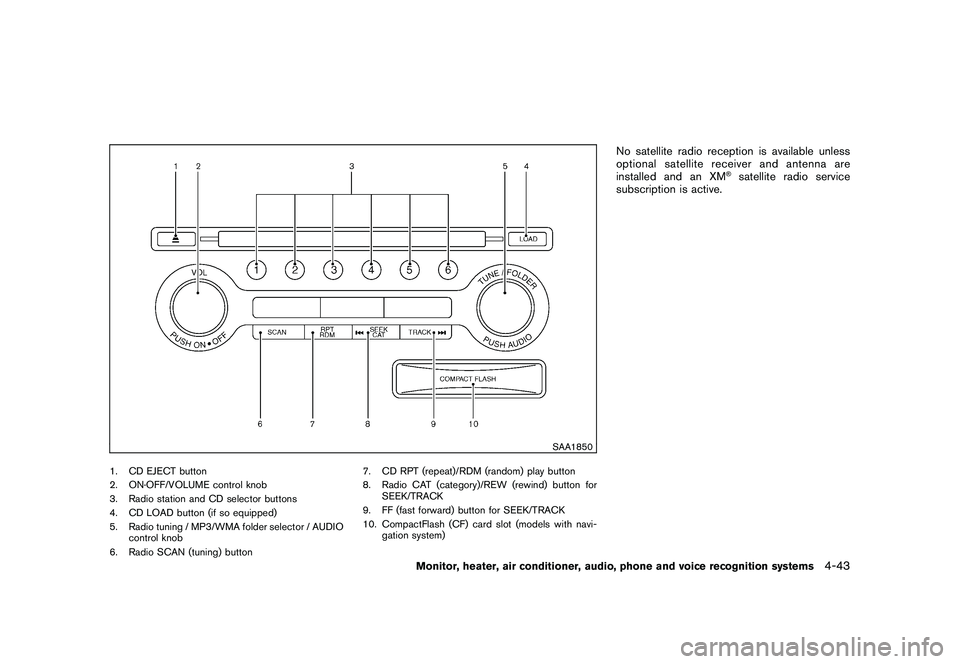
SAA1850
1. CD EJECT button
2. ON·OFF/VOLUME control knob
3. Radio station and CD selector buttons
4. CD LOAD button (if so equipped)
5. Radio tuning / MP3/WMA folder selector / AUDIOcontrol knob
6. Radio SCAN (tuning) button 7. CD RPT (repeat)/RDM (random) play button
8. Radio CAT (category)/REW (rewind) button for
SEEK/TRACK
9. FF (fast forward) button for SEEK/TRACK
10. CompactFlash (CF) card slot (models with navi- gation system)
No satellite radio reception is available unless
optional satellite receiver and antenna are
installed and an XM
®satellite radio service
subscription is active.
Monitor, heater, air conditioner, audio, phone and voice recognition systems
4-43
Page 218 of 425
Black plate (214,1)
Model "Z51-D" EDITED: 2009/ 8/ 3
low frequencies and to stop at the next
broadcasting station.
. For XM satellite radio
Push the SEEK·CAT or TRACK buttonor
to tune to the first channel of the
next or previous category.
During satellite radio reception, the following
notices will be displayed under certain condi-
tions.
. NO SIGNAL (No signal is received while the
SAT tuner is connected.)
. OFF AIR (Broadcasting signed off)
. ANTENNA ERROR (Antenna connection
error)
. LOADING (When the initial setting is
performed)
. UPDATING (When the satellite radio sub-
scription is not active)
. INVALID CH (Invalid channel is received.)
SCAN tuning:
Push the SCAN tuning button to tune from low
to high frequencies and stops at each broad-
casting station for 5 seconds. Pushing the
button again during this 5 seconds period will
stop SCAN tuning and the radio will remain tuned to that station.
If the SCAN tuning button is not pushed within 5
seconds, SCAN tuning moves to the next
station.
*1
to
*6
Station memory operations:
Twelve stations/channels can be set for the FM
band (6 for FM1, 6 for FM2) and the SAT radio
(6 for SAT1, 6 for SAT2) , and 6 stations can be
set for the AM band.
1. Choose the radio band using the radio band select button.
2. Tune to the desired station using the SEEK, SCAN or TUNE button.
3. Select the desired station/channel and keep pushing any of the desired station preset
buttons*1
to
*6
until a beep sound is
heard. (The radio mutes when the select
button is pushed.)
4. The channel indicator will then come on and the sound will resume. Memorizing is now
complete.
5. Other buttons can be set in the same manner.
If the battery cable is disconnected, or if the fuse
blows, the radio memory will be erased. In that
case, reset the desired stations. Text:
When the “Text” key is selected with the multi-
function controller on the display and then the
ENTER button is pushed while the satellite radio
is being played, the text information will be
displayed on the screen.
.
CH Name
. Category
. Name
. Title
. Other
Compact Disc (CD) player/changer op-
erationPush the ignition switch to the ACC or ON
position, push the LOAD button (if so equipped)
and insert the compact disc into the slot with the
label side facing up. The compact disc will be
guided automatically into the slot and start
playing.
After loading the disc, the number of tracks on
the disc and the play time will appear on the
display.
If the radio is already operating, it will auto-
matically turn off and the compact disc will play.
If the system has been turned off while the
compact disc was playing, pushing the
4-46
Monitor, heater, air conditioner, audio, phone and voice recognition systems
Page 219 of 425
Black plate (215,1)
Model "Z51-D" EDITED: 2009/ 8/ 3
ON·OFF/VOL control knob will start the com-
pact disc.
CD LOAD (if so equipped):
To insert a CD in the CD changer, push the
LOAD button for less than 1.5 seconds. Select
the loading position by pushing the CD insert
select button
*1
to*6, then insert the CD.
To insert 6 CDs to the CD changer in
succession, push the LOAD button for more
than 1.5 seconds.
The inserted slot numbers will illuminate on the
display.
or
PLAY:
When the DISC (CD play) button is pushed with
the system off and the compact disc loaded, the
system will turn on and the compact disc will
start to play.
When the DISC button is pushed with the
compact disc loaded and the radio playing, the
radio will automatically be turned off and the
compact disc will start to play.
When the DISC button is pushed while a CD is
loaded and a medium is played using the
auxiliary input jacks, you can toggle back and
forth between CD and medium. Text:
When the “Text” key is selected in the screen
using the multi-function controller and then the
ENTER button is pushed while the CD is being
played, the music information below will be
displayed on the screen.
CD:
.
Disc title
. Track title
CD with MP3 or WMA:
. Folder title
. File title
. Song title
. Album title
. Artist
FF (Fast Forward) , REW (Re-
wind)/APS (Automatic Pro-
gram Search) FF, APS REW:
When the(fast forward) or
(rewind)
button is pushed for more than 1.5 seconds
while the compact disc is being played, the
compact disc will play while fast forwarding or
rewinding. When the button is released, the
compact disc will return to normal play speed. When the
or
button is pushed for less
than 1.5 seconds while the compact disc is
being played, the next track or the beginning of
the current track on the CD will be played.
The multi-function controller can also be used to
select tracks when a CD is being played.
CD PLAY selection (if so equipped):
To change to another CD already loaded into the
player, push the CD play select buttons
*1
to
*6
or choose a disc displayed on the screen
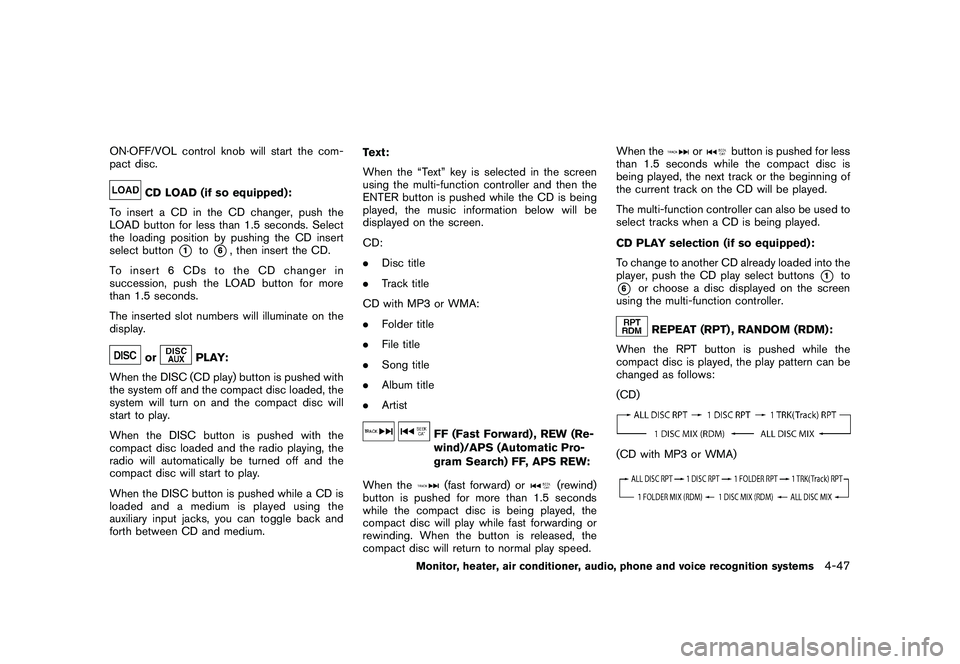
using the multi-function controller.REPEAT (RPT) , RANDOM (RDM):
When the RPT button is pushed while the
compact disc is played, the play pattern can be
changed as follows:
(CD)
(CD with MP3 or WMA)
Monitor, heater, air conditioner, audio, phone and voice recognition systems
4-47
Page 223 of 425
Black plate (219,1)
Model "Z51-D" EDITED: 2009/ 8/ 3
iPod
®PLAYER OPERATION (if so
equipped)
Connecting iPod
®
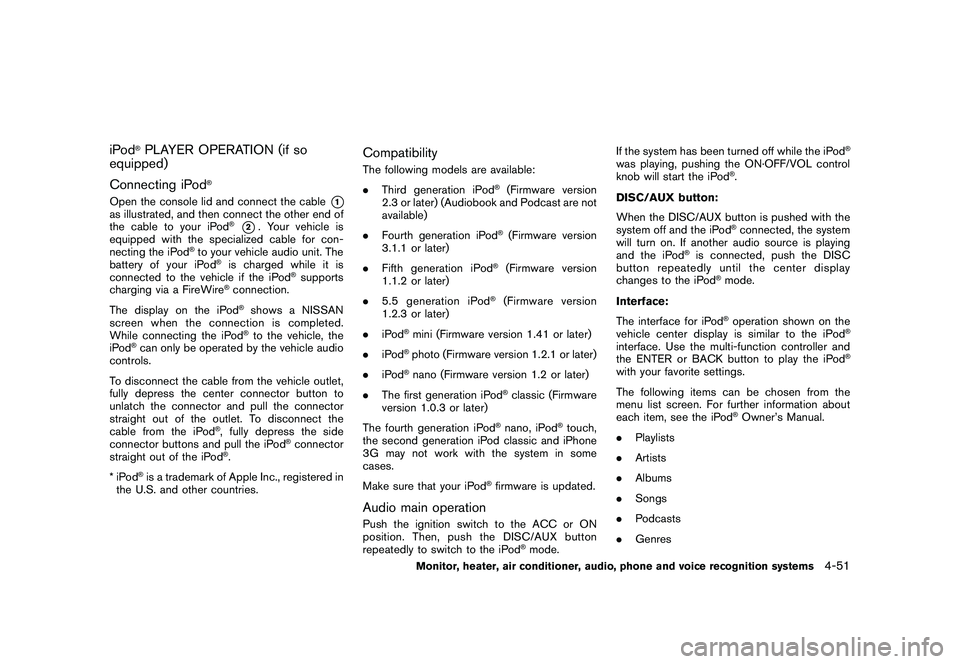
Open the console lid and connect the cable
*1
as illustrated, and then connect the other end of
the cable to your iPod
®*2. Your vehicle is
equipped with the specialized cable for con-
necting the iPod
®to your vehicle audio unit. The
battery of your iPod
®is charged while it is
connected to the vehicle if the iPod
®supports
charging via a FireWire
®connection.
The display on the iPod®shows a NISSAN
screen when the connection is completed.
While connecting the iPod®to the vehicle, the
iPod
®can only be operated by the vehicle audio
controls.
To disconnect the cable from the vehicle outlet,
fully depress the center connector button to
unlatch the connector and pull the connector
straight out of the outlet. To disconnect the
cable from the iPod
®, fully depress the side
connector buttons and pull the iPod
®connector
straight out of the iPod
®.
*iPod
®is a trademark of Apple Inc., registered in
the U.S. and other countries.
CompatibilityThe following models are available:
. Third generation iPod
®(Firmware version
2.3 or later) (Audiobook and Podcast are not
available)
. Fourth generation iPod®(Firmware version
3.1.1 or later)
. Fifth generation iPod
®(Firmware version
1.1.2 or later)
. 5.5 generation iPod
®(Firmware version
1.2.3 or later)
. iPod
®mini (Firmware version 1.41 or later)
. iPod®photo (Firmware version 1.2.1 or later)
. iPod®nano (Firmware version 1.2 or later)
. The first generation iPod
®classic (Firmware
version 1.0.3 or later)
The fourth generation iPod
®nano, iPod
®touch,
the second generation iPod classic and iPhone
3G may not work with the system in some
cases.
Make sure that your iPod
®firmware is updated.
Audio main operationPush the ignition switch to the ACC or ON
position. Then, push the DISC/AUX button
repeatedly to switch to the iPod
®mode. If the system has been turned off while the iPod
®
was playing, pushing the ON·OFF/VOL control
knob will start the iPod
®.
DISC/AUX button:
When the DISC/AUX button is pushed with the
system off and the iPod®connected, the system
will turn on. If another audio source is playing
and the iPod
®is connected, push the DISC
button repeatedly until the center display
changes to the iPod
®mode.
Interface:
The interface for iPod®operation shown on the
vehicle center display is similar to the iPod
®
interface. Use the multi-function controller and
the ENTER or BACK button to play the iPod
®
with your favorite settings.
The following items can be chosen from the
menu list screen. For further information about
each item, see the iPod
®Owner’s Manual.
. Playlists
. Artists
. Albums
. Songs
. Podcasts
. Genres
Monitor, heater, air conditioner, audio, phone and voice recognition systems
4-51
Page 224 of 425
Black plate (220,1)
Model "Z51-D" EDITED: 2009/ 8/ 3
.Composers
. Audiobooks
The following touch-panel buttons shown on the
screen are also available:
.
: returns to the previous screen.
.: plays/pauses the music selected.
FF (Fast Forward) , REW (Rewind)/APS
(Automatic Program Search) FF, APS REW:
When the
or
button is pushed for
more than 1.5 seconds while the iPod
®is
playing, the iPod
®will play while fast forwarding
or rewinding. When the button is released, the
iPod
®will return to the normal play speed.
When the
or
button is pushed for less
than 1.5 seconds while the iPod
®is playing, the
next track or the beginning of the current track
on the iPod
®will be played.
The multi-function controller can also be used to
select tracks when the iPod
®is playing.
“MUSIC BOX” HARD-DISK DRIVE
(models with navigation system)The “Music Box” hard-disk drive audio system
can store songs from CDs being played. The
system has a 9.3 gigabyte (GB) storage
capacity and can record up to 200 hours
(approximately 2,900 songs) .
The following CDs can be recorded in the
“Music Box” hard-disk drive audio system.
. CDs without MP3/WMA files
. Hybrid Compact Disc Digital Audio (Hybrid
CD-DA) specification in Super Audio CDs
. Compact Disc Digital Audio (CD-DA) spe-
cification in CD-Extras
. First session of multisession disc
Extreme temperature conditions [below
48 F( 20 8C) and above 158 8F (70 8C)] could
affect the performance of the hard-disk.
NOTE:
If the hard-disk needs to be replaced due
to a malfunction, all stored music data will
be erased.
SAA1613
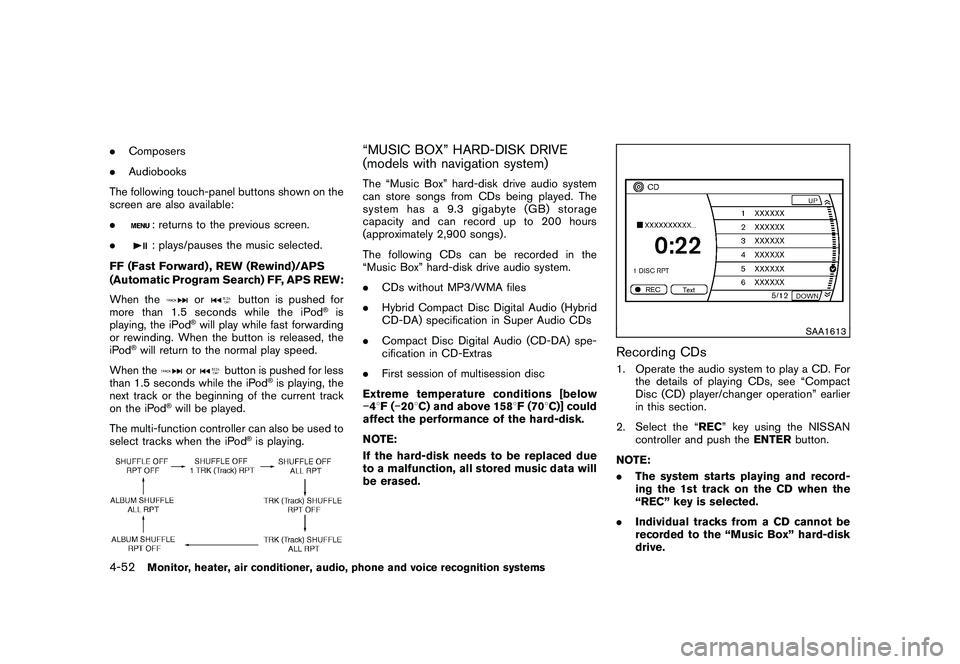
Recording CDs1. Operate the audio system to play a CD. For the details of playing CDs, see “Compact
Disc (CD) player/changer operation” earlier
in this section.
2. Select the “REC ” key using the NISSAN
controller and push the ENTERbutton.
NOTE:
. The system starts playing and record-
ing the 1st track on the CD when the
“REC” key is selected.
. Individual tracks from a CD cannot be
recorded to the “Music Box” hard-disk
drive.
4-52
Monitor, heater, air conditioner, audio, phone and voice recognition systems
Page 239 of 425
Black plate (235,1)
Model "Z51-D" EDITED: 2009/ 8/ 3
SAA1861
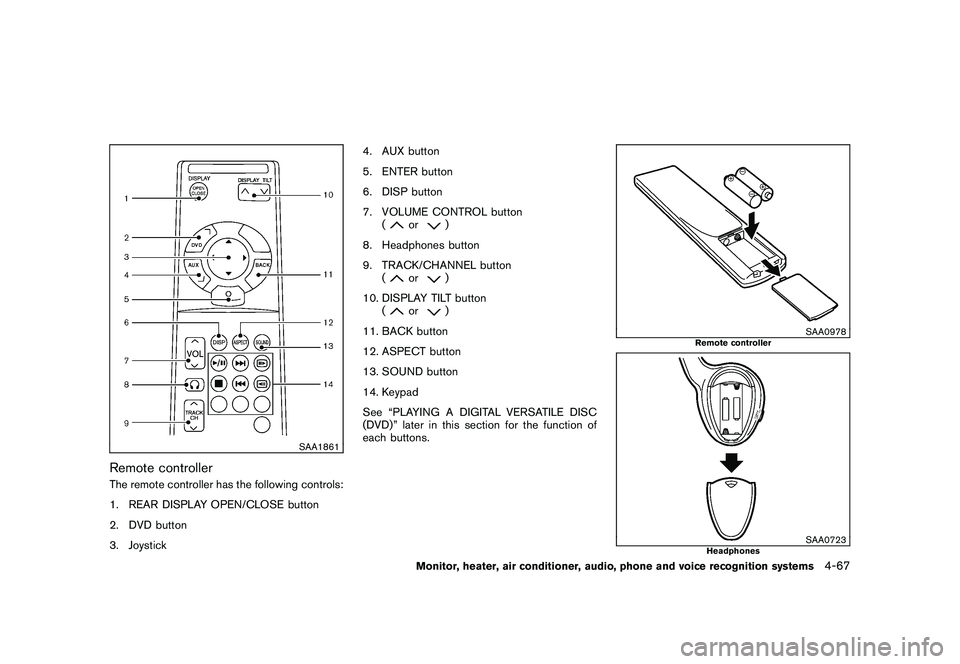
Remote controllerThe remote controller has the following controls:
1. REAR DISPLAY OPEN/CLOSE button
2. DVD button
3. Joystick4. AUX button
5. ENTER button
6. DISP button
7. VOLUME CONTROL button
(
or
)
8. Headphones button
9. TRACK/CHANNEL button (
or
)
10. DISPLAY TILT button (
or
)
11. BACK button
12. ASPECT button
13. SOUND button
14. Keypad
See “PLAYING A DIGITAL VERSATILE DISC
(DVD)” later in this section for the function of
each buttons.
SAA0978
Remote controller
SAA0723
Headphones
Monitor, heater, air conditioner, audio, phone and voice recognition systems
4-67
Page 249 of 425
Black plate (245,1)
Model "Z51-D" EDITED: 2009/ 8/ 3
system)” later in this section; page 4-99.
SAA1857
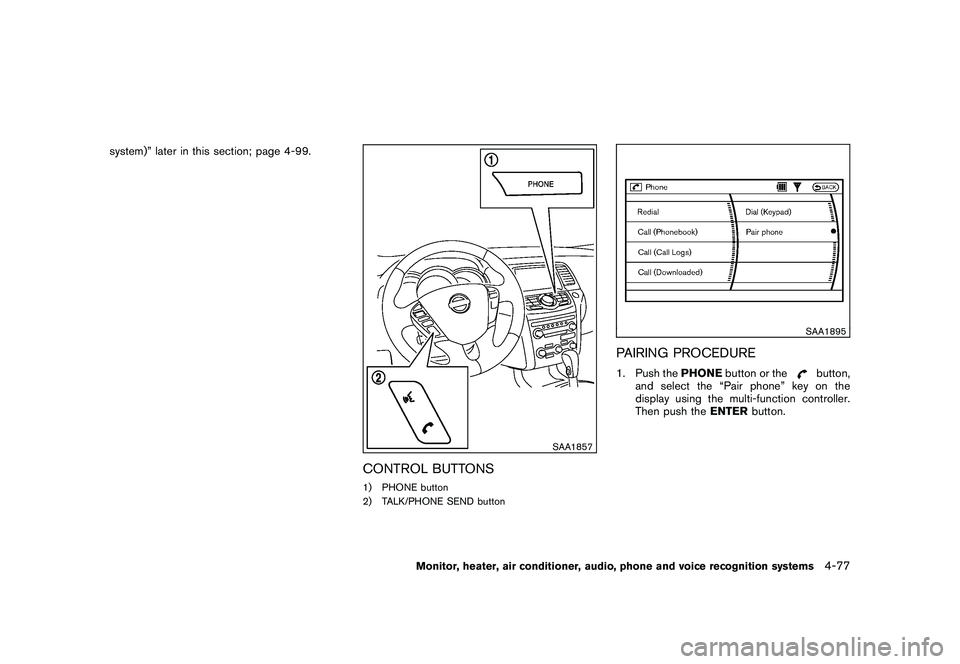
CONTROL BUTTONS1) PHONE button
2) TALK/PHONE SEND button
SAA1895
PAIRING PROCEDURE1. Push thePHONEbutton or the
button,
and select the “Pair phone” key on the
display using the multi-function controller.
Then push the ENTERbutton.
Monitor, heater, air conditioner, audio, phone and voice recognition systems
4-77
Page 260 of 425
Black plate (256,1)
Model "Z51-D" EDITED: 2009/ 8/ 3
SAA1858
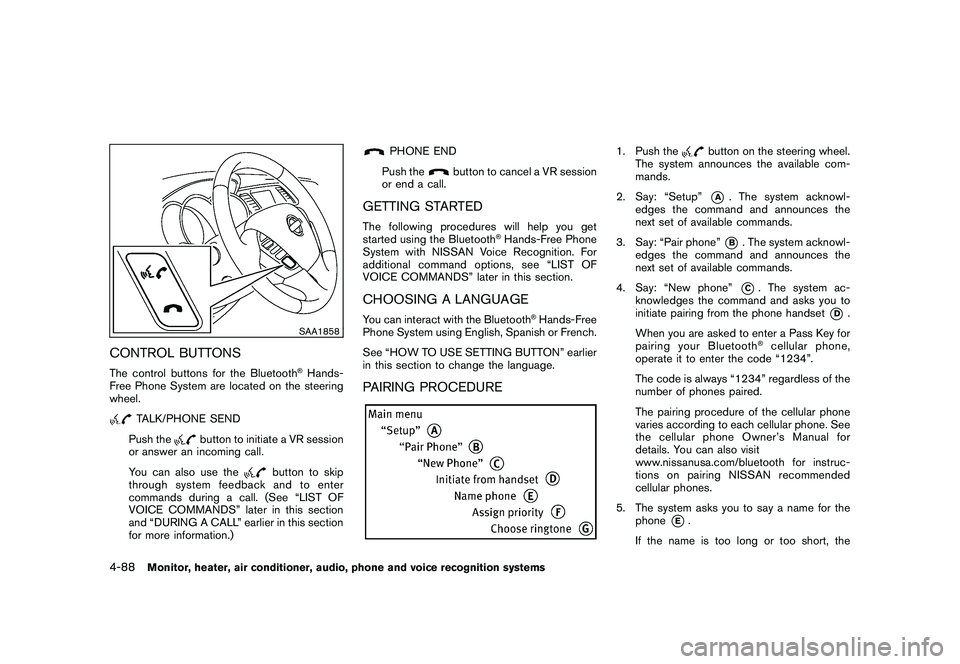
CONTROL BUTTONSThe control buttons for the Bluetooth
®Hands-
Free Phone System are located on the steering
wheel.
TALK/PHONE SEND
Push the
button to initiate a VR session
or answer an incoming call.
You can also use the
button to skip
through system feedback and to enter
commands during a call. (See “LIST OF
VOICE COMMANDS” later in this section
and “DURING A CALL” earlier in this section
for more information.)
PHONE END
Push the
button to cancel a VR session
or end a call.
GETTING STARTEDThe following procedures will help you get
started using the Bluetooth
®Hands-Free Phone
System with NISSAN Voice Recognition. For
additional command options, see “LIST OF
VOICE COMMANDS” later in this section.
CHOOSING A LANGUAGEYou can interact with the Bluetooth
®Hands-Free
Phone System using English, Spanish or French.
See “HOW TO USE SETTING BUTTON” earlier
in this section to change the language.
PAIRING PROCEDURE
1. Push the
button on the steering wheel.
The system announces the available com-
mands.
2. Say: “Setup”*A
. The system acknowl-
edges the command and announces the
next set of available commands.
3. Say: “Pair phone”*B. The system acknowl-
edges the command and announces the
next set of available commands.
4. Say: “New phone”*C. The system ac-
knowledges the command and asks you to
initiate pairing from the phone handset
*D
.
When you are asked to enter a Pass Key for
pairing your Bluetooth
®cellular phone,
operate it to enter the code “1234”.
The code is always “1234” regardless of the
number of phones paired.
The pairing procedure of the cellular phone
varies according to each cellular phone. See
the cellular phone Owner’s Manual for
details. You can also visit
www.nissanusa.com/bluetooth for instruc-
tions on pairing NISSAN recommended
cellular phones.
5. The system asks you to say a name for the phone
*E.
If the name is too long or too short, the
4-88
Monitor, heater, air conditioner, audio, phone and voice recognition systems
Page 275 of 425
Black plate (271,1)
Model "Z51-D" EDITED: 2009/ 8/ 3
SAA1908
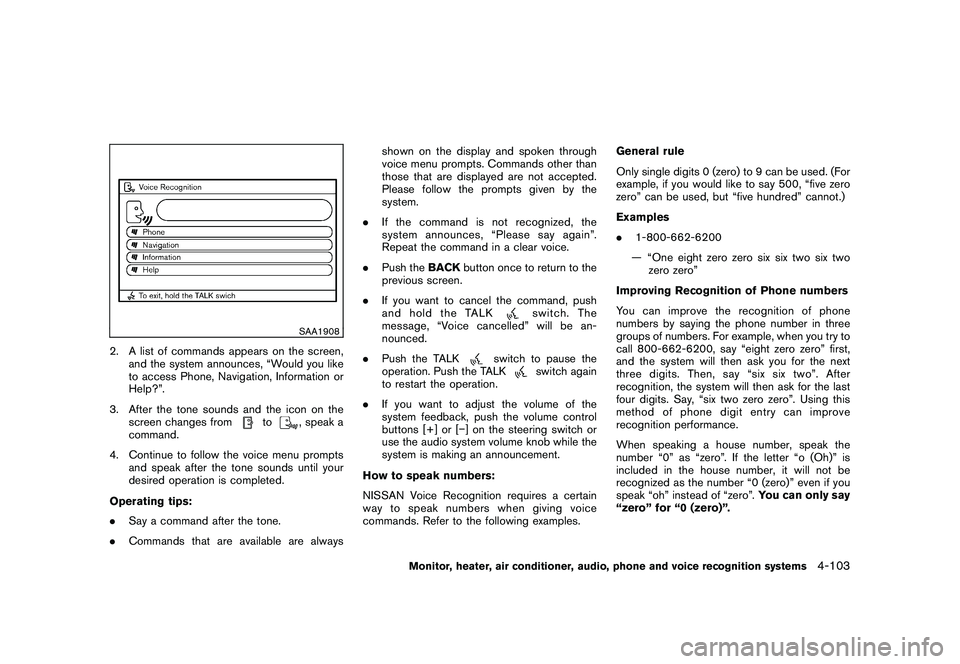
2. A list of commands appears on the screen,and the system announces, “Would you like
to access Phone, Navigation, Information or
Help?”.
3. After the tone sounds and the icon on the screen changes from
to
, speak a
command.
4. Continue to follow the voice menu prompts and speak after the tone sounds until your
desired operation is completed.
Operating tips:
. Say a command after the tone.
. Commands that are available are always shown on the display and spoken through
voice menu prompts. Commands other than
those that are displayed are not accepted.
Please follow the prompts given by the
system.
. If the command is not recognized, the
system announces, “Please say again”.
Repeat the command in a clear voice.
. Push the BACKbutton once to return to the
previous screen.
. If you want to cancel the command, push
and hold the TALK
switch. The
message, “Voice cancelled” will be an-
nounced.
. Push the TALK
switch to pause the
operation. Push the TALK
switch again
to restart the operation.
. If you want to adjust the volume of the
system feedback, push the volume control
buttons [+] or [ ] on the steering switch or
use the audio system volume knob while the
system is making an announcement.
How to speak numbers:
NISSAN Voice Recognition requires a certain
way to speak numbers when giving voice
commands. Refer to the following examples. General rule
Only single digits 0 (zero) to 9 can be used. (For
example, if you would like to say 500, “five zero
zero” can be used, but “five hundred” cannot.)
Examples
.
1-800-662-6200
— “One eight zero zero six six two six two zero zero”
Improving Recognition of Phone numbers
You can improve the recognition of phone
numbers by saying the phone number in three
groups of numbers. For example, when you try to
call 800-662-6200, say “eight zero zero” first,
and the system will then ask you for the next
three digits. Then, say “six six two”. After
recognition, the system will then ask for the last
four digits. Say, “six two zero zero”. Using this
method of phone digit entry can improve
recognition performance.
When speaking a house number, speak the
number “0” as “zero”. If the letter “o (Oh)” is
included in the house number, it will not be
recognized as the number “0 (zero)” even if you
speak “oh” instead of “zero”. You can only say
“zero” for “0 (zero)”.
Monitor, heater, air conditioner, audio, phone and voice recognition systems
4-103