navigation NISSAN MURANO 2011 Owner´s Manual
[x] Cancel search | Manufacturer: NISSAN, Model Year: 2011, Model line: MURANO, Model: NISSAN MURANO 2011Pages: 433, PDF Size: 3.7 MB
Page 245 of 433
Black plate (243,1)
Model "Z51-D" EDITED: 2010/ 7/ 23
SAA2517
Models with navigation system
SAA2438
Models without navigation system
Music Box
®settings
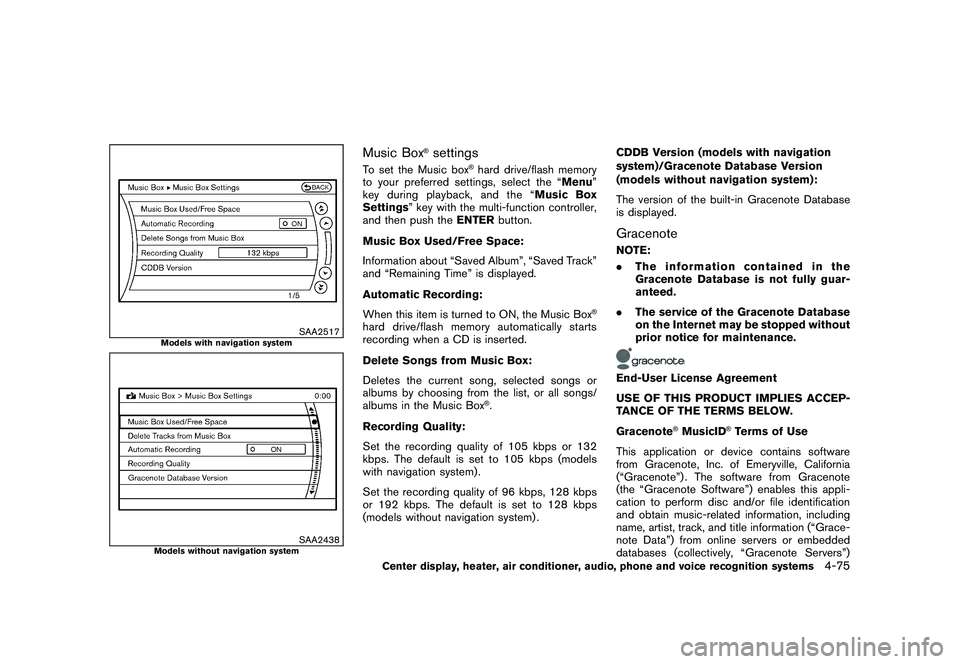
To set the Music box
®hard drive/flash memory
to your preferred settings, select the “Menu ”
key during playback, and the “ Music Box
Settings ” key with the multi-function controller,
and then push the ENTERbutton.
Music Box Used/Free Space:
Information about “Saved Album”, “Saved Track”
and “Remaining Time” is displayed.
Automatic Recording:
When this item is turned to ON, the Music Box
®
hard drive/flash memory automatically starts
recording when a CD is inserted.
Delete Songs from Music Box:
Deletes the current song, selected songs or
albums by choosing from the list, or all songs/
albums in the Music Box
®.
Recording Quality:
Set the recording quality of 105 kbps or 132
kbps. The default is set to 105 kbps (models
with navigation system) .
Set the recording quality of 96 kbps, 128 kbps
or 192 kbps. The default is set to 128 kbps
(models without navigation system) . CDDB Version (models with navigation
system)/Gracenote Database Version
(models without navigation system):
The version of the built-in Gracenote Database
is displayed.
GracenoteNOTE:
.
The information contained in the
Gracenote Database is not fully guar-
anteed.
. The service of the Gracenote Database
on the Internet may be stopped without
prior notice for maintenance.End-User License Agreement
USE OF THIS PRODUCT IMPLIES ACCEP-
TANCE OF THE TERMS BELOW.
Gracenote
®MusicID
®Terms of Use
This application or device contains software
from Gracenote, Inc. of Emeryville, California
(“Gracenote”) . The software from Gracenote
(the “Gracenote Software”) enables this appli-
cation to perform disc and/or file identification
and obtain music-related information, including
name, artist, track, and title information (“Grace-
note Data”) from online servers or embedded
databases (collectively, “Gracenote Servers”)
Center display, heater, air conditioner, audio, phone and voice recognition systems
4-75
Page 247 of 433
Black plate (245,1)
Model "Z51-D" EDITED: 2010/ 7/ 23
SAA3342
AUXILIARY INPUT JACKS (if so
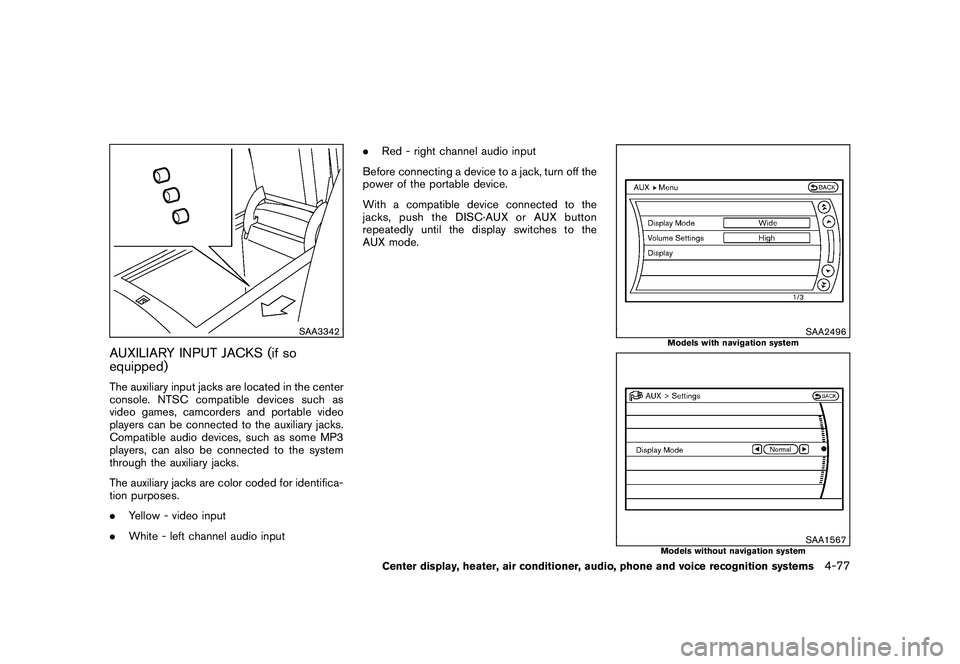
equipped)The auxiliary input jacks are located in the center
console. NTSC compatible devices such as
video games, camcorders and portable video
players can be connected to the auxiliary jacks.
Compatible audio devices, such as some MP3
players, can also be connected to the system
through the auxiliary jacks.
The auxiliary jacks are color coded for identifica-
tion purposes.
.Yellow - video input
. White - left channel audio input .
Red - right channel audio input
Before connecting a device to a jack, turn off the
power of the portable device.
With a compatible device connected to the
jacks, push the DISC·AUX or AUX button
repeatedly until the display switches to the
AUX mode.
SAA2496
Models with navigation system
SAA1567
Models without navigation system
Center display, heater, air conditioner, audio, phone and voice recognition systems
4-77
Page 248 of 433
Black plate (246,1)
Model "Z51-D" EDITED: 2010/ 7/ 23
AUX MenuWhen the “Menu” key on the display is selected
while in the AUX mode, the menu screen will be
displayed.
Display Mode:
Choose the display mode from the following
items.
.Normal
. Wide
. Cinema
Volume Settings (models with navigation
system):
Choose the volume setting from the following
items.
. Low
. Medium
. High
Display (models with navigation system):
Adjust the image quality of the screen, select the
preferred adjustment items.
SAA0451
CD/DVD/USB MEMORY CARE AND
CLEANING
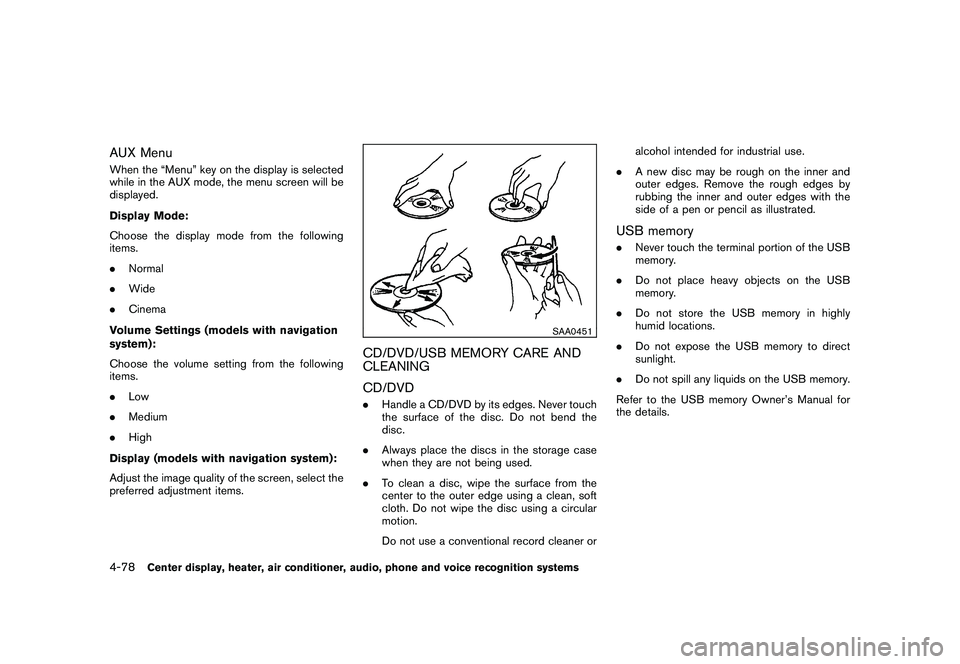
CD/DVD. Handle a CD/DVD by its edges. Never touch
the surface of the disc. Do not bend the
disc.
. Always place the discs in the storage case
when they are not being used.
. To clean a disc, wipe the surface from the
center to the outer edge using a clean, soft
cloth. Do not wipe the disc using a circular
motion.
Do not use a conventional record cleaner or alcohol intended for industrial use.
. A new disc may be rough on the inner and
outer edges. Remove the rough edges by
rubbing the inner and outer edges with the
side of a pen or pencil as illustrated.
USB memory.Never touch the terminal portion of the USB
memory.
. Do not place heavy objects on the USB
memory.
. Do not store the USB memory in highly
humid locations.
. Do not expose the USB memory to direct
sunlight.
. Do not spill any liquids on the USB memory.
Refer to the USB memory Owner’s Manual for
the details.
4-78
Center display, heater, air conditioner, audio, phone and voice recognition systems
Page 249 of 433
Black plate (247,1)
Model "Z51-D" EDITED: 2010/ 7/ 23
SAA1854
With navigation system
1. Source select switch
2. ENTER (models with navigation system) or tuning(models without navigation system) switch
3. Volume control switch
4. BACK switch
SAA1855
Without navigation system
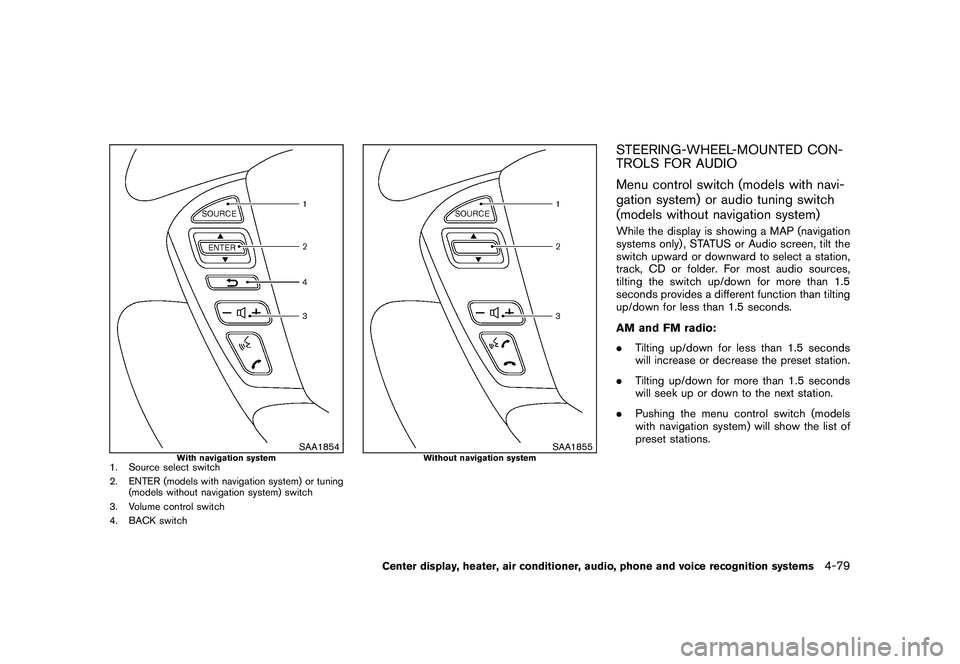
STEERING-WHEEL-MOUNTED CON-
TROLS FOR AUDIO
Menu control switch (models with navi-
gation system) or audio tuning switch
(models without navigation system)While the display is showing a MAP (navigation
systems only) , STATUS or Audio screen, tilt the
switch upward or downward to select a station,
track, CD or folder. For most audio sources,
tilting the switch up/down for more than 1.5
seconds provides a different function than tilting
up/down for less than 1.5 seconds.
AM and FM radio:
. Tilting up/down for less than 1.5 seconds
will increase or decrease the preset station.
. Tilting up/down for more than 1.5 seconds
will seek up or down to the next station.
. Pushing the menu control switch (models
with navigation system) will show the list of
preset stations.
Center display, heater, air conditioner, audio, phone and voice recognition systems
4-79
Page 250 of 433
Black plate (248,1)
Model "Z51-D" EDITED: 2010/ 7/ 23
XM Satellite Radio:
.Tilting up/down for less than 1.5 seconds
will increase or decrease the preset channel.
. Tilting up/down for more than 1.5 seconds
will go to the next or previous category.
. Pushing the menu control switch (models
with navigation system) will show the XM
Menu.
iPod
®:
. Tilting up/down for less than 1.5 seconds
will increase or decrease the track number.
. Tilting up/down for more than 1.5 seconds
will skip to the next or previous index.
. Pushing the menu control switch will show
the iPod Menu.
CD:
. Tilting up/down for less than 1.5 seconds
will increase or decrease the track number.
. Tilting up/down for more than 1.5 seconds
will increase/decrease the folder number (if
playing compressed audio files) .
. Pushing the menu control switch (models
with navigation system) will show the CD
Menu. DVD (models with navigation system):
.
Tilting up/down for less than 1.5 seconds
will increase or decrease the track number.
. Tilting up/down for more than 1.5 seconds
will increase or decrease the title number.
. Pushing the menu control switch will select
an item from the DVD display.
. When the transparent operation menu ap-
pears, the switch will control the menu.
USB:
. Tilting up/down for less than 1.5 seconds
will increase or decrease the track number.
. Tilting up/down for more than 1.5 seconds
will increase/decrease the folder number
. Pushing the menu control switch will show
the USB Menu.
Music Box
®:
. Tilting up/down for less than 1.5 seconds
will increase or decrease the track number.
. Tilting up/down for more than 1.5 seconds
will increase/decrease the album (folder)
number (if playing compressed audio files) .
. Pushing the menu control switch will show
the Music Box
®Menu. Bluetooth
®Audio (models with navigation
system):
. Tilting up/down for less than 1.5 seconds
will increase or decrease the track number.
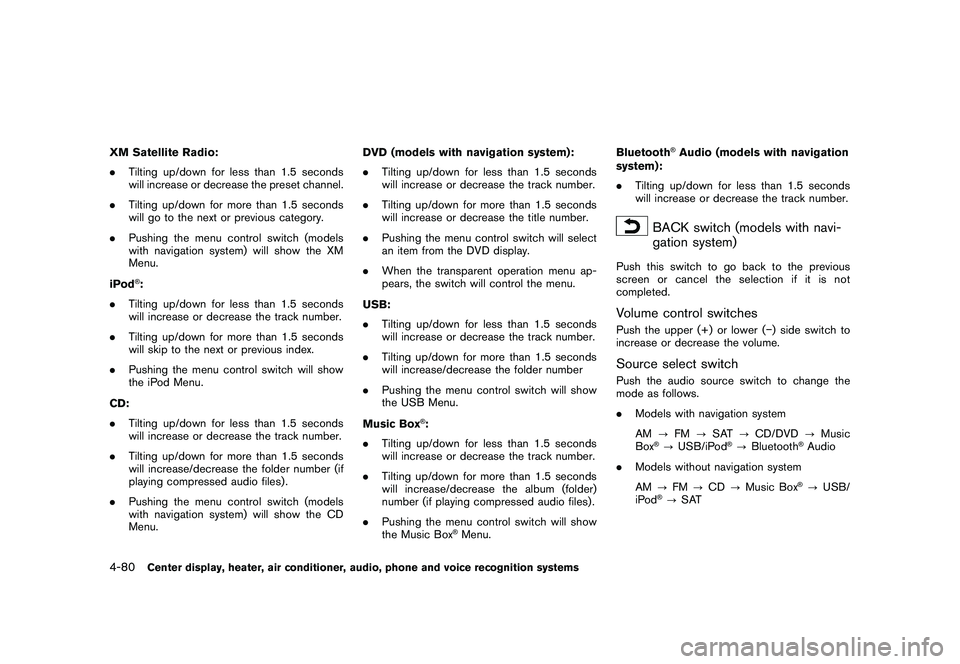
BACK switch (models with navi-
gation system)
Push this switch to go back to the previous
screen or cancel the selection if it is not
completed.Volume control switchesPush the upper (+) or lower ( ) side switch to
increase or decrease the volume.Source select switchPush the audio source switch to change the
mode as follows.
. Models with navigation system
AM ?FM ?SAT ?CD/DVD ?Music
Box
®? USB/iPod
®? Bluetooth
®Audio
. Models without navigation system
AM ?FM ?CD ?Music Box®?USB/
iPod
®? SAT
4-80
Center display, heater, air conditioner, audio, phone and voice recognition systems
Page 252 of 433
Black plate (250,1)
Model "Z51-D" EDITED: 2010/ 7/ 23
When installing a car phone or a CB radio in
your NISSAN, be sure to observe the following
cautions, otherwise the new equipment may
adversely affect the electronic control modules
and electronic control system harness.
WARNING
.A cellular telephone should not be
used while driving so full attention
may be given to vehicle operation.
Some jurisdictions prohibit the use
of cellular telephones while driving.
. If you must make a call while your
vehicle is in motion, the hands-free
cellular phone operational mode (if
so equipped) is highly recom-
mended. Exercise extreme caution
at all times so full attention may be
given to vehicle operation.
. If a conversation in a moving vehicle
requires you to take notes, pull off
the road to a safe location and stop
your vehicle before doing so.
CAUTION
.Keep the antenna as far away as
possible from the electronic control
modules.
. Keep the antenna wire more than 8
in (20 cm) away from the electronic
control system harness. Do not
route the antenna wire next to any
harness.
. Adjust the antenna standing-wave
ratio as recommended by the man-
ufacturer.
. Connect the ground wire from the
CB radio chassis to the body.
. For details, consult a NISSAN deal-
er.
WARNING
.Use a phone after stopping your
vehicle in a safe location. If you
have to use a phone while driving,
exercise extreme caution at all
times so full attention may be given
to vehicle operation.
. If you find yourself unable to devote
full attention to vehicle operation
while talking on the phone, pull off
the road to a safe location and stop
your vehicle before doing so.
CAUTION
To avoid draining the vehicle battery,
use a phone after starting the engine.
Your NISSAN is equipped with Bluetooth
®
Hands-Free Phone System. If you are an owner
of a compatible Bluetooth
®enabled cellular
phone, you can set up the wireless connection
between your cellular phone and the in-vehicle
phone module. With Bluetooth®wireless tech-
nology, you can make or receive a telephone call
with your cellular phone in your pocket.
Once a cellular phone is connected to the in-
vehicle phone module, no phone connecting
CAR PHONE OR CB RADIO BLUETOOTH
®HANDS-FREE PHONE
SYSTEM (models with navigation
system)
4-82
Center display, heater, air conditioner, audio, phone and voice recognition systems
Page 253 of 433
Black plate (251,1)
Model "Z51-D" EDITED: 2010/ 7/ 23
procedure is required anymore. Your phone is
automatically connected with the in-vehicle
phonemodulewhentheignitionswitchis
pushed to the ON position with the registered
cellular phone turned on and carried in the
vehicle.
You can register up to 5 different Bluetooth
®
cellular phones in the in-vehicle phone module.
However, you can talk on only one cellular phone
at a time.
The NISSAN Voice Recognition system sup-
ports the phone commands, so dialing a phone
number using your voice is possible. For more
details, see “NISSAN VOICE RECOGNITION
SYSTEM (models with navigation system)” later
in this section; page 4-106.
Before using the Bluetooth
®Hands-Free Phone
System, refer to the following notes.
. Set up the wireless connection between a
compatible cellular phone and the in-vehicle
phone module before using the Bluetooth
®
Hands-Free Phone System.
. Some Bluetooth
®enabled cellular phones
may not be recognized by the in-vehicle
phone module. Please visit
www.nissanusa.com/bluetooth for a recom-
mended phone list.
. You will not be able to use a hands-free
phone under the following conditions: — Your vehicle is outside of the telephone
service area.
— Your vehicle is in an area where it is difficult to receive radio waves; such as in
a tunnel, in an underground parking
garage, behind a tall building or in a
mountainous area.
— Your cellular phone is locked in order not to be dialed.
. When the radio wave condition is not ideal
or ambient sound is too loud, it may be
difficult to hear the other person’s voice
during a call.
. Immediatelyaftertheignitionswitchis
pushed to the ON position, it may be
impossible to receive a call for a short
period of time.
. Do not place the cellular phone in an area
surrounded by metal or far away from the in-
vehicle phone module to prevent tone quality
degradation and wireless connection dis-
ruption.
. While a cellular phone is connected through
the Bluetooth
®wireless connection, the
battery power of the cellular phone may
discharge quicker than usual.
. If the Bluetooth®Hands-Free Phone System
seems to be malfunctioning, please visit www.nissanusa.com/bluetooth for trouble-
shooting help.
. Some cellular phones or other devices may
cause interference or a buzzing noise to
come from the audio system speakers.
Storing the device in a different location
may reduce or eliminate the noise.
. Refer to the cellular phone Owner’s Manual
regarding the telephone pairing procedure
specific to your phone, battery charging,
cellular phone antenna, etc.
. The antenna display on the monitor will not
coincide with the antenna display of some
cellular phones.
. Keep the interior of the vehicle as quiet as
possible to hear the caller’s voice clearly as
well as to minimize its echoes.
. If reception between callers is unclear,
adjusting the incoming or outgoing call
volume may improve the clarity.
REGULATORY INFORMATION
FCC Regulatory information— CAUTION: To maintain compliance with
FCC’s RF exposure guidelines, use only
the supplied antenna. Unauthorized antenna,
modification, or attachments could damage
the transmitter and may violate FCC regula-
tions.
Center display, heater, air conditioner, audio, phone and voice recognition systems
4-83
Page 254 of 433
Black plate (252,1)
Model "Z51-D" EDITED: 2010/ 7/ 23
— Operation is subject to the following twoconditions:
1) this device may not cause interference and
2) this device must accept any interference, including interference that may cause un-
desired operation of the deviceIC Regulatory information— Operation is subject to the following twoconditions: (1) this device may not cause
interference, and (2) this device must accept
any interference, including interference that
may cause undesired operation of the
device.
— This Class B digital apparatus meets all requirements of the Canadian Interference-
Causing Equipment Regulations.
Bluetooth trademark:
Bluetooth
®is a trademark owned
by Bluetooth SIG, Inc., U.S.A.
and licensed to Clarion Co., Ltd.
VOICE COMMANDSYou can use voice commands to operate various
Bluetooth
®Hands-Free Phone System features
using the NISSAN Voice Recognition system.
For more details, see “NISSAN VOICE RE-
COGNITION SYSTEM (models with navigation system)” later in this section; page 4-106.
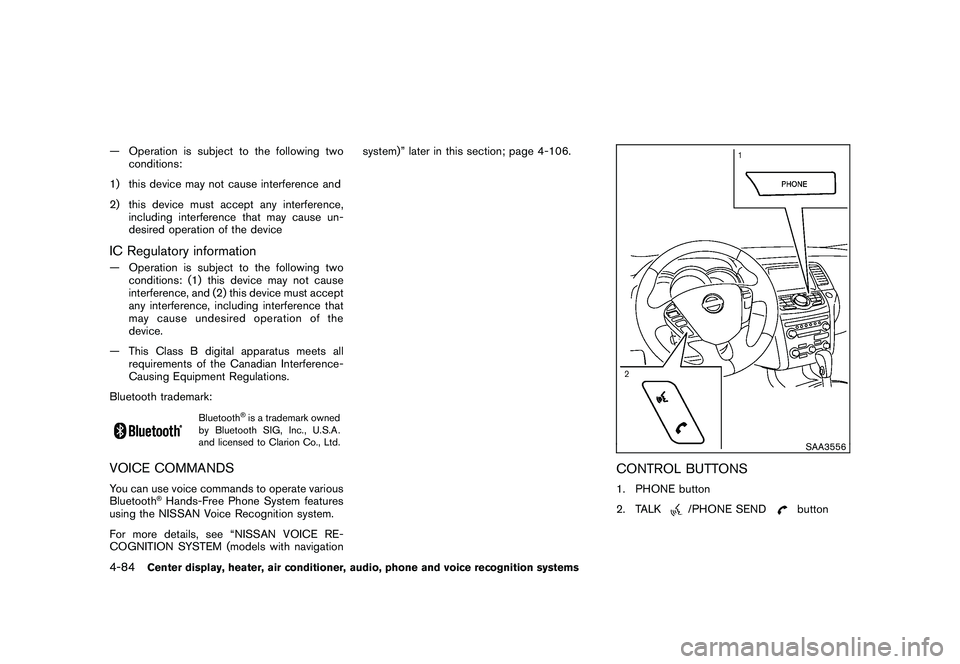
SAA3556
CONTROL BUTTONS1. PHONE button
2. TALK
/PHONE SEND
button
4-84
Center display, heater, air conditioner, audio, phone and voice recognition systems
Page 256 of 433
Black plate (254,1)
Model "Z51-D" EDITED: 2010/ 7/ 23
SAA2521
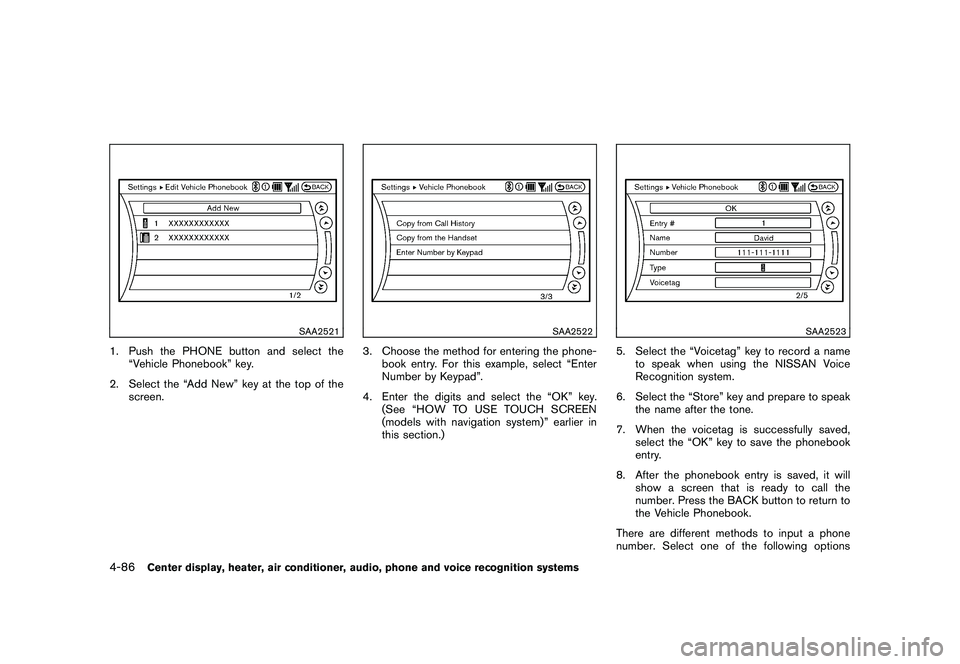
1. Push the PHONE button and select the“Vehicle Phonebook” key.
2. Select the “Add New” key at the top of the screen.
SAA2522
3. Choose the method for entering the phone-book entry. For this example, select “Enter
Number by Keypad”.
4. Enter the digits and select the “OK” key. (See “HOW TO USE TOUCH SCREEN
(models with navigation system)” earlier in
this section.)
SAA2523
5. Select the “Voicetag” key to record a nameto speak when using the NISSAN Voice
Recognition system.
6. Select the “Store” key and prepare to speak the name after the tone.
7. When the voicetag is successfully saved, select the “OK” key to save the phonebook
entry.
8. After the phonebook entry is saved, it will show a screen that is ready to call the
number. Press the BACK button to return to
the Vehicle Phonebook.
There are different methods to input a phone
number. Select one of the following options
4-86
Center display, heater, air conditioner, audio, phone and voice recognition systems
Page 259 of 433
Black plate (257,1)
Model "Z51-D" EDITED: 2010/ 7/ 23
.Dial Number
Input the phone number manually using the
keypad displayed on the screen. (See
“HOW TO USE TOUCH SCREEN (models
with navigation system)” earlier in this
section.)
SAA2525
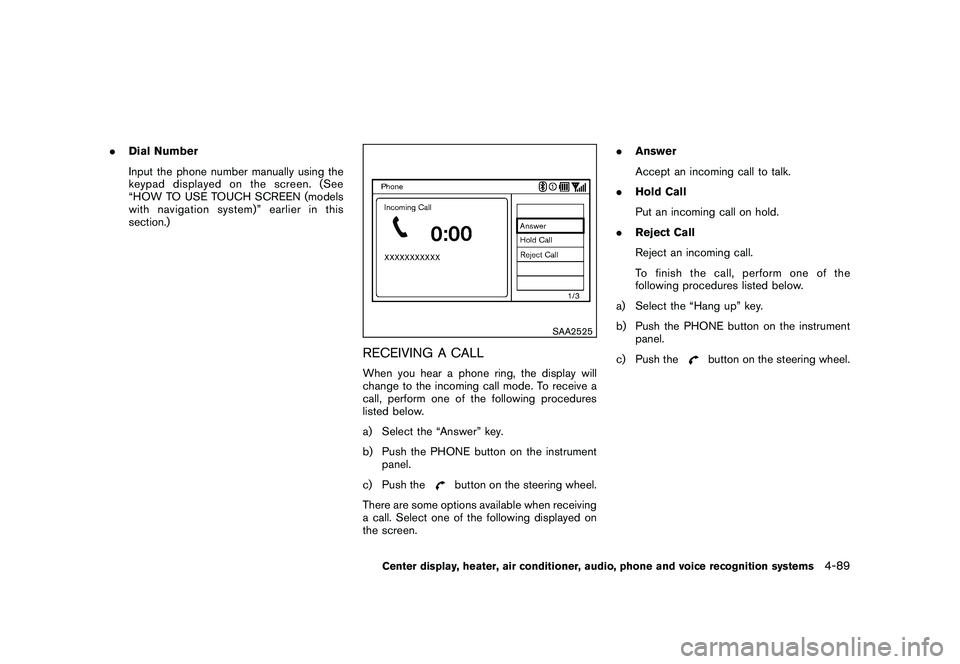
RECEIVING A CALLWhen you hear a phone ring, the display will
change to the incoming call mode. To receive a
call, perform one of the following procedures
listed below.
a) Select the “Answer” key.
b) Push the PHONE button on the instrument
panel.
c) Push the
button on the steering wheel.
There are some options available when receiving
a call. Select one of the following displayed on
the screen. .
Answer
Accept an incoming call to talk.
. Hold Call
Put an incoming call on hold.
. Reject Call
Reject an incoming call.
To finish the call, perform one of the
following procedures listed below.
a) Select the “Hang up” key.
b) Push the PHONE button on the instrument panel.
c) Push the
button on the steering wheel.
Center display, heater, air conditioner, audio, phone and voice recognition systems
4-89