start NISSAN MURANO 2011 Owner´s Manual
[x] Cancel search | Manufacturer: NISSAN, Model Year: 2011, Model line: MURANO, Model: NISSAN MURANO 2011Pages: 433, PDF Size: 3.7 MB
Page 265 of 433
Black plate (263,1)
Model "Z51-D" EDITED: 2010/ 7/ 23
applicable to the relevant language set in the
LANGUAGE setting screen. (See “HOW
TO USE SETTING BUTTON” earlier in this
section.)
. If the vehicle is in motion, some commands
may not be available so full attention may be
given to vehicle operation.
Using systemInitialization:
When the ignition switch is pushed to the ON
position, Voice Recognition System is initialized,
which may take up to one minute. When
completed, the system is ready to accept voice
commands. If the
switch on the steering
wheel is pushed before the initialization com-
pletes, the system will not accept any command.
Before starting:
To get the best performance out of the Voice
Recognition System, observe the following:
. Keep the interior of the vehicle as quiet as
possible. Close the windows to eliminate the
surrounding noises (traffic noises, vibration
sounds, etc.) , which may prevent the system
from recognizing the voice commands cor-
rectly.
. Wait until a tone sounds before speaking a
command. .
Speak a voice command within 5 seconds
after the beep sound. If no voice command
is given, the system will ask you for a
number. If no further command is given,
the session ends.
. Speak in a natural voice without pausing
between words.
SAA1858
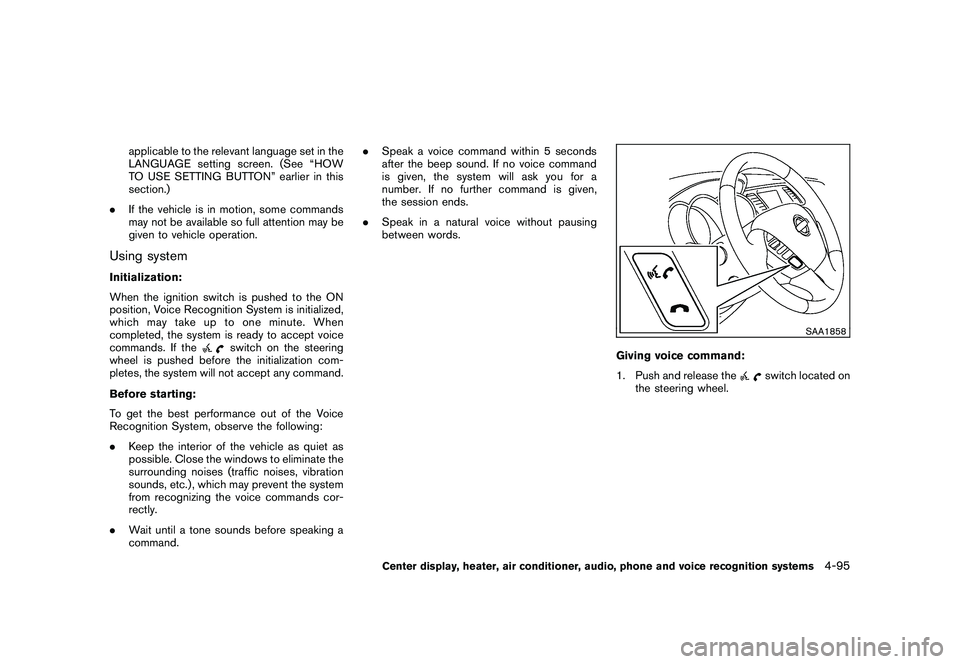
Giving voice command:
1. Push and release the
switch located on
the steering wheel.
Center display, heater, air conditioner, audio, phone and voice recognition systems
4-95
Page 278 of 433
Black plate (276,1)
Model "Z51-D" EDITED: 2010/ 7/ 23
Available items:
.Getting Started
Describes the basics of how to operate the
NISSAN Voice Recognition system.
. Let’s Practice
Mode that allows practicing by following the
instructions of the system voice.
. Using the Address Book
Tutorial for entering a destination by using
the Address Book.
. Finding a Street Address (if so equipped)
Tutorial for entering a destination by street
address.
. Placing Calls
Tutorial for making a phone call by voice
command operation.
. Help on Speaking
Displays useful tips of speaking for correct
command recognition by the system.
Note that the Command List feature is only
available when Alternate Command Mode is
active.
SAA2532
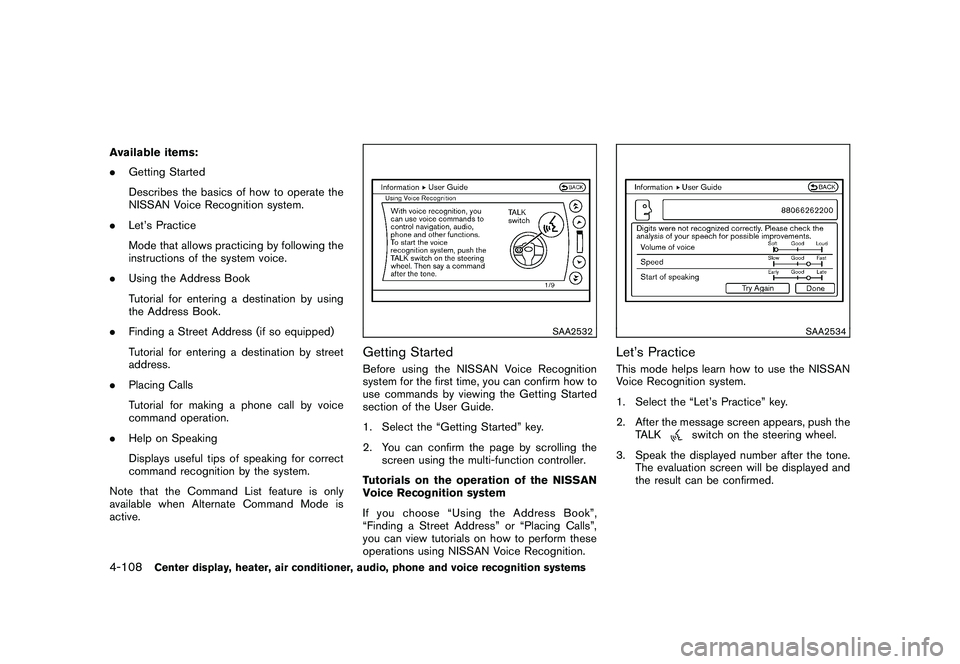
Getting StartedBefore using the NISSAN Voice Recognition
system for the first time, you can confirm how to
use commands by viewing the Getting Started
section of the User Guide.
1. Select the “Getting Started” key.
2. You can confirm the page by scrolling the screen using the multi-function controller.
Tutorials on the operation of the NISSAN
Voice Recognition system
If you choose “Using the Address Book”,
“Finding a Street Address” or “Placing Calls”,
you can view tutorials on how to perform these
operations using NISSAN Voice Recognition.
SAA2534
Let’s PracticeThis mode helps learn how to use the NISSAN
Voice Recognition system.
1. Select the “Let’s Practice” key.
2. After the message screen appears, push the TALK
switch on the steering wheel.
3. Speak the displayed number after the tone. The evaluation screen will be displayed and
the result can be confirmed.
4-108
Center display, heater, air conditioner, audio, phone and voice recognition systems
Page 279 of 433
Black plate (277,1)
Model "Z51-D" EDITED: 2010/ 7/ 23
SAA2533
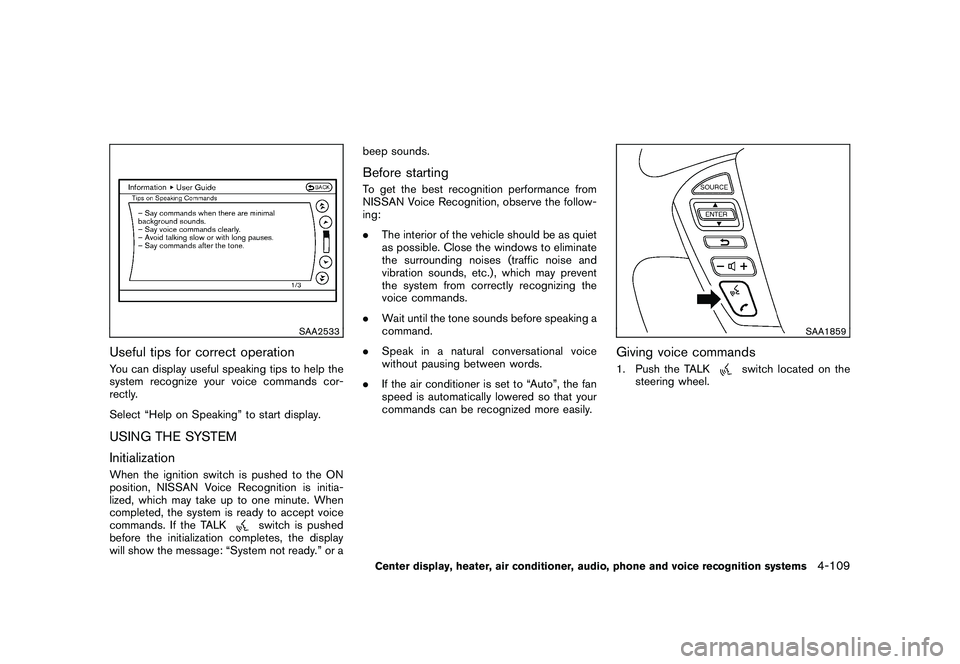
Useful tips for correct operationYou can display useful speaking tips to help the
system recognize your voice commands cor-
rectly.
Select “Help on Speaking” to start display.USING THE SYSTEM
InitializationWhen the ignition switch is pushed to the ON
position, NISSAN Voice Recognition is initia-
lized, which may take up to one minute. When
completed, the system is ready to accept voice
commands. If the TALK
switch is pushed
before the initialization completes, the display
will show the message: “System not ready.” or a beep sounds.
Before startingTo get the best recognition performance from
NISSAN Voice Recognition, observe the follow-
ing:
.
The interior of the vehicle should be as quiet
as possible. Close the windows to eliminate
the surrounding noises (traffic noise and
vibration sounds, etc.) , which may prevent
the system from correctly recognizing the
voice commands.
. Wait until the tone sounds before speaking a
command.
. Speak in a natural conversational voice
without pausing between words.
. If the air conditioner is set to “Auto”, the fan
speed is automatically lowered so that your
commands can be recognized more easily.
SAA1859
Giving voice commands1. Push the TALK
switch located on the
steering wheel.
Center display, heater, air conditioner, audio, phone and voice recognition systems
4-109
Page 280 of 433
Black plate (278,1)
Model "Z51-D" EDITED: 2010/ 7/ 23
SAA2535
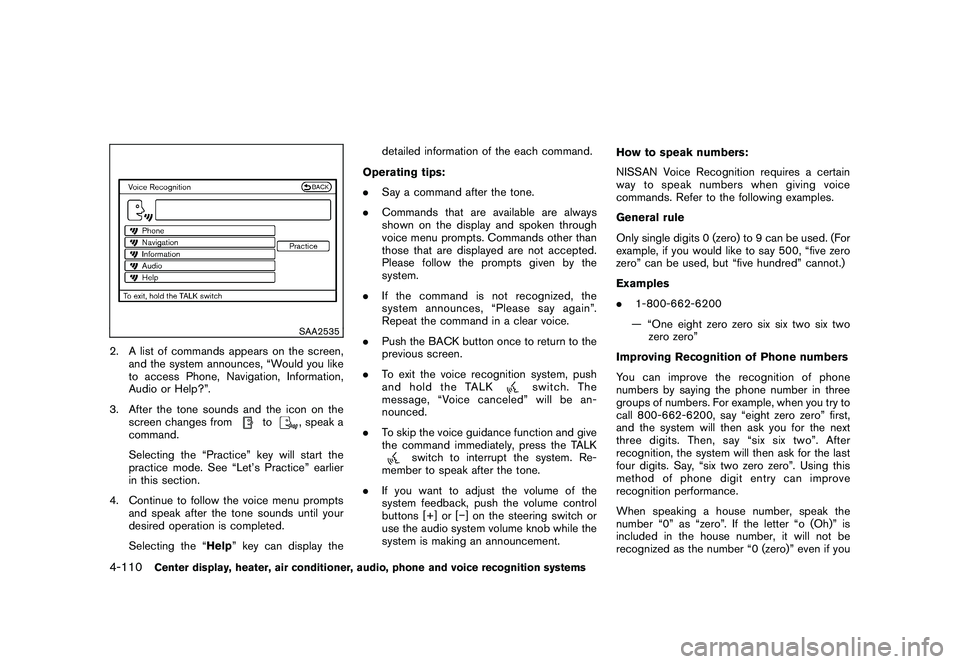
2. A list of commands appears on the screen,and the system announces, “Would you like
to access Phone, Navigation, Information,
Audio or Help?”.
3. After the tone sounds and the icon on the screen changes from
to
, speak a
command.
Selecting the “Practice” key will start the
practice mode. See “Let’s Practice” earlier
in this section.
4. Continue to follow the voice menu prompts and speak after the tone sounds until your
desired operation is completed.
Selecting the “Help ” key can display the detailed information of the each command.
Operating tips:
. Say a command after the tone.
. Commands that are available are always
shown on the display and spoken through
voice menu prompts. Commands other than
those that are displayed are not accepted.
Please follow the prompts given by the
system.
. If the command is not recognized, the
system announces, “Please say again”.
Repeat the command in a clear voice.
. Push the BACK button once to return to the
previous screen.
. To exit the voice recognition system, push
and hold the TALK
switch. The
message, “Voice canceled” will be an-
nounced.
. To skip the voice guidance function and give
the command immediately, press the TALK
switch to interrupt the system. Re-
member to speak after the tone.
. If you want to adjust the volume of the
system feedback, push the volume control
buttons [+] or [ ] on the steering switch or
use the audio system volume knob while the
system is making an announcement. How to speak numbers:
NISSAN Voice Recognition requires a certain
way to speak numbers when giving voice
commands. Refer to the following examples.
General rule
Only single digits 0 (zero) to 9 can be used. (For
example, if you would like to say 500, “five zero
zero” can be used, but “five hundred” cannot.)
Examples
.
1-800-662-6200
— “One eight zero zero six six two six two zero zero”
Improving Recognition of Phone numbers
You can improve the recognition of phone
numbers by saying the phone number in three
groups of numbers. For example, when you try to
call 800-662-6200, say “eight zero zero” first,
and the system will then ask you for the next
three digits. Then, say “six six two”. After
recognition, the system will then ask for the last
four digits. Say, “six two zero zero”. Using this
method of phone digit entry can improve
recognition performance.
When speaking a house number, speak the
number “0” as “zero”. If the letter “o (Oh)” is
included in the house number, it will not be
recognized as the number “0 (zero)” even if you
4-110
Center display, heater, air conditioner, audio, phone and voice recognition systems
Page 283 of 433
Black plate (281,1)
Model "Z51-D" EDITED: 2010/ 7/ 23
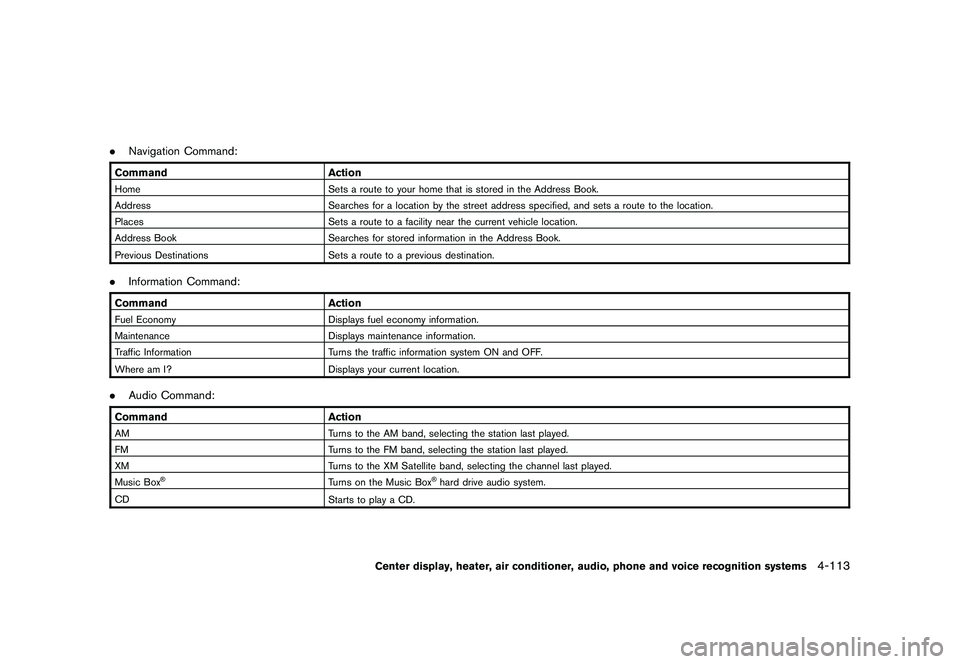
.Navigation Command:Command ActionHome Sets a route to your home that is stored in the Address Book.
Address Searches for a location by the street address specified, and sets a route to the location.
Places Sets a route to a facility near the current vehicle location.
Address Book Searches for stored information in the Address Book.
Previous Destinations Sets a route to a previous destination..Information Command:Command ActionFuel Economy Displays fuel economy information.
Maintenance Displays maintenance information.
Traffic Information Turns the traffic information system ON and OFF.
Where am I? Displays your current location..Audio Command:Command ActionAM Turns to the AM band, selecting the station last played.
FM Turns to the FM band, selecting the station last played.
XM Turns to the XM Satellite band, selecting the channel last played.
Music Box
®
Turns on the Music Box
®hard drive audio system.
CD Starts to play a CD.
Center display, heater, air conditioner, audio, phone and voice recognition systems
4-113
Page 292 of 433
Black plate (290,1)
Model "Z51-D" EDITED: 2010/ 7/ 23
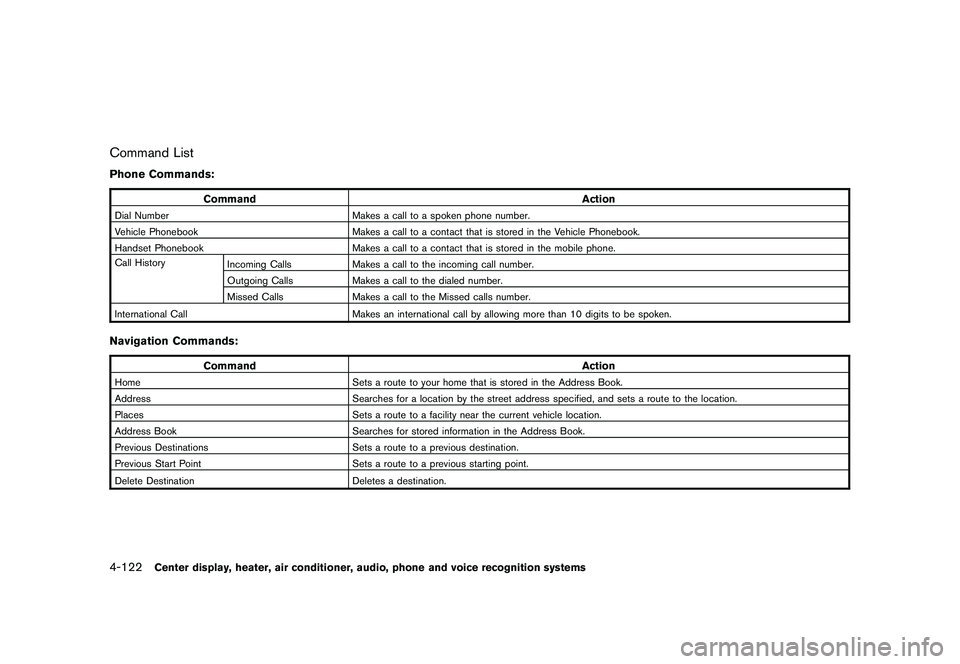
Command ListPhone Commands:
CommandAction
Dial NumberMakes a call to a spoken phone number.
Vehicle Phonebook Makes a call to a contact that is stored in the Vehicle Phonebook.
Handset Phonebook Makes a call to a contact that is stored in the mobile phone.
Call History Incoming Calls Makes a call to the incoming call number.
Outgoing Calls Makes a call to the dialed number.
Missed Calls Makes a call to the Missed calls number.
International Call Makes an international call by allowing more than 10 digits to be spoken.Navigation Commands:
Command Action
HomeSets a route to your home that is stored in the Address Book.
Address Searches for a location by the street address specified, and sets a route to the location.
Places Sets a route to a facility near the current vehicle location.
Address Book Searches for stored information in the Address Book.
Previous Destinations Sets a route to a previous destination.
Previous Start Point Sets a route to a previous starting point.
Delete Destination Deletes a destination.4-122
Center display, heater, air conditioner, audio, phone and voice recognition systems
Page 293 of 433
Black plate (291,1)
Model "Z51-D" EDITED: 2010/ 7/ 23
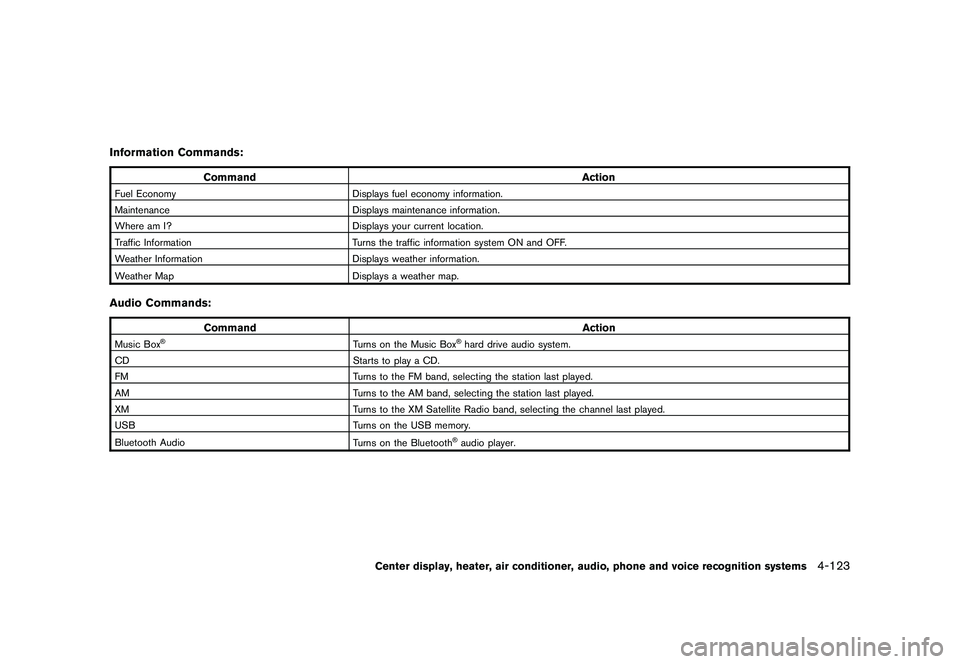
Information Commands:
CommandAction
Fuel EconomyDisplays fuel economy information.
Maintenance Displays maintenance information.
Where am I? Displays your current location.
Traffic Information Turns the traffic information system ON and OFF.
Weather Information Displays weather information.
Weather Map Displays a weather map.Audio Commands:
Command Action
Music Box
®
Turns on the Music Box
®hard drive audio system.
CD Starts to play a CD.
FM Turns to the FM band, selecting the station last played.
AM Turns to the AM band, selecting the station last played.
XM Turns to the XM Satellite Radio band, selecting the channel last played.
USB Turns on the USB memory.
Bluetooth Audio Turns on the Bluetooth®audio player.
Center display, heater, air conditioner, audio, phone and voice recognition systems
4-123
Page 295 of 433
Black plate (293,1)
Model "Z51-D" EDITED: 2010/ 7/ 23
SAA2547
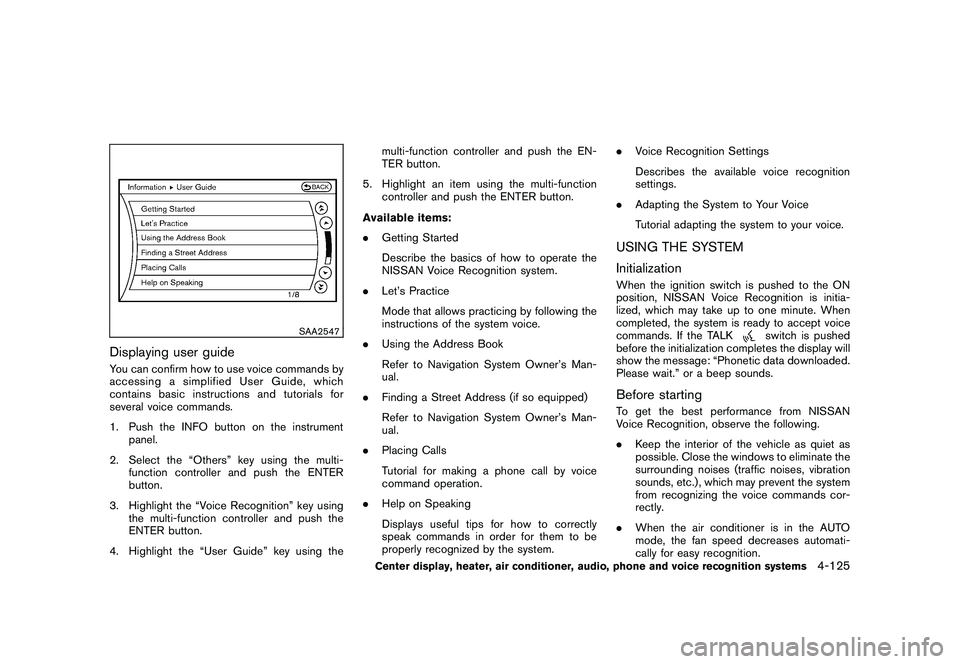
Displaying user guideYou can confirm how to use voice commands by
accessing a simplified User Guide, which
contains basic instructions and tutorials for
several voice commands.
1. Push the INFO button on the instrumentpanel.
2. Select the “Others” key using the multi- function controller and push the ENTER
button.
3. Highlight the “Voice Recognition” key using the multi-function controller and push the
ENTER button.
4. Highlight the “User Guide” key using the multi-function controller and push the EN-
TER button.
5. Highlight an item using the multi-function controller and push the ENTER button.
Available items:
. Getting Started
Describe the basics of how to operate the
NISSAN Voice Recognition system.
. Let’s Practice
Mode that allows practicing by following the
instructions of the system voice.
. Using the Address Book
Refer to Navigation System Owner’s Man-
ual.
. Finding a Street Address (if so equipped)
Refer to Navigation System Owner’s Man-
ual.
. Placing Calls
Tutorial for making a phone call by voice
command operation.
. Help on Speaking
Displays useful tips for how to correctly
speak commands in order for them to be
properly recognized by the system. .
Voice Recognition Settings
Describes the available voice recognition
settings.
. Adapting the System to Your Voice
Tutorial adapting the system to your voice.
USING THE SYSTEM
InitializationWhen the ignition switch is pushed to the ON
position, NISSAN Voice Recognition is initia-
lized, which may take up to one minute. When
completed, the system is ready to accept voice
commands. If the TALK
switch is pushed
before the initialization completes the display will
show the message: “Phonetic data downloaded.
Please wait.” or a beep sounds.
Before startingTo get the best performance from NISSAN
Voice Recognition, observe the following.
. Keep the interior of the vehicle as quiet as
possible. Close the windows to eliminate the
surrounding noises (traffic noises, vibration
sounds, etc.) , which may prevent the system
from recognizing the voice commands cor-
rectly.
. When the air conditioner is in the AUTO
mode, the fan speed decreases automati-
cally for easy recognition.
Center display, heater, air conditioner, audio, phone and voice recognition systems
4-125
Page 298 of 433
Black plate (296,1)
Model "Z51-D" EDITED: 2010/ 7/ 23
SAA2550
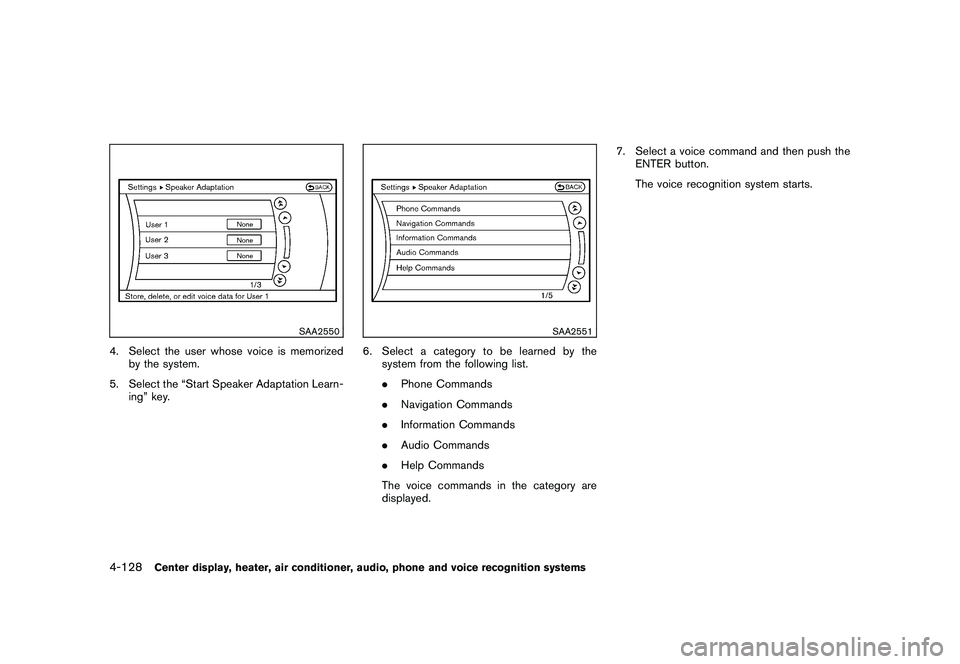
4. Select the user whose voice is memorizedby the system.
5. Select the “Start Speaker Adaptation Learn- ing” key.
SAA2551
6. Select a category to be learned by thesystem from the following list.
.Phone Commands
. Navigation Commands
. Information Commands
. Audio Commands
. Help Commands
The voice commands in the category are
displayed. 7. Select a voice command and then push the
ENTER button.
The voice recognition system starts.
4-128
Center display, heater, air conditioner, audio, phone and voice recognition systems
Page 300 of 433
Black plate (298,1)
Model "Z51-D" EDITED: 2010/ 7/ 23
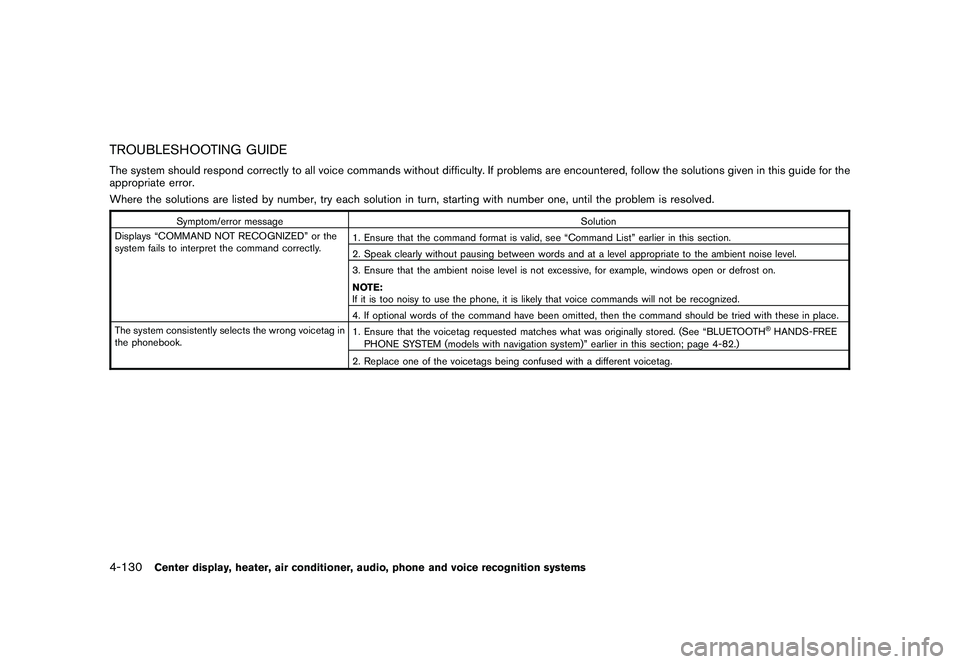
TROUBLESHOOTING GUIDEThe system should respond correctly to all voice commands without difficulty. If problems are encountered, follow the solutions given in this guide for the
appropriate error.
Where the solutions are listed by number, try each solution in turn, starting with number one, until the problem is resolved.
Symptom/error messageSolution
Displays “COMMAND NOT RECOGNIZED” or the
system fails to interpret the command correctly. 1. Ensure that the command format is valid, see “Command List” earlier in this section.
2. Speak clearly without pausing between words and at a level appropriate to the ambient noise level.
3. Ensure that the ambient noise level is not excessive, for example, windows open or defrost on.
NOTE:
If it is too noisy to use the phone, it is likely that voice commands will not be recognized.
4. If optional words of the command have been omitted, then the command should be tried with these in place.
The system consistently selects the wrong voicetag in
the phonebook. 1. Ensure that the voicetag requested matches what was originally stored. (See “BLUETOOTH
®HANDS-FREE
PHONE SYSTEM (models with navigation system)” earlier in this section; page 4-82.)
2. Replace one of the voicetags being confused with a different voicetag.
4-130
Center display, heater, air conditioner, audio, phone and voice recognition systems