AUX NISSAN MURANO 2011 Owner´s Manual
[x] Cancel search | Manufacturer: NISSAN, Model Year: 2011, Model line: MURANO, Model: NISSAN MURANO 2011Pages: 433, PDF Size: 3.7 MB
Page 11 of 433
Black plate (7,1)
Model "Z51-D" EDITED: 2010/ 7/ 23
SSI0815
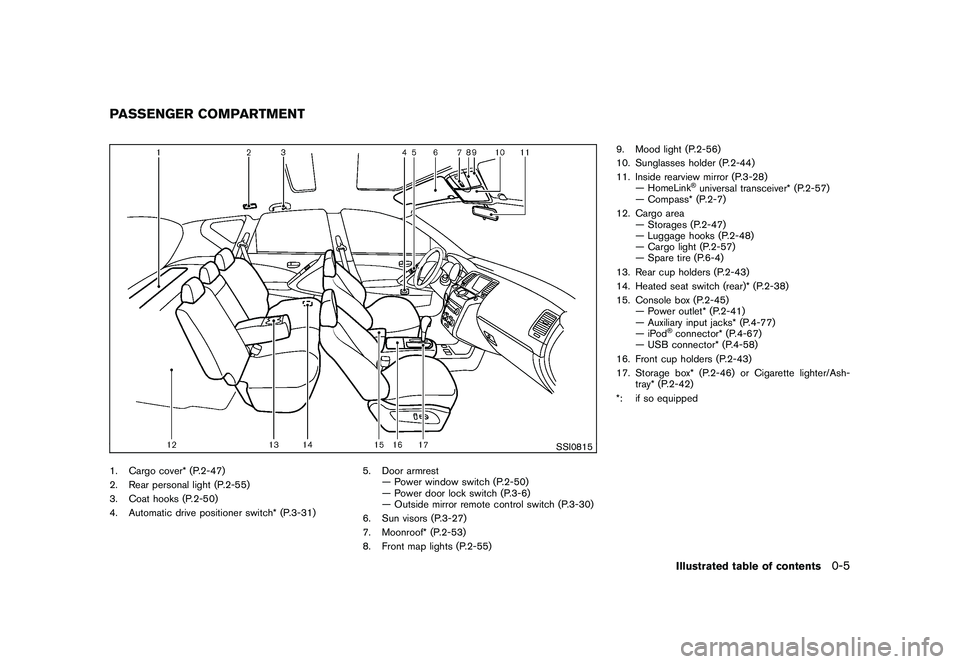
1. Cargo cover* (P.2-47)
2. Rear personal light (P.2-55)
3. Coat hooks (P.2-50)
4. Automatic drive positioner switch* (P.3-31)5. Door armrest
— Power window switch (P.2-50)
— Power door lock switch (P.3-6)
— Outside mirror remote control switch (P.3-30)
6. Sun visors (P.3-27)
7. Moonroof* (P.2-53)
8. Front map lights (P.2-55) 9. Mood light (P.2-56)
10. Sunglasses holder (P.2-44)
11. Inside rearview mirror (P.3-28)
— HomeLink
®universal transceiver* (P.2-57)
— Compass* (P.2-7)
12. Cargo area — Storages (P.2-47)
— Luggage hooks (P.2-48)
— Cargo light (P.2-57)
— Spare tire (P.6-4)
13. Rear cup holders (P.2-43)
14. Heated seat switch (rear)* (P.2-38)
15. Console box (P.2-45) — Power outlet* (P.2-41)
— Auxiliary input jacks* (P.4-77)
—iPod
®connector* (P.4-67)
— USB connector* (P.4-58)
16. Front cup holders (P.2-43)
17. Storage box* (P.2-46) or Cigarette lighter/Ash- tray* (P.2-42)
*: if so equipped
PASSENGER COMPARTMENT
Illustrated table of contents
0-5
Page 170 of 433
Black plate (13,1)
4
Center display, heater, air conditioner,
audio, phone and voice recognition systems
Model "Z51-D" EDITED: 2010/ 7/ 23
Safety note....................................................... 4-2
Center multi-function control panel
(models with color display screen) ......................... 4-2
How to use multi-function controller ................... 4-4
How to use touch screen
(models with navigation system) ........................ 4-4
Menu options (models with navigation system) ...... 4-6
How to select menus on the screen ................... 4-7
Vehicle information and settings (if so equipped) ....... 4-7
How to use STATUS button .............................. 4-7
How to use brightness control and display ON/
OFF button ................................................... 4-7
How to use INFO button. ................................. 4-7
How to use SETTING button .......................... 4-12
RearView monitor (if so equipped) ....................... 4-21
How to read the displayed lines ....................... 4-22
How to park with predicted course lines ............ 4-22
Difference between predicted and actual
distances ................................................... 4-24
How to adjust the screen ............................... 4-26
Operating tips ............................................. 4-26
Ventilators ...................................................... 4-27
Heater and air conditioner .................................. 4-28
Automatic operation ...................................... 4-30
Manual operation ......................................... 4-31
To turn the system ON/OFF ........................... 4-32
Operating tips ............................................. 4-32 In-cabin microfilter
........................................ 4-32
Servicing air conditioner ................................ 4-32
Audio system .................................................. 4-33
Audio operation precautions ........................... 4-33
FM-AM radio with Compact Disc (CD)
changer ..................................................... 4-46
FM-AM-SAT radio with Compact Disc (CD)
player ........................................................ 4-51
DVD (Digital Versatile Disc) player operation
(models with navigation system) ...................... 4-55
USB memory operation (if so equipped) ............ 4-58
Bluetooth
®streaming audio
(models with navigation system) ...................... 4-62
iPod
®player operation (if so equipped) .............. 4-67
Music Box
®(if so equipped) ........................... 4-69
Auxiliary input jacks (if so equipped) ................. 4-77
CD/DVD/USB memory care and cleaning .......... 4-78
Steering-wheel-mounted controls for audio ........ 4-79
Antenna ..................................................... 4-81
Car phone or CB radio ...................................... 4-82
Bluetooth
®Hands-Free Phone System
(models with navigation system) .......................... 4-82
Regulatory information ................................... 4-83
Voice commands. ......................................... 4-84
Control buttons ........................................... 4-84
Connecting procedure ................................... 4-85
Phone selection ........................................... 4-85
Page 172 of 433
Black plate (170,1)
Model "Z51-D" EDITED: 2010/ 7/ 23
WARNING
.Do not disassemble or modify this
system. If you do, it may result in
accidents, fire, or electric shock.
. Do not use this system if you notice
any abnormality, such as a frozen
screen or lack of sound. Continued
use of the system may result in
accident, fire or electric shock.
. In case you notice any foreign
object in the system hardware, spill
liquid on it, or notice smoke or smell
coming from it, stop using the
system immediately and contact
your nearest NISSAN dealer. Ignor-
ing such conditions may lead to
accidents, fire, or electric shock.
. Park the vehicle in a safe location
and apply the parking brake to view
the images on the front center dis-
play screen using devices connected
to the auxiliary input jacks.
Do not attempt to operate the system in
extreme temperature conditions [below
48F( 208 C) and above 158 8F(70 8C)].
Operating this system under these condi-
tions may result in system malfunctions.
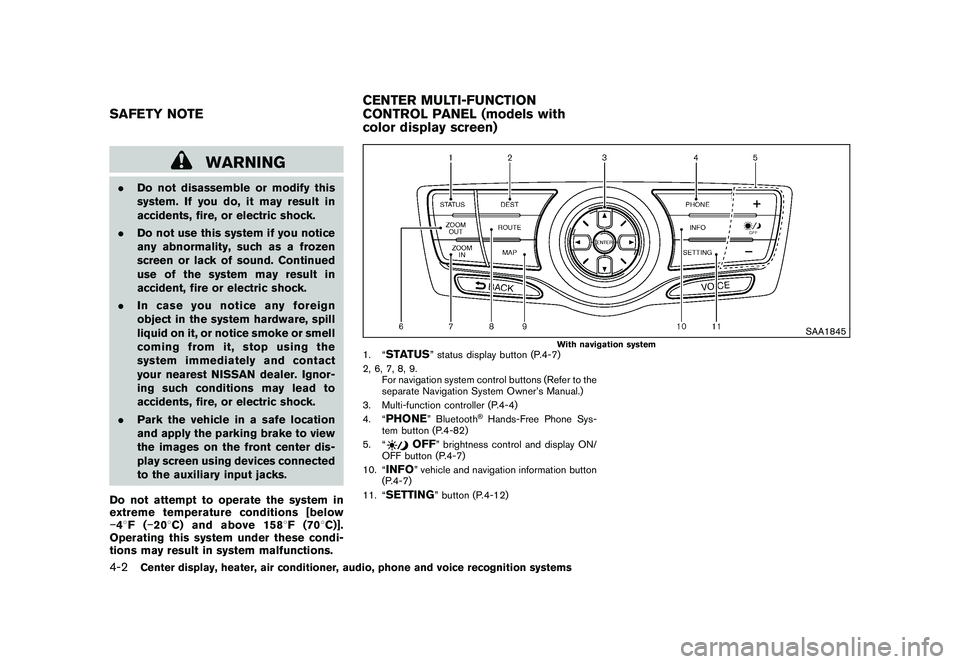
SAA1845
With navigation system
1. “
STATUS
” status display button (P.4-7)
2, 6, 7, 8, 9. For navigation system control buttons (Refer to the
separate Navigation System Owner’s Manual.)
3. Multi-function controller (P.4-4)
4. “
PHONE
” Bluetooth
®Hands-Free Phone Sys-
tem button (P.4-82)
5. “
OFF
” brightness control and display ON/
OFF button (P.4-7)
10. “
INFO
” vehicle and navigation information button
(P.4-7)
11. “
SETTING
” button (P.4-12)
SAFETY NOTE CENTER MULTI-FUNCTION
CONTROL PANEL (models with
color display screen)4-2
Center display, heater, air conditioner, audio, phone and voice recognition systems
Page 216 of 433
Black plate (214,1)
Model "Z51-D" EDITED: 2010/ 7/ 23
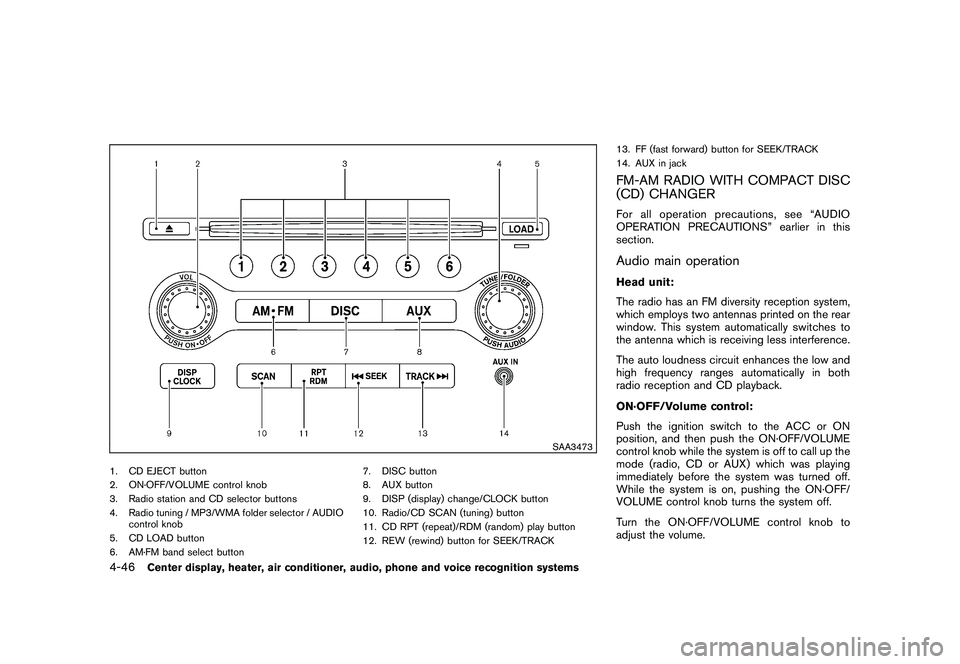
SAA3473
1. CD EJECT button
2. ON·OFF/VOLUME control knob
3. Radio station and CD selector buttons
4. Radio tuning / MP3/WMA folder selector / AUDIOcontrol knob
5. CD LOAD button
6. AM·FM band select button 7. DISC button
8. AUX button
9. DISP (display) change/CLOCK button
10. Radio/CD SCAN (tuning) button
11. CD RPT (repeat)/RDM (random) play button
12. REW (rewind) button for SEEK/TRACK13. FF (fast forward) button for SEEK/TRACK
14. AUX in jack
FM-AM RADIO WITH COMPACT DISC
(CD) CHANGERFor all operation precautions, see “AUDIO
OPERATION PRECAUTIONS” earlier in this
section.Audio main operationHead unit:
The radio has an FM diversity reception system,
which employs two antennas printed on the rear
window. This system automatically switches to
the antenna which is receiving less interference.
The auto loudness circuit enhances the low and
high frequency ranges automatically in both
radio reception and CD playback.
ON·OFF/Volume control:
Push the ignition switch to the ACC or ON
position, and then push the ON·OFF/VOLUME
control knob while the system is off to call up the
mode (radio, CD or AUX) which was playing
immediately before the system was turned off.
While the system is on, pushing the ON·OFF/
VOLUME control knob turns the system off.
Turn the ON·OFF/VOLUME control knob to
adjust the volume.
4-46
Center display, heater, air conditioner, audio, phone and voice recognition systems
Page 219 of 433
Black plate (217,1)
Model "Z51-D" EDITED: 2010/ 7/ 23
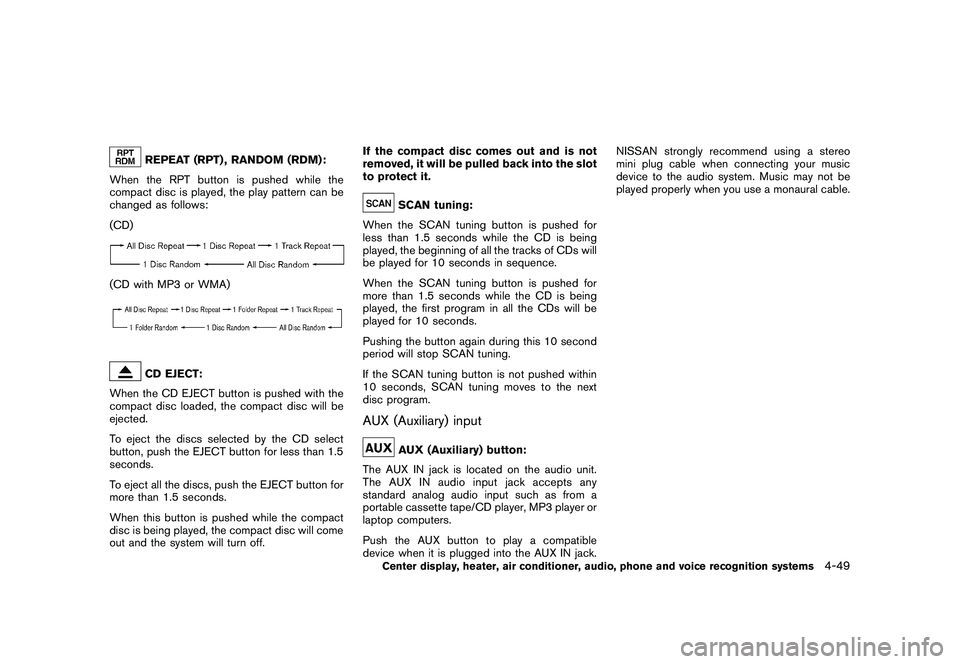
REPEAT (RPT) , RANDOM (RDM):
When the RPT button is pushed while the
compact disc is played, the play pattern can be
changed as follows:
(CD)
(CD with MP3 or WMA)
CD EJECT:
When the CD EJECT button is pushed with the
compact disc loaded, the compact disc will be
ejected.
To eject the discs selected by the CD select
button, push the EJECT button for less than 1.5
seconds.
To eject all the discs, push the EJECT button for
more than 1.5 seconds.
When this button is pushed while the compact
disc is being played, the compact disc will come
out and the system will turn off. If the compact disc comes out and is not
removed, it will be pulled back into the slot
to protect it.
SCAN tuning:
When the SCAN tuning button is pushed for
less than 1.5 seconds while the CD is being
played, the beginning of all the tracks of CDs will
be played for 10 seconds in sequence.
When the SCAN tuning button is pushed for
more than 1.5 seconds while the CD is being
played, the first program in all the CDs will be
played for 10 seconds.
Pushing the button again during this 10 second
period will stop SCAN tuning.
If the SCAN tuning button is not pushed within
10 seconds, SCAN tuning moves to the next
disc program.
AUX (Auxiliary) input
AUX (Auxiliary) button:
The AUX IN jack is located on the audio unit.
The AUX IN audio input jack accepts any
standard analog audio input such as from a
portable cassette tape/CD player, MP3 player or
laptop computers.
Push the AUX button to play a compatible
device when it is plugged into the AUX IN jack. NISSAN strongly recommend using a stereo
mini plug cable when connecting your music
device to the audio system. Music may not be
played properly when you use a monaural cable.
Center display, heater, air conditioner, audio, phone and voice recognition systems
4-49
Page 220 of 433
Black plate (218,1)
Model "Z51-D" EDITED: 2010/ 7/ 23
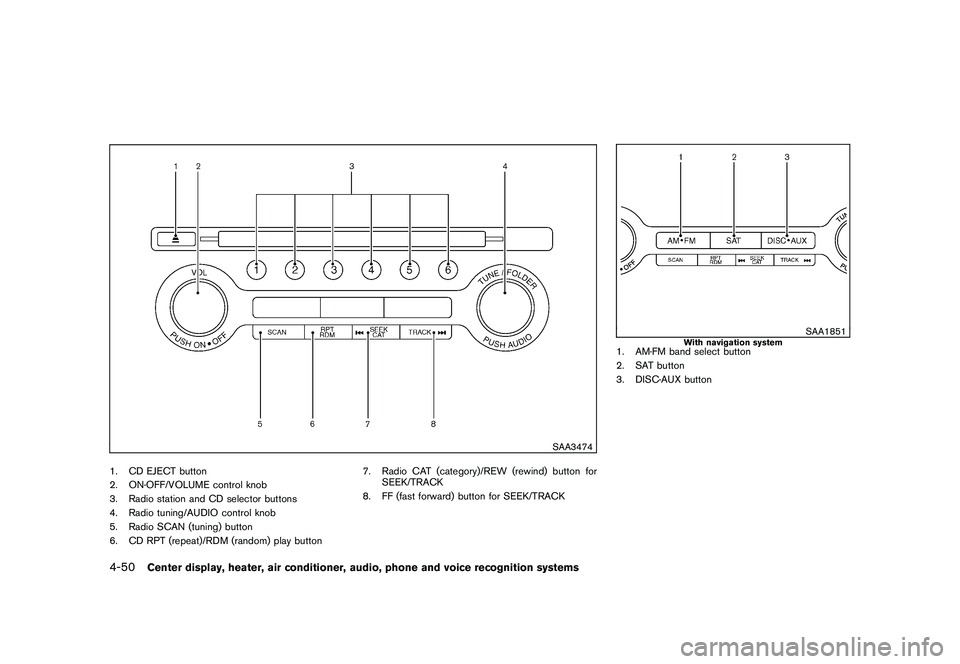
SAA3474
1. CD EJECT button
2. ON·OFF/VOLUME control knob
3. Radio station and CD selector buttons
4. Radio tuning/AUDIO control knob
5. Radio SCAN (tuning) button
6. CD RPT (repeat)/RDM (random) play button7. Radio CAT (category)/REW (rewind) button for
SEEK/TRACK
8. FF (fast forward) button for SEEK/TRACK
SAA1851
With navigation system
1. AM·FM band select button
2. SAT button
3. DISC·AUX button
4-50
Center display, heater, air conditioner, audio, phone and voice recognition systems
Page 221 of 433
Black plate (219,1)
Model "Z51-D" EDITED: 2010/ 7/ 23
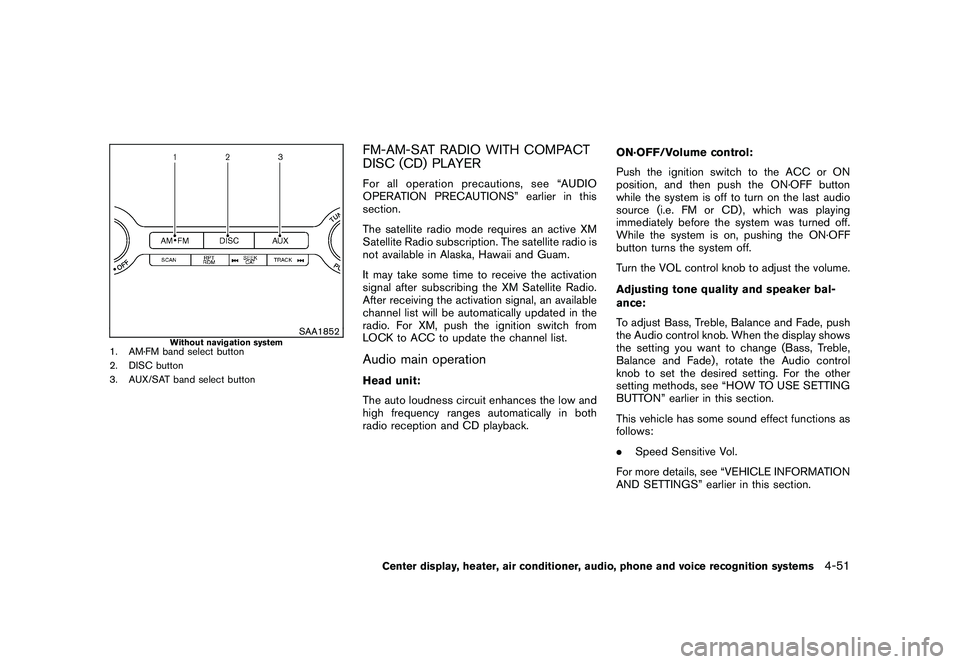
SAA1852
Without navigation system
1. AM·FM band select button
2. DISC button
3. AUX/SAT band select button
FM-AM-SAT RADIO WITH COMPACT
DISC (CD) PLAYERFor all operation precautions, see “AUDIO
OPERATION PRECAUTIONS” earlier in this
section.
The satellite radio mode requires an active XM
Satellite Radio subscription. The satellite radio is
not available in Alaska, Hawaii and Guam.
It may take some time to receive the activation
signal after subscribing the XM Satellite Radio.
After receiving the activation signal, an available
channel list will be automatically updated in the
radio. For XM, push the ignition switch from
LOCK to ACC to update the channel list.Audio main operationHead unit:
The auto loudness circuit enhances the low and
high frequency ranges automatically in both
radio reception and CD playback.ON·OFF/Volume control:
Push the ignition switch to the ACC or ON
position, and then push the ON·OFF button
while the system is off to turn on the last audio
source (i.e. FM or CD) , which was playing
immediately before the system was turned off.
While the system is on, pushing the ON·OFF
button turns the system off.
Turn the VOL control knob to adjust the volume.
Adjusting tone quality and speaker bal-
ance:
To adjust Bass, Treble, Balance and Fade, push
the Audio control knob. When the display shows
the setting you want to change (Bass, Treble,
Balance and Fade) , rotate the Audio control
knob to set the desired setting. For the other
setting methods, see “HOW TO USE SETTING
BUTTON” earlier in this section.
This vehicle has some sound effect functions as
follows:
.
Speed Sensitive Vol.
For more details, see “VEHICLE INFORMATION
AND SETTINGS” earlier in this section.
Center display, heater, air conditioner, audio, phone and voice recognition systems
4-51
Page 222 of 433
Black plate (220,1)
Model "Z51-D" EDITED: 2010/ 7/ 23
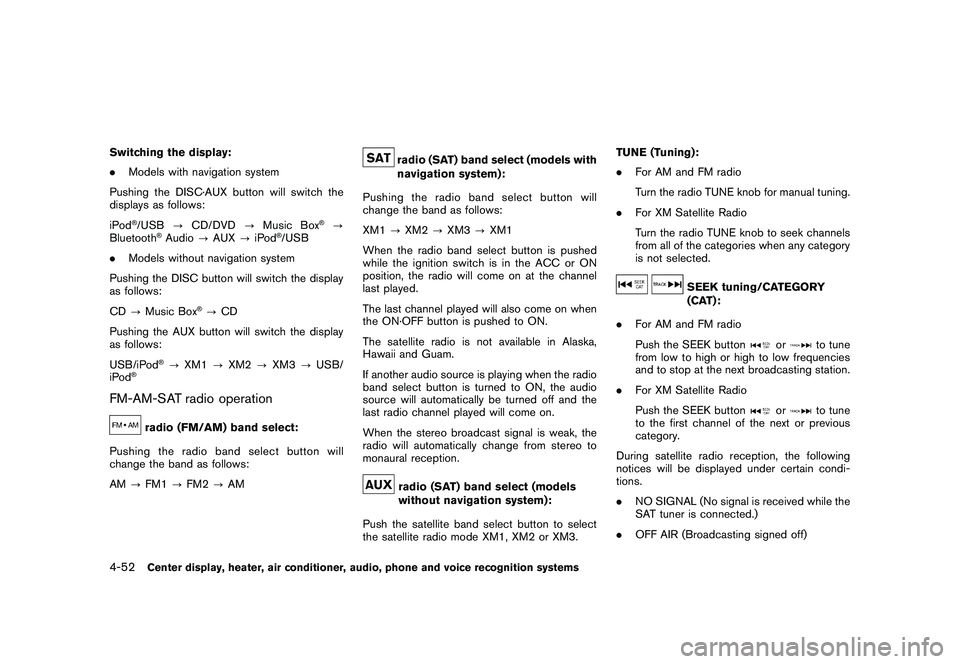
Switching the display:
.Models with navigation system
Pushing the DISC·AUX button will switch the
displays as follows:
iPod
®/USB ?CD/DVD ?Music Box
®?
Bluetooth
®Audio ?AUX ?iPod
®/USB
. Models without navigation system
Pushing the DISC button will switch the display
as follows:
CD ?Music Box
®?CD
Pushing the AUX button will switch the display
as follows:
USB/iPod
®? XM1 ?XM2 ?XM3 ?USB/
iPod
®
FM-AM-SAT radio operation
radio (FM/AM) band select:
Pushing the radio band select button will
change the band as follows:
AM ?FM1 ?FM2 ?AM
radio (SAT) band select (models with
navigation system):
Pushing the radio band select button will
change the band as follows:
XM1 ?XM2 ?XM3 ?XM1
When the radio band select button is pushed
while the ignition switch is in the ACC or ON
position, the radio will come on at the channel
last played.
The last channel played will also come on when
the ON·OFF button is pushed to ON.
The satellite radio is not available in Alaska,
Hawaii and Guam.
If another audio source is playing when the radio
band select button is turned to ON, the audio
source will automatically be turned off and the
last radio channel played will come on.
When the stereo broadcast signal is weak, the
radio will automatically change from stereo to
monaural reception.radio (SAT) band select (models
without navigation system):
Push the satellite band select button to select
the satellite radio mode XM1, XM2 or XM3. TUNE (Tuning):
.
For AM and FM radio
Turn the radio TUNE knob for manual tuning.
. For XM Satellite Radio
Turn the radio TUNE knob to seek channels
from all of the categories when any category
is not selected.
SEEK tuning/CATEGORY
(CAT):
. For AM and FM radio
Push the SEEK button
or
to tune
from low to high or high to low frequencies
and to stop at the next broadcasting station.
. For XM Satellite Radio
Push the SEEK button
or
to tune
to the first channel of the next or previous
category.
During satellite radio reception, the following
notices will be displayed under certain condi-
tions.
. NO SIGNAL (No signal is received while the
SAT tuner is connected.)
. OFF AIR (Broadcasting signed off)
4-52
Center display, heater, air conditioner, audio, phone and voice recognition systems
Page 224 of 433
Black plate (222,1)
Model "Z51-D" EDITED: 2010/ 7/ 23
.CH Name
. Category
. Name
. Title
. OtherCompact Disc (CD) player operationPush the ignition switch to the ACC or ON
position and insert the Compact Disc (CD) into
the slot with the label side facing up. The CD will
be guided automatically into the slot and start
playing.
After loading the CD, the number of tracks on
the CD and the play time will appear on the
display.
If the radio is already operating, it will auto-
matically turn off and the CD will play.
If the system has been turned off while the CD
was playing, pushing the ON·OFF button will
start the CD.
Do not use 3.1 in (8 cm) discs.
or
PLAY:
When the DISC·AUX or DISC (CD play) button
is pushed with the system off and the CD
loaded, the system will turn on and the CD will
start to play. When the DISC·AUX or DISC button is pushed
with the CD loaded and the radio playing, the
radio will automatically be turned off and the CD
will start to play.
Menu (models with navigation system):
When the “Menu” key on the display is selected
while the CD is being played, the menu screen
will be displayed. The following menu options
are available.
.
Folder List (for CD with compressed audio
files)
Displays the folder list.
. Track List
Displays the track list.
. Play Mode
Select a play mode from the following items.
— Normal
— 1 Folder Repeat (for CD with compressed audio files)
— 1 Track Repeat
— 1 Disc Random
— 1 Folder Random (for CD with com- pressed audio files) .
Record to Music Box
®(for CD)
Select to choose specific songs on the CD
to record to the Music Box
®.
. Title Text Priority (for CD)
Set the priority to CDDB (Compact Disc
Data Base) to acquire track information from
the Gracenote Database, or set the priority
to CD-TEXT to acquire the information from
CDs.
. Automatic Recording (for CD)
When this item is turned to ON, the Music
Box
®hard drive/flash memory automatically
starts recording when a CD is inserted.
. Recording Quality (for CD)
The larger number (132) will increase the
recorded sound quality while taking up more
space on the Music Box
®leaving less room
for more songs.
For the details of Music Box®, see “MUSIC
BOX
®” later in this section.
Text (models without navigation system):
When the “Text” key is selected in the screen
using the multi-function controller and then the
ENTER button is pushed while the CD is being
played, the music information below will be
displayed on the screen.
4-54
Center display, heater, air conditioner, audio, phone and voice recognition systems
Page 226 of 433
Black plate (224,1)
Model "Z51-D" EDITED: 2010/ 7/ 23
CAUTION
.Only operate the DVD while the
vehicle engine is running. Operating
the DVD for extended periods of
time with the engine OFF can dis-
charge the vehicle battery.
. Do not allow the system to get wet.
Excessive moisture such as spilled
liquids may cause the system to
malfunction.
. While playing VIDEO-CD media, this
DVD player does not guarantee
complete functionality of all VI-
DEO-CD formats.Display settingsTo adjust the front display mode, push the
SETTING button while the DVD is being played.
To adjust the display ON/OFF, brightness, tint,
color and contrast, select the “Display Adjust-
ment” key and then select each key.
Then you can adjust each item using the multi-
function controller. After changes have been
made push the BACK button to save the setting.
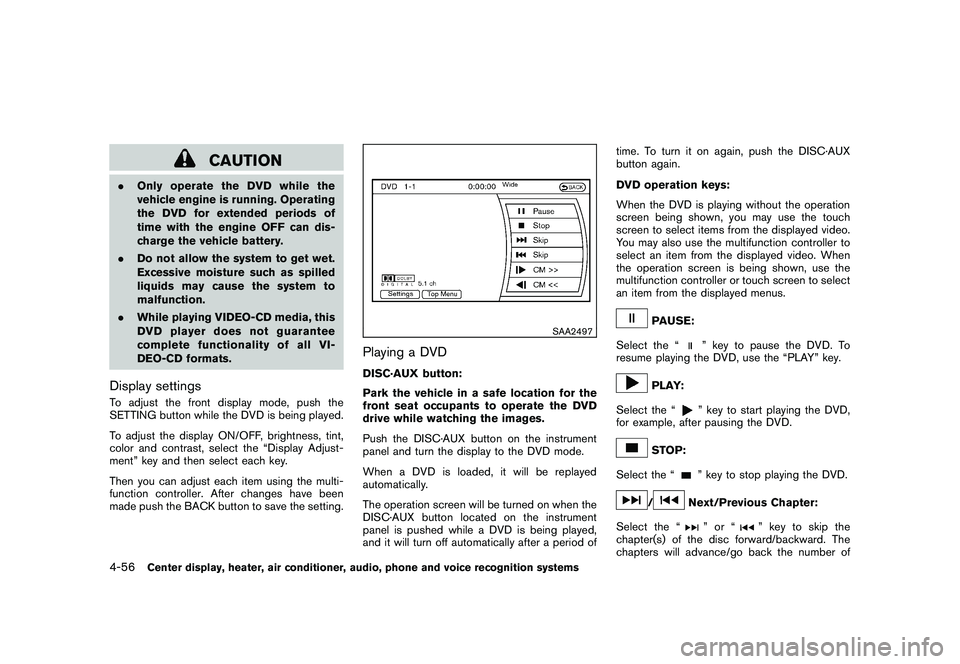
SAA2497
Playing a DVDDISC·AUX button:
Park the vehicle in a safe location for the
front seat occupants to operate the DVD
drive while watching the images.
Push the DISC·AUX button on the instrument
panel and turn the display to the DVD mode.
When a DVD is loaded, it will be replayed
automatically.
The operation screen will be turned on when the
DISC·AUX button located on the instrument
panel is pushed while a DVD is being played,
and it will turn off automatically after a period of time. To turn it on again, push the DISC·AUX
button again.
DVD operation keys:
When the DVD is playing without the operation
screen being shown, you may use the touch
screen to select items from the displayed video.
You may also use the multifunction controller to
select an item from the displayed video. When
the operation screen is being shown, use the
multifunction controller or touch screen to select
an item from the displayed menus.
PAUSE:
Select the “
” key to pause the DVD. To
resume playing the DVD, use the “PLAY” key.
PLAY:
Select the “
” key to start playing the DVD,
for example, after pausing the DVD.
STOP:
Select the “
” key to stop playing the DVD.
/
Next/Previous Chapter:
Select the “
”or“
” key to skip the
chapter(s) of the disc forward/backward. The
chapters will advance/go back the number of
4-56
Center display, heater, air conditioner, audio, phone and voice recognition systems