phone NISSAN MURANO 2015 3.G LC2 Kai Navigation Manual
[x] Cancel search | Manufacturer: NISSAN, Model Year: 2015, Model line: MURANO, Model: NISSAN MURANO 2015 3.GPages: 203, PDF Size: 1.12 MB
Page 27 of 203
![NISSAN MURANO 2015 3.G LC2 Kai Navigation Manual [Clock]Displays the clock adjust-
ment screen.
“Clock settings”
(page 2-16)
[Edit Home Menu] Displays the menu editing screen.
“Customizing
HOME MENU
screen”
(page 2-11)
[Voice Recognition] Di](/img/5/436/w960_436-26.png "NISSAN MURANO 2015 3.G LC2 Kai Navigation Manual [Clock]Displays the clock adjust-
ment screen.
“Clock settings”
(page 2-16)
[Edit Home Menu] Displays the menu editing screen.
“Customizing
HOME MENU
screen”
(page 2-11)
[Voice Recognition] Di")
[Clock]Displays the clock adjust-
ment screen.
“Clock settings”
(page 2-16)
[Edit Home Menu] Displays the menu editing screen.
“Customizing
HOME MENU
screen”
(page 2-11)
[Voice Recognition] Displays the voice recog- nition system settings
screen.
“Voice recognition
settings”
(page 7-17)
[Language & Units] Displays the Language and Units settings screen.
“Language and unit
settings”
(page 2-16)
[Camera]
(models with Rear-
View Monitor) Displays the Camera
setting screen.
See vehicle Owner’s
Manual for details of the
monitor system.
DISPLAY SETTINGS
Menu items to adjust display settings are
available.
1. Touch [Settings] on the Launch Bar.
2. Touch [Display].
3. Touch a preferred adjustment item and
adjust to the preferred setting.
Available setting items
Setting item Action
[Display] Turns the screen off. Pushing and holding <
>
will also turn off the screen.
Push the <
>to turn the
screen back on.
[Brightness] Adjusts the brightness of the display.
[Contrast] Adjusts the contrast of the dis- play.
[Background
Color] Changes the background color
of the map screen. Select the
color mode from [Day] and
[Night].
Pushing
<
>will also
change the background color.
VOLUME AND BEEPS SETTINGS
The volume of various functions including audio,
phone, navigation voice guidance, and system
beeps can be adjusted.
1. Touch [Settings] on the Launch Bar.
2. Touch [Volume & Beeps].
2. Getting started
2-15
Page 29 of 203
CONNECTING BLUETOOTHŠDE-
VICE
Your vehicle is equipped with the BluetoothŠ
Hands-Free Phone System and BluetoothŠ
audio device. If you are an owner of a compatible
BluetoothŠenabled cellular phone or BluetoothŠ
audio device, you can set up the wireless
connection between your cellular phone and
the in-vehicle phone module or Bluetooth
Šaudio
and in-vehicle audio module. With BluetoothŠ
wireless technology, you can make or receive a
telephone call with your cellular phone in your
pocket and listen to Bluetooth
Šaudio.
Connecting cellular phone/audio de-
vice
To use the BluetoothŠdevice with the in-vehicle
system for the first time, the device connection
operation is required.
1. Touch [Settings] on the Launch Bar.
2. Touch [Bluetooth] and touch [Connect De- vice]. A message is displayed.
3. Touch [Yes] to connect a cellular phone. Touch [No] to connect an audio device and
operate as guided by the system. (Opera-
tions may differ depending on the device.)
NOTE:
Some cellular phones or other devices may
cause interference or a buzzing noise to
come from the audio system speakers.
Storing the device in a different location
may reduce or eliminate the noise.
INFO:
. Up to 5 Bluetooth
Šdevices can be con-
nected. If 5 devices are already connected,
one of the devices must first be deleted
before another device can be connected.
“BluetoothŠsettings” (page 2-17)
. The pairing procedure of the cellular phone
varies according to each cellular phone. See
the cellular phone Owner’s Manual for the
details.
. Visit www.nissanusa.com/bluetooth/ for a
recommended Bluetooth
Šdevice.
BluetoothŠsettings
The BluetoothŠsettings can be changed ac-
cording to the your preference.
1. Touch [Settings] on the Launch Bar.
2. Touch [Bluetooth]. 3. Touch a preferred item.
Available setting items
Setting item Action
[Bluetooth] Turns the BluetoothŠcon-
nection to the vehicle on/off.
[Connect Device] Bluetooth
Šdevices can be
connected to the in-vehicle
system.
[Select BT De-
vice] Registered Bluetooth
Šde-
vices are shown on the list.
Select a device you wish to
use from the list. You can also
edit the name, delete regis-
tered devices or display in-
formation of the registered
device.
[Edit Bluetooth
Information] The in-vehicle system name
and the PIN code can be
changed. A device address
can also be viewed.
INFO:
From [Edit Bluetooth Information], the device
name that appears on the screen can be
changed and be renamed from the name set as
default to the preferred name (such as “Steve’s
Car” for example) .
2. Getting started
2-17
Page 32 of 203
3. Audio system
AUDIO OPERATION PRECAU-
TIONS
CAUTION
.Operate the audio system only when
the vehicle engine is running. Oper-
ating the audio system for extended
periods of time with the engine
turned off can discharge the vehicle
battery.
. Do not allow the system to get wet.
Excessive moisture such as spilled
liquids may cause the system to
malfunction.
RADIO
Place the ignition switch in the “ACC” or “ON”
position before turning on the radio. If you listen
to the radio with the engine not running, the
ignition switch should be placed in the “ACC”
position.
Radio reception is affected by station signal
strength, distance from radio transmitter, build-
ings, bridges, mountains and other external
influences. Intermittent changes in reception
quality normally are caused by these external
influences. Using a cellular phone in or near the vehicle
may influence radio reception quality.
Radio reception
Your radio system is equipped with state-of-the-
art electronic circuits to enhance radio reception.
These circuits are designed to extend reception
range, and to enhance the quality of that
reception.
However there are some general characteristics
of both FM and AM radio signals that can affect
radio reception quality in a moving vehicle, even
when the finest equipment is used. These
characteristics are completely normal in a given
reception area, and do not indicate any malfunc-
tion in your radio system.
Reception conditions will constantly change
because of vehicle movement. Buildings, terrain,
signal distance and interference from other
vehicles can work against ideal reception.
Described below are some of the factors that
can affect your radio reception.
Some cellular phones or other devices may
cause interference or a buzzing noise to come
from the audio system speakers. Storing the
device in a different location may reduce or
eliminate the noise.
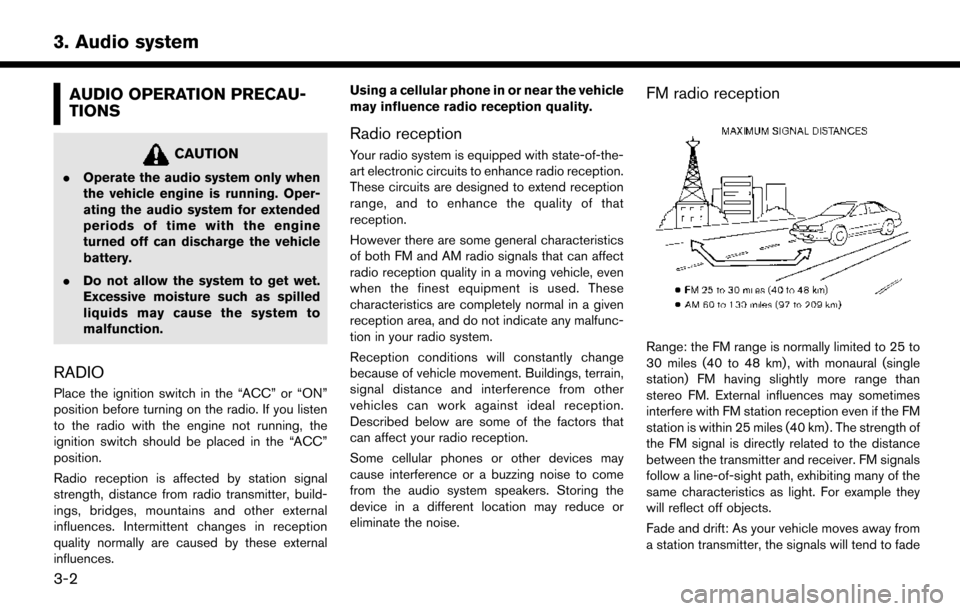
FM radio reception
Range: the FM range is normally limited to 25 to
30 miles (40 to 48 km) , with monaural (single
station) FM having slightly more range than
stereo FM. External influences may sometimes
interfere with FM station reception even if the FM
station is within 25 miles (40 km) . The strength of
the FM signal is directly related to the distance
between the transmitter and receiver. FM signals
follow a line-of-sight path, exhibiting many of the
same characteristics as light. For example they
will reflect off objects.
Fade and drift: As your vehicle moves away from
a station transmitter, the signals will tend to fade
3-2
Page 39 of 203
*1 Files created with a combination of 48 kHz sampling frequency and 64 kbps bit rate cannot be played.
*2 Protected WMA files (DRM) cannot be played.
*3 Made by iTunes
Š.
*4 Available codes depend on what kind of media, versions and information are going to be displayed.
BLUETOOTHŠSTREAMING AUDIO
. Some BluetoothŠaudio devices may not be
recognized by the in-vehicle audio system.
. It is necessary to set up the wireless
connection between a compatible Blue-
tooth
Šaudio device and the in-vehicle Blue-
toothŠmodule before using the BluetoothŠ
streaming audio.
. The Bluetooth
Šstreaming audio may stop
playing when
— receiving a hands-free call.
— checking the connection to the hands- free phone.
— connecting the hands-free phone or the audio device.
— downloading the phonebook memory from the connected cellular phone.
. Do not place a Bluetooth
Šaudio device in an
area surrounded by metal or far away from
the in-vehicle Bluetooth
Šmodule to prevent
tone quality degradation and wireless con-
nection disruption. .
While an audio device is connected through
a Bluetooth
Šwireless connection, the bat-
tery of the device may discharge quicker than
usual.
. This system supports the Bluetooth
ŠAd-
vanced Audio Distribution Profile (A2DP)
and Audio/Video Remote Control Profile
(AVRCP) .
. Wireless LAN (Wi-Fi) and the Bluetooth
Š
functions share the same frequency band
(2.4 GHz) . Using the BluetoothŠand the
wireless LAN functions at the same time may
slow down or disconnect the communication
and cause undesired noise. It is recom-
mended that you turn off the wireless LAN
(Wi-Fi) when using the Bluetooth
Šfunctions.
3. Audio system
3-9
Page 54 of 203
3. Audio system
.iPod classicŠ(120GB)
. iPod nano
Š(7th generation)
. iPod nano
Š(6th generation)
. iPod nano
Š(5th generation)
. iPod nano
Š(4th generation)
. iPod nano
Š(3rd generation)
. iPod nano
Š(2nd generation)
. iPod nano
Š(1st generation)
. iPhone
Š5
. iPhone
Š4S
. iPhone
Š4
. iPhone
Š3GS
. iPhone
Š3G
. iPhone
Š
INFO:
. Make sure that the iPod
Šfirmware is
updated.
. The Lightning
TMconnector works with
iPhoneŠ5, iPod touchŠ(5th generation) ,
and iPod nanoŠ(7th generation) .
The 30-pin connector works with iPhoneŠ
4S, iPhoneŠ4, iPhoneŠ3GS, iPhoneŠ3G, iPhone
Š, iPod touchŠ(1st through 4th
generation) , iPod classicŠand iPod nanoŠ
(1st through 6th generation) .
USB works with iPhoneŠ5, iPhoneŠ4S,
iPhoneŠ4, iPhoneŠ3GS, iPhoneŠ3G,
iPhoneŠ, iPod touchŠ(1st through 5th
generation) iPod classicŠand iPod nanoŠ
(1st through 7th generation) .
. Refer to your device manufacturer’s owner
information regarding the proper use and
care of the device.
3-24
Page 56 of 203
![NISSAN MURANO 2015 3.G LC2 Kai Navigation Manual 3. Audio system
[] Each time [] is touched, the
mode changes.
“Changing play mode”
(page 3-26)
[
] Touch to return to the beginning of the current track. Touch again to
select the previous track.](/img/5/436/w960_436-55.png "NISSAN MURANO 2015 3.G LC2 Kai Navigation Manual 3. Audio system
[] Each time [] is touched, the
mode changes.
“Changing play mode”
(page 3-26)
[
] Touch to return to the beginning of the current track. Touch again to
select the previous track.")
3. Audio system
[] Each time [] is touched, the
mode changes.
“Changing play mode”
(page 3-26)
[
] Touch to return to the beginning of the current track. Touch again to
select the previous track. Touch and
hold to rewind the current track.
[
] Touch to play the track.
[
] Touch to pause the track.
[
] Touch to select the next tack. Touch and hold to fast-forward the track.
[
] Each time [] is touched, the
mode changes.
“Changing play mode”
(page 3-26)
*8Track number:
Indicates the track number and the total
number of tracks.
iPodŠplayer operation
Activation and playing:
Connecting iPod
Što the vehicle via USB cable
will activate the iPodŠmode.
The iPodŠcan also be played by selecting the
source on the audio source menu screen.
“Selecting audio source” (page 3-11) To play the iPod
Štouch []. Touch []to
pause.
Selecting search method:
A list of search methods is displayed in the iPod
Š
menu. Touch and select an item to play the iPodŠ
in your preferred settings.
Skipping tracks:
Push <
>/<>, touch []/[] on the
screen, or tilt up/down <>/<>on the
steering wheel briefly to skip to the next or the
previous track.
Turning
track is playing will also skip the tracks.
Skipping items:
When a list is displayed, turn
Fast-forwarding/rewinding:
To fast-forward or rewind the track, push and
hold <
>/<>, touch and hold []/[],
or tilt and hold <>/<>on the steering
wheel. Changing play mode:
Repeat mode
Touch [
] on the screen to change the repeat
mode as follows.
(off) ?[One] ?[All] ?(off)
Random mode
Touch [
] on the screen to change the random
mode as follows.
(off) ?[Songs] ?[Albums] ?(off)
INFO:
Even when iPod
Šor iPhoneŠare inserted into
both of the two USB ports, the system recog-
nizes only one connected iPod
Šor iPhoneŠat a
time.
iPodŠMenu
Touch [iPod Menu] on the iPodŠscreen to
display the iPodŠmenu screen.
The following items are available.
3-26
Page 63 of 203

4 Hands-Free Phone
BluetoothŠHands-Free Phone System ............................... 4-2
Indicators ........................................................................\
....... 4-3
Phone ........................................................................\
............. 4-3 Hands-free text messaging assistant ........................... 4-6
Phone and text message assistant settings ............... 4-9
Bluetooth
Šsetting .......................................................... 4-12
Page 64 of 203
4. Hands-Free Phone
BLUETOOTHŠHANDS-FREE
PHONE SYSTEM
WARNING
. Use a phone after stopping your
vehicle in a safe location. If you have
to use a phone while driving, exercise
extreme caution at all times so full
attention may be given to vehicle
operation.
. If you find yourself unable to devote
full attention to vehicle operation
while talking on the phone, pull off
the road to a safe location and stop
your vehicle before doing so.
CAUTION
To avoid draining the vehicle battery, use
a phone only after starting the engine.
Your vehicle is equipped with Bluetooth
ŠHands-
Free Phone System. If you are an owner of a
compatible Bluetooth
Šenabled cellular phone,
you can set up the wireless connection between
your cellular phone and the in-vehicle phone
module. With Bluetooth
Šwireless technology, you can make or receive a telephone call with
your cellular phone in your pocket.
Once a cellular phone is connected to the in-
vehicle phone module, the procedure for con-
necting the phone does not need to be
performed again. Your phone is automatically
selected with the in-vehicle phone module when
the ignition switch is placed in the “ON” position
with the selected cellular phone turned on and
carried in the vehicle.
You can register up to 5 different Bluetooth
Š
devices in the in-vehicle phone module. How-
ever, you can talk on only one cellular phone at a
time.
The Voice Recognition system supports phone
commands, so dialing a phone number using
your voice is possible.
“7. Voice recognition”
Before using the Bluetooth
ŠHands-Free Phone
System, refer to the following notes.
. Wireless LAN (Wi-Fi) and the Bluetooth
Š
functions share the same frequency band
(2.4 GHz) . Using the BluetoothŠand the
wireless LAN functions at the same time may
slow down or disconnect the communication
and cause undesired noise. It is recom-
mended that you turn off the wireless LAN
(Wi-Fi) when using the Bluetooth
Šfunctions. .
Set up the wireless connection between a
compatible cellular phone and the in-vehicle
phone module before using the Bluetooth
Š
Hands-Free Phone System.
. Some Bluetooth
Šenabled cellular phones
may not be recognized by the in-vehicle
phone module.
Visit the web site below for a recommended
phone list.
www.nissanusa.com/bluetooth/
. You will not be able to use a hands-free
phone under the following conditions:
— Your vehicle is outside of the telephone service area.
— Your vehicle is in an area where it is difficult to receive radio waves; such as in
a tunnel, in an underground parking
garage, behind a tall building or in a
mountainous area.
— Your cellular phone is locked in order to prevent dialing.
. When the radio wave condition is not ideal or
ambient sound is too loud, it may be difficult
to hear the other person’s voice during a call.
. Immediately after the ignition switch is
placed in the “ON” position, it may be
impossible to receive a call for a short period
4-2
Page 65 of 203
of time.
. Do not place the cellular phone in an area
surrounded by metal or far away from the in-
vehicle phone module to prevent tone quality
degradation and wireless connection disrup-
tion.
. While a cellular phone is connected through
the Bluetooth
Šwireless connection, the
battery power of the cellular phone may
discharge quicker than usual.
. Visit the web site below for troubleshooting
help if the Bluetooth
ŠHands-Free Phone
System seems to be malfunctioning.
www.nissanusa.com/bluetooth/
. Some cellular phones or other devices may
cause interference or a buzzing noise to
come from the audio system speakers.
Storing the device in a different location
may reduce or eliminate the noise.
. Refer to the cellular phone Owner’s Manual
regarding the telephone pairing procedure
specific to your phone, battery charging,
cellular phone antenna, etc.
. The antenna display on the monitor may not
coincide with the antenna display of some
cellular phones. .
The battery display on the monitor may not
coincide with the battery display of some
cellular phones.
. Keep the interior of the vehicle as quiet as
possible to hear the caller’s voice clearly as
well as to minimize its echoes.
. If reception between callers is unclear,
adjusting the incoming or outgoing call
volume may improve the clarity.
. The microphone is located near the map
light.INDICATORS
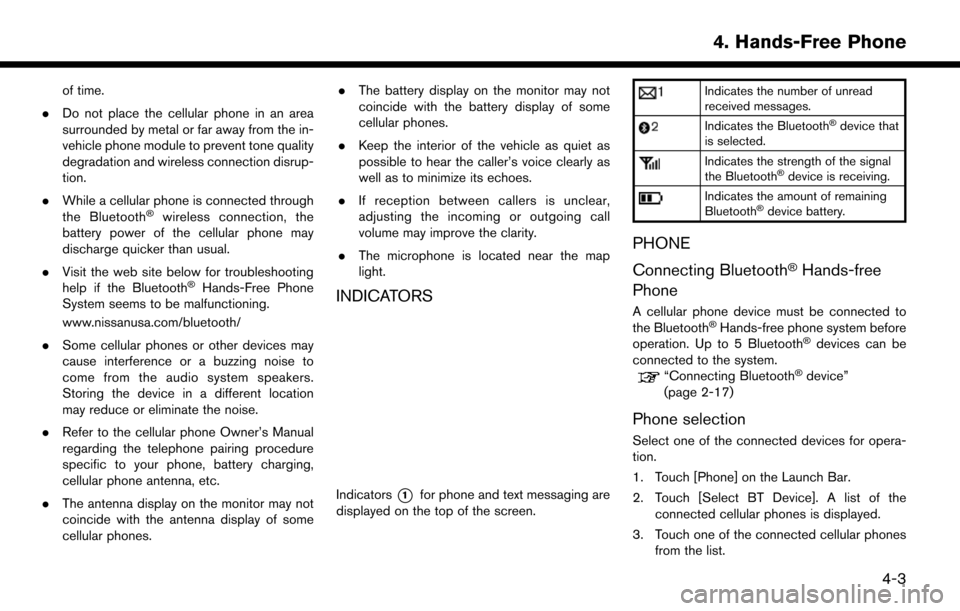
Indicators*1for phone and text messaging are
displayed on the top of the screen.
Indicates the number of unread
received messages.
Indicates the BluetoothŠdevice that
is selected.
Indicates the strength of the signal
the BluetoothŠdevice is receiving.
Indicates the amount of remaining
BluetoothŠdevice battery.
PHONE
Connecting Bluetooth
ŠHands-free
Phone
A cellular phone device must be connected to
the BluetoothŠHands-free phone system before
operation. Up to 5 BluetoothŠdevices can be
connected to the system.
“Connecting BluetoothŠdevice”
(page 2-17)
Phone selection
Select one of the connected devices for opera-
tion.
1. Touch [Phone] on the Launch Bar.
2. Touch [Select BT Device]. A list of the connected cellular phones is displayed.
3. Touch one of the connected cellular phones from the list.
4. Hands-Free Phone
4-3
Page 66 of 203
![NISSAN MURANO 2015 3.G LC2 Kai Navigation Manual 4. Hands-Free Phone
4. Touch [Connect].
INFO:
Touch [Edit] to change the device name.
Touch [Delete] to delete the device from the
device list.
5. When the device selection is successful, a message on](/img/5/436/w960_436-65.png "NISSAN MURANO 2015 3.G LC2 Kai Navigation Manual 4. Hands-Free Phone
4. Touch [Connect].
INFO:
Touch [Edit] to change the device name.
Touch [Delete] to delete the device from the
device list.
5. When the device selection is successful, a message on")
4. Hands-Free Phone
4. Touch [Connect].
INFO:
Touch [Edit] to change the device name.
Touch [Delete] to delete the device from the
device list.
5. When the device selection is successful, a message on the touch screen display
indicates that the cellular phone was se-
lected.
INFO:
To select a phone, Bluetooth
Šof the phone
device needs to be turned on.
Making a call
1. Touch [Phone] on the Launch Bar.
2. Select one of the following methods to make
a call.
*1[Quick Dial] :
Select a telephone number from a list of
personally selected numbers.
“Quick Dial” (page 4-11)
*2[Phonebook] :
Select a person and the phone number you
wish to call from the phonebook.
The telephone number must be transferred
to the phonebook from the cellular phone
prior to using this method.
“Phone settings” (page 4-9)
*3[Call History] :
Select a telephone number from recent
incoming, outgoing or missed calls.
*4[Dial Number] :
Enter the phone number manually using the
keypad displayed on the screen and touch
[OK].
“How to input letters and numbers”
(page 2-10)
3. Dialing will start and the screen will change to the call in progress screen.
Receiving a call
When you receive a phone call, a notification
message is displayed on the touch screen
display with a ring tone.
4-4