ad blue NISSAN MURANO 2015 3.G Quick Reference Guide
[x] Cancel search | Manufacturer: NISSAN, Model Year: 2015, Model line: MURANO, Model: NISSAN MURANO 2015 3.GPages: 36, PDF Size: 3.65 MB
Page 2 of 36
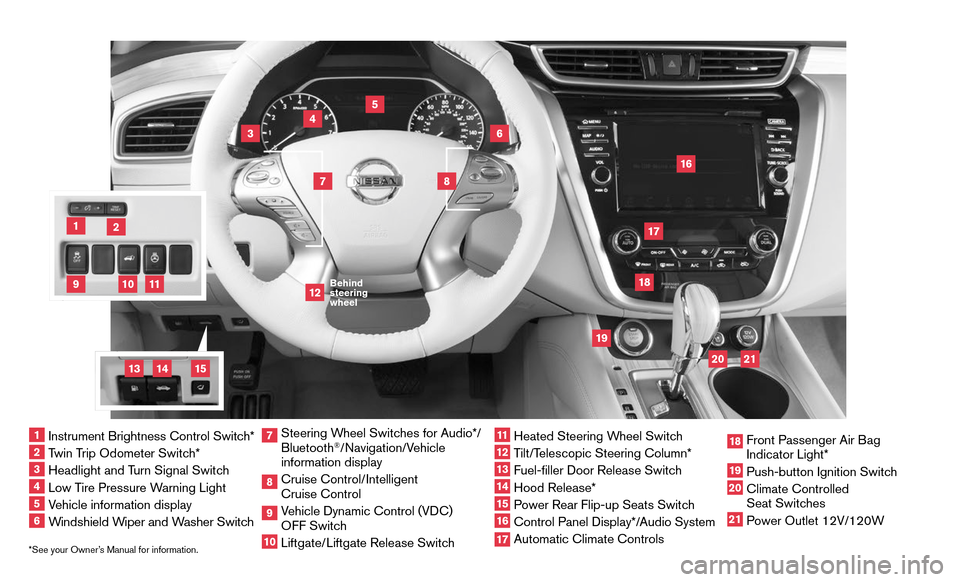
*See your Owner’s Manual for information.
19
20
16
12
5
6
18
8
3
10
9
2
11
1
47
17
21
Behind steering wheel
1 Instrument Brightness Control Switch*2 Twin Trip Odometer Switch*3 Headlight and Turn Signal Switch4 Low Tire Pressure Warning Light5 Vehicle information display6 Windshield Wiper and Washer Switch
7 Steering Wheel Switches for Audio*/ Bluetooth
®/Navigation/Vehicle
information display8 Cruise Control/Intelligent
Cruise Control9 Vehicle Dynamic Control (VDC)
OFF Switch
10 Liftgate/Liftgate Release Switch
11 Heated Steering Wheel Switch12 Tilt/Telescopic Steering Column*
13 Fuel-filler Door Release Switch14 Hood Release*15 Power Rear Flip-up Seats Switch16 Control Panel Display*/Audio System17 Automatic Climate Controls
18 Front Passenger Air Bag
Indicator Light*
19 Push-button Ignition Switch20 Climate Controlled
Seat Switches
21 Power Outlet 12V/120W
14
15
13
Page 3 of 36
Please see your Owner’s Manual for important safety information and system operation limitations.• A cellular telephone should not be used for any purpose while driving so full attention may be given to vehicle operation.• Always wear your seat belt.• Supplemental air bags do not replace proper seat belt usage. • Children 12 and under should always ride in the rear seat properly secur\
ed in child restraints or seat belts according to their age and weight. • Do not drink and drive.For more information, refer to the “Safety — Seats, seat belts and supplemental restraint system (sectio\
n 1)”, the “Display screen, heater, air conditioner, audio and phone systems (section 4)” and the “Starting and driving (section 5)” of your Owner’s Manual.
Additional information about your vehicle is also available in your Owne\
r’s Manual, Navigation System Owner’s Manual and at www.NissanUSA.com.
NEW SYSTEM FEATURESHow to Use Your Murano’s Touch-screen Display ........................................................................\
.........2Heated Steering Wheel (if so equipped) ........................................................................\
.........................3Around View® Monitor (AVM) with Moving Object Detection (MOD) (if so equipped) .................3Blind Spot Warning (BSW) System (if so equipped) ........................................................................\
...5Predictive Forward Collision Warning (PFCW) System (if so equipped) ........................................5Vehicle Dynamic Control (VDC) ........................................................................\
.........................................5Hill Start Assist (HSA) System ........................................................................\
...........................................5Forward Emergency Braking (FEB) System (if so equipped) .............................................................6SiriusXM Travel Link and SiriusXM Traffic (if so equipped) .................................................................6
ESSENTIAL INFORMATIONTire Pressure Monitoring System (TPMS) with Easy Fill Tire Alert ....................................................7Loose Fuel Cap ........................................................................\
......................................................................8Fuel-filler Door ........................................................................\
........................................................................8Towing Your Vehicle (if so equipped) ........................................................................\
................................8 Clock Set/Adjustment ........................................................................\
...........................................................9
FIRST DRIVE FEATURESNISSAN Intelligent Key® System ........................................................................\
.....................................10Power Liftgate Release (if so equipped) ........................................................................\
........................12Front Seat Adjustments ........................................................................\
......................................................12Automatic Drive Positioner (if so equipped) ........................................................................\
..................13Rear Seat Adjustments ........................................................................\
.......................................................13Outside Mirror Control Switch ........................................................................\
..........................................14Starting/Stopping the Engine ........................................................................\
...........................................14Headlight Control Switch ........................................................................\
.................................................15Windshield Wiper and Washer Switch ........................................................................\
...........................16Automatic Climate Controls (if so equipped) ........................................................................\
................16FM/AM/SiriusXM® Satellite Radio with CD Player and Navigation .................................................18USB (Universal Serial Bus) Connection Port/iPod® Interface and AUX Jack (if so equipped) .....19Front Arm Rest/Center Console Storage Box ........................................................................\
..............20Cruise Control (if so equipped) ........................................................................\
........................................20Intelligent Cruise Control (ICC) (if so equipped) ........................................................................\
.........21
SYSTEM GUIDETrip Computer ........................................................................\
.......................................................................22Text Messaging (if so equipped) ........................................................................\
......................................23NissanConnectsm mobile Apps (if so equipped) ........................................................................\
...........23Bluetooth
Page 6 of 36
")
4
NEW SYSTEM FEATURES
The colored guide lines on the display screen indicate vehicle width and \
approximate
distances to objects with reference to the vehicle body line.
• Red 1.5 ft (0.5 m); Yellow 3 ft (1 m); Green 7 ft (2 m) and 10 ft (3 m).
For information regarding how to access additional viewing cycles, please\
see your
Owner’s Manual.
There are some areas where the system will not detect objects.
• When in the front or the rear view display, an object
below the bumper or on the ground may not be
detected 2.
• When in the bird’s-eye view, a tall object near the seams of the
camera detecting areas 3 will not appear in the monitor.
• The distance between objects viewed on the Around
View® Monitor differs from the actual distance.
Objects in the bird’s-eye view will appear further
than the actual distance.
MOVING OBJECT DETECTION (MOD)
The MOD system helps inform the driver of moving objects in the rear view.
The system will operate when the shift lever is in the R (REVERSE) position and the
vehicle is driven at speeds of approximately 5 mph (8 km/h) or less.
If the MOD system detects moving objects, a yellow frame will be displayed on the\
camera image and a chime will sound.
When the following is displayed:
• Blue MOD icon 4; the system is active.
• Gray MOD icon; the system is not active.
• No MOD icon; the system is off. The indicator
will also be off if all of the warning systems are
deactivated using the Settings menu.
The MOD system will not operate if the liftgate is open.
For more information, refer to the “Display screen, heater, air conditioner, audio and phone systems (section 4)” of your Owner’s Manual.
3
2
Rear view & bird’s-eye view
Press
Press
Rear view & front-side view
When the shift lever is in the R (REVERSE) position and the CAMERA button 1 is
pressed, the following views will display in order:
4
To view detailed instructional videos regarding these and other features, please go to www.nissanownersinfo.mobi.
Page 9 of 36
7
ESSE NTIAL I N FOR MATION
TIRE PRESSURE MONITORING SYSTEM (TPMS) WITH EASY
FILL TIRE ALERT
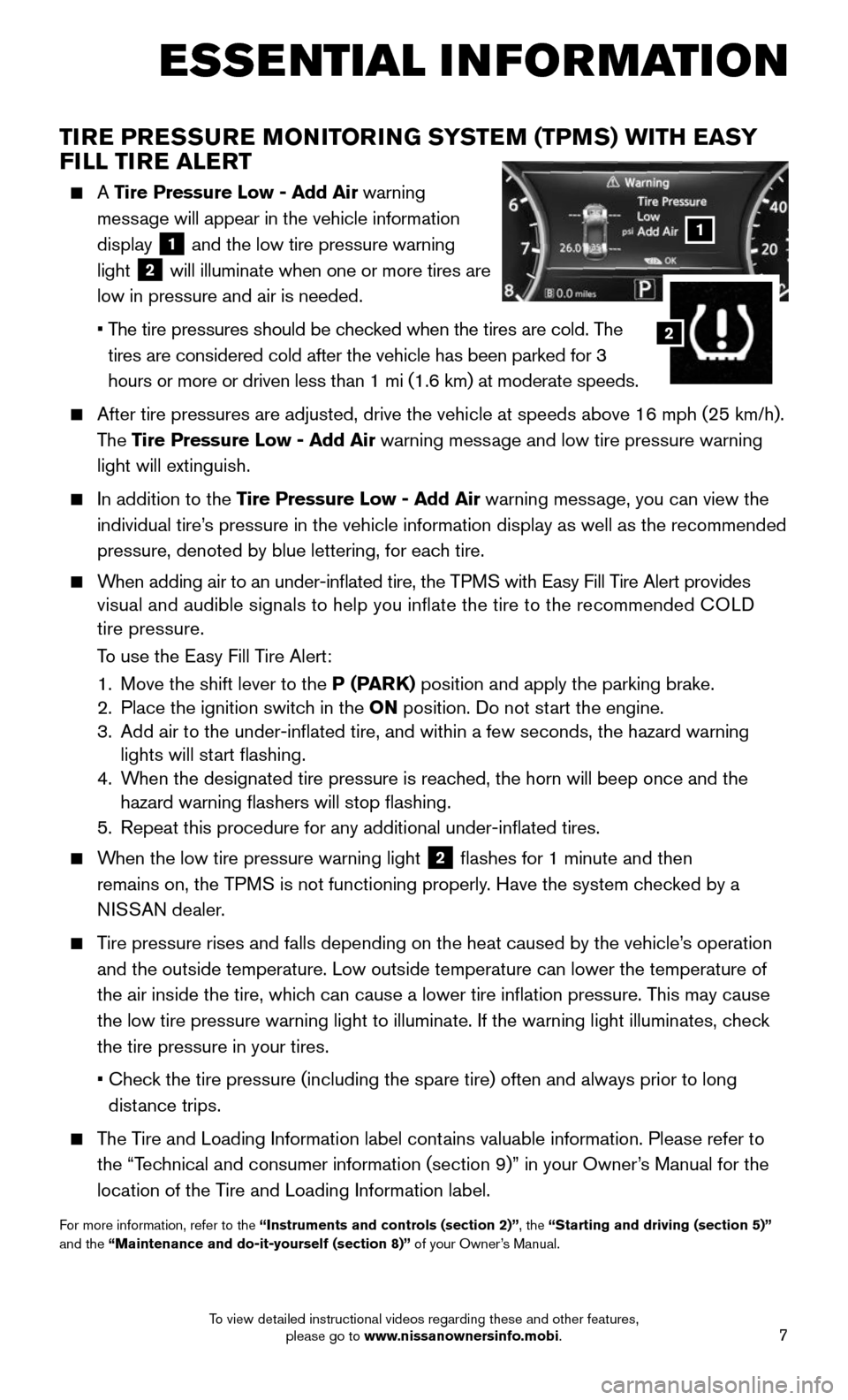
A Tire Pressure Low - Add Air warning
message will appear in the vehicle information
display 1 and the low tire pressure warning
light 2 will illuminate when one or more tires are
low in pressure and air is needed.
• The tire pressures should be checked when the tires are cold. The
tires are considered cold after the vehicle has been parked for 3
hours or more or driven less than 1 mi (1.6 km) at moderate speeds.
After tire pressures are adjusted, drive the vehicle at speeds above 16 \
mph (25 km/h).
The Tire Pressure Low - Add Air warning message and low tire pressure warning
light will extinguish.
In addition to the Tire Pressure Low - Add Air warning message, you can view the
individual tire’s pressure in the vehicle information display as well as the recommended\
pressure, denoted by blue lettering, for each tire.
When adding air to an under-inflated tire, the TPMS with Easy Fill Tire Alert provides visual and audible signals to help you inflate the tire to the recomme\
nded COLD tire pressure.
To use the Easy Fill Tire Alert:
1. Move the shift lever to the P (PARK) position and apply the parking brake. 2. Place the ignition switch in the ON position. Do not start the engine. 3. Add air to the under-inflated tire, and within a few seconds, the haza\
rd warning lights will start flashing. 4. When the designated tire pressure is reached, the horn will beep once and the hazard warning flashers will stop flashing.
5. Repeat this procedure for any additional under-inflated tires.
When the low tire pressure warning light 2 flashes for 1 minute and then
remains on, the TPMS is not functioning properly. Have the system checked by a
NISSAN dealer.
Tire pressure rises and falls depending on the heat caused by the vehicle\
’s operation
and the outside temperature. Low outside temperature can lower the tempe\
rature of
the air inside the tire, which can cause a lower tire inflation pressure. This may cause
the low tire pressure warning light to illuminate. If the warning light \
illuminates, check
the tire pressure in your tires.
• Check the tire pressure (including the spare tire) often and always prior \
to long
distance trips.
The Tire and Loading Information label contains valuable information. Please refer to
the “Technical and consumer information (section 9)” in your Owner’s Manual for the
location of the Tire and Loading Information label.
For more information, refer to the “Instruments and controls (section 2)”, the “Starting and driving (section 5)” and the “Maintenance and do-it-yourself (section 8)” of your Owner’s Manual.
1
2
To view detailed instructional videos regarding these and other features, please go to www.nissanownersinfo.mobi.
Page 17 of 36
15
HEADLIGHT CONTROL SWITCH
HEADLIGHT CONTROL
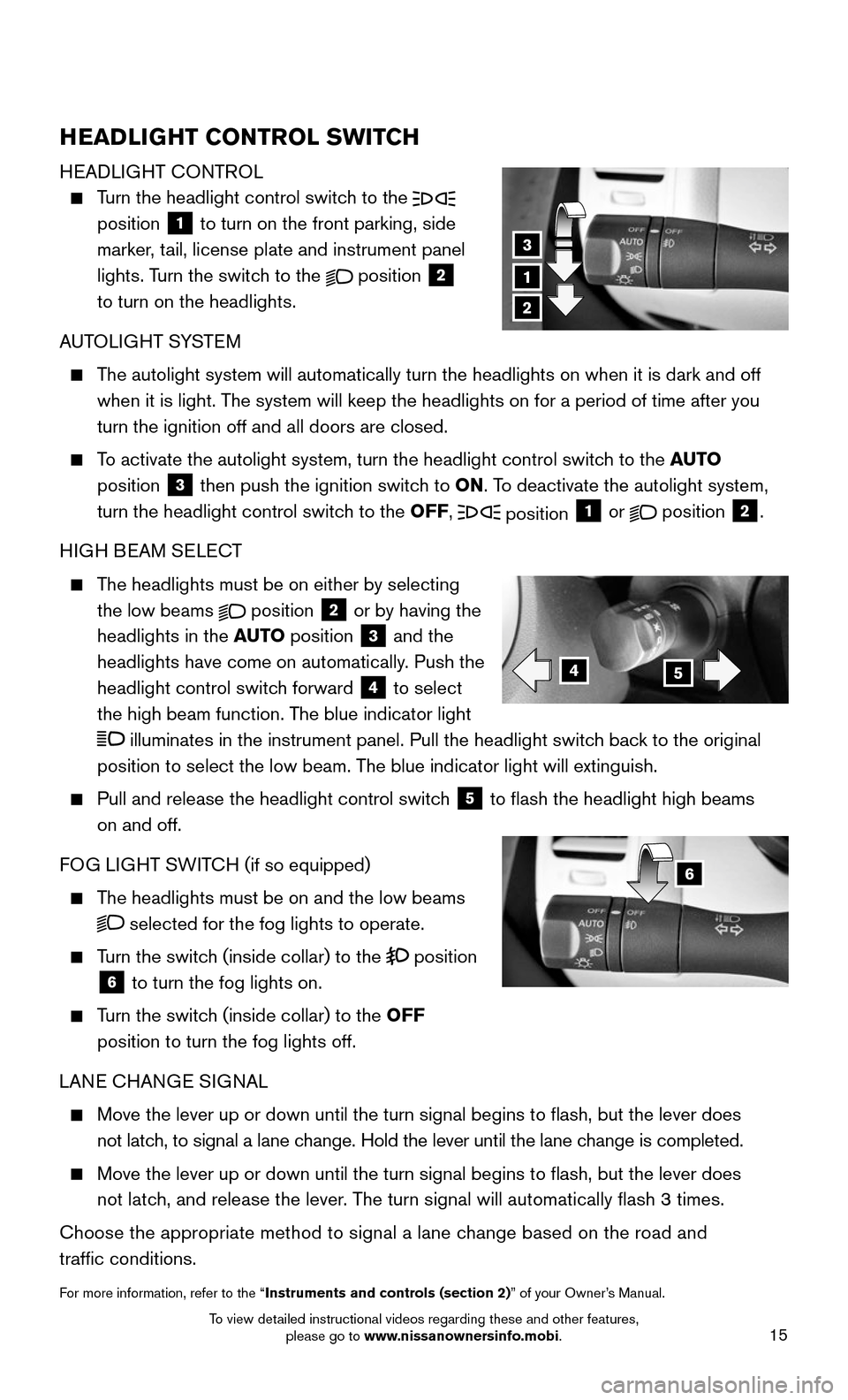
Turn the headlight control switch to the position 1 to turn on the front parking, side
marker, tail, license plate and instrument panel
lights. Turn the switch to the position 2 to turn on the headlights.
AUTOLIGHT SYSTEM
The autolight system will automatically turn the headlights on when it is\
dark and off
when it is light. The system will keep the headlights on for a period of time after you
turn the ignition off and all doors are closed.
To activate the autolight system, turn the headlight control switch to the AUTO
position 3 then push the ignition switch to ON. To deactivate the autolight system,
turn the headlight control switch to the OFF, position 1 or position 2.
HIGH BEAM SELECT
The headlights must be on either by selecting
the low beams position 2 or by having the
headlights in the AUTO position 3 and the
headlights have come on automatically. Push the
headlight control switch forward 4 to select
the high beam function. The blue indicator light
illuminates in the instrument panel. Pull the headlight switch back to the original
position to select the low beam. The blue indicator light will extinguish.
Pull and release the headlight control switch 5 to flash the headlight high beams
on and off.
FOG LIGHT SWITCH (if so equipped)
The headlights must be on and the low beams
selected for the fog lights to operate.
Turn the switch (inside collar) to the position 6 to turn the fog lights on.
Turn the switch (inside collar) to the OFF
position to turn the fog lights off.
LANE CHANGE SIGNAL
Move the lever up or down until the turn signal begins to flash, but t\
he lever does
not latch, to signal a lane change. Hold the lever until the lane change is completed.
Move the lever up or down until the turn signal begins to flash, but t\
he lever does
not latch, and release the lever. The turn signal will automatically flash 3 times.
Choose the appropriate method to signal a lane change based on the road and
traffic conditions.
For more information, refer to the “Instruments and controls (section 2)” of your Owner’s Manual.
1
3
2
45
6
To view detailed instructional videos regarding these and other features, please go to www.nissanownersinfo.mobi.
Page 20 of 36
18
FIRST DRIVE FEATURES
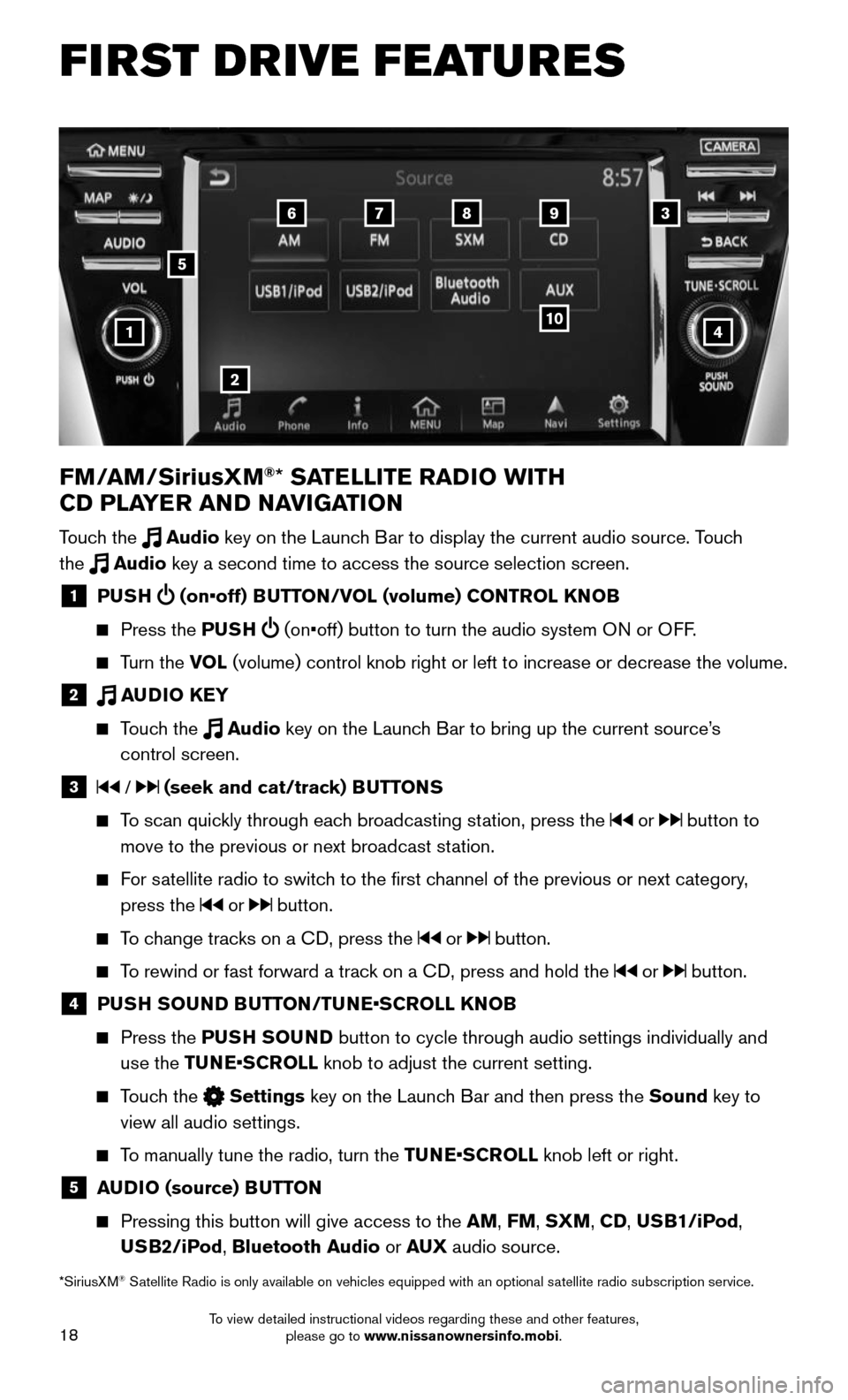
4
6789
10
2
3
1
FM/AM/SiriusXM®* SATELLITE RADIO WITH
CD PLAYER AND NAVIGATION
Touch the Audio key on the Launch Bar to display the current audio source. Touch
the Audio key a second time to access the source selection screen.
1 PUSH (on•off) BUTTON/VOL (volume) CONTROL KNOB
Press the PUSH (on•off) button to turn the audio system ON or OFF.
Turn the VOL (volume) control knob right or left to increase or decrease the volume\
.
2 AUDIO KEY
Touch the Audio key on the Launch Bar to bring up the current source’s
control screen.
3 / (seek and cat/track) BUTTONS
To scan quickly through each broadcasting station, press the or button to
move to the previous or next broadcast station.
For satellite radio to switch to the first channel of the previous or next category,
press the or button.
To change tracks on a CD, press the or button.
To rewind or fast forward a track on a CD, press and hold the or button.
4 PUSH SOUND BUTTON/TUNE•SCROLL KNOB
Press the PUSH SOUND button to cycle through audio settings individually and
use the TUNE•SCROLL knob to adjust the current setting.
Touch the Settings key on the Launch Bar and then press the Sound key to
view all audio settings.
To manually tune the radio, turn the TUNE•SCROLL knob left or right.
5 AUDIO (source) BUTTON
Pressing this button will give access to the AM, FM, SXM, CD, USB1/iPod,
USB2/iPod, Bluetooth Audio or AUX audio source.
*SiriusXM® Satellite Radio is only available on vehicles equipped with an optional s\
atellite radio subscription service.
5
To view detailed instructional videos regarding these and other features, please go to www.nissanownersinfo.mobi.
Page 25 of 36
23
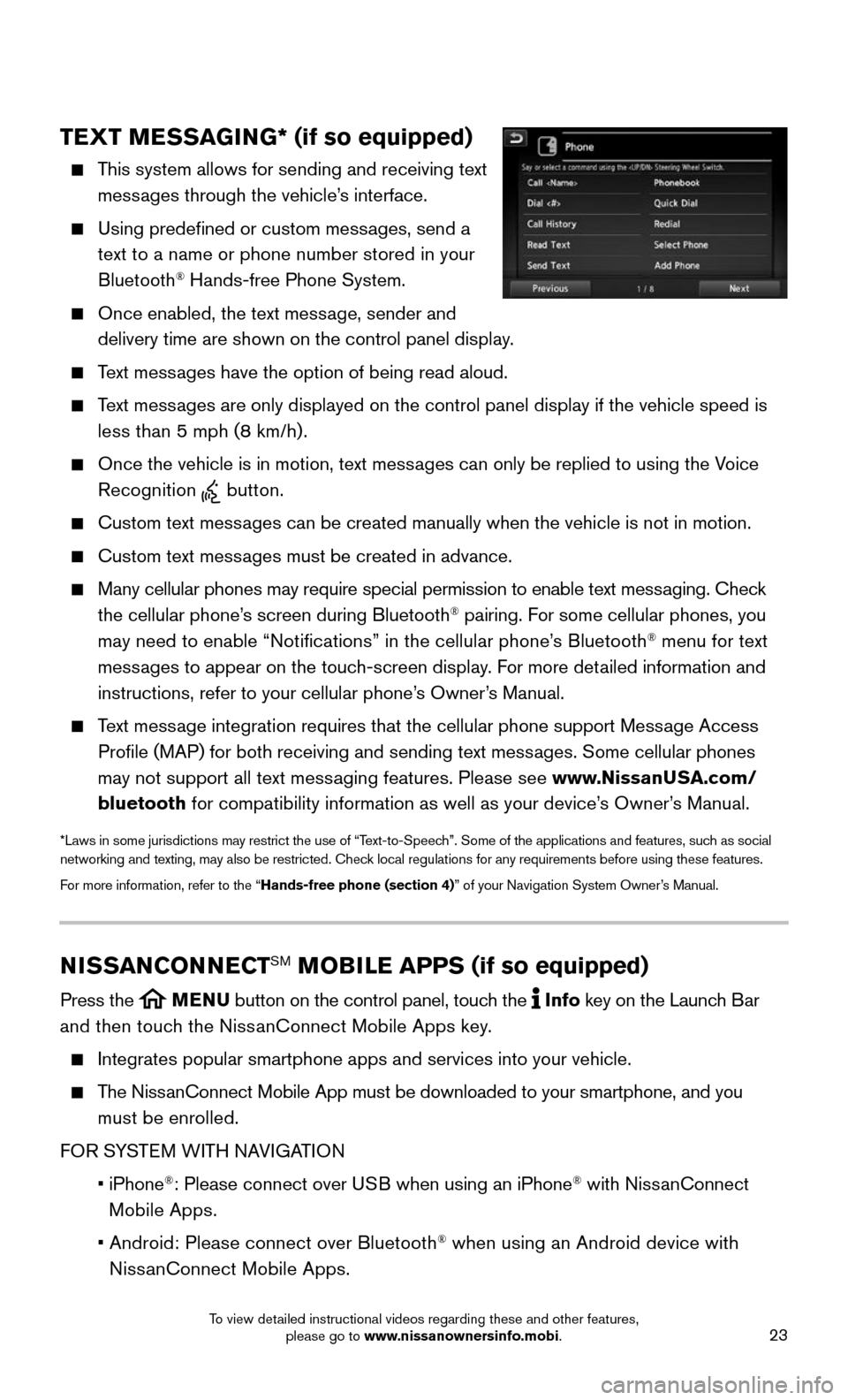
TEXT MESSAGING* (if so equipped)
This system allows for sending and receiving text
messages through the vehicle’s interface.
Using predefined or custom messages, send a
text to a name or phone number stored in your
Bluetooth® Hands-free Phone System.
Once enabled, the text message, sender and
delivery time are shown on the control panel display.
Text messages have the option of being read aloud.
Text messages are only displayed on the control panel display if the vehicle spee\
d is
less than 5 mph (8 km/h).
Once the vehicle is in motion, text messages can only be replied to using the Voice
Recognition button.
Custom text messages can be created manually when the vehicle is not in motion.
Custom text messages must be created in advance.
Many cellular phones may require special permission to enable text messaging. Check
the cellular phone’s screen during Bluetooth® pairing. For some cellular phones, you
may need to enable “Notifications” in the cellular phone’s Bluetooth® menu for text
messages to appear on the touch-screen display. For more detailed information and
instructions, refer to your cellular phone’s Owner’s Manual.
Text message integration requires that the cellular phone support Message Access
Profile (MAP) for both receiving and sending text messages. Some cellular phones
may not support all text messaging features. Please see www.NissanUSA.com/
bluetooth for compatibility information as well as your device’s Owner’s Manual.
*Laws in some jurisdictions may restrict the use of “Text-to-Speech”. Some of the applications and features, such as social networking and texting, may also be restricted. Check local regulations for any requirements before using these features.
For more information, refer to the “Hands-free phone (section 4)” of your Navigation System Owner’s Manual.
NISSANCONNECTSM MOBILE APPS (if so equipped)
Press the MENU button on the control panel, touch the Info key on the Launch Bar
and then touch the NissanConnect Mobile Apps key.
Integrates popular smartphone apps and services into your vehicle.
The NissanConnect Mobile App must be downloaded to your smartphone, and you
must be enrolled.
FOR SYSTEM WITH NAVIGATION
• iPhone®: Please connect over USB when using an iPhone® with NissanConnect
Mobile Apps.
• Android: Please connect over Bluetooth® when using an Android device with
NissanConnect Mobile Apps.
To view detailed instructional videos regarding these and other features, please go to www.nissanownersinfo.mobi.
Page 26 of 36
24
SYSTEM GUIDE
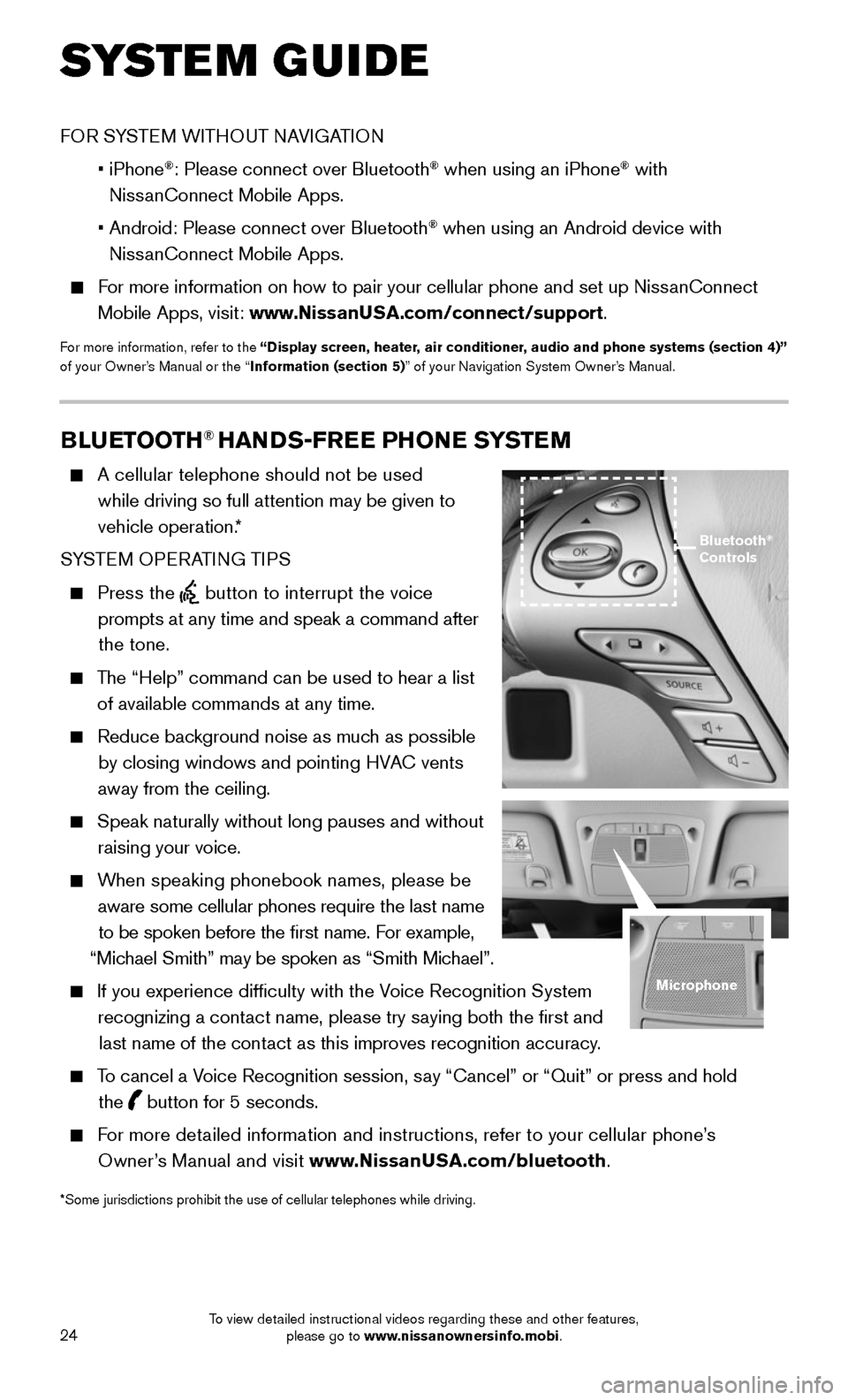
BLUETOOTH® HANDS-FREE PHONE SYSTEM
A cellular telephone should not be used
while driving so full attention may be given to
vehicle operation.*
SYSTEM OPERATING TIPS
Press the button to interrupt the voice
prompts at any time and speak a command after
the tone.
The “Help” command can be used to hear a list
of available commands at any time.
Reduce background noise as much as possible
by closing windows and pointing HVAC vents
away from the ceiling.
Speak naturally without long pauses and without
raising your voice.
When speaking phonebook names, please be
aware some cellular phones require the last name
to be spoken before the first name. For example,
“Michael Smith” may be spoken as “Smith Michael”.
If you experience difficulty with the Voice Recognition System
recognizing a contact name, please try saying both the first and
last name of the contact as this improves recognition accuracy.
To cancel a Voice Recognition session, say “Cancel” or “Quit” or press and hold
the button for 5 seconds.
For more detailed information and instructions, refer to your cellular phone’s
Owner’s Manual and visit www.NissanUSA.com/bluetooth.
Bluetooth® Controls
Microphone
*Some jurisdictions prohibit the use of cellular telephones while drivin\
g.
FOR SYSTEM WITHOUT NAVIGATION
• iPhone®: Please connect over Bluetooth® when using an iPhone® with
NissanConnect Mobile Apps.
• Android: Please connect over Bluetooth® when using an Android device with
NissanConnect Mobile Apps.
For more information on how to pair your cellular phone and set up NissanConnect
Mobile Apps, visit: www.NissanUSA.com/connect/support.
For more information, refer to the “Display screen, heater, air conditioner, audio and phone systems (section 4)” of your Owner’s Manual or the “Information (section 5)” of your Navigation System Owner’s Manual.
To view detailed instructional videos regarding these and other features, please go to www.nissanownersinfo.mobi.
Page 27 of 36
25
BLUETOOTH® SYSTEM WITH NAVIGATION (if so equipped)
Bluetooth® Streaming Audio allows you to use a compatible Bluetooth® phone to play
audio files on your device. Your compatible cellular phone can be connected to the
vehicle’s audio system, allowing audio files to play through the vehicle’s speakers.
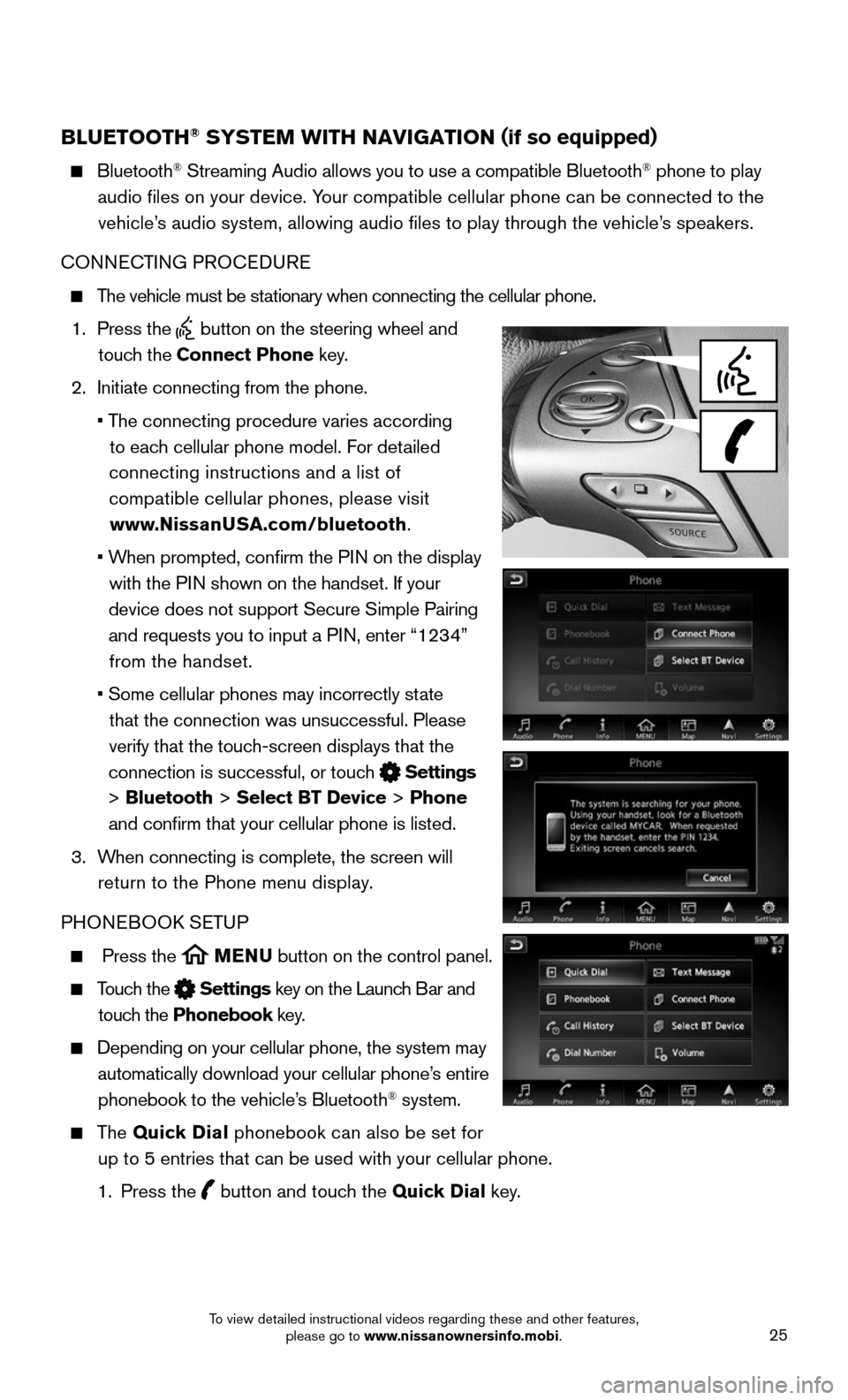
CONNECTING PROCEDURE
The vehicle must be stationary when connecting the cellular phone.
1. Press the button on the steering wheel and
touch the Connect Phone key.
2. Initiate connecting from the phone.
• The connecting procedure varies according
to each cellular phone model. For detailed
connecting instructions and a list of
compatible cellular phones, please visit
www.NissanUSA.com/bluetooth.
• When prompted, confirm the PIN on the display
with the PIN shown on the handset. If your
device does not support Secure Simple Pairing
and requests you to input a PIN, enter “1234”
from the handset.
• Some cellular phones may incorrectly state
that the connection was unsuccessful. Please
verify that the touch-screen displays that the
connection is successful, or touch Settings
> Bluetooth > Select BT Device > Phone
and confirm that your cellular phone is listed.
3. When connecting is complete, the screen will
return to the Phone menu display.
PHONEBOOK SETUP
Press the MENU button on the control panel.
Touch the Settings key on the Launch Bar and
touch the Phonebook key.
Depending on your cellular phone, the system may
automatically download your cellular phone’s entire
phonebook to the vehicle’s Bluetooth® system.
The Quick Dial phonebook can also be set for
up to 5 entries that can be used with your cellular phone.
1. Press the button and touch the Quick Dial key.
To view detailed instructional videos regarding these and other features, please go to www.nissanownersinfo.mobi.
Page 29 of 36
27
BLUETOOTH® SYSTEM WITHOUT NAVIGATION (if so equipped)
PAIRING PROCEDURE
1. Press the ENTER/SETTING button.
2. Select the Bluetooth key.
3. Select the Add Phone key. This same screen
can be accessed to remove, replace or select a
different Bluetooth® device.
4. The system acknowledges the command and asks
you to initiate connecting from the phone handset.
The connecting procedure of the cellular phone varies according to each cellular phone
model. For additional information, refer to the cellular phone’s Owner’s Manual for details.
You can also visit www.NissanUSA.com/bluetooth for instructions on connecting
NISSAN-recommended cellular phones.
• When prompted, confirm the PIN on the display with the PIN shown on the handset. If
your device does not support Secure Simple Pairing and requests you to i\
nput a PIN,
enter “1234” from the handset.
PHONEBOOK REGISTRATION
When the cellular phone is connected to the in-vehicle module, the data stored in the
cellular phone, such as phonebook, outgoing call logs, incoming call logs and missed
call logs, is automatically transferred and registered to the system.
The availability of this function depends on each cellular phone. The copying
procedure also varies according to each cellular phone. Refer to the cellular phone’s
Owner’s Manual for more information.
Up to 1,000 entries per registered cellular phone can be stored in the p\
honebook.
MAKING A CALL
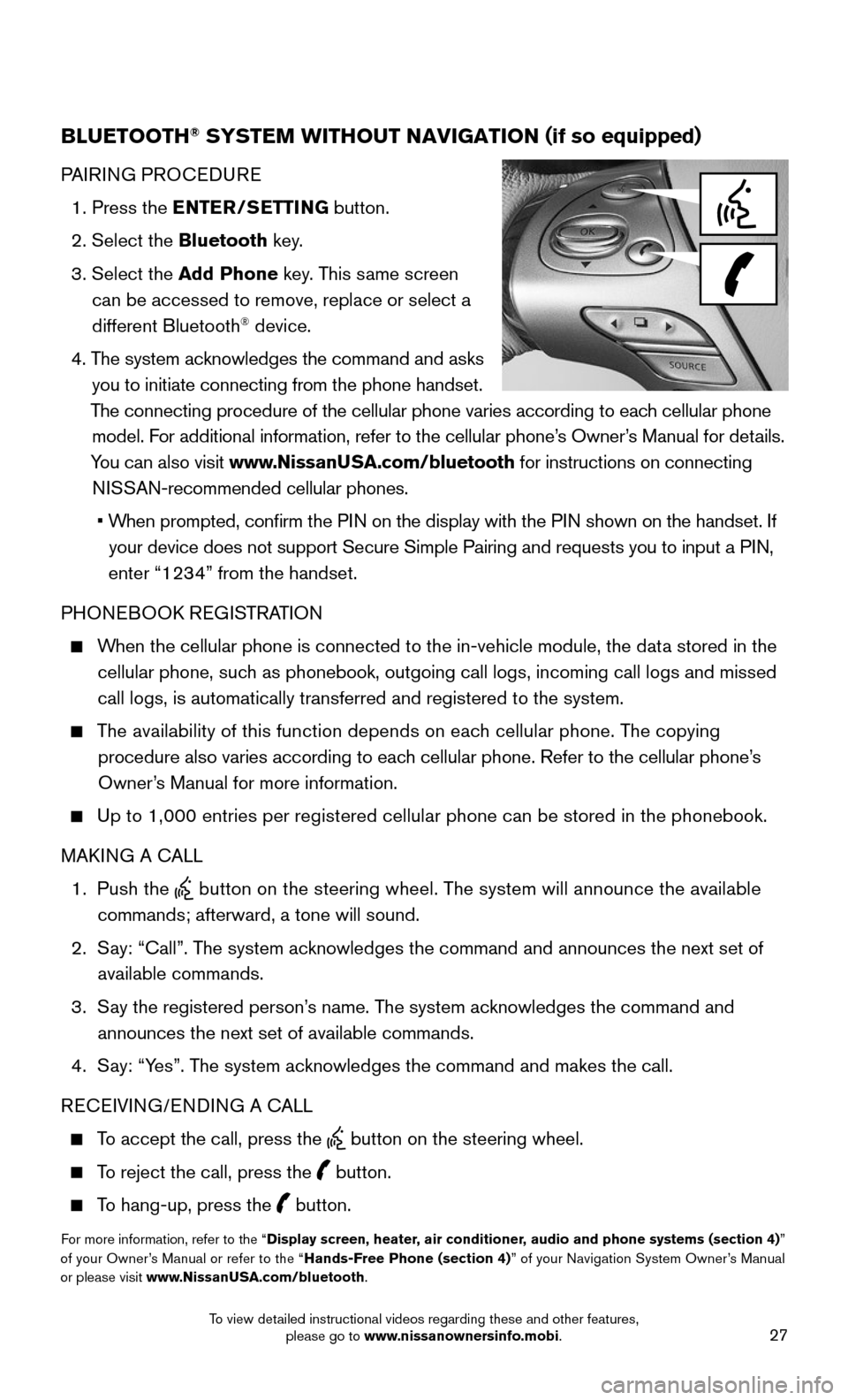
1. Push the button on the steering wheel. The system will announce the available
commands; afterward, a tone will sound.
2. Say: “Call”. The system acknowledges the command and announces the next set of
available commands.
3. Say the registered person’s name. The system acknowledges the command and
announces the next set of available commands.
4. Say: “Yes”. The system acknowledges the command and makes the call.
RECEIVING/ENDING A CALL
To accept the call, press the button on the steering wheel.
To reject the call, press the button.
To hang-up, press the button.
For more information, refer to the “Display screen, heater, air conditioner, audio and phone systems (section 4)” of your Owner’s Manual or refer to the “Hands-Free Phone (section 4)” of your Navigation System Owner’s Manual or please visit www.NissanUSA.com/bluetooth.
To view detailed instructional videos regarding these and other features, please go to www.nissanownersinfo.mobi.