ECO mode NISSAN MURANO 2016 3.G Owner's Manual
[x] Cancel search | Manufacturer: NISSAN, Model Year: 2016, Model line: MURANO, Model: NISSAN MURANO 2016 3.GPages: 465, PDF Size: 6.59 MB
Page 234 of 465
Connecting a device to the USB
Connection Port
WARNING
Do not connect, disconnect, or operate the
USB device while driving. Doing so can be
a distraction. If distracted you could lose
control of your vehicle and cause an acci-
dent or serious injury.
CAUTION
●To avoid damage and loss of function
when using a USB device, note the fol-
lowing precautions.
●Do not force the USB device into the
USB port. Inserting the USB device
tilted or up-side-down into the port may
damage the port. Make sure that the
USB device is connected correctly into
the USB port.
●Do not grab the USB port cover (if so
equipped) when pulling the USB device
out of the port. This could damage the
port and the cover.
●Do not leave the USB cable in a place
where it can be pulled unintentionally.
Pulling the cable may damage the port.
Refer to your device manufacturer’s owner infor-
mation regarding the proper use and care of the
device.
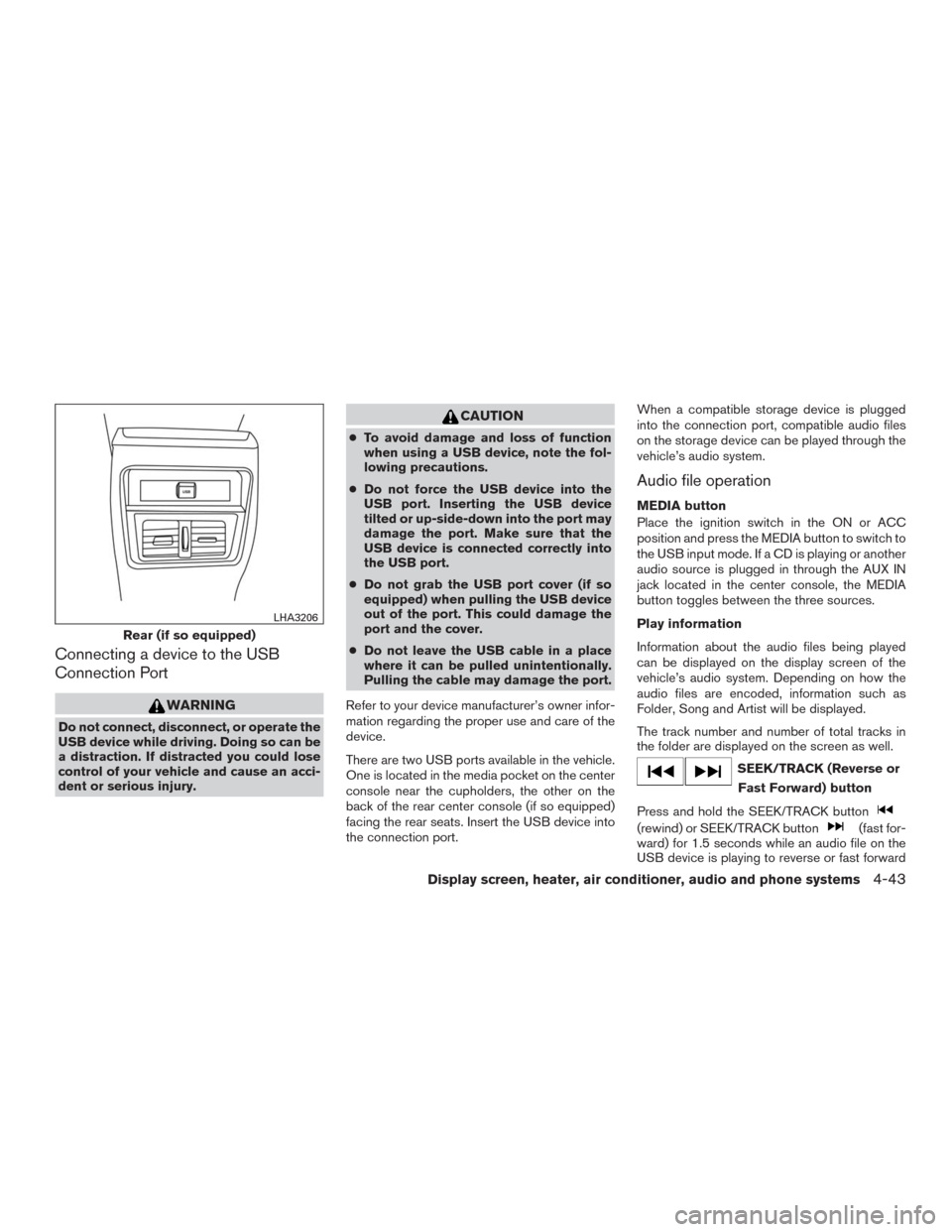
There are two USB ports available in the vehicle.
One is located in the media pocket on the center
console near the cupholders, the other on the
back of the rear center console (if so equipped)
facing the rear seats. Insert the USB device into
the connection port.When a compatible storage device is plugged
into the connection port, compatible audio files
on the storage device can be played through the
vehicle’s audio system.
Audio file operation
MEDIA button
Place the ignition switch in the ON or ACC
position and press the MEDIA button to switch to
the USB input mode. If a CD is playing or another
audio source is plugged in through the AUX IN
jack located in the center console, the MEDIA
button toggles between the three sources.
Play information
Information about the audio files being played
can be displayed on the display screen of the
vehicle’s audio system. Depending on how the
audio files are encoded, information such as
Folder, Song and Artist will be displayed.
The track number and number of total tracks in
the folder are displayed on the screen as well.
SEEK/TRACK (Reverse or
Fast Forward) button
Press and hold the SEEK/TRACK button
(rewind) or SEEK/TRACK button(fast for-
ward) for 1.5 seconds while an audio file on the
USB device is playing to reverse or fast forward
Rear (if so equipped)
LHA3206
Display screen, heater, air conditioner, audio and phone systems4-43
Page 237 of 465
Compatibility
The following models are compatible:
●iPod® Classic - 5th Generation (firmware
version 1.3.0 or later)
●iPod® Classic - 6th Generation (firmware
version 2.0.1 or later)
●iPod® Classic - 7th Generation (firmware
version 2.0.4 or later)
●iPod® nano - 1st generation (firmware ver-
sion 1.3.1 or later)
●iPod® nano - 2nd generation (firmware ver-
sion 1.1.3 or later)
●iPod® nano - 3rd generation (firmware ver-
sion 1.1.3 or later)
●iPod® nano - 4th generation (firmware ver-
sion 1.0.4 or later)
●iPod® nano - 5th generation (firmware ver-
sion 1.0.2 or later)
●iPod® nano - 6th generation (firmware ver-
sion 1.1 or later)
●iPod® Touch - 2nd generation (firmware
version 4.2.1 or later)●iPod® Touch - 3rd generation (firmware ver-
sion 5.1 or later) (minimum iOS 5.0 required
for smartphone integration)
●iPod® Touch - 4th generation (firmware ver-
sion 5.1 or later) (minimum iOS 5.0 required
for smartphone integration)
●iPhone® 3G (firmware version 4.2.1 or later)
●iPhone® 3GS (firmware version 5.1 or later)
(minimum iOS 5.0 required for smartphone
integration)
●iPhone® 4 (firmware version 5.1 or later)
(minimum iOS 5.0 required for smartphone
integration)
●iPhone® 4S (firmware version 5.1 or later)
(minimum iOS 5.0 required for smartphone
integration)
●iPhone®5 (firmware version 5.1 or later)
(minimum iOS 5.0 required for smartphone
integration)
Make sure that your iPod® firmware is updated to
the version indicated above.
NOTE:
Apple certified USB cables are supported.
Some aftermarket cables may not be sup-
ported.
Audio main operation
Place the ignition switch in the ACC or ON
position. Press the MEDIA button repeatedly to
switch to the iPod® mode.
If the system has been turned off while the iPod®
was playing, pressing the
button will start
the iPod®.
SEEK/TRACK buttons
Press the
SEEK button orTRACK
button to skip backward or forward one track.
Press and hold the
SEEK button orTRACK button for 1.5 seconds while a track is
playing to reverse or fast forward the track being
played. The track plays at an increased speed
while reversing or fast forwarding. When the but-
ton is released, the track returns to normal play
speed.
REPEAT (RPT)
When the RPT button is pressed while a track is
being played, the play pattern can be changed as
follows:
Repeat Off→1 Track Repeat→All Repeat→
Repeat Off
1 Track Repeat: the current track will be re-
peated.
4-46Display screen, heater, air conditioner, audio and phone systems
Page 238 of 465
All Repeat: all songs in the current list are re-
peated.
Repeat Off: no repeat play pattern is applied.
RANDOM (RDM)
When the RDM button is pressed while a track is
being played, the play pattern can be changed as
follows:
Shuffle Off→Track Shuffle→Album Shuffle→
Shuffle Off
Track Shuffle: the tracks in the current list will be
played randomly.
Album Shuffle: the albums in the current list will
be played randomly.
Shuffle Off: no random play pattern is applied.
BACK button
When the BACK button is pressed, it returns to
the previous menu.
BLUETOOTH® STREAMING AUDIO
WITHOUT NAVIGATION SYSTEM
If you have a compatible Bluetooth® audio de-
vice that is capable of playing audio files, the
device can be connected to the vehicle’s audio
system so that the audio files on the device play
through the vehicle’s speakers.
Connecting Bluetooth® audio
To connect your Bluetooth® audio device to the
vehicle, follow the procedure below:
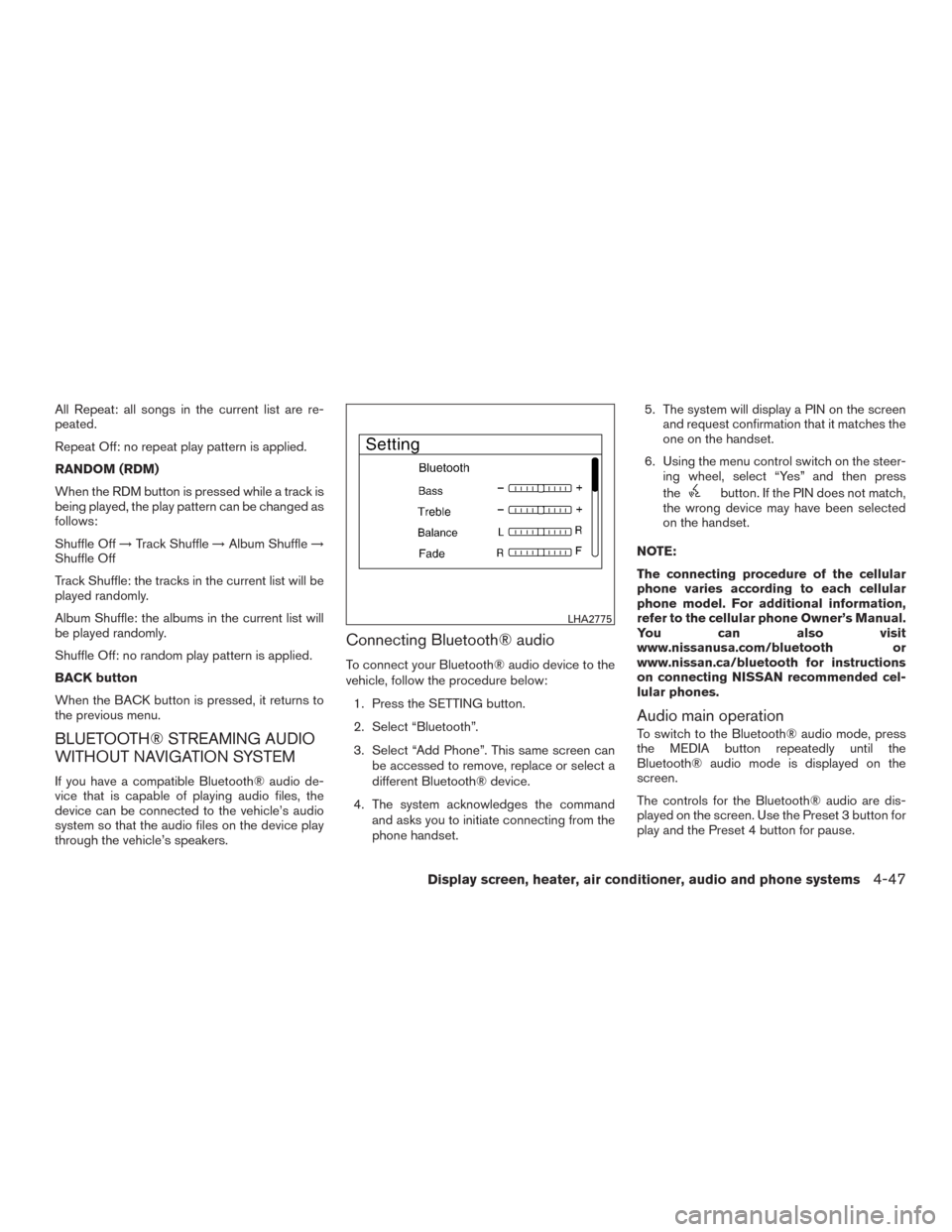
1. Press the SETTING button.
2. Select “Bluetooth”.
3. Select “Add Phone”. This same screen can
be accessed to remove, replace or select a
different Bluetooth® device.
4. The system acknowledges the command
and asks you to initiate connecting from the
phone handset.5. The system will display a PIN on the screen
and request confirmation that it matches the
one on the handset.
6. Using the menu control switch on the steer-
ing wheel, select “Yes” and then press
the
button. If the PIN does not match,
the wrong device may have been selected
on the handset.
NOTE:
The connecting procedure of the cellular
phone varies according to each cellular
phone model. For additional information,
refer to the cellular phone Owner’s Manual.
You can also visit
www.nissanusa.com/bluetooth or
www.nissan.ca/bluetooth for instructions
on connecting NISSAN recommended cel-
lular phones.
Audio main operation
To switch to the Bluetooth® audio mode, press
the MEDIA button repeatedly until the
Bluetooth® audio mode is displayed on the
screen.
The controls for the Bluetooth® audio are dis-
played on the screen. Use the Preset 3 button for
play and the Preset 4 button for pause.
LHA2775
Display screen, heater, air conditioner, audio and phone systems4-47
Page 239 of 465
CD CARE AND CLEANING
●Handle a CD by its edges. Do not bend the
disc. Never touch the surface of the disc.
●Always place the discs in the storage case
when they are not being used.
●To clean a disc, wipe the surface from the
center to the outer edge using a clean, soft
cloth. Do not wipe the disc using a circular
motion.
●Do not use a conventional record cleaner or
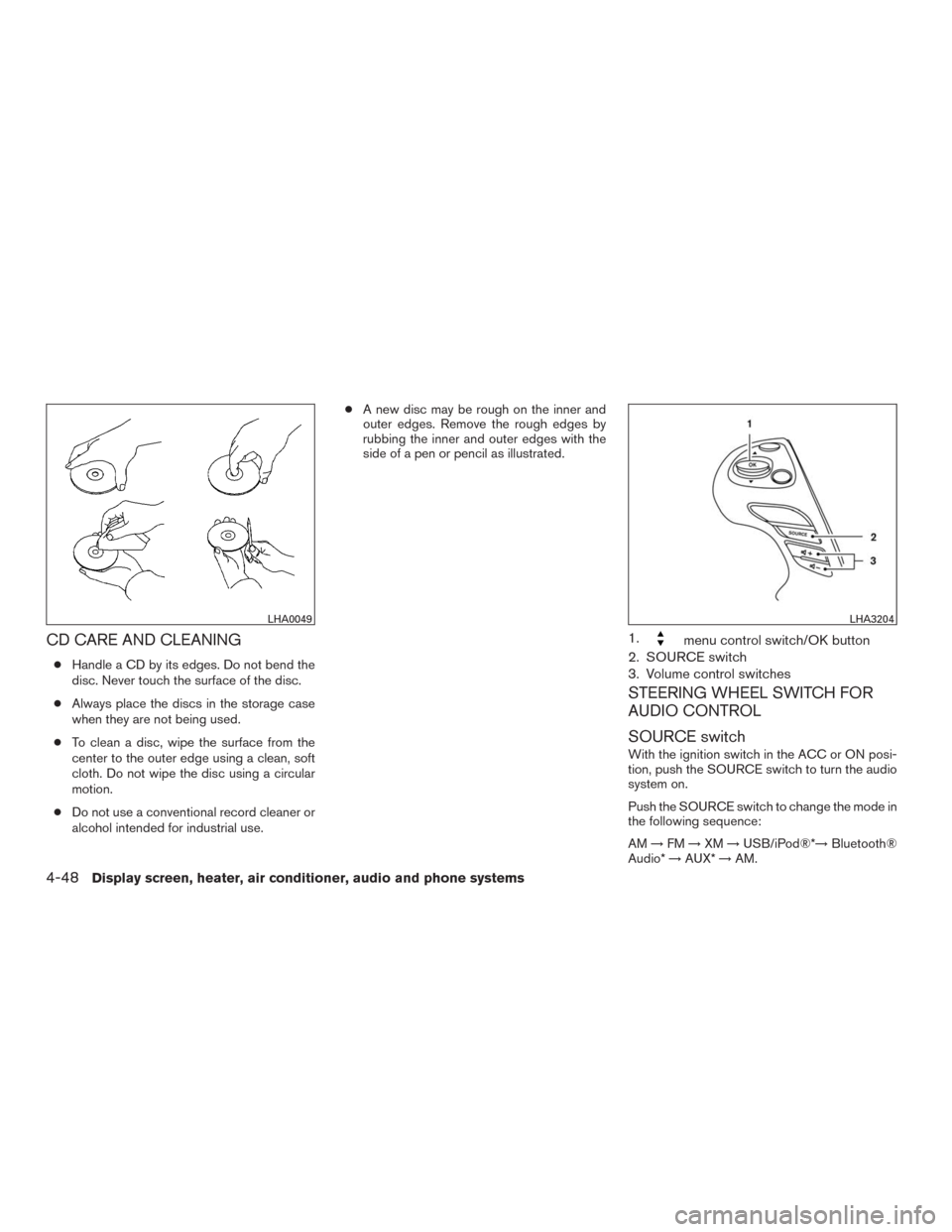
alcohol intended for industrial use.●A new disc may be rough on the inner and
outer edges. Remove the rough edges by
rubbing the inner and outer edges with the
side of a pen or pencil as illustrated.
1.menu control switch/OK button
2. SOURCE switch
3. Volume control switches
STEERING WHEEL SWITCH FOR
AUDIO CONTROL
SOURCE switch
With the ignition switch in the ACC or ON posi-
tion, push the SOURCE switch to turn the audio
system on.
Push the SOURCE switch to change the mode in
the following sequence:
AM→FM→XM→USB/iPod®*→Bluetooth®
Audio*→AUX*→AM.
LHA0049LHA3204
4-48Display screen, heater, air conditioner, audio and phone systems
Page 240 of 465
* These modes are only available when compat-
ible media storage is inserted into the device or
connected to the system.
Volume control buttons
Push the volume control buttons to increase or
decrease the volume.
Menu control
switch/OK button
While the display is showing a map or audio
screen, tilt the Menu Control switch upward or
downward to select a station, track, CD or folder.
For most audio sources, tilting the switch
up/down for more than 1.5 seconds provides a
different function than a tilting up/down for less
than 1.5 seconds.
AM and FM
●Tilt up/down for less than 1.5 seconds to
increase or decrease the preset station.
●Tilt up/down for more than 1.5 seconds to
seek up or down to the next station.
●Press the OK button to show the list of
preset stations.XM
●Tilt up/down for less than 1.5 seconds to
increase or decrease the preset station.
●Tilt up/down for more than 1.5 seconds to
go to the next or previous channel.
●Press the OK button to show the XM Menu.
iPod®
●Tilt up/down for less than 1.5 seconds to
increase or decrease the track number.
●Press the OK button to show the iPod Menu.
CD
●Tilt up/down for less than 1.5 seconds to
increase or decrease the track number.
●Tilt up/down for more than 1.5 seconds to
increase or decrease the folder number (if
playing compressed audio files) .
●Press the OK button to show the CD Menu.
USB
●Tilt up/down for less than 1.5 seconds to
increase or decrease the track number.
●Tilt up/down for more than 1.5 seconds to
increase or decrease the folder number.
●Press the OK button to show the USB Menu.Bluetooth® Audio
●Tilt up/down for less than 1.5 seconds to
skip ahead or back to the next song.
●Tilt up/down for more than 1.5 seconds to
reverse or fast forward the current song.
AUX
●Press the OK button to show the AUX Menu.
ANTENNA
The vehicle is equipped with a shark fin antenna
and an antenna pattern is printed inside the rear
window.
CAUTION
●Do not place metalized film near the
rear window glass or attach any metal
parts to it. This may cause poor recep-
tion or noise.
●When cleaning the inside of the rear
window, be careful not to scratch or
damage the rear window antenna.
Lightly wipe along the antenna with a
dampened soft cloth.
Display screen, heater, air conditioner, audio and phone systems4-49
Page 242 of 465
When installing a CB, ham radio or car phone in
your vehicle, be sure to observe the following
precautions; otherwise, the new equipment may
adversely affect the engine control system and
other electronic parts.
WARNING
●A cellular phone should not be used for
any purpose while driving so full atten-
tion may be given to vehicle operation.
Some jurisdictions prohibit the use of
cellular phones while driving.
●If you must make a call while your ve-
hicle is in motion, the hands free cellu-
lar phone operational mode is highly
recommended. Exercise extreme cau-
tion at all times so full attention may be
given to vehicle operation.
●If you are unable to devote full attention
to vehicle operation while talking on
the phone, pull off the road to a safe
location and stop your vehicle.
CAUTION
●Keep the antenna as far away as pos-
sible from the electronic control
modules.
●Keep the antenna wire more than 8 in
(20 cm) away from the electronic control
system harnesses. Do not route the an-
tenna wire next to any harness.
●Adjust the antenna standing-wave ratio
as recommended by the manufacturer.
●Connect the ground wire from the CB
radio chassis to the body.
●For details, it is recommended that you
visit a NISSAN dealer for servicing.
WARNING
●Use a phone after stopping your vehicle
in a safe location. If you have to use a
phone while driving, exercise extreme
caution at all times so full attention may
be given to vehicle operation.
●If you are unable to devote full attention
to vehicle operation while talking on
the phone, pull off the road to a safe
location and stop your vehicle.
CAUTION
To avoid discharging the vehicle battery,
use a phone after starting the engine.
CAR PHONE OR CB RADIO BLUETOOTH® HANDS-FREE PHONE
SYSTEM WITHOUT NAVIGATION
SYSTEM (if so equipped)
Display screen, heater, air conditioner, audio and phone systems4-51
Page 253 of 465
●New Text Sound (if so equipped)
Select to adjust the volume of the sound that
plays when a new text is received by a phone
connected to the Bluetooth® Hands-Free
Phone System. The setting all the way to the
left indicates that the new text sound will be
muted.
●Show Incoming Text (if so equipped)
Select “Driver Only” to have incoming text
messages displayed only in the vehicle infor-
mation display. Select “Both” to have incom-
ing text messages displayed in both the ve-
hicle information display and the center
display screen. Select “None” to have no
display of incoming text messages.
●Edit Custom Messages (if so equipped)
Select to set a custom message that will be
available with the standard options when
sending a text message. To set a custom
message, send a text message to your own
phone number while the phone is connected
to the system. Three custom messages can
be set. Custom messages can only be set
while the vehicle is stationary.●Auto Reply (if so equipped)
Select to turn on or off the Auto Reply func-
tion. When enabled, the vehicle will auto-
matically send a predefined text message to
the sender when a text message is received
while driving.
●Auto Reply Message (if so equipped)
Select to choose the message that is sent
when the Auto Reply function is enabled.
Choose from “I’m Driving” or one of the three
custom messages stored in the system.
●Vehicle Signature On/Off (if so equipped)
Select to choose whether or not the vehicle
signature is added to outgoing text mes-
sages from the vehicle. This message can-
not be changed or customized.MANUAL CONTROL
While using the NISSAN Voice Recognition sys-
tem, it is possible to select menu options by using
the steering wheel controls instead of speaking
voice commands. To activate manual control
mode, press the PHONE/SEND (
) button
on the steering wheel to access the phone menu
and then push either up or down on the tuning
switch (
).
The manual control mode does not allow dialing a
phone number by digits. The user may select an
entry from the Phonebook or Recent Calls lists.
To reactivate NISSAN Voice Recognition, exit the
manual control mode by pressing and holding the
PHONE/END (
) button. At that time, press-
ing the PHONE/SEND (
) button will start
the Hands Free Phone System.
4-62Display screen, heater, air conditioner, audio and phone systems
Page 264 of 465
DRIVING SAFETY PRECAUTIONS
Your NISSAN is designed for both normal and
off-road use. However, avoid driving in deep wa-
ter or mud as your NISSAN is mainly designed for
leisure use, unlike a conventional off-road ve-
hicle.
Remember that 2-wheel drive models are less
capable than all-wheel drive models for rough
road driving and extrication when stuck in deep
snow or mud, or the like.
Please observe the following precautions:
WARNING
●Spinning the front wheels on slippery
surface may cause the AWD warning
message to display and the AWD sys-
tem to automatically switch from the
AWD to the 2WD mode. This could re-
duce the traction. Be especially careful
when towing a trailer. (AWD models)
●Drive carefully when off the road and
avoid dangerous areas. Every person
who drives or rides in this vehicle
should be seated with their seat belt
fastened. This will keep you and your
passengers in position when driving
over rough terrain.●Do not drive across steep slopes. In-
stead drive either straight up or straight
down the slopes. Off-road vehicles can
tip over sideways much more easily
than they can forward or backward.
●Many hills are too steep for any vehicle.
If you drive up them, you may stall. If
you drive down them, you may not be
able to control your speed. If you drive
across them, you may roll over.
●Do not shift gears while driving on
downhill grades as this could cause
loss of control of the vehicle.
●Stay alert when driving to the top of a
hill. At the top there could be a drop-off
or other hazard that could cause an
accident.
●If your engine stalls or you cannot make
it to the top of a steep hill, never at-
tempt to turn around. Your vehicle could
tip or roll over. Always back straight
down in R (Reverse) gear and apply
brakes to control your speed.
●Heavy braking going down a hill could
cause your brakes to overheat and fade,
resulting in loss of control and an acci-
dent. Apply brakes lightly and use a low
gear to control your speed.●Unsecured cargo can be thrown around
when driving over rough terrain. Prop-
erly secure all cargo so it will not be
thrown forward and cause injury to you
or your passengers.
●Exceeding the roof rack capacity can
raise the center of gravity excessively
and affect the handling and stability of
the vehicle.
●Secure heavy loads in the cargo area as
far forward and as low as possible. Do
not equip the vehicle with tires larger
than specified in this manual. This could
cause your vehicle to roll over.
●Do not grip the inside or spokes of the
steering wheel when driving off-road.
The steering wheel could move sud-
denly and injure your hands. Instead
drive with your fingers and thumbs on
the outside of the rim.
●Before operating the vehicle, ensure
that the driver and all passengers have
their seat belts fastened.
●Always drive with the floor mats in place
as the floor may become hot.
Starting and driving5-9
Page 270 of 465
1. Apply the parking brake.
2. Move the shift lever to P (Park) or N (Neu-
tral) . P (Park) is recommended.
The starter is designed not to operate
unless the shift lever is in either P
(Park) or N (Neutral) .
3. Push the ignition switch to the ON position.
Depress the brake pedal and push the igni-
tion switch to start the engine.
To start the engine immediately, push and
release the ignition switch while depressing
the brake pedal with the ignition switch in
any position.
●If the engine is very hard to start in ex-
tremely cold weather or when restarting,
depress the accelerator pedal a little (ap-
proximately 1/3 to the floor) and while
holding, crank the engine. Release the
accelerator pedal when the engine starts.
●If the engine is very hard to start because
it is flooded, depress the accelerator
pedal all the way to the floor and hold it.
Push the ignition switch to the ON posi-
tion to start cranking the engine. After five
or six seconds, stop cranking by pushing
the ignition switch to LOCK. After crank-
ing the engine, release the accelerator
pedal. Crank the engine with your foot offthe accelerator pedal by depressing the
brake pedal and pushing the push-button
ignition switch to start the engine. If the
engine starts, but fails to run, repeat the
above procedure.
CAUTION
Do not operate the starter for more than
15 seconds at a time. If the engine does
not start, push the ignition switch to the
OFF position and wait 10 seconds before
cranking again, otherwise the starter
could be damaged.
4.Warm-up
Allow the engine to idle for at least 30 sec-
onds after starting. Do not race the engine
while warming it up. Drive at moderate
speed for a short distance first, especially in
cold weather. In cold weather, keep the en-
gine running for a minimum of two to three
minutes before shutting it off. Starting and
stopping the engine over a short period of
time may make the vehicle more difficult to
start.
5. To stop the engine, shift the shift lever into
the P (Park) position and push the ignition
switch to the OFF position.NOTE:
Care should be taken to avoid situations
that can lead to potential battery discharge
and potential no-start conditions such as:
1. Installation or extended use of electronic
accessories that consume battery power
when the engine is not running (Phone char-
gers, GPS, DVD players, etc.)
2. Vehicle is not driven regularly and/or only
driven short distances.
In these cases, the battery may need to be
charged to maintain battery health.
REMOTE START (if so equipped)
Vehicles started with the remote start require the
ignition switch to be placed in the ON position
before the shift lever can be moved from the P
(Park) position. To place the ignition switch to the
ON position, follow these steps:
1. Make sure that the Intelligent Key is on you.
2. Apply the brake.
3. Push the ignition switch once to the ON
position.
For additional information, refer to “NISSAN In-
telligent Key®” in the “Pre-driving checks and
adjustments” section of this manual.
STARTING THE ENGINE
Starting and driving5-15
Page 271 of 465
CONTINUOUSLY VARIABLE
TRANSMISSION (CVT)
WARNING
●Do not depress the accelerator pedal
while shifting from P (Park) or N (Neu-
tral) to R (Reverse) , D (Drive) , or (M)
Manual shift mode. Always depress the
brake pedal until shifting is completed.
Failure to do so could cause you to lose
control and have an accident.
●Cold engine idle speed is high, so use
caution when shifting into a forward or
reverse gear before the engine has
warmed up.
●Do not downshift abruptly on slippery
roads. this may cause a loss of control.
●Never shift to either the P (Park) or R
(Reverse) position while the vehicle is
moving forward and P (Park) or D
(Drive) position while the vehicle is re-
versing. This could cause an accident or
damage the transmission.
CAUTION
To avoid possible damage to your vehicle
when stopping the vehicle on an uphill
grade, do not hold the vehicle by depress-
ing the accelerator pedal. The foot brake
should be used for this purpose.
The CVT in your vehicle is electronically con-
trolled to produce maximum power and smooth
operation.
The recommended operating procedures for this
transmission are shown on the following pages.
Follow these procedures for maximum vehicle
performance and driving enjoyment.
Engine power may be automatically re-
duced to protect the CVT if the engine
speed increases quickly when driving on
slippery roads or while being tested on
some dynamometers.
Starting the vehicle
1. After starting the engine, fully depress the
foot brake pedal before moving the shift
lever out of the P (Park) position.
This CVT is designed so that the foot
brake pedal must be depressed before
shifting from P (Park) to any driving
position while the ignition switch is in
the ON position.The shift lever cannot be moved out of
the P (Park) position and into any of
the other positions if the ignition
switch is placed in the LOCK, OFF or
ACC position.
2. Keep the foot brake pedal depressed and
move the shift lever to a driving position.
3. Release the parking brake and foot brake
pedal, and then gradually start the vehicle in
motion.
WARNING
●Do not depress the accelerator pedal
while shifting from P (Park) or N (Neu-
tral) to R (Reverse) or D (Drive) position.
Always depress the brake pedal until
shifting is completed. Failure to do so
could cause you to lose control and
have an accident.
●Cold engine idle speed is high, so use
caution when shifting into a forward or
reverse gear before the engine has
warmed up.
DRIVING THE VEHICLE
5-16Starting and driving