Driving aids NISSAN MURANO 2022 Owners Manual
[x] Cancel search | Manufacturer: NISSAN, Model Year: 2022, Model line: MURANO, Model: NISSAN MURANO 2022Pages: 508, PDF Size: 3.27 MB
Page 110 of 508
— go back or forward
through the vehicle information menu
items or to change from one display
screen to the next (i.e. trip, TPMS, fuel
economy).
The OK and
buttons also
control audio and control panel functions
in some conditions. Most screens and
menus offer instruction prompts of the
steering switch buttons to indicate how to
control the vehicle information display. An
orange cursor is shown to indicate where
you are in the available menu items. A scroll
bar with up and down arrows will appear if
there is more than one page of menu
items. For additional information, refer to
the separate NissanConnect® Owner’s
Manual.
STARTUP DISPLAY
When the vehicle in placed in the ON or ACC
position the screens that display in the ve-
hicle information display include:
• Home
• Audio
• Navigation (if so equipped)
• Drive computer
• Fuel economy
• Driving aids (if so equipped)
• Speed Limit Sign (if so equipped)
• Tire pressure information
• Warning review
• Settings
The warnings review title screen will show
how many active warnings exist, or “No
items to review” in the event that no warn-
ings are active. For additional information
on warnings and indicators, see “Vehicle
information display warnings and indica-
tors” (P. 2-24).
To control what items display in the vehicle
information display, see “Customize Dis-
play ” (P. 2-20).
SETTINGS
The setting mode allows you to change the
information displayed in the vehicle infor-
mation display:
• Driver Assistance
• Customize Display
• Vehicle Settings
• Maintenance
• Clock
• TPMS Settings
• Unit / Language
• Key-Linked Settings
• Factory Reset
2-18Instruments and controls
Page 267 of 508
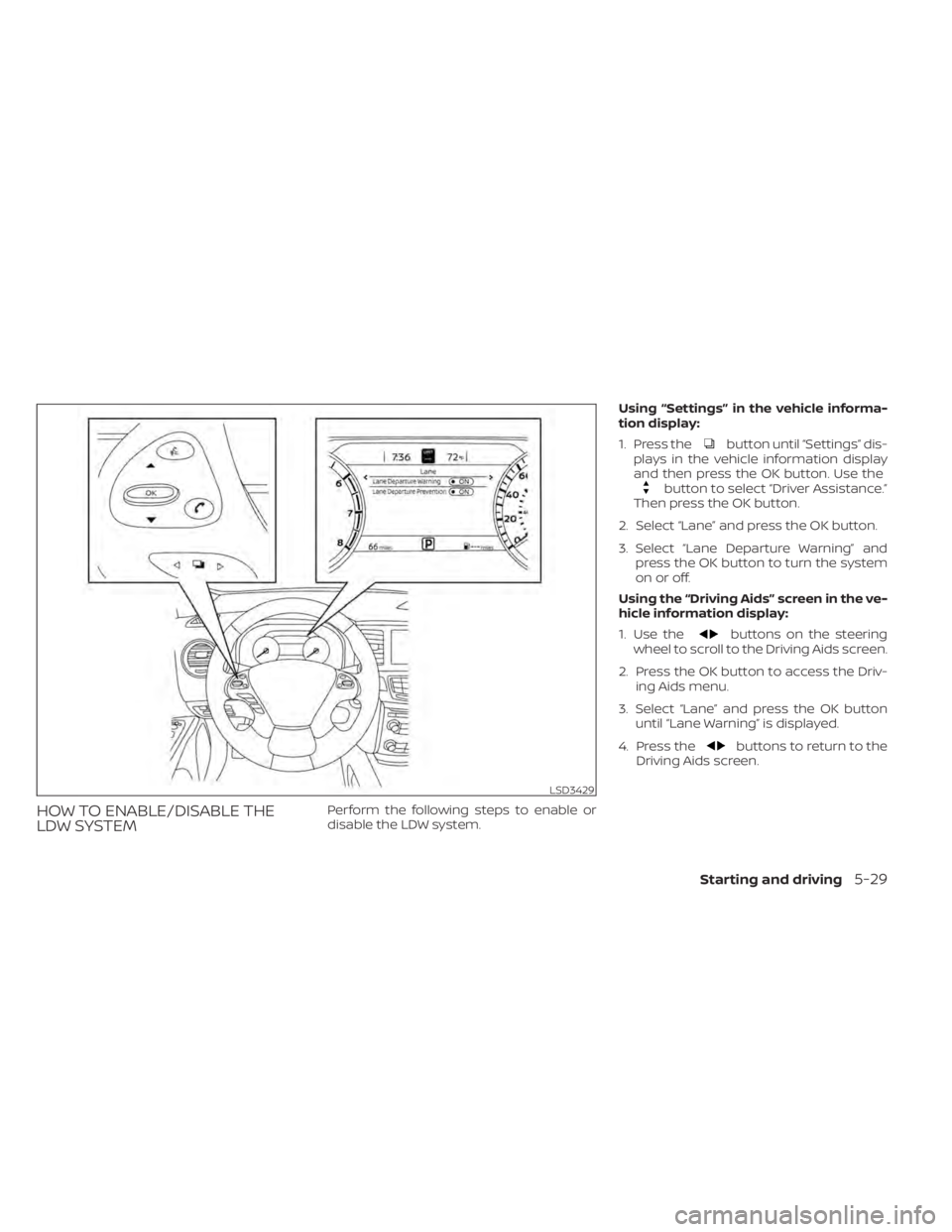
button until “Settings” dis-
plays in the vehicle information display
and then press the OK button. Use the
button to select “Driver Assistance.”
Then press the OK button.
2. Select “Lane” and press the OK button.
3. Select “Lane Departure Warning” and press the OK button to turn the system
on or off.
Using the “Driving Aids” screen in the ve-
hicle information display:
1. Use the
buttons on the steering
wheel to scroll to the Driving Aids screen.
2. Press the OK button to access the Driv- ing Aids menu.
3. Select “Lane” and press the OK button until “Lane Warning” is displayed.
4. Press the
buttons to return to the
Driving Aids screen.
LSD3429
Page 278 of 508
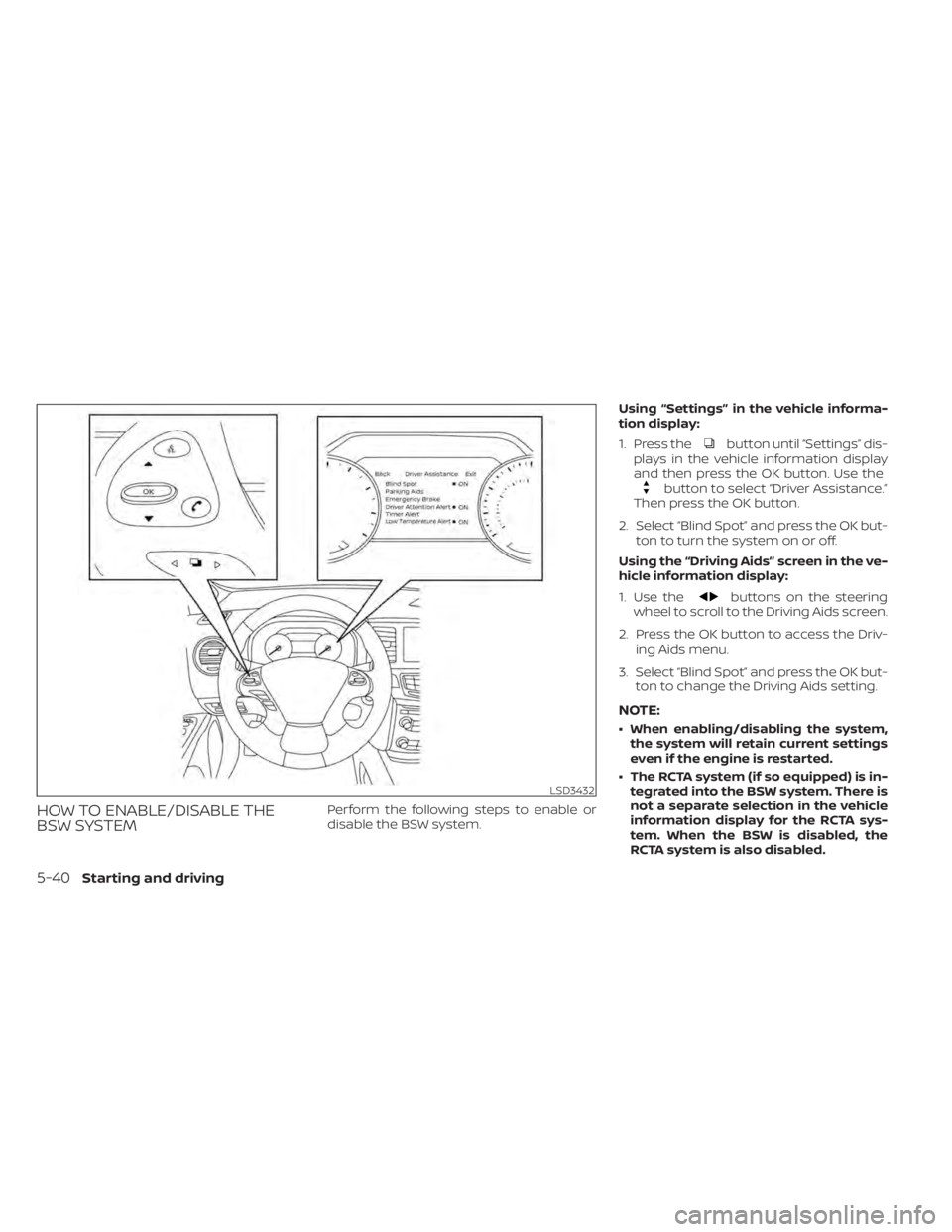
button until “Settings” dis-
plays in the vehicle information display
and then press the OK button. Use the
button to select “Driver Assistance.”
Then press the OK button.
2. Select “Blind Spot” and press the OK but- ton to turn the system on or off.
Using the “Driving Aids” screen in the ve-
hicle information display:
1. Use the
buttons on the steering
wheel to scroll to the Driving Aids screen.
2. Press the OK button to access the Driv- ing Aids menu.
3. Select “Blind Spot” and press the OK but- ton to change the Driving Aids setting.
NOTE:
• When enabling/disabling the system,the system will retain current settings
even if the engine is restarted.
• The RCTA system (if so equipped) is in- tegrated into the BSW system. There is
not a separate selection in the vehicle
information display for the RCTA sys-
tem. When the BSW is disabled, the
RCTA system is also disabled.
5-40Starting and driving
Page 288 of 508
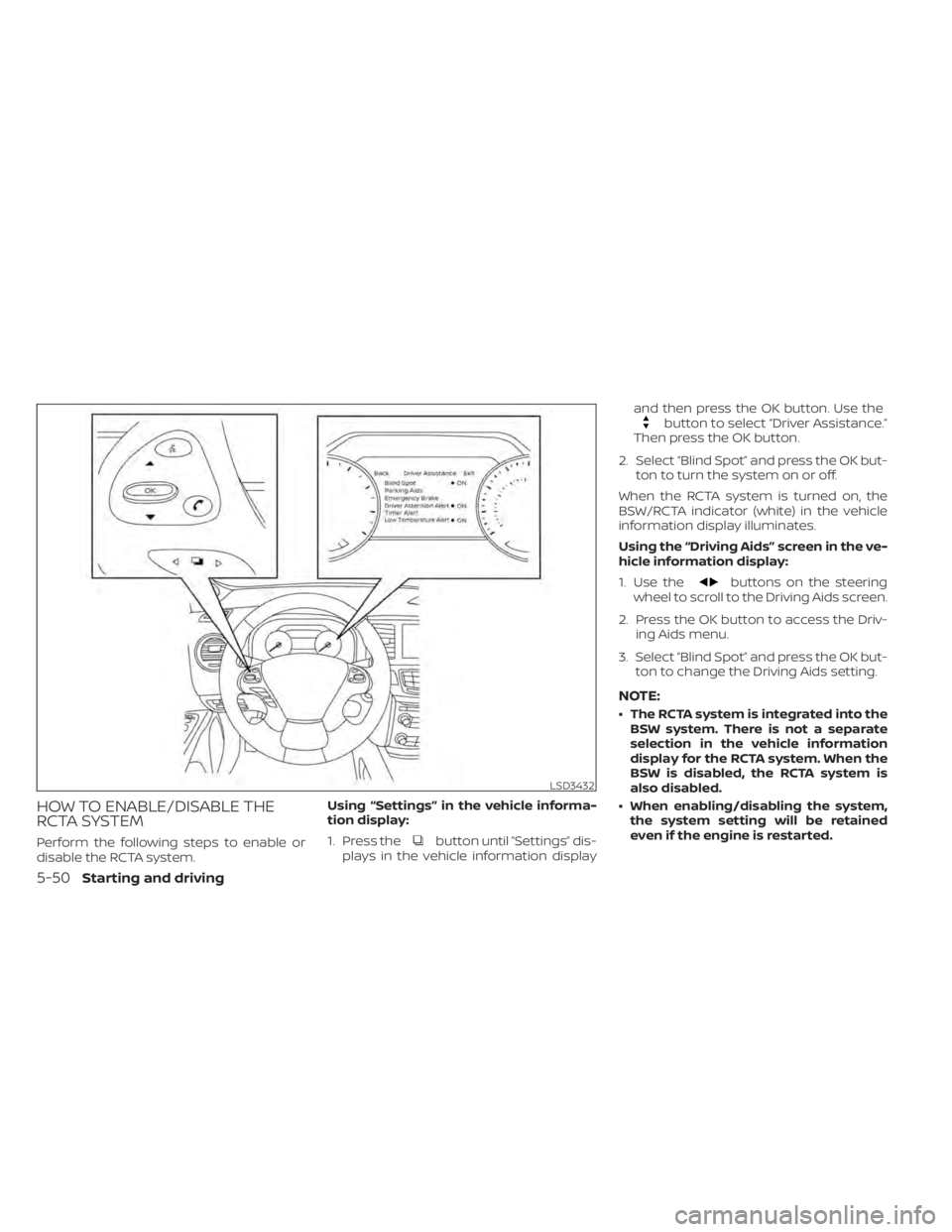
button until “Settings” dis-
plays in the vehicle information display and then press the OK button. Use the
button to select “Driver Assistance.”
Then press the OK button.
2. Select “Blind Spot” and press the OK but- ton to turn the system on or off.
When the RCTA system is turned on, the
BSW/RCTA indicator (white) in the vehicle
information display illuminates.
Using the “Driving Aids” screen in the ve-
hicle information display:
1. Use the
buttons on the steering
wheel to scroll to the Driving Aids screen.
2. Press the OK button to access the Driv- ing Aids menu.
3. Select “Blind Spot” and press the OK but- ton to change the Driving Aids setting.
NOTE:
• The RCTA system is integrated into theBSW system. There is not a separate
selection in the vehicle information
display for the RCTA system. When the
BSW is disabled, the RCTA system is
also disabled.
• When enabling/disabling the system, the system setting will be retained
even if the engine is restarted.
5-50Starting and driving
Page 294 of 508
• If theindicator blinks, turn the cruise
control off and have the system checked.
It is recommended that you visit a NISSAN
dealer for this service.
• The
indicator may blink when the
ON/OFF switch is turned on while push-
ing the RES/+ switch, SET/- switch, or
CANCEL switch. To properly set the cruise
control system, use the following
procedures.
indicator in
the vehicle information display will illumi-
nate. If the Cruise Control Alerts are en-
abled in the Driving Aids menu, then the
“Cruise ON: Press SET to engage speed
control” message will appear in the vehicle
information display.
This message will disappear af ter about 6
seconds, or can be dismissed by pushing
the OK button. Cruise control status will
continue to display in the upper right cor-
ner of the vehicle information display while
the system is on.
To set cruising speed, accelerate the ve-
hicle to the desired speed, push the SET/–
switch and release it. Take your foot off the
accelerator pedal. Your vehicle maintains
the set speed. If the Cruise Control Alerts are enabled in
the Driving Aids menu, then the “Target
Speed SET. Press + or – to adjust” message
will appear in the vehicle information dis-
play when the SET/– switch is pushed. This
message will disappear af ter about 6 sec-
onds, or can be dismissed by pushing the
OK button. Cruise control status will con-
tinue to display in the upper right corner of
the vehicle information display while the
system is on.
•
To pass another vehicle, depress the ac-
celerator pedal. When you release the
pedal, the vehicle returns to the previ-
ously set speed.
• The vehicle may not maintain the set speed when going up or down steep hills.
If this happens, drive without the cruise
control.
To cancel the preset speed, use one of the
following three methods:
• Push the CANCEL switch.
• Tap the brake pedal.
• Push the ON/OFF switch off. The
indicator in the vehicle information dis-
play goes out.
5-56Starting and driving
Page 357 of 508
The brake system has two separate hy-
draulic circuits. If one circuit malfunctions,
you will still have braking at two wheels.
BRAKE PRECAUTIONS
Vacuum assisted brakes
The brake booster aids braking by using
engine vacuum. If the engine stops, you
can stop the vehicle by depressing the
brake pedal. However, greater foot pres-
sure on the brake pedal will be required to
stop the vehicle and stopping distance will
be longer.
Using the brakes
Avoid resting your foot on the brake pedal
while driving. This will overheat the brakes,
wear out the brake pads faster, and reduce
gas mileage.
To help reduce brake wear and to prevent
the brakes from overheating, reduce speed
and downshif t to a lower gear before going
down a slope or long grade. Overheated
brakes may reduce braking performance
and could result in loss of vehicle control.
Page 364 of 508
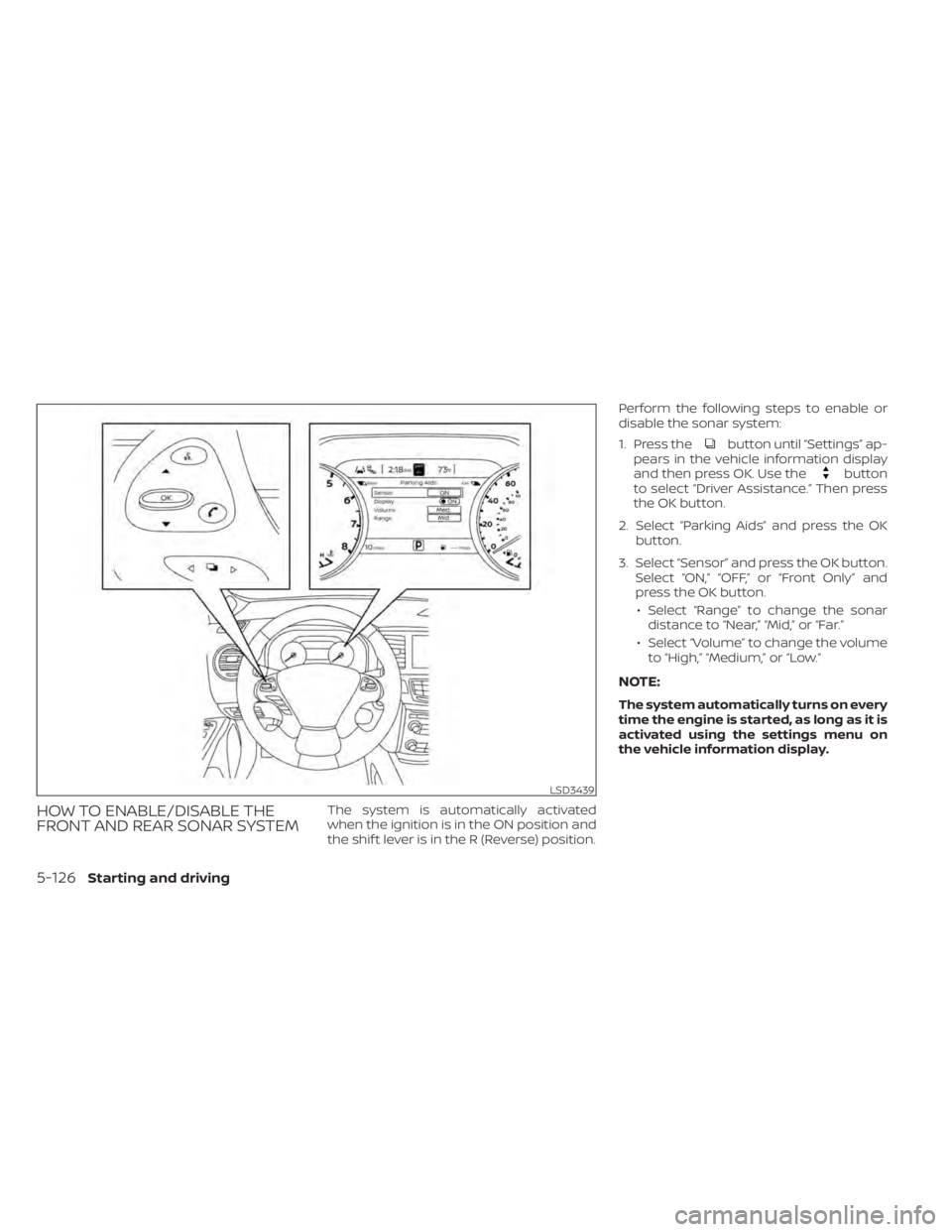
button until “Settings” ap-
pears in the vehicle information display
and then press OK. Use the
button
to select “Driver Assistance.” Then press
the OK button.
2. Select “Parking Aids” and press the OK button.
3. Select “Sensor” and press the OK button. Select “ON,” “OFF,” or “Front Only” and
press the OK button.
• Select “Range” to change the sonar distance to “Near,” “Mid,” or “Far.”
• Select “Volume” to change the volume to “High,” “Medium,” or “Low.”
NOTE:
The system automatically turns on every
time the engine is started, as long as it is
activated using the settings menu on
the vehicle information display.
5-126Starting and driving